UPDF
UPDF
 UPDF for Windows
 UPDF for Mac
 UPDF for iPhone/iPad
 UPDF for Android
 Nomostar
 UPDF AI Online
 UPDF Sign
 IvyCraft
 Edit PDF
 Annotate PDF
 Create PDF
 PDF Form
 Edit links
 Convert PDF
 OCR
OCR PDF to Word
 PDF to Image
 PDF to Excel
 Organize PDF
 Merge PDF
 Split PDF
 Crop PDF
 Rotate PDF
 Protect PDF
 Sign PDF
 Redact PDF
 Sanitize PDF
 Remove Security
 Read PDF
 UPDF Cloud
 Compress PDF
 Print PDF
 Batch Process
 About UPDF AI
 UPDF AI Solutions
 AI User Guide
 FAQ about UPDF AI
 Summarize PDF
 Translate PDF
 Chat with PDF
 Chat with AI
 Chat with image
 PDF to Mind Map
 Explain PDF
 PDF AI Tools
 Image AI Tools
 AI Chat Tools
 AI Writing Tools
 AI Study Tools
 AI Working Tools
 Other AI Tools
 AI Bookmark Generation
 AI Bookmark Summary
 AI Watermark Generation
 AI Background Generation
 AI Sticker Generation
 AI Stamp Generation
 AI Editing Suite
 UPDF Copilot
 AI Page Management
 AI Semantic Search
 PDF to Word
 PDF to Excel
 PDF to PowerPoint
 Enterprise Solution
 Enterprise Sign
 Enterprise AI
 Enterprise Plan
 Enterprise User Guide
 Enterprise Webinar
 IT
IT Education
 Construction
 Financial Service
 Healthcare
 Insurance
 Legal
Legal Manufacturing
 Government
 Researchers & PhDs
 Solopreneurs & Freelancers
 Lawyers & Legal Professionals
 Real Estate Agents & Brokers
 Education Solution
 Customer Stories
 User Guide
 UPDF Tricks
 FAQs
FAQs UPDF Reviews
 Download Center
 Blog
Blog Newsroom
 Tech Spec
 Updates
 UPDF vs. Adobe Acrobat
 UPDF vs. Foxit
 UPDF vs. PDF Expert

PII stands for Personally Identifiable Information, and it includes any data that can be used to identify a person. This can be names, addresses, ID numbers, or medical records. And this data must be protected under regulations like GDPR, CCPA, and HIPAA.
To comply with these, you'll need to redact PII data before sharing documents. However, many tools simply place a black box over the text instead of applying true redaction. As a result, the hidden data can still be extracted.
Therefore, this article offers the most reliable ways to perform PII redaction in PDFs.
One of these options is using a PII redaction software like UPDF . It allows you to permanently black out sensitive data without technical coding. You can download and try it for free.
Windows • macOS • iOS • Android 100% secure
Part 1. Technical Methods: Redacting PII via Code (Java & PHP)
If you're a developer handling large numbers of documents, automating the removal of personal data can save you a lot of time. Instead of reviewing files one at a time, you can use Java or PHP scripts to scan hundreds of PDF files and remove sensitive information at once.
However, these methods require a large amount of initial coding and careful handling of the PDF's internal structure. Moreover, being automated, they do not provide a visual preview before permanently applying the redaction. This leaves room for mistakes like accidentally marking unwanted areas for redactions.
If you want a simpler and more flexible solution, you can try UPDF instead. It lets you redact PII data using standard PDF controls and provides a preview for confirmation before applying the redaction. Download it now to get started.
Now, let's look at how this works in Java and PHP.
Method 1. Using Java to Redact PII in PDFs
For Java-based PII redaction, some popular libraries are Apache PDFBox and iText with its pdfSweep add-on.
Here I will show you the steps using iText.
- Include "itext7-core" and the "pdfSweep" add-on in your project using Maven (pom.xml) or Gradle (build.gradle).
- Open "PdfDocument" and use "PdfRedactAnnotation" to define the regions containing PII.
- Attach the annotations to the relevant page using "addAnnotation()."
- Create a "PdfCleanUpTool" with your defined locations and run "cleaner.cleanUp()" to delete the content from the PDF structure.
- Close and write the "PdfDocument" to a new file.
Method 2. Using PHP to Redact PII from PDFs
Two commonly used libraries for handling PDF redaction in PHP are TCPDF and FPDI. When used together, they let you manually hide sensitive content by placing solid black rectangles over specific areas of a page.
Here's how to redact PII from PDF files in PHP.
Step 1. Use Composer to install "tecnickcom/tcpdf" and "setasign/fpdi" and configure the "Tcpdf\Fpdi" class.
Step 2. Use "setSourceFile()" and "importPage()" to import the source PDF as a template.
Step 3. Draw black rectangles over known areas using "Rect()" and set the fill color to black with "SetFillColor(0, 0, 0)."
Step 4. Use the "Output()" function to generate the new PDF file.
These methods allow you to automate the task by writing a redaction script. However, they do not give you the visual check to confirm that no hidden or leftover text remains in the PDF.
If you are not a developer or if you need a final quality check, a dedicated PII redaction software can be a much safer and faster option. Below you'll find one such tool.
Part 2. The Professional Workflow: Secure Redaction with UPDF
UPDF offers a dedicated PDF redaction tool that allows you to search and redact PII data using standard PDF controls. You can search by keywords or use AI-powered semantic search to find related synonyms. Then you can apply redaction directly to identified terms, without needing any technical coding steps.
In addition, UPDF allows you to manually blackout text, images, or entire pages at once. Also, you can preview all redactions before finalizing.
Moreover, you can customize how the redaction should appear by adjusting the fill color, border style, and overlay text. It also includes built-in U.S. FOIA exemption codes, which are particularly useful for legal and government applications.
As an example, I'll show you a quick workflow of how it works in practice. But make sure to download and install UPDF on your desktop first. Then follow these steps.
Windows • macOS • iOS • Android 100% secure
Step-by-Step Redaction Workflow
Step 1. Launch UPDF and click "Open File" from the Home interface. Then import the PDF you want to work with.

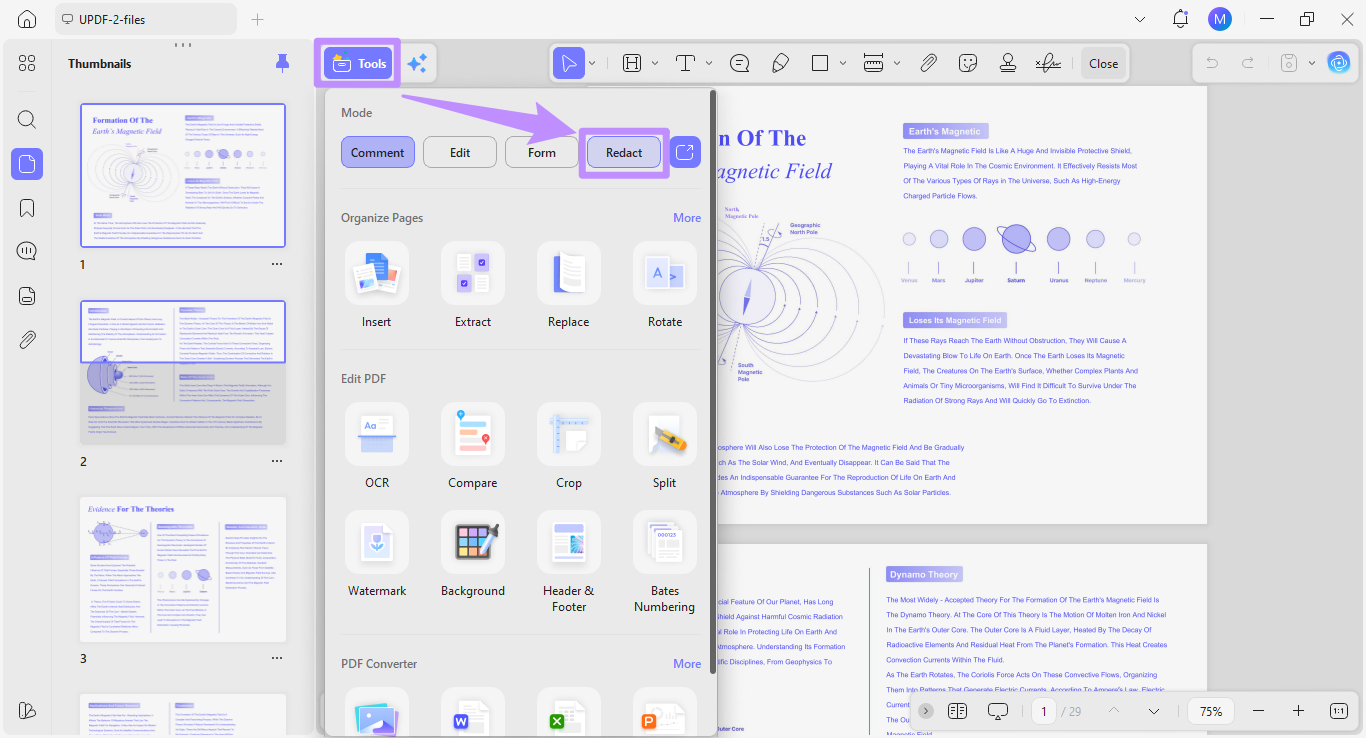
Step 2. Once opened, click on "Tools" from the top and select "Redact."
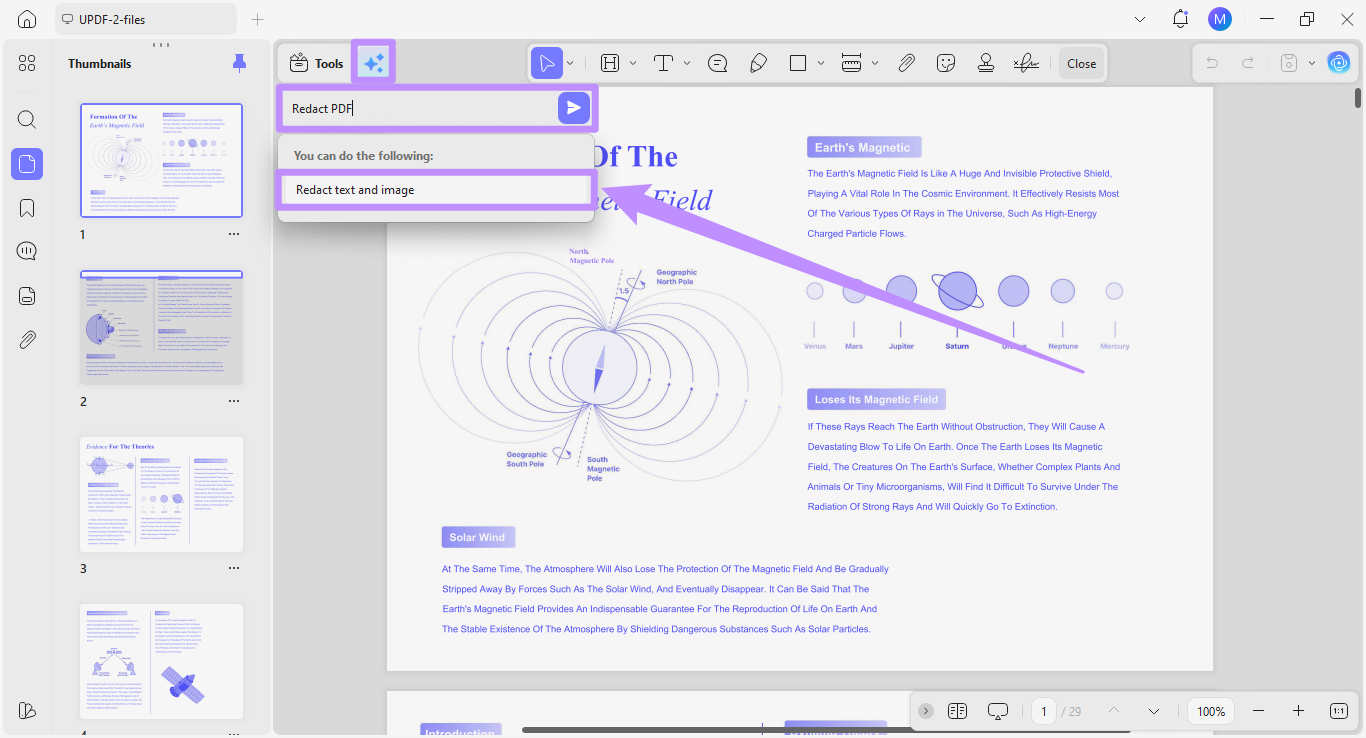
Alternatively, click the "UPDF Copilot" icon next to the Tools menu. Write "Redact PDF" in the text field and click the "Send" button. Then select "Redact Text and Image" from the AI suggestion.
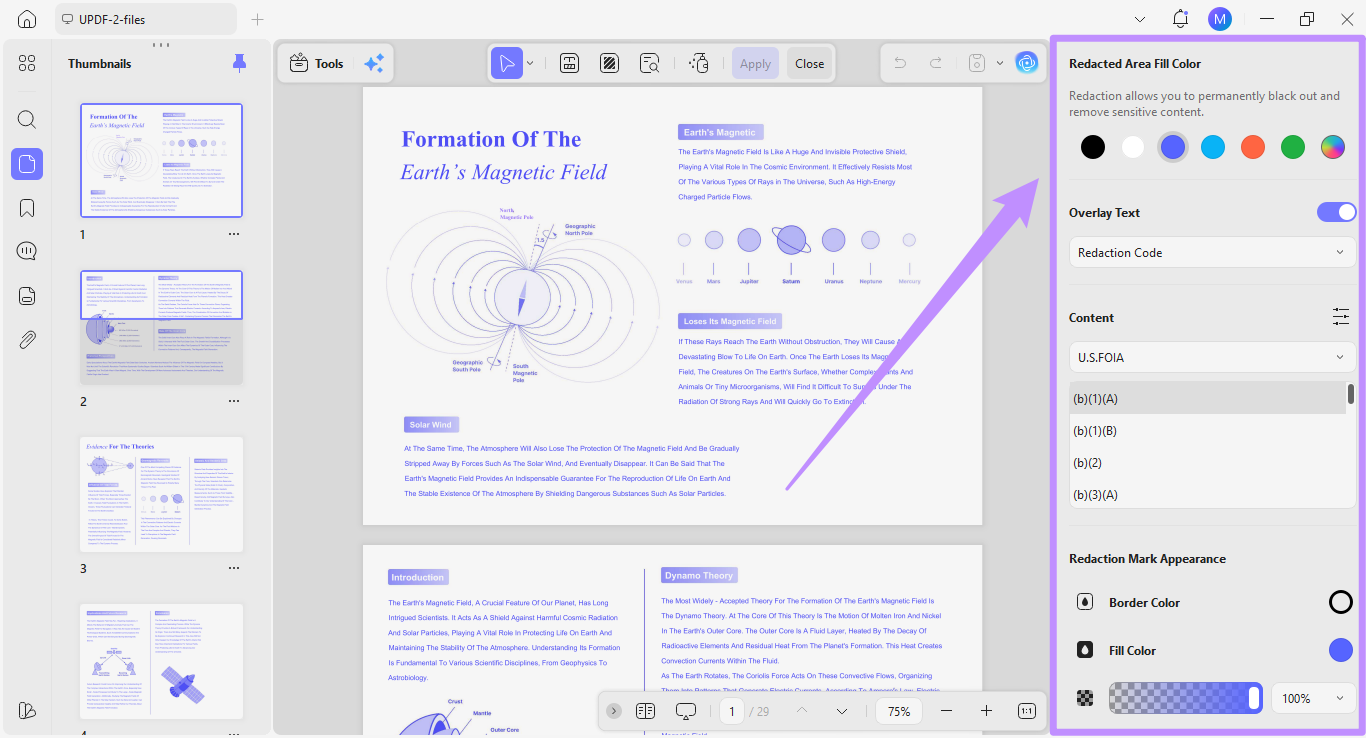
Step 3. The AI will open the PDF redaction tool. Go to the editing panel on the right to customize the appearance of redaction. You can adjust the Redacted Area Fill Color, Overlay Text, Content (exemption codes), and Redaction Mark Appearance, including border color, fill color, and opacity.
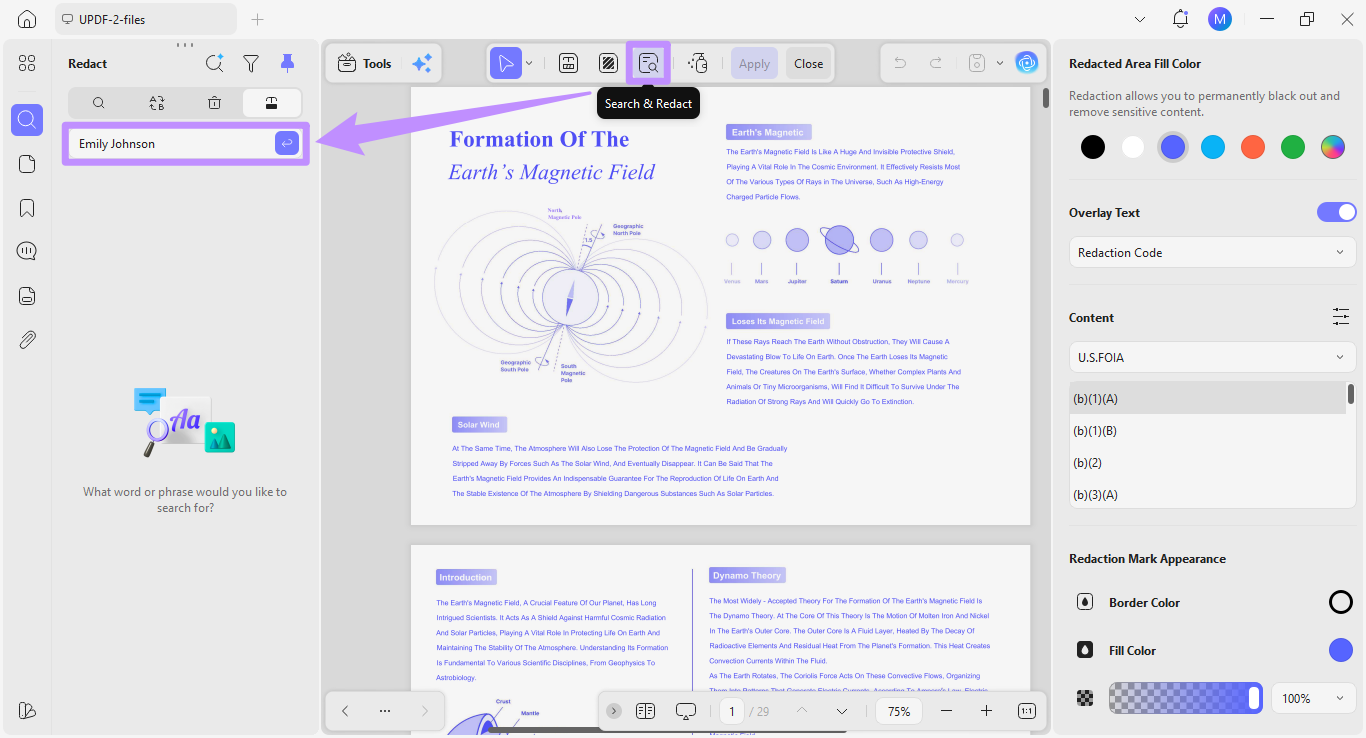
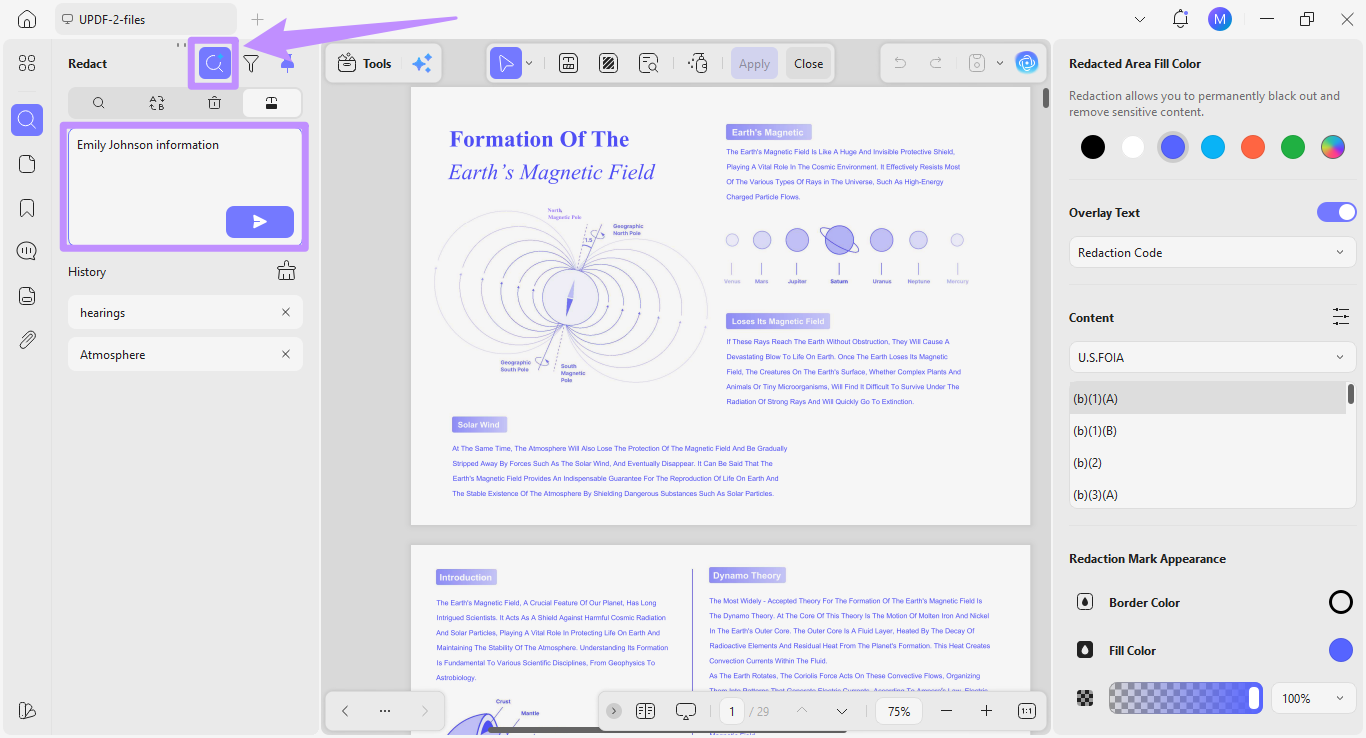
Select the "Search & Redact" tool from the top. A panel will open on the left. In the search box, type the keywords for PII data you want to find and click the "Send" button.
Alternatively, click the "AI Search" button at the top of the panel and write the desired keywords in the search box. The AI will find both exact matches and semantically related words.
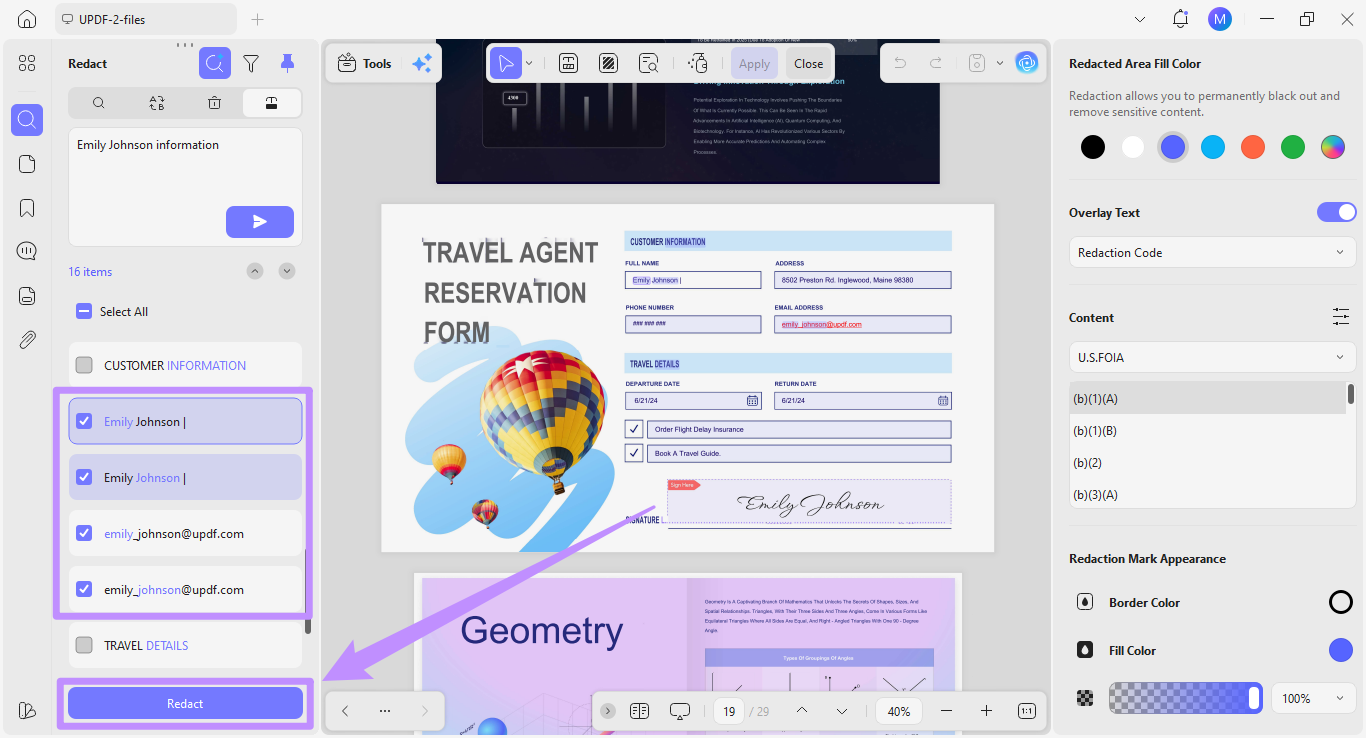
From the search results, select the terms you want to permanently remove. Then, click the "Redact" button at the bottom.
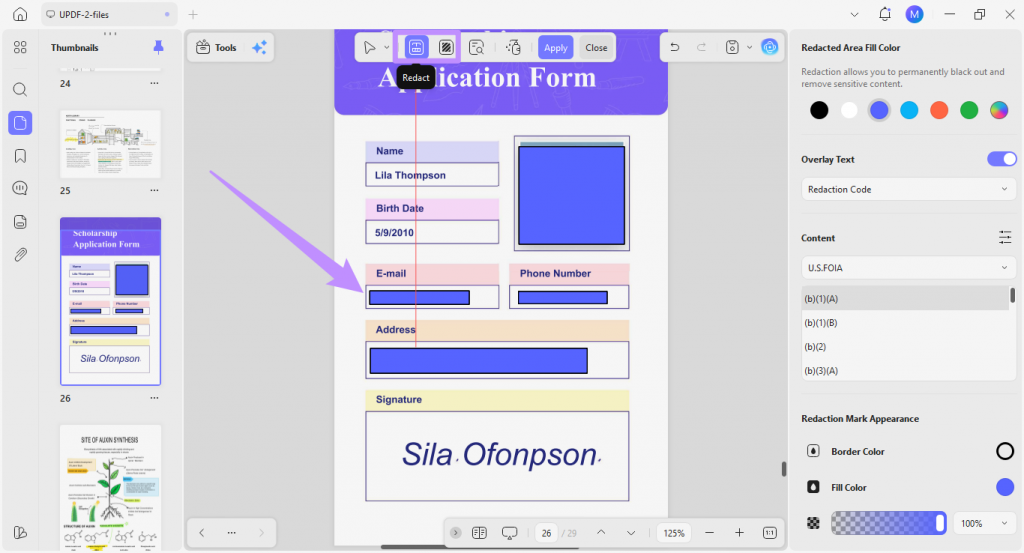
Tip: If you want to manually redact PII data, you can use the Redact tool at the top and then select specific text for redaction or draw redaction areas over images or blocks of text. You can also use the "Redact Pages" tool to black out entire pages at once.
So that's how you can use a PII redaction software like UPDF. Compared to manually highlighting text for redaction, the Search & Redact tool allows you to redact content more reliably. In fact, in our benchmark tests, it can reduce human error by 90% compared to manual highlighting.
Unlock 10+ AI Agents in UPDF 2.5
Beyond secure redaction, the latest UPDF 2.5 introduces a suite of AI Agents to streamline your entire document workflow—from the Deep Research Agent that synthesizes complex data across multiple files to the AI Bookmark Agent that auto-structures your reports.
[Limited Time Offer]: We are currently hosting a special event for the 2.5 launch! You can save $10 on your purchase and get full access to all professional AI Agents today.
You can also watch the video below to follow the steps to do PII Redaction.
Other than redaction, UPDF is a complete PDF toolkit that can easily rival any professional PDF editors like Adobe Acrobat. To learn how, you can read this detailed review about the best Adobe Acrobat alternatives.
Part 3. Choosing the Best PII Redaction Software
There are many tools that claim to "redact" sensitive information, but not all of them actually make your data safe. To avoid any risks, focus on these four clear criteria when choosing a PII redaction tool.
1. Permanent removal
A reliable redaction tool must completely delete the selected content from the file's internal data instead of just covering it visually. Otherwise, the hidden text will remain in the file and can be unredacted by copying and pasting it into another program.
2. Batch processing
Tools with batch processing features can help you redact PII data from a large collection of documents at once. While this saves time, it can also lead to critical errors if the detection rules are not precise. For a more accurate output its best to use a tool that gives you some manual control and lets you confirm before permanently removing the data.
3. Ease of use
You want to use software that does not require any programming or technical coding skills. Instead, it should allow any team member to redact sensitive information without needing any technical expertise.
4. Data privacy
When it comes to protecting sensitive data, consider whether the software stores any document information on its external servers. You should choose a software that clearly states how it protects your data. Look for strong encryption and certifications such as ISO 27001.
Part 4. FAQ: Expert Answers on Data Privacy
Q1. Can I undo a redaction once the file is saved?
No. True redaction is a permanent, one-way action. Once you apply and save, the underlying content is removed from the document's data structure and cannot be recovered by any means, including forensic analysis.
Q2. Is UPDF AI safe to use with PII?
Yes. UPDF AI is completely safe to use as it follows the data protection laws. It does not share data with external servers for training. Moreover, the UPDF software complies with the ISO 27001 standards, so you can rest easy knowing your data is safe and protected.
Q3. How does UPDF handle redaction in scanned PDFs?
For scanned PDFs, you can use UPDF's built-in OCR engine to convert the static PDF into selectable, searchable text. Once the text layer is recognized, you can manually select and permanently redact any PII using UPDF's redaction tools.
Conclusion
That's all about PII redaction in PDF documents. You can use technical Java or PHP scripts to black out sensitive information or use specialized PDF redaction software like UPDF. While coding-based methods are convenient for developing teams, they're not the best fit for non-technical people.
UPDF makes things easier by helping you search and redact PII data using standard PDF tools. You don't need any technical navigation. Plus, it includes many other tools to help you protect and control your PDF content. So, don't miss out. Download and try it now.
Windows • macOS • iOS • Android 100% secure





 Enola Miller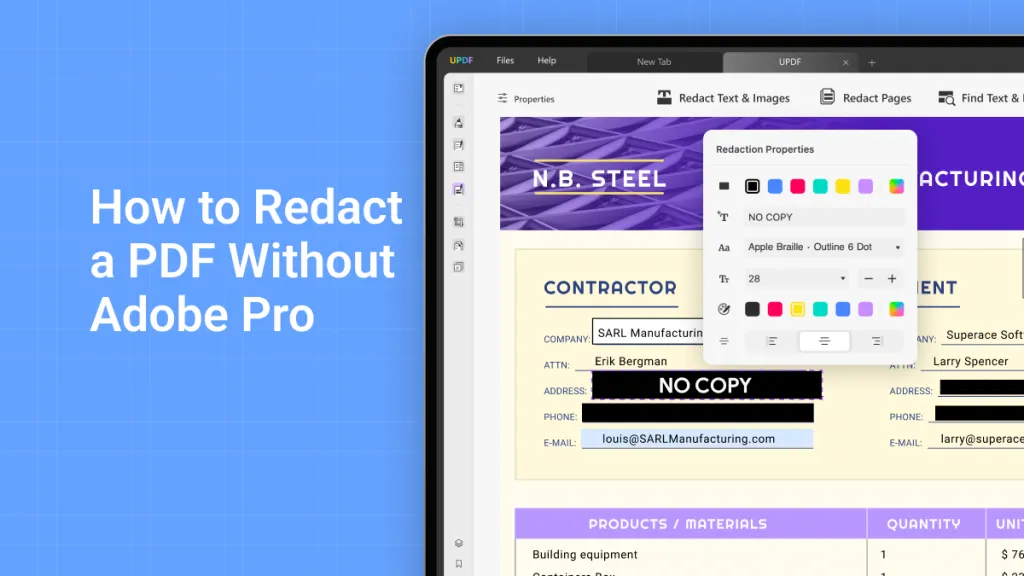
 Enola Davis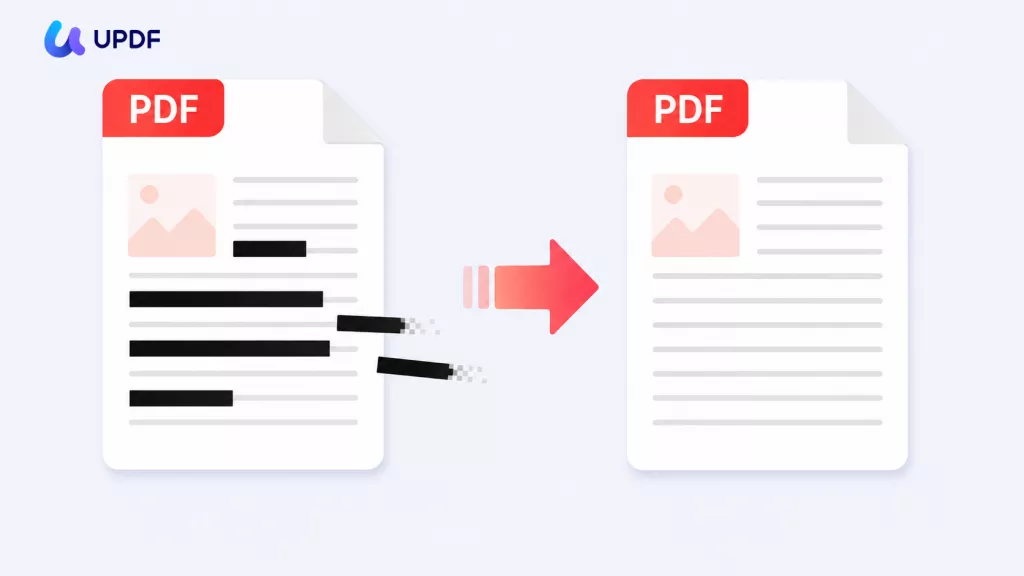
 Lizzy Lozano