 UPDF
 UPDF for Windows
 UPDF for Mac
 UPDF for iPhone/iPad
 UPDF for Android
 Nomostar
 UPDF AI Online
 UPDF Sign
 IvyCraft
 Edit PDF
 Annotate PDF
 Create PDF
 PDF Form
 Edit links
 Convert PDF
 OCR
 PDF to Word
 PDF to Image
 PDF to Excel
 Organize PDF
 Merge PDF
 Split PDF
 Crop PDF
 Rotate PDF
 Protect PDF
 Sign PDF
 Redact PDF
 Sanitize PDF
 Remove Security
 Read PDF
 UPDF Cloud
 Compress PDF
 Print PDF
 Batch Process

 About UPDF AI
 UPDF AI Solutions
 AI User Guide
 FAQ about UPDF AI
 Summarize PDF
 Translate PDF
 Chat with PDF
 Chat with AI
 Chat with image
 PDF to Mind Map
 Explain PDF
 PDF AI Tools
 Image AI Tools
 AI Chat Tools
 AI Writing Tools
 AI Study Tools
 AI Working Tools
 Other AI Tools
 AI Bookmark Generation
 AI Bookmark Summary
 AI Watermark Generation
 AI Background Generation
 AI Sticker Generation
 AI Stamp Generation
 AI Editing Suite
 UPDF Copilot
 AI Page Management
 AI Semantic Search
 PDF to Word
 PDF to Excel
 PDF to PowerPoint
 Enterprise Solution
 Enterprise Sign
 Enterprise AI
 Enterprise Plan
 Enterprise User Guide
 Enterprise Webinar
 IT
 Education
 Construction
 Financial Service
 Healthcare
 Insurance
 Legal
 Manufacturing
 Government
 Researchers & PhDs
 Solopreneurs & Freelancers
 Lawyers & Legal Professionals
 Real Estate Agents & Brokers
 Education Solution
 Customer Stories
 User Guide
 UPDF Tricks
 FAQs
 UPDF Reviews
 Download Center
 Blog
 Newsroom
 Tech Spec
 Updates
 UPDF vs. Adobe Acrobat
 UPDF vs. Foxit
 UPDF vs. PDF Expert


Quick Answer
Two years at a design agency. Branding, packaging, social media. Finally, enough work to build a portfolio that showed what you could do.
Then your former employer asks you to take it down.
That’s what happened to a designer who posted in Reddit’s r/Design community. After leaving the agency, they added some projects to an online portfolio. Their former boss got a lawyer involved and asked them to remove the work. The designer was also unsure whether they could show unused concepts, including some the clients might never have seen.
Several commenters suggested putting the work behind a password. One kept a private section behind a login and changed the credentials monthly. Others wondered whether recruiters would ask for access. One designer skipped that extra step by including the password alongside the link in each application.
First, check what you’re allowed to share. If a project is cleared for a live interview only, keep it off the site and out of the PDF you send. A password controls access; it doesn’t give you permission to share the work.
Part 1. Password-protect a page on your portfolio website
Keep your bio, contact details, and public work on the homepage. Put the case studies you can share privately on a separate page and send recruiters a direct link. If the entire portfolio is for private review, you can protect the whole site instead.
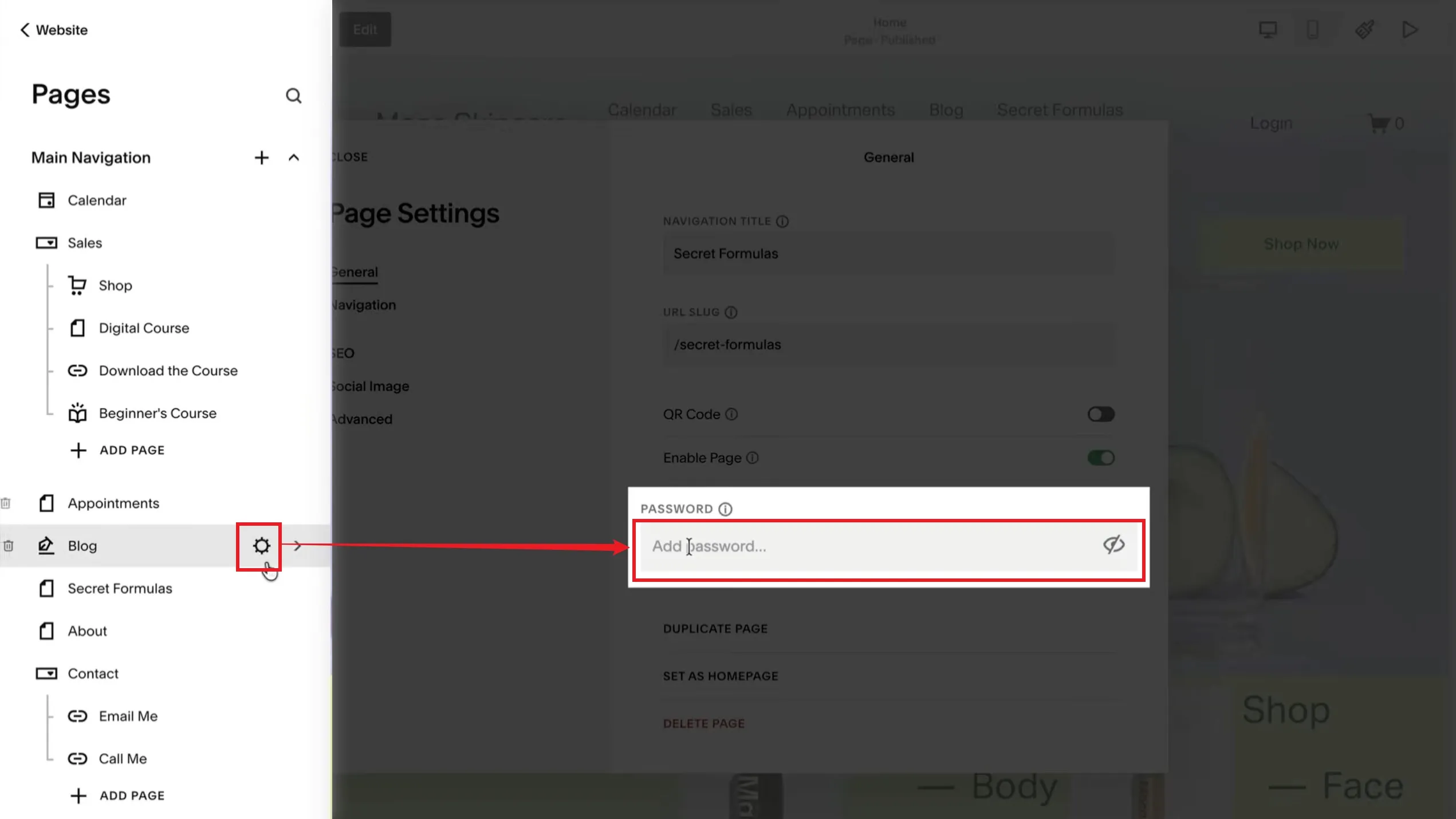
Squarespace: Open Pages, hover over a page title and click the settings gear next to the page, and find the Password field in General. Enter your password and save.
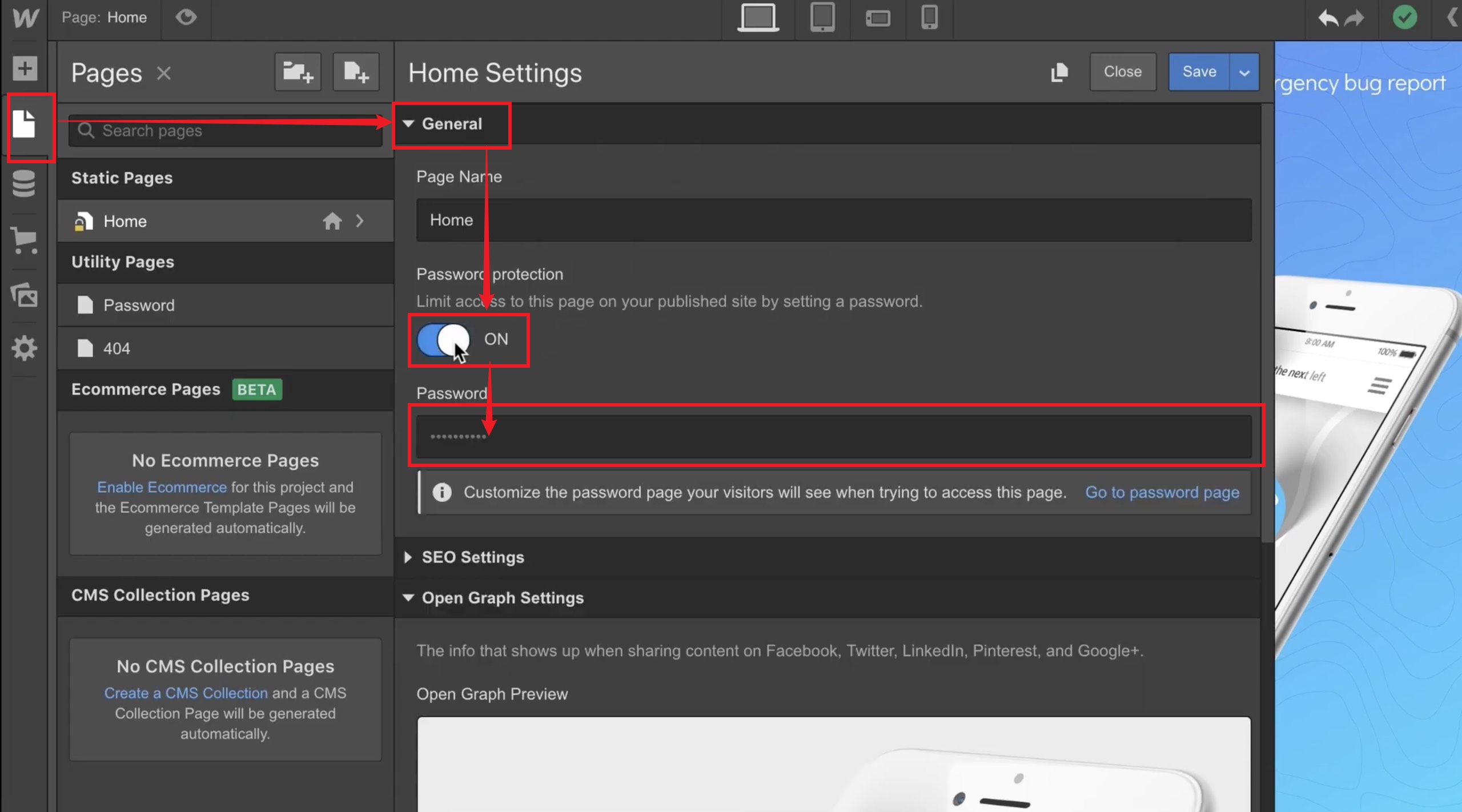
Webflow: Open the page settings from the Pages panel. Turn on Password protection under General, set a password, save, and publish. Page protection depends on your site plan. Webflow also supports site-wide protection.
For a site you built yourself, have the server or hosting platform check access before returning the page and its private files. Hiding a project from the menu doesn’t protect its URL. And if an attachment has a public link, someone with that link may still be able to open it. Webflow’s documentation, for example, says uploaded assets are publicly accessible.
Before sending the link, open a private browsing window. Check the page and try each direct link to a file you meant to protect.
Part 2. Set an open password on your PDF portfolio
If you already send your portfolio as a PDF, you can keep that format. Give the file an open password so the recipient needs it to read the document, whether they open it from an email attachment or download it from your site.
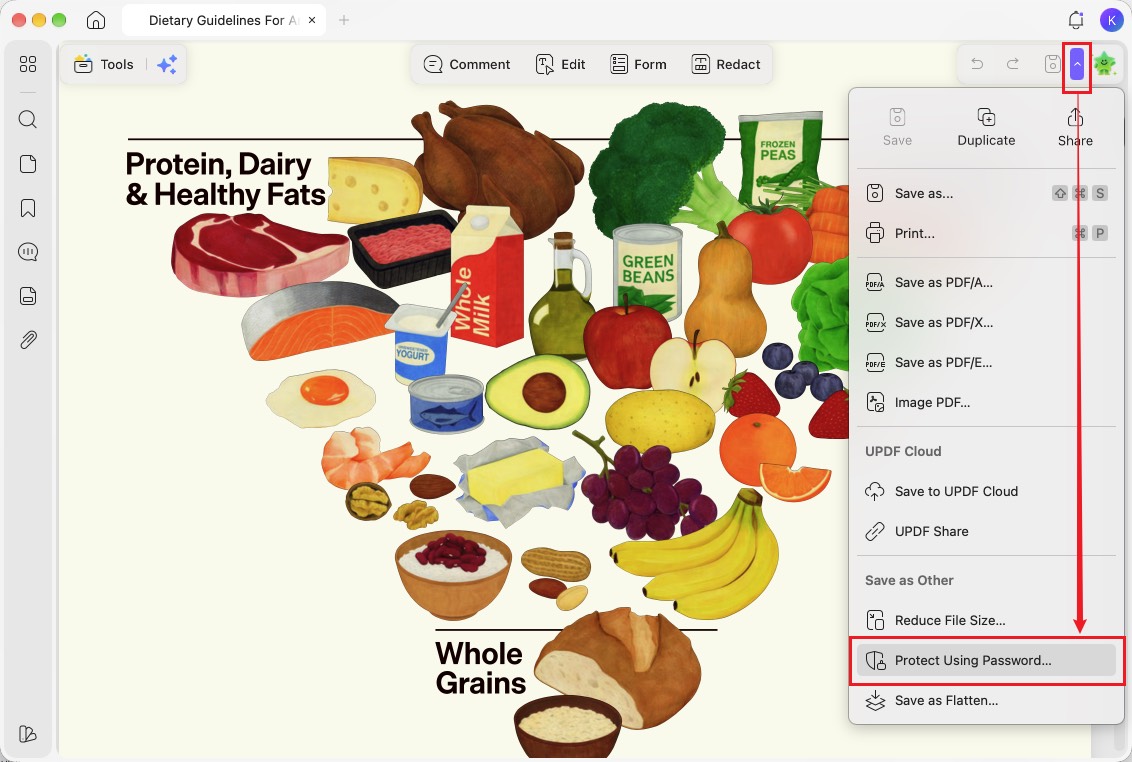
Step 1. Open the PDF in UPDF. On Mac/Windows, open the dropdown next to Save and select Protect Using Password.
Windows • macOS • iOS • Android 100% secure
Step 2. Add an open password. Under Open Password, click Add, enter and confirm the password, then save the setting. A Permissions Password can restrict editing or printing, but it doesn’t stop someone from opening the document.
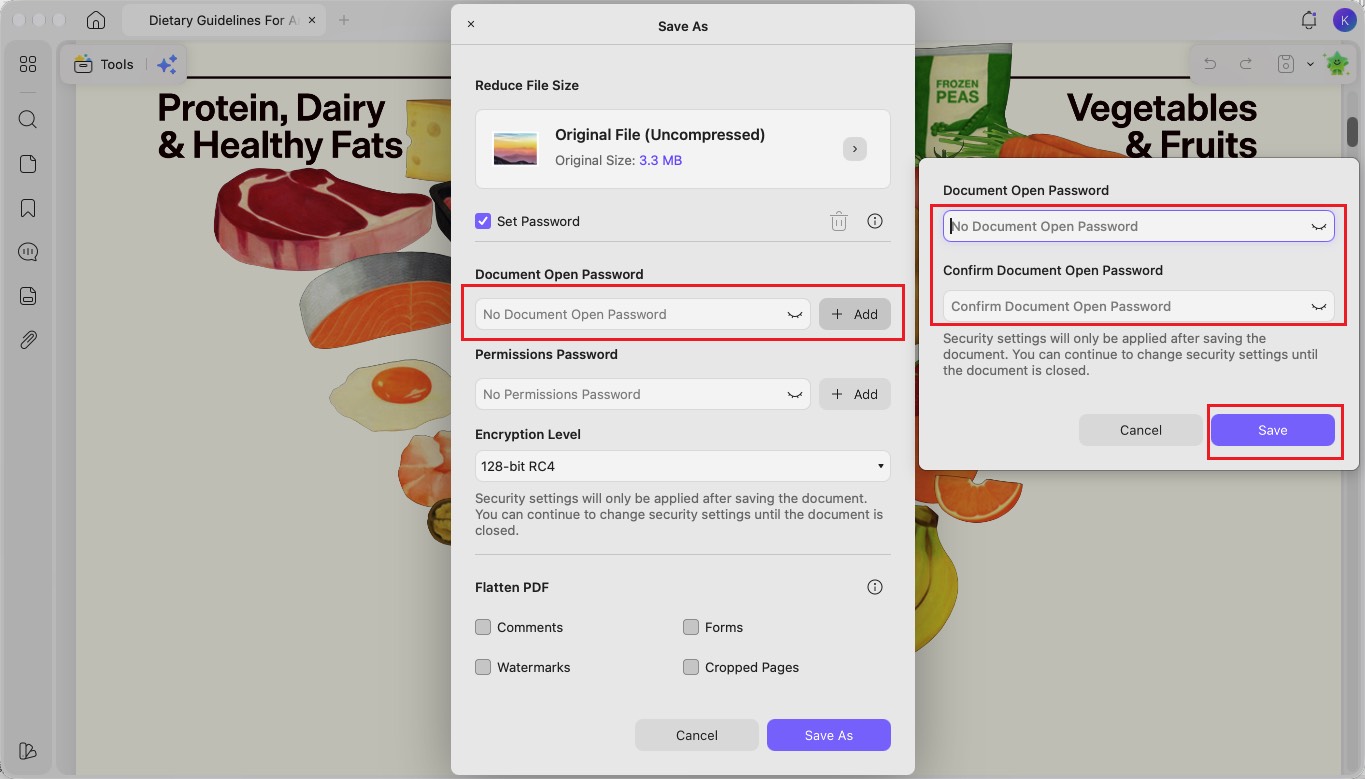
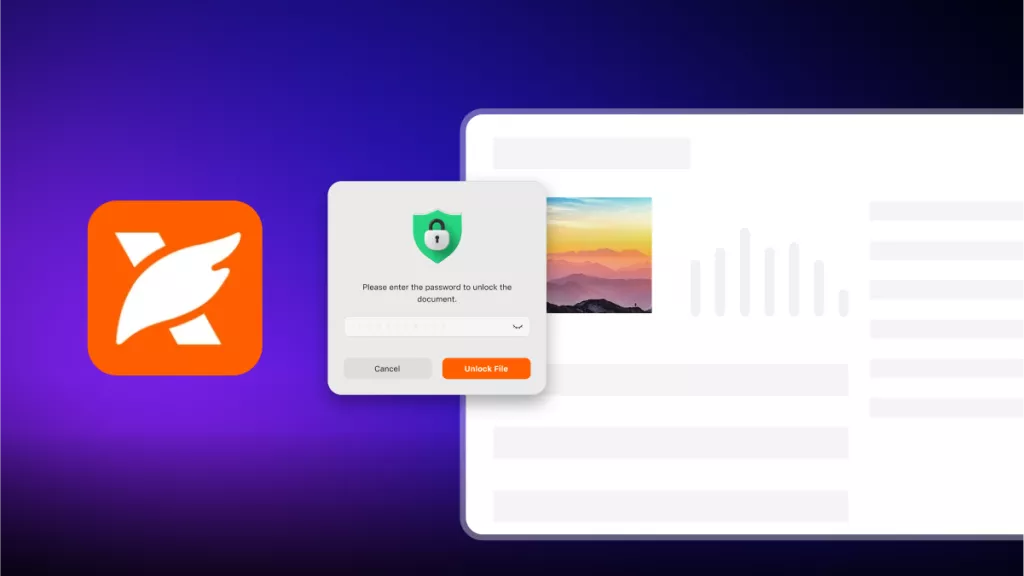
Step 3. Save a separate copy. Click Save As and save the encrypted PDF. Close it and reopen it to confirm that it asks for the password before showing the pages. Keep the original for future edits and double-check that you upload or attach the protected copy.
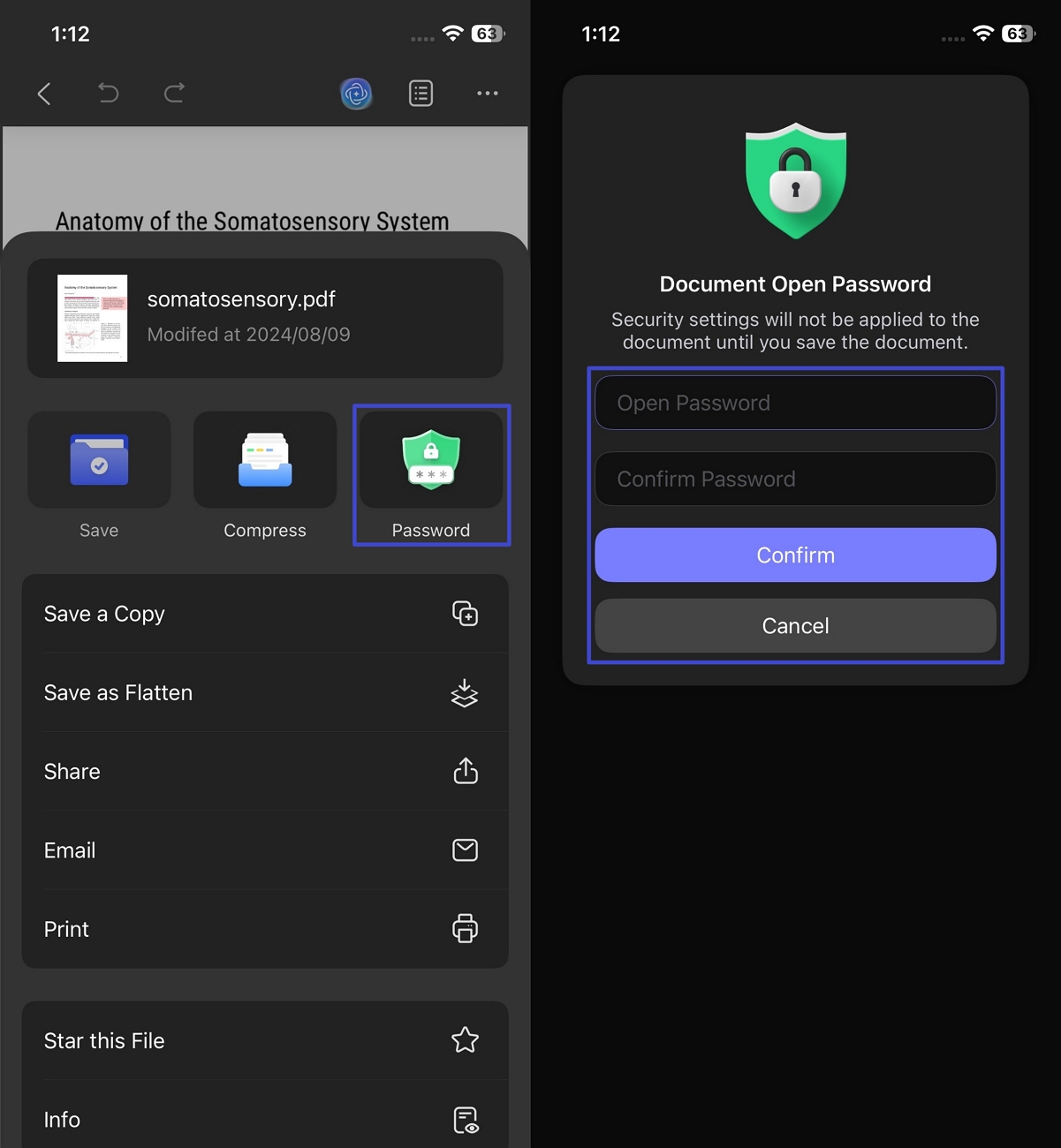
If your portfolio is already on your phone or tablet, you can add an open password in UPDF app before attaching it to a job application. The password stays with the PDF, so recruiters will need it even if they download the file and open it later:
Steps: Open your portfolio PDF in UPDF on your iPhone, iPad, or Android device. Tap the three-dot menu (⋯) and select Password. Enter an open password and tap Confirm, then save the protected PDF. Reopen the saved file and check that it asks for the password before showing your work. Attach that copy to your application or upload it to share a link.
Windows • macOS • iOS • Android 100% secure
Part 3. What will recruiters see when they click the link?
Uploading an encrypted PDF doesn’t automatically give you a website password screen. The prompt appears when the recipient opens the file.
| What you share | What the recruiter sees |
|---|---|
| Direct link to an encrypted PDF | A prompt in the browser’s PDF viewer if it can preview the file. If the PDF downloads instead, the prompt appears when the recipient opens it. |
| Public webpage with an encrypted PDF embedded | The webpage opens normally. The embedded viewer may prompt for the password, or the recipient may need to download the PDF and open it separately. |
| Password-protected portfolio page | The website’s password screen appears first. After unlocking the page, the recipient can see the projects or access the PDF. |
You can use both protections if you want the page to stay private and the downloaded file to stay locked. That may mean the recruiter enters a password twice.
Part 4. Send the password with the application
Use the portfolio password field if the application has one. Otherwise, write it directly below the link:
Private portfolio: [link]
Password: [password]
Please keep this portfolio within the hiring team.
If you’re sharing an encrypted PDF, add: “If the PDF downloads, open the file and enter the password above.” Then open the exact link from your draft in a private window and try the password you’re about to send.
Part 5. Frequently asked questions
1. Do I need a website to share a password-protected portfolio?
No. Set an open password on your PDF and share the encrypted copy as an attachment or through a file link. If the browser downloads the file instead of previewing it, the recruiter enters the password when opening the downloaded copy.
2. Can I revoke access to a portfolio I’ve already shared?
You can change the website password or disable the share link to limit future access. That won’t remove copies someone already downloaded. If you change a PDF’s open password and upload a replacement, the old copies still use their original password.
Conclusion
If you already have a portfolio website, keep your public work visible and put the case studies you’re cleared to share privately on a password-protected page. If you send your portfolio as a PDF, use UPDF to set an open password so the file stays locked after download.
Include the password with your application, then test the exact link in a private browser window. If the PDF downloads instead of opening in the browser, open the downloaded copy and check that it asks for the password before showing your work.
Windows • macOS • iOS • Android 100% secure




 Enid Brown
 高美季子
 Enola Davis
 Enola Miller