UPDF
UPDF
 UPDF for Windows
 UPDF for Mac
 UPDF for iPhone/iPad
 UPDF for Android
 Nomostar
 UPDF AI Online
 UPDF Sign
 IvyCraft
 Edit PDF
 Annotate PDF
 Create PDF
 PDF Form
 Edit links
 Convert PDF
 OCR
OCR PDF to Word
 PDF to Image
 PDF to Excel
 Organize PDF
 Merge PDF
 Split PDF
 Crop PDF
 Rotate PDF
 Protect PDF
 Sign PDF
 Redact PDF
 Sanitize PDF
 Remove Security
 Read PDF
 UPDF Cloud
 Compress PDF
 Print PDF
 Batch Process
 About UPDF AI
 UPDF AI Solutions
 AI User Guide
 FAQ about UPDF AI
 Summarize PDF
 Translate PDF
 Chat with PDF
 Chat with AI
 Chat with image
 PDF to Mind Map
 Explain PDF
 PDF AI Tools
 Image AI Tools
 AI Chat Tools
 AI Writing Tools
 AI Study Tools
 AI Working Tools
 Other AI Tools
 AI Bookmark Generation
 AI Bookmark Summary
 AI Watermark Generation
 AI Background Generation
 AI Sticker Generation
 AI Stamp Generation
 AI Editing Suite
 UPDF Copilot
 AI Page Management
 AI Semantic Search
 PDF to Word
 PDF to Excel
 PDF to PowerPoint
 Enterprise Solution
 Enterprise Sign
 Enterprise AI
 Enterprise Plan
 Enterprise User Guide
 Enterprise Webinar
 IT
IT Education
 Construction
 Financial Service
 Healthcare
 Insurance
 Legal
Legal Manufacturing
 Government
 Researchers & PhDs
 Solopreneurs & Freelancers
 Lawyers & Legal Professionals
 Real Estate Agents & Brokers
 Education Solution
 Customer Stories
 User Guide
 UPDF Tricks
 FAQs
FAQs UPDF Reviews
 Download Center
 Blog
Blog Newsroom
 Tech Spec
 Updates
 UPDF vs. Adobe Acrobat
 UPDF vs. Foxit
 UPDF vs. PDF Expert

Quick Answer:
You're mid-review on a proposal or a signed contract, and you want feedback, not "fixes" — a quote table quietly copied into someone else's deck, or a clause someone decides to "clarify" by typing directly into your file. You don't need to lock the whole document away, you just need to stop people from changing it. UPDF gives you two ways to do that, and which one fits depends on whether the recipient needs a browser view or their own copy of the file. Download UPDF free below to follow along with either method.
Windows • macOS • iOS • Android 100% secure
Part 1. Which Method Do You Need?
| What you're trying to do | Method | Best for |
|---|---|---|
| Let people view the PDF without downloading or installing anything | Read-Only Share Link | Fast reviews, external stakeholders, no software required |
| Let people open the file in their own PDF reader but not edit, copy, or print it | Permissions Password | Internal docs, proposals, or files people keep long-term |
Part 2. Method 1: Share a Read-Only Link
UPDF Share uploads your PDF to UPDF's cloud and generates a link that opens the file in view-only mode in any browser — no download, no PDF app required on the recipient's end.
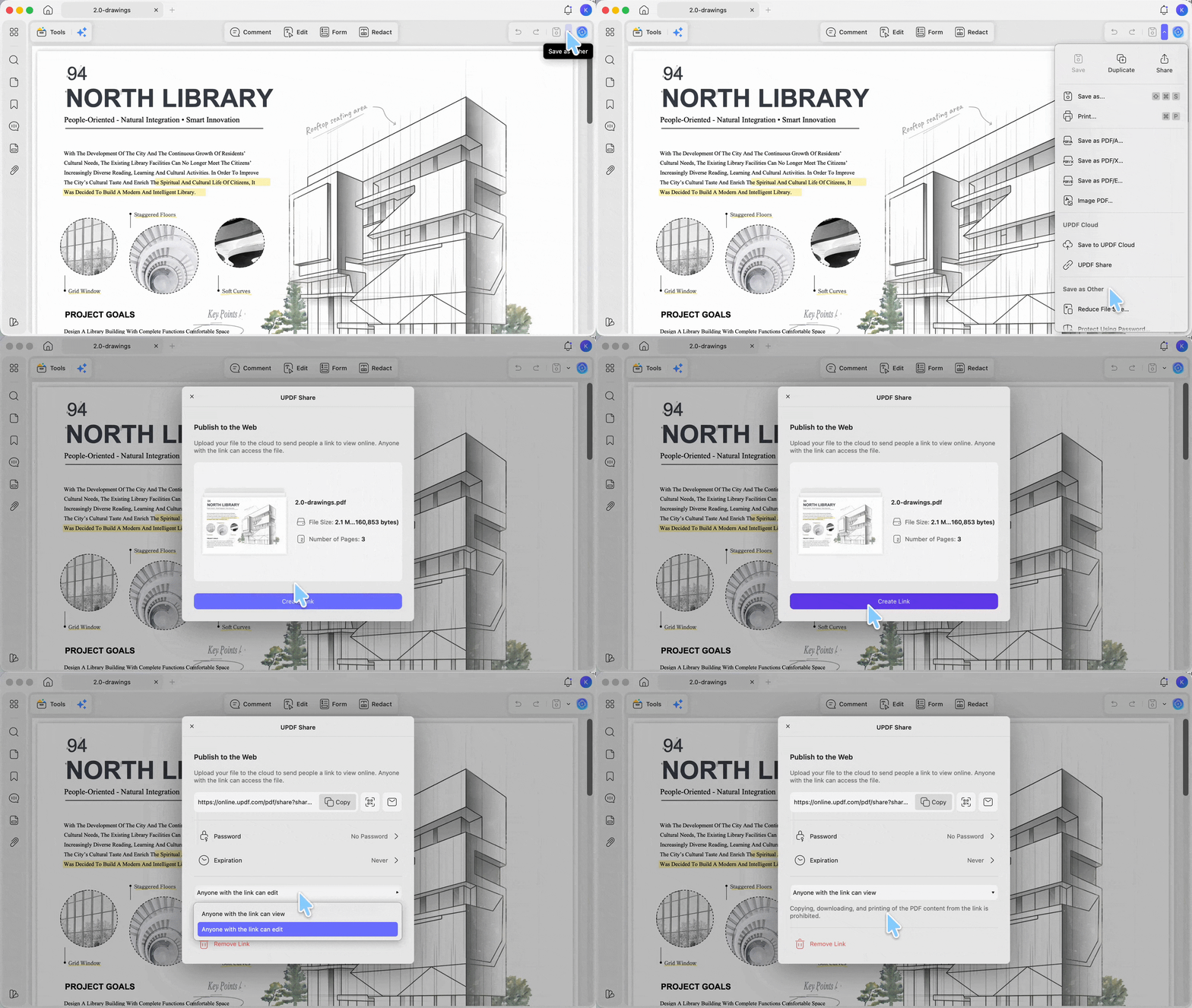
Step 1. Open the PDF in UPDF, click the dropdown arrow next to Save, and choose UPDF Share.
Step 2. In the pop-up window, turn on Anyone with the link can view. You can also set an expiration date or share the link by email or QR code instead of copying it manually.
Step 3. Copy the link and send it to your recipient — they can view it straight from their browser in read-only mode, and you can revoke the link later if you no longer want it accessible.
Best for:
-
quick reviews with people who don't have a PDF editor, or where you'd rather not require one. They just click the link and view.
Not for:
- fully private files you don't want touching any server. Generating the link uploads a copy to UPDF's cloud, unlike Method 2, which never leaves your device. If the file can't be uploaded anywhere, use the permissions password method instead.
Haven't installed UPDF yet? Grab it free below before moving to Method 2.
Windows • macOS • iOS • Android 100% secure
Part 3. Method 2: Restrict Editing with a Permissions Password (Windows, Mac & Mobile)
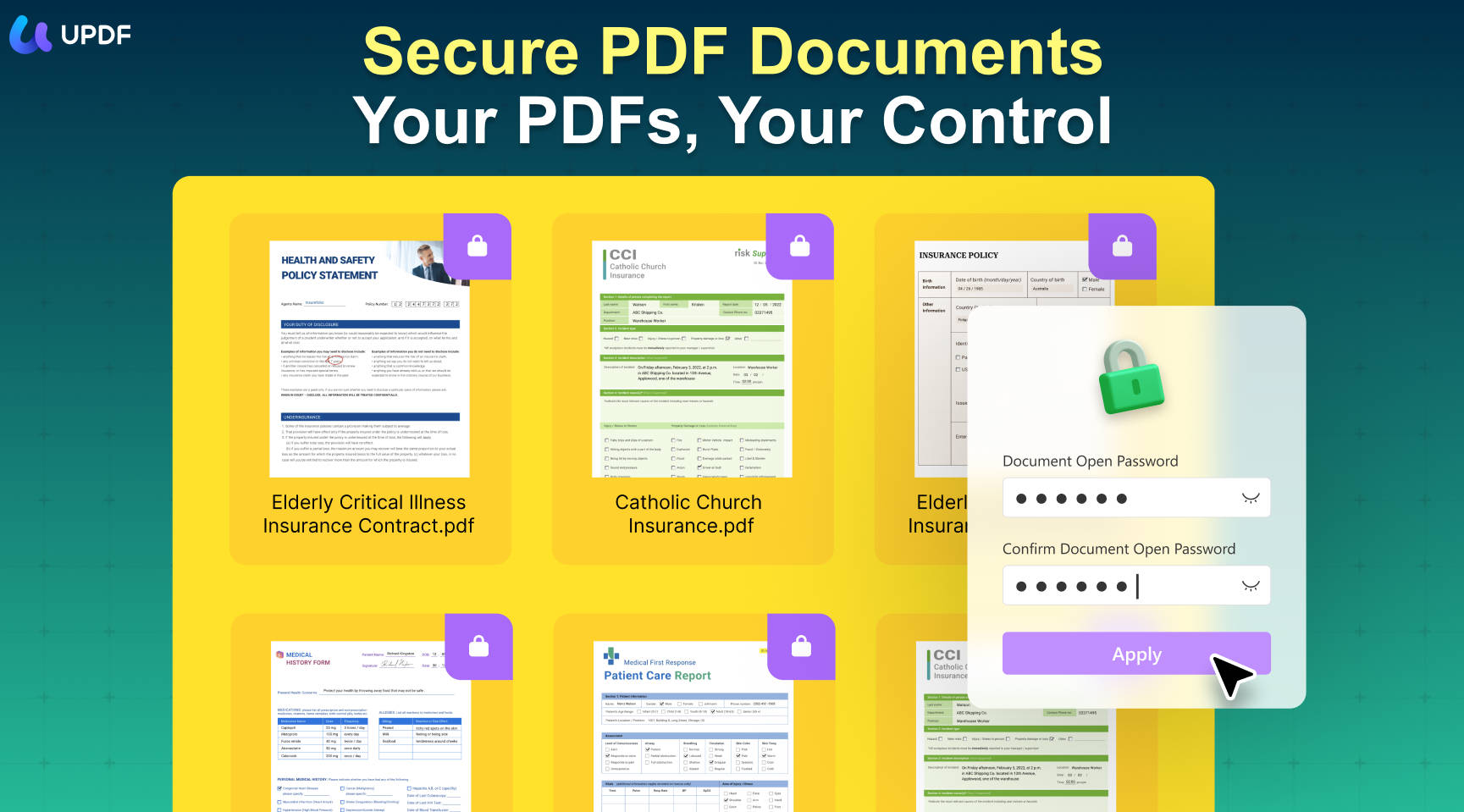
A permissions password keeps the file itself local and lets the recipient open it in their own PDF reader, while blocking editing, copying, or printing unless they know the password.
Desktop (Windows & Mac):
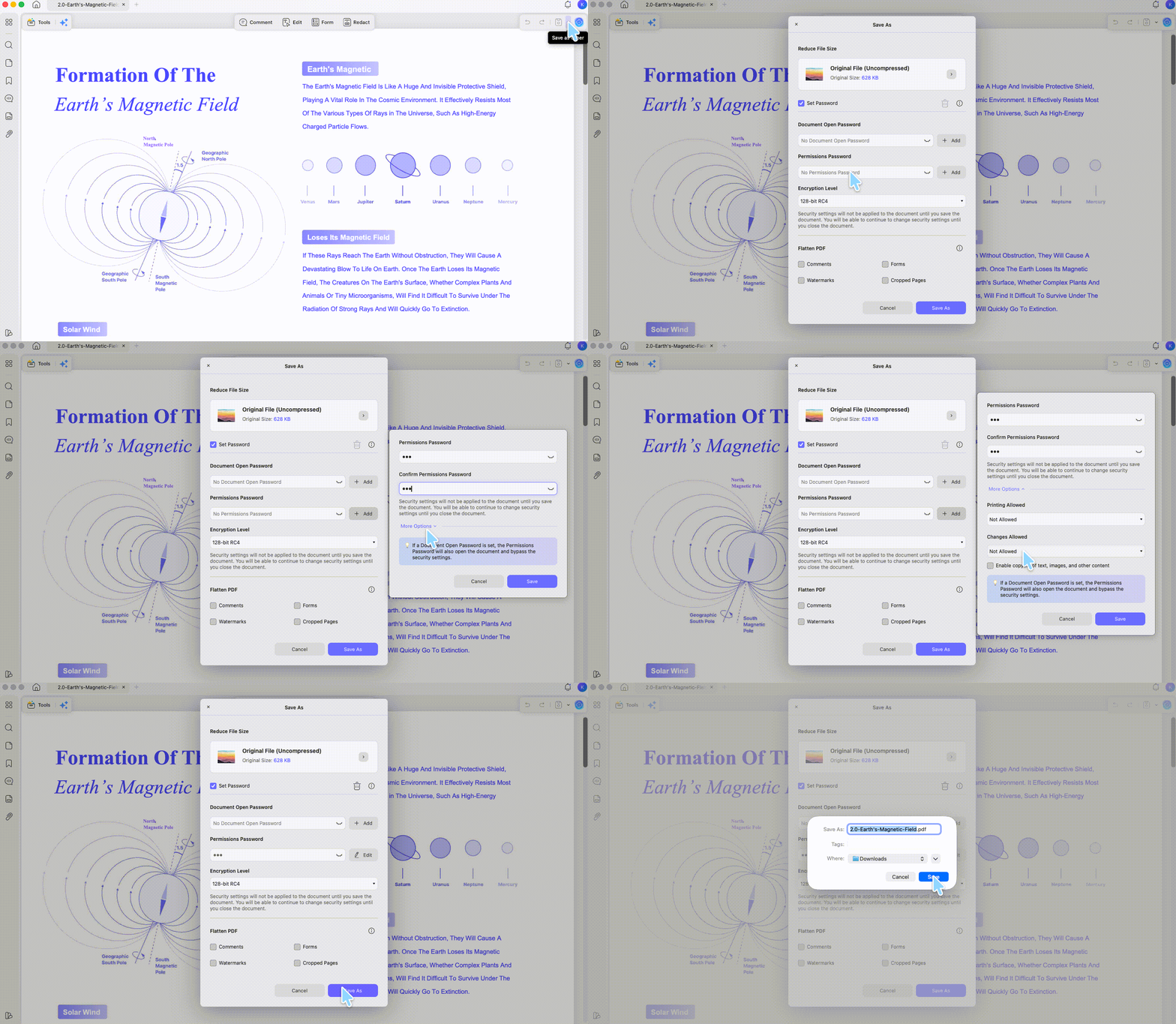
Step 1. Open the PDF, click the dropdown arrow next to Save, and choose Protect Using Password.
Step 2. Click Add under Permissions Password.
Step 3. Enter your password, then set Printing Allowed and Changes Allowed to Not Allowed — or customize each one separately if you want to allow printing but not editing, for example. For a purchase order that accounting must print, allow printing while blocking changes; test the saved copy in a second reader before distribution. If a recipient sees Print disabled unexpectedly, use the secured PDF printing guide to diagnose the permission setting.
Step 4. Optionally choose an encryption level (128-bit RC4, 128-bit AES, or 256-bit AES), then click Save As.
Batch (multiple PDFs at once, Windows & Mac):
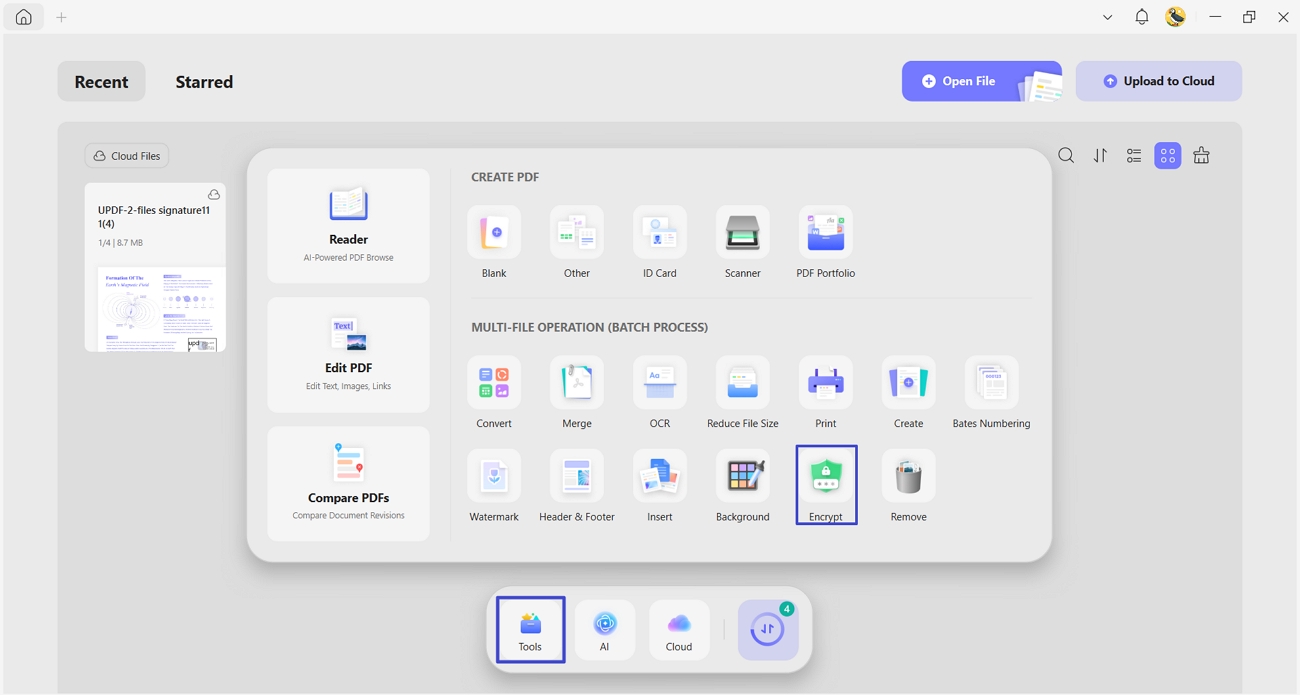
Step 1. From the UPDF homepage, go to Tools > Encrypt.
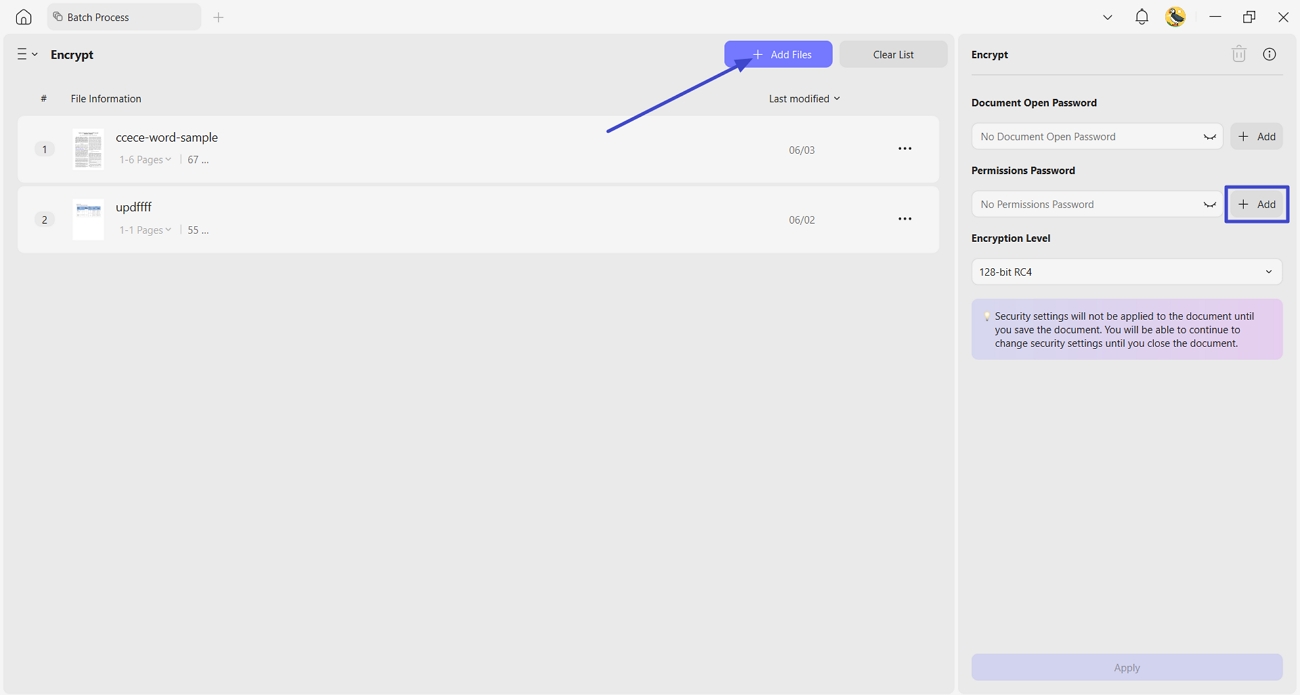
Step 2. Click Add Files to import all the PDFs you want to lock.
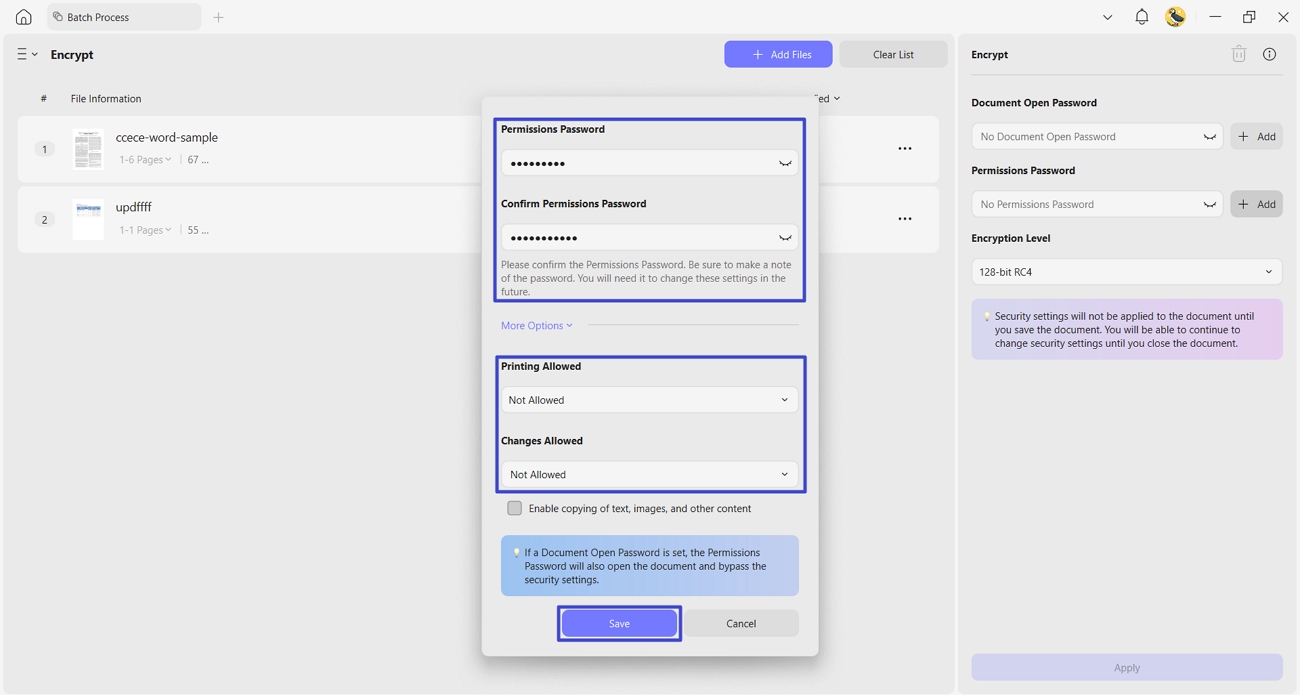
Step 3. Click Add under Permissions Password, set your restrictions once, and UPDF applies the same password and restrictions to every file in the batch.
Mobile (iOS & Android)
Step 1. Open the PDF in UPDF for iOS or Android.
Step 2. Tap the three-dot icon and select Password.
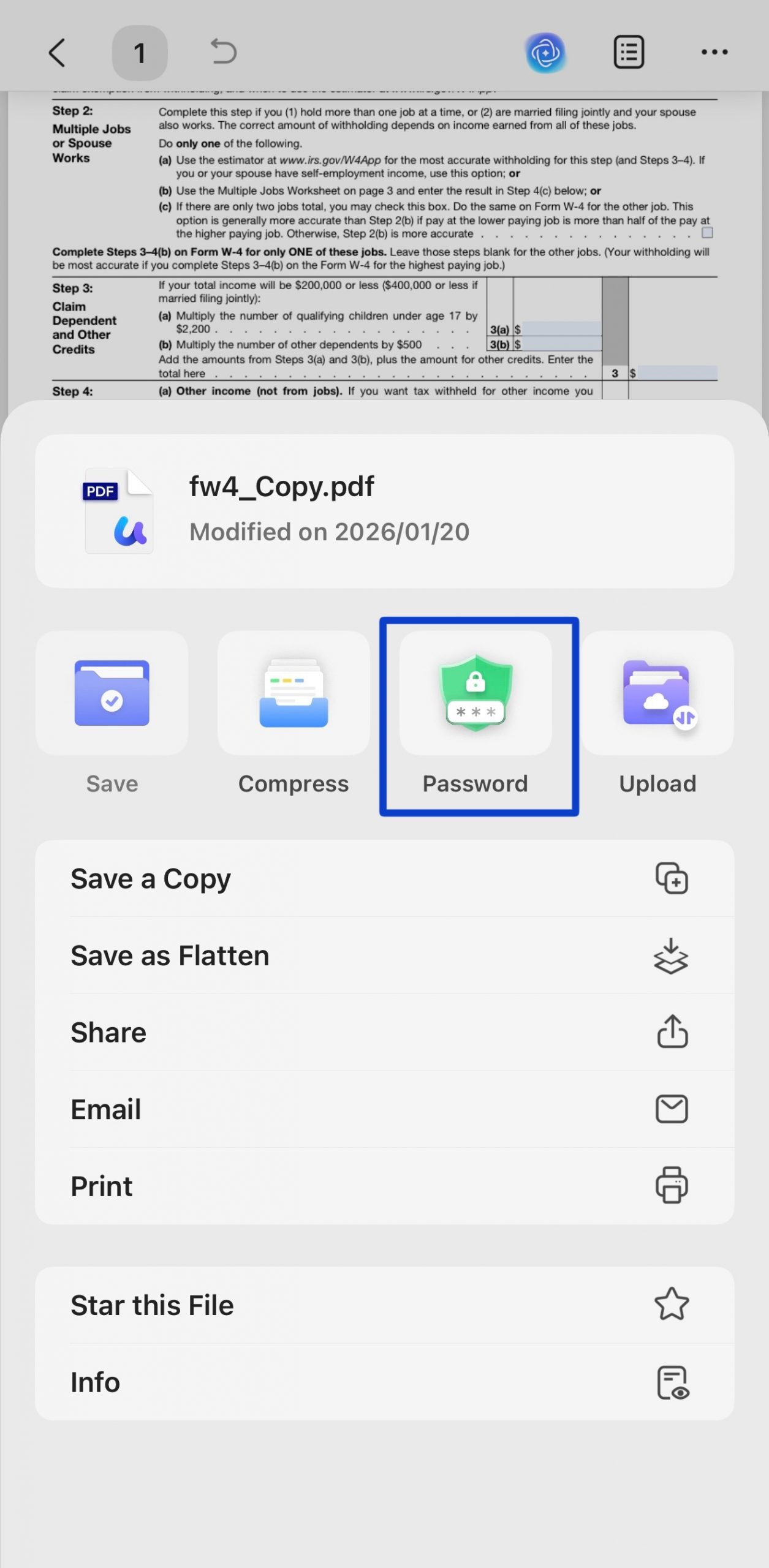
Step 3. Enter your password and tap Confirm to save the protected file.
Note that mobile currently sets a file-open password rather than the same granular "view but don't edit" permissions available on desktop. If you specifically need that behavior, set the permissions password on desktop first — the resulting file will still open normally on mobile.
Best for:
-
sharing an actual file people keep, while you control whether they can edit, copy, or print it — no upload involved.
Not for:
- content that must stay completely secret. Permissions passwords can be stripped with dedicated tools, and nothing stops a screenshot. For that level of lockdown, redaction is the safer choice.
Part 4. Read-Only Link vs. Permissions Password: What's the Difference?
- A read-only share link is a display case in a shop window. People can look at everything through the glass — from a browser, with no software needed — but nothing leaves the case and nothing gets touched. It does mean your file is sitting on a server to make that possible.
- A permissions password is handing someone a locked notebook. They physically have their own copy in hand, opened in their own app, but certain pages are glued shut — no editing, copying, or printing, depending on what you restricted.
Part 5. Method Comparison
| Method | Needs recipient software | File stays on your device only | Best for |
|---|---|---|---|
| Read-Only Share Link | ✗ — Opens in browser | ✗ Uploads to UPDF's cloud | Fast reviews, external readers, no software |
| Permissions Password | Recipient's own PDF reader | ✓ | Internal docs, files people keep long-term |
Part 6. If Something Still Goes Wrong (Edge Cases)
- "I shared the read-only link, but the person still saved a copy using their browser's Print to PDF option." A read-only link stops in-document editing, not a browser rendering the page into a new file. If that's the real risk, add a watermark or redact sensitive details before sharing — a link alone can't prevent it.
- "I set a permissions password, but the recipient's PDF app just ignored the restriction and let them edit anyway." Some older or lightweight readers don't enforce permissions consistently — the restriction lives in the file's settings, not in every app's cooperation. Test with the recipient's actual app if the restriction really matters.
- "My read-only share link stopped working." Link-based sharing depends on the link staying active and not expiring or being revoked. If you need something that stays accessible indefinitely without depending on a live link, send a permissions-password-protected file instead.
- "Some people on the team need to comment, others should only view — but the link treats everyone the same." Neither method here differentiates by recipient; the same restriction applies to everyone who has the link or file. For per-person access controls, you'd need enterprise-level permissions beyond PDF-level protection.
Part 7. FAQ
1. Can a permissions password stop someone from copying text with a screen reader or accessibility tool?
Not reliably. Permissions passwords are enforced by the PDF reader's cooperation, not by removing the underlying text, so accessibility tools that read file contents directly can sometimes bypass the restriction.
2. How do I make a PDF permanently non-editable instead of just restricting it while I share it?
That's a different goal from what this guide covers. See 4 ways to make a PDF non-editable for methods like flattening or converting pages to images, which remove editability from the file itself rather than restricting it while shared.
3. How do I protect a PDF beyond just locking editing?
Locking editing is one piece of protecting a PDF. See the complete guide to protecting a PDF for open passwords, true redaction, watermarks, flattening, and mobile vault storage.
4. Does an edit lock prevent someone from taking screenshots of my PDF?
No. An editing permission limits what compliant PDF readers allow in the file; it cannot stop a recipient from capturing what they can see on screen. Share only the content the recipient is allowed to view, and use redaction when sensitive details must be removed.
Video Tutorial on How to Protect a PDF
Conclusion
Locking a PDF from editing comes down to who needs access and how: a read-only link when people just need to view it in a browser, and a permissions password when they need their own copy but shouldn't be able to change it. Pick based on whether the file can touch a server at all, and your document stays exactly as you sent it.
Windows • macOS • iOS • Android 100% secure



 Enola Miller
 Enola Davis