 UPDF
UPDF
 UPDF for Windows
 UPDF for Mac
 UPDF for iPhone/iPad
 UPDF for Android
 Nomostar
 UPDF AI Online
 UPDF Sign
 IvyCraft
 Edit PDF
 Annotate PDF
 Create PDF
 PDF Form
 Edit links
 Convert PDF
 OCR
OCR PDF to Word
 PDF to Image
 PDF to Excel
 Organize PDF
 Merge PDF
 Split PDF
 Crop PDF
 Rotate PDF
 Protect PDF
 Sign PDF
 Redact PDF
 Sanitize PDF
 Remove Security
 Read PDF
 UPDF Cloud
 Compress PDF
 Print PDF
 Batch Process
 About UPDF AI
 UPDF AI Solutions
 AI User Guide
 FAQ about UPDF AI
 Summarize PDF
 Translate PDF
 Chat with PDF
 Chat with AI
 Chat with image
 PDF to Mind Map
 Explain PDF
 PDF AI Tools
 Image AI Tools
 AI Chat Tools
 AI Writing Tools
 AI Study Tools
 AI Working Tools
 Other AI Tools
 AI Bookmark Generation
 AI Bookmark Summary
 AI Watermark Generation
 AI Background Generation
 AI Sticker Generation
 AI Stamp Generation
 AI Editing Suite
 UPDF Copilot
 AI Page Management
 AI Semantic Search
 PDF to Word
 PDF to Excel
 PDF to PowerPoint
 Enterprise Solution
 Enterprise Sign
 Enterprise AI
 Enterprise Plan
 Enterprise User Guide
 Enterprise Webinar
 IT
IT Education
 Construction
 Financial Service
 Healthcare
 Insurance
 Legal
Legal Manufacturing
 Government
 Researchers & PhDs
 Solopreneurs & Freelancers
 Lawyers & Legal Professionals
 Real Estate Agents & Brokers
 Education Solution
 Customer Stories
 User Guide
 UPDF Tricks
 FAQs
FAQs UPDF Reviews
 Download Center
 Blog
Blog Newsroom
 Tech Spec
 Updates
 UPDF vs. Adobe Acrobat
 UPDF vs. Foxit
 UPDF vs. PDF Expert

Quick answer:
Before trying anything else, open the PDF in a second app — Chrome, Edge, or UPDF — and hit Print. If it prints fine there, your original reader or its settings are the problem. If it fails everywhere, the file itself is likely damaged or restricted. That one test tells you which of the six fixes below you actually need, so you don't waste time on the wrong one.
Part 1: Why Won't My PDF Print? (Diagnose First)
"Nothing happens when I click print" almost always traces back to one of five causes. Match your symptom to the likely cause, then jump straight to the fix that fits — no need to try all six.
| What you're seeing | Most likely cause | Go to |
|---|---|---|
| Prints fine in the browser but not in your PDF app | Reader glitch or bad print setting | Fix 1 & 2 |
| An error like "the document could not be printed," or blank pages come out | Corrupt content, unembedded fonts, or complex graphics | Fix 2 & 3 |
| Won't print in any app; also can't copy or edit | A permissions (print) password on the file | Fix 4 |
| Fails after a Windows/macOS update; other file types also affected | Outdated or broken printer driver | Fix 5 |
| Job "sends" but never prints; printer is idle | Stuck queue, wrong default printer, or loose connection | Fix 6 |
Part 2: 6 Ways to Fix a PDF That Won't Print
Fix 1: Try a Different Reader or Browser
This is the fastest way to isolate the problem. Most browsers have their own built-in PDF engine, so a file that chokes in one app often prints without complaint in another.
Step 1. Right-click the PDF and open it in your web browser (Chrome or Edge), or in a different PDF editor such as UPDF.
Step 2. Press Ctrl + P (Windows) or Cmd + P (Mac) and print.
If it works, your original PDF app needs an update or reinstall — and you've already got a working way to print today. If it still won't print, the file itself is the suspect; move to Fix 2 or 3.
Best for:
- quickly telling apart a reader problem from a file problem.
Not for:
- files carrying a print restriction, which will refuse to print in every app — that's Fix 4.
Fix 2: Turn On "Print as Image"
If you see errors like "the document could not be printed," or pages come out blank or garbled, the PDF likely contains a damaged font or a graphic your printer can't render. Print as Image flattens the whole page into a single rasterized picture and sends that to the printer, bypassing the rendering step that's failing.
On Windows, UPDF has this option built into its print window:
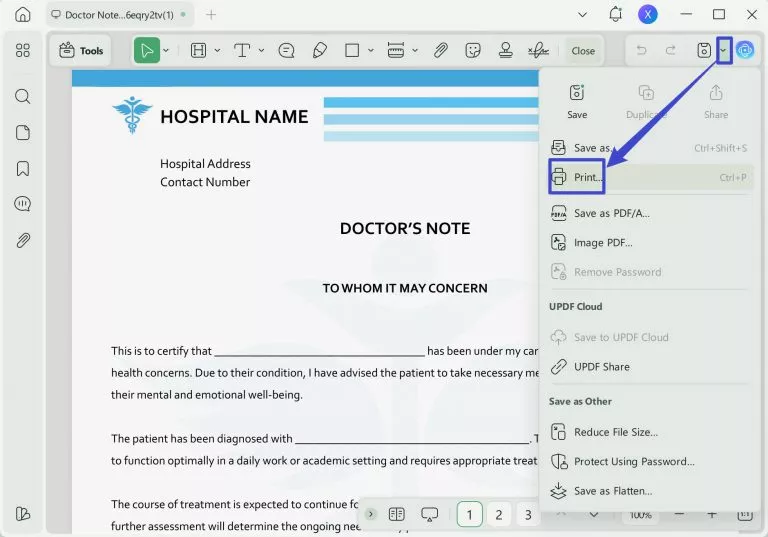
Step 1. Open the PDF in UPDF, click the dropdown arrow (▼) next to the Save icon, and choose Print.
Windows • macOS • iOS • Android 100% secure
Step 2. In the print window, tick the Print as image checkbox.
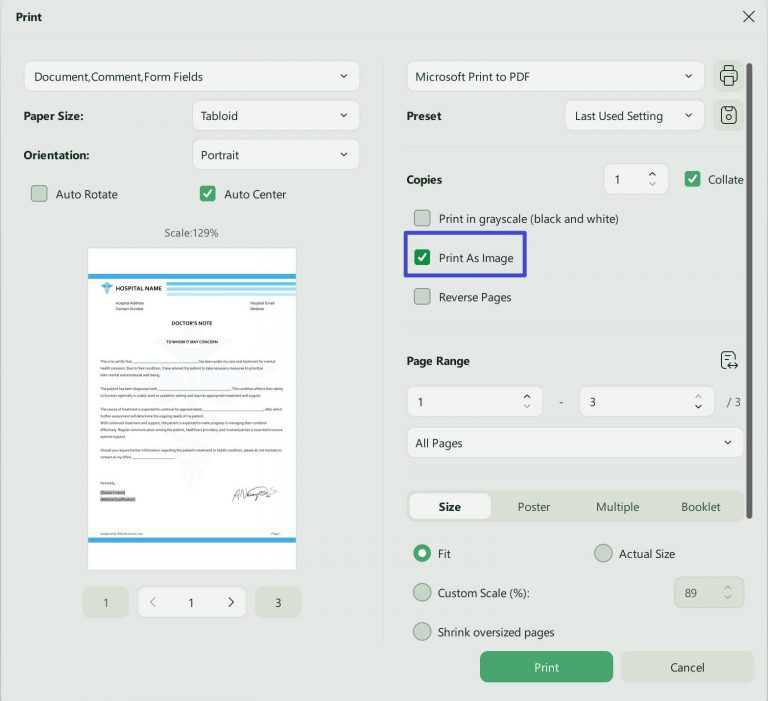
Step 3. Click Print.
In Adobe Acrobat (Windows or Mac), the same option lives under the print dialog's Advanced button. You can read this article for more detailed tutorials: How to Print as Image with Adobe Acrobat? Quick and Fast
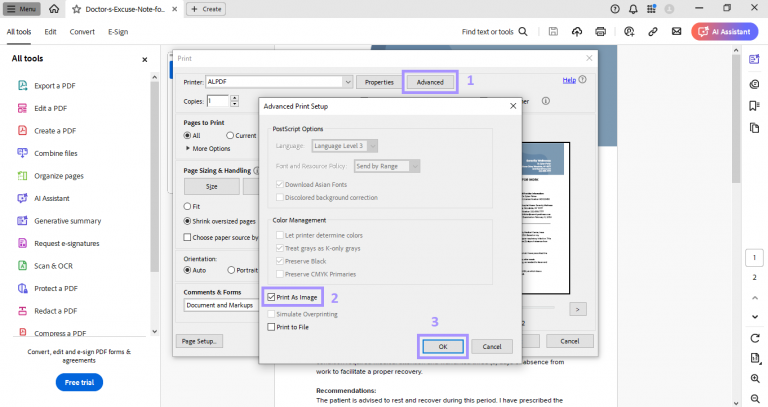
On Mac, UPDF prints through the standard macOS print dialog, which doesn't include a Print-as-Image checkbox. To rasterize a problem file on a Mac, use one of these instead: open it in Adobe Acrobat and use Advanced → Print as Image; or recreate a clean, flattened copy first (Fix 3) and print that.
Print as Image is slightly slower and can lower fine-line sharpness, so use it when standard printing throws an error — not as your everyday setting.
Best for:
- error messages, blank pages, or garbled output caused by a bad font or graphic.
Not for:
- a file that won't print in any app even as an image — that's a corrupt file, so recreate it (Fix 3)
Download UPDF for free to try Print as Image (Windows) on the file that won't print — installation is free, and Pro features are available when you need export or advanced tools.
Windows • macOS • iOS • Android 100% secure
Fix 3: Re-download or Recreate a Corrupt File
If the PDF won't print in any app and Print as Image doesn't help, the file is probably damaged. Files can corrupt during an interrupted download or when saved to a thumb drive or network folder.
Step 1. If you got the PDF from a website or cloud link, download it again and save it directly to your computer's hard drive (not a USB stick or network drive).
Step 2. If someone emailed it to you, ask them to resend it, or open it and re-save a fresh copy: in UPDF, click the dropdown arrow (▼) next to the Save icon → Save as....
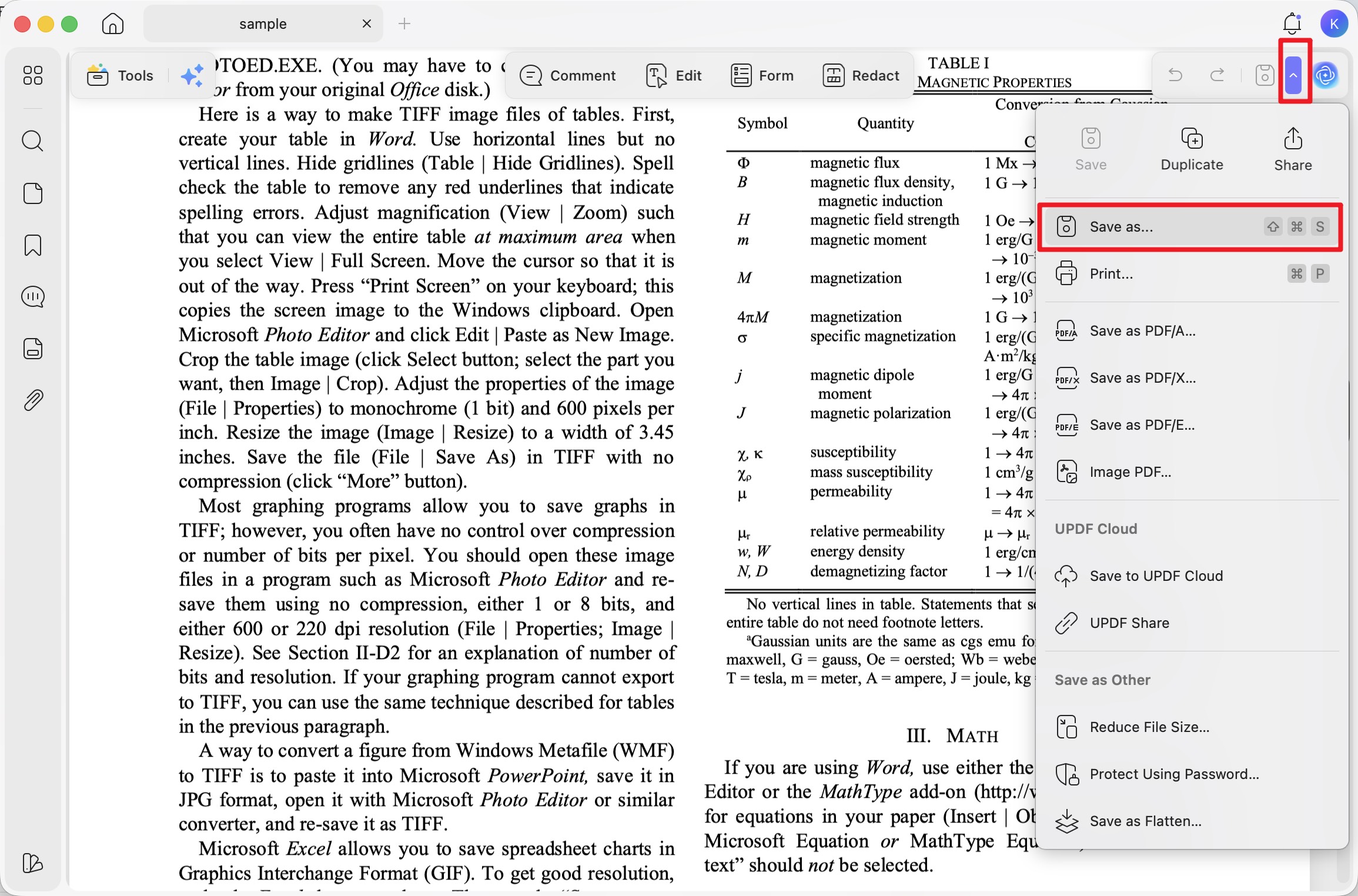
Step 3. Open the new copy and print.
Recreating the file rebuilds its internal structure, which often clears the damaged data that blocked printing.
Best for:
- files downloaded from the web, shared drives, or email.
Not for:
- files that print fine elsewhere — that points back to your reader (Fix 1).
Fix 4: Remove the Print Restriction from the PDF
Some PDFs carry a permissions password (also called an owner password) that lets you open and read the file but silently blocks printing, copying, or editing. There's often no error — the print button simply does nothing. You can lift the restriction on files you own or are authorized to edit.
⚠️ Only remove restrictions from PDFs you own or have permission to modify.
Step 1. Open the restricted PDF in UPDF. (If you don't have it yet, download UPDF for free — it installs in under a minute.)
Windows • macOS • iOS • Android 100% secure
Step 2. Click the dropdown arrow (▼) next to the Save icon and select Remove Password (Remove Security).
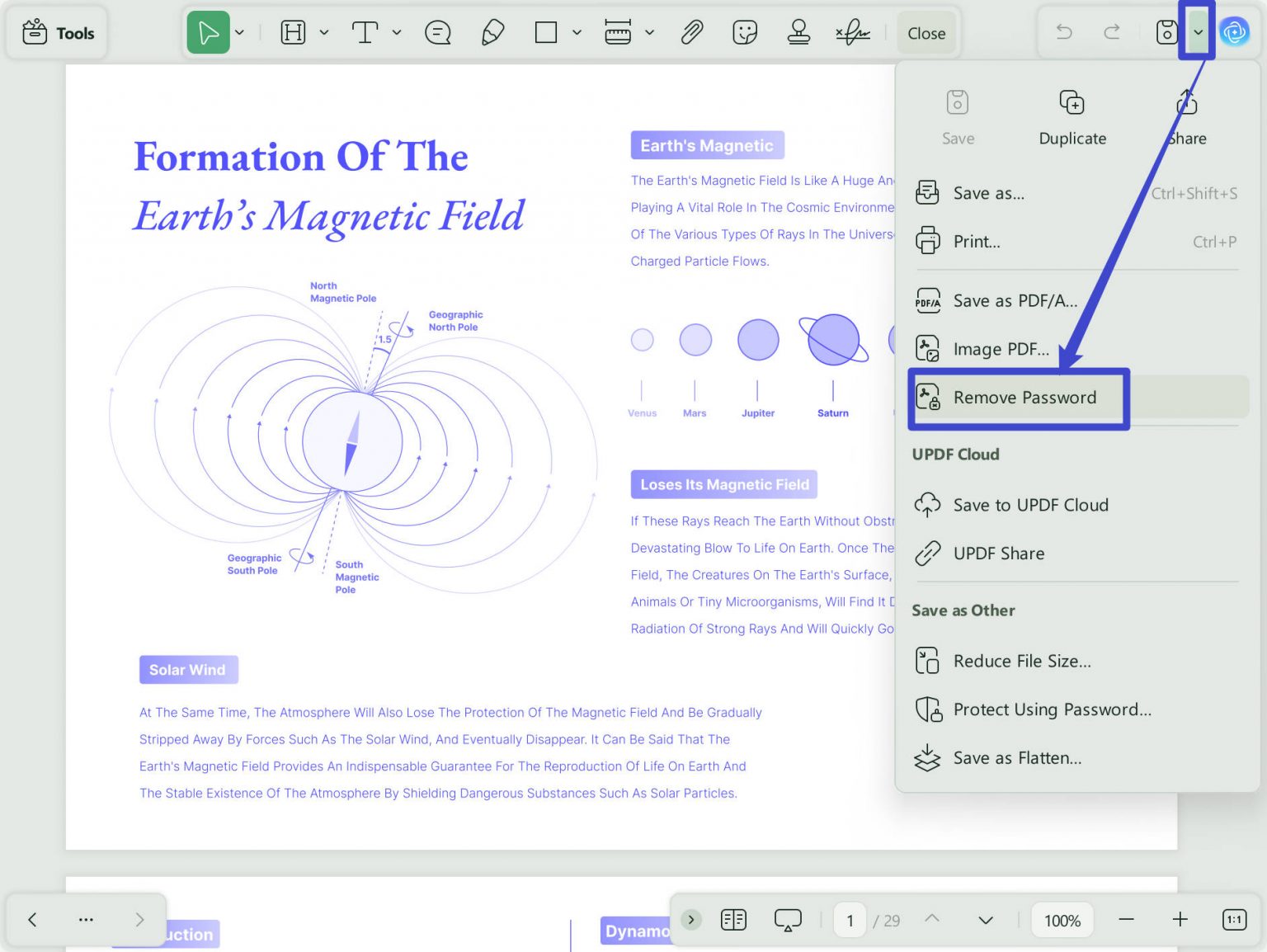
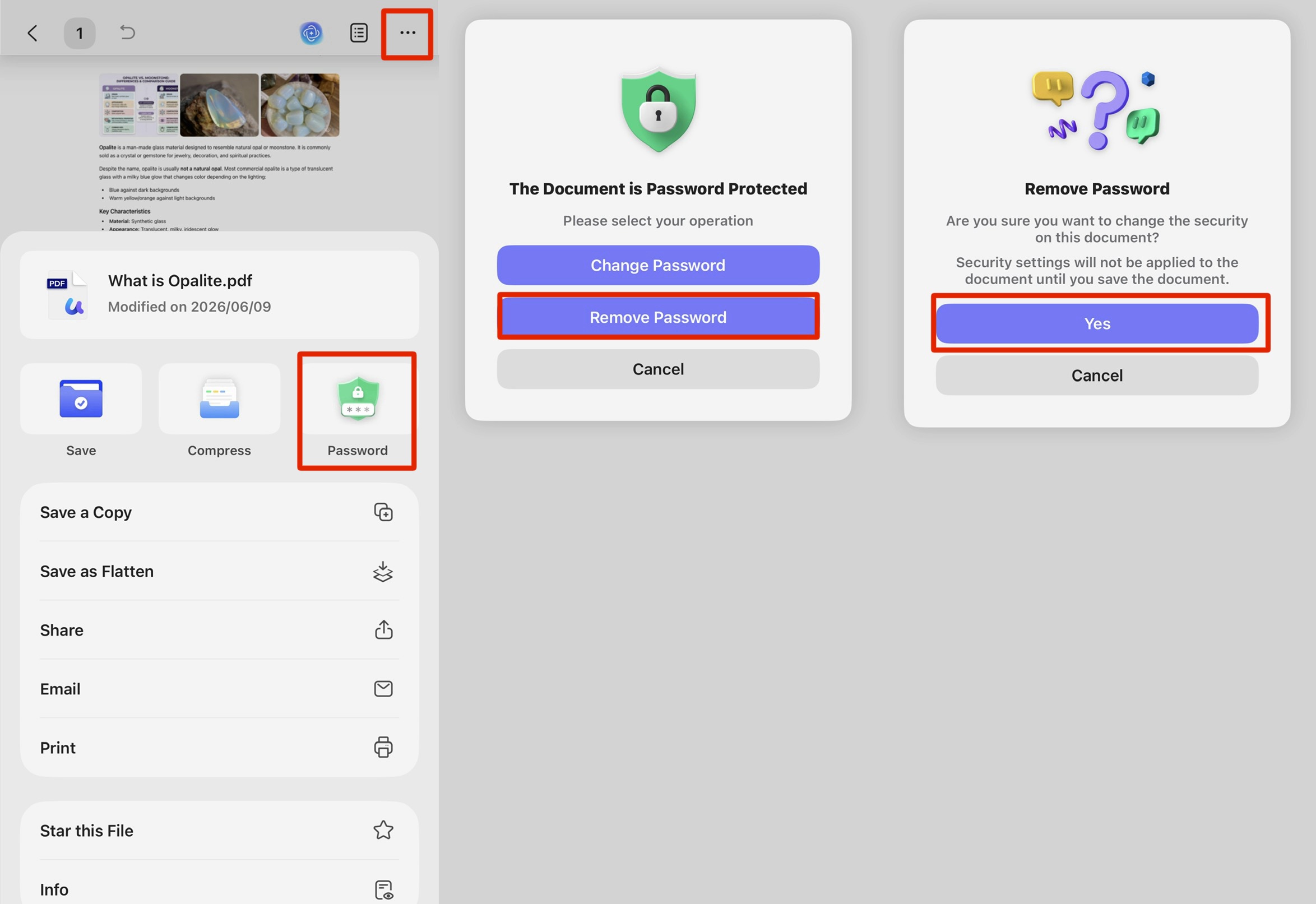
Step 3. Confirm, then save the unrestricted copy with Save. Print it as usual.
This works the same way on Windows and Mac. On UPDF for iOS and Android you can also remove passwords.
Best for:
- documents from clients, banks, or legal senders that block printing.
Not for:
- a file you didn't create and aren't authorized to change — check with the sender first.
Fix 5: Update Your Printer Driver
An outdated or broken driver is the single most common cause of print failures on Windows, especially right after a major OS update. If other file types also won't print, start here.
On Windows:
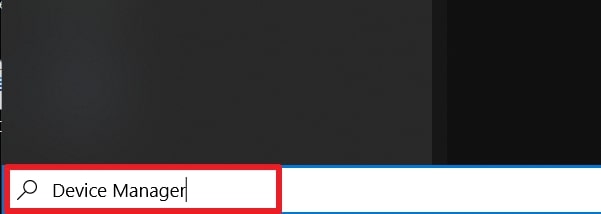
Step 1. Type Device Manager in the taskbar search and open it.
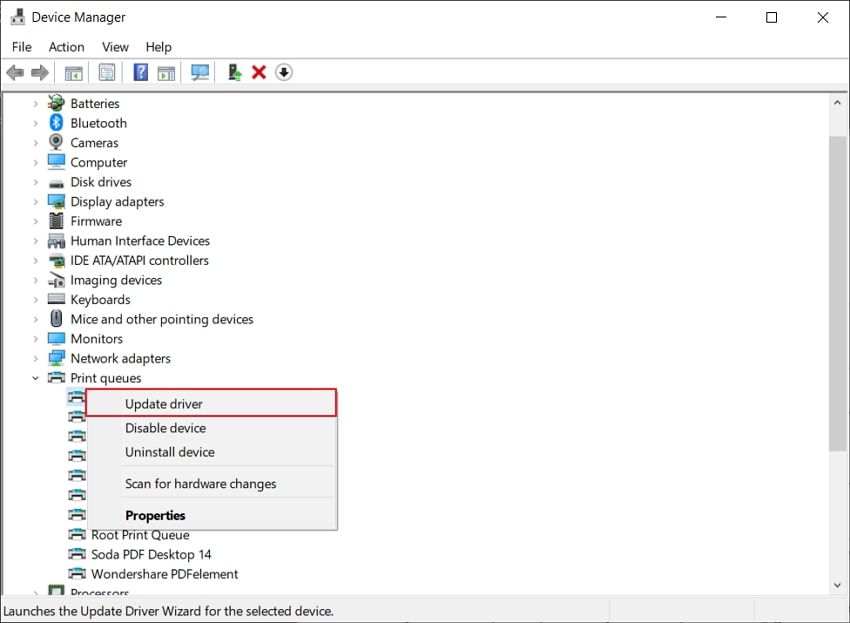
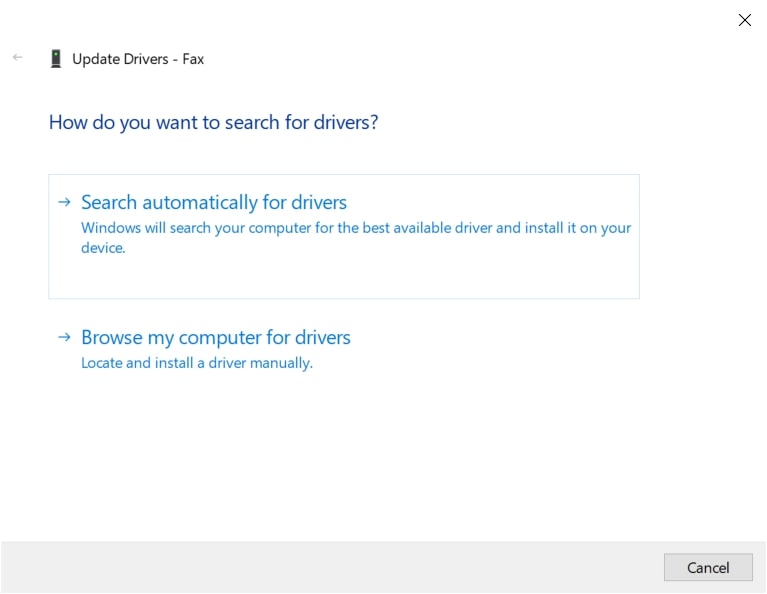
Step 2. Expand Print queues (or Printers), right-click your printer, and choose Update driver → Search automatically for drivers.
Step 3. Follow the prompts, restart, then try printing again.
On Mac:
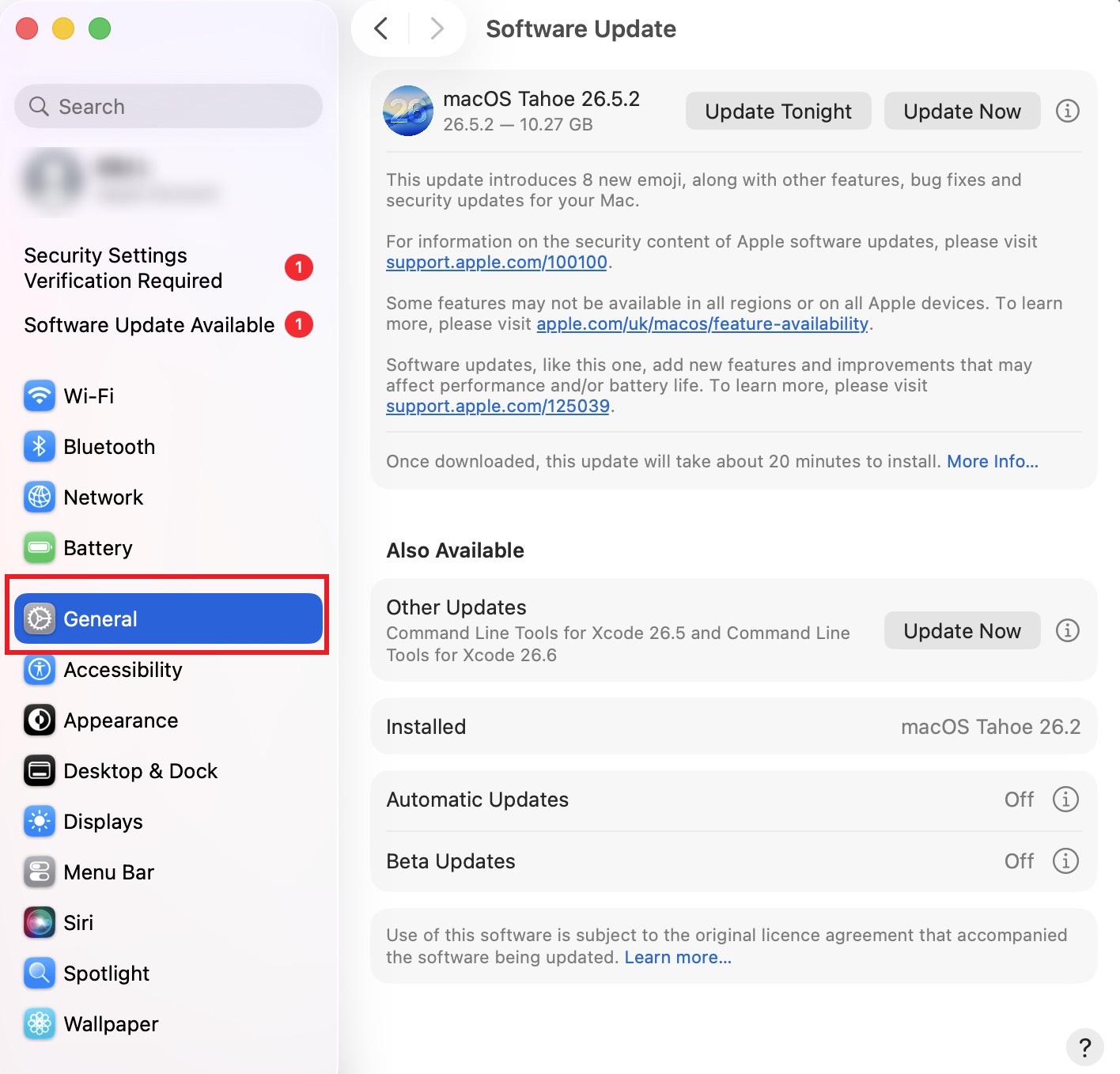
Step 1. Open System Settings → General → Software Update and install any pending macOS updates — Apple ships most printer drivers through system updates.
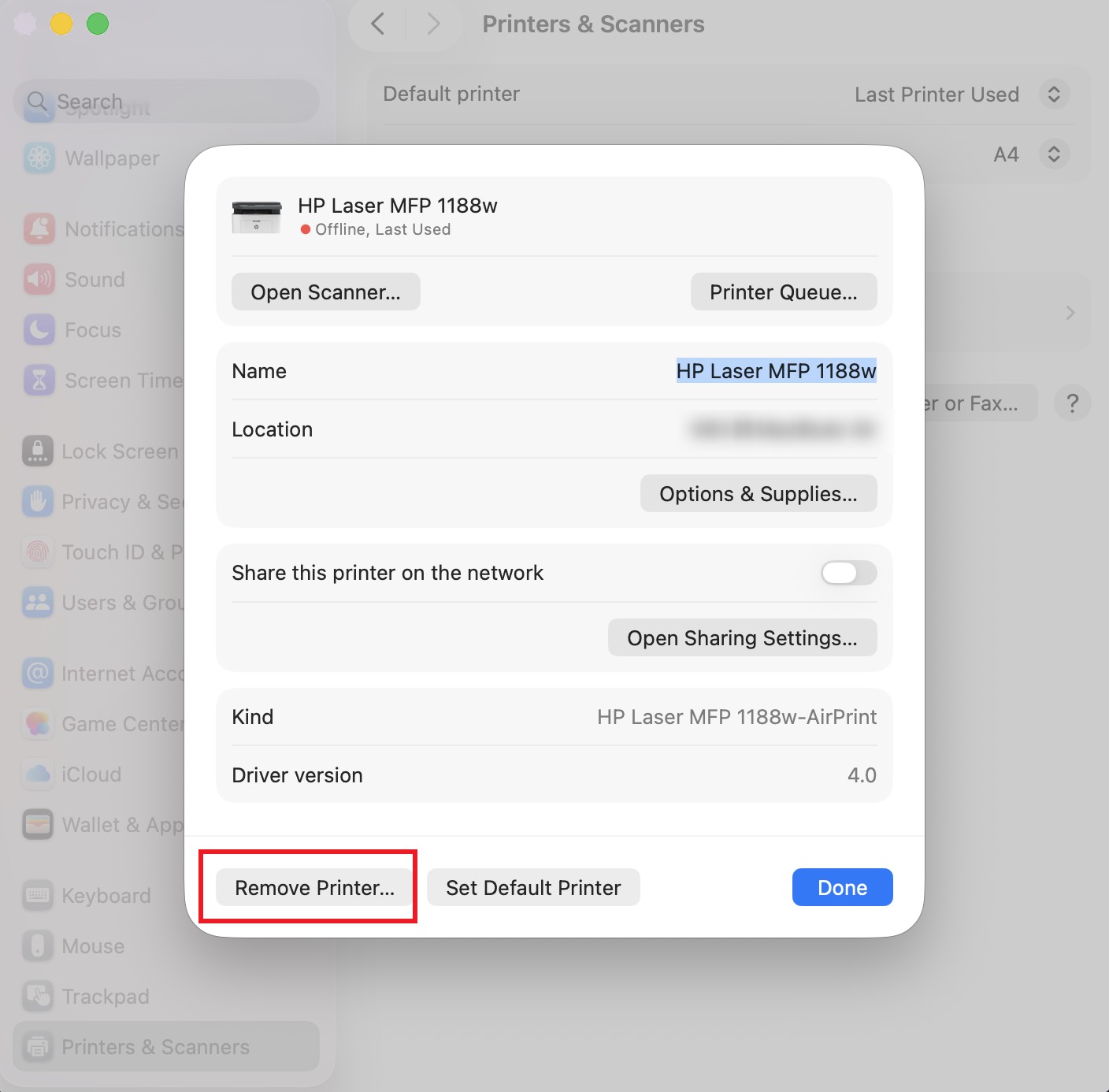
Step 2. If the printer still misbehaves, go to System Settings → Printers & Scanners, remove the printer, then add it back to pull a fresh driver.
For either platform, you can also download the latest driver directly from the printer manufacturer's website using your exact model number.
Best for:
- print failures that started after an OS update, or that affect every file type, not just PDFs.
Not for:
- a single PDF that fails while everything else prints — the file or its restriction is the problem (Fix 2–4).
Fix 6: Reset the Default Printer, Clear the Queue, and Check the Connection
If the job appears to send but nothing prints, the culprit is usually a stuck queue, the wrong default printer, or a loose connection.
On Windows:
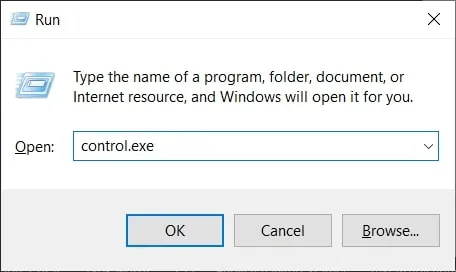
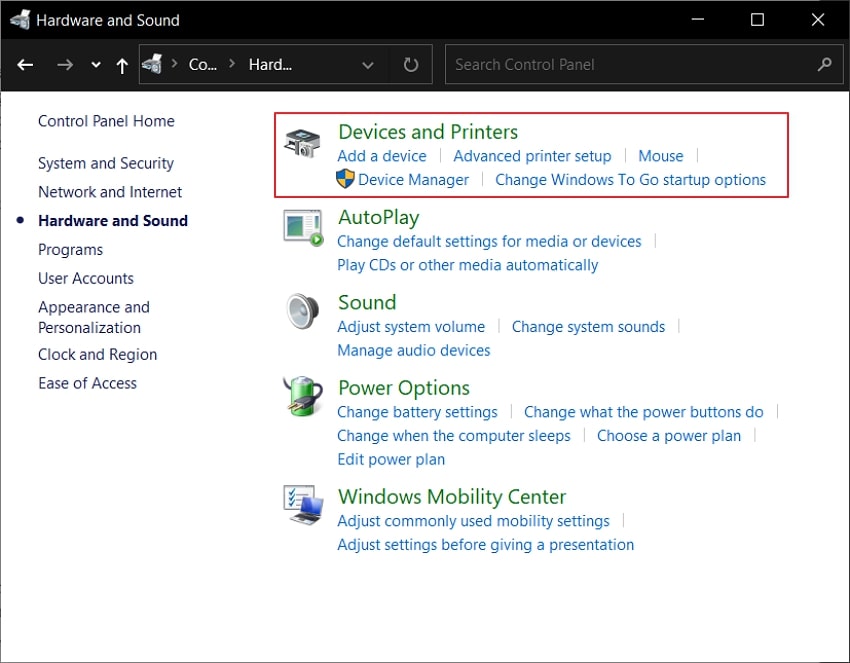
Step 1. Press Windows + R, type control.exe, and open Devices and Printers under Hardware and Sound.
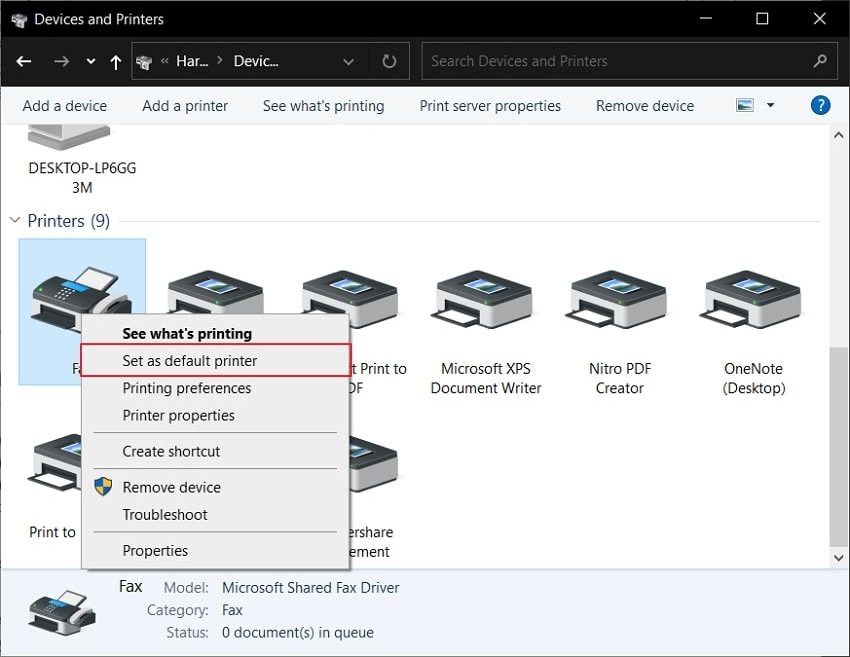
Step 2. Right-click your printer and choose Set as default printer (look for the green check mark).
Step 3. Double-click the printer, open the queue, and cancel any stuck jobs. Then print once — don't keep clicking Print, which only piles up more stuck jobs.
On Mac:
Step 1. Go to System Settings → Printers & Scanners and set the right printer as Default.
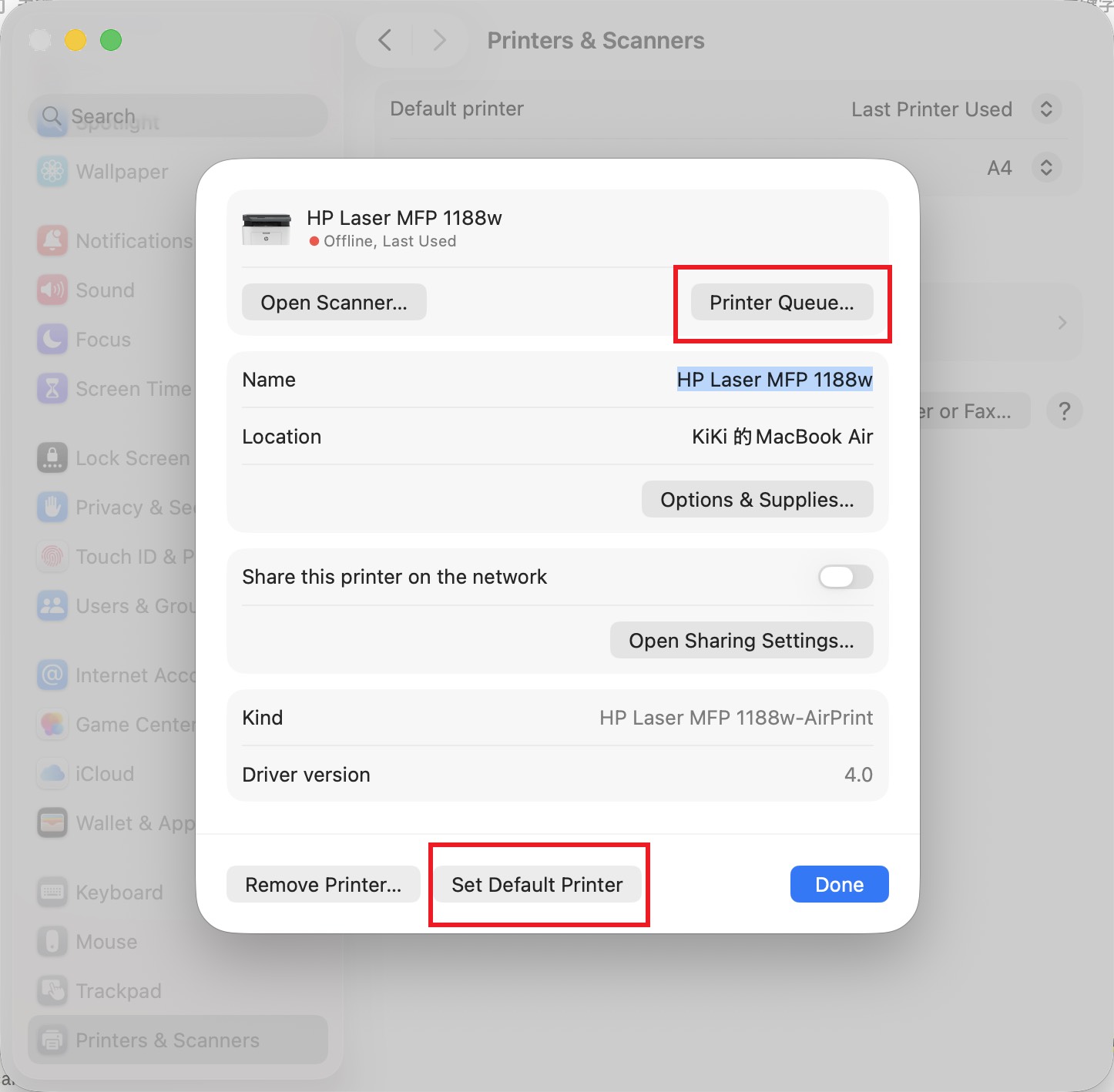
Step 2. Click the printer, choose Printer Queue, and delete any stuck jobs.
Step 3. For a wired printer, reseat the USB cable; for wireless, confirm the printer and computer are on the same network. Restart the printer if needed.
Best for:
- jobs that "send" but never print, or a printer sitting idle while the queue backs up.
Not for:
- a file that throws a print error before the job ever reaches the queue — that's a file or reader issue (Fix 1–3).
Download UPDF for free to open your file, clear the print restriction if there is one, and reprint from a clean engine — installation is free, and Pro features are available when you need export or advanced tools.
Windows • macOS • iOS • Android 100% secure
Part 3. How UPDF Fixes This in One Window
Most "can't print" cases come down to two things a good PDF app handles directly: a file the printer can't render, and a file that's blocked from printing. UPDF handles both.
- Print as Image (Windows) — a checkbox right in UPDF's print window (dropdown arrow (▼) next to Save → Print). It flattens problem pages so they print even when a corrupt font or heavy graphic blocks normal printing — the same fix behind Adobe's "Advanced → Print as Image." On Mac, UPDF uses the macOS print dialog, so rasterize via Acrobat's Advanced option or by recreating the file first.
- Remove Password / Security (Windows & Mac) — one click from the same Save dropdown lifts a permissions password so a locked file will print, on documents you're authorized to edit.
Because UPDF is a full editor, it also doubles as a clean second reader for Fix 1 (a fresh engine to print from) and can re-save a fresh copy for Fix 3.
UPDF is free to download and use, and free exports carry a trial watermark. UPDF Pro is $49.99/year or $79.99 one-time (lifetime) — a fraction of Adobe Acrobat Pro's $19.99/month subscription — and removes the trial watermark while unlocking batch tools, and full conversion.
If you regularly print scanned documents or files with mixed fonts, download UPDF for free and — on Windows — try Print as Image on a copy first.
Windows • macOS • iOS • Android 100% secure
Part 4. Edge Cases: When the Standard Fixes Don't Work
- The Print button is greyed out entirely. This is almost always a permissions password, not a bug — go straight to Fix 4. If the button is active but does nothing, it's a queue or driver issue (Fix 5–6).
- Only some pages print, or one page comes out blank. A single unembedded font or corrupt image on that page is usually to blame. Print as Image (Fix 2) rasterizes the whole document and clears it; if not, recreate the file (Fix 3).
- It prints fine to a PDF printer but not to paper. "Print to PDF" first (Microsoft Print to PDF on Windows, Save as PDF on Mac), then print that new, clean PDF — this rebuilds the file and often bypasses the original error.
- Network/shared printer fails while a USB printer works. The queue on the shared printer is likely stuck or the driver on the server is outdated. Clear the queue (Fix 6) and confirm the driver on the machine hosting the printer.
- Nothing works on this computer. Move the file to a different computer and print from there. Driver, OS, and app-specific problems don't travel with the file, so this quickly confirms whether the file or the machine is at fault.
Part 5. Frequently Asked Questions
1. Why does "Print as Image" work when normal printing fails?
It sends the page as a flat picture instead of vector text and graphics. That skips the font and graphic rendering step where many print errors happen, so a corrupt element no longer stops the job.
2. How do I print a PDF straight from an email?
Open the attachment in your browser or a PDF app first, then press Ctrl + P / Cmd + P. Printing from inside some email previews is unreliable — opening the file in a proper reader is more consistent.
Conclusion
A PDF that won't print is almost always a corrupt file, an outdated reader, or a print restriction — so test in a second app first, then reach for Print as Image or remove the restriction as needed. UPDF handles the two hardest cases directly: its Print as Image checkbox (Windows) forces problem files through, and one-click Remove Password (Windows & Mac) unlocks files blocked from printing.
Download UPDF for free to try removing a print restriction — or, on Windows, Print as Image — on the file that won't print. Installation is free, and Pro features are available when you need export or advanced tools.
Windows • macOS • iOS • Android 100% secure





 Enola Miller
 Delia Meyer
 Enola Davis