UPDF
UPDF
 UPDF for Windows
 UPDF for Mac
 UPDF for iPhone/iPad
 UPDF for Android
 Nomostar
 UPDF AI Online
 UPDF Sign
 IvyCraft
 Edit PDF
 Annotate PDF
 Create PDF
 PDF Form
 Edit links
 Convert PDF
 OCR
OCR PDF to Word
 PDF to Image
 PDF to Excel
 Organize PDF
 Merge PDF
 Split PDF
 Crop PDF
 Rotate PDF
 Protect PDF
 Sign PDF
 Redact PDF
 Sanitize PDF
 Remove Security
 Read PDF
 UPDF Cloud
 Compress PDF
 Print PDF
 Batch Process
 About UPDF AI
 UPDF AI Solutions
 AI User Guide
 FAQ about UPDF AI
 Summarize PDF
 Translate PDF
 Chat with PDF
 Chat with AI
 Chat with image
 PDF to Mind Map
 Explain PDF
 PDF AI Tools
 Image AI Tools
 AI Chat Tools
 AI Writing Tools
 AI Study Tools
 AI Working Tools
 Other AI Tools
 AI Bookmark Generation
 AI Bookmark Summary
 AI Watermark Generation
 AI Background Generation
 AI Sticker Generation
 AI Stamp Generation
 AI Editing Suite
 UPDF Copilot
 AI Page Management
 AI Semantic Search
 PDF to Word
 PDF to Excel
 PDF to PowerPoint
 Enterprise Solution
 Enterprise Sign
 Enterprise AI
 Enterprise Plan
 Enterprise User Guide
 Enterprise Webinar
 IT
IT Education
 Construction
 Financial Service
 Healthcare
 Insurance
 Legal
Legal Manufacturing
 Government
 Researchers & PhDs
 Solopreneurs & Freelancers
 Lawyers & Legal Professionals
 Real Estate Agents & Brokers
 Education Solution
 Customer Stories
 User Guide
 UPDF Tricks
 FAQs
FAQs UPDF Reviews
 Download Center
 Blog
Blog Newsroom
 Tech Spec
 Updates
 UPDF vs. Adobe Acrobat
 UPDF vs. Foxit
 UPDF vs. PDF Expert

Quick answer:
If a checked box on an application form will not clear when you click it, identify the box type before changing the file. A live checkbox, radio button, static checkmark, flattened field, and locked field can look similar but need different fixes. The checks below help you choose the right one.
So the first job isn't to open a tool. It's to figure out which kind of box you have. This guide sorts the fix by box type, warns you where a "fix" only hides the mark without clearing the underlying data, and covers Windows, Mac, and iPhone.
Part 1. First, Identify Why the Box Won't Clear
Hover over the checked box and watch what happens. That one test tells you which method you need.
| What you see / your situation | What it actually is | Go to |
|---|---|---|
| Cursor becomes a hand; the box toggles off | Interactive checkbox | Method 1 |
| Clicking only moves the mark to another option; you can't clear all of them | Radio button (not a checkbox) | Method 2 |
| You want to reset every field at once | Interactive form, full reset | Method 3 |
| Cursor stays an arrow; nothing toggles | Static graphic printed into the page | Method 4 |
| It was clickable before but stopped after being saved | Flattened field (now a graphic) | Method 4 |
| The tab or title bar shows "SECURED", or a message says editing is restricted | Locked / password-protected | Method 5 |
| You cleared it, but it's checked again after saving, reopening, or uploading | Change didn't reach the file, or a checked default | Method 6 |
| You're on an iPhone or Android phone | Mobile — support differs by platform | Method 7 |
| You're already working in Adobe Acrobat | Same fix, in Acrobat's tools | Method 8 |
One rule that saves you later: unchecking a box changes its value, not just its appearance. Covering a mark with a white shape makes it look cleared while the field's stored value stays "selected" — so a form you submit can still send the wrong answer. Where the box is a real field, clear the value; only cover a mark when it's a static graphic with no field behind it.
Part 2. Checkbox vs. Radio Button vs. Static Checkmark
These three look almost identical and get called "a box" by everyone, but they behave differently — and confusing them is why generic "click it again" advice so often fails.
- Interactive checkbox: a live field that toggles on and off independently. Click clears it.
- Radio button: a live field, but grouped. Clicking one deselects the others — so within a group you can switch your choice, but you often can't return to "nothing selected" by clicking. Clearing the whole group needs a reset.
- Static checkmark: a drawing baked into the page, like ink on paper. There's no field to toggle; you have to edit the page itself.
The quick mental model: a checkbox is a switch you flip, a radio button is one switch in a locked row where only one can be up, and a static checkmark is a photo of a tick — you can only paint over a photo.
Part 3. Method 1 — Uncheck One Interactive Box (Windows, Mac & Keep the Rest)
Best for:
- fillable forms where the cursor turns into a hand over the box.
Not for:
- static or scanned checkmarks that don't respond to a click — use Method 3.
This is the case where you filled out a form, ticked the wrong box, and need to undo that single choice without touching the rest of the form.
Step 1. Open the document in UPDF — if you don't have it yet, download UPDF for free and install it in under a minute — and leave it in the default Reader view. Interactive forms are fillable here without switching modes.
Windows • macOS • iOS • Android 100% secure
Step 2. Click the checked box once. It clears instantly. The same click clears interactive checkboxes and toggles selections — no menus, no tools.
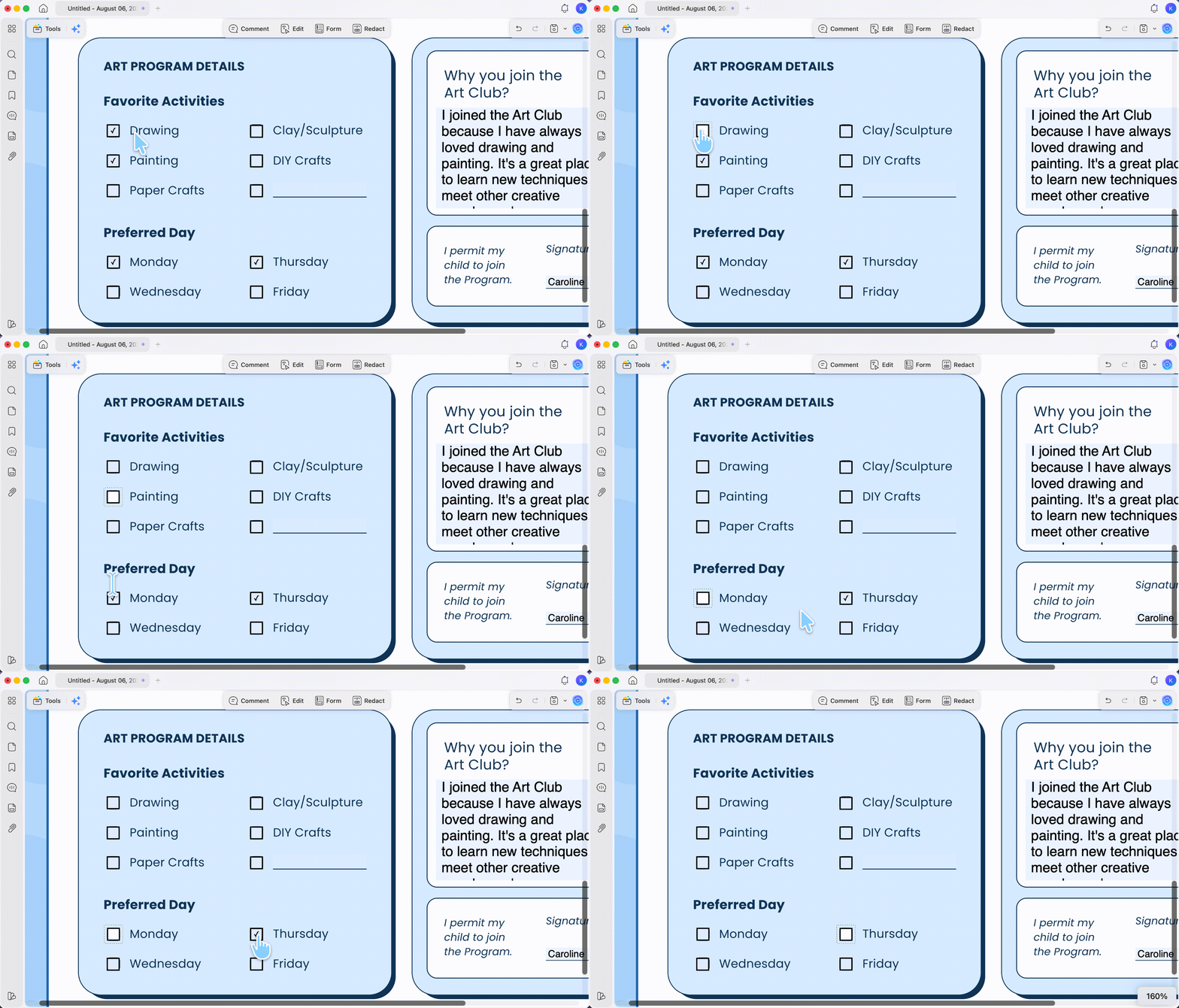
Step 3. Save the file with Save or Save As Other to keep the change.
If clicking the box does nothing, stop here — your checkbox isn't interactive, and Method 4 is the one you need.
Part 4. Method 2 — When It's a Radio Button You Can't Clear
Best for:
- a set of options where clicking only moves the dot to a different choice and you can't get back to blank.
Not for:
- independent square checkboxes — those clear with Method 1.
Radio buttons are designed so one option in a group is always selected once you pick one. That's not a bug — it's the field type. If the form has no "None" or "N/A" option, clicking alone won't return the group to empty. You have three real ways out:
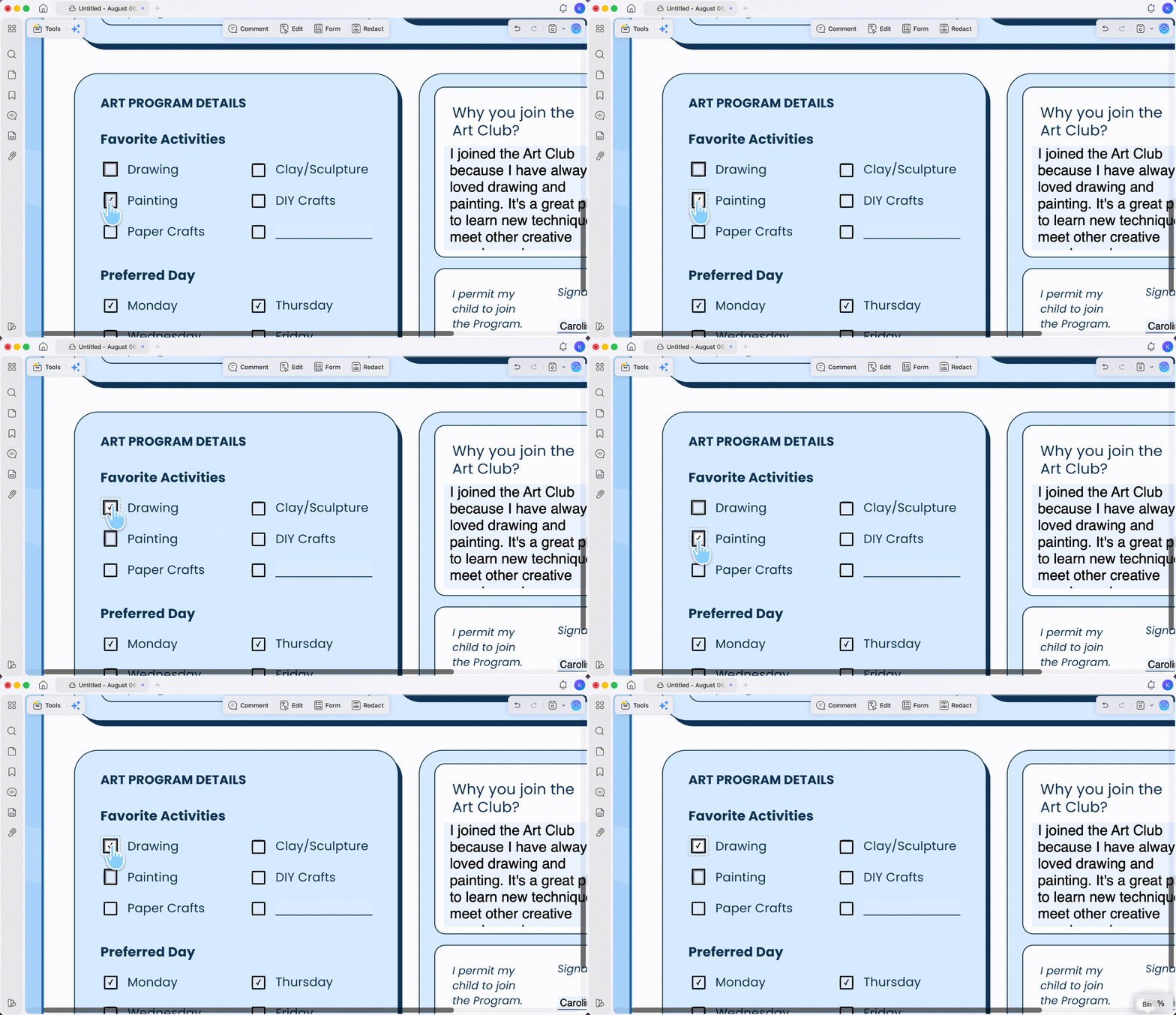
- Switch to the intended option if you simply picked the wrong one — clicking the correct choice deselects the rest.
- Ask the form's author to add a "None/N/A" choice, or set the group's default to unselected, if you're not the one who built it.
- Clear the whole group's value using UPDF's Clear Form (Method 3) — this resets the group back to nothing selected.
For the full breakdown of radio-specific quirks, see our guide on how to uncheck a radio button in PDF.
Part 5. Method 3 — Reset the Whole Form or Clear a Radio Group (UPDF Clear Form)
Best for:
- wiping every filled value at once — clearing test data, resetting a template, or emptying a radio group back to unselected.
Not for:
- a half-completed form where you only want to undo one box. Clear Form erases every field's value, including boxes that were checked by default — so anything you've already entered is gone. If you only need to fix one box, use Method 1.
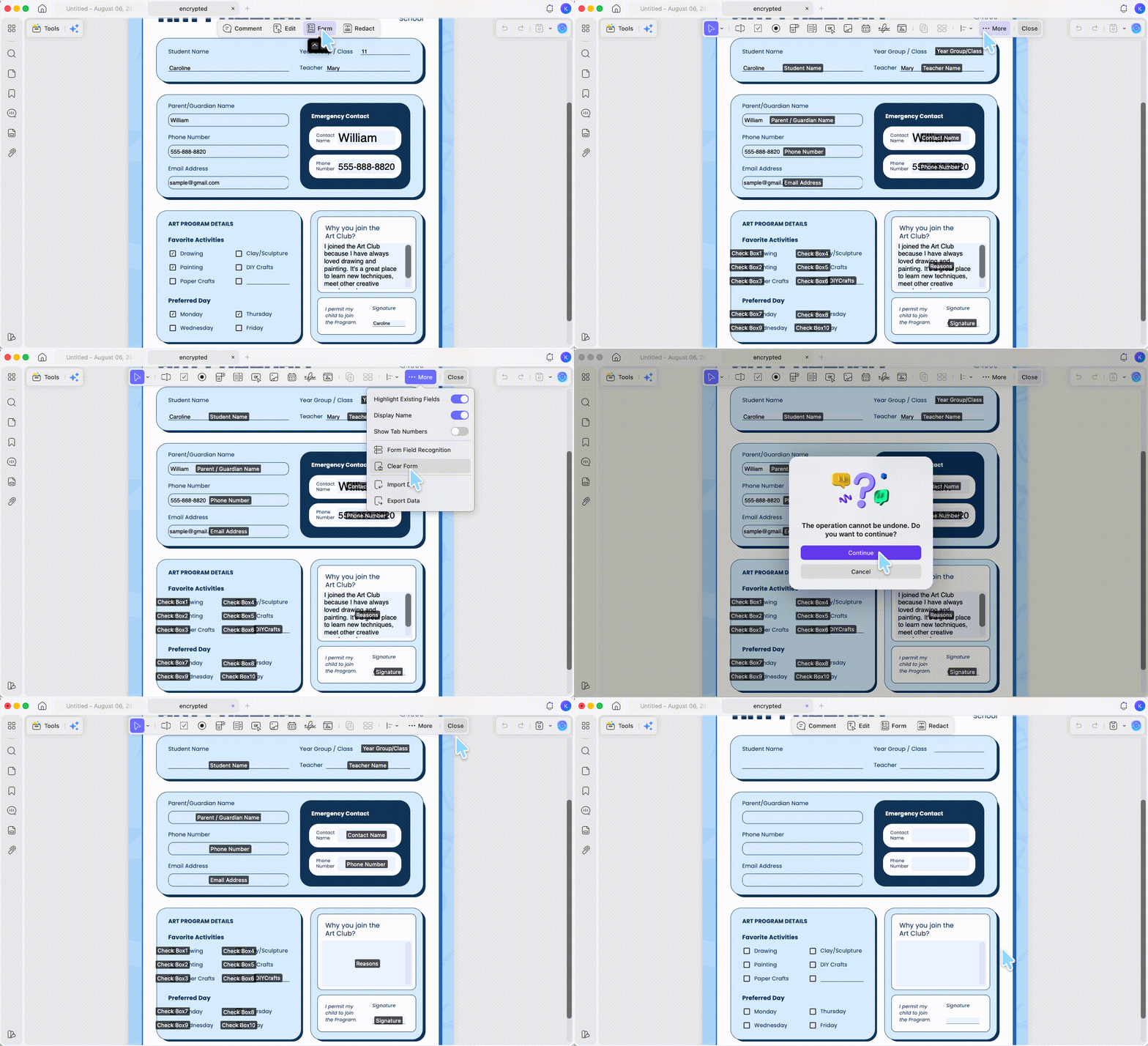
Step 1. Open the file and switch to Form (Prepare Form) mode from the top toolbar.
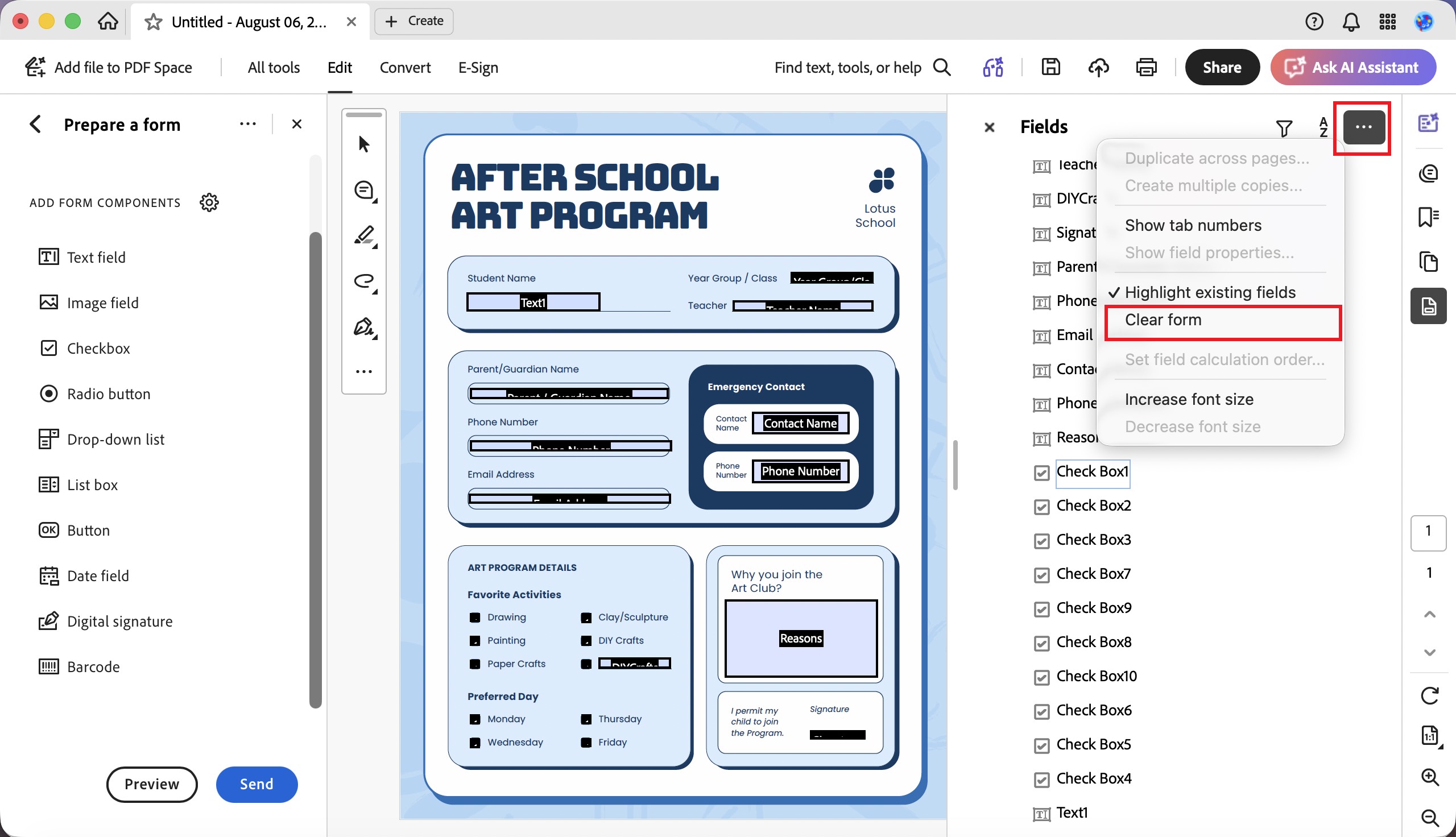
Step 2. Open the more options (···) menu at the top right of the form toolbar and choose Clear Form.
Step 3. Every checkbox and radio group empties to unselected. Save, then reopen to confirm.
Part 6. Method 4 — Fix a Static or Flattened Checkmark (UPDF)
Best for:
- a checkmark printed into the page, a scanned form, or a form that stopped responding after it was saved (flattened).
Not for:
- live interactive fields — those need Method 1 or 3, not covering.
Here the mark is part of the page image, so there's no value to clear. You either cover it or rebuild a real field over it.
⚠️ Before you cover anything: only paint over a mark when it's a genuine static graphic. On an interactive business form, covering the box hides the tick but leaves the field's value set — so the file still carries the wrong answer underneath. For live fields, always clear the value (Method 1 or 3) instead of covering.
Option A — Cover it with a filled rectangle (fastest)
Step 1. Open the file in UPDF and select Comment from the top toolbar.
Step 2. Choose the Rectangle shape from the top bar. Set both the border and fill color to match the page background (usually white).
Step 3. Draw the rectangle near the checkmark, then drag and resize it so it fully covers the tick. Save when done.
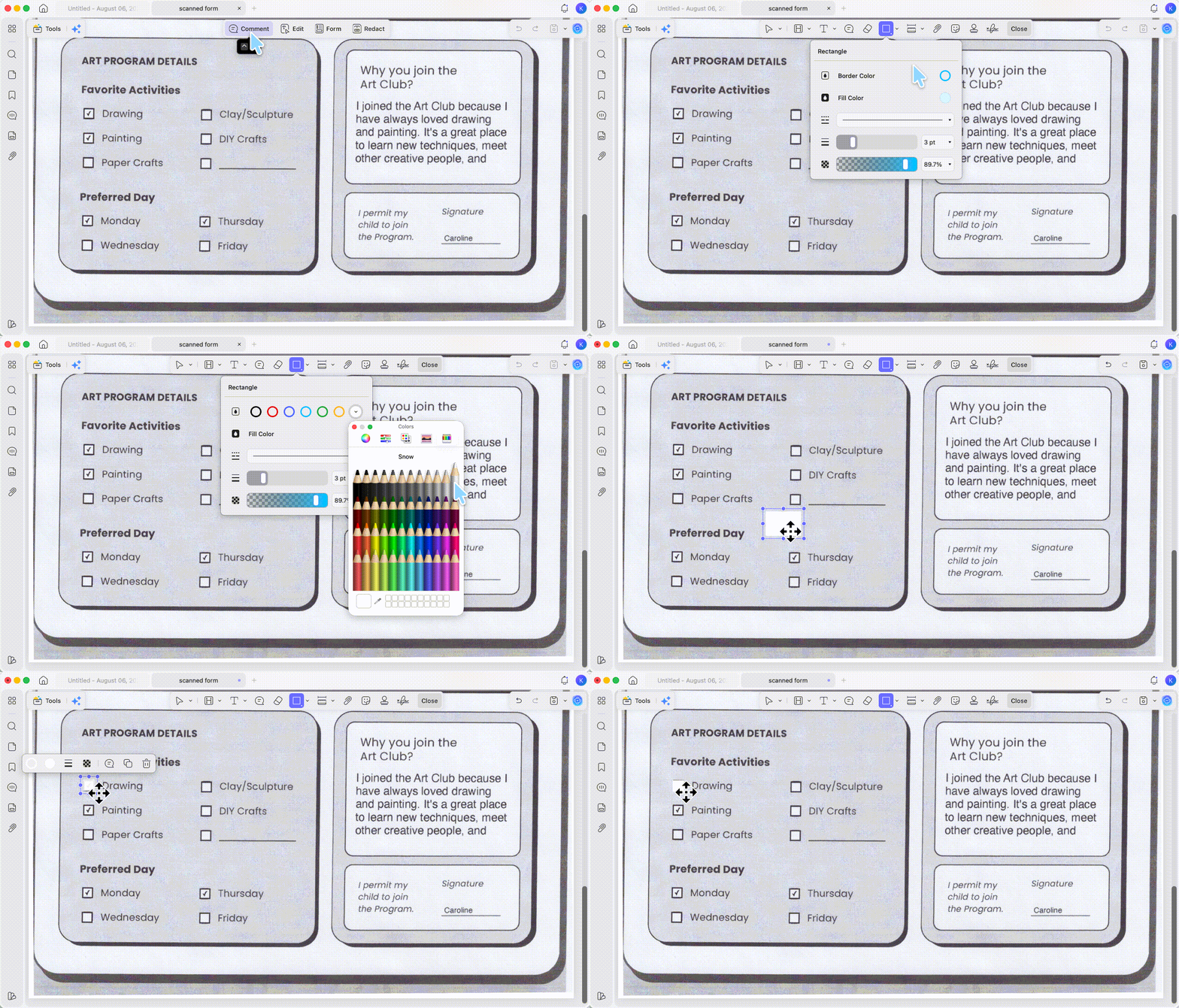
Tip: hold Shift while drawing to lock the rectangle to a perfect square, and use the arrow keys to nudge it into exact position over the mark.
Option B — Rebuild it as a real interactive checkbox
If you want the box to stay clickable afterward (for example, you're distributing the form), replace it instead of painting over it.
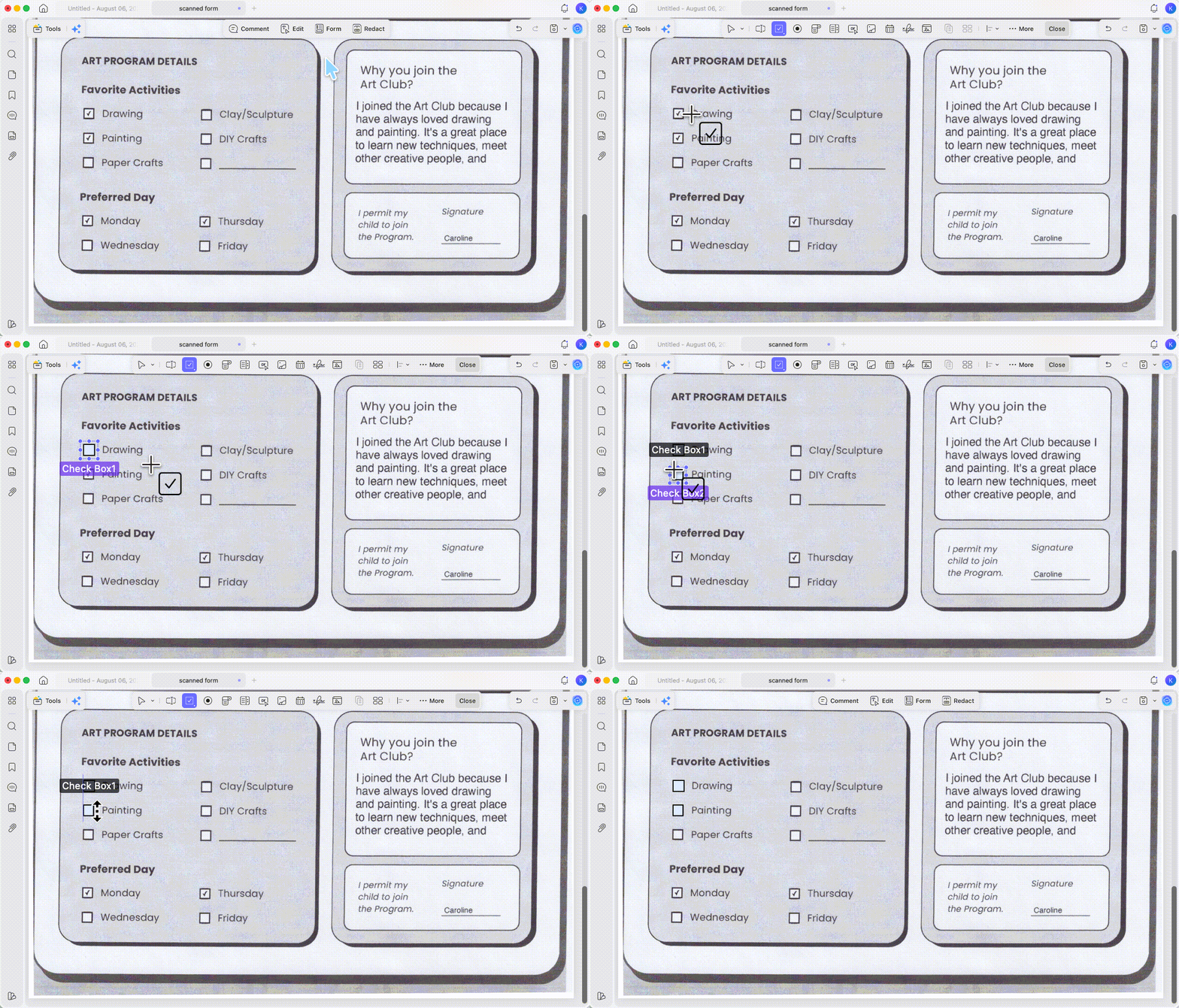
Step 1. Open the PDF and go to Form.
Step 2. Select the Check Box field and click on the page to place a new one.
Step 3. Drag and resize the new box so it sits over the old one, then save. The new field is interactive and starts unchecked.
A note on export: on the free version, saving an edited form adds a trial watermark to the output. The file still saves and the checkbox change is real — the watermark is the only limit. Upgrade to Pro (US$49.99/year or US$79.99 lifetime) to export without it.
Part 7. Method 5 — When the Box Is Locked (Password-Protected)
Best for:
- an interactive box that should toggle but won't, and a message mentions editing or filling restrictions.
Not for:
- static checkmarks — a password isn't the blocker there.
A permissions password can block form filling and editing even though the fields are technically live: the box looks clickable but nothing happens, because the file is locked rather than flat.
The boundary comes before the how-to: technically UPDF can remove both open passwords and permission passwords, but being able to isn't being allowed to. Only remove protection from PDFs you own or are authorized to edit. For a form someone sent you to sign, the cleaner path is to ask the sender for an unrestricted copy.
If you do have the right to edit it:
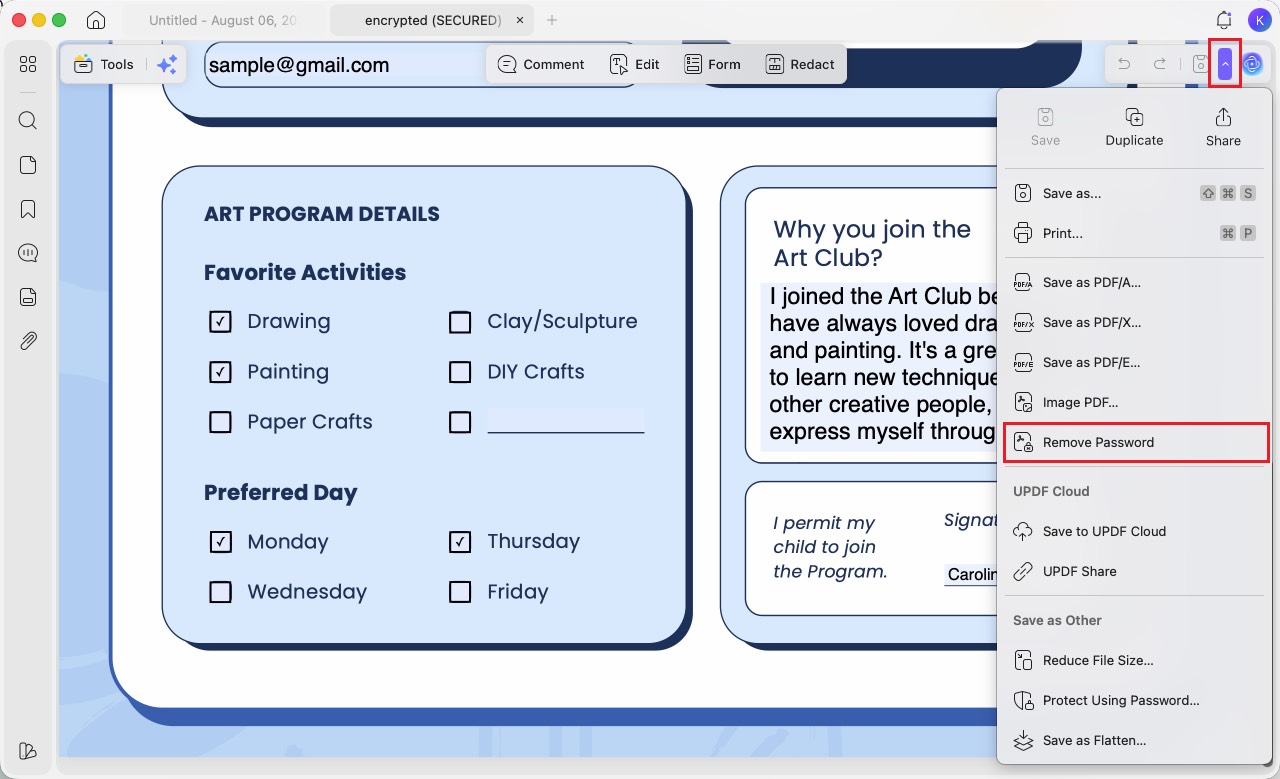
Step 1. Open the file in UPDF (enter the open password if prompted).
Step 2. Click the dropdown arrow (∨) next to the Save icon in the top-right corner, then choose Remove Password.
Step 3. With the restriction gone, return to Method 1 — the interactive box now clears with a single click.
Part 8. Method 6 — When You Unchecked It But It Came Back
This is the quiet one that catches people out: the box looks clear on screen, but after saving, reopening, or uploading, it's checked again. Unchecking has to be written into the file, not just shown on screen.
Common causes and fixes:
- You edited in a browser and closed without saving properly. Chrome and Preview show the cleared box but don't always commit it. Re-open in UPDF, clear the box, and use Save As Other to write a real copy.
- You saved, but downloaded the original instead of your edited version. Confirm you're opening the file you saved, not the source you downloaded.
- The field has a checked default. In Reader view you're changing the current value, not the default — so it reopens checked. Reset the default in the field's properties, or use Clear Form (Method 3) to strip the value.
- An upload system reads the field value, not the visual. If you only covered the mark (Method 4) on a live field, the value is still "selected." Clear the value instead.
The reliable habit for any form that matters: clear → save → close → reopen → verify. If it survives the reopen, it'll survive the submission.
Part 9. Method 7 — Uncheck a Box on iPhone and Android
The mobile answer depends on your platform, and it's worth being straight about the limits.
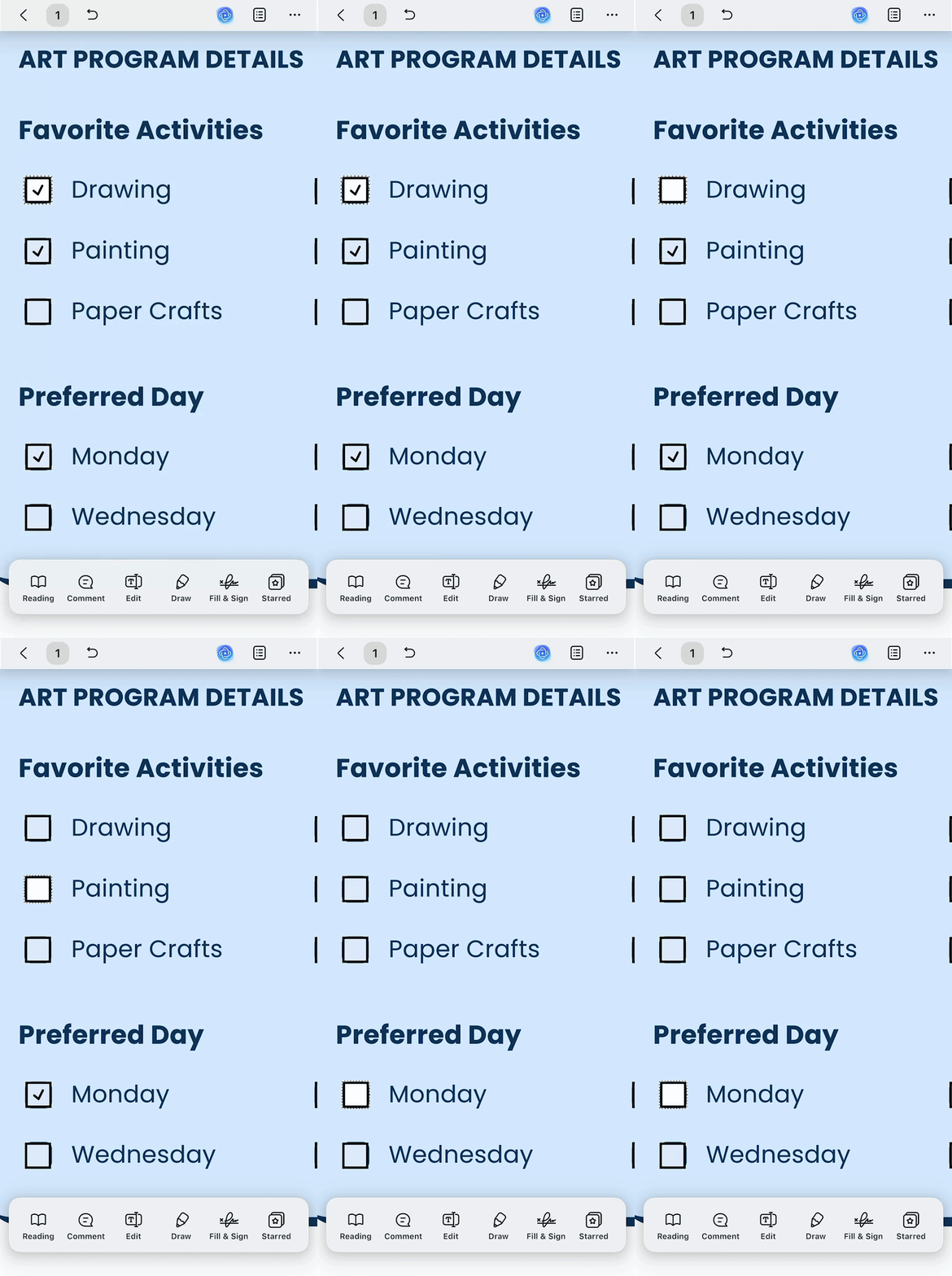
On iPhone/iPad (UPDF for iOS): when you open a PDF that already has interactive fields, UPDF highlights them automatically. Tap a checked box to clear it, tap a blank area to confirm, and save. This covers the most common on-the-go case — you filled out a form on your phone and tapped the wrong box.
Step 1. Open the form in UPDF for iOS; interactive fields highlight on open.
Step 2. Tap the checked box to toggle it off.
Step 3. Tap a blank area, then save.
On Android (UPDF for Android): the Android app doesn't include interactive form-field tools yet, so you can't toggle a live checkbox the way you can on iOS or desktop. For a static checkmark, you can use Draw → Rectangle shape to cover it, but for anything involving real form fields, unchecking is a desktop or iOS job. If you're on Android and need a live field cleared, the honest fix is to open the file on a computer.
For static checkmarks on either platform, covering the mark with a white shape (as in Method 3) is the reliable approach where the app supports it.
Filling and clearing form fields is only one part of working with PDF forms — if you're building or completing a form end to end, our full guide on how to fill in a PDF form walks through every field type across Windows, Mac, and iPhone.
It helps to see the form workflow before entering all of your information. You can follow the video below for an introduction to working with PDF forms in UPDF.
Part 10. Method 8 — Uncheck a Box in Adobe Acrobat
Best for:
- Acrobat users who want to change a field's saved default so it stops reopening checked.
Not for:
- a quick one-off uncheck, or anyone weighing cost — Acrobat Pro runs about US$239.88/year.
For a simple uncheck, the answer in Acrobat is the same as everywhere: click the interactive box once and save. To change what the box does when the form opens, edit the field itself.
Step 1. Go to All Tools → Prepare a Form and select the checkbox.
Step 2. Right-click to open its Properties → Options tab.
Step 3. Turn off "Checkbox is checked by default" so the box opens empty, then close and save.
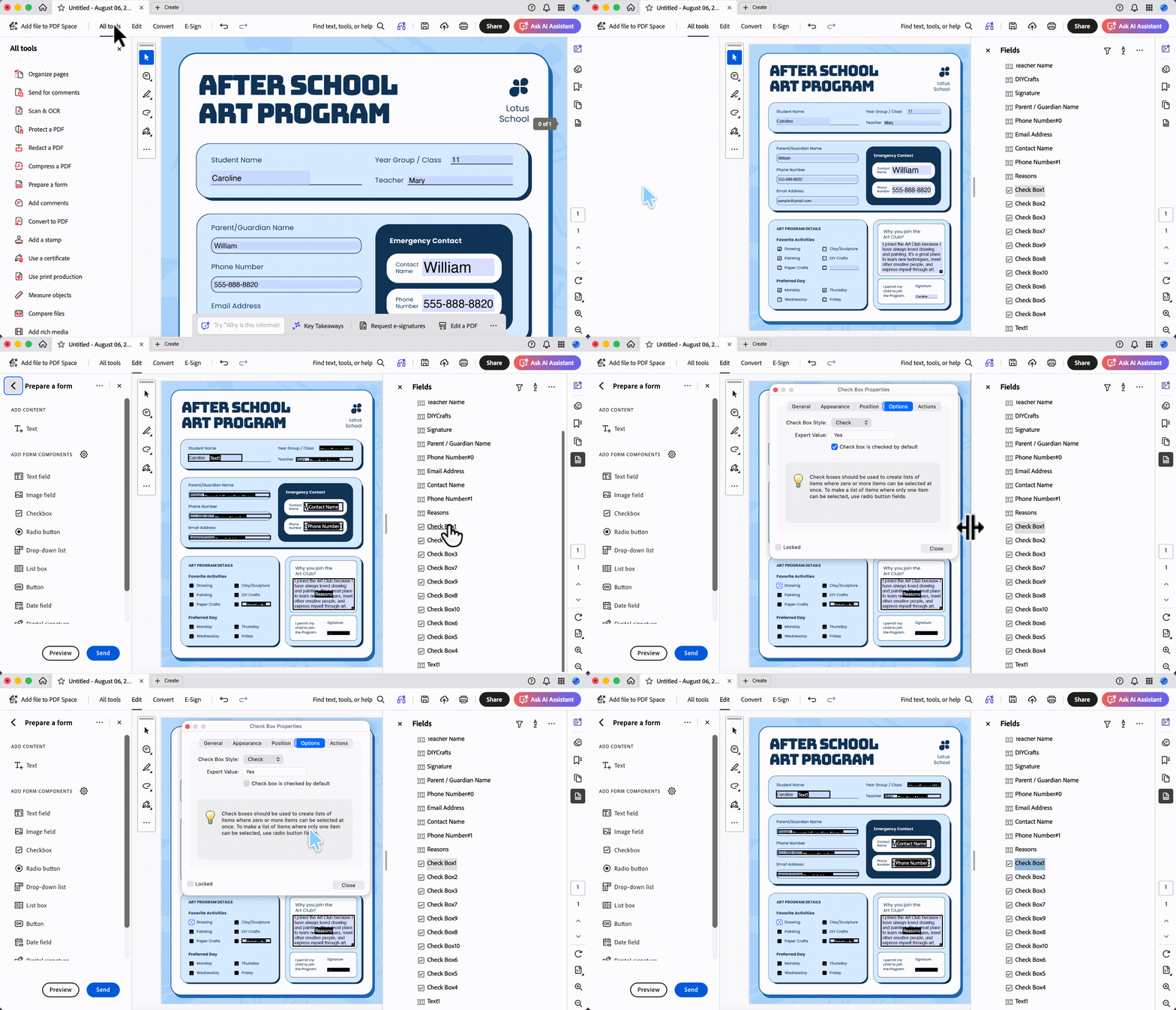
Step 4. To empty an already-filled form, use Prepare a Form → ... → Clear Form instead.
A common mistake to avoid: deleting the field's Export Value does not uncheck the box. The Export Value is the data the field submits when selected — removing it can break the form's submission logic while leaving the box checked. Change the default state or clear the value; don't touch the Export Value to uncheck.
Part 11. Comparison: Which Method Fits Your Box
| Method | What it fixes | Clears underlying value? | Platforms | Cost |
|---|---|---|---|---|
| Click once (UPDF) | One interactive checkbox, keeps the rest | ✓ | Win, Mac | Free tool, Pro to export clean |
| Switch or reset (UPDF) | Radio button group | ✓ | Win, Mac | Free tool, Pro to export cleane |
| Clear Form (UPDF) | Every field at once | ✓ (wipes everything) | Win, Mac | Free tool, Pro to export clean |
| Cover or rebuild (UPDF) | Static or flattened mark | ✗ — visual only unless rebuilt | Win, Mac | Free tool, Pro to export clean |
| Remove Password (UPDF) | Locked / protected form | Unlocks, then click clears it | Win, Mac | Free tool, Pro to export clean |
| Save, reopen, verify | A box that keeps coming back | Confirms the value is written | Win, Mac | Free |
| Tap to clear (UPDF mobile) | One interactive box on the go | ✓ (iOS); Android limited | iOS (Android limited) | Free tool, Pro to export clean |
| Field properties (Acrobat) | The checked-by-default state | ✓ (default) | Win, Mac | ~$239.88/yr |
One limit across all of them: changing a checkbox on a digitally signed PDF invalidates the signature. For signed documents, request a fresh copy from the sender rather than editing in place.
Part 12. Edge Cases: When the Standard Fix Fails
"I unchecked it, saved, reopened, and it's checked again." The field has a checked default. Reset the default in field properties, or use Clear Form to strip the value (Part 5, Part 8).
"It was clickable yesterday, now it isn't." The form was flattened on save or print, turning live fields into a flat image. Treat it as static — Method 4.
"Clicking does nothing and there's no lock message." Almost always a static graphic, not a protected field. Skip the password hunt; go to Method 4.
"The tick disappears on screen but prints back." You hid it with a comment-only markup the printer handles differently. Use a filled shape on the page content layer (Part 6, Option A).
"I covered the box but the website still shows it selected." You covered a live field — the value is still set. Clear the value (Method 1 or 3) instead of covering it. "It's a scanned or language-mismatched form." Scanned checkmarks aren't fields. Cover them, or if you need the form editable, run OCR first, then rebuild the checkbox.
Part 13. FAQs
1. Does unchecking a box delete the checkbox from the form?
No. Clearing a box removes the mark but keeps the field, so it can be checked again. Deleting the field itself is a separate action under Form mode (right-click the field → Delete) and removes the box entirely.
2. Will the person receiving my form see that I changed a box?
A plain uncheck-and-save leaves no visible trace. But if you covered a mark with a shape, a reviewer can often select or move that shape, and PDF metadata may show an edit timestamp. For clean corrections, clear the field value rather than covering it.
3. Can I uncheck every box on a 30-page form at once?
Yes — Clear Form empties all fields across every page in one action. There's no need to visit each page. Just remember it wipes text fields and signatures too, not only checkboxes.
Conclusion
Unchecking a box in a PDF comes down to one question you answer first: is it an interactive checkbox, a radio button, a static graphic, a flattened field, or a locked one? Match the fix to the type — click for one interactive box, Clear Form to reset a group, cover or rebuild for static marks, Remove Password to unlock — and always save, reopen, and verify so the change reaches the file, not just the screen. UPDF handles every one of these cases in one app across Windows, Mac, and iPhone.
Download UPDF for free to try unchecking a box on your own form — installation is free, and Pro features are available when you need watermark-free export or advanced form tools.
Windows • macOS • iOS • Android 100% secure







 Engelbert White
 Enid Brown