 UPDF
UPDF
 UPDF for Windows
 UPDF for Mac
 UPDF for iPhone/iPad
 UPDF for Android
 Nomostar
 UPDF AI Online
 UPDF Sign
 IvyCraft
 Edit PDF
 Annotate PDF
 Create PDF
 PDF Form
 Edit links
 Convert PDF
 OCR
OCR PDF to Word
 PDF to Image
 PDF to Excel
 Organize PDF
 Merge PDF
 Split PDF
 Crop PDF
 Rotate PDF
 Protect PDF
 Sign PDF
 Redact PDF
 Sanitize PDF
 Remove Security
 Read PDF
 UPDF Cloud
 Compress PDF
 Print PDF
 Batch Process
 About UPDF AI
 UPDF AI Solutions
 AI User Guide
 FAQ about UPDF AI
 Summarize PDF
 Translate PDF
 Chat with PDF
 Chat with AI
 Chat with image
 PDF to Mind Map
 Explain PDF
 PDF AI Tools
 Image AI Tools
 AI Chat Tools
 AI Writing Tools
 AI Study Tools
 AI Working Tools
 Other AI Tools
 AI Bookmark Generation
 AI Bookmark Summary
 AI Watermark Generation
 AI Background Generation
 AI Sticker Generation
 AI Stamp Generation
 AI Editing Suite
 UPDF Copilot
 AI Page Management
 AI Semantic Search
 PDF to Word
 PDF to Excel
 PDF to PowerPoint
 Enterprise Solution
 Enterprise Sign
 Enterprise AI
 Enterprise Plan
 Enterprise User Guide
 Enterprise Webinar
 Banking
 Healthcare
 Insurance
 Legal
Legal Manufacturing
 Government
 Education Solution
 Customer Stories
 User Guide
 UPDF Tricks
 FAQs
FAQs UPDF Reviews
 Download Center
 Blog
Blog Newsroom
 Tech Spec
 Updates
 UPDF vs. Adobe Acrobat
 UPDF vs. Foxit
 UPDF vs. PDF Expert

Quick Answer
Last month I had to turn a client intake sheet — built in Word — into a form people could type into and email back. An Acrobat Pro subscription runs about US$239.88 a year, which is hard to justify for one recurring task. Below are the four ways I'd actually do it in 2026: auto-recognition in UPDF, building a form from scratch with 9 field types, creating fields on an iPhone or iPad, and the free route with Google Chrome — including where each one stops working.
Part 1. Which Method Should You Use?
| What you're starting from | Use this method | Best for |
|---|---|---|
| An existing Word/Excel doc or flat PDF with a form layout | Method 1: UPDF Form Field Recognition | Converting documents into fillable forms in one click |
| A blank page and a field list in your head | Method 2: Build from scratch in UPDF | Custom forms with dropdowns, dates, checkbox, signatures and more |
| Only your phone in hand | Method 3: UPDF on iOS | Adding text, date, and signature fields on the go |
| A form someone sent you, no software installed | Method 4: Google Chrome | Filling and signing a form for free — not creating one |
Part 2. Method 1: Auto-Convert Any Document into a Fillable PDF Form
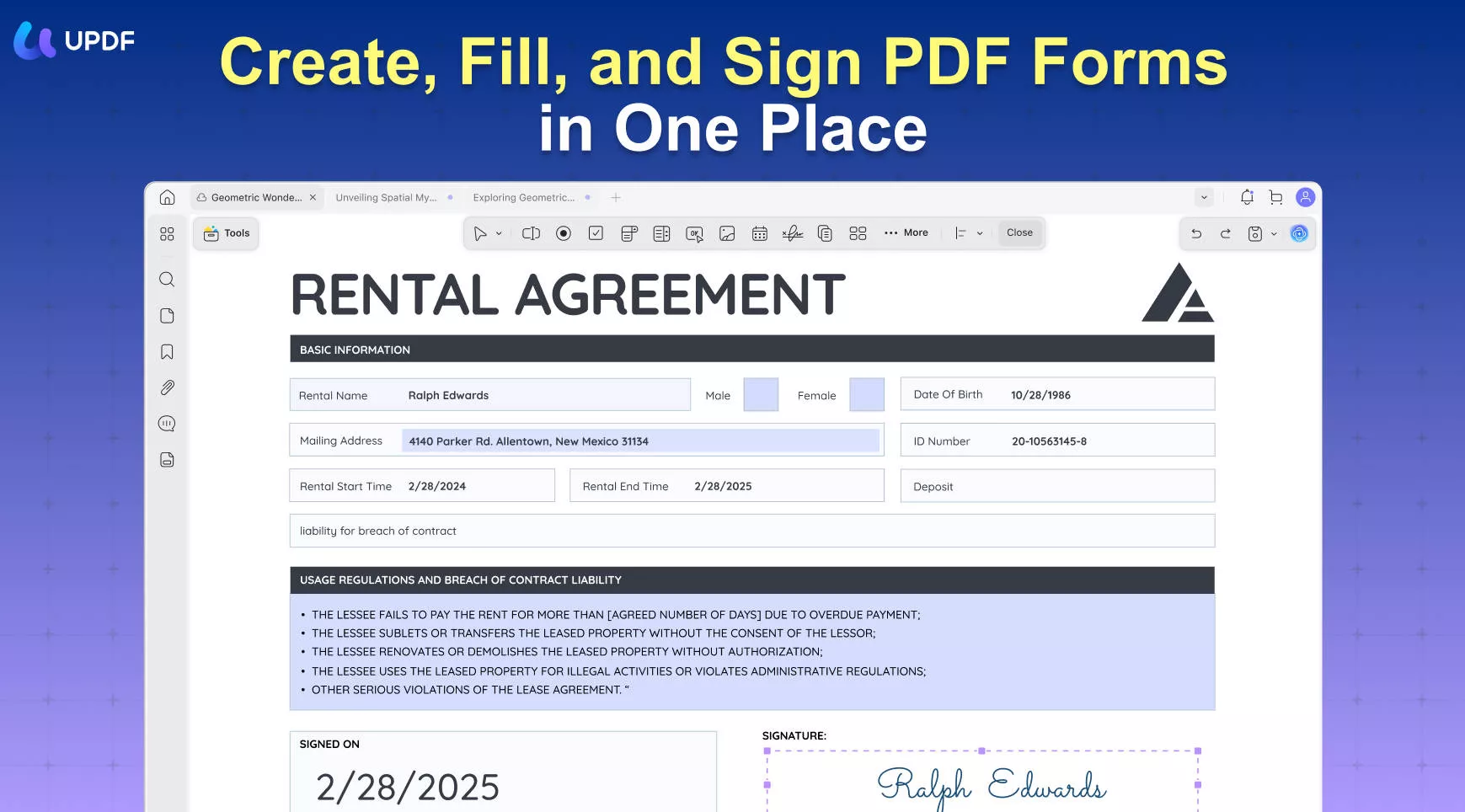
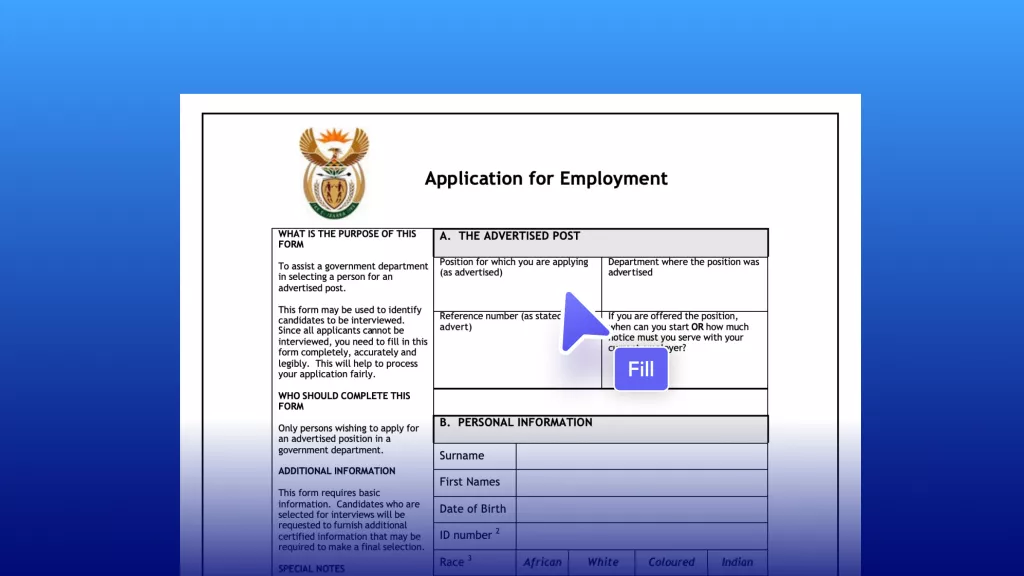
This is the fastest route when the form layout already exists — a Word questionnaire, an Excel table, or a flat PDF where the lines and boxes are printed but nothing is clickable. UPDF's Form Field Recognition reads that layout and converts it into interactive fields automatically.
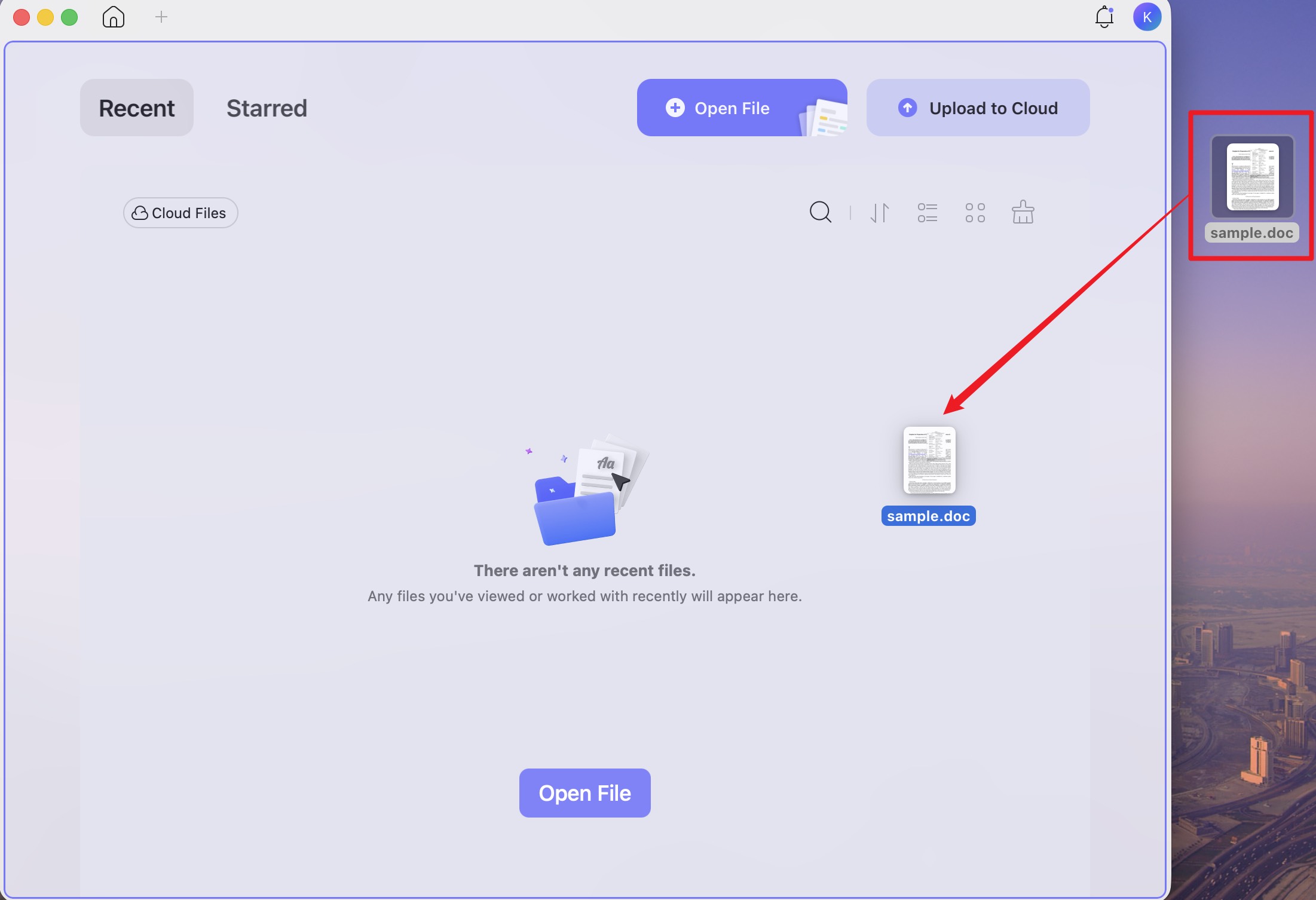
Step 1. Launch UPDF on Windows or Mac and drag your Word, Excel, PowerPoint, or image file straight into the home window — UPDF converts it to PDF automatically. If your form is already a PDF, just open it. If you haven't downloaded UPDF yet, click the button below to download it for free.
Windows • macOS • iOS • Android 100% secure
Step 2. Click the Tools icon at the top left and choose Form to enter form-editing mode.
Step 3. In the top toolbar, open the ...More menu and select Form Field Recognition. UPDF detects the blank lines, boxes, and tables in your layout and turns them into fillable fields.
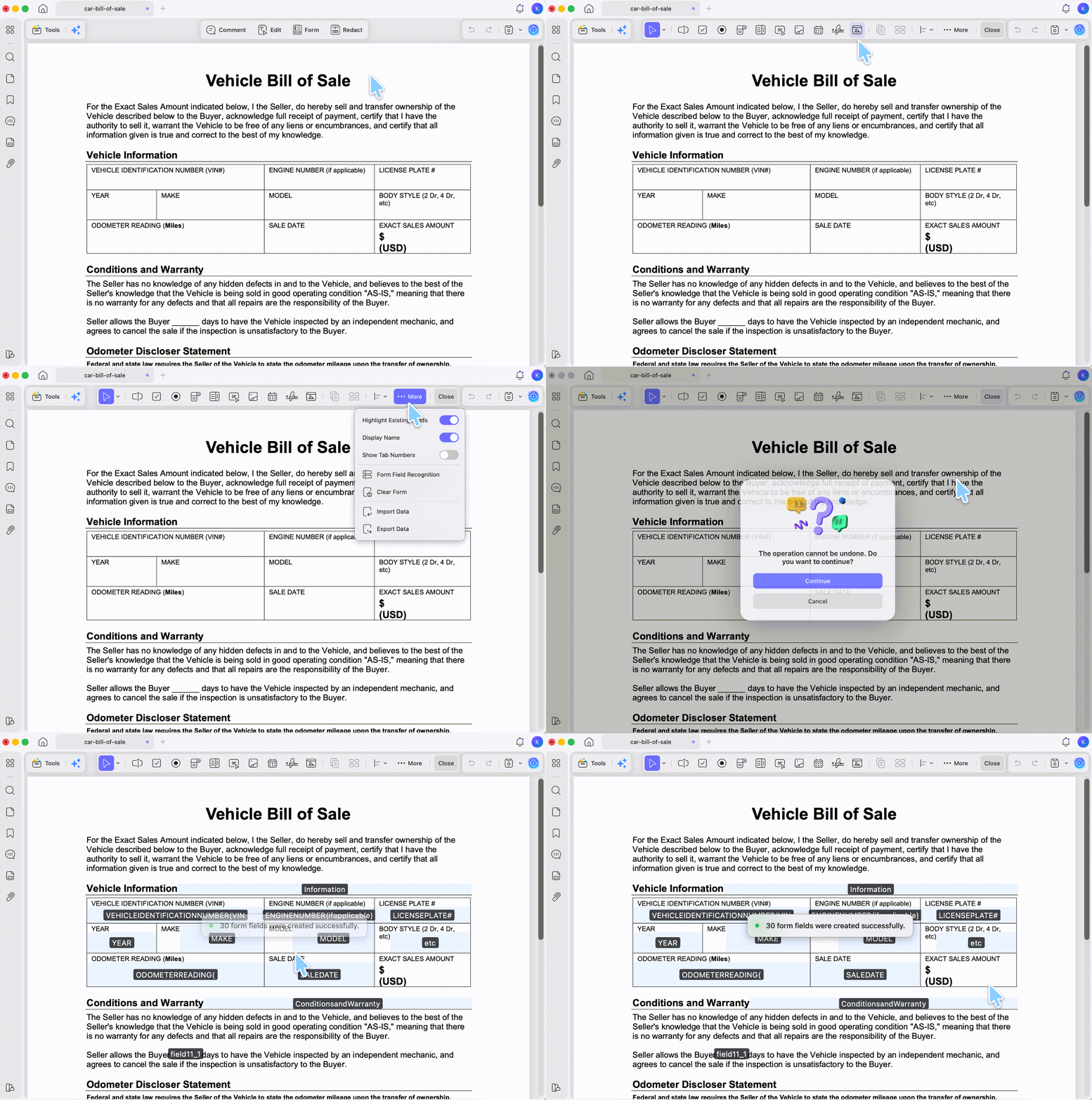
Step 4. Click the Save icon at the top right. The form is now fillable in any standard PDF reader.
If your source file is in Word and you want the layout side covered too, the guide on how to create a fillable PDF from Word goes deeper on preparing the document before recognition.
Best for:
- converting an existing document into a fillable PDF form in under a minute.
Not for:
- forms that need dropdowns, checkboxes, or buttons the original layout never had — that's Method 2.
Download UPDF for free to try the full form toolkit — the free version includes every form feature and adds a trial watermark on exported files, which UPDF Pro (US$49.99/year, or US$79.99 one-time) removes.
Part 3. Method 2: Build a Fillable PDF Form from Scratch
When I need a form with structure — a dropdown of services, required fields, a signature block — I build it field by field. UPDF offers 9 field types: text field, check box, radio button, dropdown, list box, button, image field, date field, and digital signature.
Step 1. On UPDF's home screen, open the Tools menu, choose Blank, set the page count and paper style, and click Apply. (To add headings or labels first, use Tools > Edit for text and images.)
Step 2. Go to Tools > Form. Click a field type in the top toolbar — say, Text Field — then drag on the page to draw the area where the respondent will type.
Step 3. Double-click any field to open its properties panel on the right. Under General, set the name, tooltip, and rules like Required or Read Only; under Style, set colors, fonts, and exact size.
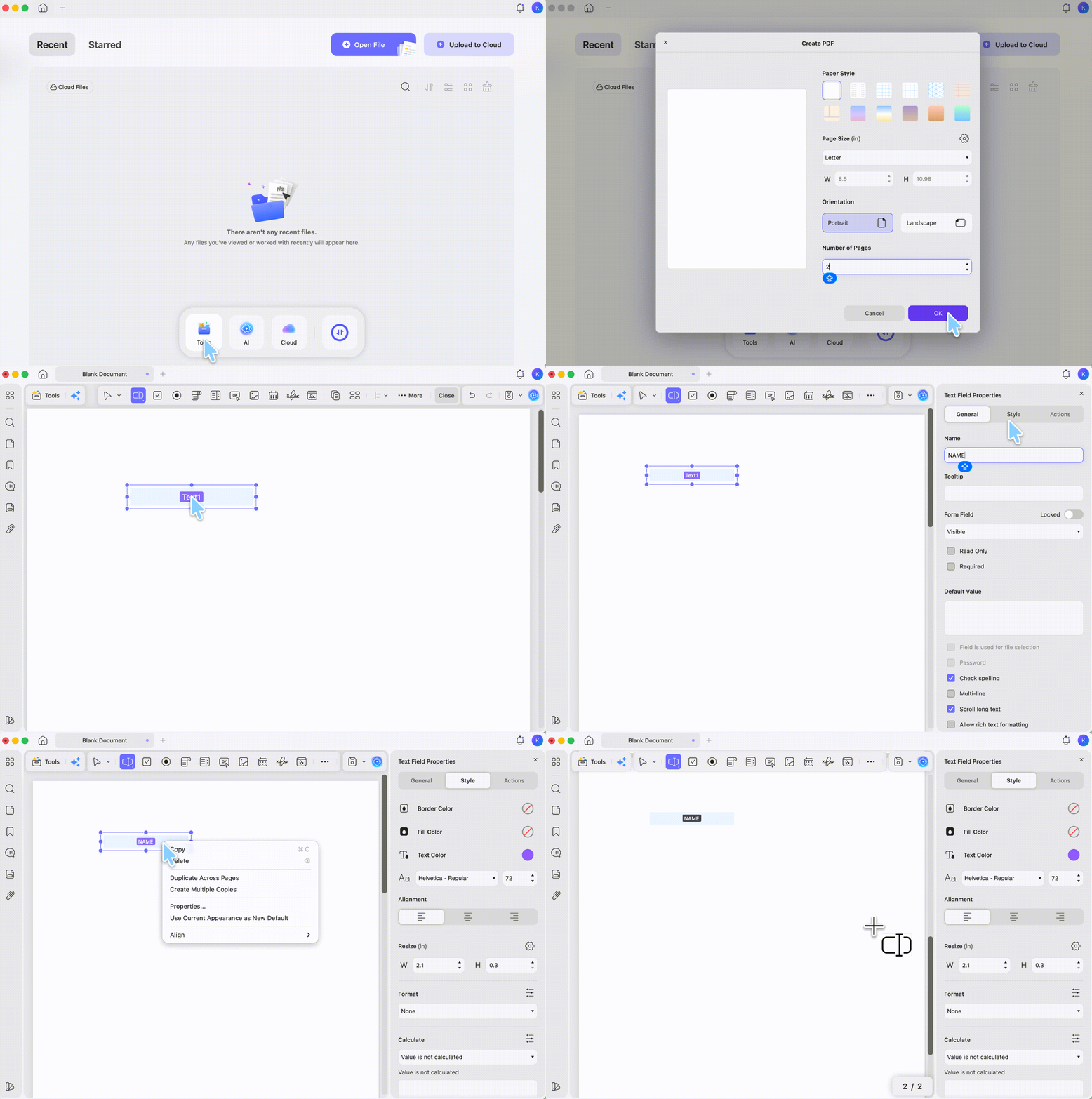
Step 4. For repeating fields, select one and use Duplicate Across Pages or Create Multiple Copies from the toolbar instead of redrawing. The Forms tab in the left panel lists every field so you can rename or delete strays. Save when done.
Best for:
- custom forms with dropdowns, checkboxes, date fields, signature fields, and more.
Not for:
- documents whose layout already exists — Form Field Recognition (Method 1) is faster there.
Part 4. Method 3: Create Form Fields on iPhone & Android
The mobile question comes up constantly, so here is the honest boundary: UPDF for iOS lets you create and place Text, Signature, Date, Checkmark, and Cross fields on any PDF — enough to prepare or complete a form on the go. UPDF for Android doesn't include form tools; the workaround there is Edit mode > Add Text, typing your entries directly onto the form layout. And more advanced form operations, like Duplicate Across Pages or Create Multiple Copies, remain a desktop job on any phone.
Here is how it works on an iPhone or iPad:
Step 1. Open the UPDF app and import the PDF by tapping the + button in the bottom-right corner — or open the file from your email or Files app via the system Share menu and choose UPDF. You can download UPDF from the App Store or Play Store.
Windows • macOS • iOS • Android 100% secure
Step 2. Tap Fill & Sign, then pick a field type from the bottom toolbar:
- Text: a color button appears next to the Text option — choose your text color, tap the spot on the page, and type. The icons above the keyboard adjust the appearance: the colorful circle for color, "Aa" for font style, the number for font size. Tap Done to save the entry.
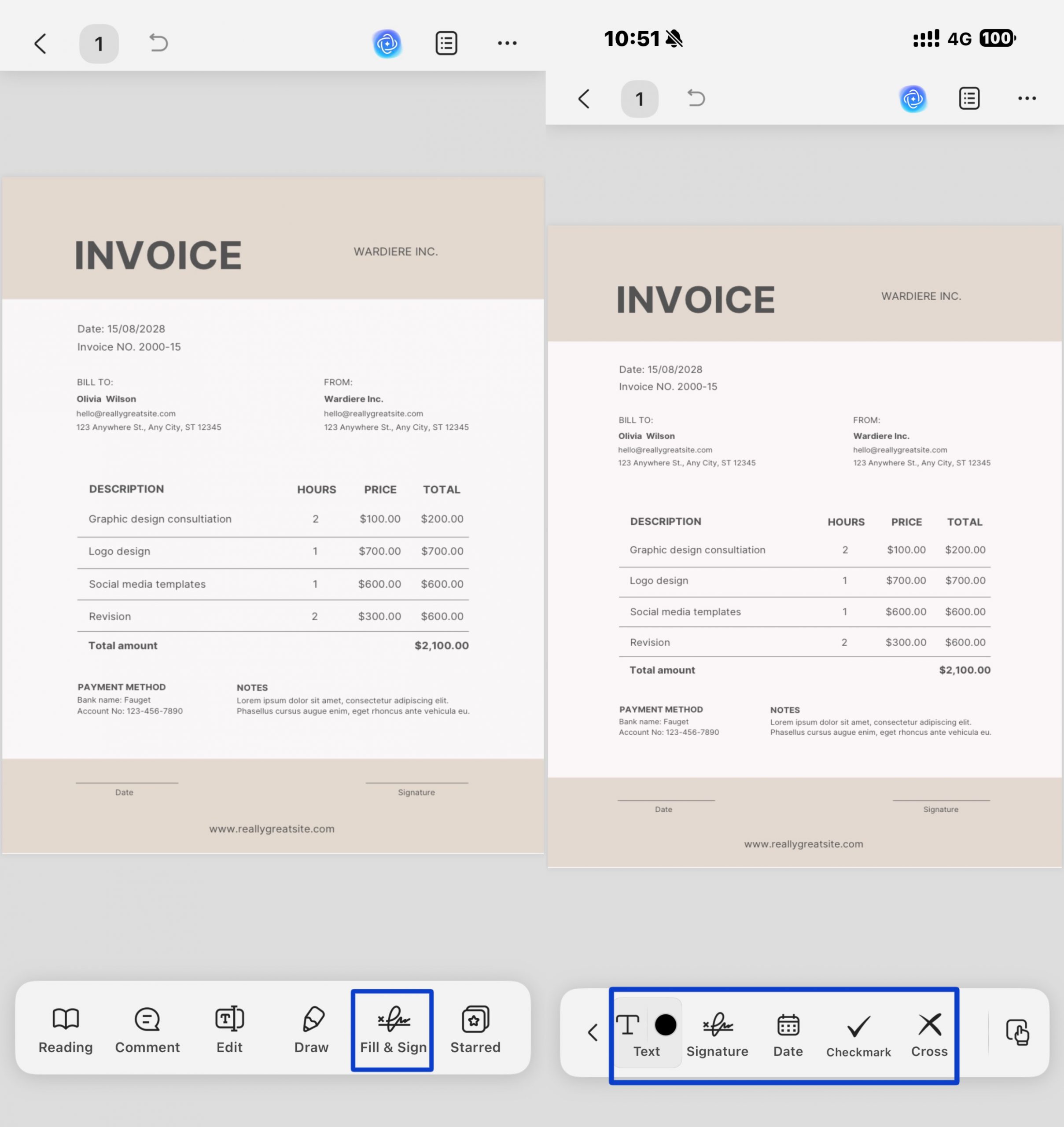
- Date: tap where the date belongs and UPDF inserts the current date automatically. To change it, tap the inserted date, select Edit in the floating toolbar, and pick a date from the calendar.
- Signature: choose Handwrite Signature or Scan Signature to create your signature, then place it on the signature line.
- Checkmark / Cross: tap the icon, then tap the box you want to mark.
Step 3. Save the file, or share it back via email, Messages, or cloud storage.
Best for:
- signing, dating, and completing forms on an iPhone or iPad, away from your desk.
Not for:
- building forms on Android (use Edit > Text to type onto a form there), or designing a distributable form with dropdowns — switch to the desktop app.
If the PDF you received already has interactive fields, UPDF for iOS highlights them automatically the moment the file opens — tap a field, enter your information in the pop-up window, tap a blank area to exit, and move to the next one. The full walkthrough is in our pillar guide on how to fill in a PDF form on Windows, Mac, and iPhone.
Part 5. Method 4: The Free Way — Handle a PDF Form in Google Chrome
For a one-off form with nothing installed, the browser you already have does the job. Chrome's built-in PDF viewer fills out interactive forms, and since version 145 it also includes annotation tools — a pen and highlighter you can use to write on flat forms and draw a signature. Chrome even runs on-device OCR, so scanned PDFs become searchable without uploading anything to a server.
Step 1. Drag the PDF into a Chrome tab, or right-click the file and choose Open with > Google Chrome.
Step 2. If the form is interactive, click any field and type. If it's flat, click the pen icon in the toolbar to annotate — write entries by hand or draw your signature.
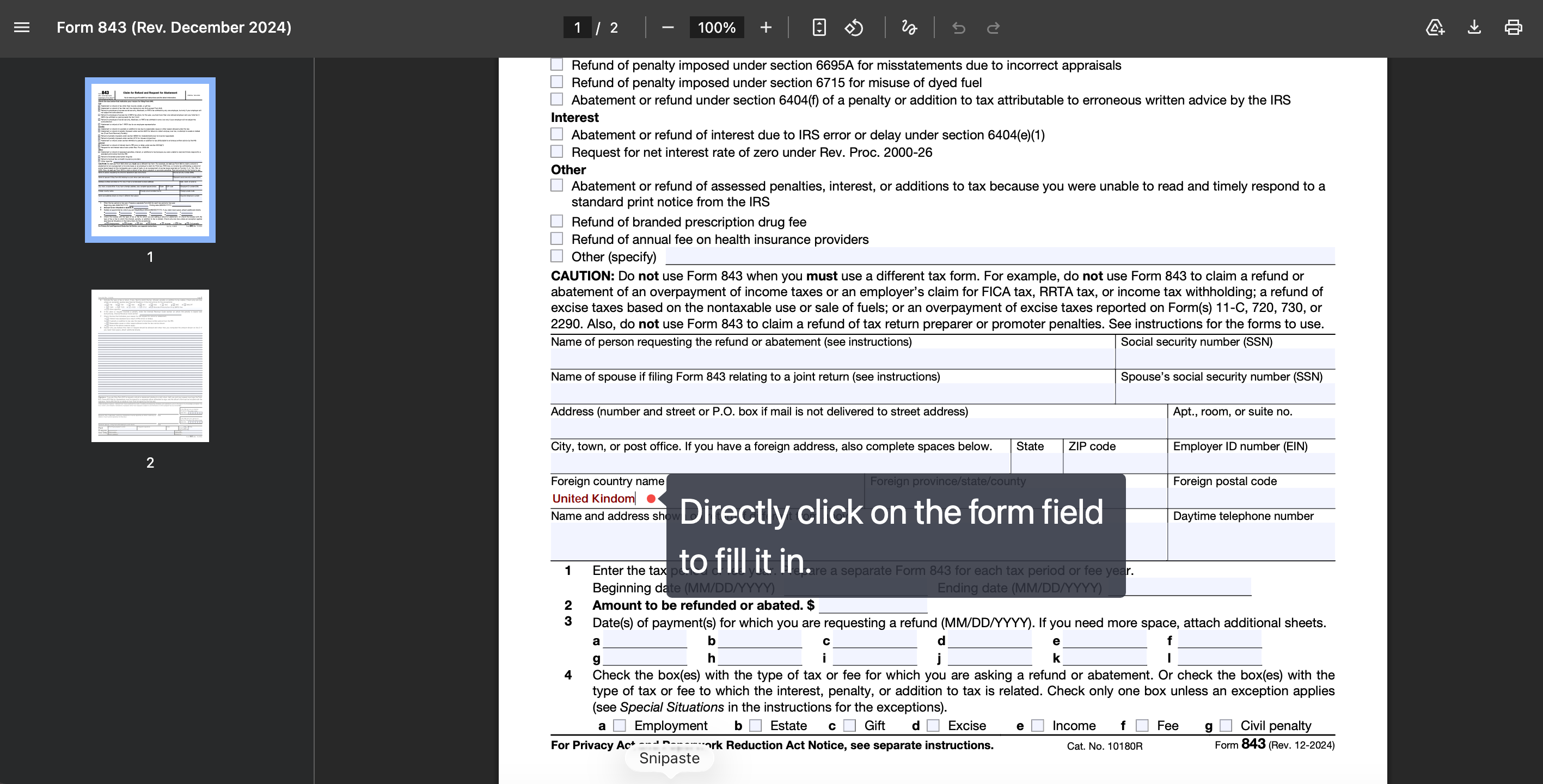
Step 3. Click the Download icon and choose With your changes. Skipping this saves the original, empty file — the most common way people lose 20 minutes of typing.
Best for:
- converting an existing document into a fillable PDF form in under a minute.
Not for:
- forms that need dropdowns, checkboxes, or buttons the original layout never had — that's Method 2.
Fillable vs. Flat vs. Annotated PDF — What's the Difference?
- A fillable (interactive) PDF contains real form fields — recipients click and type, and the data can be exported.
- A flat PDF just shows the picture of a form; nothing is clickable.
- An annotated PDF is a flat PDF with writing layered on top, which works for one person's answers but isn't reusable.
In short: fillable = the form works for everyone, flat = it works for no one, annotated = it worked once.
Part 6. UPDF vs. Google Chrome vs. Adobe Acrobat for PDF Forms
| Capability | UPDF | Google Chrome | Adobe Acrobat Pro |
|---|---|---|---|
| Create interactive form fields | ✓ 9 field types | ✗ Fill/annotate only | ✓ |
| Auto field recognition | ✓ | ✗ | ✓ |
| Works offline | ✓ Desktop & mobile apps | ✓ (local files) | ✓ |
| Mobile form fields | ✓ Create on iOS; add text via Edit on Android | ▲ Fill only | ✓ |
| Price | US$49.99/year, or US$79.99 one-time | Free | ~US$239.88/year (US$19.99/mo, annual plan) |
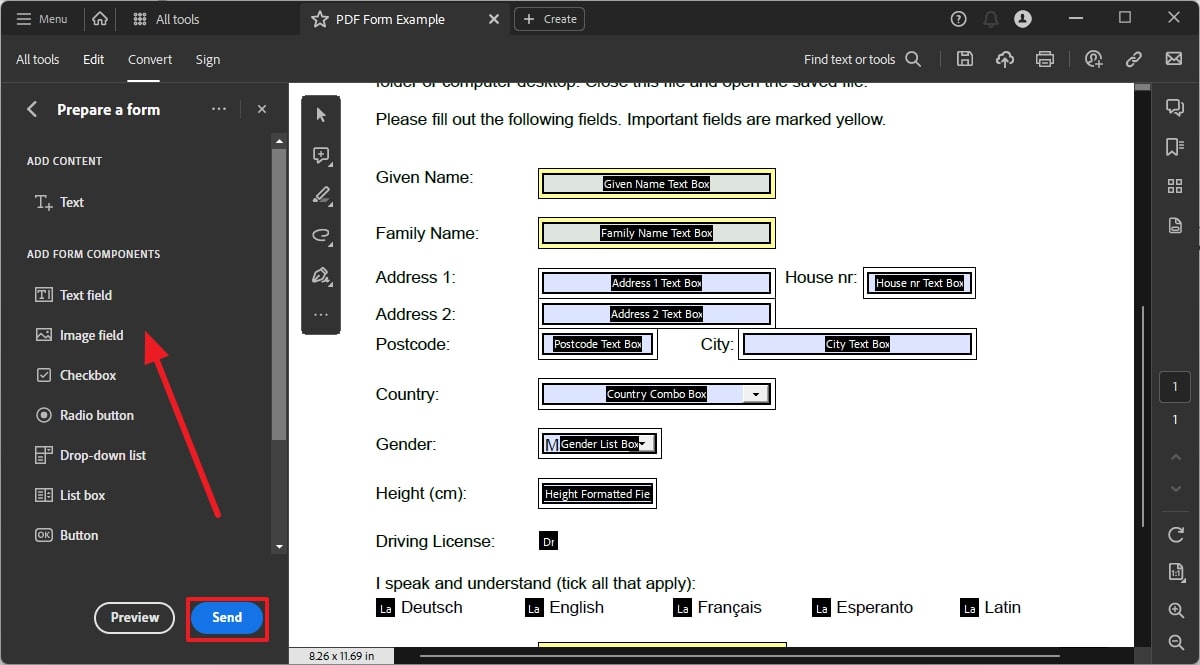
Acrobat remains the industry default, and if you already pay for it, its All Tools > Prepare a Form feature imports a document, auto-detects fields, and lets you place more from the left panel. The case against it is purely the math: form creation is the exact feature set UPDF covers at roughly a fifth of the yearly cost — with a one-time option Acrobat no longer offers individuals.
Part 7. Edge Cases: When the Standard Methods Fail
- "Recognition found half my fields and skipped the rest." Form Field Recognition reads visual structure, so faint lines or unusual layouts get missed. Fix: stay in UPDF's Tools > Form and draw the missing fields manually over the layout — recognition and manual fields coexist in the same document.
- "My form is a scan, and nothing is clickable or selectable." A scanned form is just an image. In UPDF, run OCR first (Tools > OCR) to restore the document structure, then enter Form mode and add fields. In Chrome, the built-in OCR makes a scan searchable, but you'll still be annotating, not filling.
- "Whatever I type in one box appears in every box." That's the same-name mirroring behavior from the intro working against you — usually caused by duplicating fields without renaming. Open the Forms tab, rename each field uniquely, and see the dedicated fix guide for text duplicates in all form fields if the form came from someone else.
- "I filled the form in Chrome and sent back a blank PDF." Chrome only embeds your entries when you download With your changes. If you used File > Save or grabbed the original attachment again, the data was never written into the file.
Part 8. How to Create Fillable PDF Forms with Acrobat?
1. How do I stop a form from being edited after it's filled out?
Flatten the PDF. UPDF's Flatten feature merges all field entries into the page content, so the answers become permanent text instead of editable fields — the standard move before archiving a signed contract or submitting an application.
2. Will recipients be able to fill out my PDF form if they don't have UPDF?
Yes. UPDF creates standard interactive PDF form fields, so recipients can type into the form with whatever PDF viewer they already have — no extra software on their side.
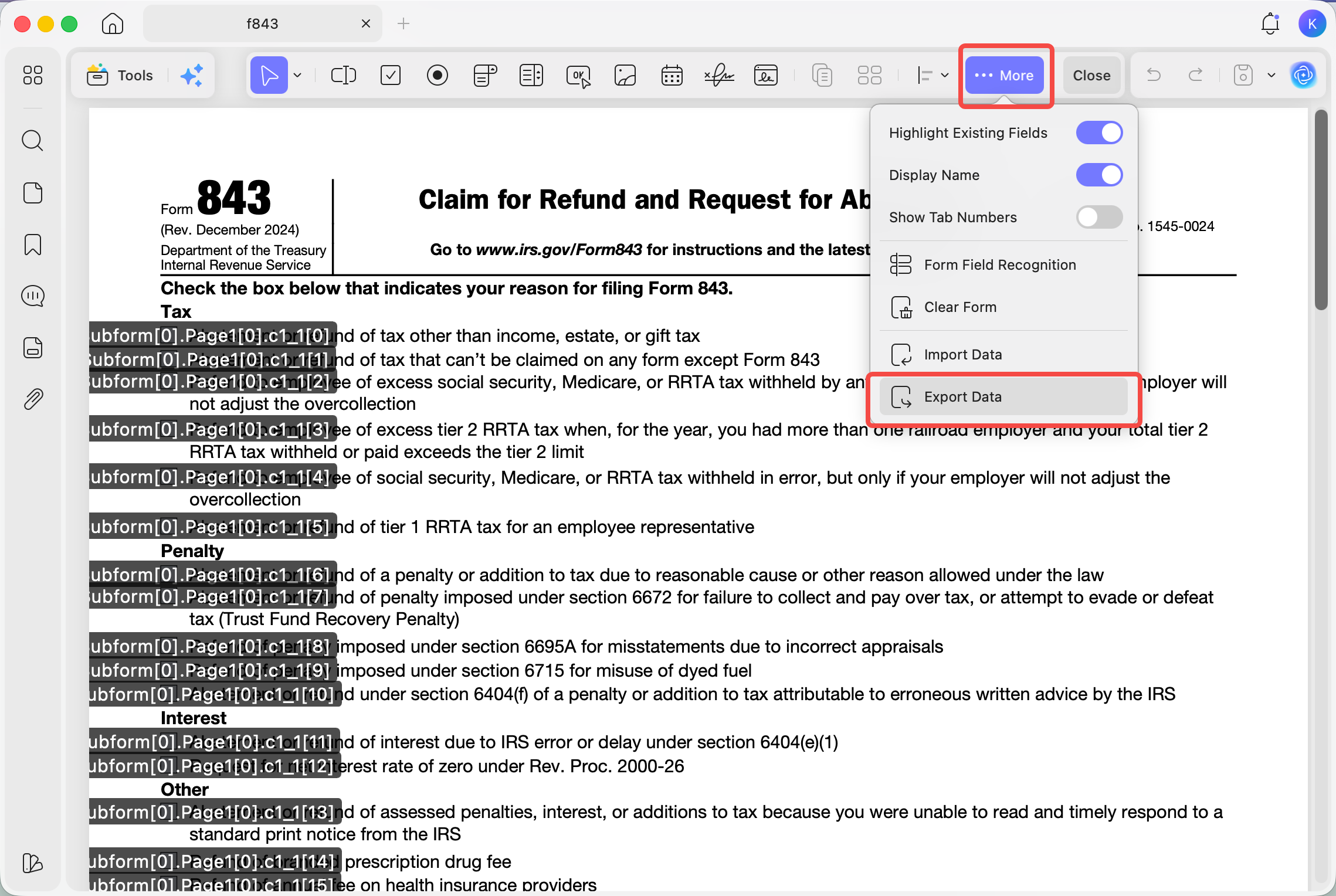
3. How do I export the data entered in a fillable PDF form
Use Export Data in UPDF's Form mode (under …More) to save the form entries as an .fdf file, and Import Data to load that data into an identical PDF form — useful when the same template gets filled repeatedly.
Conclusion
All four methods come back to one question — what you're starting from. An existing layout goes through Form Field Recognition, a custom form gets built field by field on desktop, an iPhone handles text, date, and signature fields (on Android, type entries via Edit mode), and Chrome covers the free fill-and-sign case — just remember it can't create fields. For the recurring work of building and distributing forms, UPDF does what Acrobat charges US$239.88 a year for, on Windows, Mac, iOS, and Android with one license.
Hit the Free Download button below to open your form document in UPDF and run Form Field Recognition — the first conversion takes less time than reading this paragraph did.
Windows • macOS • iOS • Android 100% secure







 Engelbert White

 Lizzy Lozano
 Enola Davis