 UPDF
UPDF
 UPDF for Windows
 UPDF for Mac
 UPDF for iPhone/iPad
 UPDF for Android
 Nomostar
 UPDF AI Online
 UPDF Sign
 IvyCraft
 Edit PDF
 Annotate PDF
 Create PDF
 PDF Form
 Edit links
 Convert PDF
 OCR
OCR PDF to Word
 PDF to Image
 PDF to Excel
 Organize PDF
 Merge PDF
 Split PDF
 Crop PDF
 Rotate PDF
 Protect PDF
 Sign PDF
 Redact PDF
 Sanitize PDF
 Remove Security
 Read PDF
 UPDF Cloud
 Compress PDF
 Print PDF
 Batch Process
 About UPDF AI
 UPDF AI Solutions
 AI User Guide
 FAQ about UPDF AI
 Summarize PDF
 Translate PDF
 Chat with PDF
 Chat with AI
 Chat with image
 PDF to Mind Map
 Explain PDF
 PDF AI Tools
 Image AI Tools
 AI Chat Tools
 AI Writing Tools
 AI Study Tools
 AI Working Tools
 Other AI Tools
 AI Bookmark Generation
 AI Bookmark Summary
 AI Watermark Generation
 AI Background Generation
 AI Sticker Generation
 AI Stamp Generation
 AI Editing Suite
 UPDF Copilot
 AI Page Management
 AI Semantic Search
 PDF to Word
 PDF to Excel
 PDF to PowerPoint
 Enterprise Solution
 Enterprise Sign
 Enterprise AI
 Enterprise Plan
 Enterprise User Guide
 Enterprise Webinar
 Banking
 Healthcare
 Insurance
 Legal
Legal Manufacturing
 Government
 Education Solution
 Customer Stories
 User Guide
 UPDF Tricks
 FAQs
FAQs UPDF Reviews
 Download Center
 Blog
Blog Newsroom
 Tech Spec
 Updates
 UPDF vs. Adobe Acrobat
 UPDF vs. Foxit
 UPDF vs. PDF Expert

You can rearrange pages in a PDF with two mainstream solutions: browser-based free online tools for quick one-time edits, and offline desktop & mobile editors that process all PDF files locally on your device. Let's check how these online and offline tools perform so you can pick the tool that matches your workflow — and get back to work.
For a complete guide to all PDF page operations – merge, split, delete, rotate, and more – check out our Organize PDF Pages pillar page.
5 Methods to Rearrange PDF Pages
Each option has its place. Online tools get the job done fast—no installation, no cost—but your files go to the cloud and just support reordering pages. Free desktop software keeps everything local and private but without batch processing. Paid desktop editors unlock the full toolkit: batch processing, AI features, and professional-grade reliability. Mac Preview is the hidden gem for Apple users—already on your computer, perfectly fine for quick reorders.
Pick what fits your workflow. Below is the detailed comparison.
| Dimension | Online Tools | Free Desktop Software | Paid Desktop Software | Mac Preview (Built-in) | Mobile Apps |
|---|---|---|---|---|---|
| Cost | Free (with limits) | Completely Free | $50–240/year | Free (system built-in) | Free (with limits) / $30–60/year |
| Installation | ❌ Not required | ✅ Download required | ✅ Download required | ✅ System built-in | ✅ Download required |
| Internet Required | ✅ Yes | ❌ No | ❌ No | ❌ No | ⚠️ Optional (cloud features) |
| Privacy & Security | ⚠️ Files uploaded to cloud | ✅ Local processing | ✅ Local processing | ✅ Local processing | ⚠️ Mixed (some local, some cloud) |
| Page Management Features | ⭐⭐ Basic reorder only | ⭐⭐⭐⭐ Reorder + Insert + Extract + Split | ⭐⭐⭐⭐⭐ Reorder + Insert + Extract + Replace + Split | ⭐⭐ Basic reorder only | ⭐⭐⭐⭐ Reorder + Insert + Extract + Split |
| Ease of Use | ⭐ Extremely low | ⭐⭐ Low | ⭐⭐ Low | ⭐⭐ Low | ⭐ Extremely low (touch-optimized) |
| Batch Processing | ❌ Limited | ⚠️ Partial support | ✅ Supported | ❌ Not supported | ❌ Limited |
| Best For | Occasional users | Frequent users who care about privacy | Professional users, enterprises | Mac users | Mobile users, students, on-the-go edits |
| Recommended Tools | iLovePDF / Sejda | PDF24 / PDF Arranger | UPDF / Acrobat Pro | Preview | UPDF Mobile / PDF Expert |
💡Microsoft Edge's built‑in PDF reader is designed for viewing, annotating, and form filling — it does not support rearranging pages natively. However, you can enable page rearrangement functionality by installing a lightweight Edge extension like PDF Split & Merge, which processes files entirely locally — no uploads, no data collection.
Not sure which method to choose? Here's a simple rule:
| If you... | Then choose... |
|---|---|
| Only need to reorder a few pages occasionally | Online Tools — quick, no installation required |
| Need page operations regularly / handle sensitive files | Desktop Software — local processing, full features |
| Need to insert, extract, replace, or split pages | Desktop Software — all professional tools include these capabilities |
| Use a Mac and want a built-in solution | Mac Preview — system built-in, no extra cost |
| Use iOS/Android mobile phone | Mobile Apps — local processing, full features |
Rearranging PDF pages is a daily need for office documents, scanned textbooks, client contracts, thesis papers, and portfolios, yet most users struggle with expensive Adobe subscriptions, risky cloud file uploads, and complicated steps.
There's a solution for every budget and every use case. You don't need to overpay, compromise your privacy, or be a tech expert. With UPDF, you can easily rearrange pages in simple clicks! When you weigh cost, privacy, features, and platform support, one name consistently rises to the top—UPDF. Let's check how to rearrange pages in PDF online and offline one by one together.
Windows • macOS • iOS • Android 100% secure
Type 1: Offline PDF Page Rearrangement (100% Local Processing, GDPR Compliant)
Offline PDF page rearrangement is the core recommended solution for professional users, enterprises, and privacy-sensitive users. All PDF files are processed locally on your device without any cloud upload, fully complying with EU GDPR and US CCPA data privacy regulations. Let's see how these popular offline software programs perform in rearranging pages in PDF.
| Dimension | Adobe Acrobat Pro | UPDF | Foxit PDF Editor | Nitro PDF Pro | PDF24 | PDF Arranger | PDF Expert |
|---|---|---|---|---|---|---|---|
| Platform | Win / Mac | Win / Mac / iOS / Android | Win / Mac / Mobile / Web | Win / Mac | Win / Web | Linux / Win / Mac | macOS / iOS / iPadOS |
| Annual Price | $239.88 | $49.99 | ~$129.99 | ~$212.40 | Free | Free (Open Source) | ~$79.99 |
| One-Time Option | $324 (3-year term) | ✅ $79.99 | ✅ Available | ❌ Subscription only | ✅ Free | ✅ Free | ✅ $79.99–139.99 |
| Page Reorder | ✅ Drag & drop | ✅ Drag & drop | ✅ Drag & drop | ✅ Drag & drop | ✅ Drag & drop | ✅ Drag & drop | ✅ Drag & drop |
| Insert Pages | ✅ | ✅ | ✅ | ✅ | ✅ | ✅ | ✅ |
| Extract Pages | ✅ | ✅ | ✅ | ✅ | ✅ | ✅ | ✅ |
| Split PDF | ✅ | ✅ | ✅ | ✅ | ✅ | ✅ | ✅ |
| Replace Pages | ✅ | ✅ | ✅ | ❌ | ❌ | ❌ | ❌ |
| Batch Processing | ✅ | ✅ | ⚠️ Limited | ✅ | ✅ | ❌ | ❌ |
| OCR (Scanned PDFs) | ✅ | ✅ | ✅ | ✅ | ✅ | ❌ | ✅ |
| AI Features | ✅ (AI Assistant) | ✅ AI-powered editing | ✅ (AI Assistant) | ❌ | ❌ | ❌ | ✅ (PDF Copilot) |
| Ease of Use | Medium | Extremely Low | Low-Medium | Medium | Low | Low | Extremely Low |
| Best For | Enterprise, power users | Best value: all platforms + AI | Cost-conscious teams | SMBs, Windows users | Budget users, basic needs | Linux users, open-source fans | Apple ecosystem users |
When you compare the tools side by side, the pattern is clear: Adobe Acrobat Pro delivers the most complete feature set, but at a premium price. Foxit and Nitro sit in the middle—capable, but neither offers standout value. Free tools like PDF24 and PDF Arranger work well for basic needs, but they stop short of professional-grade functionality. PDF Expert is a solid choice for Apple users, yet it locks you into a single ecosystem.
UPDF, however, hits the sweet spot. It offers nearly everything Adobe does—full page management, replace pages, batch processing, OCR, and AI-powered editing—but at 1/5 the cost ($49.99/year vs. Adobe's $239.88). And with full support across Windows, Mac, iOS, and Android, you aren't chained to one platform.
How to Rearrange Pages in UPDF Desktop & Mobile?
Follow these simple steps to reorganize any PDF in seconds.
Step 1: Open your PDF in UPDF
Launch UPDF on your Windows, Mac, iOS, or Android device. Click "Open File" and select the PDF you want to edit.
Step 2: Enter Organize Pages mode
Click the "Organize Pages" icon in the left-hand toolbar. All pages appear as visual thumbnails.
Step 3: Drag & drop to reorder
Click and drag any thumbnail to its new position. A blue guideline shows where it will land—release to drop.
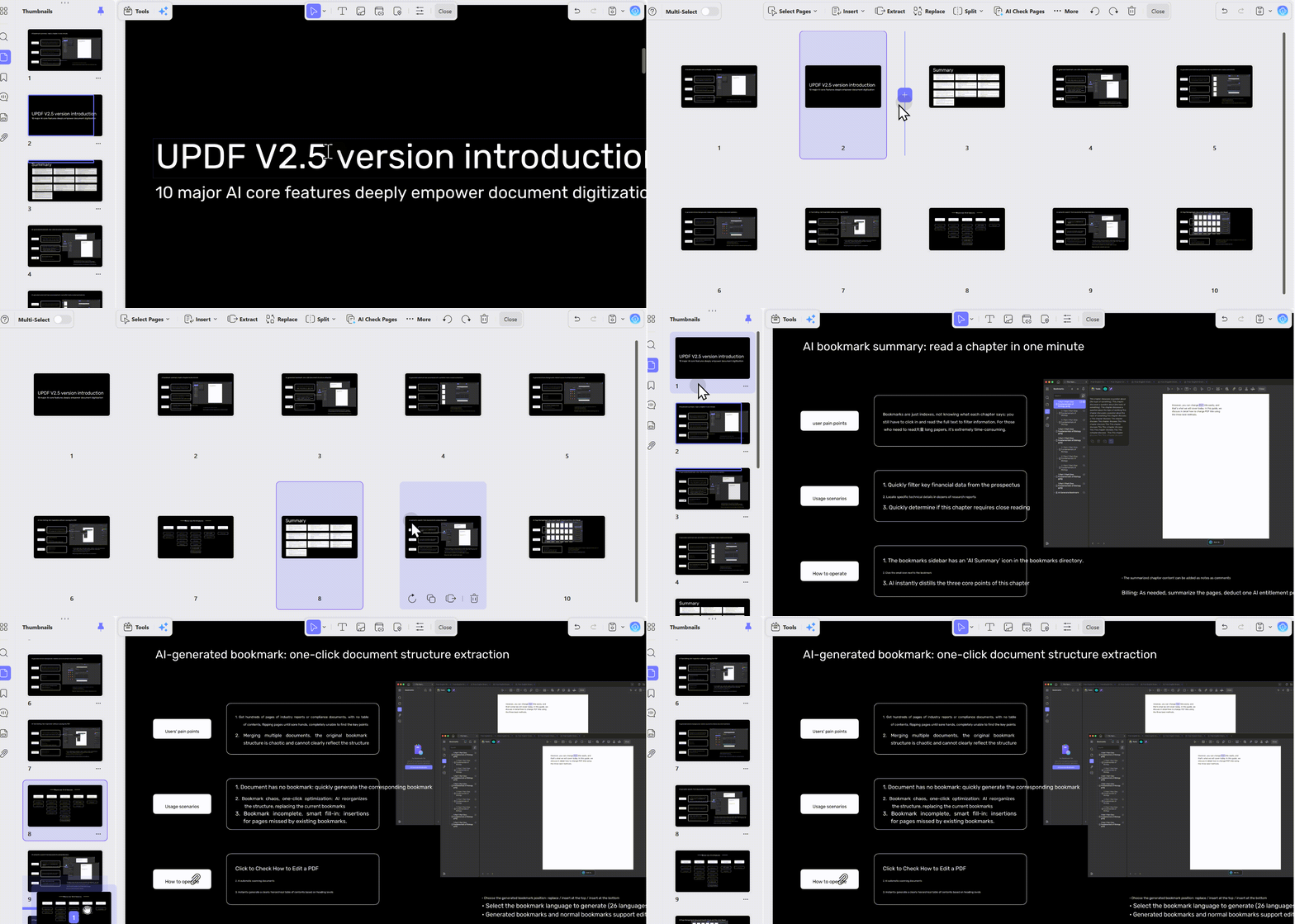
Step 4: Insert, extract, or split (optional)
- Insert → Add blank pages or import from another PDF
- Extract → Save selected pages as a new PDF
- Split → Divide the PDF by page range or bookmarks
Step 5: Rotate or delete (optional)
- Rotate → Click the rotate icon on any page
- Delete → Select pages and click the trash icon
Step 6: Save your changes
Click "Save" or "Save As" to export your rearranged PDF.
Tip
Let's check how to rearrange pages in PDF with UPDF.
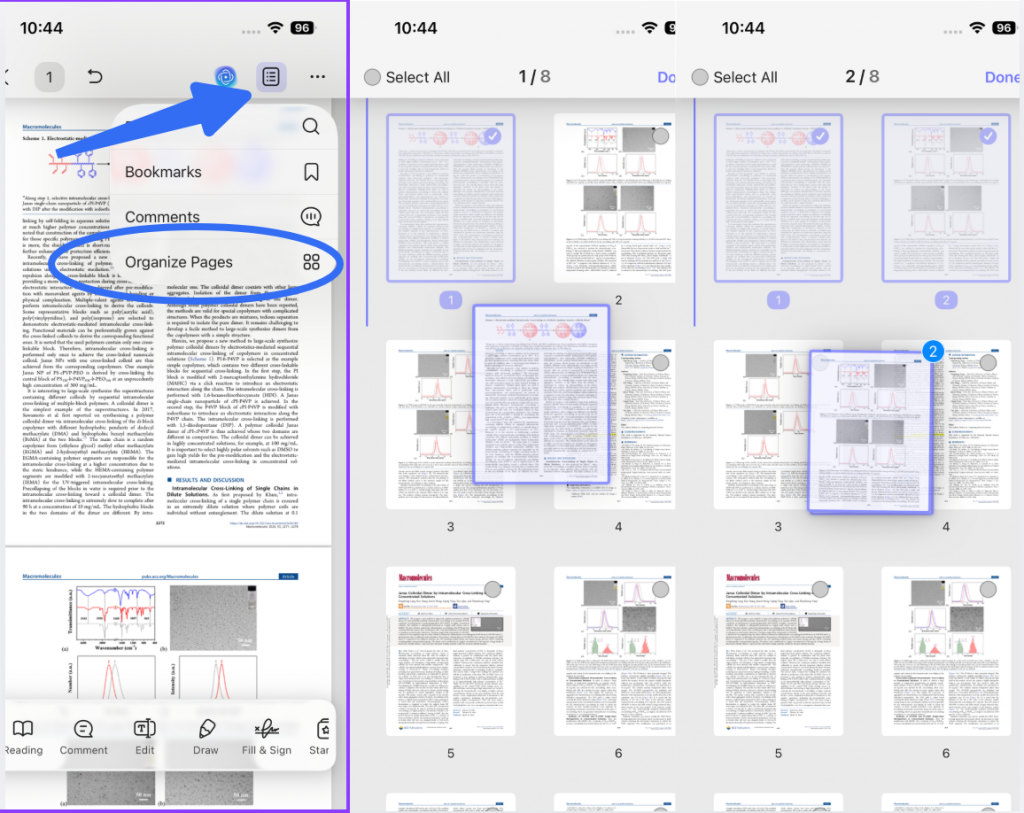
First, you can click the toolbar in the right corner and then choose "Organize Pages". You can select and drag and drop one page or select multiple pages to drag at once.
How to Rearrange Pages in PDF with Mac Preview
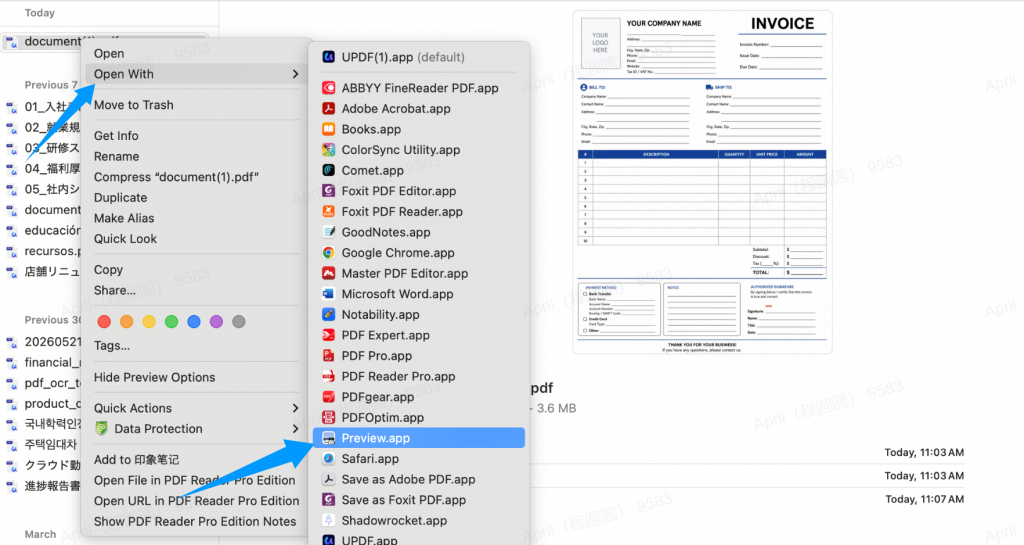
Open the PDF in Preview. If the sidebar is hidden, go to the "View" menu and select "Thumbnails" (or use the keyboard shortcut Option + Command + 2). Select the page in the sidebar and drag it to the new location. Once satisfied, go to the "File" menu and select "Save" (or press Command + S).
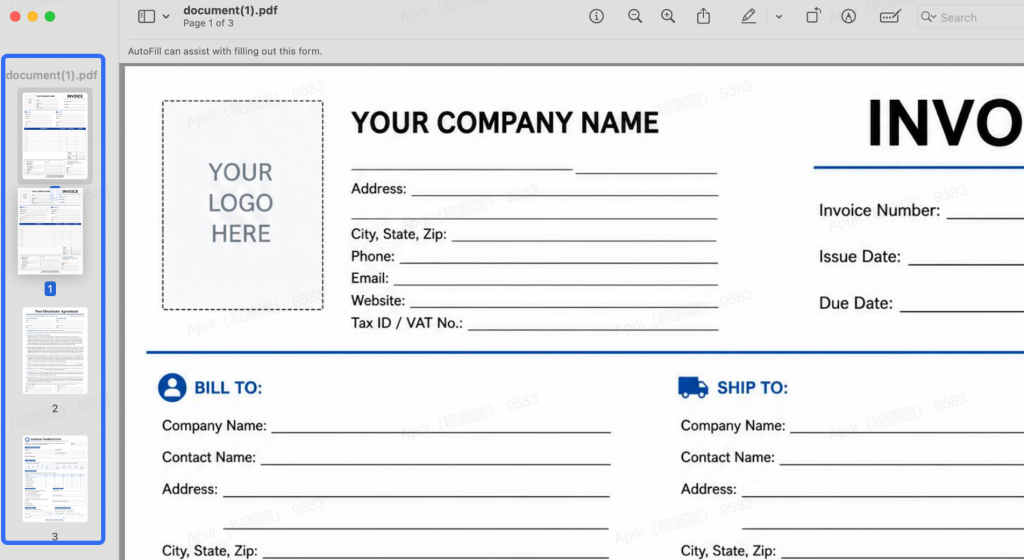
⚠️ Important Note: Changes made in Preview will directly overwrite the original file. Please be sure to back up the original file before proceeding.
Best for: Quick adjustments, temporary edits, or situations where preserving the original version is not required.
Type 2: Free Online Tools to Rearrange PDF Pages (No Download Needed)
Online PDF page rearrangers are perfect for casual users who need fast edits without software installation, especially for Chromebook users or public office computers with no admin installation permission. All operations are finished in browsers, and you can drag and drop pages directly to reorder PDFs.
| Dimension | iLovePDF | Sejda | PDF24 | Smallpdf | PDF2Go |
|---|---|---|---|---|---|
| Pricing | Free + Premium ($9/mo) | Free + Web Week Pass ($5/7 days) | Completely Free | Free + Pro ($15/mo) | Free + Subscription ($8/mo) |
| Free Version Limits | 15 MB per file, 1 task/day for some tools | 3 tasks/day, 200 pages, 50 MB per file | No limits | Daily limit (unspecified) | Basic features only, larger files require paid |
| Page Reorder | ✅ Drag & drop | ✅ Drag & drop | ✅ Drag & drop | ✅ Drag & drop | ✅ Drag & drop |
| Insert Pages | ✅ Blank or from other PDFs | ✅ | ✅ | ✅ | ✅ |
| Delete Pages | ✅ | ✅ | ✅ | ✅ | ✅ |
| Extract Pages | ✅ | ✅ | ✅ | ✅ | ✅ |
| Split PDF | ✅ | ✅ | ✅ | ✅ | ✅ |
| Rotate Pages | ✅ | ✅ | ✅ | ✅ | ✅ |
| Merge PDFs | ✅ | ✅ | ✅ | ✅ | ✅ |
| Sort Pages | ✅ (A-Z or 1-9) | ❌ | ❌ | ❌ | ✅ (ascending/descending) |
| Mix PDFs (interleave) | ✅ | ✅ | ✅ | ✅ | ✅ |
| Visual Thumbnail Preview | ✅ | ✅ | ✅ | ✅ | ✅ |
| Ease of Use | Low | Very low | Low | Very low | Low |
| Privacy | ⚠️ Files uploaded to cloud | ⚠️ Files uploaded to cloud | ⚠️ Files uploaded to cloud | ⚠️ Files uploaded to cloud | ⚠️ Files uploaded to cloud |
| Best For | Users who need cloud storage integration & batch processing | Users who need occasional, reliable access | Budget-conscious users who want unlimited free access | Users who want a polished, modern interface | Users who need quick one-off edits |
✅ Pros
- No software download or system installation required
- Compatible with all browsers and Chromebook devices
- 100% free for basic page rearrangement functions
- Support one-click bulk page adjustment without a learning curve
❌ Cons
- All files are uploaded to cloud servers, not suitable for confidential tax documents, legal contracts and business files
- Fixed file size limits (usually 100MB to 200MB maximum)
- A stable internet connection is mandatory for uploading and downloading files
- Watermarks may be added for free online versions
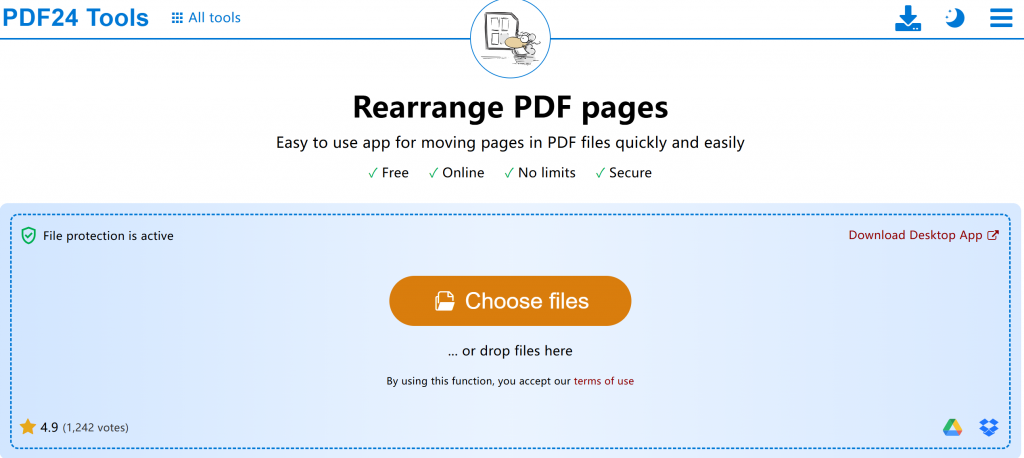
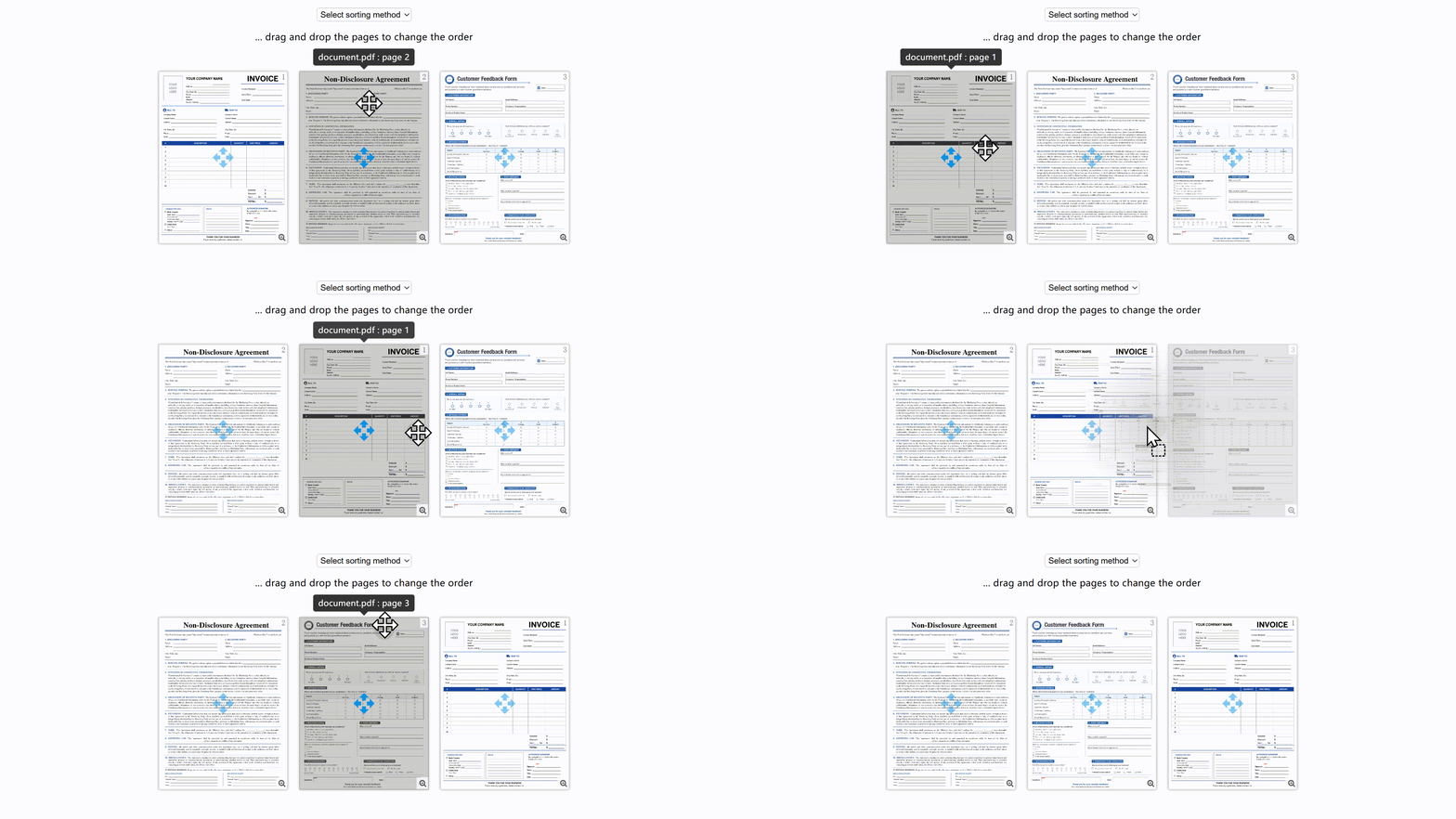
If you need to rearrange PDF pages online for free with no limits, PDF24 is the clear winner. It offers completely free access with no file size caps or daily task restrictions. iLovePDF and Smallpdf offer more polished experiences but lock key features behind paid plans. Sejda and PDF2Go are solid options for occasional use, but their daily limits and file caps make them less suitable for frequent or large-file tasks. Let's take a look at how to rearrange pages in PDF with PDF24. Go to the website and choose the files you want to reorder, and then start to drag and drop the pages you want to reorder. Most online tools share the same process to rearrange pages in PDF.
Pro Tips for Rearranging Pages in PDF
Tip 1: Bulk Selection for Faster Reordering
Hold Ctrl (Windows) or Command (Mac) to select multiple non‑consecutive pages at once. You can then move, rotate, or delete them all in a single action.
Tip 2: Reorder by Bookmarks
Some advanced tools (such as Foxit PDF) allow you to rearrange page order based on existing bookmarks. If your PDF already has a structured bookmark hierarchy, you can use this feature to quickly reorganize the document’s logical flow — saving hours of manual drag‑and‑drop.
Tip 3: Add Page Numbers After Reordering
After you've finalized your page order, it's a good practice to add page numbers to help readers navigate the document. Most professional PDF editors include an “Add Header & Footer” or “Add Page Numbers” feature under their organize or edit tabs.
Tip 4: Verify Integrity After Reordering
Always double‑check your document after reordering:
- Duplicate pages — common when merging multiple files
- Missing pages — you may have accidentally skipped a page while dragging
- Page orientation — mixed portrait and landscape pages can be rotated directly in the same view
FAQ
Q1: Are online tools safe for rearranging PDF pages?
A: It depends on the tool. Reputable tools like iLovePDF and Sejda typically auto‑delete files after processing. However, for sensitive documents (contracts, personal data, or legally protected content), always use desktop software that processes files locally — your data never leaves your machine.
Q2: Will rearranging pages affect the original formatting?
A: No. Reordering pages only changes their display sequence. The content, fonts, images, and layout of each page remain completely unchanged. Think of it as rearranging chapters in a book — the chapters themselves stay intact.
Q3: Can I rearrange PDF pages on my phone?
A: Yes. Mobile apps like UPDF (Windows/Mac/iOS/Android), PDF Expert (iOS/macOS), Xodo (cross‑platform), and Adobe Acrobat Reader Mobile (iOS/Android) all support page reordering.
Q4: Does rearranging pages change the file size?
A: Not significantly. Reordering only changes the page sequence — it doesn’t alter the content itself. However, different tools may apply varying compression algorithms, which can cause slight differences in file size.
Wrapping Up
Rearranging PDF pages on your device is incredibly easy when you have the right tools at your disposal. Whether you choose to utilize built-in apps or dedicated tools like UPDF, you can effortlessly organize your documents to suit your needs.
Mastering these techniques empowers you to manage your PDF pages with confidence! Remember, an optimized PDF not only enhances your productivity but also streamlines your overall workflow. Whether you are a student, a professional, or anyone who frequently handles PDF documents, embracing these methods will enable you to effectively change the order of pages and maximize your efficiency.
If you frequently work with PDFs, you may need more than just reordering. Professional PDF editors offer a full suite of page management tools — including Insert, Extract, Replace, and Split — all in one place. For a complete overview of all page organization techniques, visit our Organize PDF Pages: The Ultimate Guide
Windows • macOS • iOS • Android 100% secure





 Enola Miller
  Lizzy Lozano
 Enid Brown
 Enya Moore