 UPDF
UPDF
 UPDF for Windows
 UPDF for Mac
 UPDF for iPhone/iPad
 UPDF for Android
 Nomostar
 UPDF AI Online
 UPDF Sign
 IvyCraft
 Edit PDF
 Annotate PDF
 Create PDF
 PDF Form
 Edit links
 Convert PDF
 OCR
OCR PDF to Word
 PDF to Image
 PDF to Excel
 Organize PDF
 Merge PDF
 Split PDF
 Crop PDF
 Rotate PDF
 Protect PDF
 Sign PDF
 Redact PDF
 Sanitize PDF
 Remove Security
 Read PDF
 UPDF Cloud
 Compress PDF
 Print PDF
 Batch Process
 About UPDF AI
 UPDF AI Solutions
 AI User Guide
 FAQ about UPDF AI
 Summarize PDF
 Translate PDF
 Chat with PDF
 Chat with AI
 Chat with image
 PDF to Mind Map
 Explain PDF
 PDF AI Tools
 Image AI Tools
 AI Chat Tools
 AI Writing Tools
 AI Study Tools
 AI Working Tools
 Other AI Tools
 AI Bookmark Generation
 AI Bookmark Summary
 AI Watermark Generation
 AI Background Generation
 AI Sticker Generation
 AI Stamp Generation
 AI Editing Suite
 UPDF Copilot
 AI Page Management
 AI Semantic Search
 PDF to Word
 PDF to Excel
 PDF to PowerPoint
 Enterprise Solution
 Enterprise Sign
 Enterprise AI
 Enterprise Plan
 Enterprise User Guide
 Enterprise Webinar
 IT
IT Education
 Construction
 Financial Service
 Healthcare
 Insurance
 Legal
Legal Manufacturing
 Government
 Researchers & PhDs
 Solopreneurs & Freelancers
 Lawyers & Legal Professionals
 Real Estate Agents & Brokers
 Education Solution
 Customer Stories
 User Guide
 UPDF Tricks
 FAQs
FAQs UPDF Reviews
 Download Center
 Blog
Blog Newsroom
 Tech Spec
 Updates
 UPDF vs. Adobe Acrobat
 UPDF vs. Foxit
 UPDF vs. PDF Expert

A black box over a Social Security number may look secure initially but can still be deceptive. Copy the text elsewhere, and the hidden number can still appear unchanged. Understanding the meaning of redact PDF begins with this essential distinction. Proper PDF redaction permanently removes underlying data instead of hiding it visually forever underneath. Financial records, identification numbers, and personal information disappear permanently, preventing copying, searching, and recovery.
For more details, see what is redact PDF and how to redact PDF. After proper redaction, the removed content cannot be selected, copied, searched, or uncovered. UPDF suits offline privacy, page-level redaction, and custom styling. Adobe Acrobat fits existing Pro subscribers. PDF24 Tools works for one-off web edits on non-sensitive files.
Need to permanently remove sensitive text, images, or pages? Download UPDF free and apply secure redactions instantly.
Windows • macOS • iOS • Android 100% secure
Part 1. Method 1: How to Redact Text, Images, and Pages in PDF via UPDF
Best For:
- Users needing offline privacy, complete redaction control, customizable overlays, warning labels, and page-level protection.
Not For:
- Anyone wanting a browser-based script with no software installation, working on a public and non-confidential file.
Redaction belongs within a broader PDF security workflow covering passwords, permissions, and encryption together. Learn more through how to protect PDF for complete document security guidance. Use UPDF to redact PDF documents securely on your own computer. This approach protects sensitive files that legally cannot leave your organization or workplace. Now follow the steps below to permanently redact your PDF safely:
A visual cover and permanent removal are different operations, so choose the one your document requires. The example below shows the workflow for protecting PDFs in UPDF.
Step 1. First, open your PDF in UPDF and choose the "Redact" tool from the "Tools" section.
Step 2. You can redact PDF pages in 3 simple ways. These ways are discussed below with supporting scenarios:
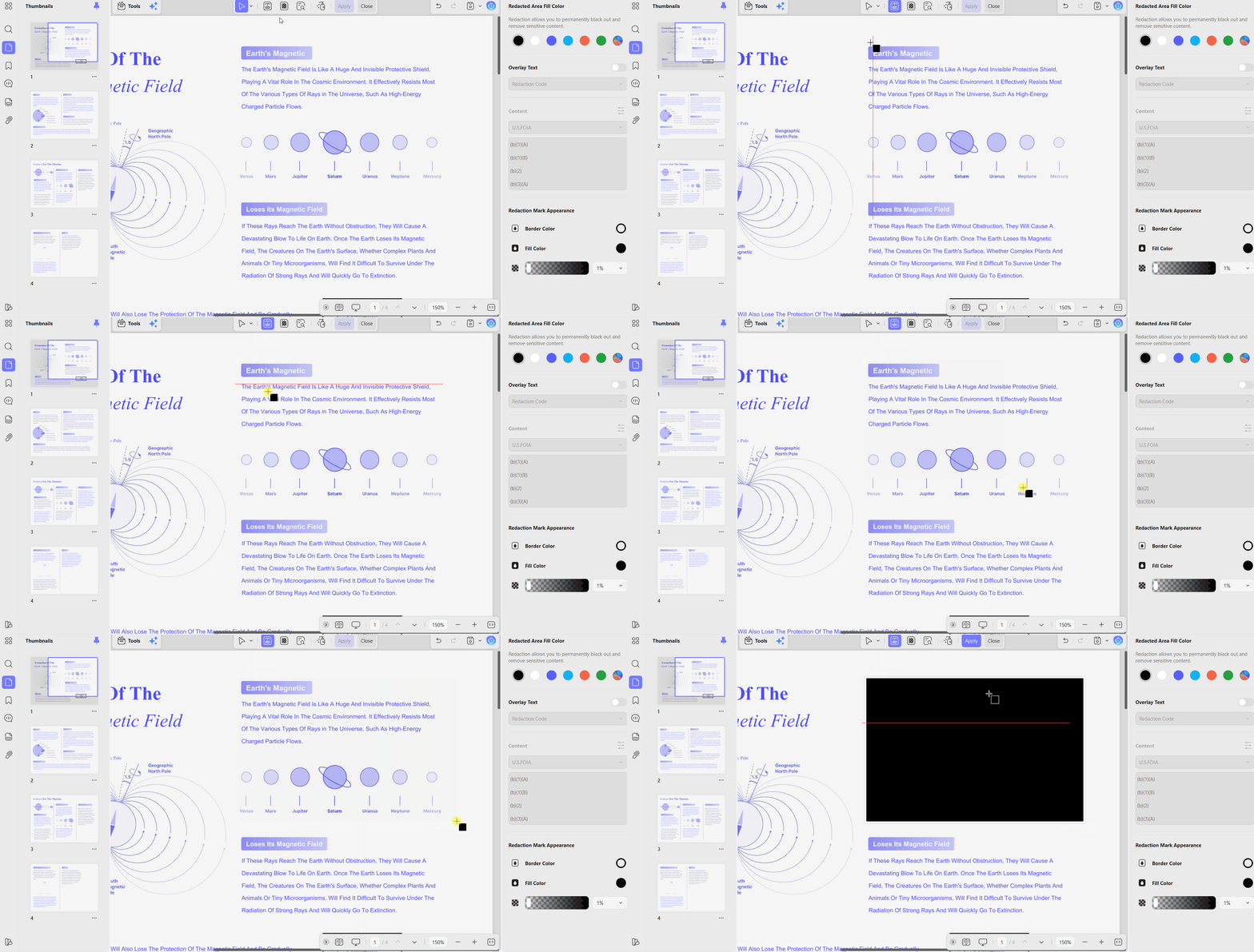
Scenario 1: Mark for Redaction: Targeting Text and Images
Action: Highlight the specific lines of text you want removed or drag a frame around an image or graphic. Marking only stages content for deletion, so every selection can be reviewed before anything is erased.
Scenario: This is the tool for obscuring individual bank account numbers, customer names inside a disclosure bundle, or faces in legal photographs. Where a name recurs across a long file, Find Text & Redact marks every instance at once instead of leaving you to hunt for each one.
Scenario 2: Redact Pages: Page-Level Redaction
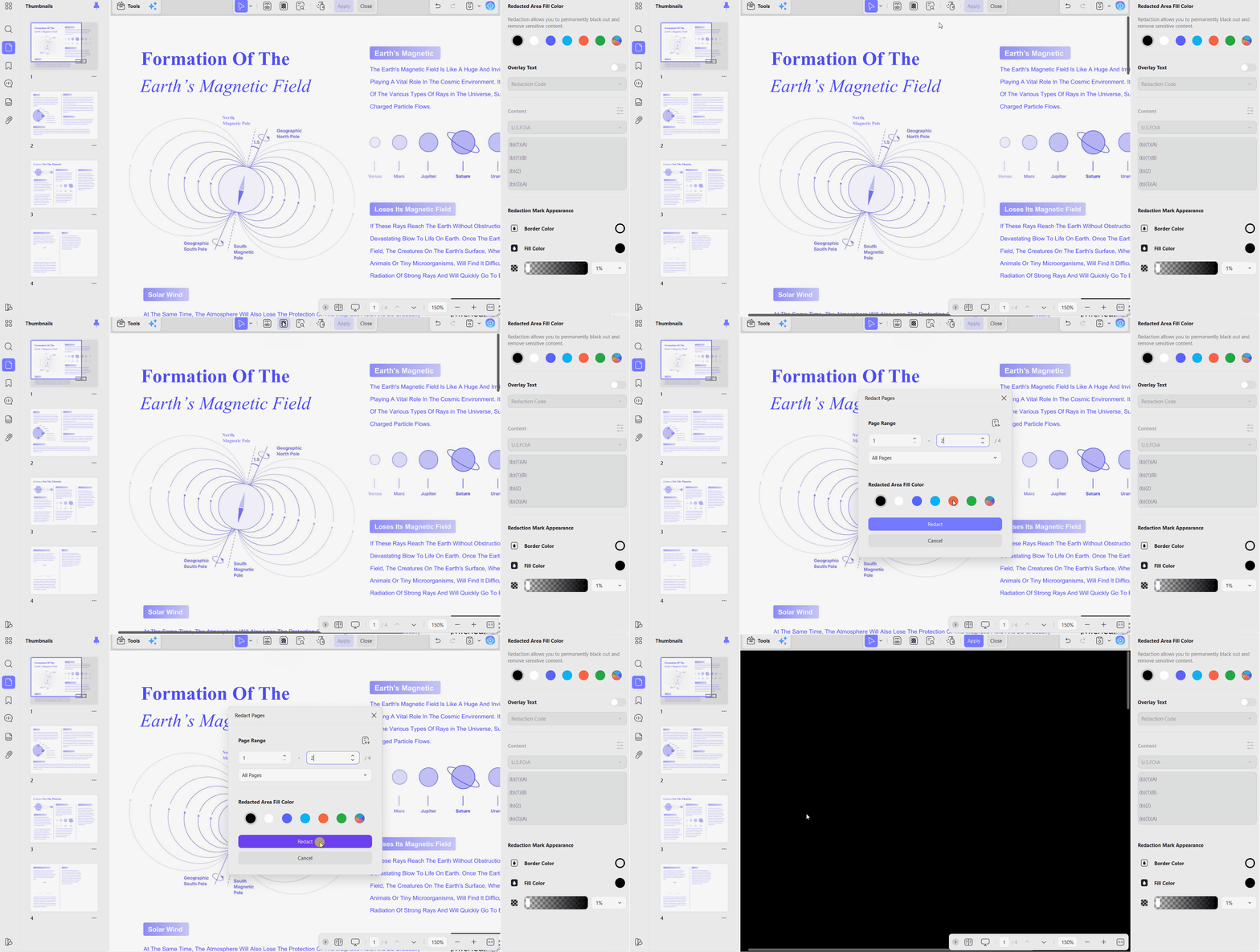
Action: Enter a page range such as pages 3 to 5, and UPDF redacts those pages in full. Even, odd, all, and custom ranges are all accepted.
Scenario: Confidential appendices and trade secret chapters disappear in a single operation. Dragging frames line by line across 40 pages is precisely where redaction mistakes creep in, and page-level scope removes that exposure.
Scenario 3: Custom Appearance and Properties
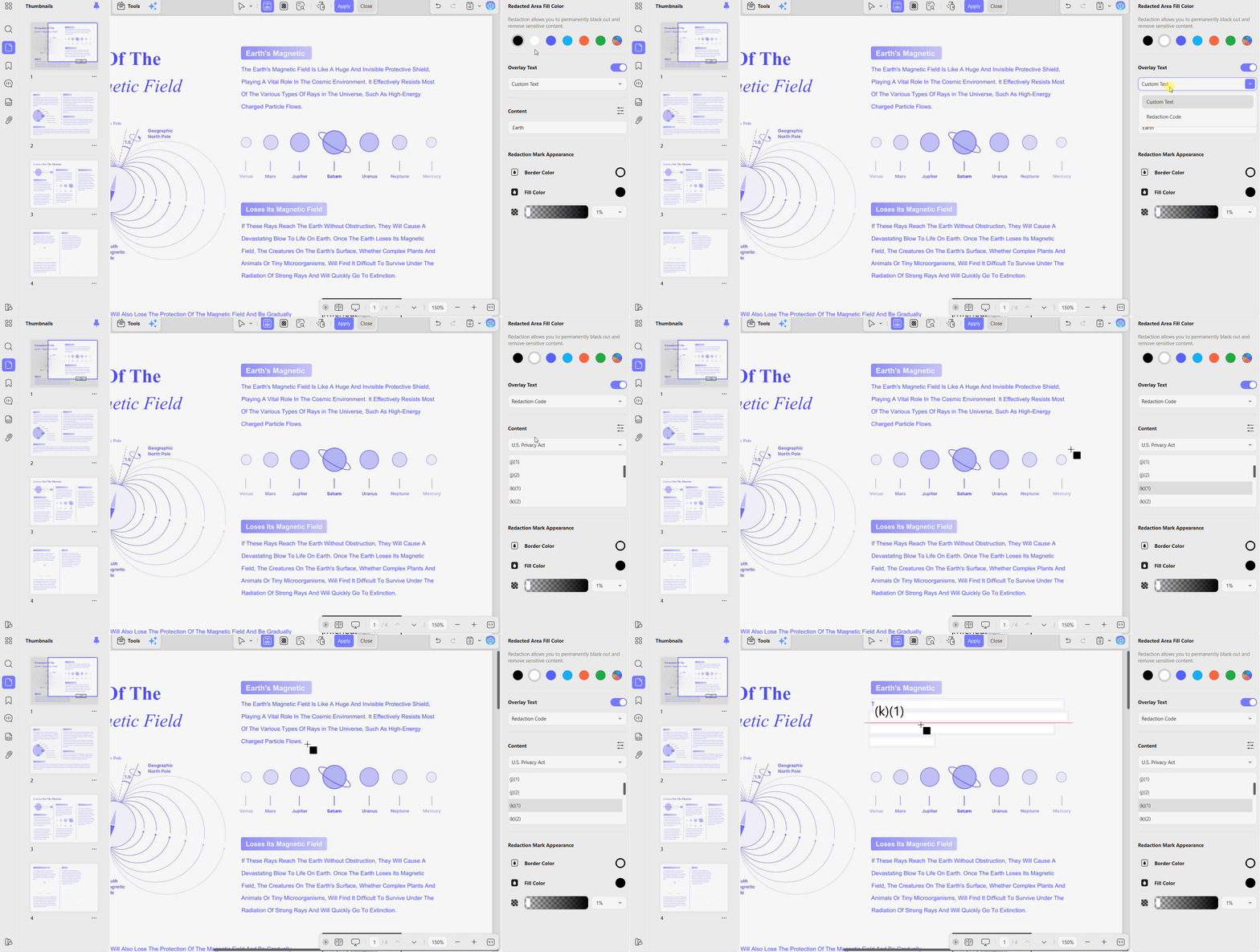
Before you redact PDF files, open the Properties panel to customize every redaction's appearance. The following 2 settings have the greatest impact on both readability and document security.
- Fill Color: Black is the default, but the fill can be set to white, grey, or another color entirely. White suits clean publishing layouts where a run of black bars would sit heavily on the page.
- Overlay Text: Add a custom label such as "REDACTED" or "CONFIDENTIAL" directly over the covered area. In legal and compliance work, an explicit label records that the removal was deliberate rather than a printing fault.
Step 3. Once the desired text is redacted, press the "Apply Redactions" button.
UPDF displays a safety warning before applying redactions, confirming permanent data removal from the code. Always save the redacted document as a new file for added protection and backup. Explore our PDF redaction tool guide for additional software options and detailed comparisons.
Part 2. Method 2: How to Redact a PDF with Adobe Acrobat Pro
Best For:
- Enterprise users with active Acrobat Pro subscriptions already integrated into Adobe workflows.
Not For:
- Budget-conscious users, casual users who want a lightweight interface, or anyone working in free Adobe Reader.
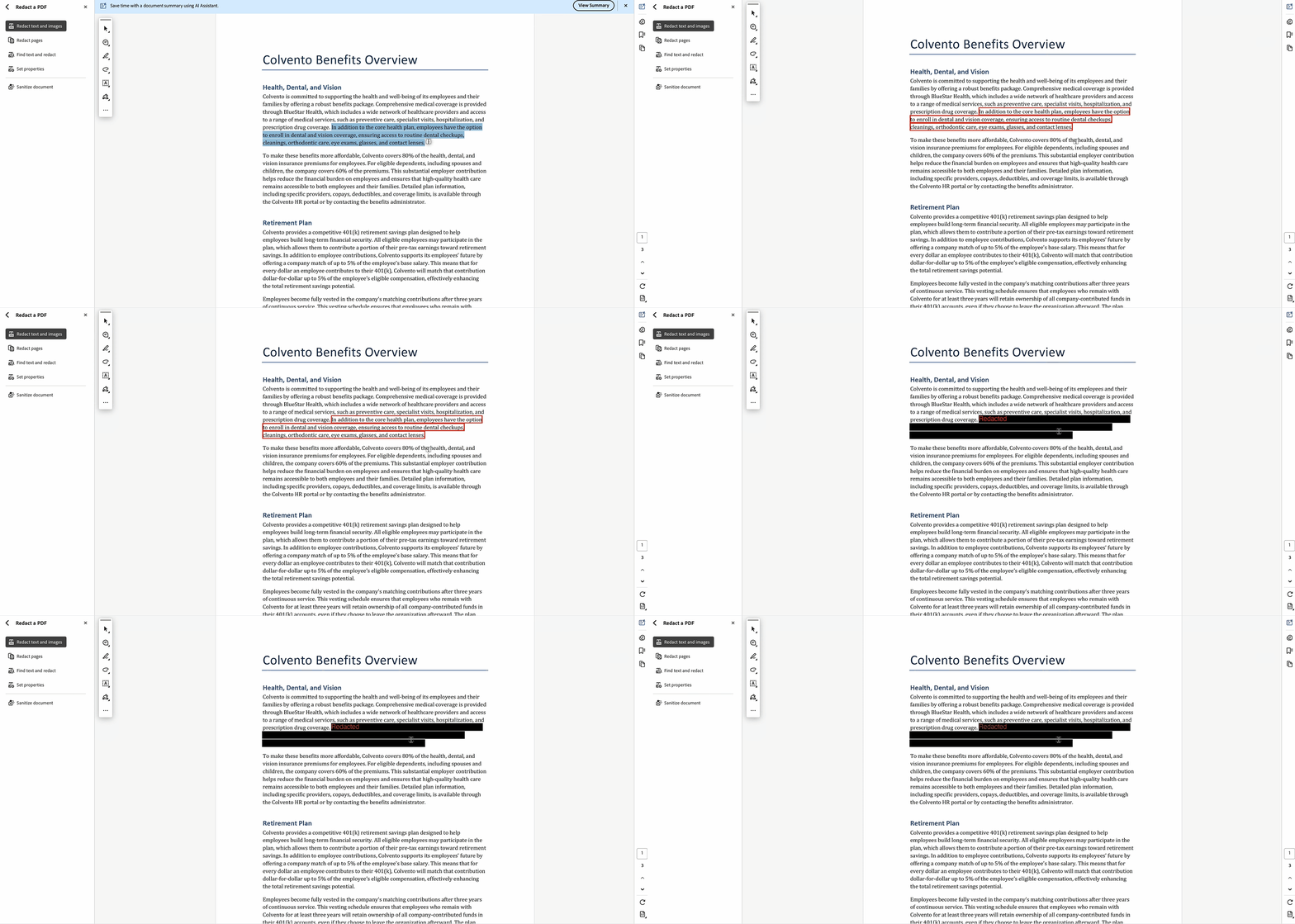
Acrobat performs genuine redaction to the same technical standard, which makes it a sound choice for organizations already paying for it. The friction lies in reaching the tool rather than in the tool itself. The following 5 actions complete the sequence:
Step 1. Start with the file open in the desktop application, since redaction is not offered in the web or mobile versions.
Step 2. Click "Tools" in the top navigation, then select Redact from the tool list.
Step 3. This switches the cursor into marking mode so selections stage content rather than deleting it immediately.
Step 4. Highlight the sensitive text or drag across the images you want removed from the page.
Step 5. Press "Apply" to confirm permanent deletion, then save the document under a new filename.
Important Limitations
- High Paywall Barrier: You need an Acrobat Pro subscription to redact PDF files because Adobe Reader lacks this feature. If you only redact documents occasionally, paying for a full professional subscription may feel unnecessary.
- Complex Menu Layout: Accessing the redaction settings requires navigating several nested menus before starting. In UPDF, the same controls are available directly from the sidebar, making the workflow quicker and easier.
For step-by-step troubleshooting inside Adobe specifically, read how to redact in Adobe.
Part 3. Method 3: How to Redact a PDF Online for Free Using PDF24 Tools
Best For:
- One-off tasks on public, non-sensitive documents, particularly on machines where desktop software cannot be installed.
Not For:
- Legal contracts, financial statements, medical records, or any confidential business file.
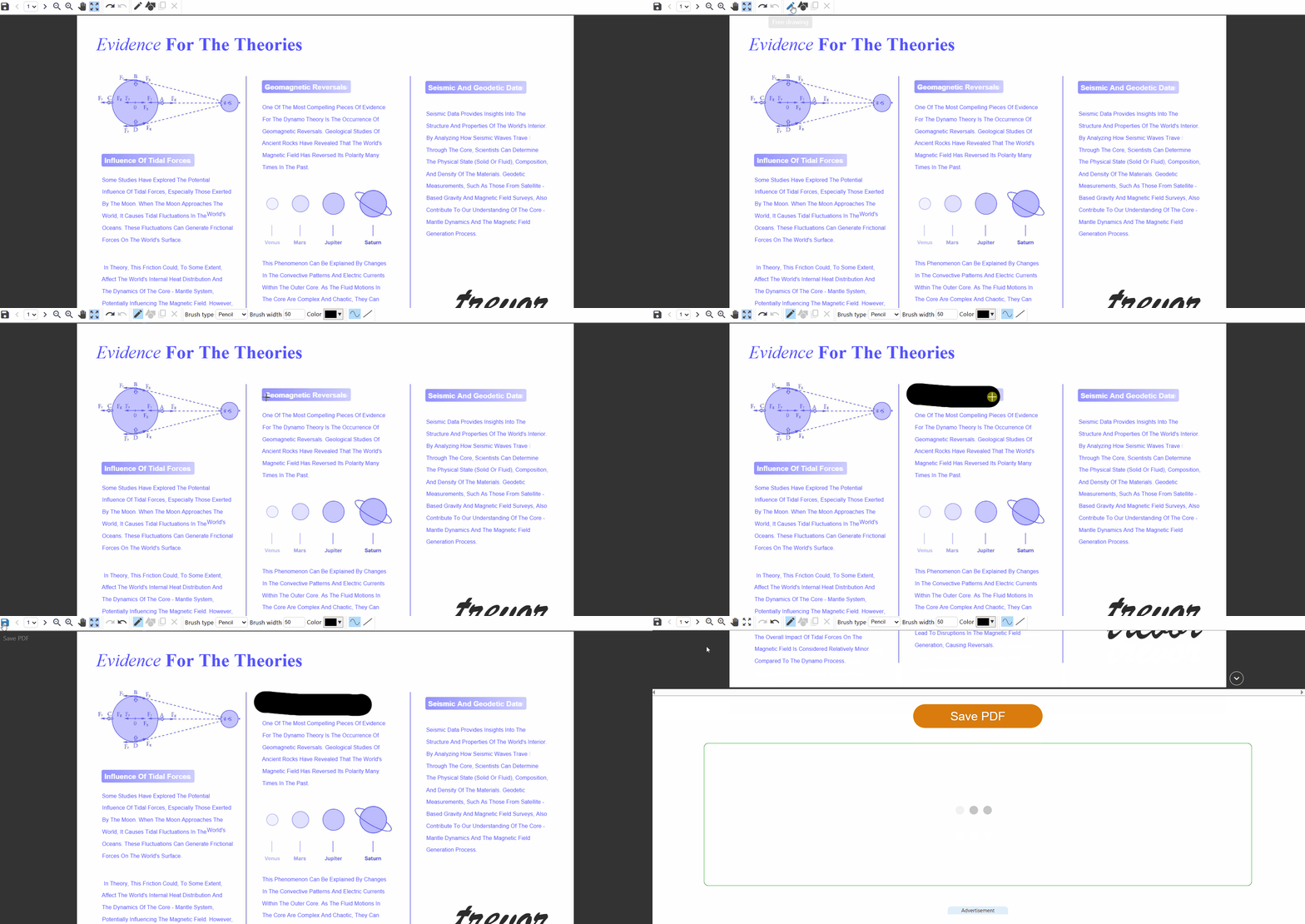
Browser tools help when you cannot install software on your device for editing PDF documents safely. PDF24 Tools lets users redact PDF files online and states that redactions remain permanently removed afterward. The service works well for simple tasks, though confidential files deserve extra privacy and protection always. Now, follow the steps below to redact your PDF using PDF24:
Step 1. First, access PDF24's redaction tool and press "Choose File" to upload your PDF.
Step 2. Next, pick the "Free Drawing" tool, choose the redaction color, and drag your mouse over the text that needs to be redacted.
Step 3. Once done, press the "Save PDF" button in the top left corner to download the redacted PDF.
Important Limitations
- True Redaction: Some online tools only cover text with black boxes instead of permanently removing hidden information. Original text may remain recoverable by removing shapes or copying hidden content from documents later.
- Privacy Risks: Uploaded files are processed on third-party servers before users download the edited document again safely. Privacy laws may restrict uploading confidential files even when servers delete them shortly after processing.
- Manual Editing: PDF24 Tools requires users to draw every redaction box manually across each document page individually. Page range redaction and custom overlay labels are unavailable for faster document editing tasks.
Ensure your workflow follows standard data sanitization protocols for secure, permanent removal of sensitive PDF information safely.
Don't risk data leaks with simple black boxes or online converters. Download UPDF to permanently erase sensitive info offline with absolute precision.
Windows • macOS • iOS • Android 100% secure
Part 4. Quick Comparison: Which Redaction Method Fits Your Need?
The table below compares the 3 redaction methods to help you choose the best option for your needs:
| Feature/Scenario | UPDF | Adobe Acrobat Pro | PDF24 Tools (Online) |
| Permanent Data Sanitization | Yes (deep layer erase) | Yes | Stated as permanent by the vendor |
| Page-Level Bulk Redaction | Yes (redact whole pages by range) | Yes | Manual drawing only |
| Custom Colors & Overlay Text | Yes (custom fill and label) | Yes | Basic black only |
| Offline Privacy & Security | 100% local | 100% local | Requires cloud upload |
| Cost Efficiency | Budget-friendly, free trial | High subscription cost | Free, with privacy trade-offs |
Redacting a document that carries digital signatures? Learn how the process affects signed files in how to redact a signed PDF.
Frequently Asked Questions
Can I redact a PDF so text cannot be uncovered?
Yes, genuine tools like UPDF or Acrobat Pro permanently remove underlying text and image data. This prevents recovery through copy-pasting, layer extraction, or other methods after applying true redaction permanently.
How do I black out text on a PDF document without Acrobat Pro?
Use affordable editors like UPDF to redact text or page ranges without Acrobat Pro. Apply redactions offline, permanently destroying data while keeping documents away from external servers.
Is blacking out text the same as redacting in a PDF?
No, black shapes only hide text while underlying content remains searchable and selectable beneath them. True redaction permanently removes underlying data, leaving nothing available for recovery or viewing afterward.
How to reveal blacked-out text in a PDF?
Graphic rectangles can be removed, revealing hidden content underneath using many standard PDF editors. UPDF Apply Redaction permanently destroys data, making recovery or revealing impossible after processing completes.
Why can't I redact a locked PDF document?
Editing restrictions disable redaction tools until users enter the correct permission password before making changes. Documents created by others may require the owner to provide the permission password before unlocking.
Conclusion
Redact PDF files using tools that permanently remove sensitive information instead of hiding content. Online tools raise privacy concerns, while Acrobat Pro costs more for occasional document editing needs. UPDF provides offline security, full redaction features, and flexible options for professional document appearance.
Ready to protect your confidential information with true PDF redaction? Download UPDF for free and redact your documents safely today!
Windows • macOS • iOS • Android 100% secure



 Enrica Taylor
 Lizzy Lozano
 Enola Davis

 Enid Brown