UPDF
UPDF
 UPDF for Windows
 UPDF for Mac
 UPDF for iPhone/iPad
 UPDF for Android
 Nomostar
 UPDF AI Online
 UPDF Sign
 IvyCraft
 Edit PDF
 Annotate PDF
 Create PDF
 PDF Form
 Edit links
 Convert PDF
 OCR
OCR PDF to Word
 PDF to Image
 PDF to Excel
 Organize PDF
 Merge PDF
 Split PDF
 Crop PDF
 Rotate PDF
 Protect PDF
 Sign PDF
 Redact PDF
 Sanitize PDF
 Remove Security
 Read PDF
 UPDF Cloud
 Compress PDF
 Print PDF
 Batch Process
 About UPDF AI
 UPDF AI Solutions
 AI User Guide
 FAQ about UPDF AI
 Summarize PDF
 Translate PDF
 Chat with PDF
 Chat with AI
 Chat with image
 PDF to Mind Map
 Explain PDF
 PDF AI Tools
 Image AI Tools
 AI Chat Tools
 AI Writing Tools
 AI Study Tools
 AI Working Tools
 Other AI Tools
 AI Bookmark Generation
 AI Bookmark Summary
 AI Watermark Generation
 AI Background Generation
 AI Sticker Generation
 AI Stamp Generation
 AI Editing Suite
 UPDF Copilot
 AI Page Management
 AI Semantic Search
 PDF to Word
 PDF to Excel
 PDF to PowerPoint
 Enterprise Solution
 Enterprise Sign
 Enterprise AI
 Enterprise Plan
 Enterprise User Guide
 Enterprise Webinar
 IT
IT Education
 Construction
 Financial Service
 Healthcare
 Insurance
 Legal
Legal Manufacturing
 Government
 Researchers & PhDs
 Solopreneurs & Freelancers
 Lawyers & Legal Professionals
 Real Estate Agents & Brokers
 Education Solution
 Customer Stories
 User Guide
 UPDF Tricks
 FAQs
FAQs UPDF Reviews
 Download Center
 Blog
Blog Newsroom
 Tech Spec
 Updates
 UPDF vs. Adobe Acrobat
 UPDF vs. Foxit
 UPDF vs. PDF Expert

Quick answer:
If a completed registration form reopens with blank fields, first confirm that you opened the saved copy and that its values remain visible in a PDF editor. A reader that does not preserve form data, a form reset action, or saving a different copy can each explain the problem. Saving a fillable PDF isn't one action; it's three different ones depending on what you need next: keep it editable, make it read-only, or flatten it permanently. This guide covers why saves fail and how to do each one correctly on Windows and Mac. If you're still filling the form itself, start with how to fill in a PDF form.
Part 1. Why Your Filled PDF Won't Save
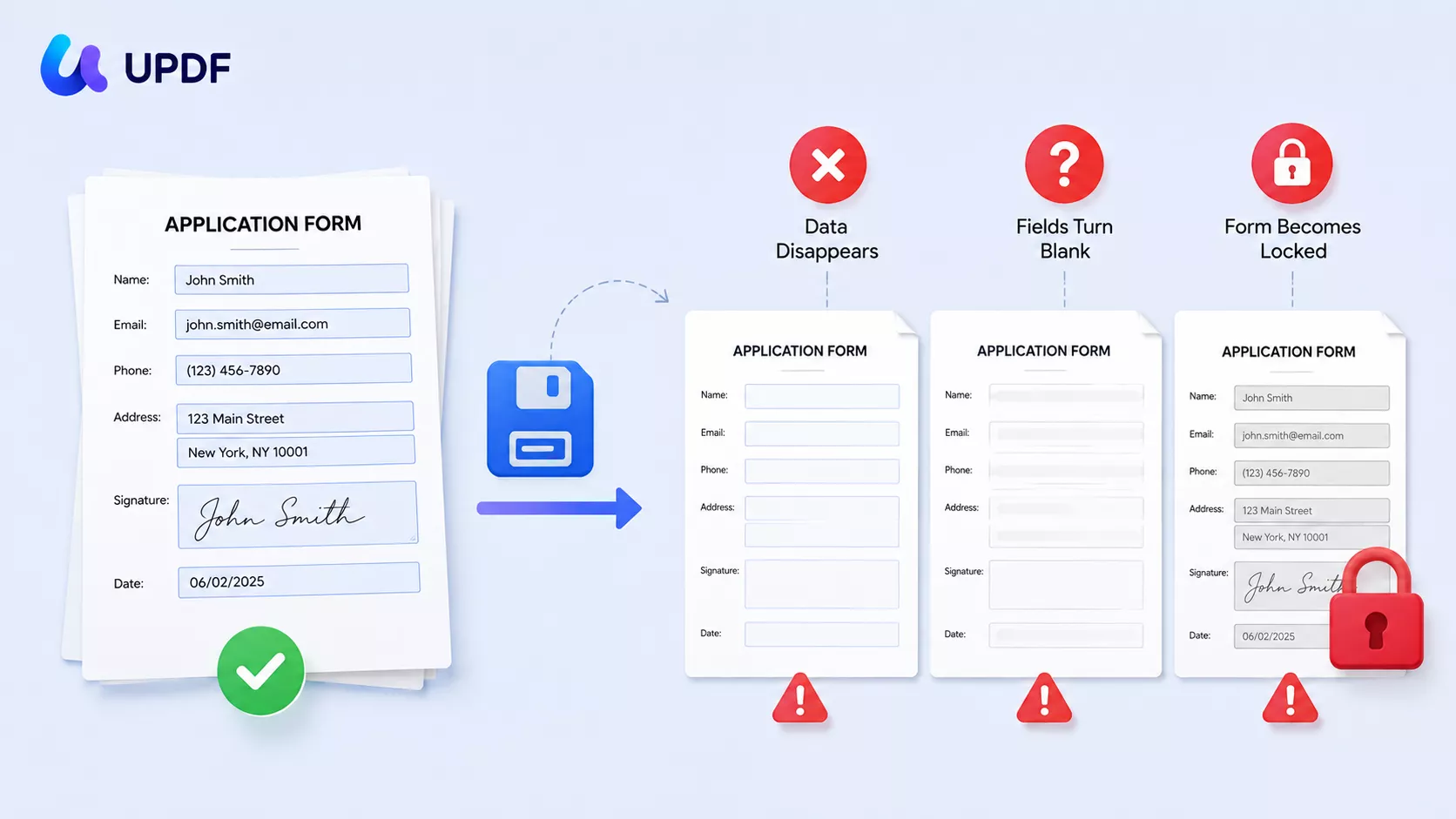
Before the fix, the cause. A filled form comes back blank for one of these reasons:
- Your reader can't save form data. Many free readers let you type into fields but only save a blank copy—the data was never written to the file. This is the most common cause.
- The form resets itself on open. Some forms carry a script that clears every field the moment the file is opened, so your saved data flashes on screen and then vanishes.
- It was saved as a flat image. If the file was exported or printed to a picture-only PDF, the fields turned static and stopped accepting or storing input.
- A signature or permission lock froze it. Adding a signature or a restrictive permission can lock the form so it can no longer be edited or refilled.
The fixes below use UPDF, which is a full editor rather than a viewer—so typed values are written into the file and kept.
Part 2. Three Ways to "Save" a Filled PDF — Pick the Right One
"Save" means three different things here, and choosing wrong is what causes most of the trouble.
- Save editable — you'll keep filling or changing it later. Use Save As; the fields stay live. (Part 3)
- Save read-only — you're sending it out and don't want anyone altering your answers. Use a permission password. (Part 4)
- Flatten — you want the answers locked into the page permanently, and it also defeats reset scripts. The fields merge into the page and can't be changed. (Part 5)
Match the method to what happens to the file next, and it saves cleanly every time.
Part 3. Save a Filled PDF and Keep It Editable (Windows & Mac)
This is the everyday save—your data sticks, and you can reopen and keep editing.
Step 1. Open the form in UPDF and fill it out—text fields, checkboxes, and dropdowns all work.
Step 2. Click the arrow next to the Save icon and choose Save As to write a new copy, or Save to update the original. Pick a folder you'll remember—not a default temp location—so you can find it later.
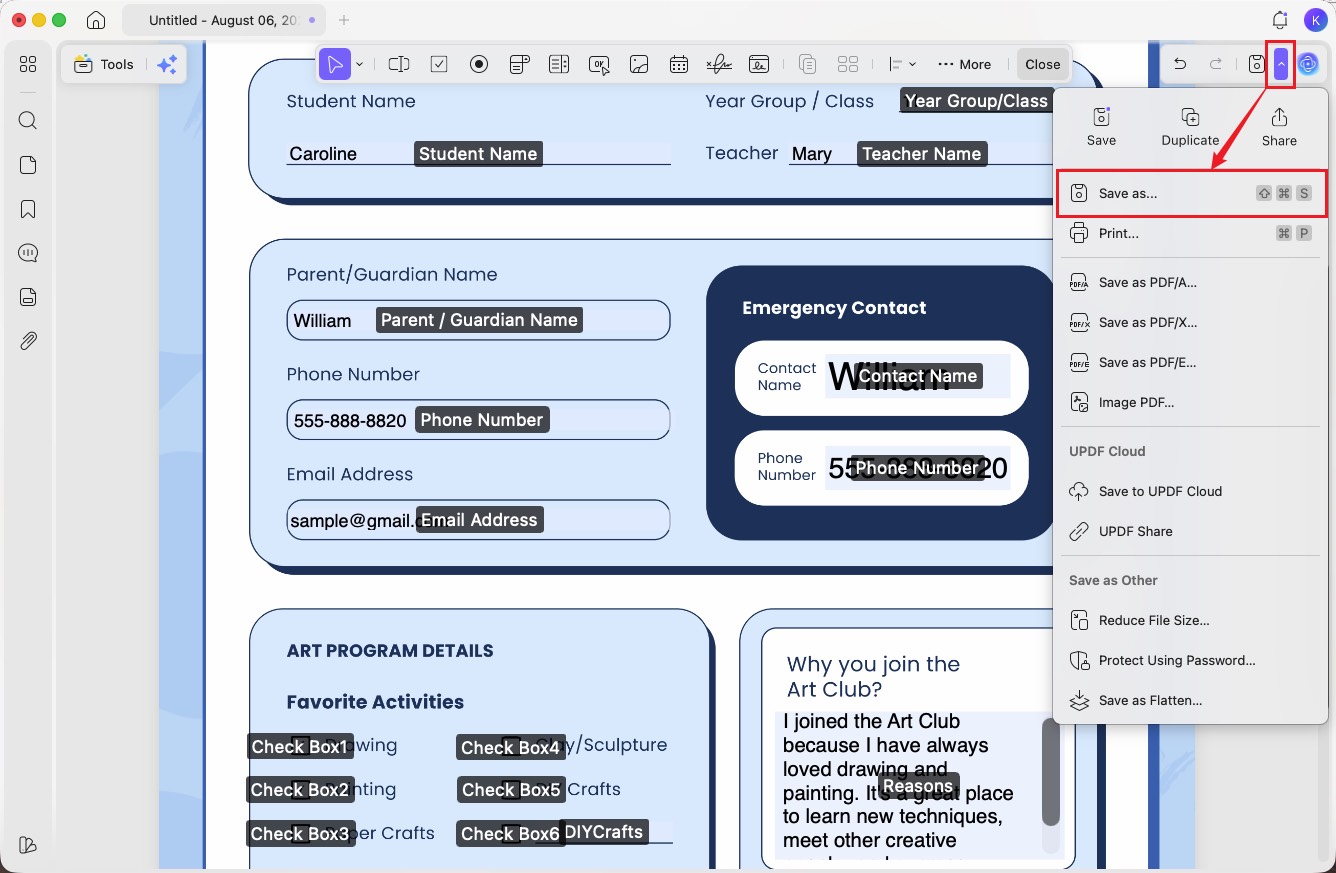
Step 3. Reopen the saved file to confirm the values are there. Because UPDF writes the data into the file, they will be.
Best for:
- forms you'll fill in stages, or drafts you need to revise before sending.
Not for:
- a final copy you're about to email to someone who shouldn't change it—use Part 4 or Part 5 instead.
UPDF's free tier lets you fill and save the whole form; saved files carry a trial watermark until you upgrade, and UPDF Pro (US$49.99/year or US$79.99 lifetime) removes it. Download UPDF for free to save your filled form with the data intact.
Windows • macOS • iOS • Android 100% secure
On iPhone & Android: UPDF's mobile apps fill and save form data the same way—open the form, fill it, and save. One limit worth knowing: on mobile you can add a file-open password, but the granular permission password in Part 4 is a desktop feature.
Part 4. Save as Read-Only So No One Can Change It
When the form is final and headed to someone else, lock it with a permission password so your answers can't be altered. This keeps the text searchable, unlike flattening. See the full walkthrough on how to make a PDF read-only.
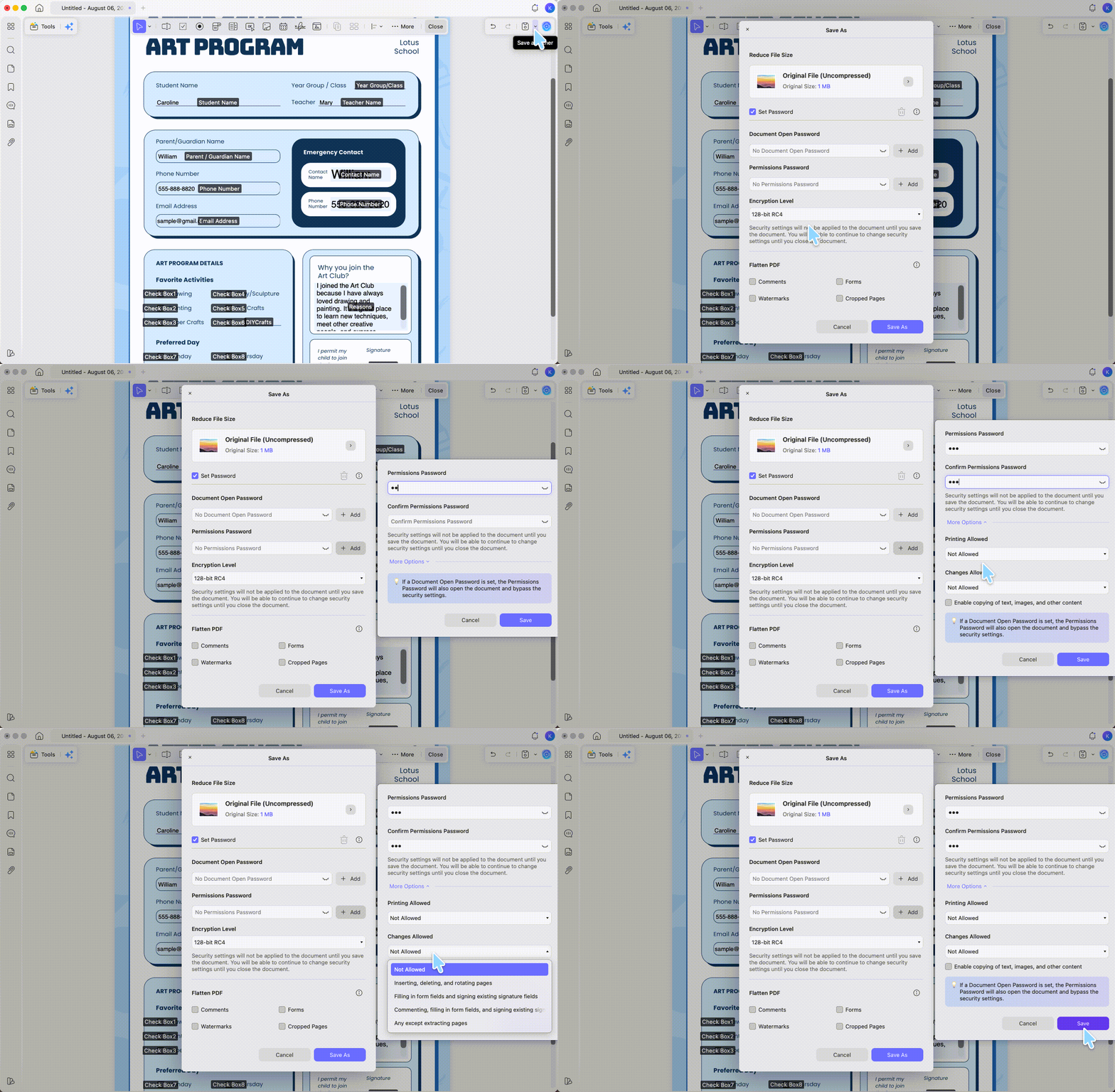
Step 1. With the filled form open, click the arrow next to Save and choose Protect Using Password.
Step 2. Select Permissions Password, then set and confirm your password.
Step 3. Open More Options and set Printing and Changes to the level you want—choose "Not allowed" under Changes to prevent edits. Click Save, then Save As a new copy.
Part 5. Flatten to Lock In Answers Permanently
Flattening merges your filled values into the page so they can't be edited, moved, or reset. This is the fix for forms that wipe themselves on open, and the surest way to freeze a final copy for archiving or legal records. See more on how to flatten a PDF.
Step 1. Open the filled form and click Save as Other from the right-side options.
Step 2. Choose Save as Flatten. In the pop-up, tick the option to flatten forms and annotations.
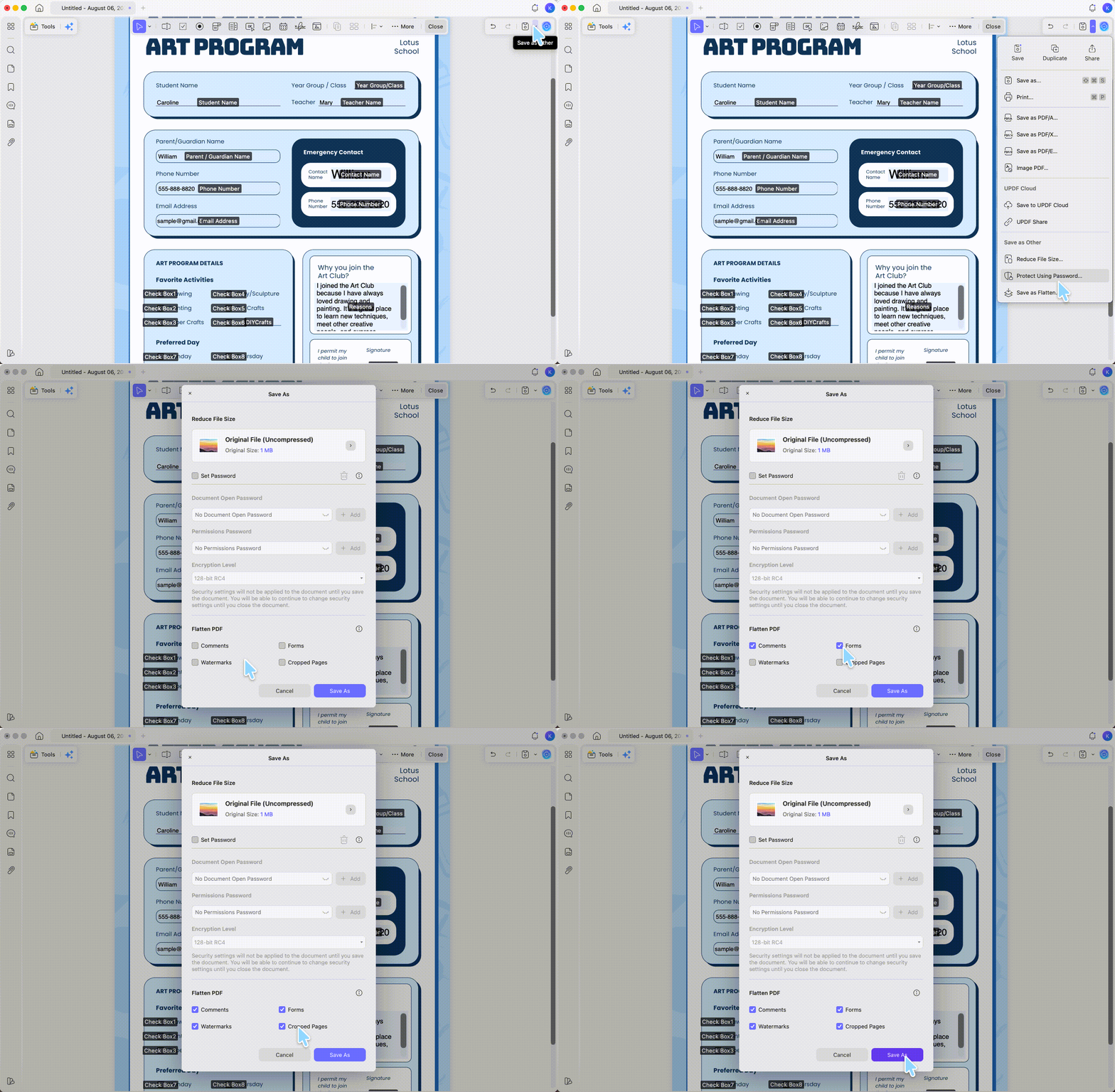
Step 3. Save the new file. The fields are now part of the page—visible, but permanently uneditable.
Part 6. Edge Cases
- Data flashes then disappears on open. The form has a reset script. Fill it, then flatten it (Part 5) so the values are baked in before the script can clear them.
- Your reader says it can only save a blank copy. That reader doesn't support saving form data. Open the form in UPDF and save from there instead.
- You signed it and now can't refill it. A signature locks the form. Work from an unsigned copy, complete all fields first, and sign last.
- You saved it but can't find it. It likely went to a temp or cloud default. Redo Save As and deliberately choose a local folder you know.
Part 7. FAQs
1. Can I still edit a flattened PDF later?
No—that's the point of flattening. The fields become part of the page. Keep an unflattened editable copy (Part 3) if you might need to change the answers, and flatten only the version you send out.
2. How do I unlock a read-only form so I can refill it?
If you set the permission password, open the file, remove the password, and the form becomes editable again. Without the password, it can't be unlocked.
Conclusion
Saving a fillable PDF comes down to matching the method to what the file does next: Save As to keep editing, a permission password to send it read-only, or flatten to lock the answers in for good. The reason saves fail is almost always a viewer that can't write form data or a form that resets itself—both solved by working in a full editor. Download UPDF for free to fill, save, and lock your forms on Windows, Mac, iOS, and Android; Pro features are there when you need watermark-free output.
Windows • macOS • iOS • Android 100% secure








 Enya Moore
 Engelbert White
 Lizzy Lozano