 UPDF
 UPDF for Windows
 UPDF for Mac
 UPDF for iPhone/iPad
 UPDF for Android
 Nomostar
 UPDF AI Online
 UPDF Sign
 IvyCraft
 Edit PDF
 Annotate PDF
 Create PDF
 PDF Form
 Edit links
 Convert PDF
 OCR
 PDF to Word
 PDF to Image
 PDF to Excel
 Organize PDF
 Merge PDF
 Split PDF
 Crop PDF
 Rotate PDF
 Protect PDF
 Sign PDF
 Redact PDF
 Sanitize PDF
 Remove Security
 Read PDF
 UPDF Cloud
 Compress PDF
 Print PDF
 Batch Process

 About UPDF AI
 UPDF AI Solutions
 AI User Guide
 FAQ about UPDF AI
 Summarize PDF
 Translate PDF
 Chat with PDF
 Chat with AI
 Chat with image
 PDF to Mind Map
 Explain PDF
 PDF AI Tools
 Image AI Tools
 AI Chat Tools
 AI Writing Tools
 AI Study Tools
 AI Working Tools
 Other AI Tools
 AI Bookmark Generation
 AI Bookmark Summary
 AI Watermark Generation
 AI Background Generation
 AI Sticker Generation
 AI Stamp Generation
 AI Editing Suite
 UPDF Copilot
 AI Page Management
 AI Semantic Search
 PDF to Word
 PDF to Excel
 PDF to PowerPoint
 Enterprise Solution
 Enterprise Sign
 Enterprise AI
 Enterprise Plan
 Enterprise User Guide
 Enterprise Webinar
 IT
 Education
 Construction
 Financial Service
 Healthcare
 Insurance
 Legal
 Manufacturing
 Government
 Researchers & PhDs
 Solopreneurs & Freelancers
 Lawyers & Legal Professionals
 Real Estate Agents & Brokers
 Education Solution
 Customer Stories
 User Guide
 UPDF Tricks
 FAQs
 UPDF Reviews
 Download Center
 Blog
 Newsroom
 Tech Spec
 Updates
 UPDF vs. Adobe Acrobat
 UPDF vs. Foxit
 UPDF vs. PDF Expert


Quick Answer:
Sharing a folder with another computer is different from sending a file once or publishing a PDF link. You do not need to convert ordinary files into PDFs just to transfer them.
Start with the route below. Use the PDF-specific section only when the document and sharing task call for it.
Part 1. Choose the Right Mac File-Sharing Method
| Your situation | Recommended method | What it provides |
|---|---|---|
| Two Macs need a folder on the same reachable network | macOS File Sharing | Access to a shared folder |
| Windows needs files stored on a Mac | SMB file sharing | Network folder access with credentials |
| Nearby Mac, iPhone, or iPad needs a file | AirDrop | A transferred copy |
| Someone elsewhere needs to view a PDF | UPDF Share | A cloud-hosted PDF link |
| You need PDFs on your own devices | UPDF Cloud sync | Access through your own account |
Folder access, a transferred copy, and a cloud link behave differently. A successful transfer does not automatically keep the recipient’s copy synchronized with later changes.
Part 2. Share a Folder Between Macs on Your Network
On the Mac that stores the files:
- Open System Settings > General > Sharing.
- Open the information panel for File Sharing and turn it on.
- Add the intended folder under Shared Folders.
- Select the users who need access and assign Read Only or Read & Write as appropriate.
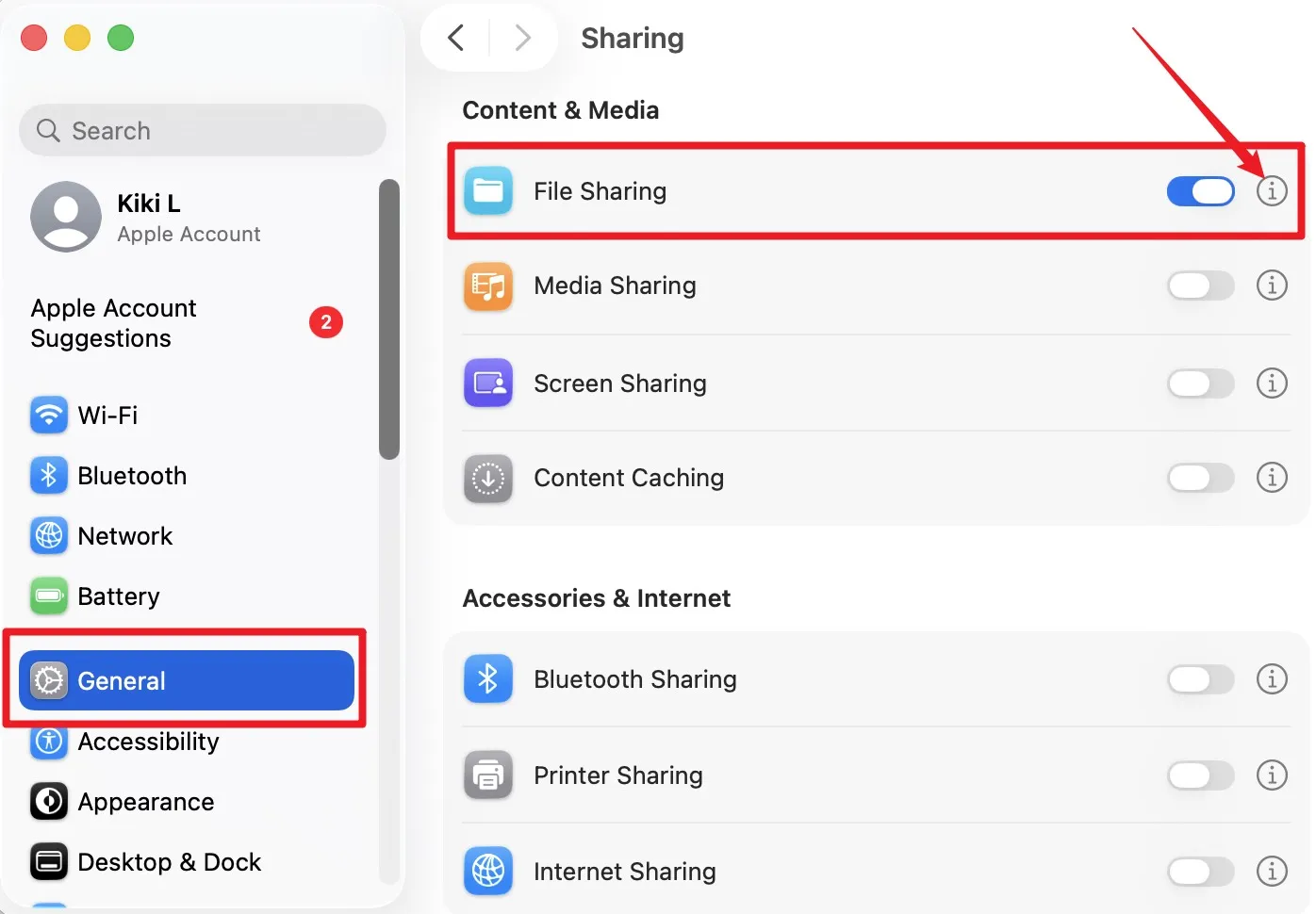
On the receiving Mac, open Finder and choose Go > Connect to Server. Enter the sharing address shown on the host Mac, connect, and sign in with an authorized account.
Example: Share a project folder as Read Only when the other person should retrieve files without changing the originals. This method requires a reachable host and network connection; it does not create a public web link.
Part 3. Share Mac Files with a Windows PC Using SMB
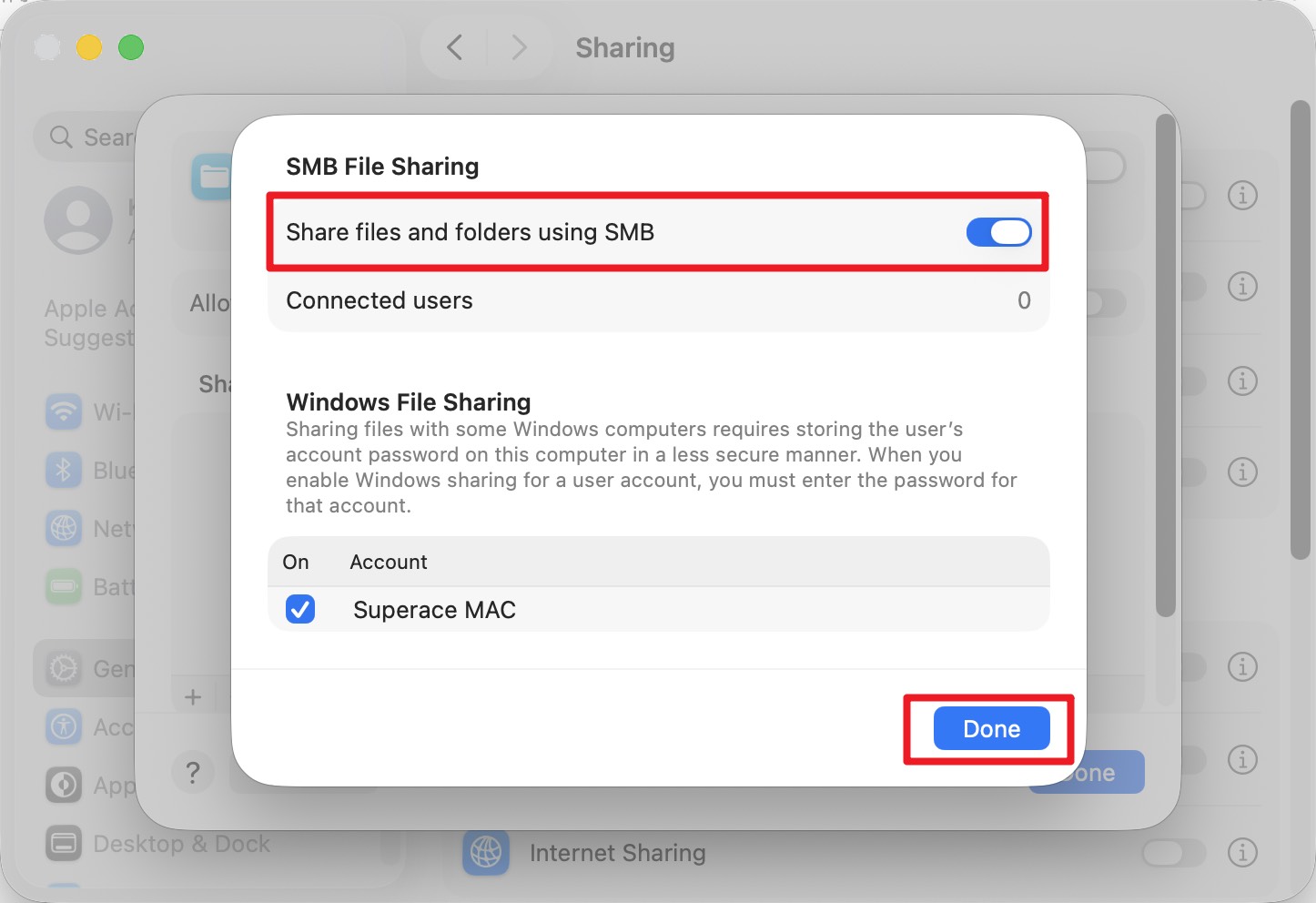
- Configure the shared folder and user permissions on the Mac.
- In File Sharing settings, open Options and enable Share files and folders using SMB.
- Enable the account used for Windows access and confirm its password when prompted.
- On Windows, open File Explorer and connect using the Mac’s address, such as
\\192.168.1.20. - Sign in with the authorized Mac account and open the shared folder.
The address is an example; use your Mac’s actual address. Both computers need a working network route to each other. To share in the opposite direction, configure a shared folder on Windows, then connect from Finder using smb://WINDOWS-IP/ShareName.
Part 4. Send Files to Nearby Apple Devices with AirDrop
- Turn on Wi-Fi and Bluetooth on both devices.
- Check that the receiving device allows AirDrop from you.
- Select the file in Finder and choose Share > AirDrop.
- Select the recipient and complete any acceptance or verification prompt.
AirDrop sends a copy. It does not create a shared folder, and it is not the Windows or Android transfer method in this guide. Prompts vary with system version and contact status.
Part 5. Share a PDF Remotely with UPDF
Use this route when someone needs remote access to a PDF and cloud uploading is permitted.
Windows • macOS • iOS • Android 100% secure

- Open the PDF in UPDF.
- Expand the Save menu at the top right and choose UPDF Share.
- Select Create Link to upload the document and generate its link.
- Review the available password and expiration settings.
- Copy the link or share its QR code. To deliver it by email, use Share with Email.

Example: Send a client a proposal link after checking the final PDF and intended access settings.
Cloud upload notice: This workflow uploads the PDF to cloud storage. It differs from transferring a file over your local network. A link avoids email attachment limits but remains subject to upload, storage, and plan limits.
Need to prepare a PDF and send a remote viewing link? Explore UPDF Cloud and check current sharing options before uploading.
Part 6. Understand Link Access, Copies, and Sync
Email delivery does not prevent forwarding. Sending a link to an email address does not, by itself, prove that only that person can open it. A recipient may forward the link and any shared password.
Link settings govern access through the hosted service. They do not erase downloaded copies or email attachments, or prevent someone from capturing visible content. A password is a shared secret, not proof of the viewer’s identity.
Syncing your own devices: Signing into UPDF Cloud on your own devices lets you access your PDFs across supported platforms. This differs from sending someone a share link. Do not give others your account credentials as a sharing method. See syncing files on Mac for ongoing access across your own devices.
Part 7. FAQs
1. Does Read Only folder access stop someone from copying a file?
No. Read Only prevents writing changes to the shared folder; it still allows the recipient to read and retrieve files. Do not treat it as copy prevention.
2. Should I share my Mac administrator account so another person can retrieve files?
Use an appropriately scoped account instead. Apple notes that administrator accounts can access the entire Mac through network sharing. Grant access only to the folder and actions the recipient needs.
3. Does sharing a file replace a backup?
No. A transfer or shared location does not, by itself, provide a separate recoverable backup. Keep a backup of important originals independently of the sharing workflow.
Conclusion
Use File Sharing or SMB for network folders, AirDrop for nearby Apple devices, and UPDF Share for remote PDF access. Use cloud synchronization when the goal is keeping your own documents available across devices.
Before sending, decide whether the recipient needs a copy, folder access, or a hosted link. That choice determines what permissions and later changes can control.
Windows • macOS • iOS • Android 100% secure





 Enrica Taylor


 Enola Davis