 UPDF
 UPDF for Windows
 UPDF for Mac
 UPDF for iPhone/iPad
 UPDF for Android
 Nomostar
 UPDF AI Online
 UPDF Sign
 IvyCraft
 Edit PDF
 Annotate PDF
 Create PDF
 PDF Form
 Edit links
 Convert PDF
 OCR
 PDF to Word
 PDF to Image
 PDF to Excel
 Organize PDF
 Merge PDF
 Split PDF
 Crop PDF
 Rotate PDF
 Protect PDF
 Sign PDF
 Redact PDF
 Sanitize PDF
 Remove Security
 Read PDF
 UPDF Cloud
 Compress PDF
 Print PDF
 Batch Process

 About UPDF AI
 UPDF AI Solutions
 AI User Guide
 FAQ about UPDF AI
 Summarize PDF
 Translate PDF
 Chat with PDF
 Chat with AI
 Chat with image
 PDF to Mind Map
 Explain PDF
 PDF AI Tools
 Image AI Tools
 AI Chat Tools
 AI Writing Tools
 AI Study Tools
 AI Working Tools
 Other AI Tools
 AI Bookmark Generation
 AI Bookmark Summary
 AI Watermark Generation
 AI Background Generation
 AI Sticker Generation
 AI Stamp Generation
 AI Editing Suite
 UPDF Copilot
 AI Page Management
 AI Semantic Search
 PDF to Word
 PDF to Excel
 PDF to PowerPoint
 Enterprise Solution
 Enterprise Sign
 Enterprise AI
 Enterprise Plan
 Enterprise User Guide
 Enterprise Webinar
 IT
 Education
 Construction
 Financial Service
 Healthcare
 Insurance
 Legal
 Manufacturing
 Government
 Researchers & PhDs
 Solopreneurs & Freelancers
 Lawyers & Legal Professionals
 Real Estate Agents & Brokers
 Education Solution
 Customer Stories
 User Guide
 UPDF Tricks
 FAQs
 UPDF Reviews
 Download Center
 Blog
 Newsroom
 Tech Spec
 Updates
 UPDF vs. Adobe Acrobat
 UPDF vs. Foxit
 UPDF vs. PDF Expert


Quick Answer:
A README, meeting note, or technical guide may be easy to maintain in Markdown but need a PDF copy for review or distribution. UPDF can create that copy directly from the Markdown file, without an intermediate Word document.
The important distinction is conversion versus matching a particular Markdown preview. A .md file contains text and formatting instructions, but it does not necessarily contain the images, fonts, or rendering extensions used by the application where you wrote it. Check the generated PDF before sending it.
Part 1. Choose the Workflow for Your Markdown File
| Your task | Workflow | Best for |
|---|---|---|
| Convert one finished Markdown document | UPDF drag-and-drop or Tools > Other | Sharing a PDF and continuing to edit or annotate it |
| Process several Markdown files | UPDF Batch Create | Separate deliverables or one combined document |
| Adjust the writing theme and PDF layout | Typora PDF export | Documents you are still editing in Markdown |
| Generate PDFs from commands or a build process | Pandoc with a PDF engine | Repeatable technical-document workflows |
| Convert an occasional file without installing an app | PDFCreator Online | Files you are permitted to upload |
The UPDF instructions below describe its desktop workflow. The menu illustrations are from the Mac guide; do not use these screenshots as instructions for iOS or Android.
Part 2. Convert a Markdown File to PDF with UPDF
Best for:
- A finished Markdown document that needs a PDF copy and subsequent PDF editing or annotation.
Skip if:
- Assuming that a successful import proves every custom Markdown extension rendered correctly.
Option A. Drag the Markdown File into UPDF
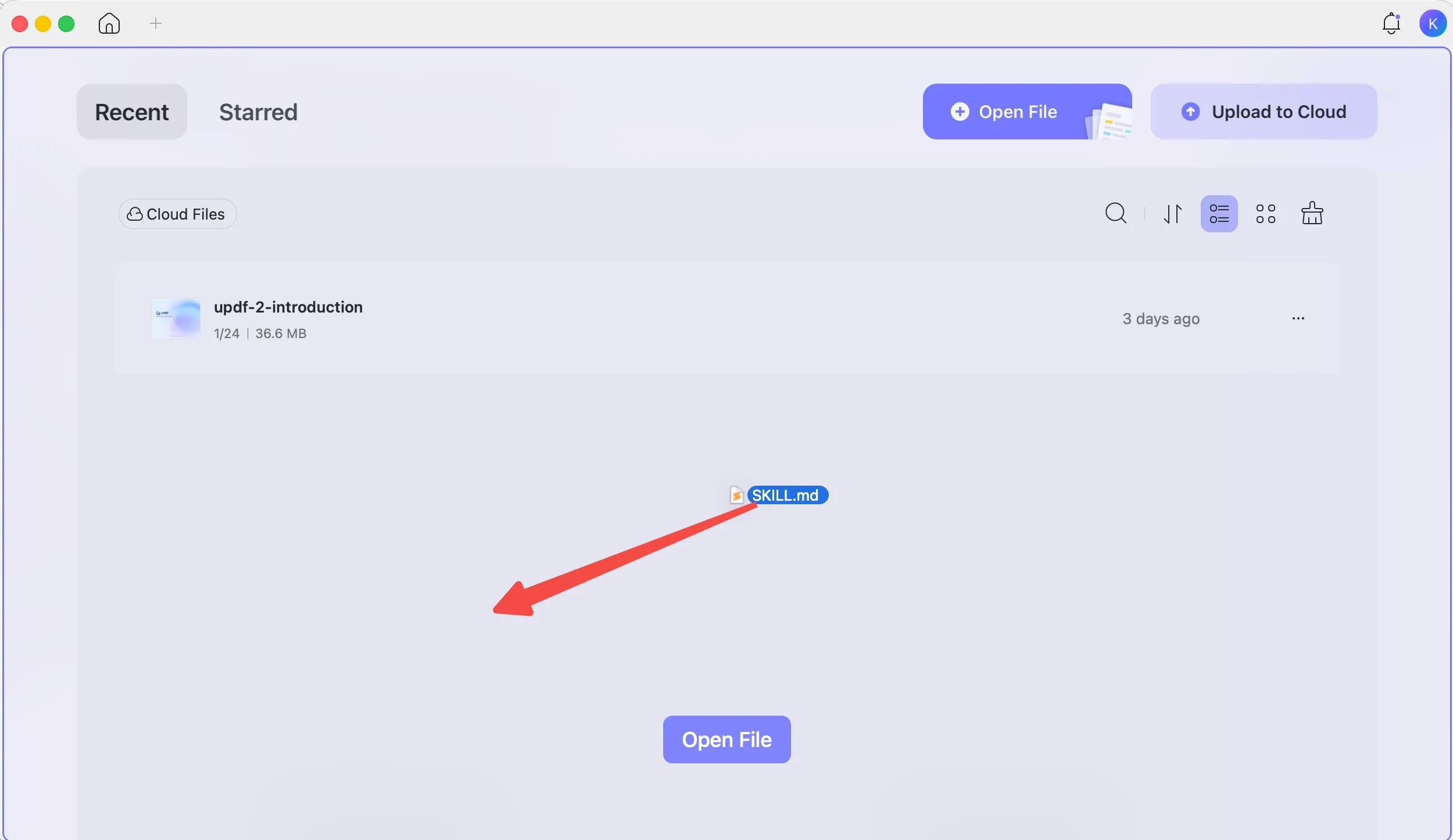
- Open UPDF on your computer.
- Drag the Markdown file from Finder or File Explorer into UPDF. The app creates a PDF from the file.
- Review the result, then save the PDF. On Mac, choose Save and select a name and folder.
Keep the Markdown source alongside the generated PDF.
Windows • macOS • iOS • Android 100% secure
Option B. Select the File Through Tools > Other
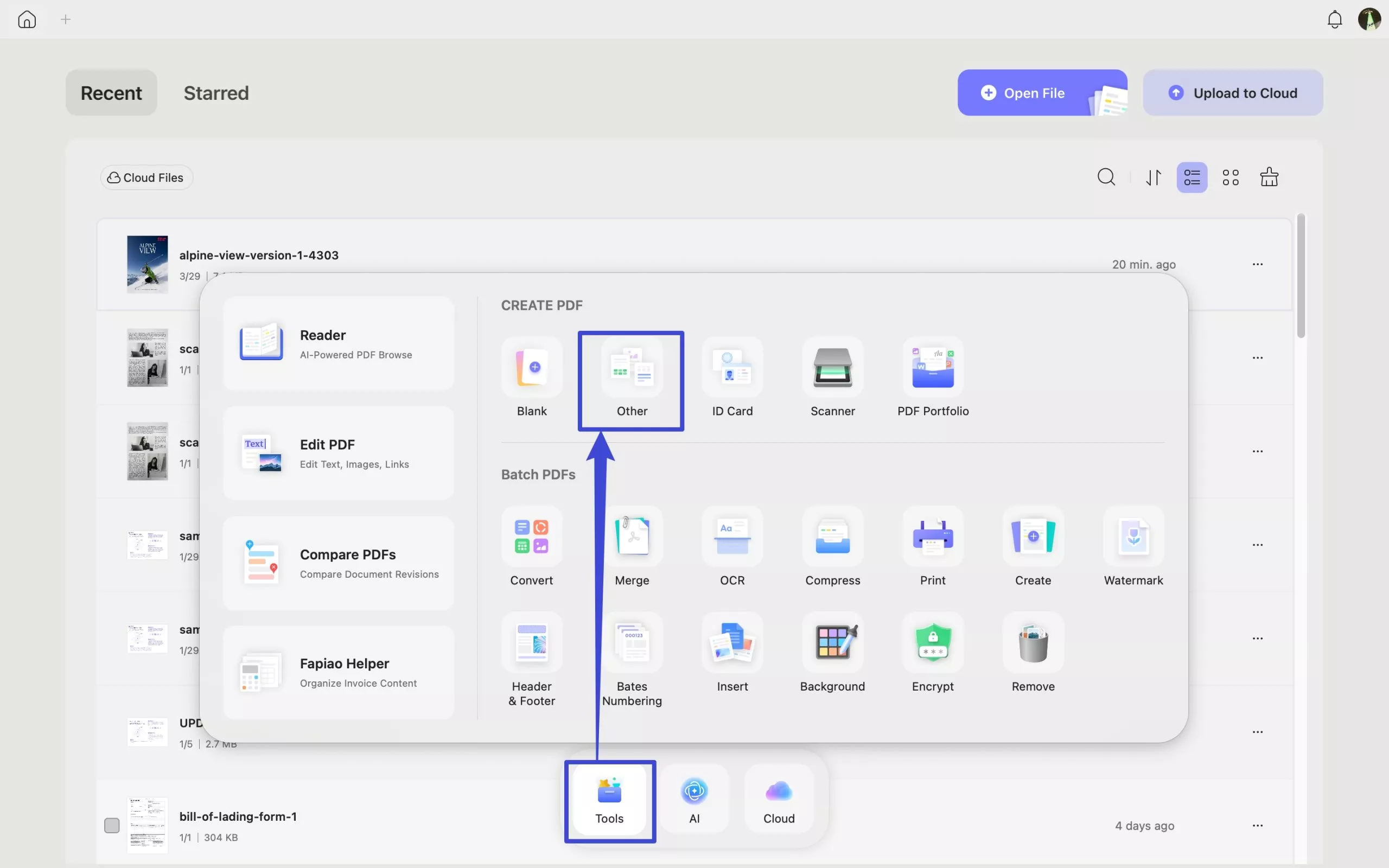
- Open Tools in UPDF.
- Select Other under Create PDF.
- Select your Markdown file using the file-selection controls, then confirm to create the PDF.
- Save and reopen the PDF to check it.
Download UPDF for free to try converting your Markdown file—installation is free, and Pro removes the trial watermark from exported files.
Windows • macOS • iOS • Android 100% secure
Part 3. Batch Convert Markdown Files to PDF
Best for:
- Several notes, release documents, or chapters that need to be processed together.
Skip if:
- Expecting Create separately to assemble chapters into one document; choose the output mode before processing.

- Open Tools and select Create under Batch PDFs.
- Click Add Files and select your Markdown files.
- Choose Create separately for one PDF per source file, or Combine into one for a single PDF.
- Check the input list and file order, particularly when combining chapters.
- Click Apply and follow the prompts to save the output.
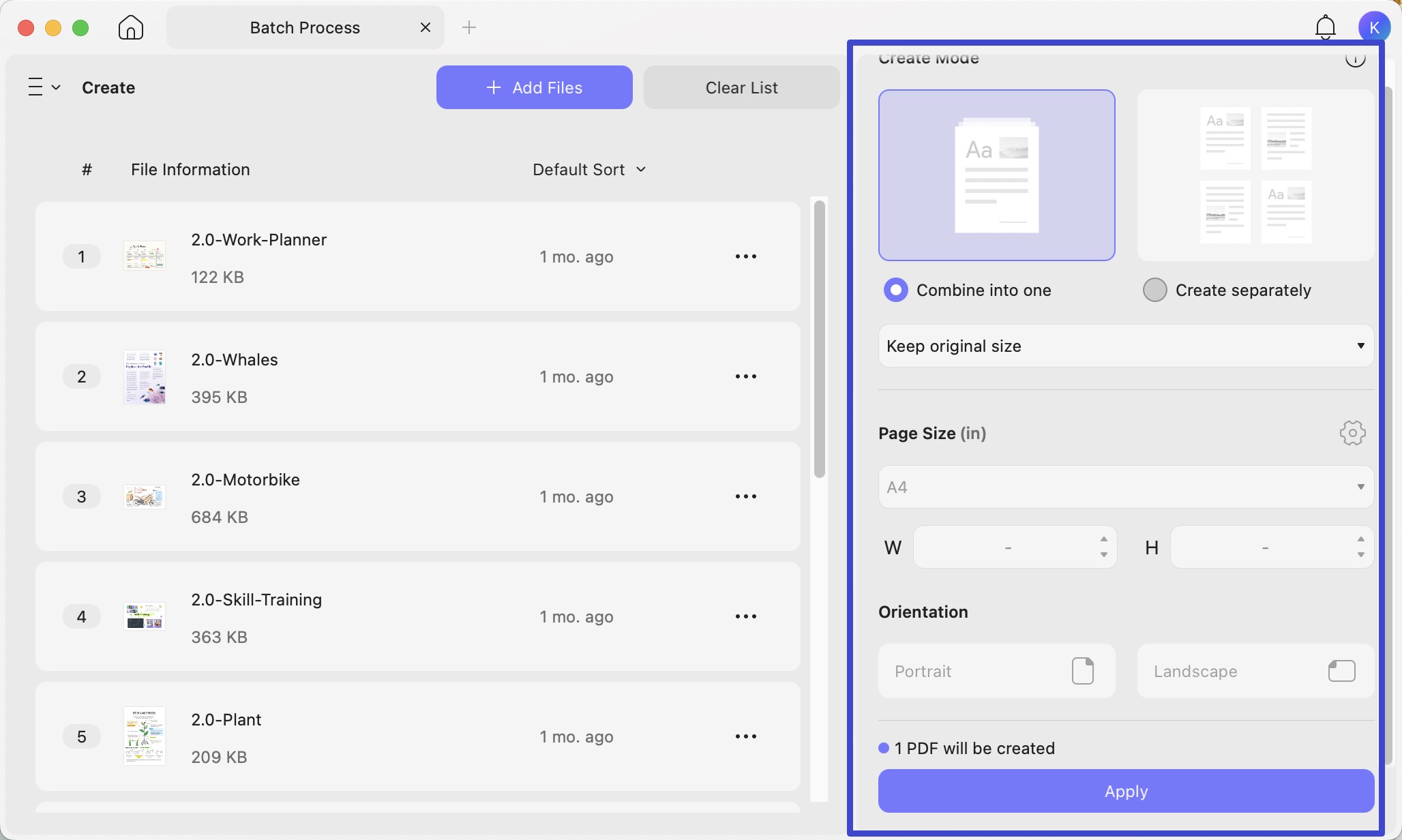
Example: Select 01-overview.md, 02-setup.md, and 03-reference.md. Create separately should produce three PDFs. Combine into one should produce a single document containing all three inputs. Verify the actual section order and content before distribution.
Use Batch Create, not Batch Convert: this workflow creates PDFs from source documents rather than exporting existing PDFs to other formats.
UPDF's current pricing FAQ limits free batch processing to two files and states that saved output carries a trial watermark. Start with two representative files; check the current plan terms before processing a larger batch.
Part 4. Check and Finish the Generated PDF
Check the content rather than judging only the first page:
- Structure: Headings, nested lists, tables, and code blocks should remain understandable.
- Pagination: Look for clipped table columns, long code lines, and headings stranded at the bottom of a page.
- Text: Inspect punctuation and non-Latin characters; search for a known phrase and try copying it.
- Assets: Confirm that referenced images appear and are readable.
- Links and output: Test important links and confirm that the expected files were saved.
For example, a release note with a wide compatibility table may need a source-layout adjustment even when the conversion completes successfully. A PDF file being created is not proof that every column fits.
The retained video below covers the separate task of exporting an existing PDF to Word and other formats. It is not a demonstration of importing Markdown.
Correct recurring content problems in the Markdown source and generate the PDF again. For a small correction in the finished document, use UPDF's PDF editing tools. If an output exceeds a sharing limit, consult the PDF compression guide. To manage assembled sections, explore PDF page organization.
Review a sample output before preparing the final version.
Download UPDF for free to try editing or organizing your converted PDF—installation is free, and Pro removes the trial watermark from exported files.
Windows • macOS • iOS • Android 100% secure
Part 5. Alternatives for Specific Markdown Workflows
Typora: Export While Editing Markdown
Use Typora when the document is still being written and you need to adjust its theme or PDF layout before exporting.
- Open the Markdown document in Typora.
- Choose File > Export > PDF.
- Save and review the result. If needed, adjust the PDF export settings and export again.
Typora documents PDF settings for paper size, themes, page breaks, headers, and footers. Its standard PDF exporter is distinct from its PDF (LaTeX / Pandoc) option; do not assume every PDF export requires Pandoc.

Pandoc: Generate a PDF from the Command Line
Use Pandoc when PDF generation belongs in a repeatable command or documentation build.
Install Pandoc and a compatible PDF engine first. The default PDF route uses LaTeX, so installing Pandoc alone may not be sufficient. With a working default engine, run this command from the directory containing your Markdown file:
pandoc input.md -o output.pdfinput.md is the input file, not the folder containing it. Use a quoted file path if its name or directory contains spaces.
To choose an installed engine explicitly, for example XeLaTeX:
pandoc input.md --pdf-engine=xelatex -o output.pdfThe command requires that engine to be installed and discoverable. Template and font choices can change the output, so include those settings in a repeatable workflow.
Sources: Pandoc installation instructions and Pandoc User's Guide.

PDFCreator Online: Convert Without Installing an App
For an occasional file you are allowed to upload, PDFCreator Online provides a dedicated Markdown-to-PDF tool.
- Open its Markdown-to-PDF page and select the source file.
- Set the available color, orientation, paper-size, and font options.
- Click Convert, download the PDF, and inspect it.
The official page currently lists a 250 MB maximum file size. This is an upload service: review its current privacy terms and your organization's sharing rules before submitting confidential content. Do not confuse this web tool with PDFCreator's desktop editions.
Part 6. Troubleshooting Markdown-to-PDF Rendering
“My Markdown preview shows a diagram, but the PDF shows its source code.”
A preview can support extensions that a different exporter does not. A reported issue in the VS Code Markdown PDF project describes Mermaid code appearing instead of a diagram in the PDF; it is evidence about that exporter, not proof of a UPDF defect.
If your converter does not render a required diagram, render the diagram to a supported image first, reference that image in the Markdown, and check the resulting PDF. Do not assume support for a fenced code block also means support for executing the diagram syntax inside it.
“The document worked on my computer, but its images disappeared after I moved it.”
An image reference such as  points to another file. Moving only the .md file can leave that reference without its target. Keep the source and assets together, verify the relative locations, and test the conversion again. If the files are present but the image still fails, check the converter's supported image and path handling rather than assuming conversion embeds every resource automatically.
“Combining chapters left links pointing at the old Markdown filenames.”
A source link such as [Setup](02-setup.md) names a Markdown file. Combining generated pages into one PDF does not, by itself, redefine that link as a destination inside the PDF. Inspect cross-chapter navigation and create or repair PDF links where necessary; do not treat successful file assembly as successful navigation conversion.
Part 7. FAQs
1. Can I convert Markdown to PDF by renaming the file extension?
No. Renaming notes.md to notes.pdf changes the filename, not its format. Use a conversion or export operation to generate a PDF.
2. Does converting Markdown to PDF require OCR?
No. Markdown is a text-based source format, so this workflow renders text and markup into PDF. OCR is a separate process for recognizing text in scans or images; it is not a prerequisite for converting the Markdown file.
3. Can UPDF create a PDF from a .markdown file as well as .md?
UPDF’s technical specifications list both .md and .markdown among supported text-file formats for PDF creation. Keep the genuine source extension rather than renaming the file to .pdf.
Conclusion
Use UPDF's drag-and-drop or Tools > Other workflow for one Markdown document, and Batch Create for several files. Choose separate PDFs or a combined document according to how the output will be shared.
Keep Typora for editing and export-layout work, Pandoc for command-based generation, and an online converter for permitted uploads without installation. Whichever route you choose, retain the Markdown source and verify the PDF before sharing it.
Download UPDF for free to try converting a Markdown document and reviewing the output—installation is free, and Pro removes the trial watermark from exported files.
Windows • macOS • iOS • Android 100% secure









 Enid Brown

 Enola Davis

 Enya Moore