 UPDF
UPDF
 UPDF for Windows
 UPDF for Mac
 UPDF for iPhone/iPad
 UPDF for Android
 UPDF AI Online
 UPDF Sign
 Edit PDF
 Annotate PDF
 Create PDF
 PDF Form
 Edit links
 Convert PDF
 OCR
OCR PDF to Word
 PDF to Image
 PDF to Excel
 Organize PDF
 Merge PDF
 Split PDF
 Crop PDF
 Rotate PDF
 Protect PDF
 Sign PDF
 Redact PDF
 Sanitize PDF
 Remove Security
 Read PDF
 UPDF Cloud
 Compress PDF
 Print PDF
 Batch Process
 About UPDF AI
 UPDF AI Solutions
 AI User Guide
 FAQ about UPDF AI
 Summarize PDF
 Translate PDF
 Chat with PDF
 Chat with AI
 Chat with image
 PDF to Mind Map
 Explain PDF
 Scholar Research
 Paper Search
 AI Proofreader
 AI Writer
 AI Homework Helper
 AI Quiz Generator
 AI Math Solver
 PDF to Word
 PDF to Excel
 PDF to PowerPoint
 Enterprise Solution
 Enterprise Sign
 Enterprise AI
 Enterprise Plan
 Enterprise User Guide
 Enterprise Webinar
 Banking
 Healthcare
 Insurance
 Legal
Legal Manufacturing
 Government
 Education Solution
 Customer Stories
 User Guide
 UPDF Tricks
 FAQs
FAQs UPDF Reviews
 Download Center
 Blog
Blog Newsroom
 Tech Spec
 Updates
 UPDF vs. Adobe Acrobat
 UPDF vs. Foxit
 UPDF vs. PDF Expert


Are you getting the error message "Invalid Plugin Detected. Adobe Acrobat Reader will quit" when you try to open Adobe Acrobat Reader DC like reported here? If yes, you are in the right place!

This article will explore five easy and quick ways to fix the Adobe Acrobat invalid plugin detected issue. You can try them one by one and see which one really works.
Let's get started!
Part 1. Why Did Adobe Acrobat Detect an Invalid Plugin?
Adobe Acrobat Reader basically relies on plugins to provide additional features and functions. But sometimes, a plugin might cause problems. One common reason for the "Invalid Plugin Detected" error is a specific plugin. It could be either outdated, incompatible, or corrupted.
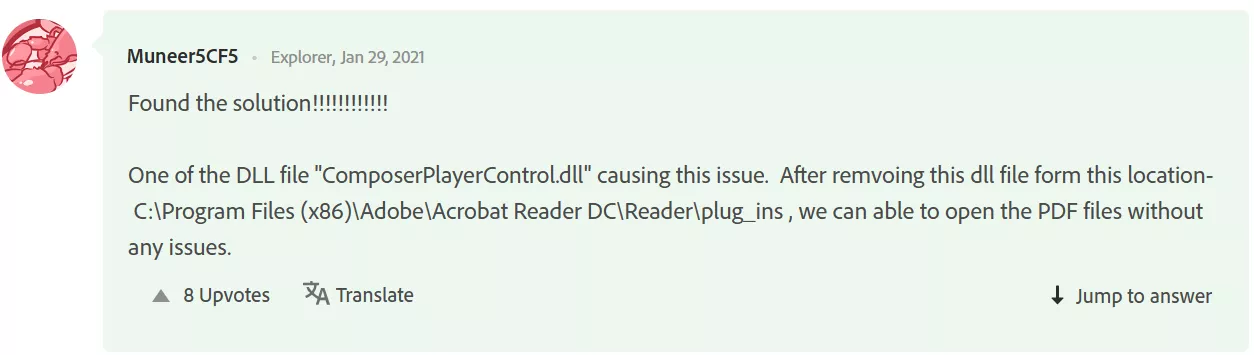
For example, some users have faced issues with a plugin like "ComposerPlayerControl.dll." Adobe Acrobat Reader may fail to launch if this file is damaged or not working properly.
Another cause could be conflicts between Acrobat Reader and other software on your computer. When plugins from other applications interact poorly with Acrobat Reader, you may face errors like these.
Now that we know the possible reason, let's move forward and explore the Adobe invalid plugin detected fixes.
Part 2. How to Fix Adobe Acrobat Invalid Plugin Detected?
This section will explore five different methods to fix the Adobe Acrobat invalid plugin detected issue. We will also walk you through a step-by-step guide to each method.
Fix 1. Use Adobe Acrobat Alternative - The Fastest Way
This method is perfect if you have an urgent task where you need to open, read, edit, or review the PDF, but Adobe Acrobat is showing this error. You can use UPDF. It is one of the best and most reliable Adobe Acrobat alternatives. This tool has all the PDF-related features one could ask for. You can download it and have a try!
Windows • macOS • iOS • Android 100% secure
What Acrobat Features Does UPDF Have?
- View PDFs: Open any PDF file and read through it without any trouble or delay. You can also change PDF background color as you like.
- Edit PDFs: Need to edit some text or swap an image? You can do it in seconds.
- Annotate PDFs: Highlight content, drop a comment, draw a shape, and mark up your PDF however you like.
- Convert PDFs: Turn your PDF into Word, Excel, PowerPoint, or other formats in just a few clicks.
- Organize PDFs: Move pages around, delete extras, split sections—keep your file neat and clean.
- Protect PDFs: Set a password to lock your PDF and keep your content safe from others.
- Fill Forms: Got a form to complete? Try the auto fill PDF form in UPDF. Just click and type, and you're done—it's as easy as that.
- OCR: UPDF can pull out the text from your scanned file so you can work with it.
- Batch Processing: You can batch convert, compress PDF files, OCR and so on to save your time.
What Features Does UPDF Have but Acrobat Does Not Have?
- Stickers: UPDF offers over 100 stickers for you to design the PDF and you can also create your personal stickers by importing pictures.
- Convert PDF to CSV and BMP: With UPDF, you can convert PDF to CSV for data dealing and BMP to share.
- Chat with image and convert PDF to Mind Map: Empowered by UPDF AI with ChatGPT‑5, you are allowed to upload the image to chat and convert PDF to Mind Map.
If you want to learn more, check out this UPDF review article for all the details. Or you can watch the video below.
✨Discount Notice
Fix 2. Delete/Rename Folder "plug_ins"
This method might help fix the Invalid plugin detected Adobe error. It's simple and doesn't take long. All you need to do is rename or delete a folder called plug-ins. It may sound like a very small thing to do, but it could be the fix you need.
Here is how you can delete/rename the folder plug_ins:
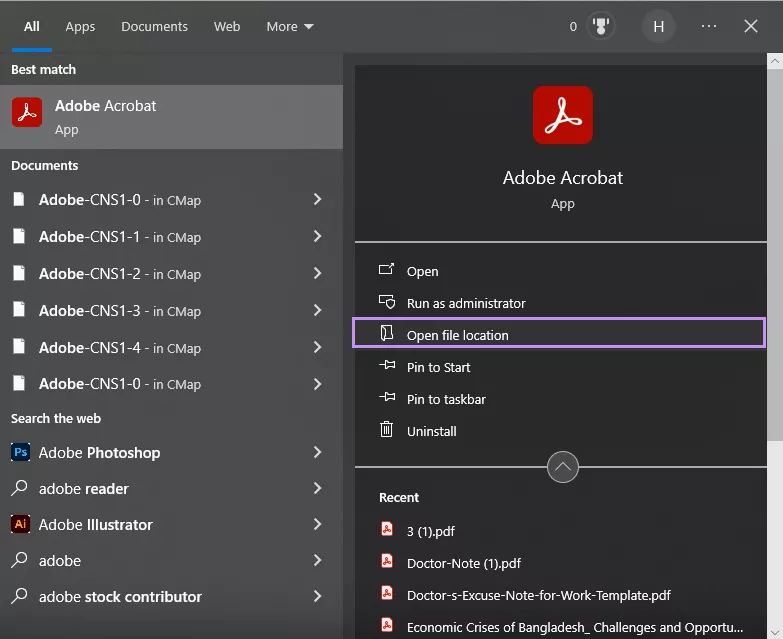
- Close Adobe Acrobat Reader if it's still running. Make sure it's not open in the background. Search Adobe Acrobat.
- Now, right-click the shortcut on your desktop and click "Open file location."
- Once the folder opens, look for one called plug_ins. That's the one causing trouble.
- Right-click on it and choose "Rename." Add something like _old to the end. So it becomes plug_ins_old.
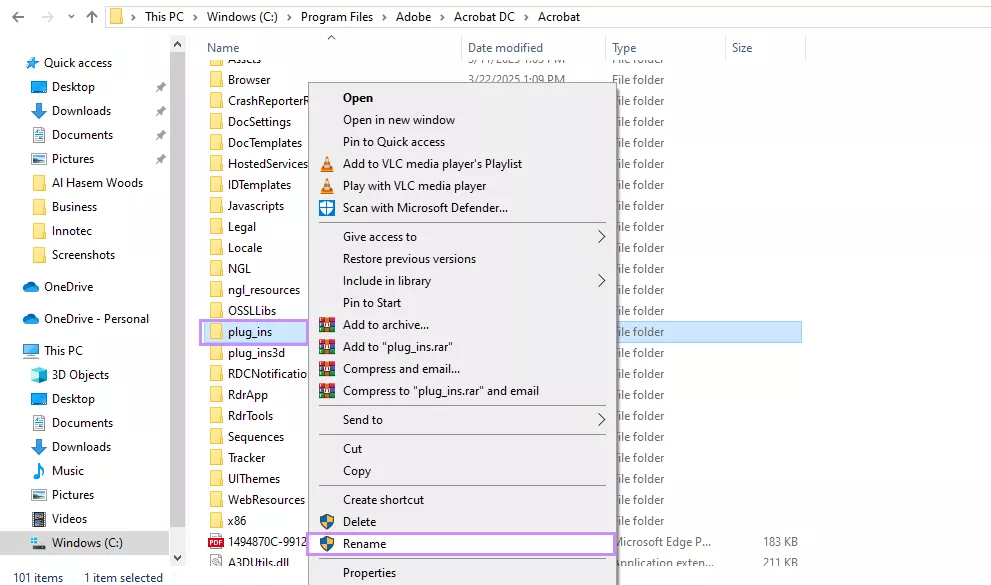
- Or, if you're sure, you can delete it instead. That works, too.
- Now, try opening Adobe Acrobat Reader again. The error should be gone.
If this method doesn't work, don't worry! We still have three methods left. Let's try them!
Also Read: How to Fix "FullTrustNotifier exe" Error? 5 Effective Ways
Fix 3. Remove the ComposerPlayerControl.dll File
Several users on the Adobe forum have reported that the “Invalid Plugin Detected” error in Adobe can be resolved by removing the ComposerPlayerControl.dll file. Although this method may seem unusual, it is worth a try. You can delete this DLL from the following location: " C:\Program Files (x86)\Adobe\Acrobat Reader DC\Reader\plug_ins ", as demonstrated earlier.
Fix 4. Update Adobe Acrobat
If the error still shows up, the app might just be outdated. Sometimes, older versions don't work well with new systems. A quick update can fix bugs and plugin issues like this one.
Here is how you can update Adobe Acrobat:
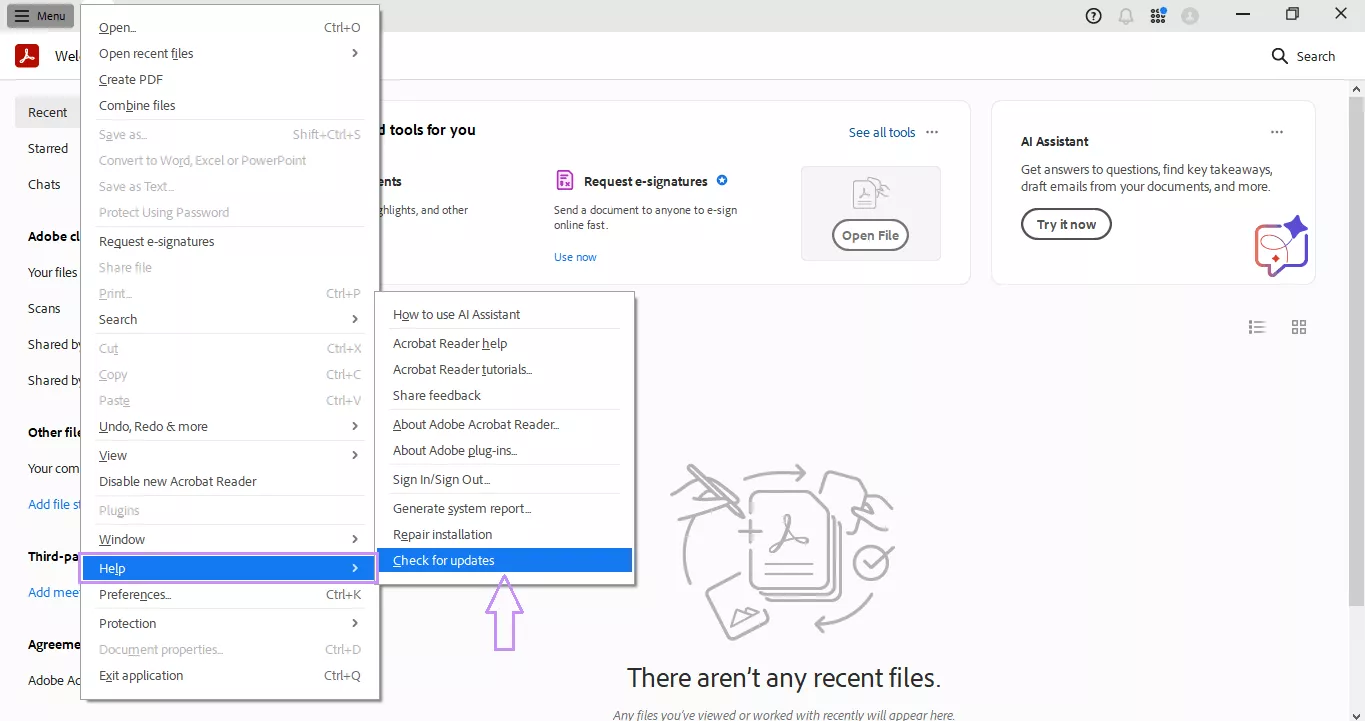
- Open Adobe Acrobat Reader on your computer. Click on “Menu” > "Help". A drop-down menu will appear.
- Select "Check for Updates" from the list. Let it search for the latest version.
- If an update is available, follow the on-screen steps to install it.
- Wait for the update to finish. Then close and restart Adobe Acrobat Reader.
- Try opening your PDF again. The error should be gone now.
If your Adobe Acrobat is already running the latest version and you still face the Adobe Acrobat invalid plugin detected error, you can try the next method!
Fix 5. Repair Adobe Acrobat Installation
The installation itself might be damaged. It happens sometimes during updates or crashes. A broken setup can mess with plugins and cause that annoying error. But luckily, there is an easy fix. Run a quick repair to clean things up.
Follow the steps below to repair Adobe Acrobat Installation:
- Open Adobe Acrobat Reader on your PC. Click on “Menu” > "Help".
- From the drop-down list, choose "Repair Installation."
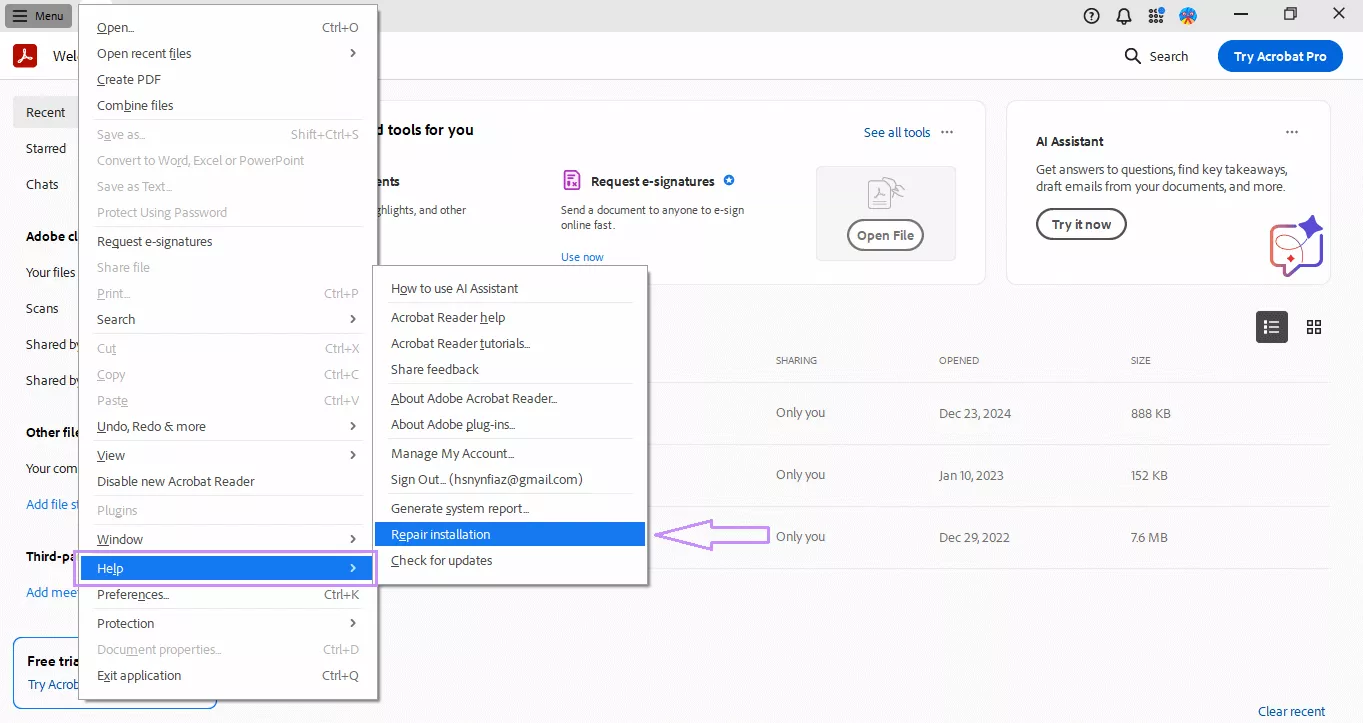
- A prompt will pop up. Click "Yes" to start the repair process.
- Wait while it checks and fixes any issues in the app.
- Once done, restart your computer. Then try launching Acrobat Reader again.
If the "Invalid plugin detected. Adobe Acrobat Reader will quit" error still shows, try the last resort. Read the next method!
Also Read: How to Fix Acrodist.exe Error? 4 Effective Ways
Fix 6. Reinstall Adobe Acrobat
If nothing else works, it's time for a fresh start. Sometimes the app just won't behave no matter what. A full reinstall can be the only fix. It removes all the broken files and resets everything. It's the cleanest way to fix stubborn errors like this.
- First, uninstall Adobe Acrobat Reader from your computer. Go to "Control Panel," then "Programs and Features," and find Adobe Acrobat Reader in the list. Right-click it and choose "Uninstall."
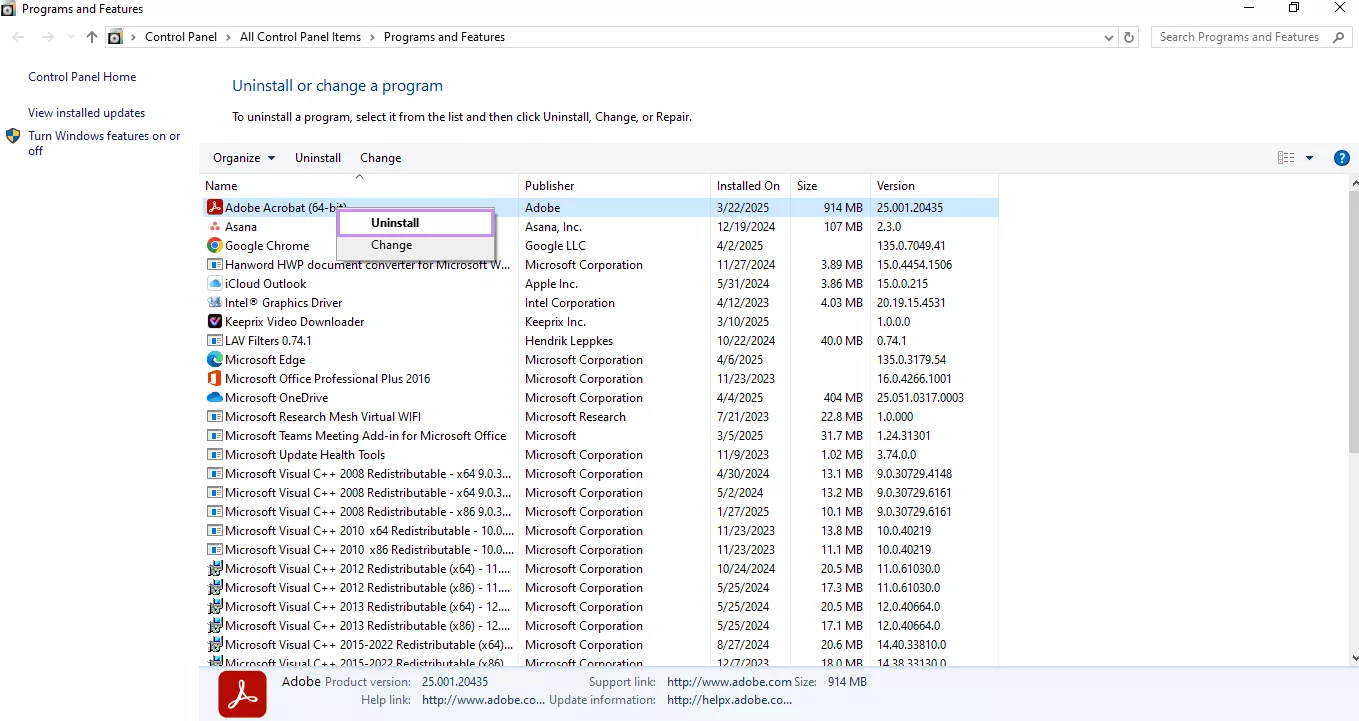
- Next, restart your computer. This helps clear out any leftover files.
- Now, go to the official Adobe website. Download the latest version of Acrobat Reader.
- Once downloaded, run the installer and follow the steps to install it.
When it's done, open Adobe Acrobat Reader and try using it again. The Adobe Acrobat invalid plugin detected error should be gone now.
Final Words
Wrapping it up! If you're tired of dealing with the "invalid plugin detected Adobe Acrobat Reader will quit" error, UPDF is the perfect solution. With its easy-to-use features like viewing, editing, and converting PDFs, you'll have everything you need in one tool.
Plus, it's affordable and simple to use. Ready to get started? Download UPDF today and make working with PDFs hassle-free!
Windows • macOS • iOS • Android 100% secure









 Enya Moore
 Enola Davis
 Enola Miller

 Delia Meyer
from Adobe Community