 UPDF
UPDF
 UPDF for Windows
 UPDF for Mac
 UPDF for iPhone/iPad
 UPDF for Android
 Nomostar
 UPDF AI Online
 UPDF Sign
 IvyCraft
 Edit PDF
 Annotate PDF
 Create PDF
 PDF Form
 Edit links
 Convert PDF
 OCR
OCR PDF to Word
 PDF to Image
 PDF to Excel
 Organize PDF
 Merge PDF
 Split PDF
 Crop PDF
 Rotate PDF
 Protect PDF
 Sign PDF
 Redact PDF
 Sanitize PDF
 Remove Security
 Read PDF
 UPDF Cloud
 Compress PDF
 Print PDF
 Batch Process
 About UPDF AI
 UPDF AI Solutions
 AI User Guide
 FAQ about UPDF AI
 Summarize PDF
 Translate PDF
 Chat with PDF
 Chat with AI
 Chat with image
 PDF to Mind Map
 Explain PDF
 PDF AI Tools
 Image AI Tools
 AI Chat Tools
 AI Writing Tools
 AI Study Tools
 AI Working Tools
 Other AI Tools
 AI Bookmark Generation
 AI Bookmark Summary
 AI Watermark Generation
 AI Background Generation
 AI Sticker Generation
 AI Stamp Generation
 AI Editing Suite
 UPDF Copilot
 AI Page Management
 AI Semantic Search
 PDF to Word
 PDF to Excel
 PDF to PowerPoint
 Enterprise Solution
 Enterprise Sign
 Enterprise AI
 Enterprise Plan
 Enterprise User Guide
 Enterprise Webinar
 IT
IT Education
 Construction
 Financial Service
 Healthcare
 Insurance
 Legal
Legal Manufacturing
 Government
 Researchers & PhDs
 Solopreneurs & Freelancers
 Lawyers & Legal Professionals
 Real Estate Agents & Brokers
 Education Solution
 Customer Stories
 User Guide
 UPDF Tricks
 FAQs
FAQs UPDF Reviews
 Download Center
 Blog
Blog Newsroom
 Tech Spec
 Updates
 UPDF vs. Adobe Acrobat
 UPDF vs. Foxit
 UPDF vs. PDF Expert

Quick Answer
We all know how frustrating it can be to convert multiple files in a folder to PDFs manually. Whether you are dealing with Word documents, images, or email folders, it can become time-consuming to convert each file separately. Thankfully, you can convert a folder to PDF at once. In this guide, we will show you how to convert a folder to PDF, which will help you be more organized and time efficient.
Part 1. How to Convert a Folder to PDF on Windows & Mac
Before converting a folder to a PDF document, it's extremely important to choose the right tool to ensure that the layout and information will be saved correctly. UPDF is one of the most intuitive and user-friendly software that can help you convert your folder to PDF.
Notes:
- Best for: Converting 10+ files at once, including mixed file types
- Works on: Windows 11/10, macOS Sonoma/Sequoia
- Output: One combined PDF or multiple separate PDFs
Warning: UPDF's batch creation supports Word (.doc/.docx), Excel (.xls/.xlsx), PowerPoint (.ppt/.pptx), images (.jpg/.png/.tiff/.bmp), text (.txt), and HTML files. It does not natively convert email formats (.eml/.msg) or archive files (.zip). For those, see the FAQ section below.
Moreover, UPDF can not only help you convert your files in a folder to PDF, but also can help you edit them, add password-protection, annotations, or forms after converting. You are allowed to select multiple folders to convert them into PDF with one click. That's why this is a top choice if you work with documents on a daily basis and want to streamline your work.
Converting a folder with multiple documents to a PDF in UPDF is very straightforward. Just follow the steps below:
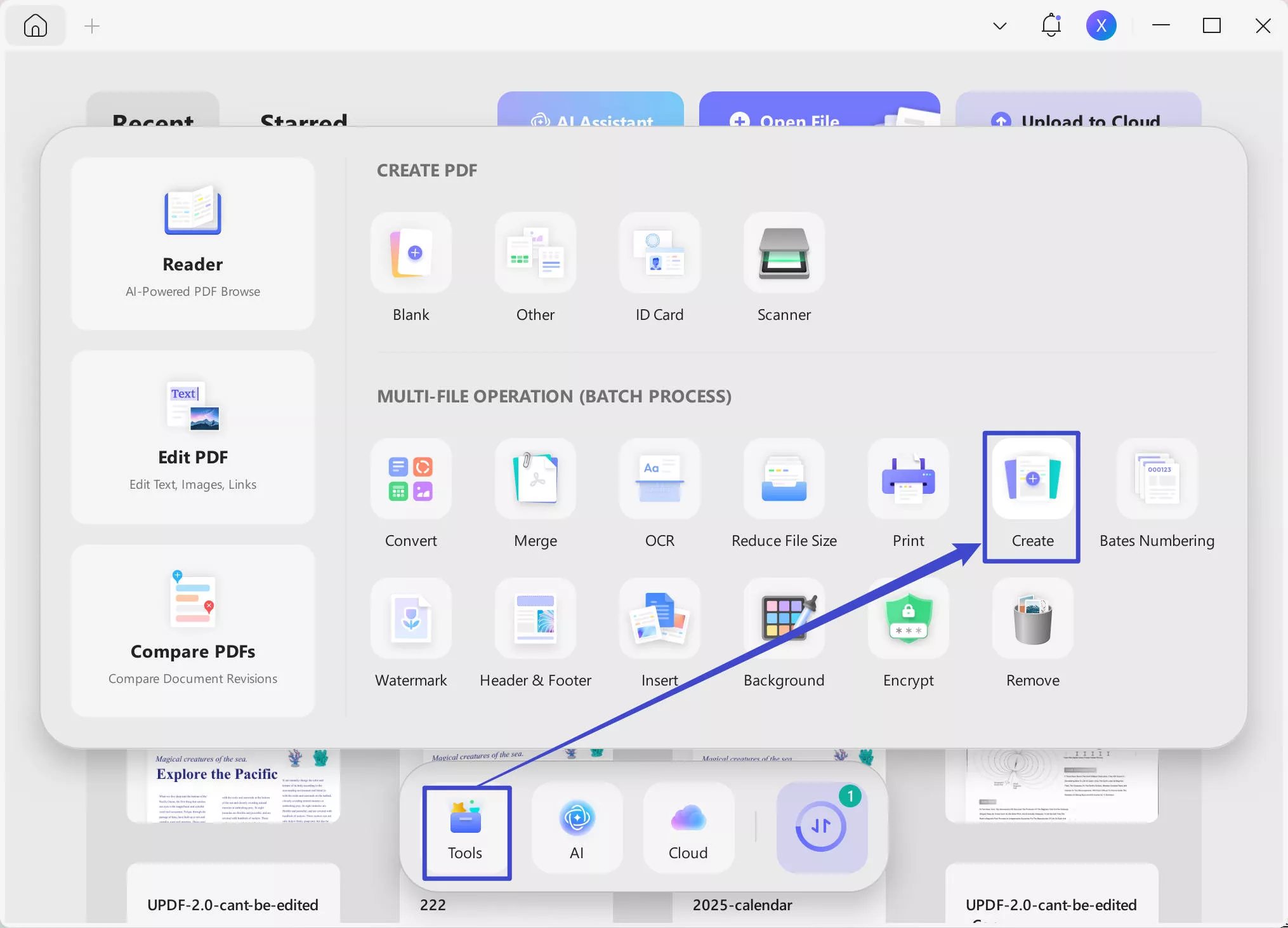
- Download UPDF via the below button. Open UPDF on your computer and go to Tools > Create.
Windows • macOS • iOS • Android 100% secure
Tip for Mac users:
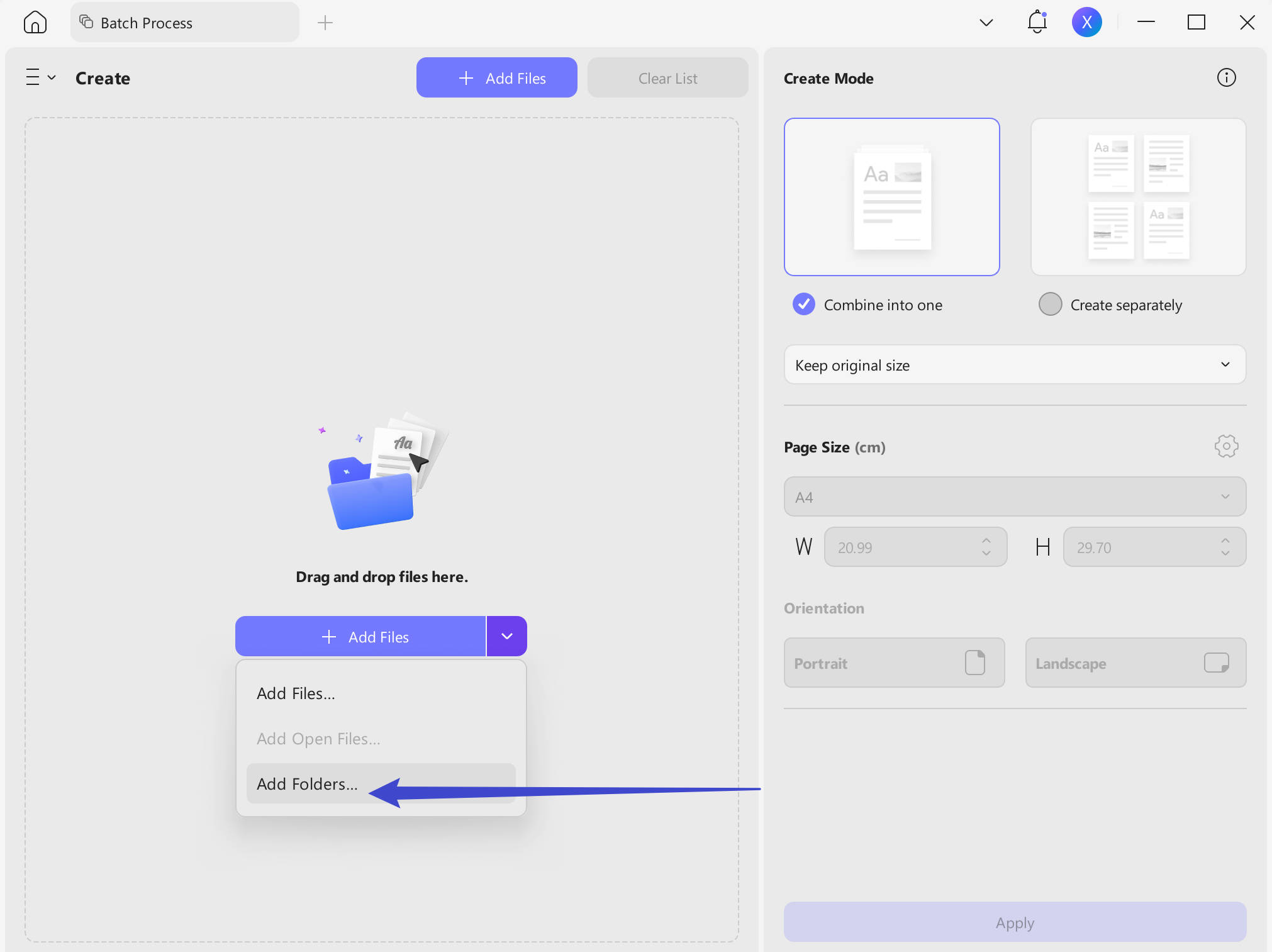
- Click on the down arrow icon after “Add Files” and select “Add Folders”.
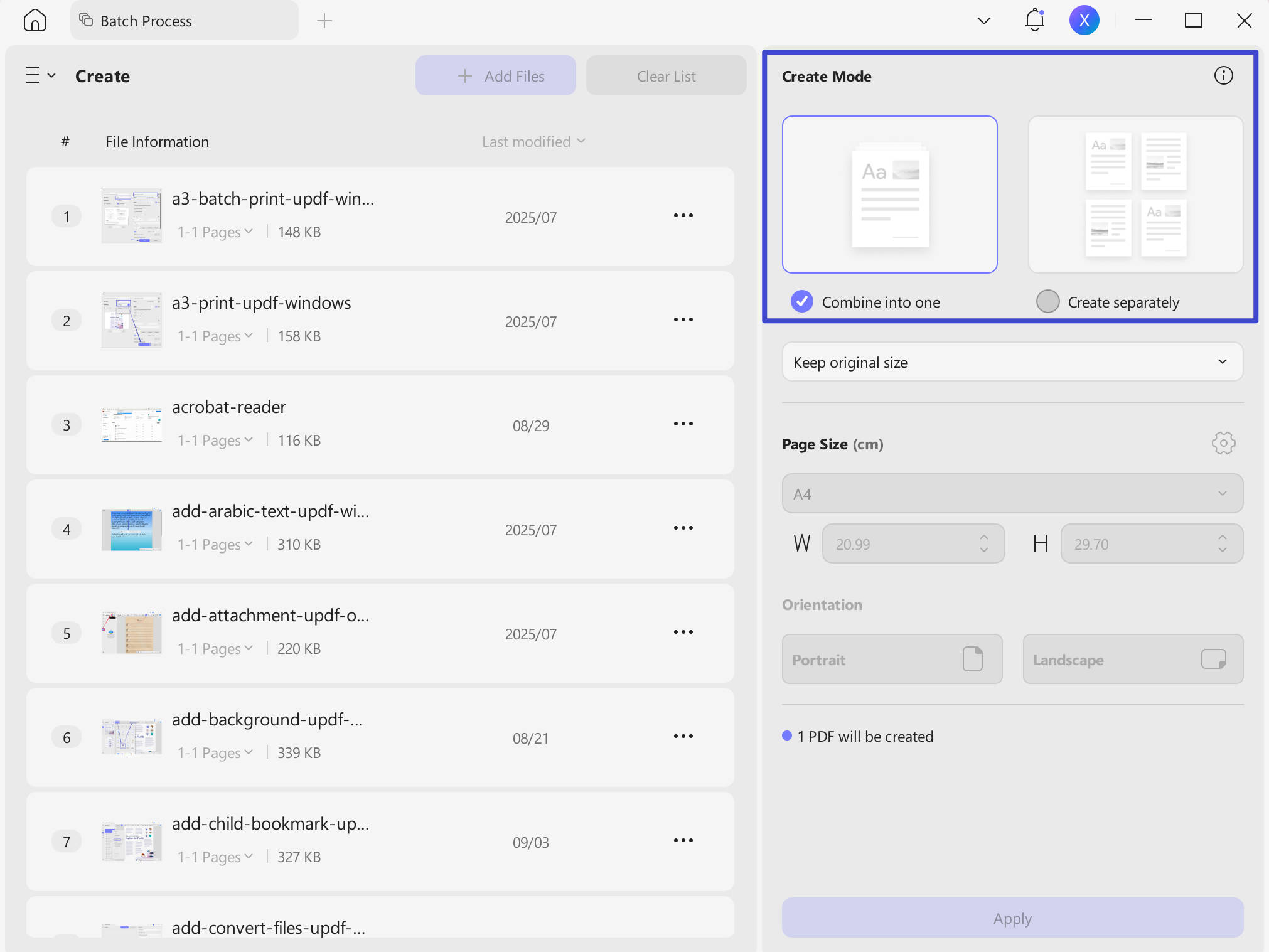
- Now, select your folders and choose “Combine into one” if you want to merge all documents into one PDF, or select “Create separately” if you want to save each file as a separate PDF. Then, click “Apply”, choose where you want your file to be saved, and click “Save”.
Tip: If you need the files in a specific order within the combined PDF, rename them alphabetically or numerically (e.g., 01_Contract, 02_Invoice) before selecting the folder. UPDF processes files in alphabetical order.
You can see it is easy to use UPDF to convert a folder to PDF. If you want to know more features about UPDF’s features, you can watch the vide below or read this review article.
To test its features, just click the below button to download the free trial version. After converting your folder, you can immediately password-protect the output, compress it for email, or run OCR on any scanned pages — all within the same app.
Windows • macOS • iOS • Android 100% secure
Part 2. Why Convert a Folder to PDF?
Converting a folder with multiple files into a single PDF can offer many benefits. These include:
- Optimizing your time — You will spend much less time on converting your files, as instead of converting each document separately, you will convert multiple documents at once.
- Organization and size management — It will be easier for you to find important information and navigate through your files on your computer. PDFs can be made searchable through optical character recognition, which allows quick retrieval of information within the document. You will also save your disk space by compressing files.
- Security and record-keeping — PDFs offer options to secure your files with passwords and encryption, which provides additional security. Also, PDFs preserve the layout and information that is contained within the document for the long-term.
- Compatible with various devices — PDFs can be opened on almost any device such as phones, tablets, and computers without the need for any additional software.
- Sharing and printing — It will be easier for you to share one PDF with other people instead of sharing multiple files. Additionally, printing process will also be simplified as you won't have to print multiple documents separately.
Part 3. FAQs About Converting a Folder to PDF
Q1. How to Convert All Word Files in a Folder to PDF?
Converting Word files in a folder to PDF files in UPDF is very simple. Open your UPDF and go to “Tools” > “Create”. Then choose the folder with your Word files. Select the “Combine into one” option and hit “Apply”.
Q2. How to Convert an Email Folder to PDF?
Email folders require a different workflow because UPDF's batch creation does not natively support .eml or .msg formats. Here are two approaches:
From Outlook: Select the email folder in Outlook, go to File > Open & Export > Import/Export, and save the folder as a .pst file. You can then use UPDF to convert the exported text or HTML versions of those emails to PDF individually.
Direct print: Open the email and press Ctrl+P (or Cmd+P on Mac), then select "Save as PDF" as the printer. This is the fastest method for a small number of emails.
For bulk email archiving, export the folder from your email client to HTML or plain text first, then place those files in a folder and use UPDF's batch creation.
Q3. How to Convert a Folder of Images to PDF?
Images can be converted to a PDF document by using UPDF. Open your UPDF and go to "Tools" > "Create". Then choose the folder with your image files (.jpg, .png, .tiff, or .bmp). Select the "Combine into one" option if you want a single photo album PDF, or "Create separately" if you want each image as its own PDF. Then hit "Apply".
Q4. Can I Convert a Folder with Mixed File Types to PDF?
Yes. UPDF can process a folder containing Word documents, Excel spreadsheets, PowerPoint slides, images, and text files all at once. Each file will be converted to PDF format regardless of its original type. If you choose "Combine into one," the output PDF will contain all files in alphabetical order. If you choose "Create separately," each original file becomes its own PDF with the same filename.
Q5. Is There a File Size or Quantity Limit for Folder Conversion?
UPDF's free trial allows you to test batch folder creation with full functionality. Output files will include a trial watermark. Upgrading to UPDF Pro removes the watermark and unlocks unlimited batch processing. For best performance, folders under 500MB convert most reliably. There is no hard limit on the number of files, but processing 1,000+ files at once may slow down depending on your computer's RAM.
In the End
Converting a folder to PDF can significantly improve your workflow and organization. By adopting this simple solution and converting your files with UPDF, you will make your work more secure, ensure compatibility across devices, and easily share PDFs with your colleagues and friends.
Don't wait — convert your files in a folder to PDFs with UPDF today and take your document management to the next level by downloading UPDF via the below button.
Windows • macOS • iOS • Android 100% secure







 Enola Davis
 Delia Meyer
 Enrica Taylor
 Lizzy Lozano
  Enola Miller