UPDF
UPDF
 UPDF for Windows
 UPDF for Mac
 UPDF for iPhone/iPad
 UPDF for Android
 Nomostar
 UPDF AI Online
 UPDF Sign
 IvyCraft
 Edit PDF
 Annotate PDF
 Create PDF
 PDF Form
 Edit links
 Convert PDF
 OCR
OCR PDF to Word
 PDF to Image
 PDF to Excel
 Organize PDF
 Merge PDF
 Split PDF
 Crop PDF
 Rotate PDF
 Protect PDF
 Sign PDF
 Redact PDF
 Sanitize PDF
 Remove Security
 Read PDF
 UPDF Cloud
 Compress PDF
 Print PDF
 Batch Process
 About UPDF AI
 UPDF AI Solutions
 AI User Guide
 FAQ about UPDF AI
 Summarize PDF
 Translate PDF
 Chat with PDF
 Chat with AI
 Chat with image
 PDF to Mind Map
 Explain PDF
 PDF AI Tools
 Image AI Tools
 AI Chat Tools
 AI Writing Tools
 AI Study Tools
 AI Working Tools
 Other AI Tools
 AI Bookmark Generation
 AI Bookmark Summary
 AI Watermark Generation
 AI Background Generation
 AI Sticker Generation
 AI Stamp Generation
 AI Editing Suite
 UPDF Copilot
 AI Page Management
 AI Semantic Search
 PDF to Word
 PDF to Excel
 PDF to PowerPoint
 Enterprise Solution
 Enterprise Sign
 Enterprise AI
 Enterprise Plan
 Enterprise User Guide
 Enterprise Webinar
 IT
IT Education
 Construction
 Financial Service
 Healthcare
 Insurance
 Legal
Legal Manufacturing
 Government
 Researchers & PhDs
 Solopreneurs & Freelancers
 Lawyers & Legal Professionals
 Real Estate Agents & Brokers
 Education Solution
 Customer Stories
 User Guide
 UPDF Tricks
 FAQs
FAQs UPDF Reviews
 Download Center
 Blog
Blog Newsroom
 Tech Spec
 Updates
 UPDF vs. Adobe Acrobat
 UPDF vs. Foxit
 UPDF vs. PDF Expert

A minor yet annoying PDF issue often ruins an otherwise polished document: one single page is sideways or upside down. This usually happens with scanned forms, inserted charts, or compiled reports, while all other pages stay correctly oriented.
Example: If one landscape chart appears sideways inside a portrait report, rotate only that page and confirm the page thumbnail, text direction, and printing orientation before saving. For a related workflow, see convert PDF pages from landscape to portrait.
Fixing it feels unexpectedly difficult. Default PDF viewers only support full-document rotation. Adjusting the entire file will spoil existing correct layouts, yet no native option lets you rotate only the flawed single page. This leaves you scrambling for a quick, safe way to fix the misaligned page without altering the rest of your PDF content.
This guide solves exactly these common PDF troubles. Here, we break down simple, effective methods to rotate individual PDF pages precisely with 5 online tools and 5 offline methods.
Part 1. How to Rotate Only One Page in PDF?
When you need to rotate just one page in a PDF, there are two ways to get it done — online tools and offline software. Each serves different needs.
Online PDF tools are ideal for fast, one-off page rotation. They are free, browser-based, and require no installation or signup. Platforms like Smallpdf, Adobe Acrobat Online, and PDF24 let you fix misaligned pages in seconds. This lightweight solution works best for students and casual users editing non-sensitive documents.
Offline PDF software is preferable for frequent use, large files, and confidential content such as legal papers and medical records. It keeps all data local and avoids cloud upload risks. While Adobe Acrobat Pro and macOS Preview offer reliable offline rotation, UPDF stands out with AI-powered page detection, one-click and batch single-page rotation. It delivers robust offline functionality across all devices at a far lower one-time cost than Adobe’s expensive subscription.
Windows • macOS • iOS • Android 100% secure
Part 2. Rotate Only One Page in PDF Online (Tested)
Online PDF rotators let you upload your file, select individual pages to rotate, and download the updated version — all in your browser. Most modern tools let you hover over a page thumbnail and click a rotate icon to adjust only that page.
| Tool | Free Access | Rotate Single Page | Rotate Multiple Pages | File Limits | Signup Required | Pros | Cons |
|---|---|---|---|---|---|---|---|
| Smallpdf | Free (limited daily tasks) | ✅ (hover & click) | ✅ | — | ❌ No | Simple interface, hover over any page and click arrows | Limited daily usage |
| PDF24 | Free (unlimited) | ✅ (click & rotate) | ✅ | — | ❌ No | No usage limits, no signup required | Interface is functional but less polished |
| Drawboard | Free | ✅ (select & rotate) | ✅ | — | ❌ No | Simple drag-and-drop, clean interface, works on any device | Limited advanced features |
| Sejda | Free (3 tasks/hour) | ✅ (select & click) | ✅ (page range) | 50MB/200 pages | ❌ No | Multiple rotation modes, precise control | Hourly usage limits |
| PDF2Go | Free | ✅ | ✅ | — | ❌ No | Works on any device, no signup required | Website access may vary |
Regardless of which tool you choose, the workflow is essentially the same:
Step 1: Go to your chosen tool's website (Smallpdf, PDF24, etc.)
Step 2: Upload your PDF file — drag and drop or click to select
Step 3: Find the page you want to rotate in the page preview thumbnails
Step 4: Click the rotate icon (clockwise or counterclockwise arrow) on that specific page
Step 5: Download your rotated PDF
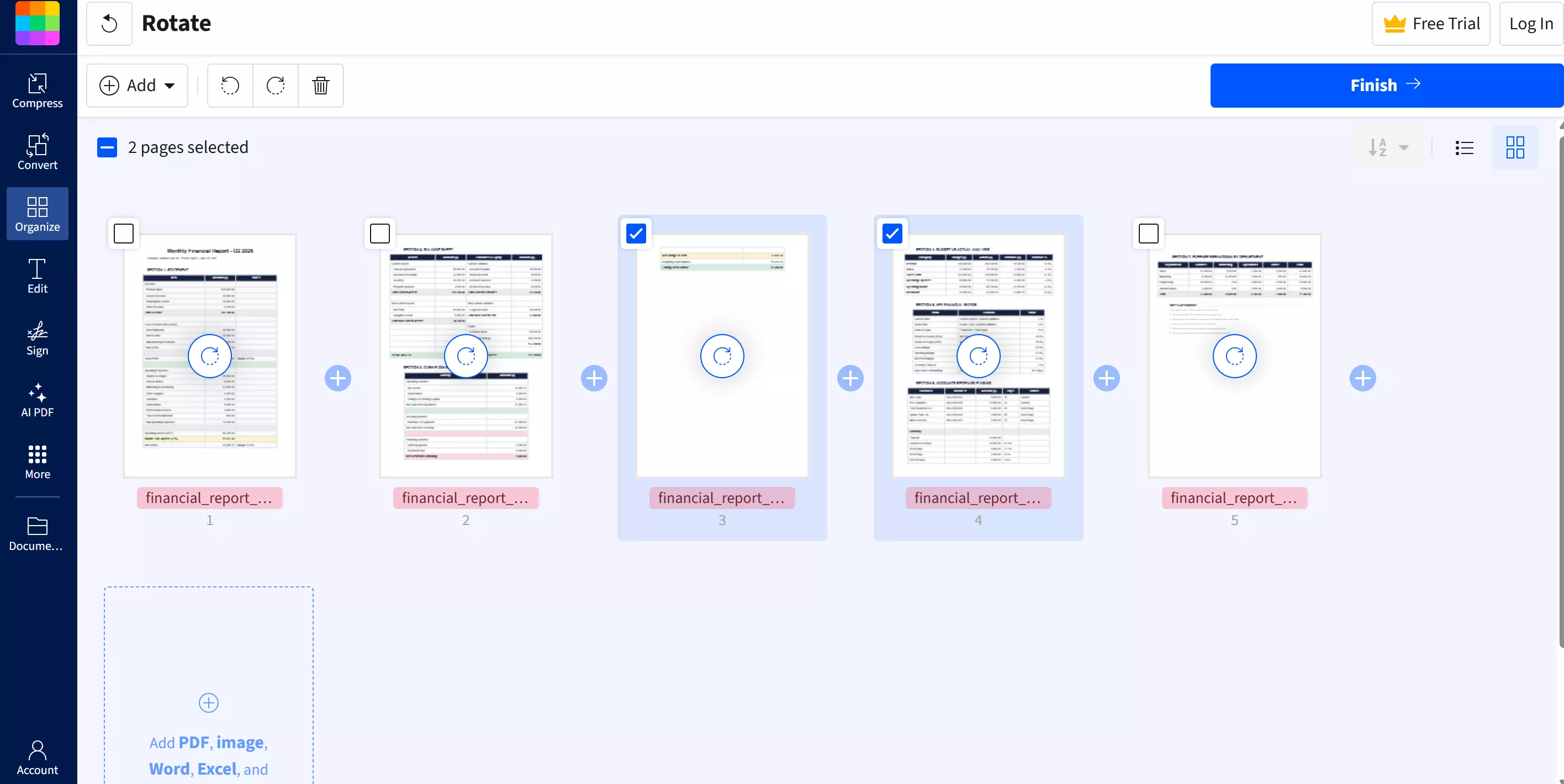
⚠️ Privacy Reminder: Online tools require uploading files to cloud servers. For sensitive documents — contracts, legal files, personal data — use desktop solutions below.
Part 3. Rotate Only One Page with Offline Desktop Solutions
Desktop software keeps your files on your own machine (no cloud upload), offers the highest precision, and supports advanced features like AI-powered page detection and batch rotation.
| Tool | Pricing | Rotate Single Page | Rotate Multiple Pages | AI Detection | Platform | Pros | Cons |
|---|---|---|---|---|---|---|---|
| Adobe Acrobat Pro | Subscription (~$240/year) | ✅ | ✅ | ❌ | Win, Mac | Industry standard, full control | Expensive (subscription) |
| UPDF | One-time ($79.99) | ✅ | ✅ | ✅ | Win, Mac, iOS, Android | Best value — AI detection, cross-platform | Paid for full features |
| Foxit PDF Editor | Subscription (~$130/year) | ✅ | ✅ | ❌ | Win, Mac | Enterprise-grade | Subscription-based |
| Mac Preview | Completely free | ✅ | ❌ | ❌ | Mac | Built-in, no installation | Mac-only, limited batch |
⚠️ Note: Preview's batch editing capabilities are limited compared to dedicated PDF editors.
UPDF auto-scans misrotated PDF pages for one-click correction, plus manual thumbnail rotation and multi-page batch fixes to cut workflow time. It runs fully offline to protect confidential files, works across Windows, Mac, iOS and Android with one license. Its one-time $79.99 cost beats Adobe’s $240 annual subscription, delivering huge long-term savings.
Using AI, everything can be easily solved. UPDF, an all-in-one PDF organizer, can perform a health check on your document, identify pages that need rotation, and fix them with a single click. Let's check the steps.
Windows • macOS • iOS • Android 100% secure
Rotate Only One Page in PDF on Desktop
Step 1. Access Organize Pages in UPDF
Once you import a PDF, press the “Organize Pages” option in the top left corner.
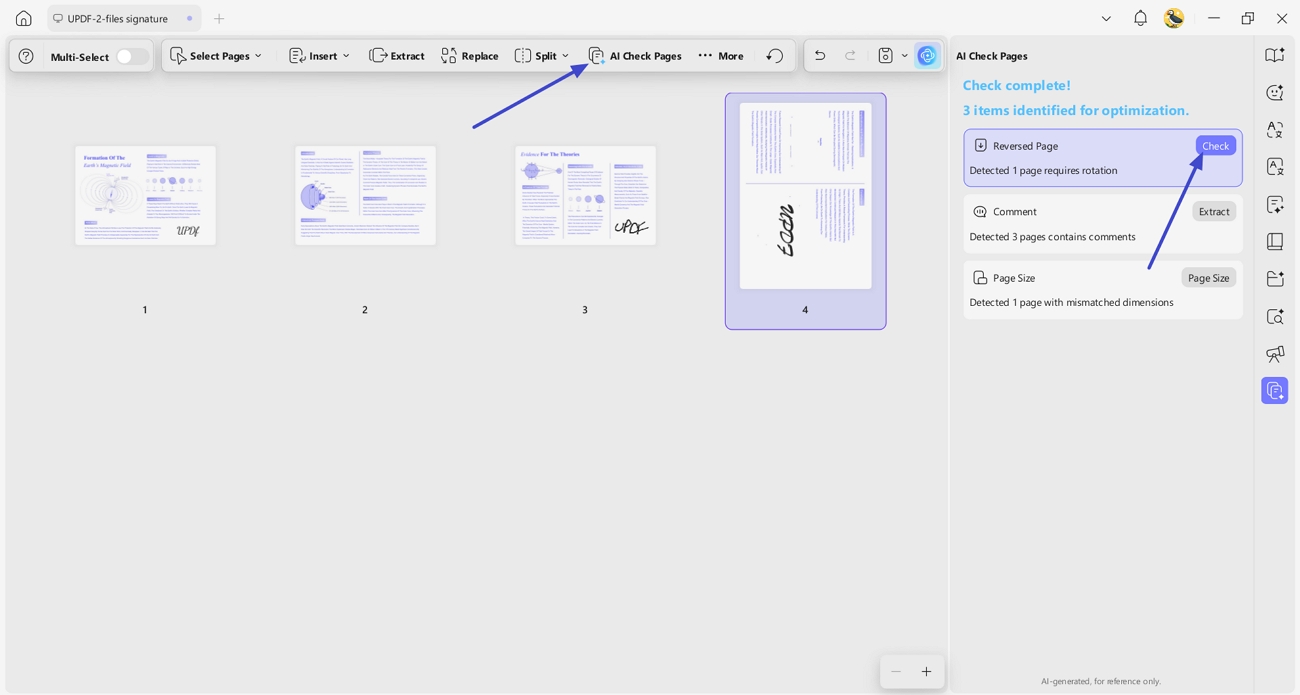
Step 2. Begin AI Check Pages Process
Next, press the “AI Check Pages” button in the upper bar to let the tool start scanning for pages that require rotation. Once detected, click the “Check” button, and the tool will highlight the detected page.
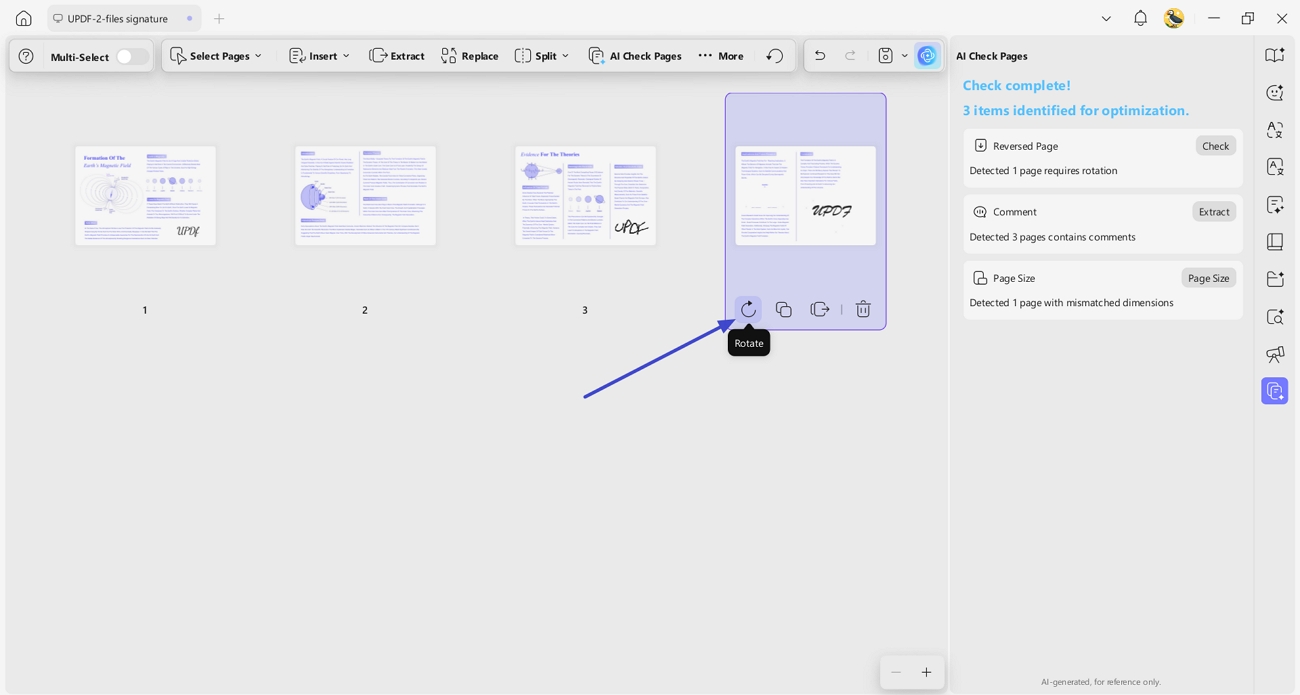
Step 3. Rotate Identified One Page
Lastly, press the “Rotate” icon under the single page until it is in the right orientation.
Step 4. Rotate Multiple Detected Pages
To fix the multiple PDF pages' rotation, press the “Check” button to select rotated pages and click the “Rotate” icon in the toolbar to rotate them all together.
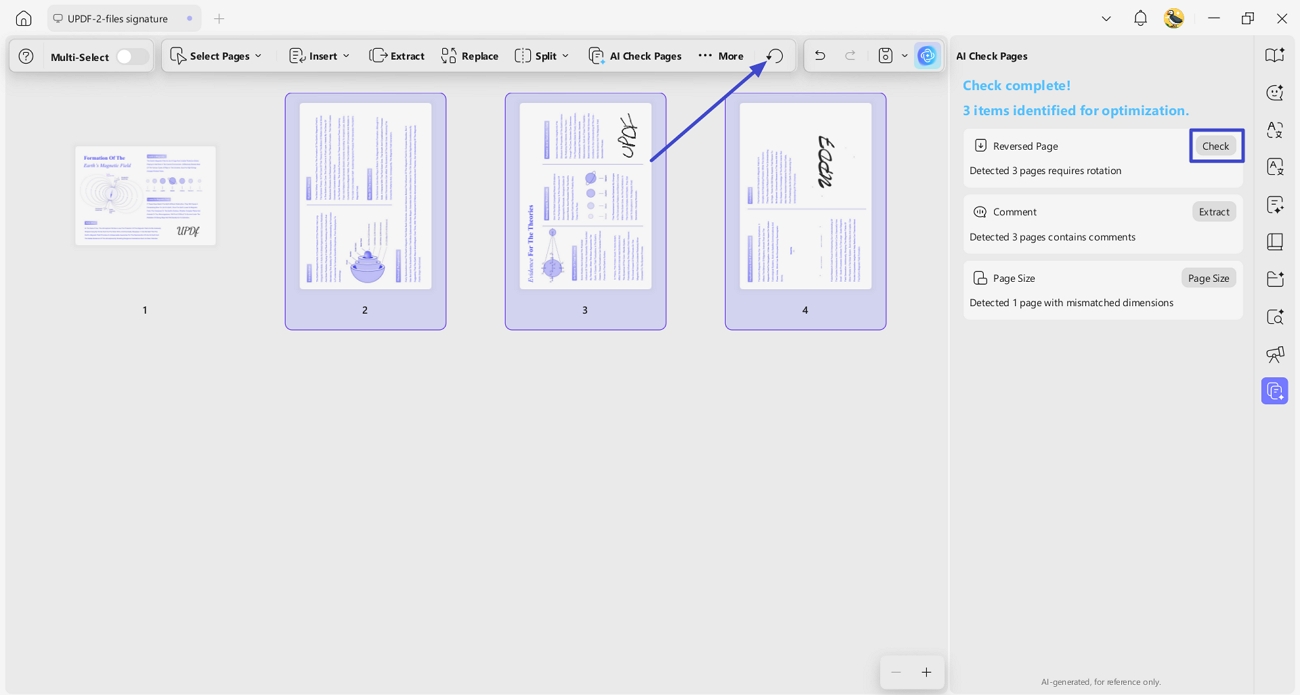
With UPDF, you can also rotate only one page in PDF manually. Regardless of your operating system—Windows, Mac, Android, or iOS—UPDF allows you to rotate only one page in PDF effortlessly.
Rotate Only One Page in PDF on Mobile Devices
You can easily rotate only one page in PDF using UPDF on your iOS and Android device.
Step 1: Begin by opening the UPDF app on your mobile device and selecting the PDF file you wish to modify from your device's storage. Tap the three vertical dots and choose "Organize Pages".
Step 2: Next, locate the page within the PDF document that you intend to rotate. Tap to select it. Now, click "Rotate" at the bottom menu to rotate the one page you need.

Windows • macOS • iOS • Android 100% secure
To delve deeper into UPDFs features check out this piece: UPDF: ChatGPT-Powered PDF AI Assistant Tool or watch a tutorial video here.
Experience the range of PDF editing features by downloading UPDF for seamless PDF handling across all your devices.
Unfortunately, Adobe Reader does not have the feature to rotate a page in a PDF. However you can achieve this by using Adobe Acrobat. Just open your PDF in Adobe Acrobat go to the "Organize Pages" option under the "Tools" tab. Then choose to rotate pages either clockwise or counterclockwise.
FAQ
Can I rotate one PDF page without rotating the others?
Yes. Select only that page in the thumbnail or page-management view, then apply the rotation to the selection.
Why does a rotated PDF page look correct but print sideways?
The visible rotation and the page’s print orientation may differ. Reopen the saved file and check printer orientation settings.
Does rotating a PDF page reduce quality?
No. Page rotation changes orientation metadata and should not resample the page content.
Conclusion
Mastering the process of rotating only one page in PDF empowers users to efficiently manage their documents with precision and ease. UPDF is known for its user interface and strong features. Using UPDF - AI-powered PDF Rotation Fixer allows users to easily rotate pages in PDF documents while also offering a range of PDF editing functions.
This guide focuses specifically on rotating only one page in a PDF. If you're looking for a more comprehensive walkthrough on organizing PDF pages — merging, splitting, reordering, extracting, and more — visit our full pillar guide: Organize PDF Pages.
Windows • macOS • iOS • Android 100% secure






 Enya Moore

 Enola Davis