 UPDF
UPDF
 UPDF for Windows
 UPDF for Mac
 UPDF for iPhone/iPad
 UPDF for Android
 Nomostar
 UPDF AI Online
 UPDF Sign
 IvyCraft
 Edit PDF
 Annotate PDF
 Create PDF
 PDF Form
 Edit links
 Convert PDF
 OCR
OCR PDF to Word
 PDF to Image
 PDF to Excel
 Organize PDF
 Merge PDF
 Split PDF
 Crop PDF
 Rotate PDF
 Protect PDF
 Sign PDF
 Redact PDF
 Sanitize PDF
 Remove Security
 Read PDF
 UPDF Cloud
 Compress PDF
 Print PDF
 Batch Process
 About UPDF AI
 UPDF AI Solutions
 AI User Guide
 FAQ about UPDF AI
 Summarize PDF
 Translate PDF
 Chat with PDF
 Chat with AI
 Chat with image
 PDF to Mind Map
 Explain PDF
 PDF AI Tools
 Image AI Tools
 AI Chat Tools
 AI Writing Tools
 AI Study Tools
 AI Working Tools
 Other AI Tools
 AI Bookmark Generation
 AI Bookmark Summary
 AI Watermark Generation
 AI Background Generation
 AI Sticker Generation
 AI Stamp Generation
 AI Editing Suite
 UPDF Copilot
 AI Page Management
 AI Semantic Search
 PDF to Word
 PDF to Excel
 PDF to PowerPoint
 Enterprise Solution
 Enterprise Sign
 Enterprise AI
 Enterprise Plan
 Enterprise User Guide
 Enterprise Webinar
 IT
IT Education
 Construction
 Financial Service
 Healthcare
 Insurance
 Legal
Legal Manufacturing
 Government
 Researchers & PhDs
 Solopreneurs & Freelancers
 Lawyers & Legal Professionals
 Real Estate Agents & Brokers
 Education Solution
 Customer Stories
 User Guide
 UPDF Tricks
 FAQs
FAQs UPDF Reviews
 Download Center
 Blog
Blog Newsroom
 Tech Spec
 Updates
 UPDF vs. Adobe Acrobat
 UPDF vs. Foxit
 UPDF vs. PDF Expert

Quick Answer
To sign a PDF with a CAC, connect a compatible card reader, insert the physical Common Access Card, confirm that the operating system recognizes its certificates, and open the downloaded PDF in a desktop application that supports smart-card digital IDs. In Adobe Acrobat Reader, choose All tools → Use a certificate → Digitally sign, select the CAC signing certificate, enter the PIN, and save a new signed copy.
A CAC is a physical smart card—not a “CAC file.” The private key remains on the card and should never be uploaded to an online PDF service.
A CAC signature is a certificate-based digital signature that can identify the signer and reveal whether the PDF changed afterward. It is different from typing, drawing, or pasting a visible signature.
If the PDF needs text corrections, form fields, or a digital signature field before CAC signing, UPDF can help you prepare the final document on Windows or Mac. It can also create or import file-based digital IDs for ordinary certificate signing. Download it below if you need to prepare the PDF first; the actual physical CAC step should still be completed in an approved smart-card application.
Windows • macOS • iOS • Android 100% secure
Part 1. What You Need Before Signing a PDF with a CAC
Complete these checks before opening the PDF. They separate a card or system problem from a PDF problem.
| Requirement | What to Check | Why It Matters |
|---|---|---|
| Physical CAC | The card is active and not expired | The signing certificate and private key are stored on the card |
| CAC reader | The reader appears in the operating system | The PDF application must communicate with the card |
| Driver or middleware | Use the version approved by your organization | Missing software can prevent certificates from appearing |
| Desktop PDF application | Download the PDF and open it locally | Browser viewers generally cannot use the CAC private key |
| CAC PIN | Know the correct PIN and retry carefully | Repeated failures may lock the card |
| Signable PDF | Check permissions and whether a signature field exists | A locked or certified file may restrict new signatures |
If the document has no field, you can draw a signing area in Acrobat or prepare a reusable digital signature field in the PDF before sending it to the CAC holder.
Part 2. How to Sign a PDF with a CAC in Adobe Acrobat Reader
Adobe Acrobat Reader is the most direct option for this task because it can use a digital ID stored on a compatible smart card. The free desktop Reader is sufficient for applying a certificate signature; do not confuse this workflow with the browser-based Fill & Sign tool.
Step 1. Connect the CAC Reader and Insert the Card
Connect the reader, insert the CAC, and wait for the operating system to recognize it. If the card or certificates do not appear at the system level, resolve the driver or middleware issue before opening Acrobat.
Step 2. Download and Open the PDF in Acrobat Reader
Save the PDF to the computer and open that copy in the desktop version of Acrobat Reader. Do not sign from Chrome, Edge, or a webmail preview.
Step 3. Choose Use a Certificate and Digitally Sign
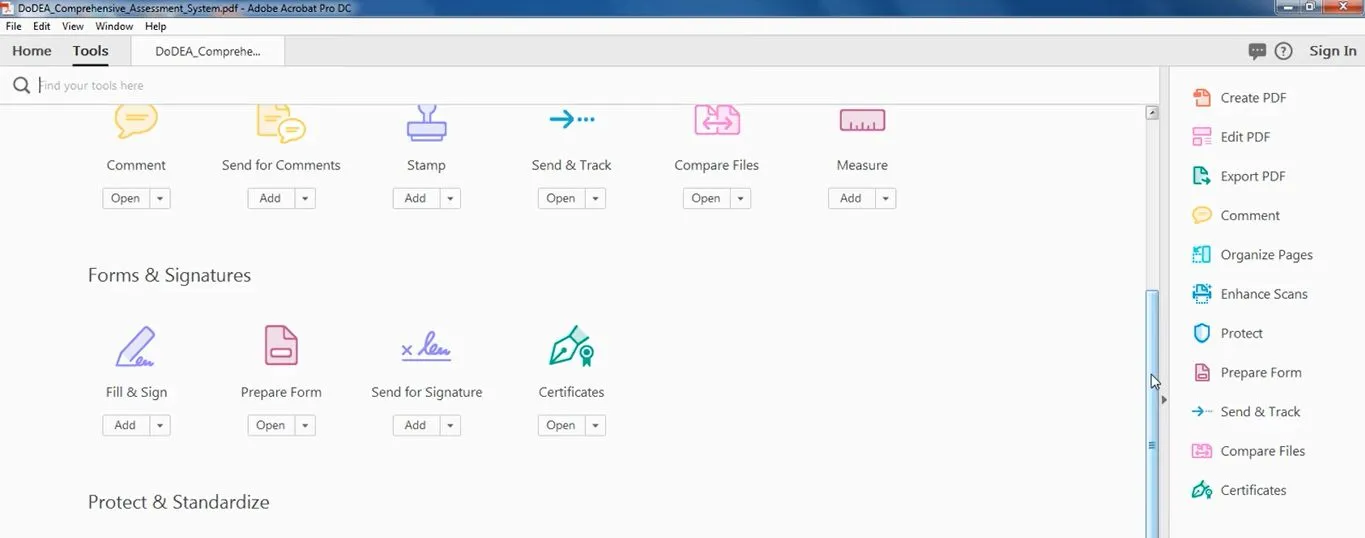
Select All tools → Use a certificate → Digitally sign. If the PDF already has a blue-highlighted digital signature field, click that field. Otherwise, drag a rectangle where the signature should appear.
Step 4. Select the CAC Signing Certificate
Choose the CAC certificate intended for digital signing—not an email-encryption or authentication certificate. Review the issuer and key usage when more than one certificate appears, then select Continue.
Step 5. Enter the CAC PIN and Save a Signed Copy
Confirm the signature appearance, select Sign, choose a destination for the signed copy, and enter the CAC PIN when prompted. Avoid repeated guesses because a locked card normally requires organizational support to reset.
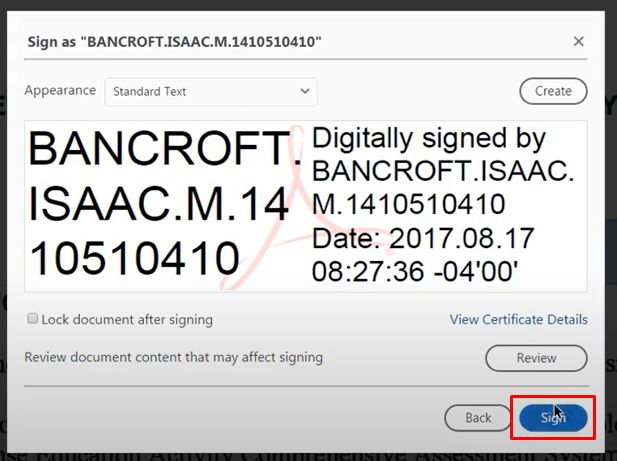
After saving, reopen the signed copy and review the signature panel. If a recipient reports a warning, use this PDF signature validation guide to distinguish an untrusted certificate from an altered or invalid signature.
Part 3. Prepare the PDF or Use a File-Based Digital ID with UPDF
UPDF should not be described as importing a physical “CAC file.” Its verified role in this workflow is preparing the PDF and handling standard file-based digital IDs. Before the CAC holder signs, UPDF can edit the document, fill form fields, add a certificate-signature field, and create a clean final copy on Windows or Mac.
Best for
Preparing a PDF that has no signature field, correcting the source document before anyone signs, or signing with a supported digital ID file instead of a physical CAC.
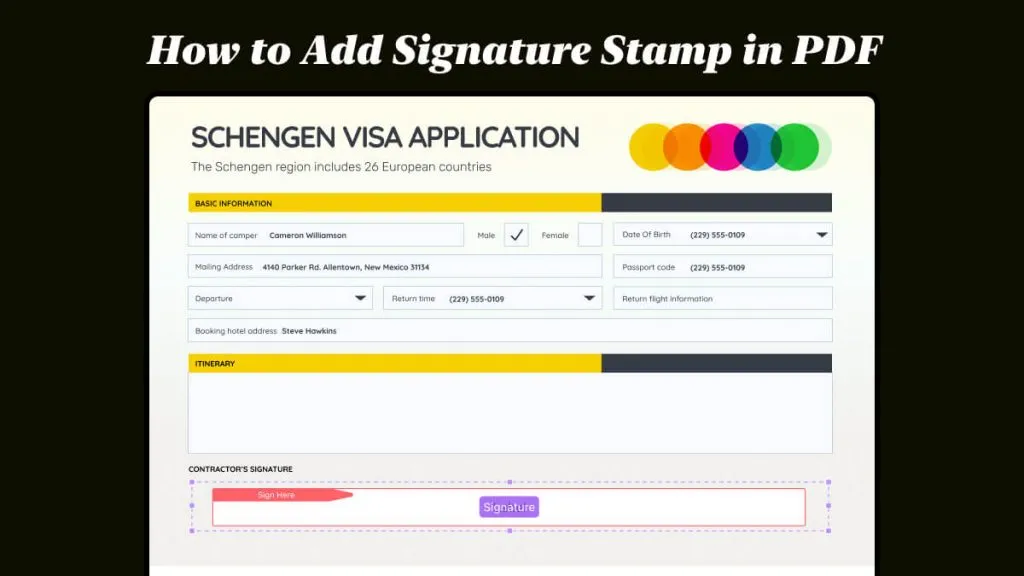
Open the PDF in UPDF, select Tools → Form → Digital Signature, and draw the field where the signer should sign. Double-click it to adjust the name, tooltip, appearance, required status, and other properties.

For a normal file-based certificate workflow, click the field in the signing view, then create a new digital ID or import an existing supported digital ID from the device. Enter its password and save the signed PDF. The official UPDF Windows signature guide explains both electronic and certificate-based signatures.
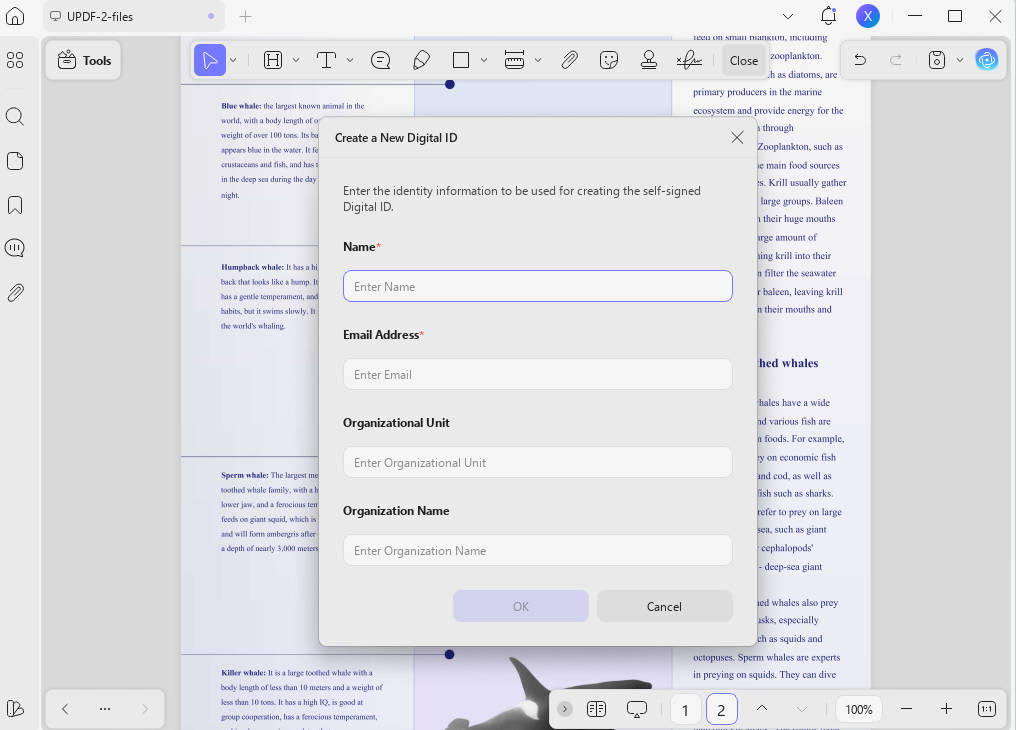
The short official tutorial below shows how UPDF creates or imports a digital ID and applies it to a PDF. This is useful for understanding UPDF's certificate-signing workflow, although the video does not replace the Adobe smart-card steps required for a physical CAC.
If you need to prepare a signable PDF or use a file-based digital ID, download UPDF and try the workflow on Windows or Mac.
Windows • macOS • iOS • Android 100% secure
Bonus Tip
A scanned PDF does not need OCR merely to receive a signature field—you can place the field over the page image. Use OCR only when you also need searchable or editable text. For informal approvals that do not require CAC identity, UPDF can add a typed, drawn, or image-based electronic signature; learn more in the complete guide to signing a PDF. Confirm the recipient's signature requirements before choosing an electronic signature instead of a CAC certificate signature.
Part 4. Fix Common CAC PDF Signing Problems
| Problem | Likely Cause | What to Do |
|---|---|---|
| CAC certificate does not appear | Reader, driver, middleware, or card-detection issue | Confirm the card works in the operating system, reconnect the reader, and follow organizational setup instructions |
| Several CAC certificates appear | The card contains signing, authentication, and encryption certificates | Select the certificate whose key usage permits digital signing |
| The PDF cannot be signed | The file is protected, certified, already locked, or opened in a browser | Download it, inspect Document Properties, and request an unlocked or correctly prepared copy |
| PIN fails or the card locks | Incorrect PIN or too many attempts | Stop retrying and contact the issuing organization or help desk |
| Signature disappears after saving | The wrong file was reopened or the viewer did not display the field | Save a new copy and follow the fixes for a digital signature not showing in a saved PDF |
| Recipient sees an invalid warning | Document changed, certificate is untrusted/expired, or validation failed | Do not reprint the file; diagnose the PDF signature invalid status and re-sign the final copy if necessary |
Part 5. FAQs About Signing PDFs with a CAC
Q1. Can I Sign a PDF with a CAC Online?
A normal browser-based PDF tool usually cannot access the private key stored on a physical CAC. For a true CAC certificate signature, use a supported desktop application with the CAC reader connected. Online tools can add an electronic signature, but that is not the same as signing with the CAC certificate.
Q2. Why Can't You Digitally Sign PDF with CAC?
Common causes include a missing or outdated card-reader driver, unsupported middleware, an unrecognized CAC certificate, choosing the encryption certificate instead of the signing certificate, a locked PIN, opening the PDF in a browser, or document permissions that block signing. Test the card at the operating-system level before troubleshooting the PDF.
Q3. Can I Sign a PDF with a CAC on Chromebook?
CAC support on ChromeOS depends on the organization's approved smart-card setup, drivers, extensions, and security policy. Do not assume an online PDF signer can access the CAC private key. On a managed Chromebook, follow your agency's instructions or use an approved Windows or macOS workstation with a compatible CAC reader.
Conclusion
To sign a PDF with a CAC, use the physical card, a compatible reader, the correct system support, and a desktop application that can access smart-card digital IDs. Adobe Acrobat Reader provides the direct CAC signing route. UPDF fits naturally before that step when the PDF needs editing, form completion, or a digital signature field, and it can handle separate file-based digital ID workflows.







 Enola Miller

 Engelbert White
 Enya Moore