 UPDF
UPDF
 UPDF for Windows
 UPDF for Mac
 UPDF for iPhone/iPad
 UPDF for Android
 Nomostar
 UPDF AI Online
 UPDF Sign
 IvyCraft
 Edit PDF
 Annotate PDF
 Create PDF
 PDF Form
 Edit links
 Convert PDF
 OCR
OCR PDF to Word
 PDF to Image
 PDF to Excel
 Organize PDF
 Merge PDF
 Split PDF
 Crop PDF
 Rotate PDF
 Protect PDF
 Sign PDF
 Redact PDF
 Sanitize PDF
 Remove Security
 Read PDF
 UPDF Cloud
 Compress PDF
 Print PDF
 Batch Process
 About UPDF AI
 UPDF AI Solutions
 AI User Guide
 FAQ about UPDF AI
 Summarize PDF
 Translate PDF
 Chat with PDF
 Chat with AI
 Chat with image
 PDF to Mind Map
 Explain PDF
 PDF AI Tools
 Image AI Tools
 AI Chat Tools
 AI Writing Tools
 AI Study Tools
 AI Working Tools
 Other AI Tools
 AI Bookmark Generation
 AI Bookmark Summary
 AI Watermark Generation
 AI Background Generation
 AI Sticker Generation
 AI Stamp Generation
 AI Editing Suite
 UPDF Copilot
 AI Page Management
 AI Semantic Search
 PDF to Word
 PDF to Excel
 PDF to PowerPoint
 Enterprise Solution
 Enterprise Sign
 Enterprise AI
 Enterprise Plan
 Enterprise User Guide
 Enterprise Webinar
 IT
IT Education
 Construction
 Financial Service
 Healthcare
 Insurance
 Legal
Legal Manufacturing
 Government
 Researchers & PhDs
 Solopreneurs & Freelancers
 Lawyers & Legal Professionals
 Real Estate Agents & Brokers
 Education Solution
 Customer Stories
 User Guide
 UPDF Tricks
 FAQs
FAQs UPDF Reviews
 Download Center
 Blog
Blog Newsroom
 Tech Spec
 Updates
 UPDF vs. Adobe Acrobat
 UPDF vs. Foxit
 UPDF vs. PDF Expert

Quick answer:
One thing to get straight before you start, because it decides which half of this guide you need: "add calculations to a PDF" covers two very different jobs. One is building an interactive form where the reader enters quantities and the PDF adds them up (an invoice, a purchase order, a registration form). The other is just checking the math on a static PDF someone emailed you — a scanned statement or a locked quote you can't edit. UPDF handles both, but through different tools. The table below routes you to the right one; this article is a companion to the full guide on how to fill in a PDF form.
A form is easier to use when the fields behave as the reader expects. To see the PDF side of the workflow, watch the example of working with PDF forms in UPDF below.
Part 1. Which Approach Do You Actually Need?
| Your situation | The real goal | Method | Platform |
|---|---|---|---|
| You're building an invoice, order form, or quote for others to fill | Reader types quantity + unit price, total calculates itself | Set form-field calculations in UPDF (Part 2) | Windows, Mac |
| You have a blank table and need totals to auto-update as you type | Turn a static table into a live, self-calculating form | Recognize fields, then add Sum/Product (Part 2) | Windows, Mac |
| Someone emailed you a finished PDF and you just want to verify the totals | Confirm the sums are right without rebuilding the form | Ask UPDF AI, or convert to Excel to re-check (Part 3) | Windows, Mac, iOS, Android |
| You received a form that already has calculating fields | Fill it in and let it do the math | Just fill the fields — see the fill a PDF form guide | All platforms |
If you're in the top two rows, you want to create calculations — Part 2. If you're in the third row, you don't need a form at all; you need to check numbers — Part 3.
Part 2. How to Add Auto-Calculating Fields to a PDF Form (Windows & Mac)
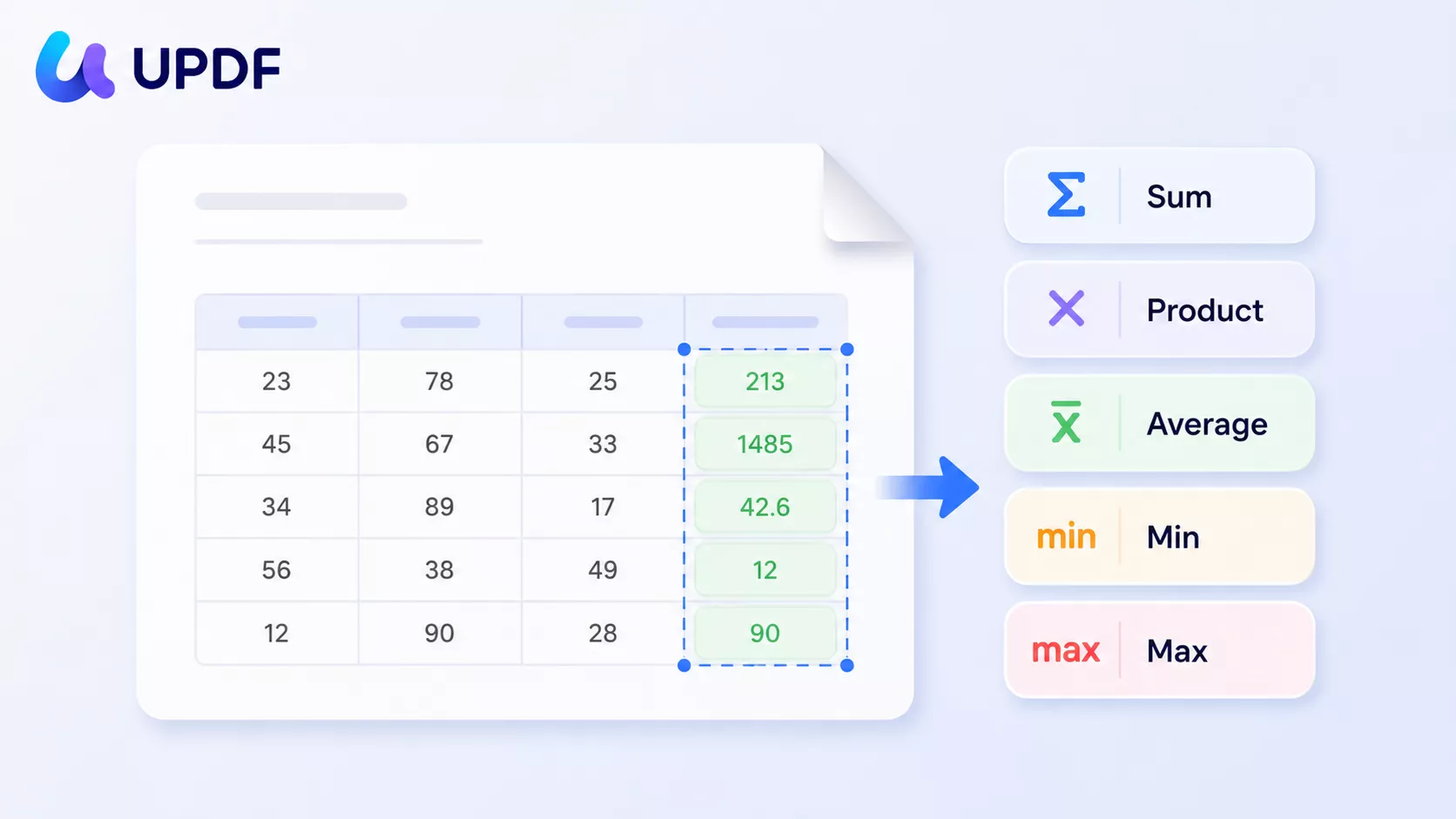
This is the core workflow: you have a form — say an invoice with Qty, Unit Price, and an Amount column — and you want each Amount to multiply itself out and a Subtotal to add itself up. UPDF's five calculation presets cover the common cases: If your starting point is a spreadsheet rather than an existing PDF form, first create a fillable PDF from Excel, then add calculations to the resulting fields.
| Calculation type | What it does | Typical use on an invoice |
|---|---|---|
| Sum (+) | Adds the selected fields together | Subtotal = sum of every line's Amount |
| Product (×) | Multiplies the selected fields | Line Amount = Qty × Unit Price |
| Average | Divides the total by how many fields | Average order value across line items |
| Minimum | Returns the smallest value entered | Lowest bid in a quote comparison |
| Maximum | Returns the largest value entered | Highest line item, for approval flags |
Step 1. Open your form in UPDF. If you don't have it yet, download UPDF for free and install it in under a minute, then open the file.
Windows • macOS • iOS • Android 100% secure
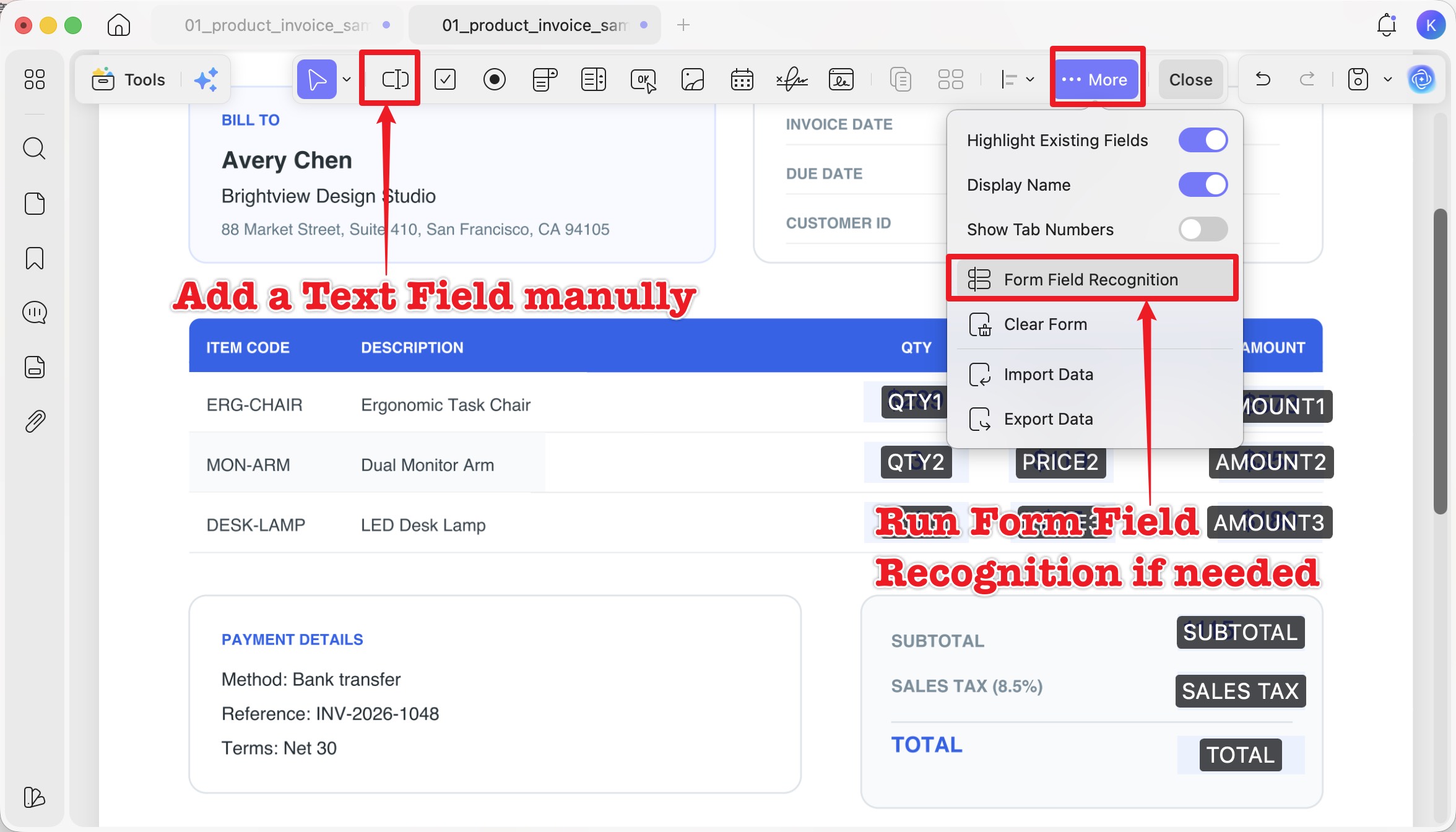
Step 2. In the floating toolbar at the top, click Form. This puts the document into form-editing mode. UPDF's Form Field Recognition in ... More section detects existing table cells and turns them into fillable fields automatically; if it missed a cell, add a Text Field manually from the form toolbar.
Step 3. Rename the fields first — this is not optional. Field recognition names every field generically: Text1, Text2, Text3, and sometimes odd variants like Text2.0.0 when a field was duplicated. When you set up a calculation later, the field picker shows only these raw names — so if you skip renaming, you'll be staring at a list of Text1 / Text2.0.0 / Text3 with no way to tell which is which. Double-click each field, open the General tab, and give it a readable name: Qty1, Unit1, Amount1, Qty2, and so on. Five minutes here saves you from wiring the wrong cells together.
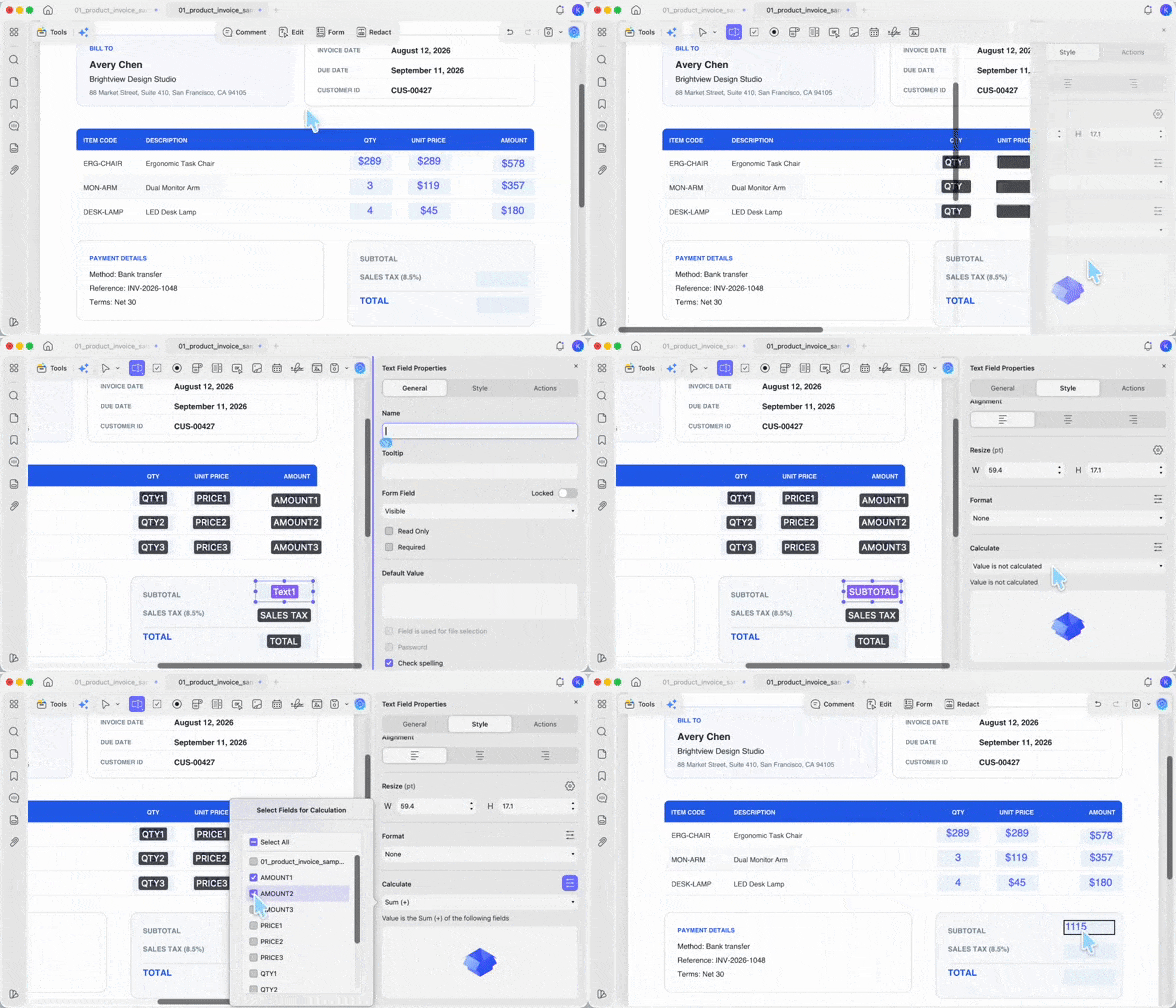
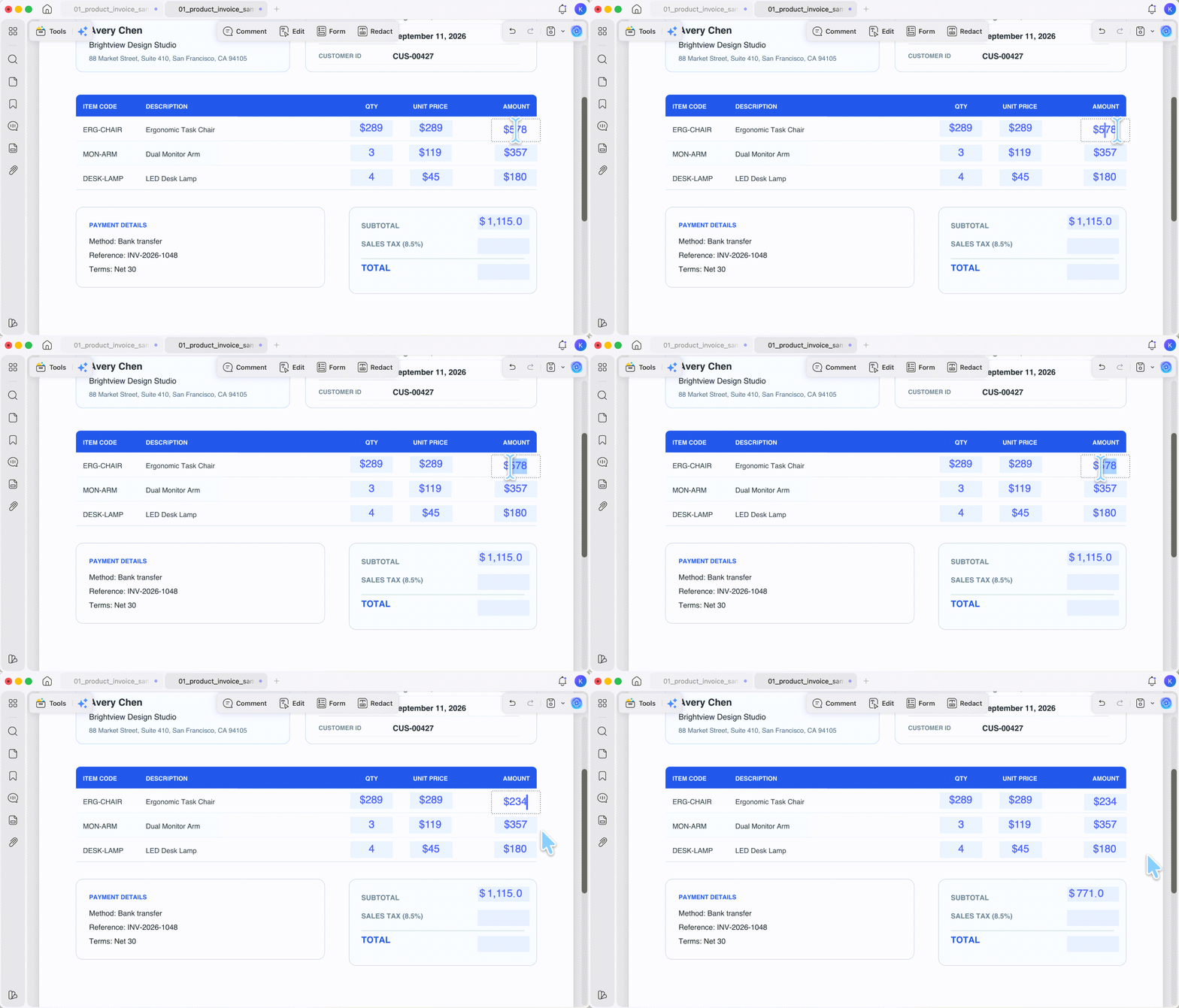
Step 4. Set a calculation on any result field. The action is the same for all five calculation types. Double-click the field where you want the result to appear, click the Style tab, scroll to Calculate, and change the dropdown from "Value is not calculated" to whichever you need — Sum (+), Product (×), Average, Minimum, or Maximum. In the Select Fields for Calculation popup that appears, tick the fields that should feed into that result. UPDF applies the chosen operation to exactly the fields you tick, so tick deliberately — Select All pulls in every field on the form, which is rarely what you want. Repeat for each result field you need. Finally, use the same Style panel to set each result field's Format to Number and add a currency symbol (for example, $) so the figures read as money, not raw digits.
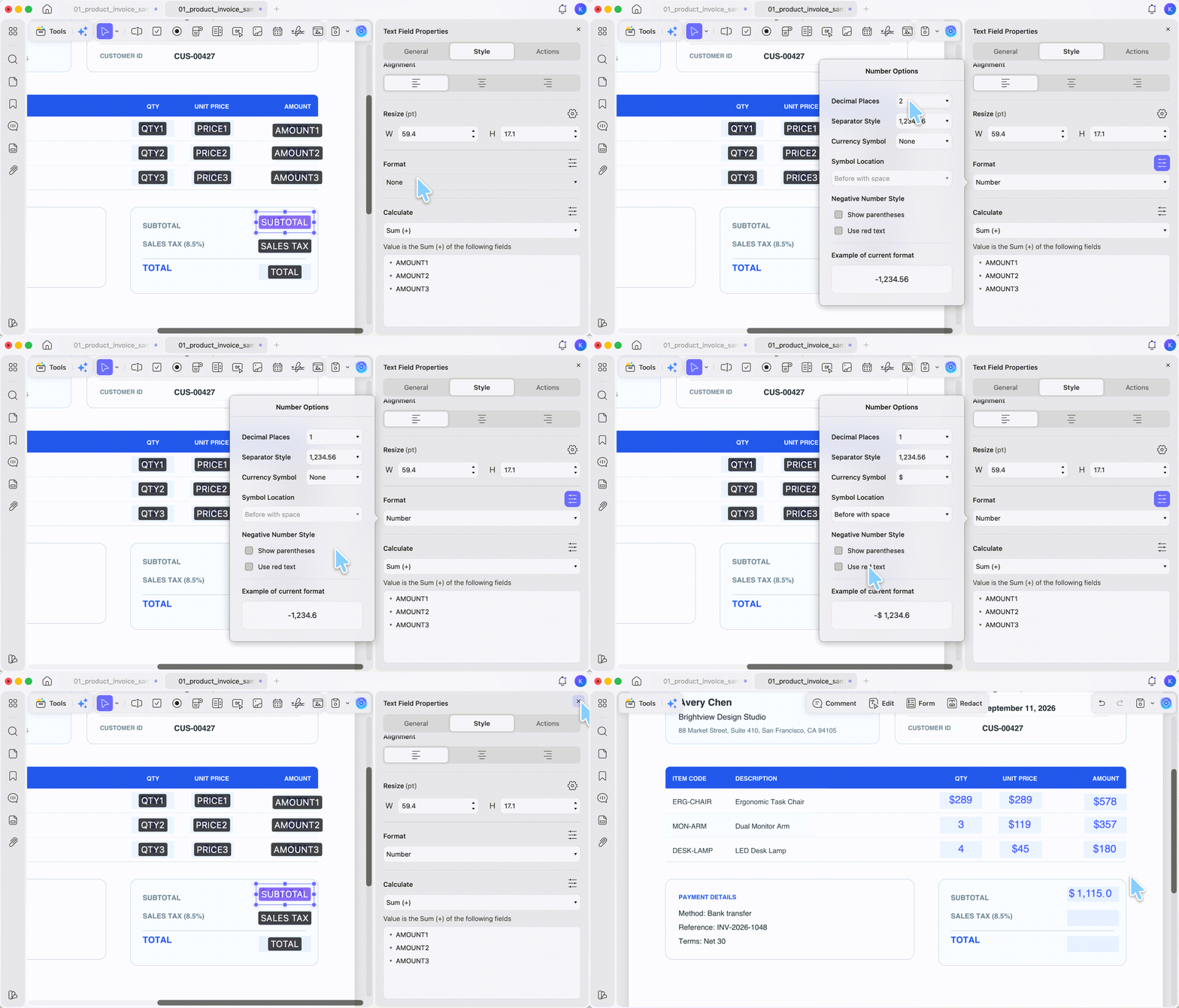
One caveat worth knowing:
Step 5. Test before you send. Switch out of Form mode and type values into the input fields — the calculated fields should update instantly. Save the file, and it's ready to hand to whoever fills it.
Best for:
- invoices, purchase orders, quotes, expense reports, and registration forms where someone else enters numbers and you want the totals to be right every time.
Not for:
- subtraction or division — UPDF's presets stop at Sum, Product, Average, Min, and Max, so a "Balance = Credit − Debit" field can't be built from the dropdown alone.
Download UPDF for free to try building a self-calculating invoice on your own file — installation is free, and Pro features are available when you need watermark-free export.
Windows • macOS • iOS • Android 100% secure
Part 3. When You Only Need to Check the Numbers in a Static PDF
Not everyone searching for this is building a form. Plenty of people have a finished PDF — a scanned bank statement, a supplier's quote, a signed budget — and they just want to know whether the totals are correct, without rebuilding anything. Adding form fields to a document you don't own often isn't even possible if it's locked. Two faster routes:
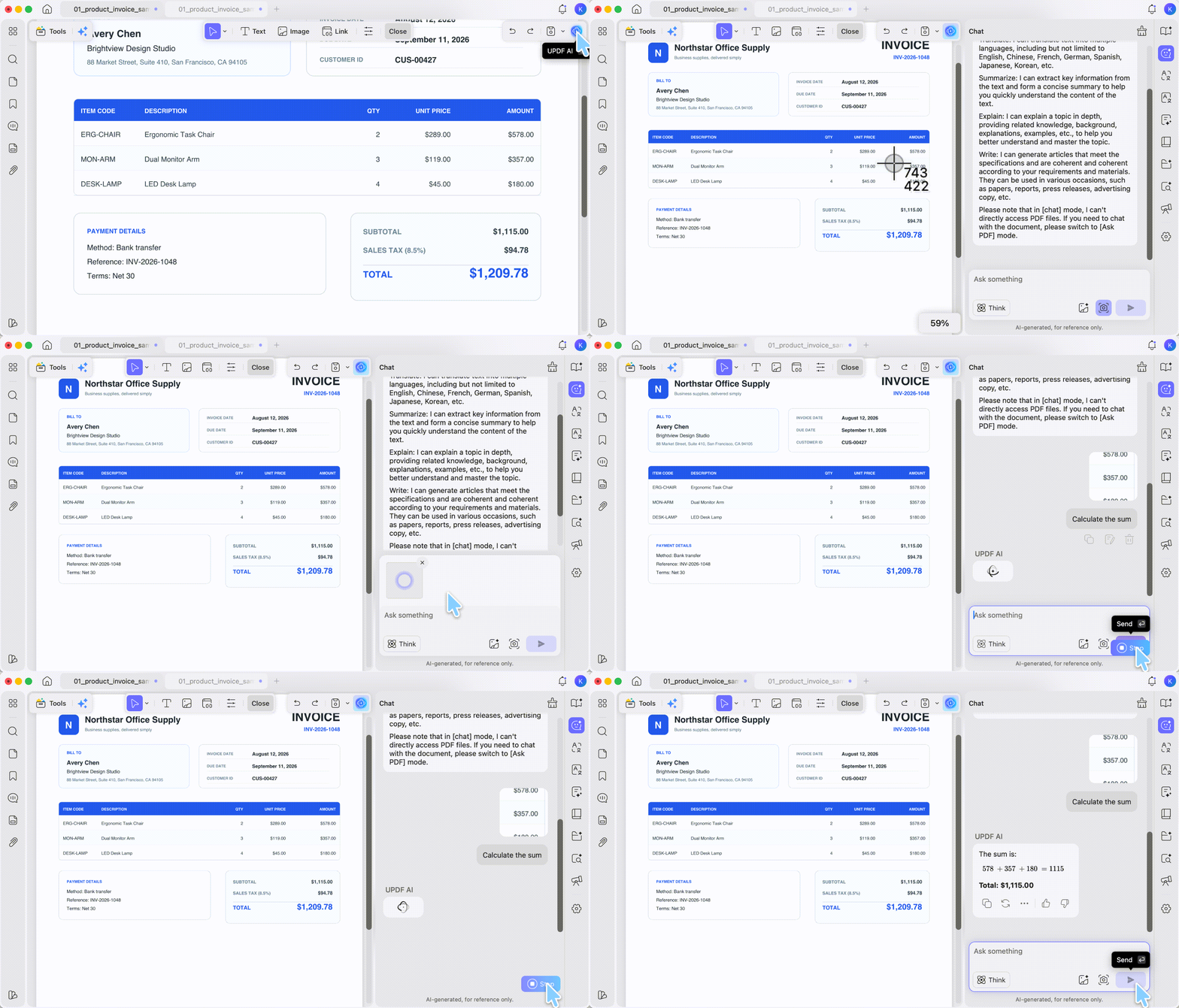
Ask UPDF AI to run the numbers. Open the PDF and open the UPDF AI chat panel. Use the Screenshot tool in the chat box to drag a box around the figures you want worked on — say the Amount column — then type a plain instruction. It isn't limited to sums: you can ask it to total a column, average it, find the highest or lowest value, or check whether a printed total actually matches its line items. Because the Screenshot tool reads the numbers visually, this works even on a scanned statement without running OCR first. Treat the result as a quick cross-check — the panel labels AI output "for reference only," so confirm anything that matters.
Convert to Excel and re-check there. If you'd rather audit the figures in a spreadsheet, convert the PDF to Excel (Tools → Excel). The numbers land in cells you can re-sum with a formula.
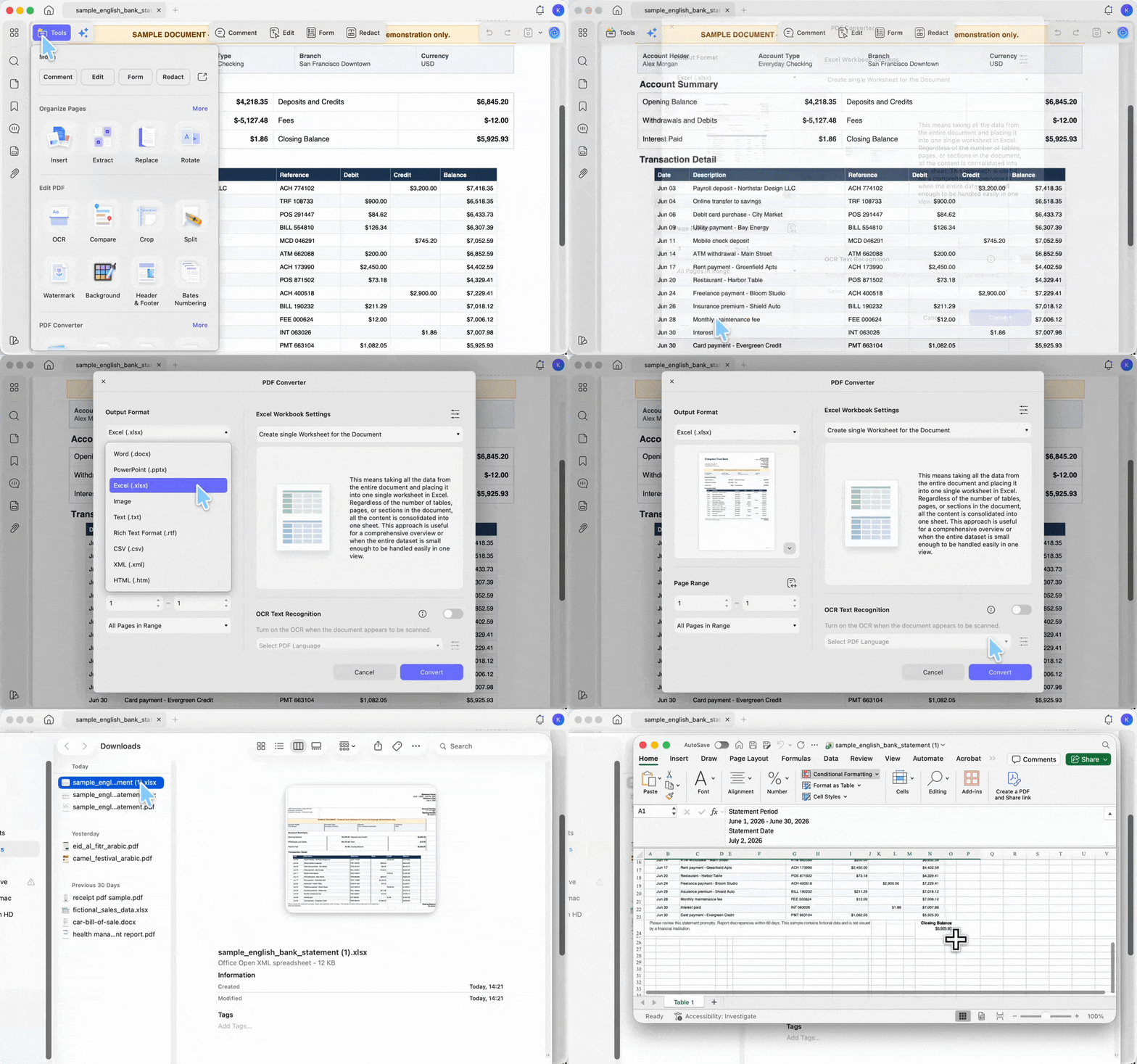
For a scanned file, turn on the OCR Text Recognition toggle inside the PDF Converter window (and select the document language) so the figures convert as real numbers, not a flat image. This is the honest answer to "how do I calculate totals in a PDF without Excel" — for a finished file you're verifying, a quick conversion is often faster than reconstructing a whole form.
This checking workflow runs on Windows, Mac, iOS, and Android. Creating calculation fields (Part 2), however, is desktop-only.
Windows • macOS • iOS • Android 100% secure
Part 4. Comparison: Building Calculations in UPDF vs. Adobe Acrobat
| UPDF | Adobe Acrobat Pro | |
|---|---|---|
| Preset calculations | Sum, Product, Average, Min, Max | Sum, Product, Average, Min, Max |
| Subtraction / division | Not in presets (needs a workaround) | Via Simplified Field Notation / JavaScript |
| Custom formula editor | ✗ | ✓ (JavaScript) |
| Set calculations on mobile | ✗ — desktop only | ✗ — desktop only |
| Platforms (form building) | Windows, Mac | Windows, Mac |
| Individual price | Pro US$64.99/yr; Lifetime US$94.99 | ~US$239.88/yr, subscription only |
The trade-off is honest: if you need subtraction, division, or genuinely complex formulas, Adobe's JavaScript editor does more. If your calculations are sums, products, and averages — which covers most invoices, orders, and expense sheets — UPDF does the same job at a fraction of the cost, with a one-time Lifetime option Adobe no longer offers. Verify current pricing on the UPDF pricing page and Adobe's site before relying on these figures.
Part 5. Edge Cases — When the Standard Method Isn't Enough
"I need Amount = Unit Price − Discount, but there's no Subtract option." UPDF's Calculate dropdown only offers Sum, Product, Average, Min, and Max. For subtraction or division you'll need to restructure the math (for example, store the discount as a negative number and use Sum) or build the formula in Adobe Acrobat's Simplified Field Notation. UPDF has no custom-formula editor.
"The totals won't recalculate on my phone." Setting up calculation fields is a desktop feature. On iOS and Android you can fill in a form that already has calculating fields and watch the totals update, but you cannot create or edit the calculation logic there. Build the form on Windows or Mac, then fill it anywhere.
"The fields recalculate in the wrong order." If a subtotal depends on line prices that themselves calculate, make sure the dependent fields exist before the field that sums them. Rebuilding a field can reset its place in the calculation order; re-check the totals after any edit.
Part 6. FAQ
1. How do I make a PDF field multiply two other fields?
Double-click the result field → Style → Calculate → Product (×), then tick only those two fields (not Select All, which multiplies every field on the form). Their values multiply automatically as they're filled.
2. Why does my calculated field stay at 0?
The source fields are probably empty or not formatted as numbers. Set each input field's Format to Number in the Style panel, then enter test values — a calculated field shows 0 until its inputs contain numbers.
3. Does converting Excel to PDF keep my formulas live?
No. Exporting Excel to PDF preserves the results, not the working formulas. To have a PDF recalculate, rebuild the totals as UPDF form-field calculations after converting.
4. Can I calculate totals in a PDF without making a form?
Yes, if you only need to verify a finished file. In the UPDF AI chat, use the Screenshot tool to select the figures and type "calculate sum," or convert the PDF to Excel and re-sum it there. You only need form fields when others will enter the numbers.
Conclusion
Adding calculations to a PDF is really two jobs: building a form that does the math for whoever fills it, and checking the math on a file someone sent you. For the first, UPDF's Form mode lets you set Sum, Product, Average, Minimum, and Maximum fields on Windows and Mac so invoices and orders total themselves; for the second, UPDF AI and PDF-to-Excel conversion let you verify figures on any platform without rebuilding anything. Where a form is scanned, UPDF's OCR turns the image into real, calculable text first.
Download UPDF for free to try adding auto-calculating fields to your own invoice or order form — installation is free, and Pro features are available when you need watermark-free export.
Windows • macOS • iOS • Android 100% secure







 Lizzy Lozano

 Enola Miller
 Enya Moore