 UPDF
UPDF
 UPDF for Windows
 UPDF for Mac
 UPDF for iPhone/iPad
 UPDF for Android
 Nomostar
 UPDF AI Online
 UPDF Sign
 IvyCraft
 Edit PDF
 Annotate PDF
 Create PDF
 PDF Form
 Edit links
 Convert PDF
 OCR
OCR PDF to Word
 PDF to Image
 PDF to Excel
 Organize PDF
 Merge PDF
 Split PDF
 Crop PDF
 Rotate PDF
 Protect PDF
 Sign PDF
 Redact PDF
 Sanitize PDF
 Remove Security
 Read PDF
 UPDF Cloud
 Compress PDF
 Print PDF
 Batch Process
 About UPDF AI
 UPDF AI Solutions
 AI User Guide
 FAQ about UPDF AI
 Summarize PDF
 Translate PDF
 Chat with PDF
 Chat with AI
 Chat with image
 PDF to Mind Map
 Explain PDF
 PDF AI Tools
 Image AI Tools
 AI Chat Tools
 AI Writing Tools
 AI Study Tools
 AI Working Tools
 Other AI Tools
 AI Bookmark Generation
 AI Bookmark Summary
 AI Watermark Generation
 AI Background Generation
 AI Sticker Generation
 AI Stamp Generation
 AI Editing Suite
 UPDF Copilot
 AI Page Management
 AI Semantic Search
 PDF to Word
 PDF to Excel
 PDF to PowerPoint
 Enterprise Solution
 Enterprise Sign
 Enterprise AI
 Enterprise Plan
 Enterprise User Guide
 Enterprise Webinar
 IT
IT Education
 Construction
 Financial Service
 Healthcare
 Insurance
 Legal
Legal Manufacturing
 Government
 Researchers & PhDs
 Solopreneurs & Freelancers
 Lawyers & Legal Professionals
 Real Estate Agents & Brokers
 Education Solution
 Customer Stories
 User Guide
 UPDF Tricks
 FAQs
FAQs UPDF Reviews
 Download Center
 Blog
Blog Newsroom
 Tech Spec
 Updates
 UPDF vs. Adobe Acrobat
 UPDF vs. Foxit
 UPDF vs. PDF Expert

When handling digital PDF forms, scanned receipts, contracts, or business invoices, we often need to act as if we are using physical correction tape to erase a mistake or mask a specific line. Knowing how to white out on pdf is one of the most common, high-frequency document needs today. However, many users transitioning from paper to digital files frequently vent on Reddit about their frustrating formatting or security blunders:
"Does anyone know how to white out text in pdf without breaking the whole layout? The school sent a registration PDF, and I made a typo in one box. I just want to 'white it out' cleanly so I can re-type or re-print it, but online tools are messing up my fonts."
"Major emergency! I needed to hide sensitive pricing on a business invoice, so I drew a white rectangle shape over it using a free PDF tool. After emailing it to my client, they told me that if they drag-select the area, the real numbers underneath can still be copied and pasted! How do i white out text on a pdf for real security?"
Struggling to find a clean white-out tool, or terrified that a "fake white-out" will leak your private data stream? This comprehensive guide will show you the exact native paths to execute a flawless whiteout on pdf. More importantly, we'll teach you a professional trick using UPDF: how to achieve a clean, white correction-tape visual effect while completely deleting the underlying data code, ensuring your documents stay beautiful and 100% secure.
Windows • macOS • iOS • Android 100% secure
Quick-Routing Matrix: Which White Out Method Do You Actually Need?
Before changing any whiteout on a PDF, decide if you are fixing the layout or protecting sensitive data. If you only need to retype or re‑print non‑sensitive text, a visual mask is enough. Look at the table below to quickly match your real goal with the correct UPDF method:
| User Intent | Data Type | Needed Action | Method to Choose |
| Fix a Typo/Re‑print Only | Non‑sensitive text | Temporary visual mask | UPDF's shape tool method |
| Everyday Form Cleanup | Non‑sensitive fields | Clean print layout | UPDF's shape tool method |
| Hiding Prices on Invoices | Financial data | Secure erasure | UPDF's redaction method |
| Masking ID Numbers or Personal Info | ID numbers, PII | Code‑level destruction | UPDF's redaction method |
| Protecting Trade Secrets or Contracts | Trade secrets | Compliance‑safe redaction | UPDF's redaction method |
Concept Clarification: White Out vs. Redact
Standard white shapes and true redaction behave totally differently once someone inspects your PDF closely. Understanding that difference matters for legal compliance, privacy promises, and technical AI‑driven security checks.
Visual White-Out vs. Permanent Redaction: The Critical Security Trap
Now, let's see why simple masking fails and what counts as real PDF white-out security.
Standard White Out (Comment Shapes)
A comment rectangle adds a white virtual sticker above the existing text layer only. Beneath that sticker, the original characters, metadata, and searchable text string still remain intact. Anyone with a basic PDF editor can grab the shape, move it aside, and instantly reveal everything.
Secure Redaction (Code Stripping)
NIST media sanitization guidance expects sensitive text to be removed so it cannot be reconstructed. True redaction deletes the underlying text stream and image pixels from the document's internal structure. With tools like UPDF, you can redact PDF content, set the fill color to white, and keep the appearance.
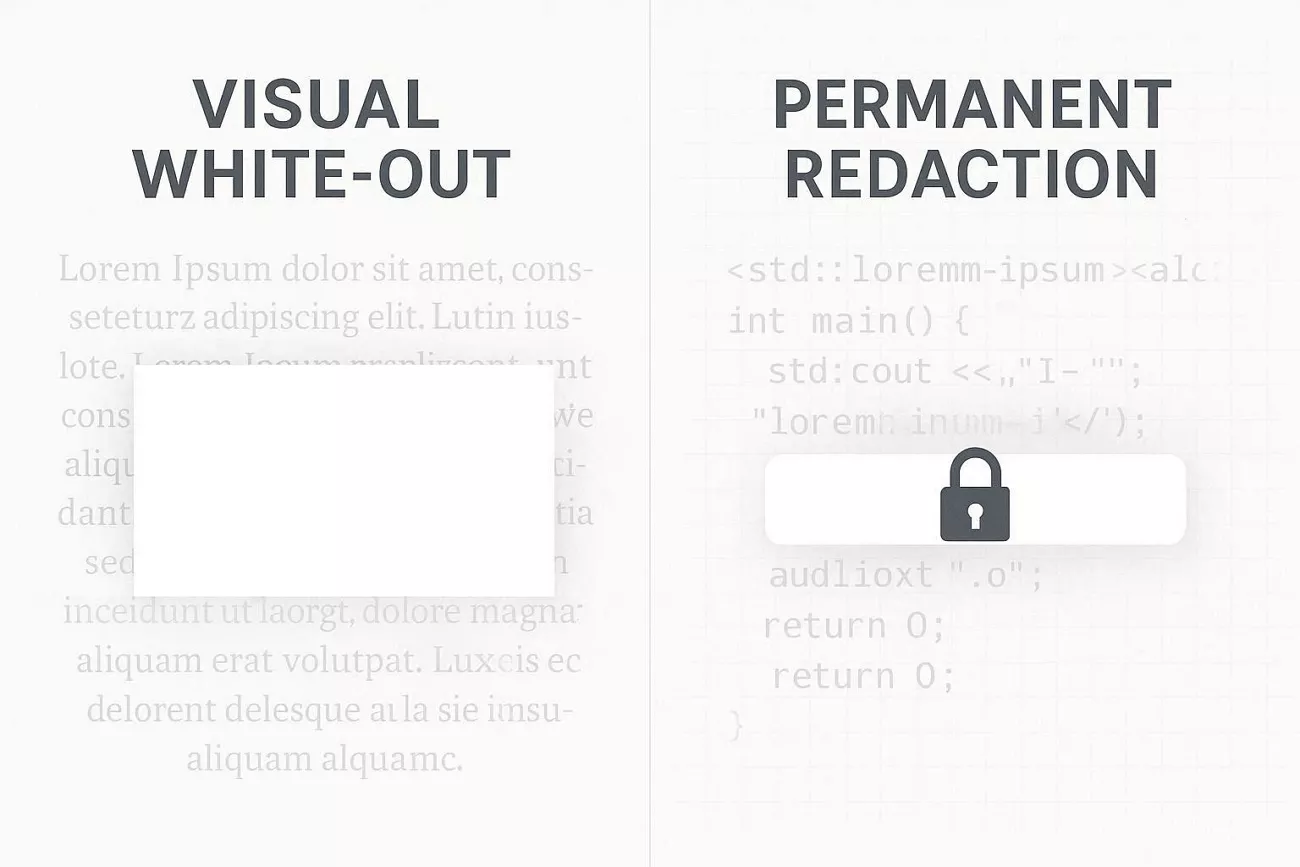
If you ever covered secrets with basic shapes, your document might still leak hidden content. Check the full checklist on how to inspect and remove faulty redaction or overlays from PDFs to repair risky files.
Method 1: The Ultimate Security Choice — UPDF Secure Redaction-to-White
Sensitive white-out document cases include financial records, medical details, and tightly worded corporate or legal agreements. In these scenarios, every confidential character should be erased from the file's underlying code, not visually masked.
How to Securely and Permanently White Out a PDF File
People often need to hide secrets without leaving ugly black boxes that worry clients or auditors. This is where UPDF comes in, combining a neat white finish with deep, irreversible redaction. Its Redact mode targets sensitive strings in ledgers, contracts, or reports instead of entire pages.
You can switch the redaction fill from default black to pure white for a subtle correction look. That white bar still follows strong security practices, keeping the erased content technically unrecoverable. By pairing visual polish with strict data removal, UPDF helps you protect PDF workflows at scale. Now, let's explore both ways to apply this secure white correction across your files.
The color of a redaction mark should not be confused with whether the underlying information has been removed. The video below offers a broader look at protecting PDFs in UPDF.
Path A: Manual Precise Redaction-to-White
Now, follow the steps below to mark specific areas and apply precise white redaction:
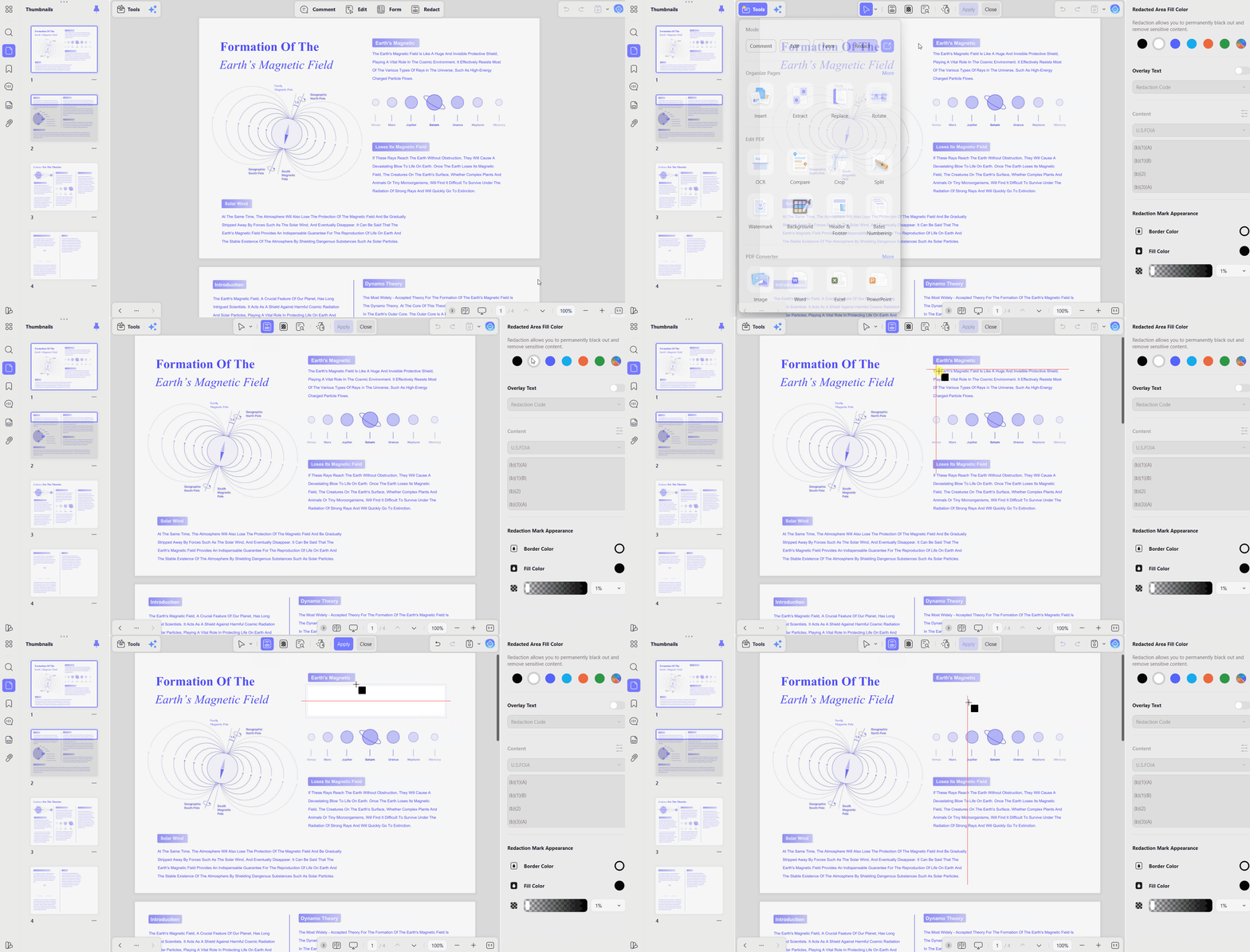
Step 1. First, open a PDF in UPDF and click the "Tools" option in the top left corner. Afterward, press the "Redact" option.
Windows • macOS • iOS • Android 100% secure
Step 2. Next, choose the "Redact" option and select the white color under the "Redact Area Fill Color" section in the right side panel. Drag the cursor over the area that you want to white out and click the "Apply" button to apply the redaction.
Path B: AI-Powered Semantic Search & Bulk White-Out (Efficiency Highlight)
To automate large cleanups across long, sensitive PDFs, adhere to the steps below on how to white out in PDF:
Step 1. After opening a PDF, choose the "Search" tool in the left side panel and select the "Find Text and Redact" option. Next, enter the exact term that you want to scrub. To redact similar words, press the "AI Search" option.
Step 2. Next, choose the search results or press the "Select All" button to select all findings. Once done, click the "Redact" button at the bottom to white out the PDF.
Step 3. Choose white as before, then press the "Apply" button to make the redactions permanent.

If you want more advanced techniques for cleaning sensitive files, study the full redaction handbook. It explains how to redact PDF documents professionally while keeping layouts stable and compliant.
Method 2: The Quick Non-Permanent Choice — UPDF Comment Shape Tool
For low‑risk tasks like fixing typos or hiding non‑sensitive fields, speed matters more than security. This is where how to white out on a PDF with simple comment shapes becomes useful.
How to Quickly White Out Text in a PDF for Everyday Editing
Every day, admin work needs clean forms for printing, and UPDF can handle that quickly. Think of correcting one wrong digit or temporarily hiding an optional field before handing over the paperwork. Nothing confidential should pass through this workflow, because shapes only mask content instead of deleting it. Now, go through the steps below to cover mistakes without changing the underlying data.
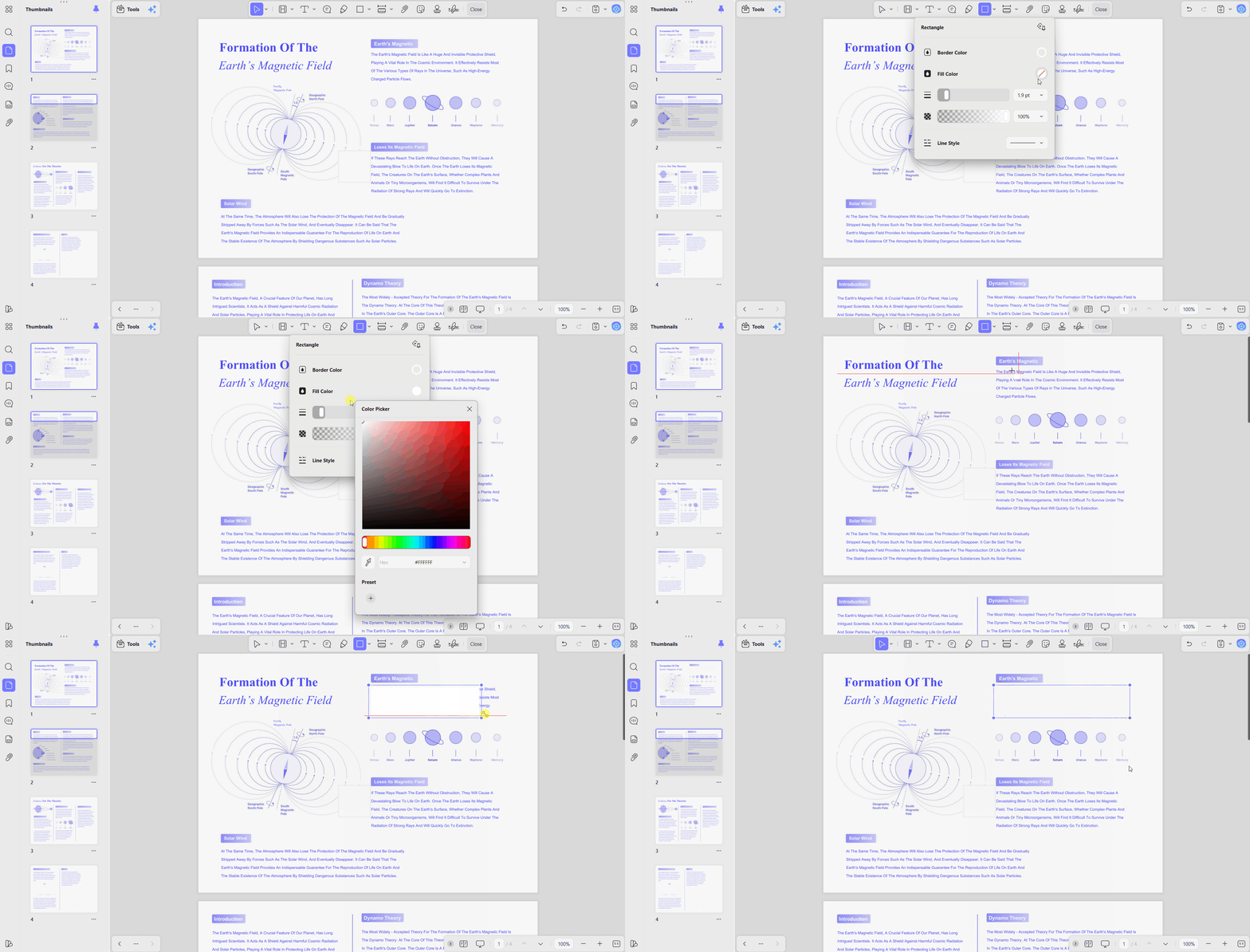
Step 1. Access the "Comment" tool in UPDF and choose the "Shapes" icon in the top toolbar. Afterward, select a shape and set the border and fill to white.
Step 2. Next, use the cursor and drag over the area that you want to white out. The text is now masked and ready for printing.
After masking everyday typos, you may still want to control who opens or edits files. For that next layer of safety, learn how to protect a PDF with proper permissions. You can then share those adjusted documents confidently, knowing printing, copying, and editing are restricted.
Method 3: Whiteout PDF Online
Sometimes, we have some sensitive data in PDF documents along with other text that we need to share. The easiest way to prevent other people from seeing that sensitive data is using PDF whiteout methods. If you want to whiteout PDF online, there are multiple tools, but usually, they lack reliability and features. So, we shortlisted the 3 best online options that you can use with their complete guides.
Path A: White Out PDF Online Free Using Sedja
Sejda offers a variety of online management services and tools including specific features for concealing information in the document. It has a very simple user interface that allows you to upload the file and select the images or text you need to cover using a white box. The underlying content will remain secure and unreadable.
It offers a free version that comes with certain limitations. There will be restrictions on how many tasks can be performed per day. Moreover, there will be a maximum file size and number of pages that can be uploaded. Its free version allows limited access to advanced features that are only available in the paid version. Despite these restrictions, its free version is perfect if you need a secure, quick, and easily accessible solution.
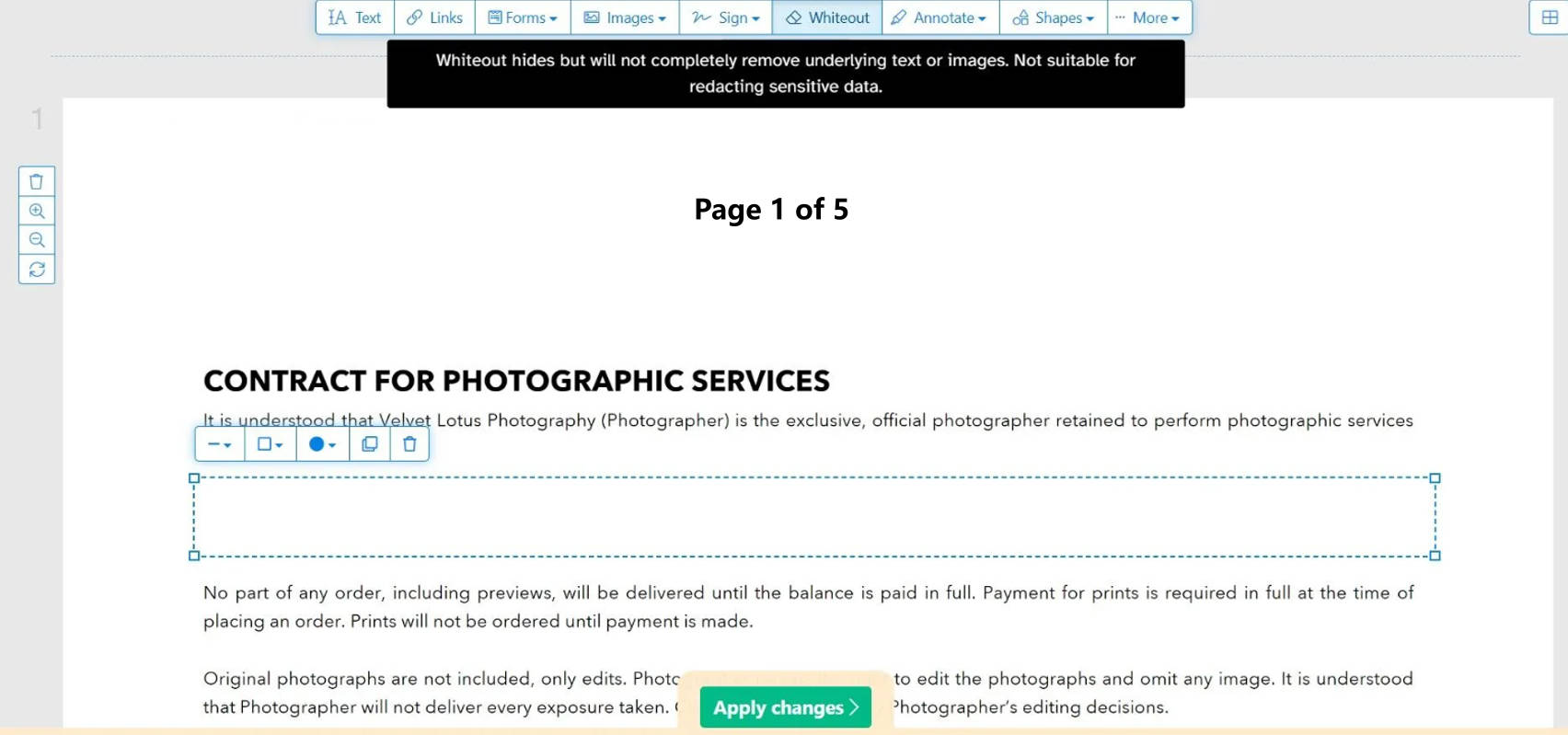
Step 1: Go to Sejda website and click "Edit a PDF Document" > "Upload PDF File" then select PDF that you need to whiteout.
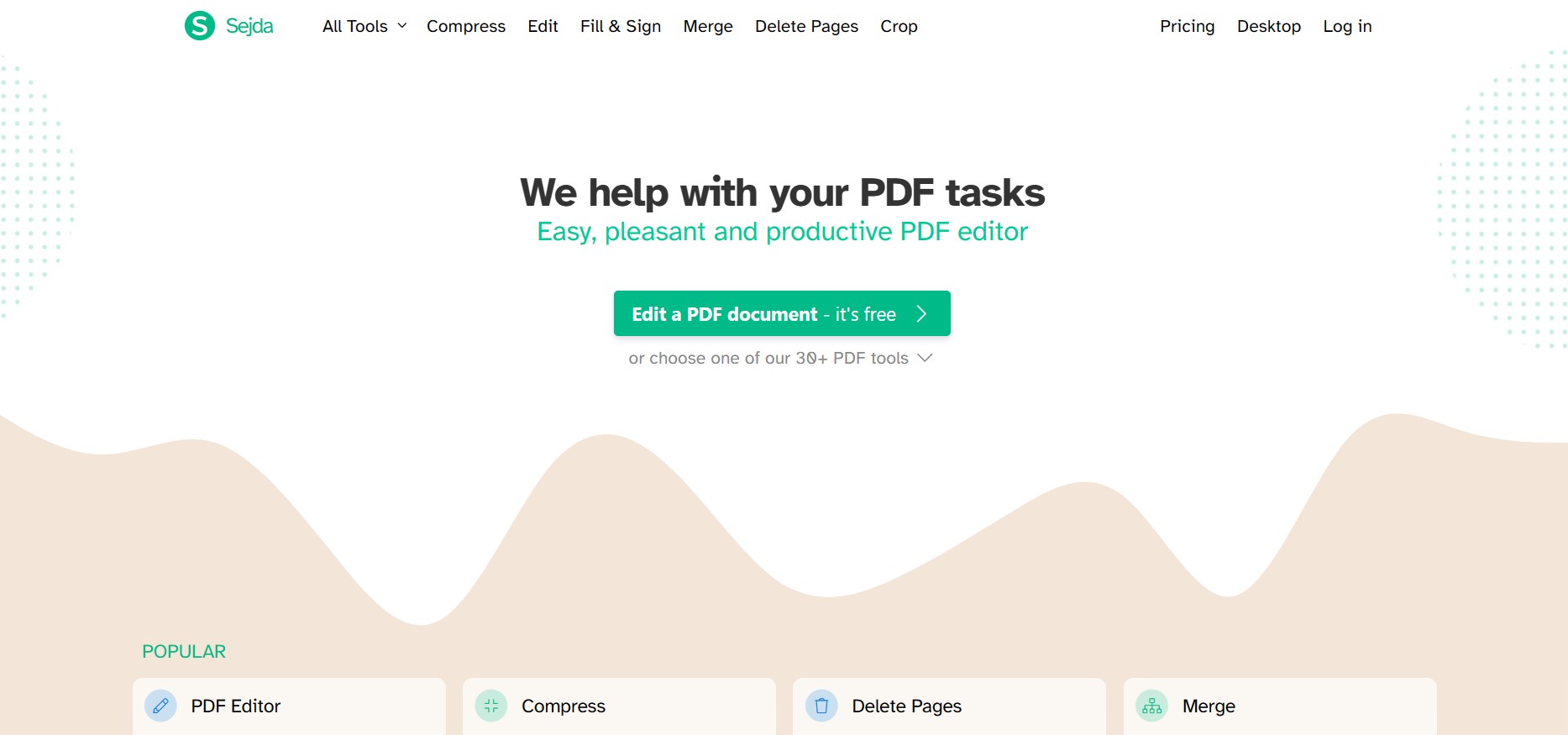
Step 2: Select whiteout tool from top then click and drag over text to whiteout. Click "Apply Changes" > "Download" to save that document on your PC.
Path B: White Out PDF Free Online Using PDFzorro
PDFzorro is a reliable tool for managing, editing, and applying whiteout features on documents online. The platform allows you to quickly conceal your confidential information without any hassle. All selected areas that may include images and texts are easily covered using the white box so that this text will no longer be visible.
However, there are certain limitations to using the free versions that include specific file size limitations and a specific number of pages that can be edited in a single session. Moreover, advanced editing services are only available in the paid version.
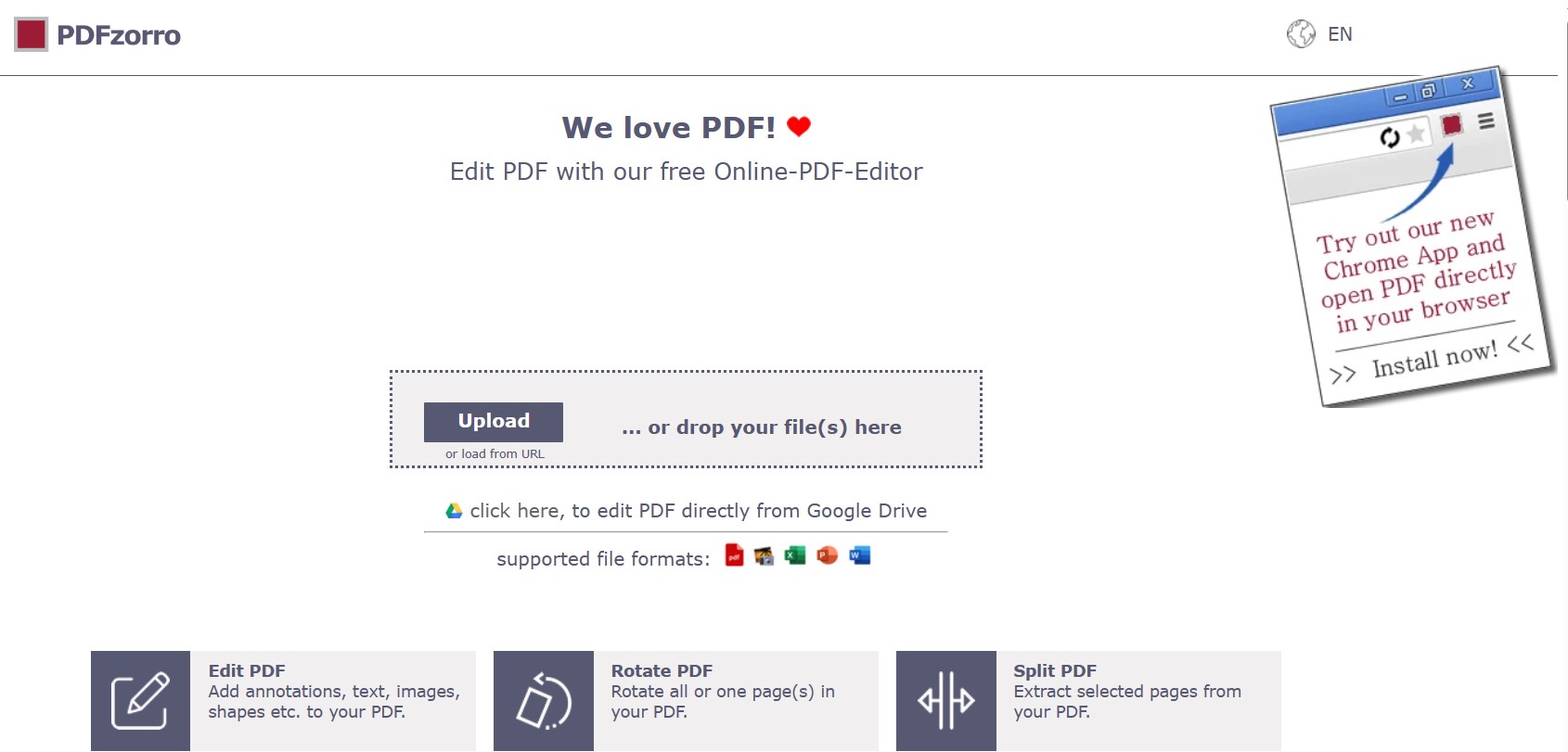
Step 1: Open PDFzorro website then click "Edit PDF" > "Upload" > "Start PDF Editor" to upload a PDF document. When it uploads, you need to click a page to select it for editing purposes.
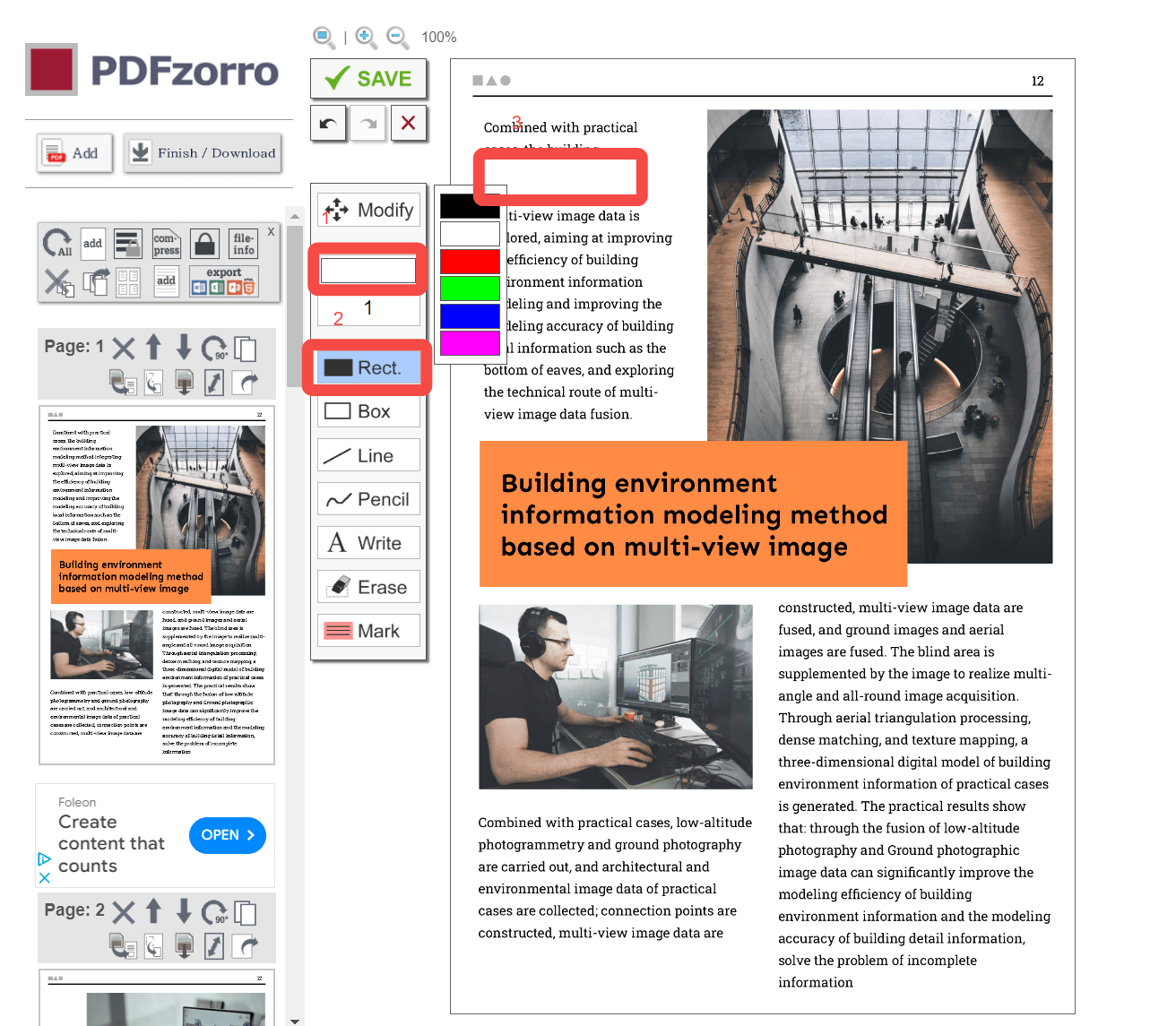
Step 2: From tools click "Rect", select "white" color in above part, and then click + drag the cursor over the text to whiteout it. After editing click "Save" > "Download" from the top and you will be done.
Path C: White Out PDF Free Online Using PDF2go
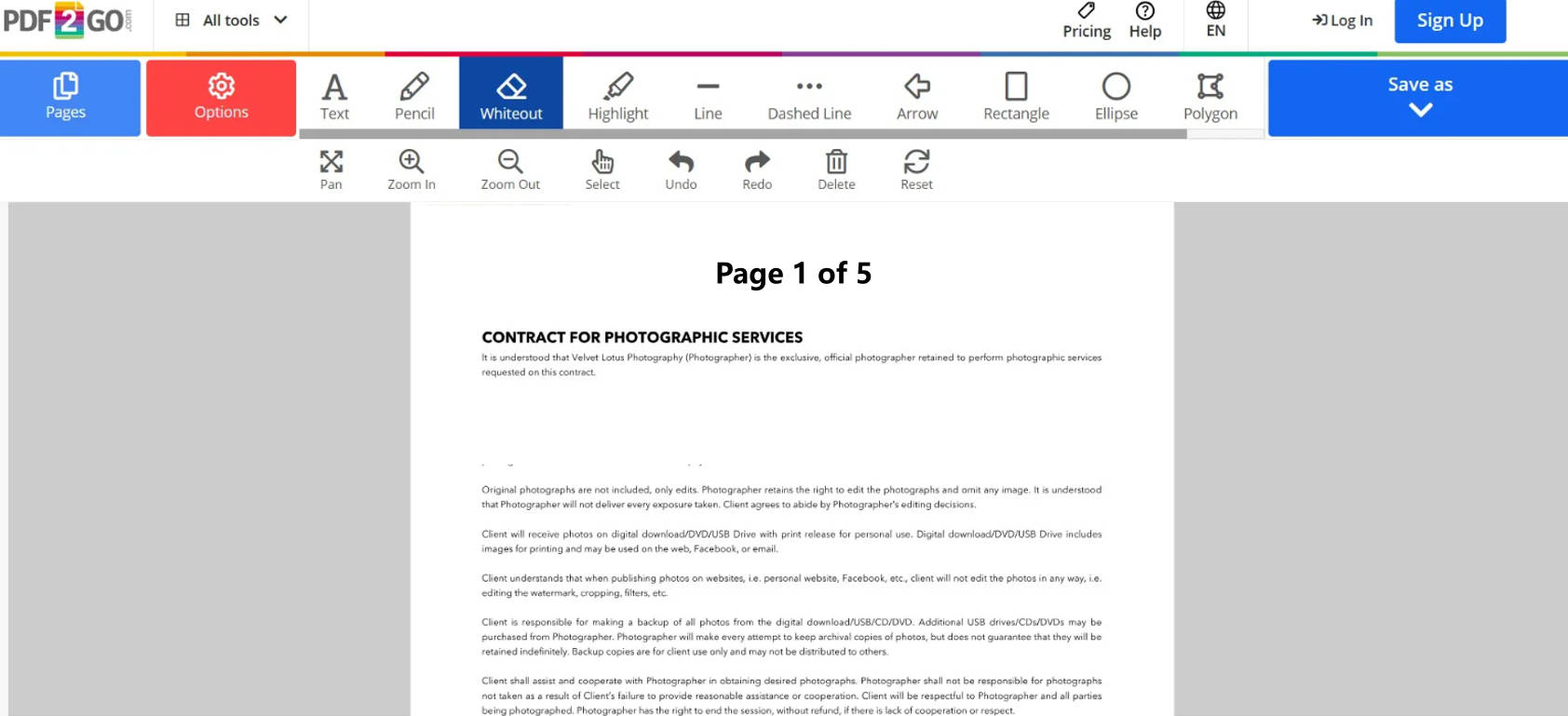
PDF2GO allows you to white out images and text from your files by simply using your web browser. It is a hassle free platform where you upload your file, select the area you need to white out and apply the white box. The underlying information will be unreadable, and your confidential information will be concealed.
It offers a free version, but there are certain limitations you need to consider. Advanced editing features will not be accessible and for single session there will be limited file size and number of pages that could be edited. However, if you need a quick solution, PDF2GO free version is the best solution because of easy accessibility and user interface.
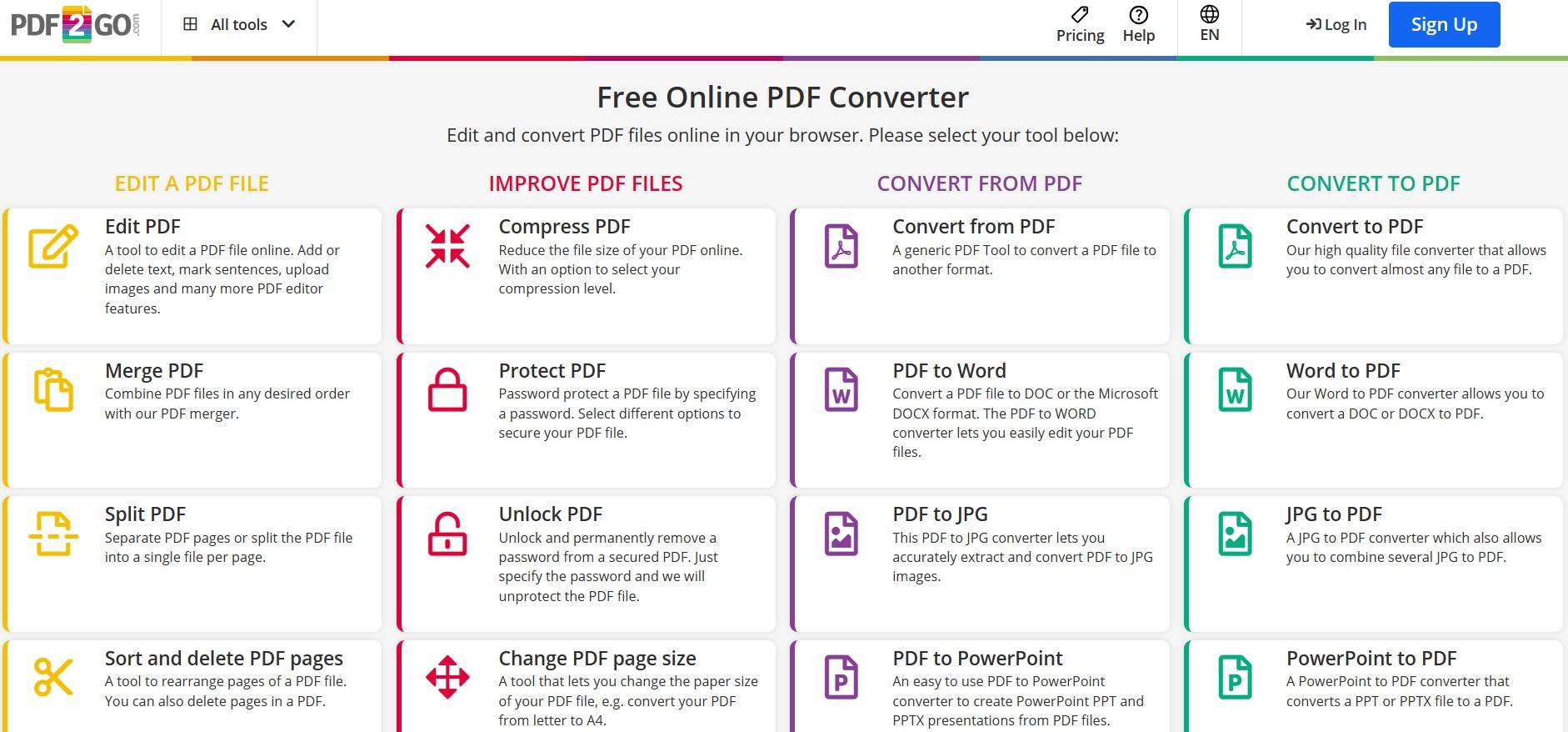
Step 1: Go to PDF2Go website, then click "Edit PDF" > "Choose File" and select PDF file from PC to edit it.
Step 2: Choose "Whiteout" from the editing options, then whiteout PDF content by clicking and dragging the cursor over the content. Click "Save as" and complete file file-saving steps to save that whiteout PDF document.
FAQs
Can I rely on free web tools to white out a confidential PDF online?
Most free sites that white out PDF online only draw white shapes over visible text. They usually keep the real text and data stream still stored underneath those shapes. Advanced viewers or e‑discovery tools can strip that overlay and expose the original confidential content.
Why can't I find a dedicated "White Out" tool inside Adobe Acrobat?
Searching for how to white out in Adobe shows that Acrobat does not include a button named "White Out". Instead, users either color comment rectangles white to unlock the Redaction feature. UPDF, by contrast, combines visual masking and secure white redactions.
If I use a white-out method and then convert the PDF to Word, will the hidden text show up?
When you use a comment box overlay, Word treats that box as a separate movable object. Moving or deleting it exposes the underlying text again, so nothing is truly hidden in the long term. With secure redaction on a white-out document, the removed words never appear in the converted file.
What other stealth methods can I use to hide text in a PDF without leaving big gaps?
You can blur, mask, or anonymize specific strings to avoid obvious white bars across paragraphs. The choice of method depends on who receives the file and how much reversibility you still need. For more subtle ideas, check the guide on how to hide text in PDF.
Conclusion
To conclude, this guide explored different methods for how to white out on a PDF. First, decide whether you only need a cleaner layout for strict data privacy. For small, local fixes like form typos, comment‑mode shapes give quick, color‑matched white coverage. When you need confidentiality instead, switch to UPDF's Redact tool with white fill for a clean correction‑tape look and code‑level deletion underneath.
Download UPDF Free to try the custom color AI Redaction and Comment White-Out features.
Windows • macOS • iOS • Android 100% secure





 Enya Moore
 Enola Miller
 franck Petit
 Engelbert White