UPDF
UPDF
 UPDF for Windows
 UPDF for Mac
 UPDF for iPhone/iPad
 UPDF for Android
 Nomostar
 UPDF AI Online
 UPDF Sign
 IvyCraft
 Edit PDF
 Annotate PDF
 Create PDF
 PDF Form
 Edit links
 Convert PDF
 OCR
OCR PDF to Word
 PDF to Image
 PDF to Excel
 Organize PDF
 Merge PDF
 Split PDF
 Crop PDF
 Rotate PDF
 Protect PDF
 Sign PDF
 Redact PDF
 Sanitize PDF
 Remove Security
 Read PDF
 UPDF Cloud
 Compress PDF
 Print PDF
 Batch Process
 About UPDF AI
 UPDF AI Solutions
 AI User Guide
 FAQ about UPDF AI
 Summarize PDF
 Translate PDF
 Chat with PDF
 Chat with AI
 Chat with image
 PDF to Mind Map
 Explain PDF
 PDF AI Tools
 Image AI Tools
 AI Chat Tools
 AI Writing Tools
 AI Study Tools
 AI Working Tools
 Other AI Tools
 AI Bookmark Generation
 AI Bookmark Summary
 AI Watermark Generation
 AI Background Generation
 AI Sticker Generation
 AI Stamp Generation
 AI Editing Suite
 UPDF Copilot
 AI Page Management
 AI Semantic Search
 PDF to Word
 PDF to Excel
 PDF to PowerPoint
 Enterprise Solution
 Enterprise Sign
 Enterprise AI
 Enterprise Plan
 Enterprise User Guide
 Enterprise Webinar
 Banking
 Healthcare
 Insurance
 Legal
Legal Manufacturing
 Government
 Researchers & PhDs
 Solopreneurs & Freelancers
 Lawyers & Legal Professionals
 Real Estate Agents & Brokers
 Education Solution
 Customer Stories
 User Guide
 UPDF Tricks
 FAQs
FAQs UPDF Reviews
 Download Center
 Blog
Blog Newsroom
 Tech Spec
 Updates
 UPDF vs. Adobe Acrobat
 UPDF vs. Foxit
 UPDF vs. PDF Expert

Filling out the Z83 form matters when you apply for South African government jobs and need a complete application. The Z83 “Application For Employment” form is the official entry ticket, and using the wrong version can cost you interviews. Many applicants feel stuck, as the form looks complex and one small mistake can lead to automatic rejection without warning.
This guide explains the key parts of the Z83 and shows you simple steps to enter each detail. Throughout the article, you will see how the professional and lightweight PDF reader and editor - UPDF helps with filling the Z83 form, adding signatures, and saving the final PDF.
Part 1. Z83 Form Basics: A Beginner's Guide
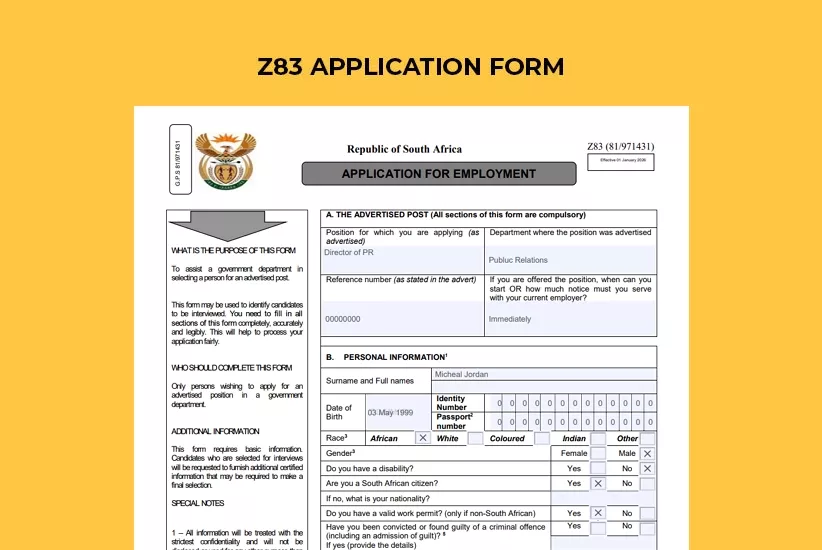
The Z83 form is a structured document that gathers your details for organized hiring decisions. It uses fixed sections, so every applicant presents information in the same clear and comparable layout each time. Filling out the Z83 form online allows you to type neat answers that help HR understand your background and suitability.
The form leads you through your work history, education, skills, and status in a guided sequence. It also creates a written record of your statements, which departments can match with documents and reference checks.
Why Each Section Matters?
Each section of the Z83 form focuses on a single important part of your profile. Now, we will go through each main part and say what you should write there.
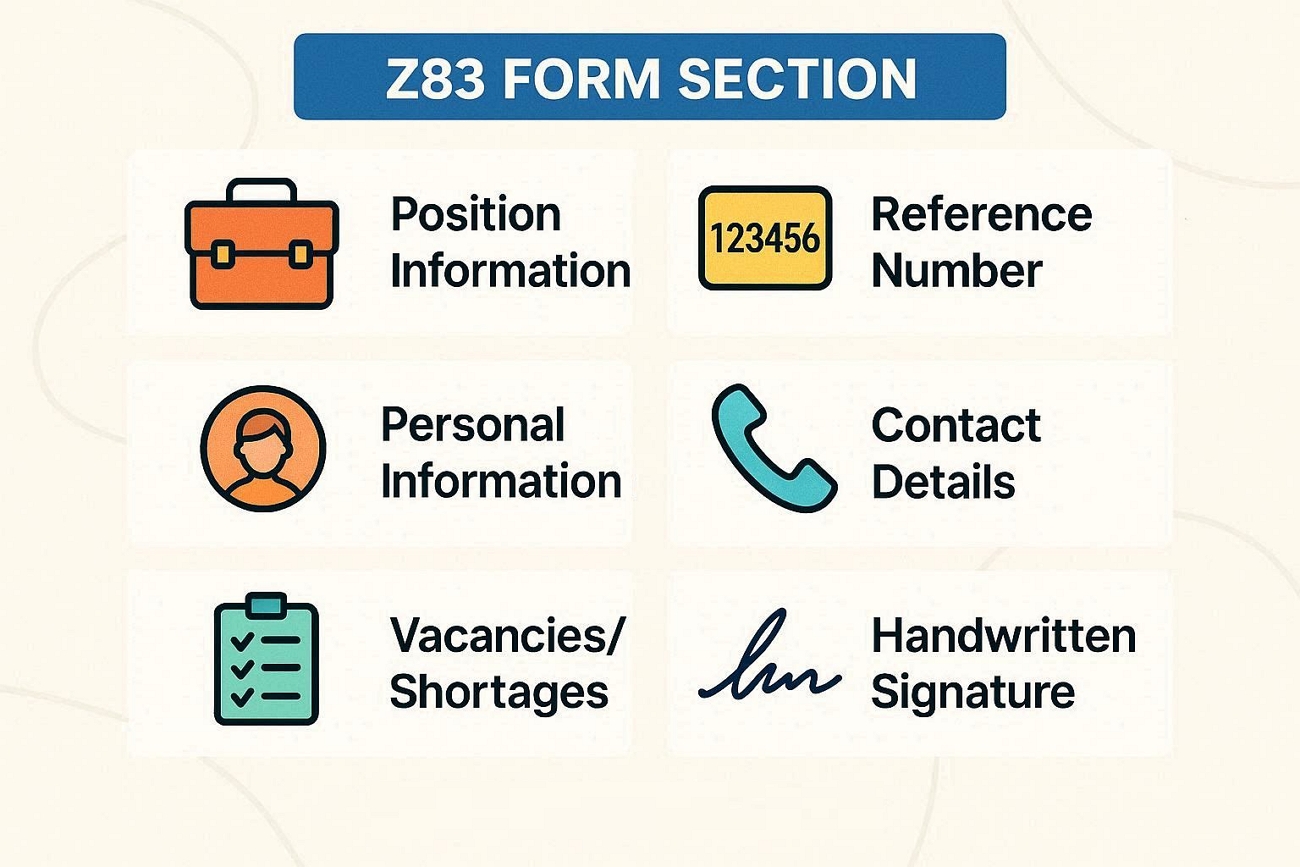
- Position Information: This part shows the job name and office for the job you want. It helps the hiring team link your form to the correct advertised post when many roles are open.
- Reference Number: Here, you write the post number printed in the official job advertisement. This number directs your application to the right file to prevent it from being mixed with other vacancies.
- Personal Information: This section captures your identity details and status to confirm who you truly are. It supports background checks and shows whether you meet basic legal requirements for public service employment.
- Contact Details: In this section, you provide phone, email, and address information for any follow‑up on your application. These details allow the department to send interview dates, document requests, and outcome messages without confusion.
- Vacancies/Shortages: This area lets departments compare your skills with areas where they currently lack sufficient, qualified candidates. It shows whether your profile aligns with posts they must fill quickly to maintain proper service delivery.
- Handwritten Signature: The signature section is where you confirm that every detail you supplied on the form is fully correct. It turns your completed form into a binding declaration that they can use if untrue information is discovered.
How to Choose a Z83 Form Version?
Always use the latest four-page Z83 form, replacing the older eight-page version in South Africa. Using an outdated form is a common reason applications get rejected before anyone checks your details. You must complete every field on the form when you think a question does not apply. If something does not apply, write “N/A,” so your Z83 editable form stays complete and fully compliant.
Where Can Users Download the Z83 Form?
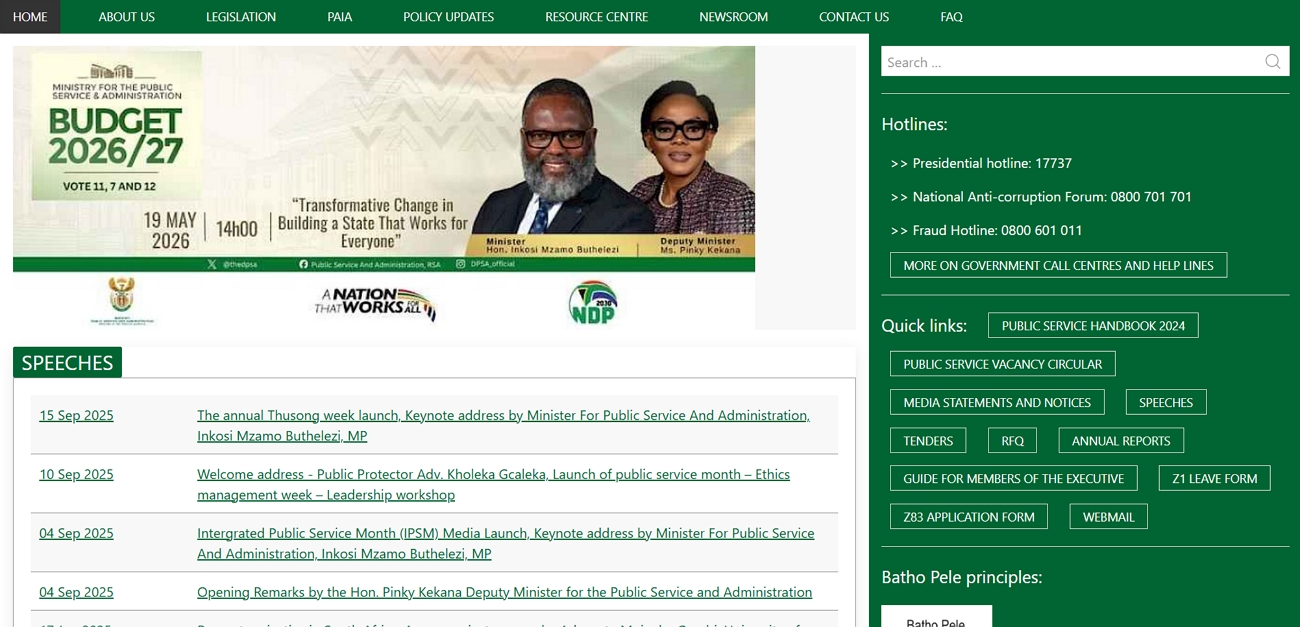
You can get the Z83 form safely from the official DPSA website under the “Documents” section for job applications. Always avoid third-party websites that ask for payment, since the form is a free public document for everyone. For quick access, use this Z83 editable form download link that opens the latest version: Download the Z83 Form.
Part 2. Electronically Filling Out Form Z83 vs. Handwriting It: How to Choose?
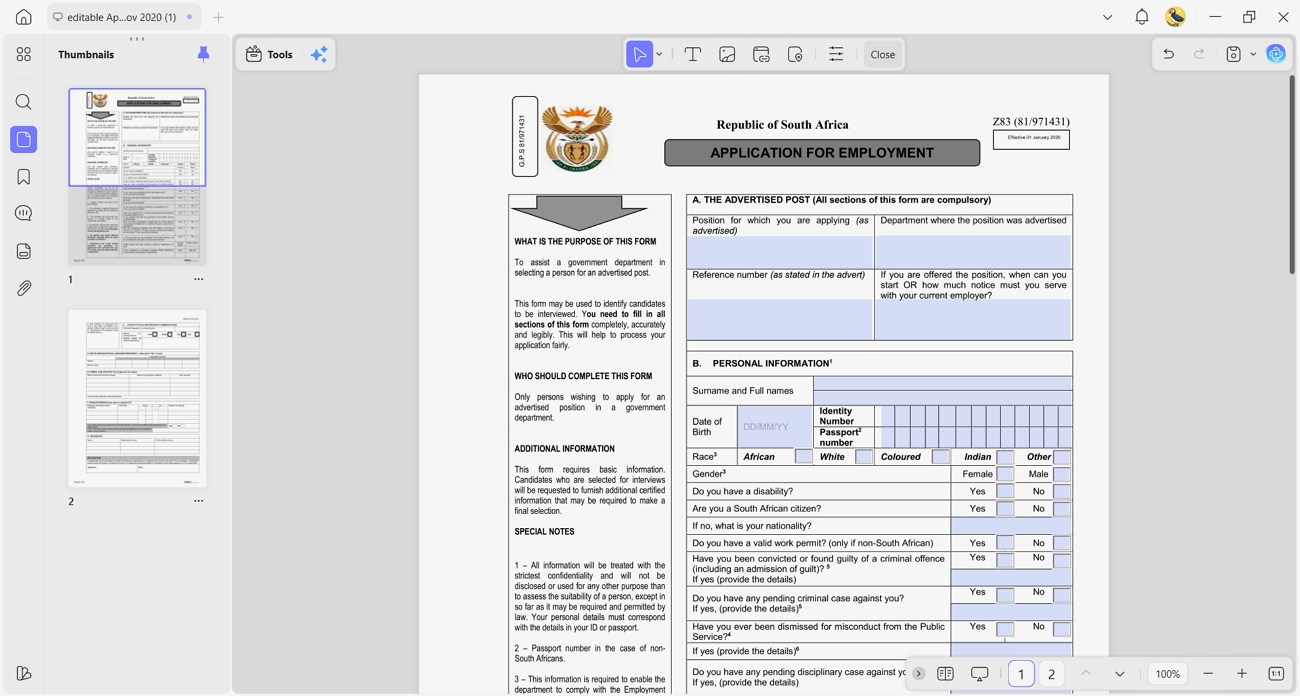
Many people feel confused about typing the form or writing it by hand for government jobs. Digital completion is usually more reliable, with clearer text and fewer mistakes than rushed handwriting on printed pages. For digital filling, UPDF gives a clean workspace where you can open the Z83 form and type every answer.
UPDF lets you move through sections, fix errors quickly, and keep your information neat for future applications. It also supports adding comments or small notes, which helps you check requirements against the job advertisement details. When filling the Z83 form, UPDF helps you review, export, and store copies so each new application takes less time.
Why Digital Z83 Filling Helps?
Digital Z83 filling is better for most users and makes your application cleaner and easier to understand.
- Clear Reading: Typed answers are easy to read, so the staff does not struggle to understand your information.
- Accurate Dates and Numbers: You can type exact dates, ID numbers, and reference numbers to lower the risk of costly mistakes.
- Neat Layout: The form keeps straight lines and tidy spacing, which makes everything look more professional overall.
- Quick Reuse: Saved digital copies let you update details fast when applying for new government job posts.
- Simple Sharing: A digital Z83 can be emailed or uploaded easily when departments ask for online applications.
Ultimate Guide to Filling the Z83 Form With UPDF
Most applicants do not know the best and simplest way to handle the Z83 form on a computer. Follow the steps below to learn how to complete the Z83 form neatly using UPDF for your applications:
Windows • macOS • iOS • Android 100% secure
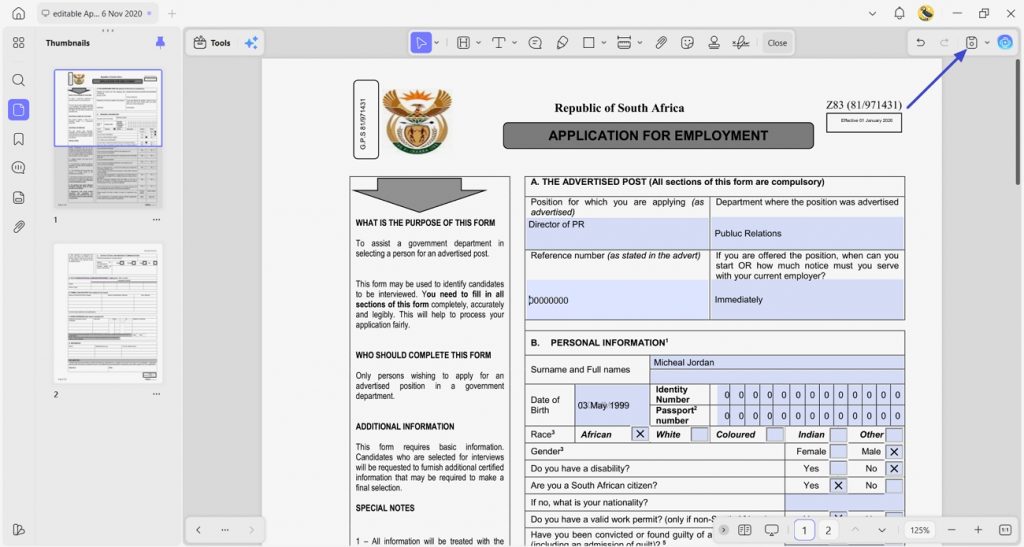
Step 1. Import Z83 Form and Fill Out
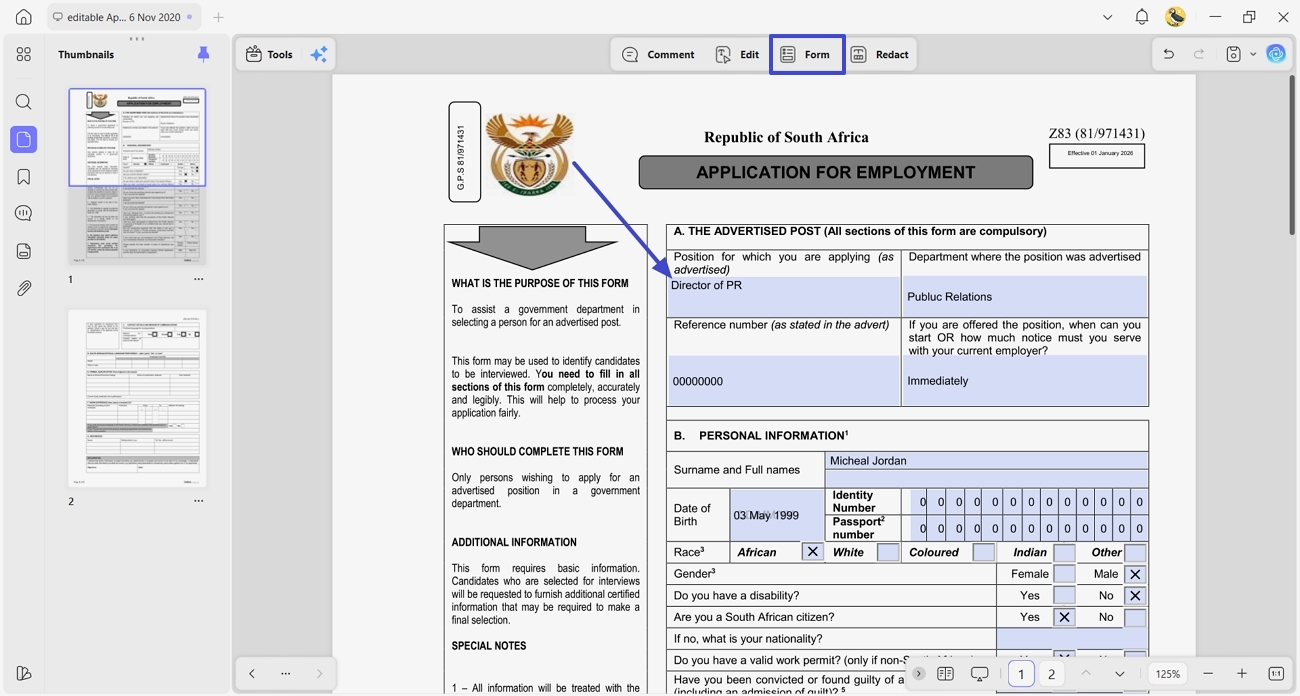
First, get an updated Z83 application form from the authentic source mentioned above. Then, import the downloaded form PDF into UPDF and fill out the essential details in the fillable fields. If the PDF is non-fillable, you can create fillable fields and fill them in the “Forms” tool.
Step 2. Add a Digital Signature Field
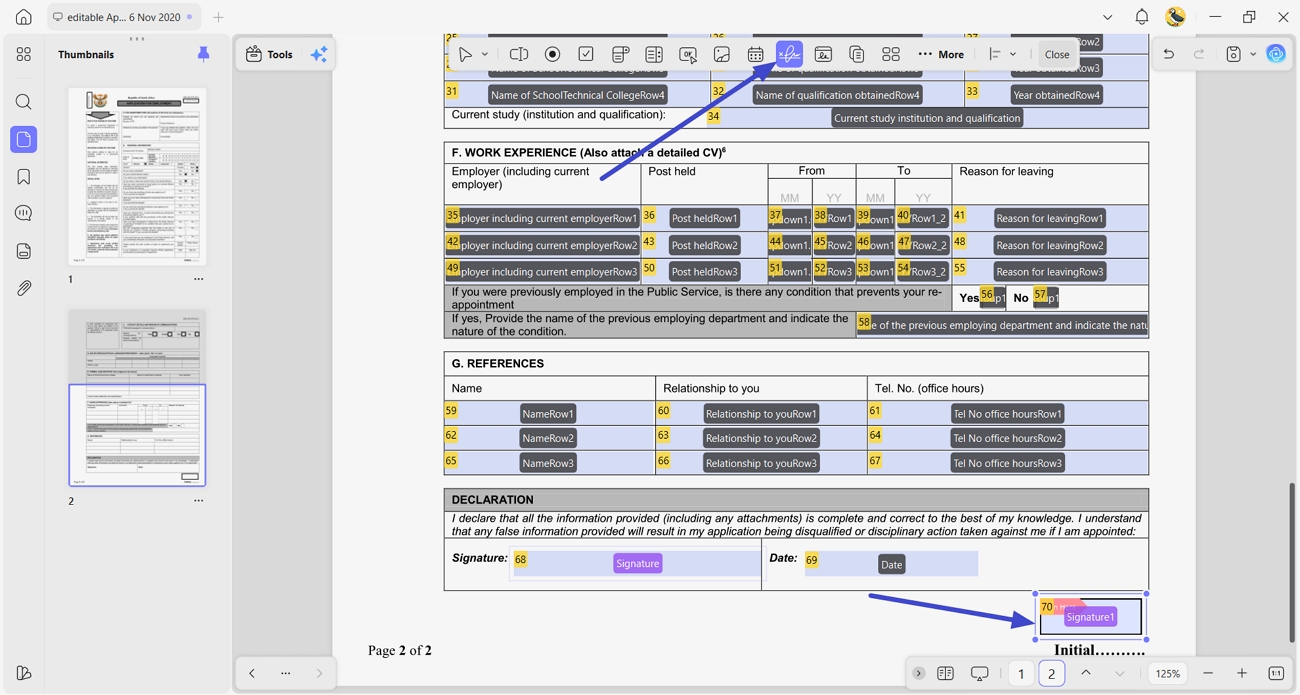
Next, in the “Forms” tool, click the “Digital Signature” option and click anywhere on the PDF page where you want to place the signatures. It will create a digital signature field.
Step 3. Fill Digital Signature Field
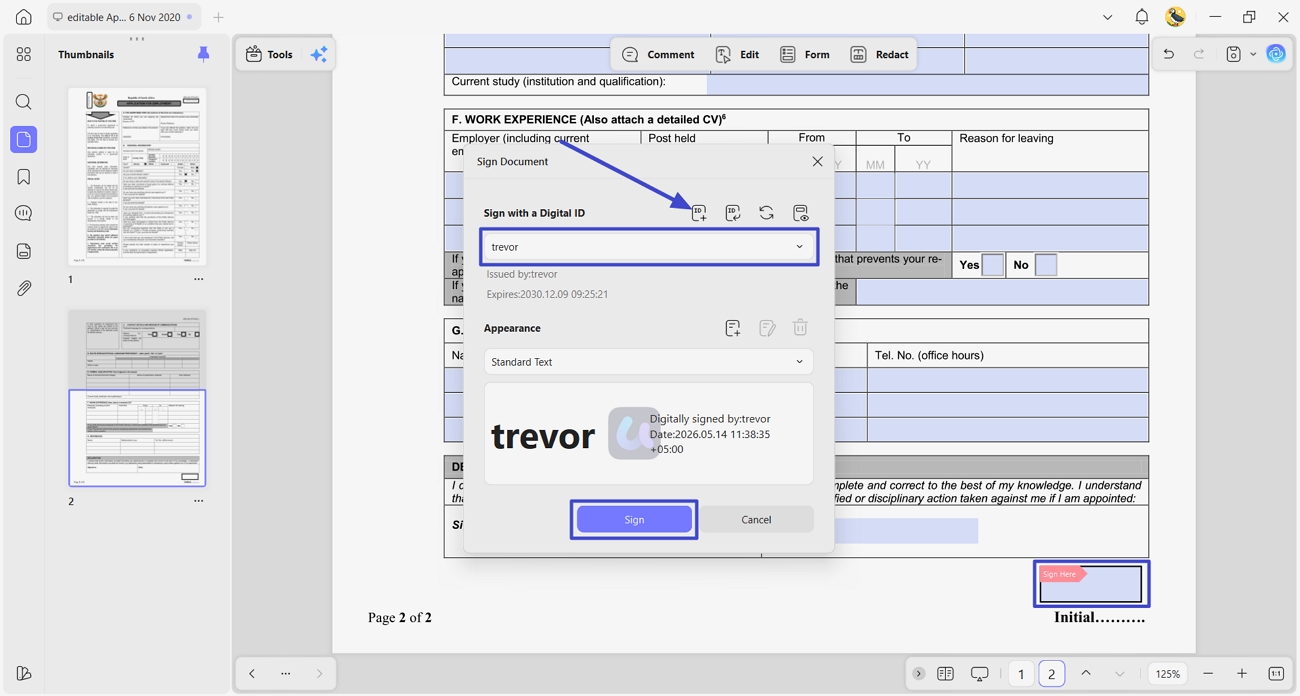
Afterward, switch to the viewing mode and click the newly created field. Choose your digital ID and press the “Sign” button. Once done, enter the password and choose the location to save the signed PDF. To create a new digital ID, you have to click the “Create” button.
Step 4. Save the Z83 Form
Once all is done, click the “Save” icon to save the filled Z83 PDF form and share it with the hiring department.
The person completing the form should be able to tell where each answer belongs. If a visual example would help, take a look at the video on working with PDF forms in UPDF below.
Part 3. Summary of Common Errors and Checklist on Z83 Form Filling
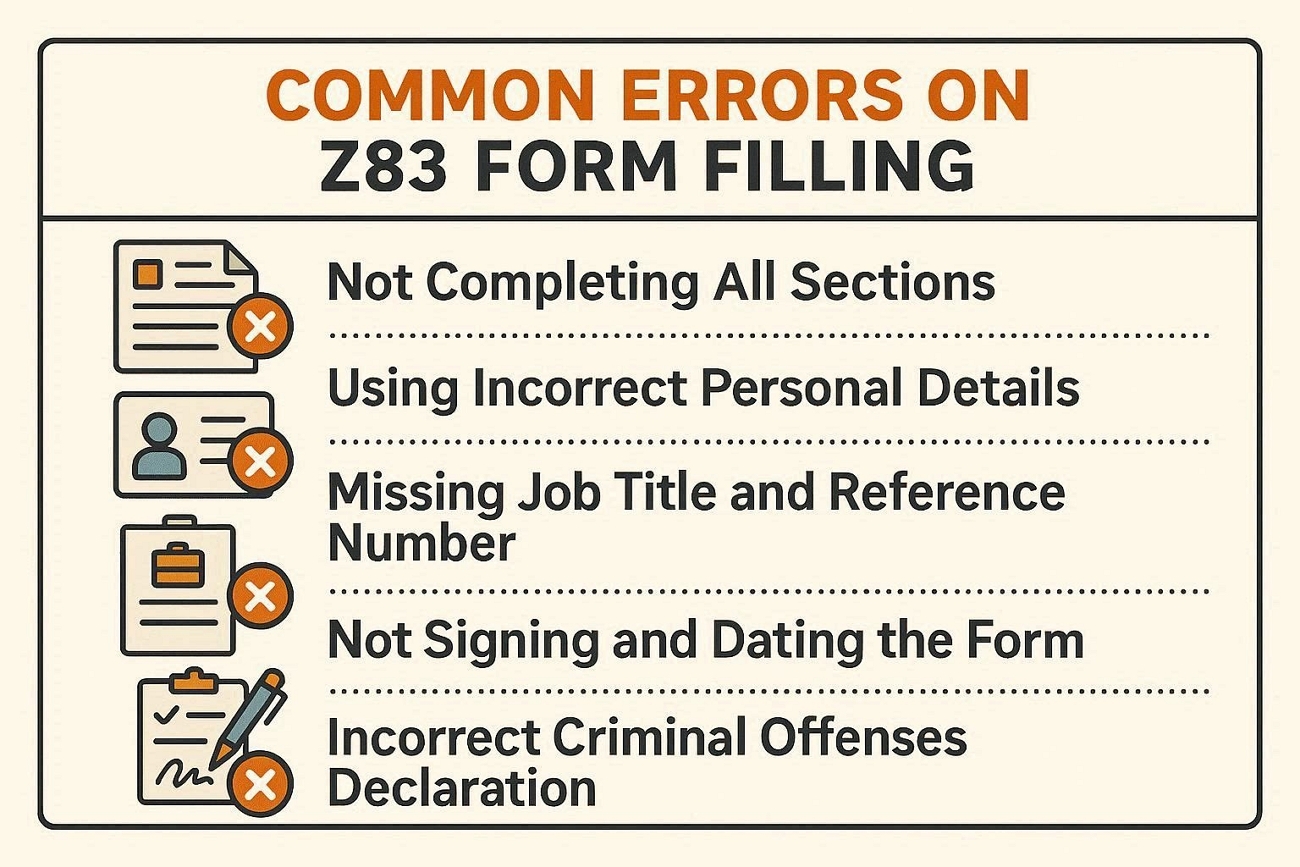
Applicants make the same mistakes on the Z83 form, leading to fast rejection when they qualify. Now we will turn these issues into a short checklist for a clean Z83 editable submission.
1. Not Completing All Sections
Some people leave sections empty, thinking the same details appear on their CV. This happens when applicants rush, do not read the form carefully, and assume blank spaces are acceptable.
How to Fix It?
Always fill every section and write “N/A” where something truly does not apply to you.
2. Using Incorrect Personal Details
Applicants sometimes write names, ID numbers, and addresses that do not match their official identity documents. This often comes from typing too fast or not checking against the ID card or book.
How to Fix It?
Compare every personal detail with your ID document and update any old address information before submitting.
3. Missing Job Title and Reference Number
Many people only mention the department and forget the exact job title or reference number from the advert. This mistake usually happens when they skim the advert or apply for several posts at the same time.
How to Fix It?
Copy the job title and reference number exactly as shown in the advert, without changing anything.
4. Not Signing and Dating the Form
Some applications arrive without a signature in the declaration section. This often happens when applicants fill out the form digitally and forget the final signing step.
How to Fix It?
Always sign and date the declaration block clearly, and check that your signature shows on the final pages.
5. Incorrect Criminal Offenses Declaration
A few candidates mark “No” to criminal record questions when they have past offenses still on record. This can happen from fear, confusion about expunged records, and not understanding how the form must be completed.
How to Fix It?
Answer the criminal record questions and note if an offense was expunged rather than hiding information.
FAQs
- Can an electronic signature be used in place of a handwritten signature?
Some departments accept electronic signatures for online submissions, yet rules differ between adverts. UPDF lets you create a clear electronic signature, or you can still print and sign with a pen.
- Must the Z83 form be filled out by hand? Is it acceptable to type the information on a computer?
Most offices take typed forms, and typed words are easier to read than handwriting. When filling out the Z83 form online, UPDF helps you type and print a PDF as required.
- Do I need to list all my academic degrees and professional qualifications?
You should list your main formal qualifications, those that match the job requirements in the advert. Start with your highest relevant qualification and make sure dates and levels match your attached certificates.
- What should I do if I discover that I made a mistake in one of the fields after submitting the form?
First, contact the HR email given in the advert and explain the exact mistake. Ask if you may send a corrected Z83 form and follow their instructions.
Final Words
In summary, this guide showed how filling out the Z83 form correctly improves South African government job prospects. A slow approach helps prevent small mistakes that might quietly block progress. Careful checking of reference numbers and contact details gives the form a professional finish. For neat digital completion, easy signing, and safe storage in one place, we recommend using UPDF.
Windows • macOS • iOS • Android 100% secure





 Enola Miller
 Lizzy Lozano

 Enrica Taylor