UPDF
UPDF
 UPDF for Windows
 UPDF for Mac
 UPDF for iPhone/iPad
 UPDF for Android
 UPDF AI Online
 UPDF Sign
 Edit PDF
 Annotate PDF
 Create PDF
 PDF Form
 Edit links
 Convert PDF
 OCR
OCR PDF to Word
 PDF to Image
 PDF to Excel
 Organize PDF
 Merge PDF
 Split PDF
 Crop PDF
 Rotate PDF
 Protect PDF
 Sign PDF
 Redact PDF
 Sanitize PDF
 Remove Security
 Read PDF
 UPDF Cloud
 Compress PDF
 Print PDF
 Batch Process
 About UPDF AI
 UPDF AI Solutions
 AI User Guide
 FAQ about UPDF AI
 Summarize PDF
 Translate PDF
 Chat with PDF
 Chat with AI
 Chat with image
 PDF to Mind Map
 Explain PDF
 PDF AI Tools
 Image AI Tools
 AI Chat Tools
 AI Writing Tools
 AI Study Tools
 AI Working Tools
 Other AI Tools
 AI Bookmark Generation
 AI Bookmark Summary
 AI Watermark Generation
 AI Background Generation
 AI Sticker Generation
 AI Stamp Generation
 AI Editing Suite
 UPDF Copilot
 AI Page Management
 AI Semantic Search
 PDF to Word
 PDF to Excel
 PDF to PowerPoint
 Enterprise Solution
 Enterprise Sign
 Enterprise AI
 Enterprise Plan
 Enterprise User Guide
 Enterprise Webinar
 Banking
 Healthcare
 Insurance
 Legal
Legal Manufacturing
 Government
 Education Solution
 Customer Stories
 User Guide
 UPDF Tricks
 FAQs
FAQs UPDF Reviews
 Download Center
 Blog
Blog Newsroom
 Tech Spec
 Updates
 UPDF vs. Adobe Acrobat
 UPDF vs. Foxit
 UPDF vs. PDF Expert

Would you like to quickly fix how to rotate only one page in PDF without rotating the entire document but worried about not being able to save the page after rotating it, or about page numbering issues?
We all know that even a small error like rotation error can leave a bad impression of unprofessionalism, especially in official documents or contracts. Please always save the file as a different file before attempting any free method.
Therefore, having UPDF which allows you to check for page inversion issues and fix them with a single click—makes things much simpler.
Part 1: How to Rotate Only One Page in PDF Without Adobe
Using AI, everything can be easily solved, UPDF can perform a health check on your document, identify pages that need rotation, and fix them with a single click. Let's check the steps.
Windows • macOS • iOS • Android 100% secure
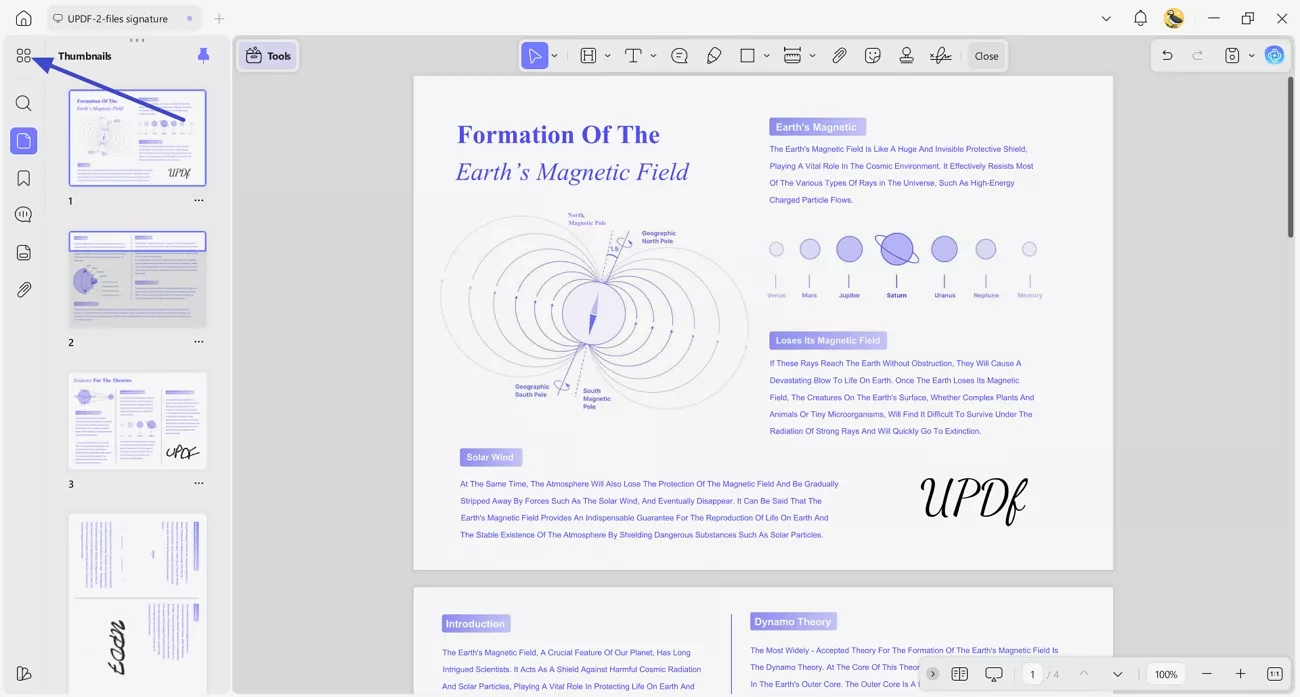
Step 1. Access Organize Pages in UPDF
Once you import a PDF, press the “Organize Pages” option in the top left corner.
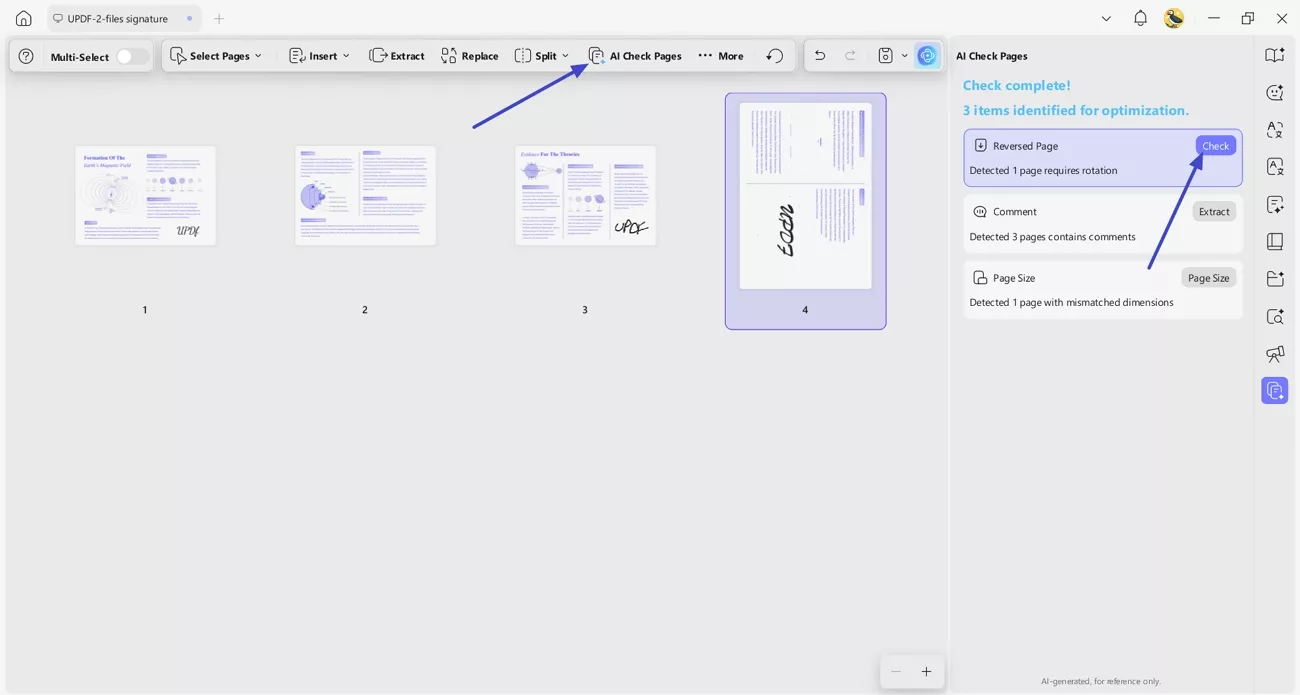
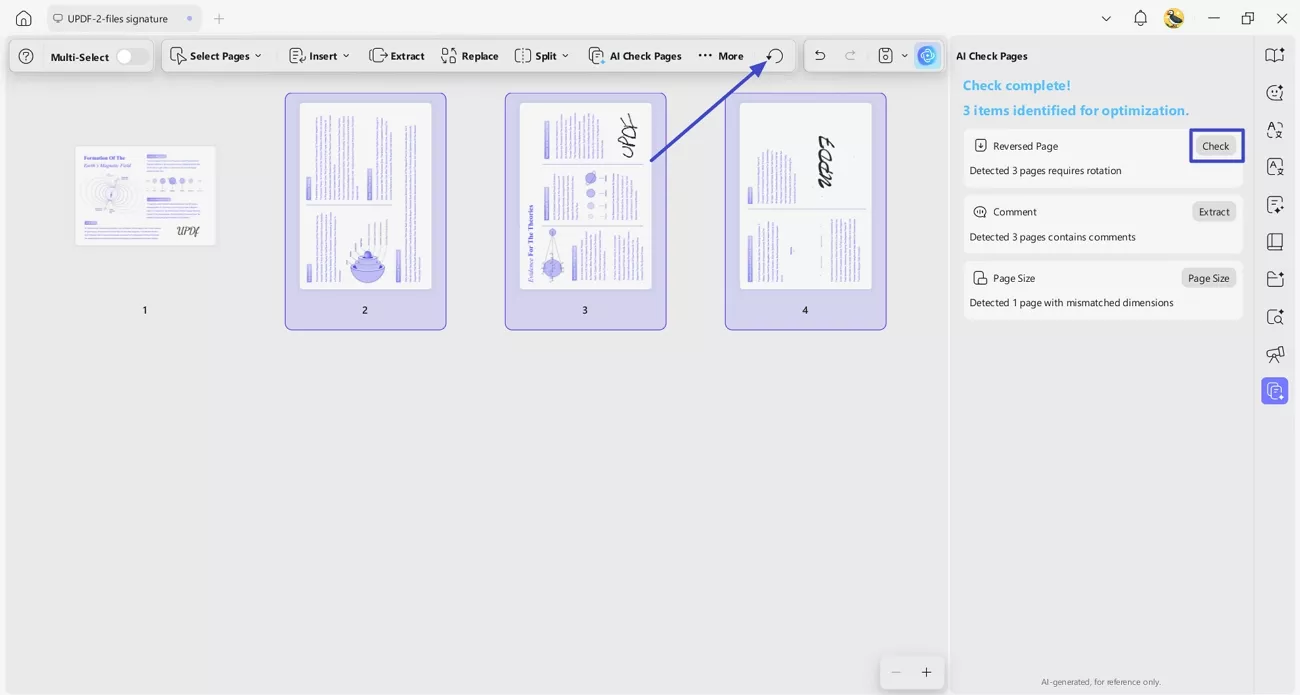
Step 2. Begin AI Check Pages Process
Next, press the “AI Check Pages” button in the upper bar to let the tool start scanning for pages that require rotation. Once detected, click the “Check” button, and the tool will highlight the detected page.
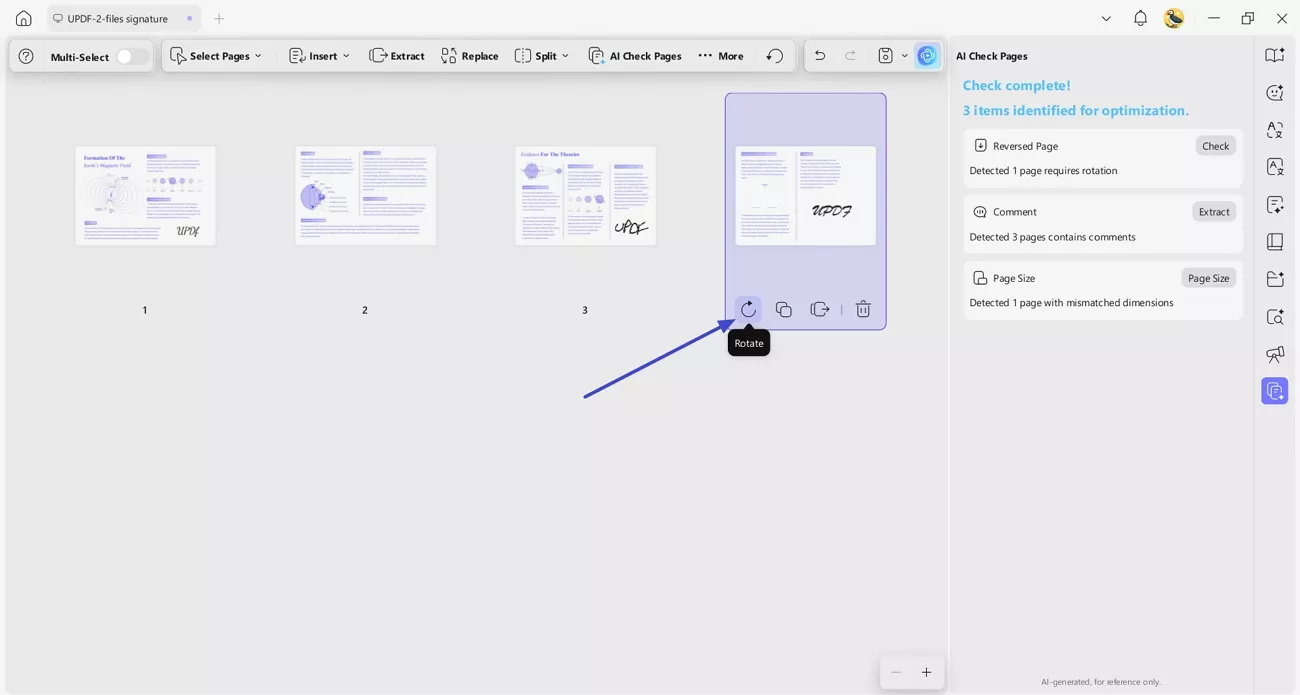
Step 3. Rotate Identified One Page
Lastly, press the “Rotate” icon under the single page until it is in the right orientation.
Step 4. Rotate Multiple Detected Pages
To fix the multiple PDF pages' rotation, press the “Check” button to select rotated pages and click the “Rotate” icon in the toolbar to rotate them all together.
With UPDF, you can also rotate only one page in PDF manually. Regardless of your operating system—Windows, Mac, Android, or iOS—UPDF allows you to rotate only one page in PDF effortlessly.
1. Rotate Only One Page in PDF on Windows and Mac
We are going to discover how to rotate only one page in PDF effortlessly on both Windows and Mac platforms. The steps for rotating a single page in a PDF file are the same on both Windows and Mac, ensuring a smooth experience across platforms. There are two simple methods to get this done.
Way 1. Rotate Only One Page in PDF on Windows and Mac Via Thumbnail.
You can easily rotate only one page in a PDF on both Windows and Mac computers using the thumbnail feature. To rotate only one page in PDF on Windows or Mac using the Thumbnail method, follow these steps:
Step 1: Begin by launching UPDF and opening the PDF file that you wish to make changes to.
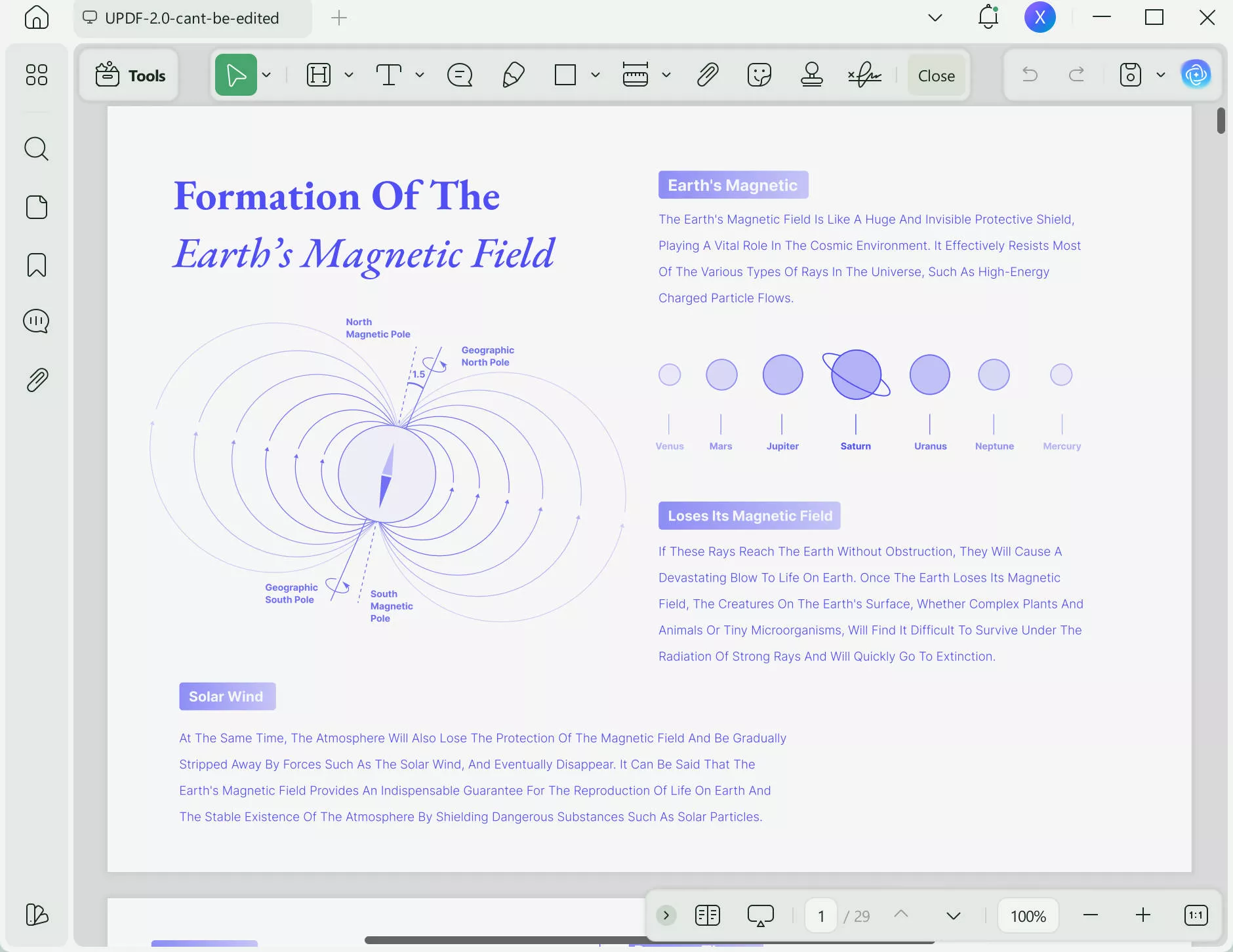
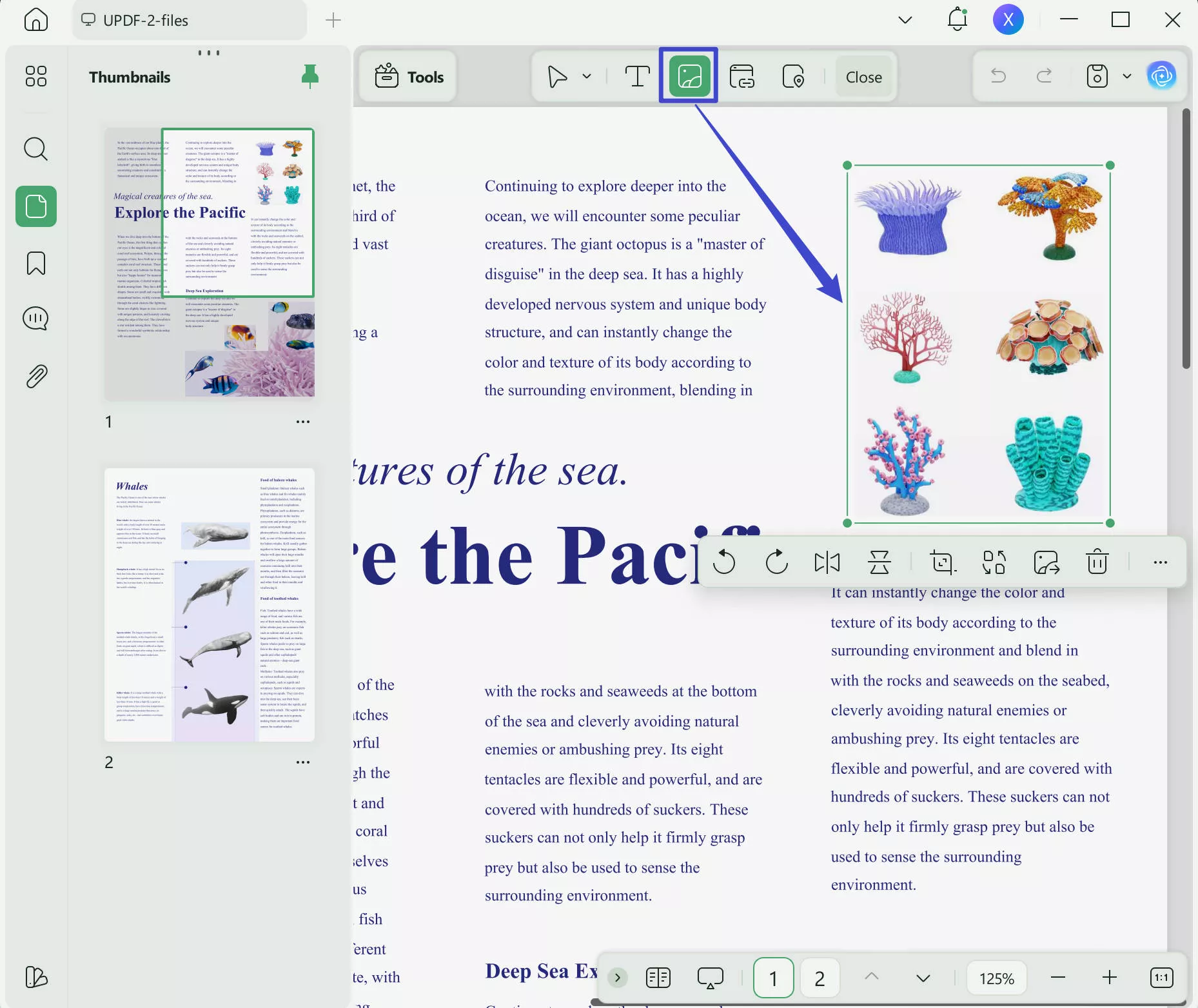
Step 2: Locate the thumbnail panel positioned on the side of your document. This panel typically showcases a preview of each page within the document. Navigate through the thumbnails until you find the page you wish to adjust then click on the thumbnail to highlight it.
Step 3: Once you have identified the page, right click on its thumbnail image. This action will prompt a context menu to appear offering options for you to choose from.
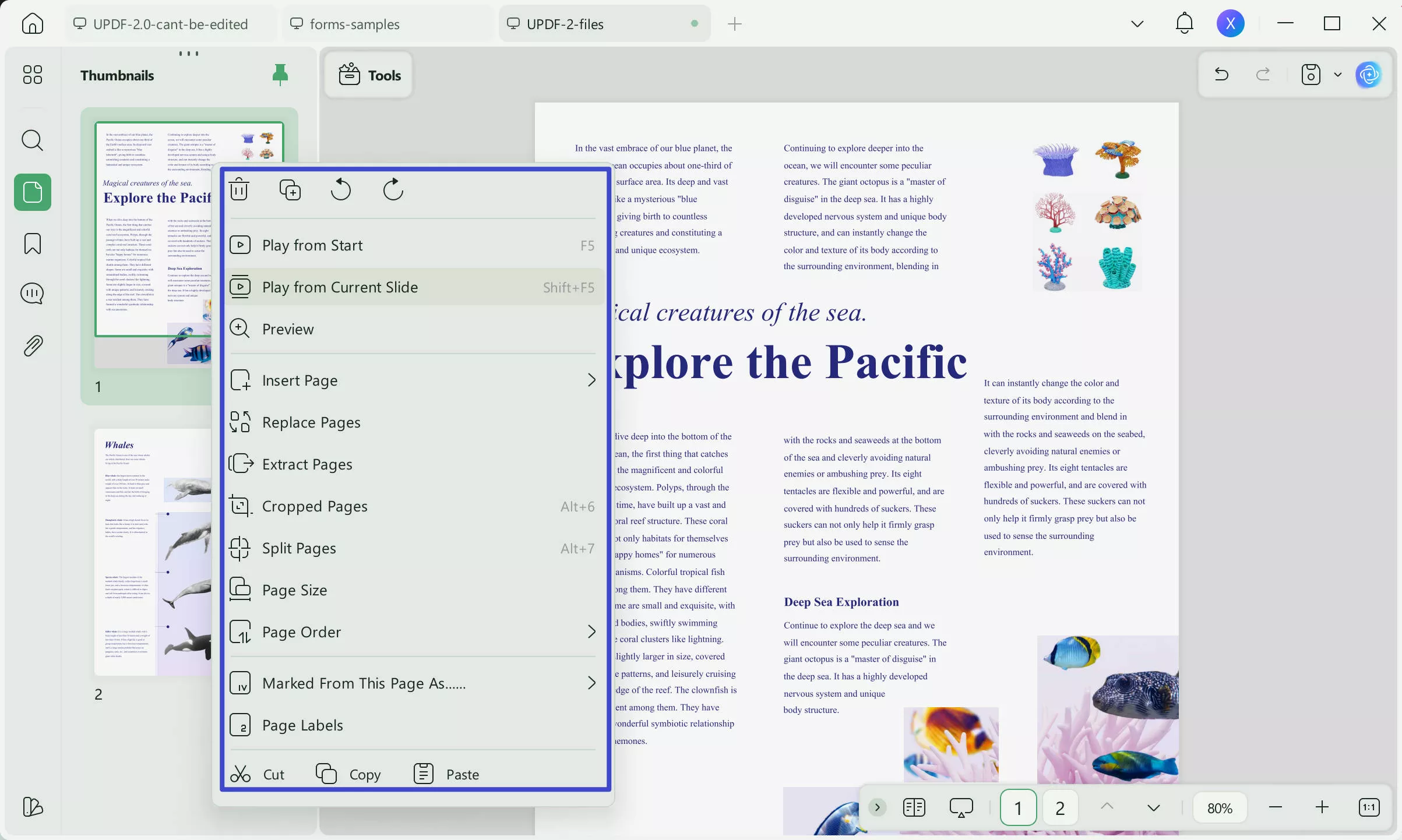
Step 4: Within the context menu opt for the rotation feature that best fits your requirements. Usually you will be able to select either clockwise or counterclockwise rotation by 90 degrees.
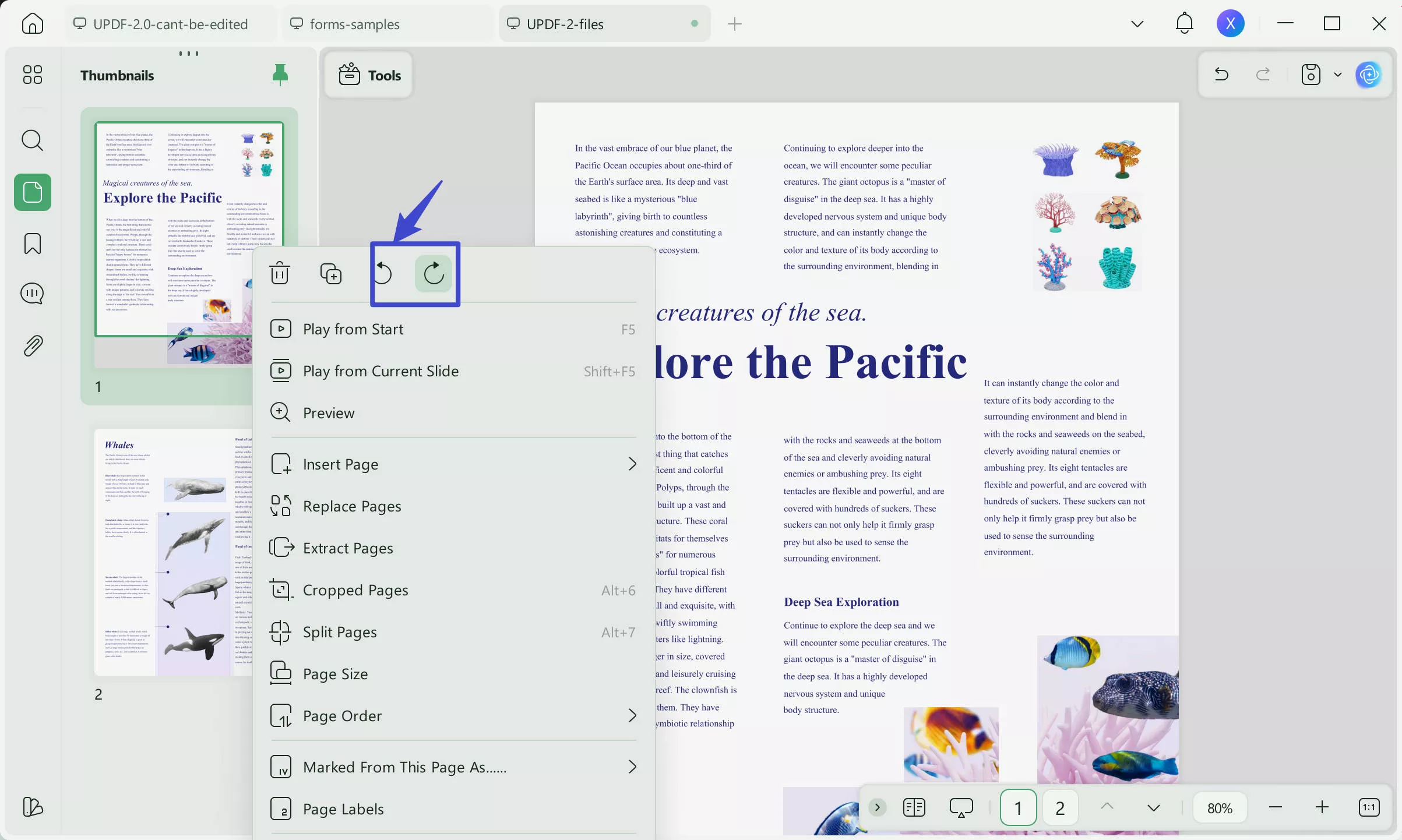
Upon selecting your rotation option observe as the chosen page rotates accordingly within the thumbnail panel. For PDF editing tasks and enhanced features consider downloading UPDF today for PDF management, on both Windows and Mac platforms.
Windows • macOS • iOS • Android 100% secure
Way 2. Rotate Only One Page in PDF on Windows and Mac Via Organize PDF.
By utilizing the Organize PDF function on both Windows and Mac operating systems, you can conveniently rotate a page within your PDF file by following a few steps.
Step 1: Go to the toolbar or menu and find the option for "Organize Pages" once you've opened the PDF document.
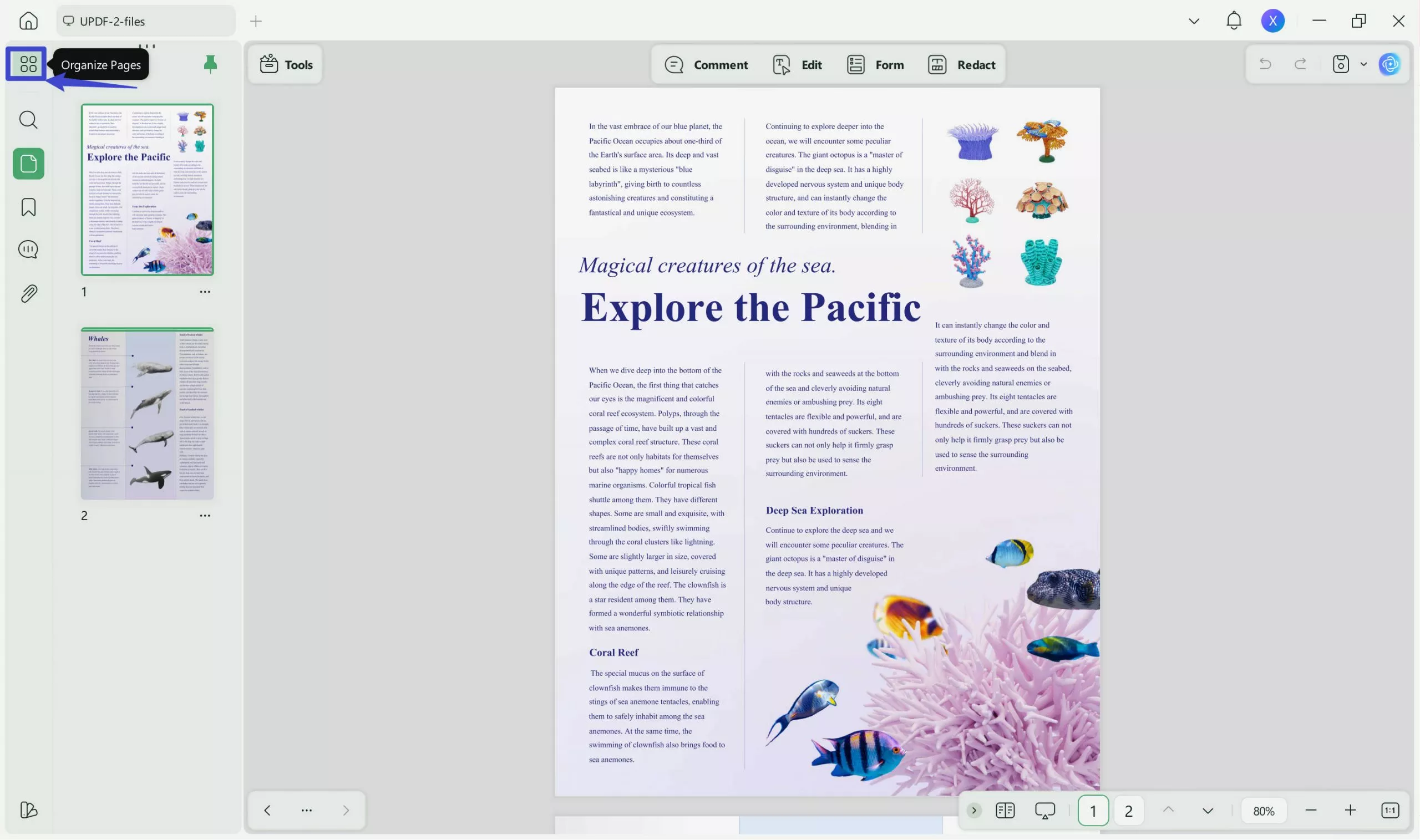
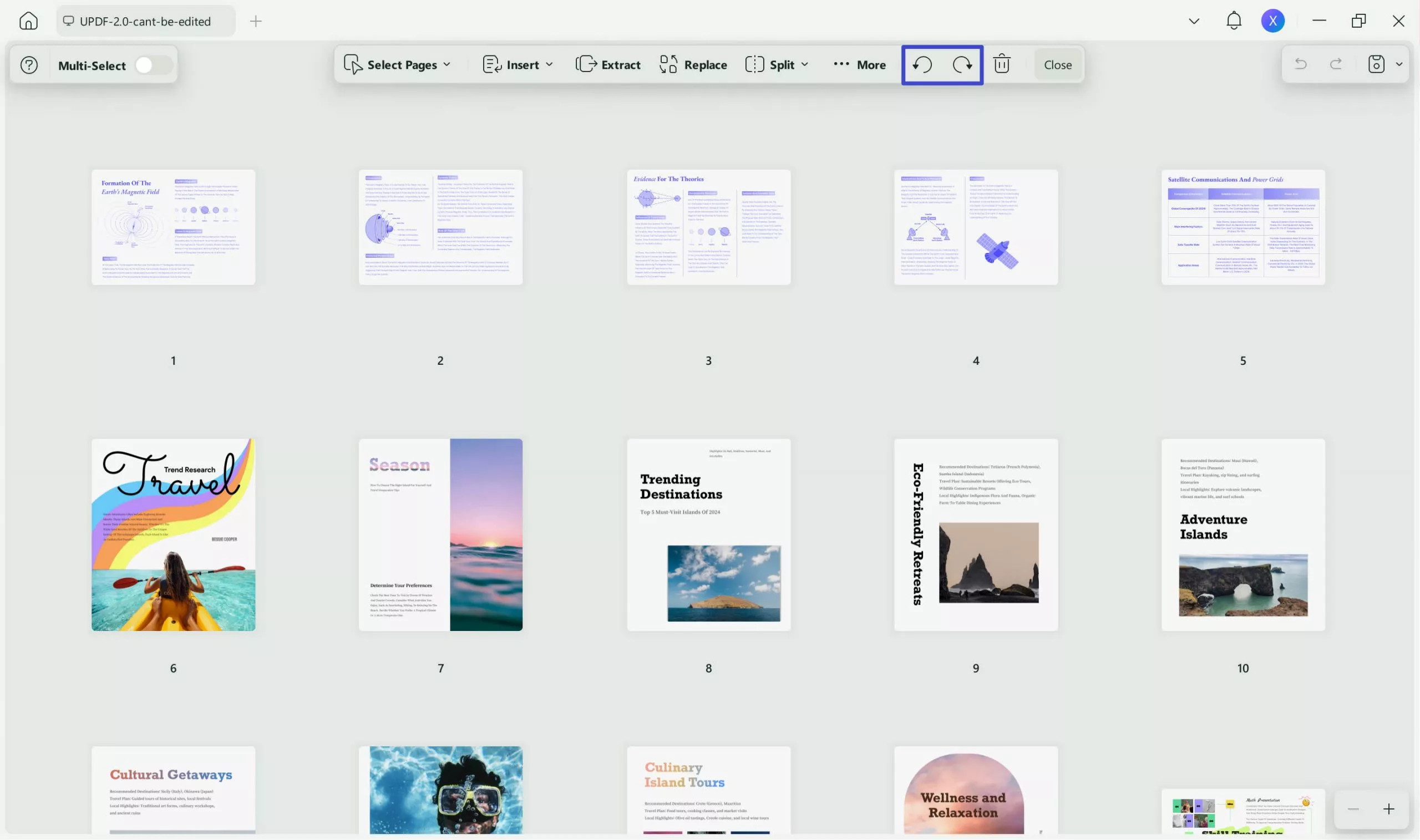
Step 2: Choose the page you want and adjust the rotation as needed.
2. Rotate Only One Page in PDF on Android
You can easily rotate only one page in PDF using UPDF on your Android device
Step 1: Begin by opening the UPDF app on your Android device and selecting the PDF file you wish to modify from your device's storage. Tap three vertical dots and choose "Organize Pages".
Step 2: Next locate the page, within the PDF document that you intend to rotate. Tap to select it. Now, click "Rotate" at the bottom menu to roate the one page you need.

Windows • macOS • iOS • Android 100% secure
3. Rotate Only One Page in PDF on iOS
You can also rotate only one page in PDF on iOS using UPDF with 3 simple steps.
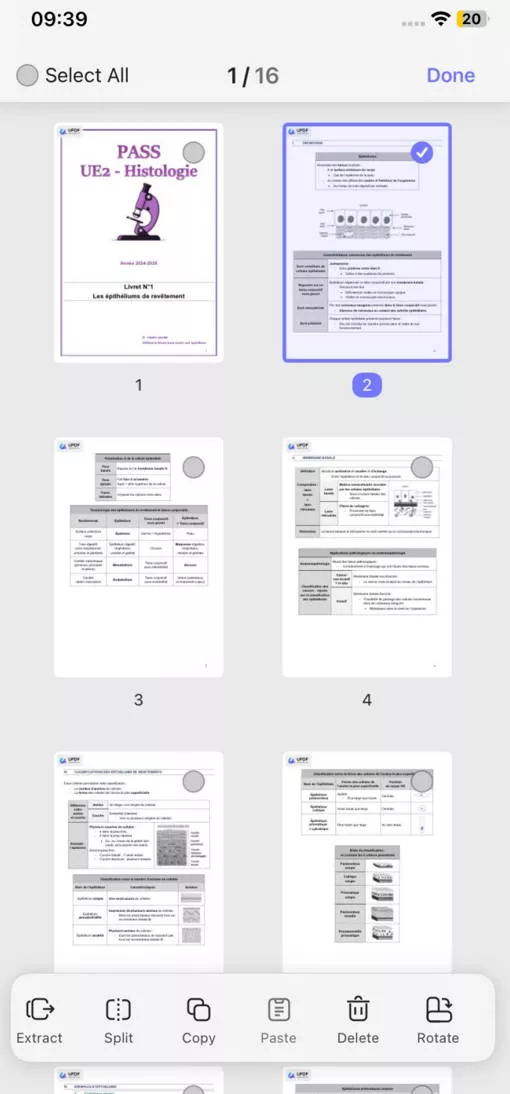
Step 1: Open the UPDF app on your iPhone or iPad. Next select the PDF file you want to modify from your devices files.
Step 2. Tap on the tools icon, then, tap "Organize Pages" icon at the top menu.
Step 3: Then locate the page you wish to rotate in the PDF and tap, on the bottom rotation option, select Rotate.
UPDF can not only offer features to rotate only one page in PDF, it has many other features. Some of its features include;
- Annotation Tools: Effortlessly add highlights, text and shapes to PDFs, for understanding and collaboration purposes.
- Combine and separate: Merge PDFs into a file or divide large PDFs into smaller easier to handle documents.
- OCR (Optical Character Recognition): Transform scanned papers into editable text to enhance accessibility and usability.
- UPDF AI helps you summarize, translate, explain, chat, etc
To delve deeper into UPDFs features check out this piece: UPDF: ChatGPT-Powered PDF AI Assistant Tool or watch a tutorial video here.
Experience the range of PDF editing features by downloading UPDF for seamless PDF handling across all your devices.
Part 2. How to Rotate Only One Page in PDF with Adobe
Unfortunately Adobe Reader does not have the feature to rotate a page in a PDF. However you can achieve this by using Adobe Acrobat. Just open your PDF in Adobe Acrobat go to the "Organize Pages" option under the "Tools" tab. Then choose to rotate pages either clockwise or counterclockwise.
Part 3: How to Rotate Only One Page in PDF Online
Smallpdf offers an user-friendly solution for rotating pages within a PDF online. Just upload your PDF file to Smallpdf's "Rotate PDF" tool, move your mouse to the circle icon at the page you want to rotate, click on it to rotate the page you need. Then, you can click "Finish" > "Download" to save the changes.
Conclusion
Mastering the process of rotating only one page in PDF empowers users to efficiently manage their documents with precision and ease. UPDF is known for its user interface and strong features. Using UPDF - AI-powered PDF Rotation Fixer allows users to easily rotate pages in PDF documents while also offering a range of PDF editing functions.
Windows • macOS • iOS • Android 100% secure




 Lizzy Lozano
 Enrica Taylor
 Enya Moore