 UPDF
UPDF
 UPDF for Windows
 UPDF for Mac
 UPDF for iPhone/iPad
 UPDF for Android
 Nomostar
 UPDF AI Online
 UPDF Sign
 IvyCraft
 Edit PDF
 Annotate PDF
 Create PDF
 PDF Form
 Edit links
 Convert PDF
 OCR
OCR PDF to Word
 PDF to Image
 PDF to Excel
 Organize PDF
 Merge PDF
 Split PDF
 Crop PDF
 Rotate PDF
 Protect PDF
 Sign PDF
 Redact PDF
 Sanitize PDF
 Remove Security
 Read PDF
 UPDF Cloud
 Compress PDF
 Print PDF
 Batch Process
 About UPDF AI
 UPDF AI Solutions
 AI User Guide
 FAQ about UPDF AI
 Summarize PDF
 Translate PDF
 Chat with PDF
 Chat with AI
 Chat with image
 PDF to Mind Map
 Explain PDF
 PDF AI Tools
 Image AI Tools
 AI Chat Tools
 AI Writing Tools
 AI Study Tools
 AI Working Tools
 Other AI Tools
 AI Bookmark Generation
 AI Bookmark Summary
 AI Watermark Generation
 AI Background Generation
 AI Sticker Generation
 AI Stamp Generation
 AI Editing Suite
 UPDF Copilot
 AI Page Management
 AI Semantic Search
 PDF to Word
 PDF to Excel
 PDF to PowerPoint
 Enterprise Solution
 Enterprise Sign
 Enterprise AI
 Enterprise Plan
 Enterprise User Guide
 Enterprise Webinar
 IT
IT Education
 Construction
 Financial Service
 Healthcare
 Insurance
 Legal
Legal Manufacturing
 Government
 Researchers & PhDs
 Solopreneurs & Freelancers
 Lawyers & Legal Professionals
 Real Estate Agents & Brokers
 Education Solution
 Customer Stories
 User Guide
 UPDF Tricks
 FAQs
FAQs UPDF Reviews
 Download Center
 Blog
Blog Newsroom
 Tech Spec
 Updates
 UPDF vs. Adobe Acrobat
 UPDF vs. Foxit
 UPDF vs. PDF Expert

Quick answer:
The one thing worth checking before you upload is each tool's free-tier limit, because that's what decides whether the job finishes cleanly. For example, if you have a 60-page catalog and only need its product photos, check the upload and page limits before choosing a tool; a limit may stop the extraction before you get the images. For a small file none of that matters — but if your PDF is large, scanned, or you're extracting several in a row, the comparison below (and the offline UPDF route in Part 2) will save you a false start.
Part 1. 5 Free Ways to Extract Images from a PDF Online
Each of these runs entirely in your browser — no installation, no plugin. What separates them isn't ease of use (all five are a three-click process); it's what happens when your file is large, scanned, or you need more than one export per hour.
| Tool | Free limit | Best for |
|---|---|---|
| PDF24 | No file/page cap, no watermark; supports multiple files; ad-supported | Extracting from several PDFs at once, free |
| PDF Candy | Free tier is one file at a time (batch needs Pro), plus hourly/page limits | Occasional single files; has OCR for scanned pages |
| Sejda | 200 pages or 50 MB, 3 tasks per hour | Mid-size PDFs, as long as you stay under 3 uses/hour |
| PDF2GO | Free tier runs on credits (1 credit / 30 sec of processing; refills daily) | Also pulling text, not just images |
| CleverPDF | No signup; 20 MB free cap online; desktop apps for Windows and Mac | A no-signup single extraction |
Way 1. PDF24
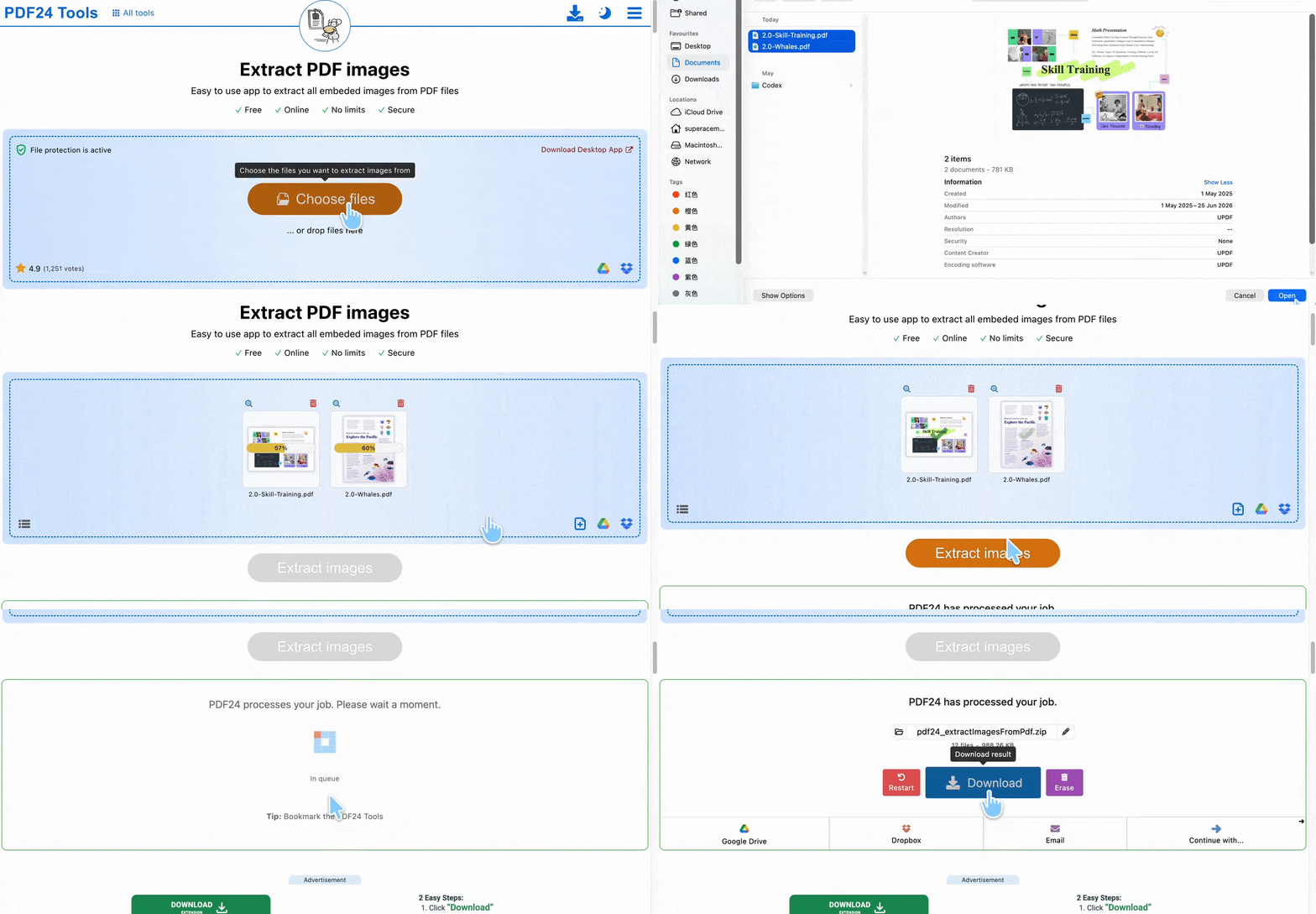
PDF24 extracts every embedded image from a PDF and, unlike most tools on this list, lets you upload several PDFs at once and download the results as a single ZIP. It runs in the cloud, adds no watermark, and deletes uploaded files automatically after a short period of time.
Steps:
- Go to PDF24's Tools page and select "Extract PDF images."
- Click "Choose files" and upload your PDF.
- Click "Extract images."
- Click "Download" to save the extracted images.
Best for:
- pulling images from several PDFs in one session, with no page or file-size ceiling to worry about.
Not for:
- an ad-free experience — PDF24 keeps its tools free by running ads on the tool pages.
Way 2. PDF Candy
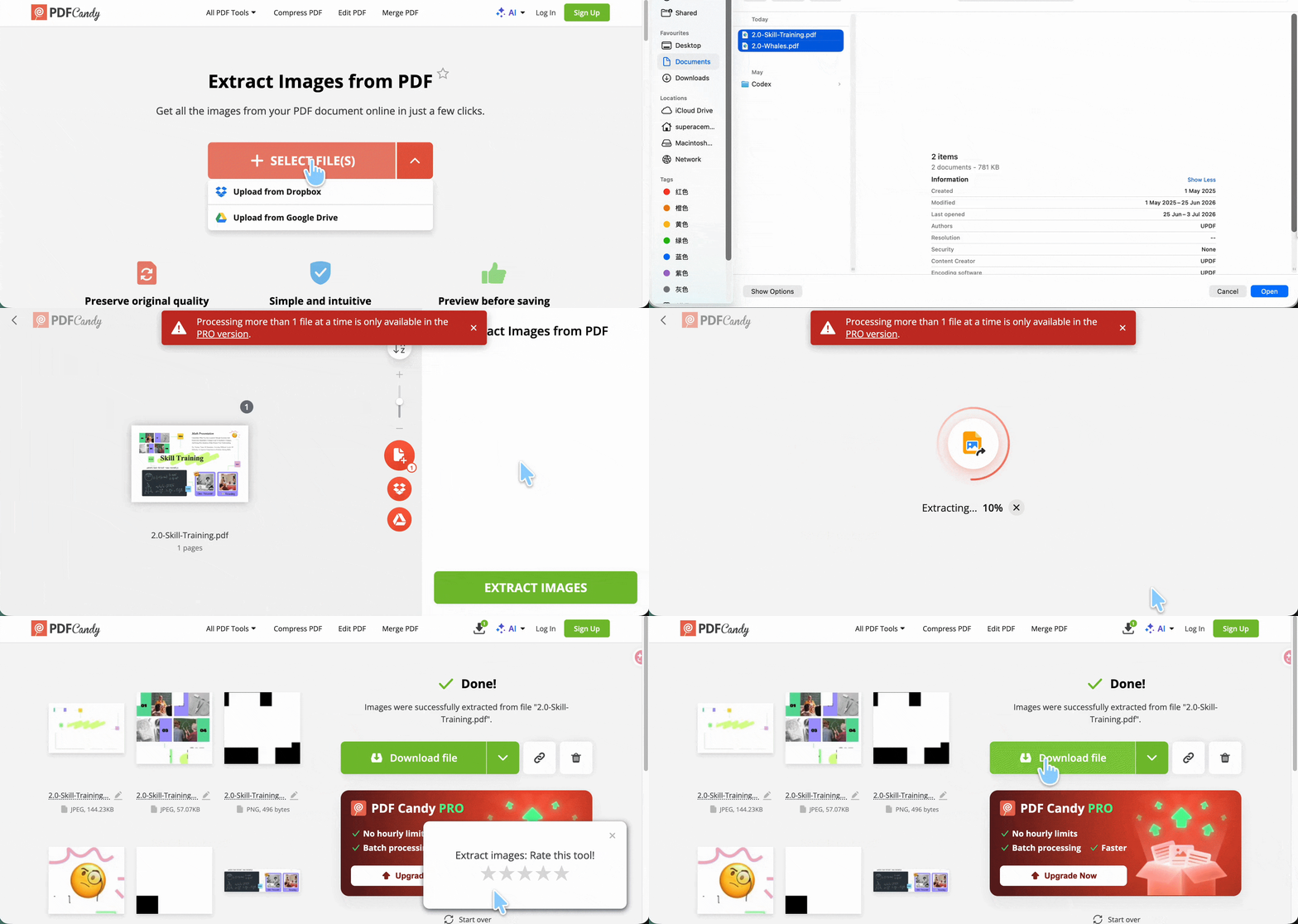
PDF Candy bundles image extraction with OCR, so it also handles PDFs where the "image" is actually a scanned page. Extracted images come out clean — no logo or branding added — and download as a ZIP or one at a time.
Steps:
- Visit PDF Candy and select "Extract images."
- Click "SELECT FILES" — multiple files can be queued at once.
- Click "EXTRACT IMAGES."
- Click "Download file," or copy the share link to send it directly.
Pros:
- scanned documents where you also want OCR
Not for:
- multi-file jobs on the free plan — processing more than one file at a time requires the Pro version, so a folder of PDFs means upgrading or feeding them in one by one.
Way 3. Sejda
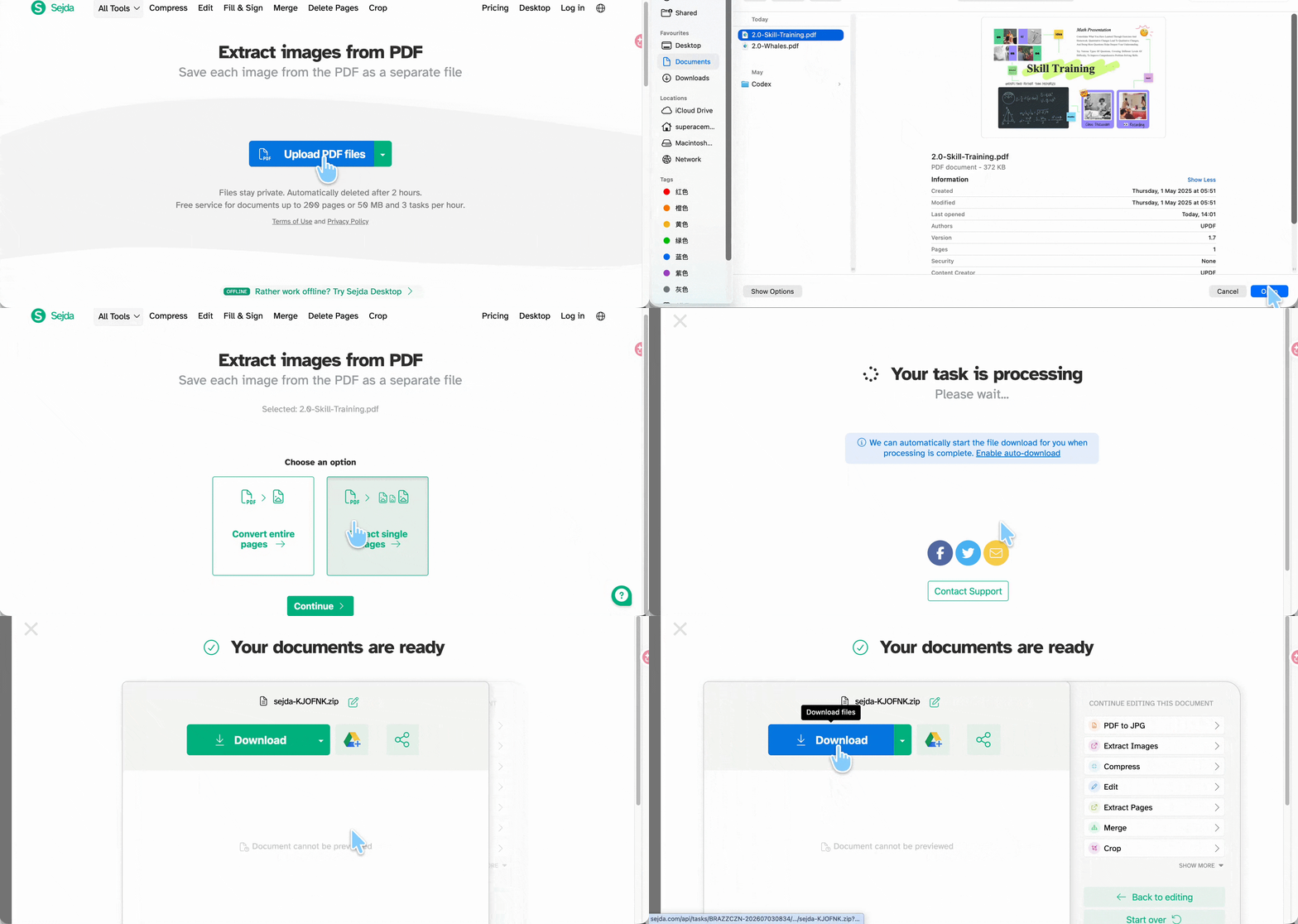
Sejda is the one tool here that makes the layout choice explicit: it splits "Extract single images" from "Convert entire pages" as two separate options. That matters, because picking "Extract single images" on a designed slide fragments it the same way PDF24 does (a split photo grid, loose strokes and icons) — though it avoids PDF Candy's black-box artifacts. On a design-heavy page, choose "Convert entire pages" instead to keep the layout whole.
Steps:
- Go to Sejda and select "Extract images from PDF."
- Click "Upload PDF files."
- Choose "Extract single images".
- Click "Download" once processing finishes.
Best for:
- PDFs up to 200 pages or 50 MB, if you're doing three or fewer extractions per hour.
Not for:
- anything past that 200-page/50 MB ceiling — the free tier rejects the upload outright rather than partially processing it.
Way 4. PDF2GO
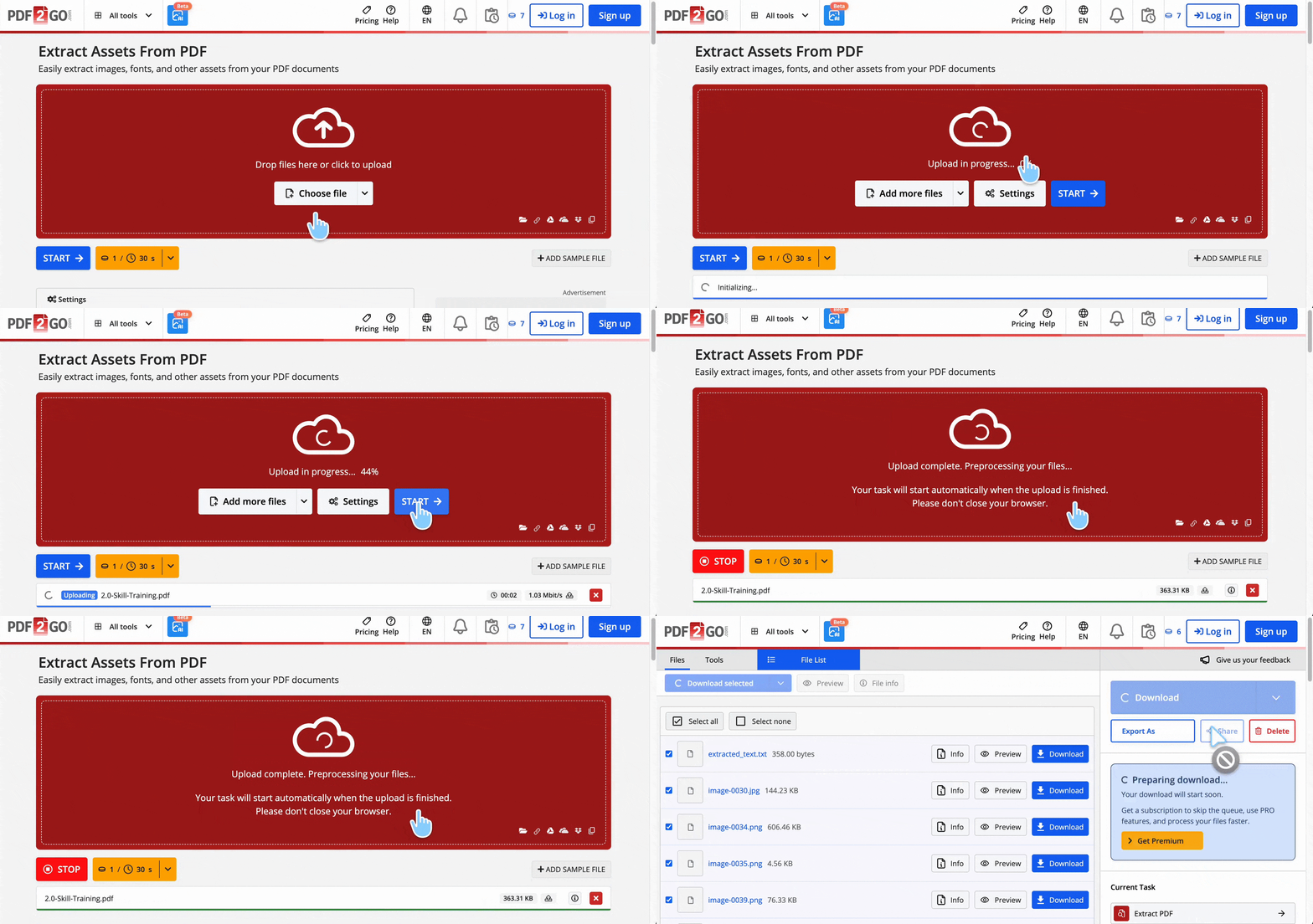
PDF2GO uses an "Extract Assets" tool that pulls not just images but also fonts and text out of a PDF, then hands each back as a separate downloadable file.
Steps:
- Go to PDF2GO and select "Extract Assets."
- Click "Choose file" and upload your PDF.
- Click "Start" to begin extraction.
- Select an image and click "Download," or select multiple and use the panel's bulk download button.
Best for:
- jobs where you want fonts or text out of the PDF too, not only images.
Not for:
- steady, repeated use. PDF2GO's free tier runs on credits — each task costs 1 credit per 30 seconds of processing, and once your handful of free credits runs out you either wait for the daily refill or buy more. Fine for the occasional extraction, limiting if you're doing a batch.
Way 5. CleverPDF
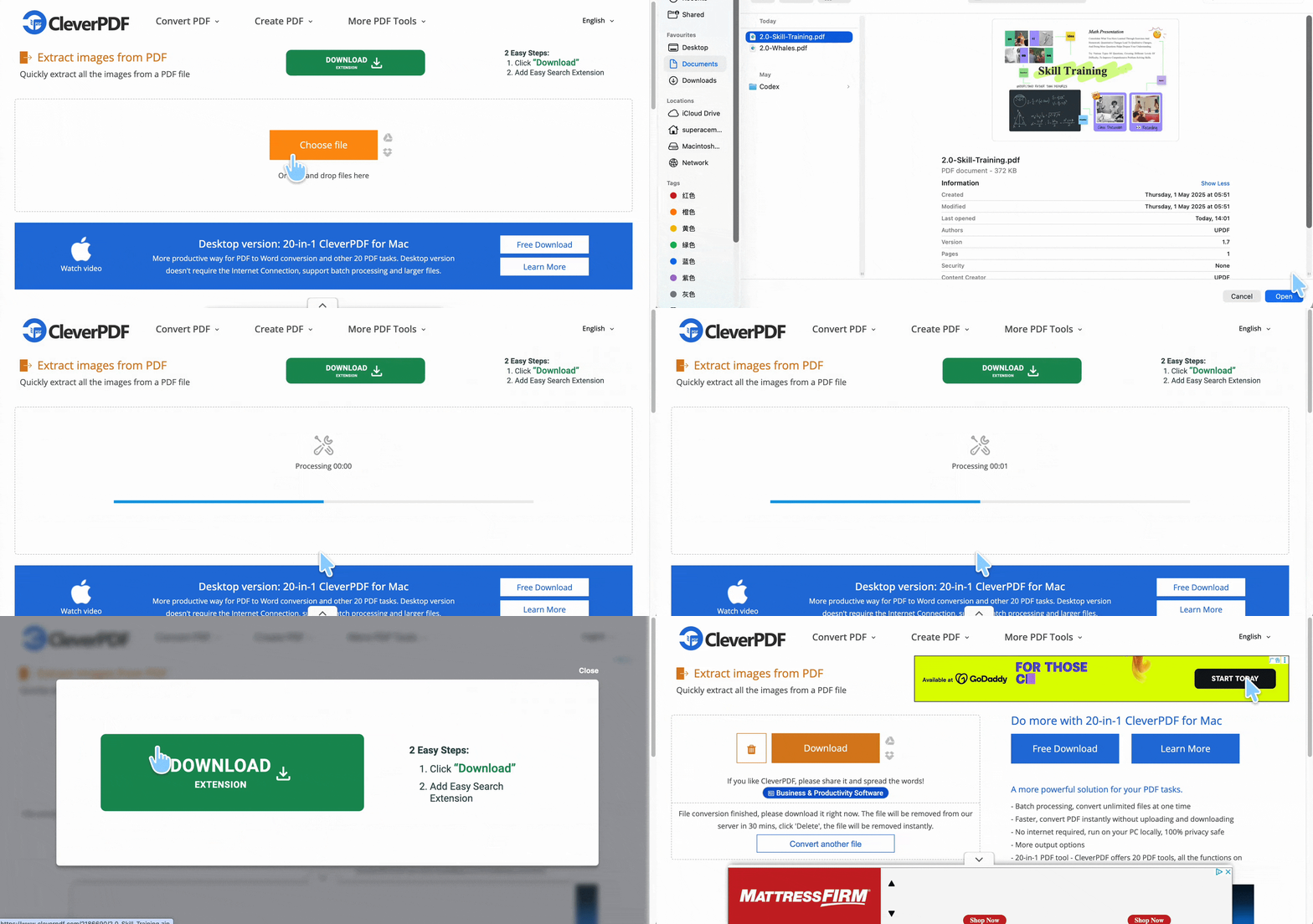
CleverPDF skips account registration entirely and extracts every image from a PDF at its original quality, which makes it a quick single-use option. The trade-off is a page cluttered with ads — the tools themselves are free, but the site leans on heavy advertising to stay that way, so expect to navigate around banners.
Steps:
- Go to CleverPDF and find "Extract Images."
- Click "Choose File" and upload your PDF.
- Click "Start Conversion," then "Download" once it finishes.
Best for:
- a fast, no-signup extraction of a plain PDF where you just need the embedded photos out quickly.
Not for:
- large files or batches — the free web tool caps uploads at 20 MB and takes one file at a time; bigger or bulk jobs need its desktop version (available for both Windows and Mac).
Part 2. "Extract Images" vs "PDF to Image" — What's the Difference?
These two options sit side by side in almost every tool, and picking the wrong one is the single most common way an extraction goes wrong.
- Extract Images pulls the raw image files embedded inside the PDF — the original photos, at their original resolution, stripped out of the page.
- PDF to Image (also called "convert to image" or "PDF to JPG") renders each whole page as one flat picture, exactly as it looks on screen, layout and all.
Think of a PDF page as a collage: Extract Images peels each photo back off the poster board and hands them to you loose; PDF to Image photographs the whole poster as one sheet. So if a page is a designed layout — a slide with color blocks, overlapping photos, and text — extracting images gives you scattered fragments (a split photo grid, stray background shapes), while PDF to Image keeps the page intact as a single graphic. Use Extract Images when you want the original photo files back; use PDF to Image when you want to preserve the layout.
Part 3. Online vs. Offline: What Actually Breaks First
Every online tool above works the same way under the hood: your file uploads to a server, gets processed, and the result downloads back — a round trip that depends on your file staying under that tool's size or page ceiling and your internet connection holding up. An offline app skips that round trip entirely: the PDF never leaves your device, so there's no upload cap to hit and no queue to wait in.
That distinction matters most in three situations: files near or over 50–200 pages, PDFs you're not comfortable uploading to a third-party server (contracts, ID scans, financial statements), and jobs where you need more than a couple of extractions back-to-back. If none of those apply to you, the online tools above are genuinely fine. If any of them do, the offline route below is faster.
Part 4. Extract Images from a PDF Offline with UPDF
UPDF reads the PDF locally, so there's no upload wait and no page-count ceiling to hit. It also gives you three different extraction paths depending on what you're actually trying to get out of the file — a single embedded photo, every image on every page, or a crop of something the extractor doesn't isolate cleanly.
Windows • macOS • iOS • Android 100% secure
Method 1. Extract All Images (or Convert Pages) with PDF Converter
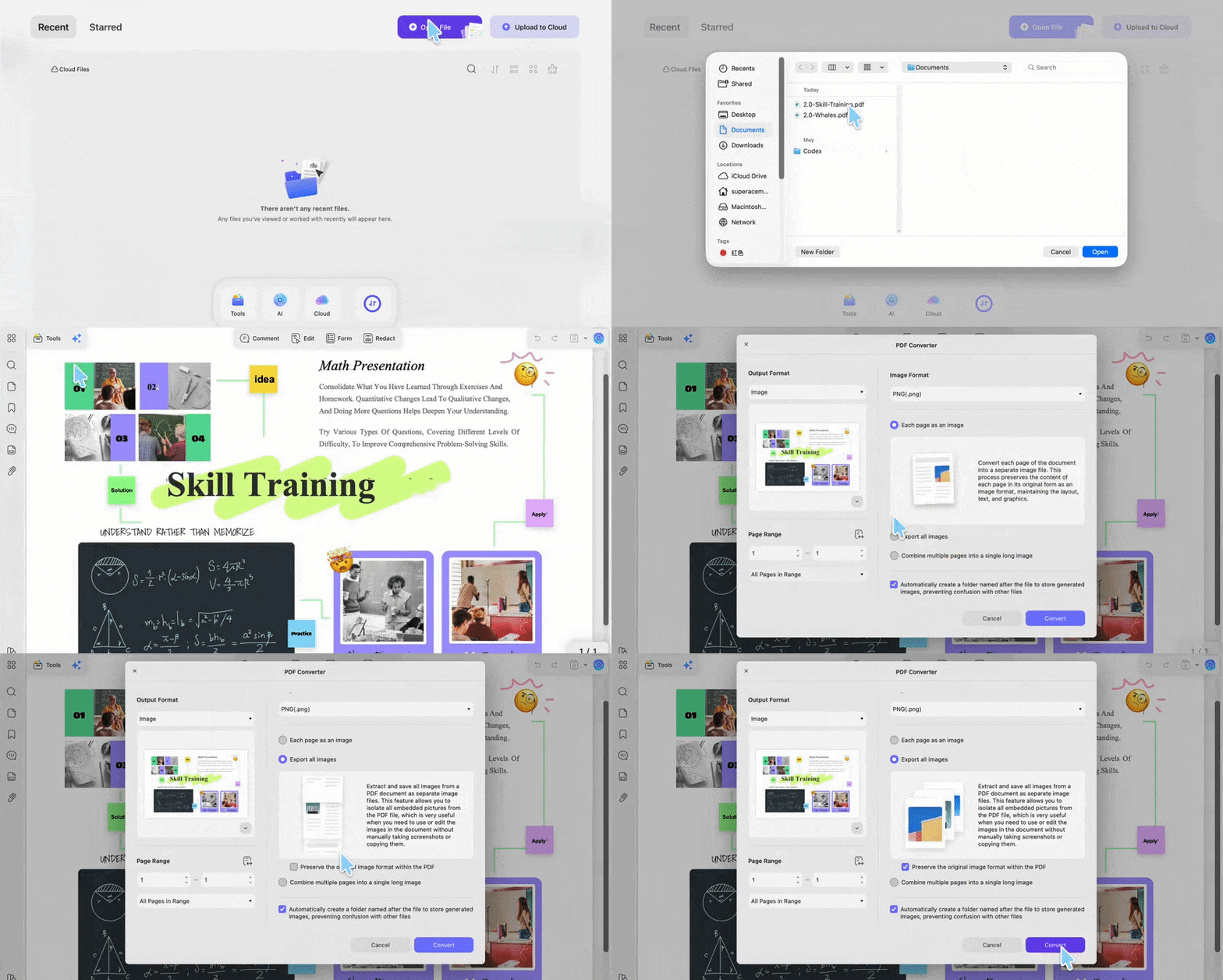
This is the route that matches what the online tools do — pull every embedded image out at once — and it lives in UPDF's PDF Converter. The same dialog also handles the "PDF to Image" job, so one panel covers both extraction styles.
Steps:
- Launch UPDF and open your PDF (or drag and drop it into the window).
- Click "Tools" in the top-left, then choose "PDF Converter."
- Set Output Format to "Image" and pick an image format (PNG, JPG, etc.).
- Choose the mode that fits your goal:
- Export all images — isolates every embedded picture in the file as a separate image, exactly like an online extractor but offline.
- Each page as an image — renders whole pages (this is the "PDF to Image" option that keeps a designed layout intact).
- Combine multiple pages into a single long image — stitches the pages into one tall image.
- Set the page range if needed, then click "Convert" and choose a save location. UPDF can auto-create a folder named after the file to hold the output.
Best for:
- pulling every photo out of a PDF in one pass ("Export all images"), or converting designed pages without fragmenting them ("Each page as an image") — the choice the online tools never give you cleanly.
Not for:
- grabbing just one specific image out of a mixed page — running the whole file through the converter is overkill. Use Method 2 for a single image.
Method 2. Extract a Single Image in Edit Mode
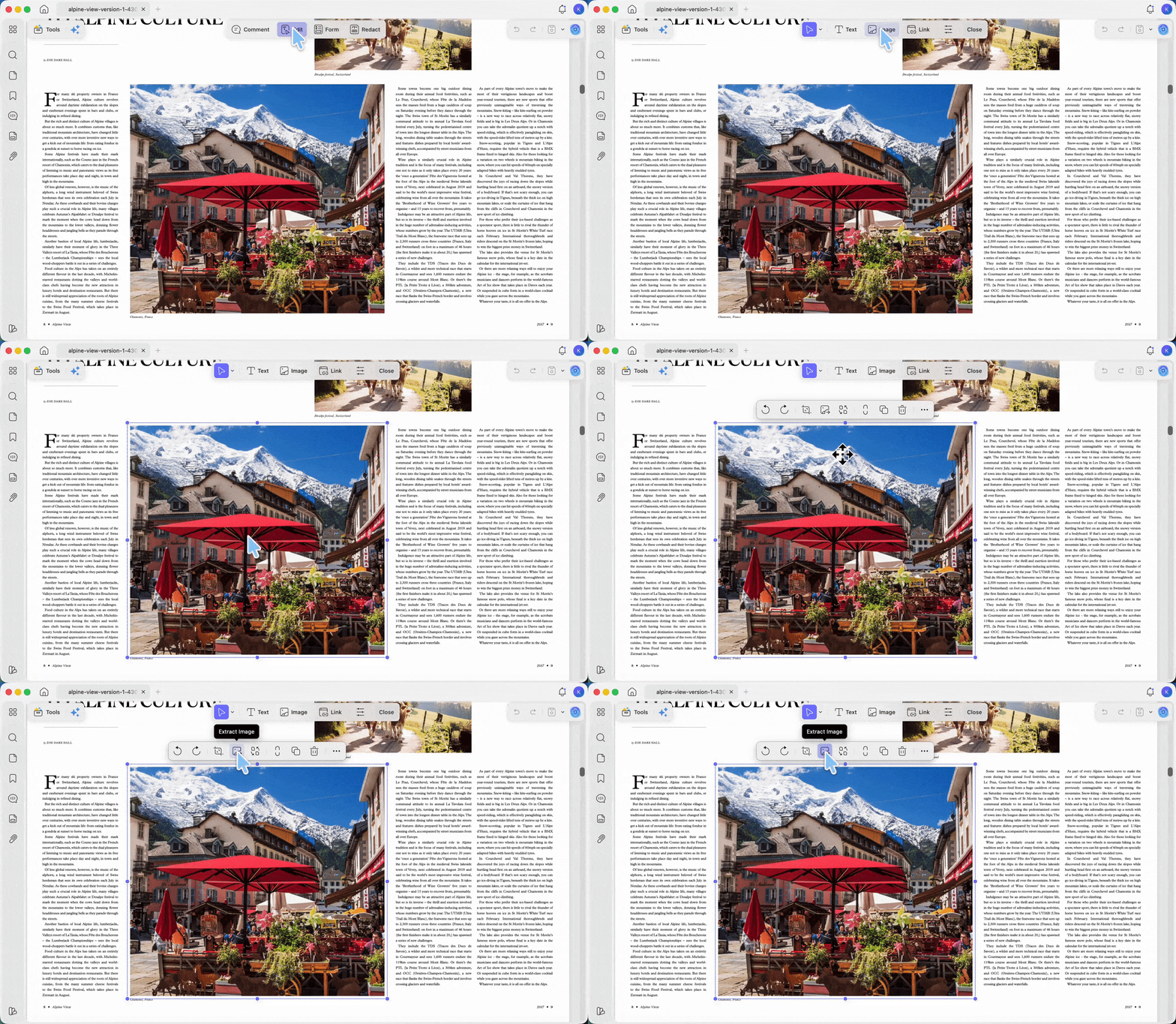
When you only want one specific picture — not the whole file — the Edit toolbar is faster than running the converter.
Steps:
- Open your PDF in UPDF and click "Edit PDF" in the left-hand toolbar.
- Click the image you want. A toolbar appears around it.
- Click the "Extract Image" icon (or right-click the image and choose "Extract Image").
- Pick a format and save location. The single image is saved there.
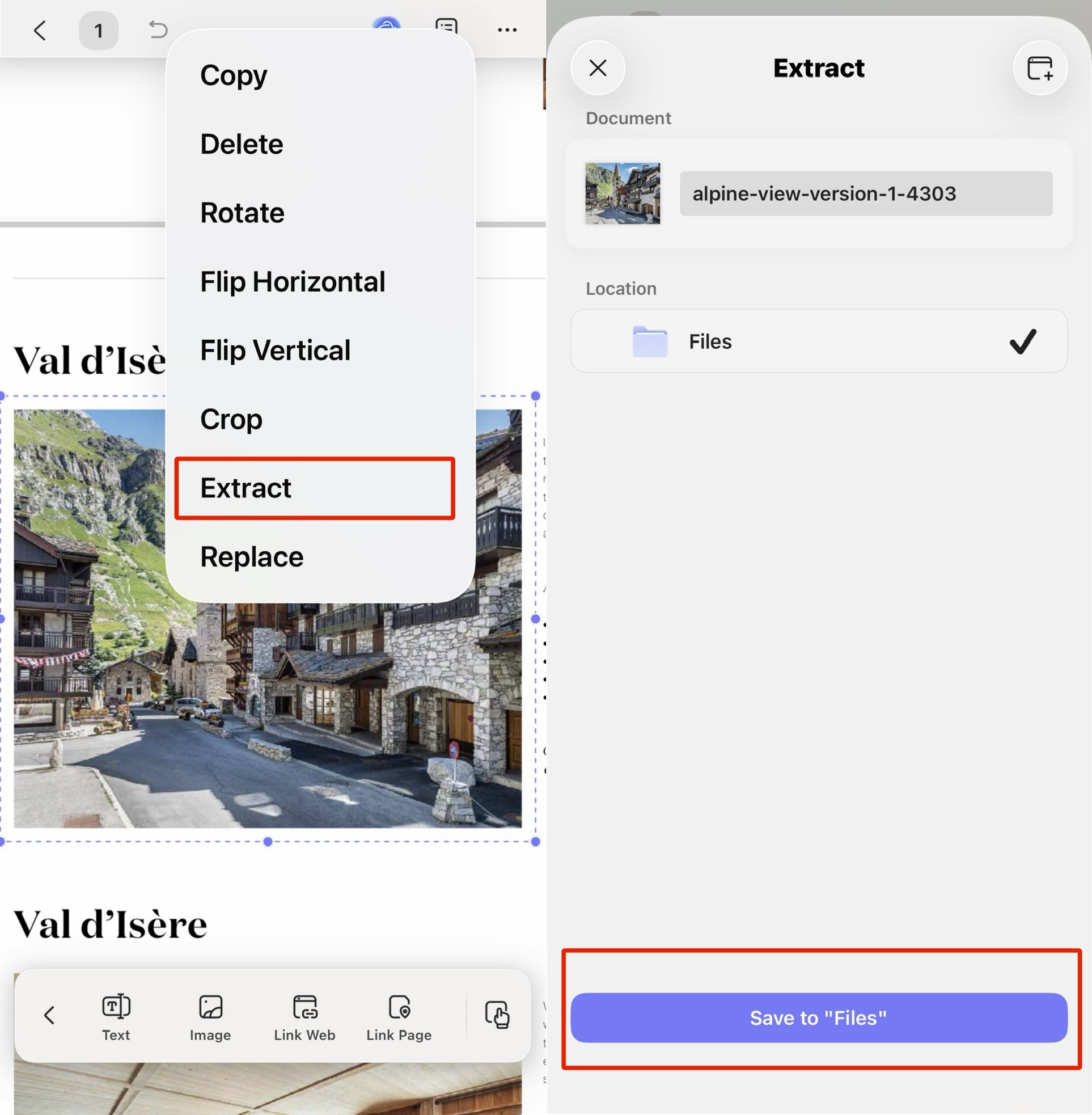
On iPhone, iPad, or Android:
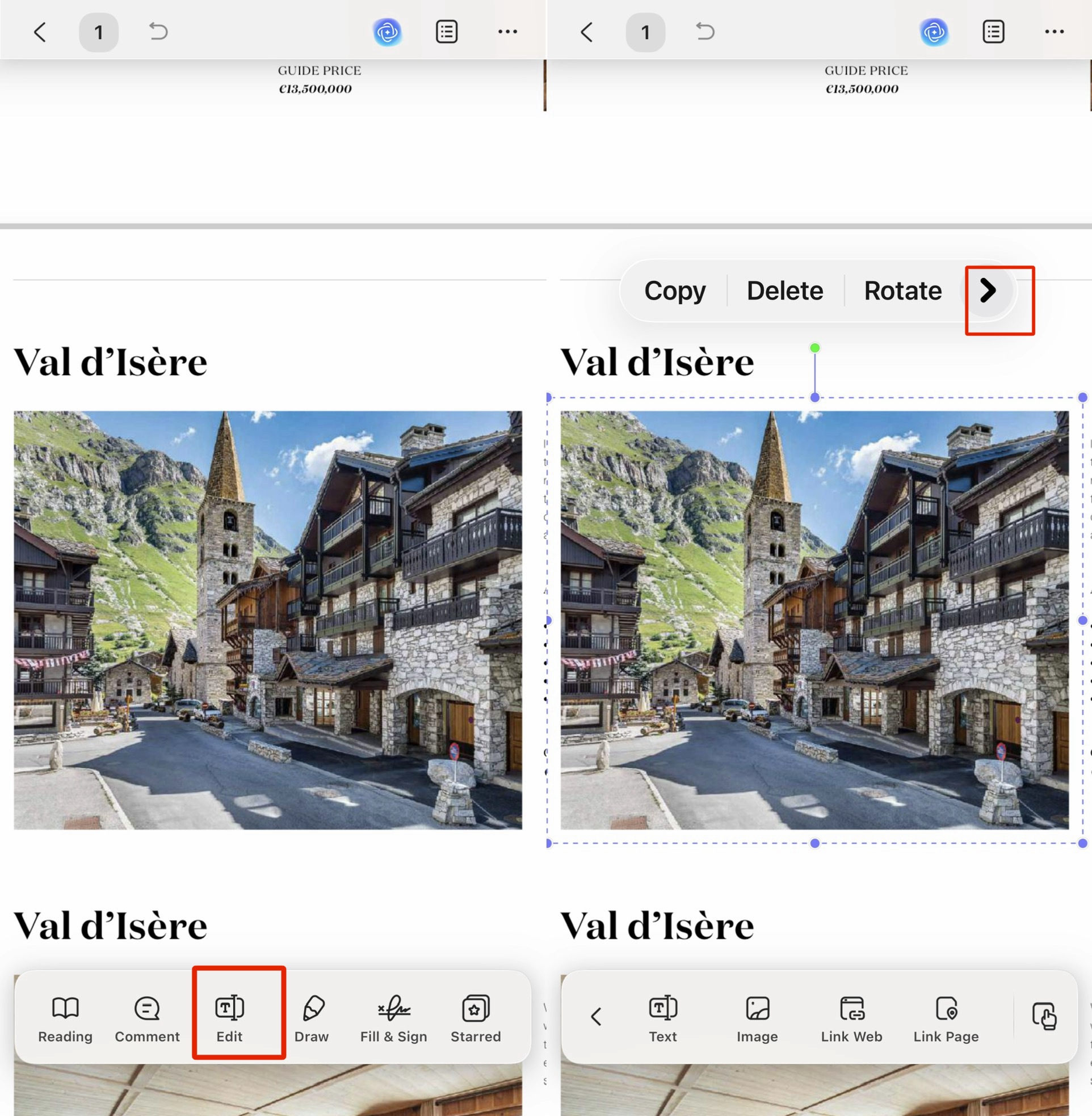
- Open the PDF in the UPDF app and tap the Edit icon (bottom-right on iOS, top menu on Android).
- Tap the image you want. A small toolbar pops up over it with options including copy, crop, extract, and replace.
- Tap "Extract."
- Choose where to save the image on your device.
Best for:
- lifting one chart, logo, or photo out of a text-heavy page without touching the rest of the file — on whatever device you have to hand.
Not for:
- scanned or image-only pages where there's no separate embedded image to tap — and for a whole batch, Method 1's "Export all images" is faster than repeating this per picture.
Method 3. Right-Click and Drag to Copy as Image
Sometimes the picture you want isn't a clean embedded object — it's a photo bleeding into a caption, an illustration sitting inside a text-heavy page, or a graphic you only need part of. Clicking a single image element won't isolate that. UPDF's right-drag selection grabs any rectangular area of the page instead, whether it contains an image, text, or both.
Steps:
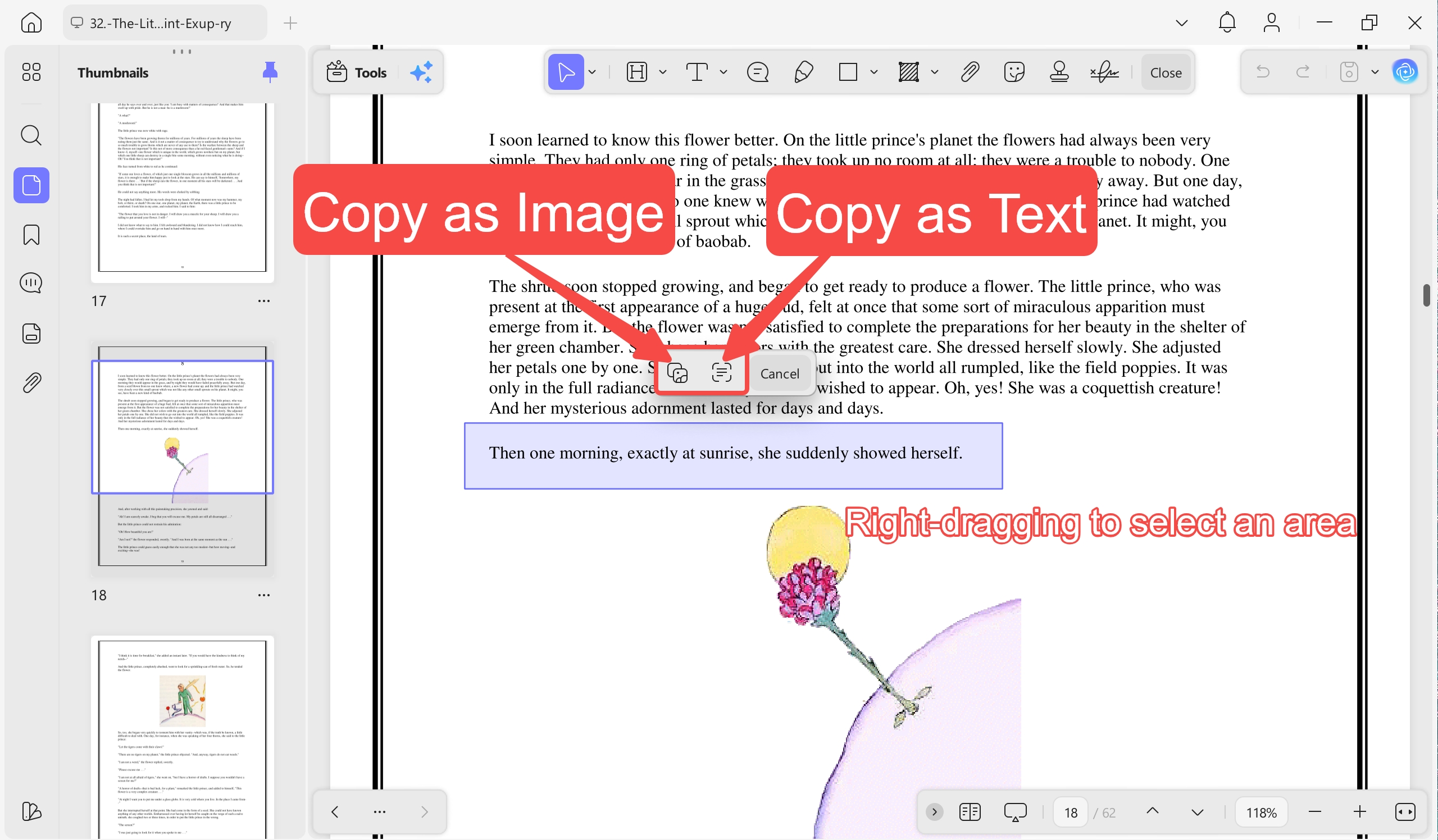
- With the PDF open in UPDF, right-click and drag to draw a selection box around the area you want — it doesn't need to be a single embedded image.
- Release the mouse. A small popup appears with two options: "Copy as Image" and "Copy as Text."
- Click "Copy as Image."
- Switch to your destination app (Word, Preview, an email draft) and paste — Ctrl+V on Windows or Cmd+V on Mac.
Best for:
- grabbing an illustration, chart, or photo that isn't a separate clickable image object — or pasting a quick one-off image straight into another app with no file to name or folder to pick.
Not for:
- batch jobs. Each drag-select captures one area at a time, so pulling 15 images this way means 15 repeats. Use Method 1's "Export all images" instead.
Download UPDF for free to try these extraction methods on your own file — installation is free, and Pro features are available when you need export or advanced tools.
Windows • macOS • iOS • Android 100% secure
Part 5. Edge Cases
The image looks blurry after extracting. Embedded images are extracted at their original resolution — if the source photo was already compressed or low-res going into the PDF, extraction can't recover detail that isn't there. Check the original file if one exists.
"Extract Image" doesn't appear when I click. This usually means the element isn't a true embedded image — it may be a vector graphic, a background fill, or (most commonly) the entire page is one scanned image. Use Method 1's PDF Converter with "Each page as an image" instead.
The PDF is password-protected. Both online tools and UPDF need the PDF unlocked before they can read its contents. Enter the password when prompted, or if you don't have it, that's a separate permissions issue no extractor can bypass.
Extracted images have a strange color cast. This can happen with CMYK images extracted as RGB, common in PDFs built for print. If color accuracy matters, extract at the highest available quality setting and check it in an image editor before use.
Part 6. FAQs
1. Is it safe to upload a PDF to an online image extractor?
It depends on the file's contents. Online tools upload your document to their servers for processing; for anything containing personal, financial, or confidential information, an offline tool that never uploads the file is the safer choice.
2. Can I extract images from a scanned PDF?
Yes, but treat the whole page as the image — a scanned page has no separately embedded photos to click on individually. Use a full-page conversion (Method 1's "Each page as an image" option, or an online tool's "convert to image" mode) rather than a single-image extractor.
3. Why did my online extraction fail partway through?
Most free online tools reject files above a page or size limit outright rather than partially processing them — Sejda's free tier, for example, caps at 200 pages or 50 MB. If your file is close to a tool's stated limit, split it first or switch to an offline app.
4. Do extracted images keep their original file names?
Rarely — most tools (online and offline) generate generic sequential names like image1.png, image2.png. If you need to match images back to captions or product codes, rename them manually or extract one at a time so you can label as you go.
Conclusion
For a single image from a small PDF, any of the five online tools above will do the job in under a minute. Once you're extracting in bulk, working with scanned pages, or handling a file you'd rather not upload anywhere, UPDF's PDF Converter, single-image Edit extraction, and right-click copy give you three ways to get the same result without leaving your desktop.
If you're working with the PDF beyond just pulling images out of it — replacing photos, fixing text, or cleaning up scanned pages — see the full guide on how to edit a PDF for every editing method UPDF supports.
Check the size and placement of the picture before saving the revised PDF. For a visual introduction to the tools, see the video on editing PDF content in UPDF below.
Windows • macOS • iOS • Android 100% secure







 Enrica Taylor
 Enid Brown
 Engelbert White
 Enola Miller