 UPDF
UPDF
 UPDF for Windows
 UPDF for Mac
 UPDF for iPhone/iPad
 UPDF for Android
 Nomostar
 UPDF AI Online
 UPDF Sign
 IvyCraft
 Edit PDF
 Annotate PDF
 Create PDF
 PDF Form
 Edit links
 Convert PDF
 OCR
OCR PDF to Word
 PDF to Image
 PDF to Excel
 Organize PDF
 Merge PDF
 Split PDF
 Crop PDF
 Rotate PDF
 Protect PDF
 Sign PDF
 Redact PDF
 Sanitize PDF
 Remove Security
 Read PDF
 UPDF Cloud
 Compress PDF
 Print PDF
 Batch Process
 About UPDF AI
 UPDF AI Solutions
 AI User Guide
 FAQ about UPDF AI
 Summarize PDF
 Translate PDF
 Chat with PDF
 Chat with AI
 Chat with image
 PDF to Mind Map
 Explain PDF
 PDF AI Tools
 Image AI Tools
 AI Chat Tools
 AI Writing Tools
 AI Study Tools
 AI Working Tools
 Other AI Tools
 AI Bookmark Generation
 AI Bookmark Summary
 AI Watermark Generation
 AI Background Generation
 AI Sticker Generation
 AI Stamp Generation
 AI Editing Suite
 UPDF Copilot
 AI Page Management
 AI Semantic Search
 PDF to Word
 PDF to Excel
 PDF to PowerPoint
 Enterprise Solution
 Enterprise Sign
 Enterprise AI
 Enterprise Plan
 Enterprise User Guide
 Enterprise Webinar
 IT
IT Education
 Construction
 Financial Service
 Healthcare
 Insurance
 Legal
Legal Manufacturing
 Government
 Researchers & PhDs
 Solopreneurs & Freelancers
 Lawyers & Legal Professionals
 Real Estate Agents & Brokers
 Education Solution
 Customer Stories
 User Guide
 UPDF Tricks
 FAQs
FAQs UPDF Reviews
 Download Center
 Blog
Blog Newsroom
 Tech Spec
 Updates
 UPDF vs. Adobe Acrobat
 UPDF vs. Foxit
 UPDF vs. PDF Expert

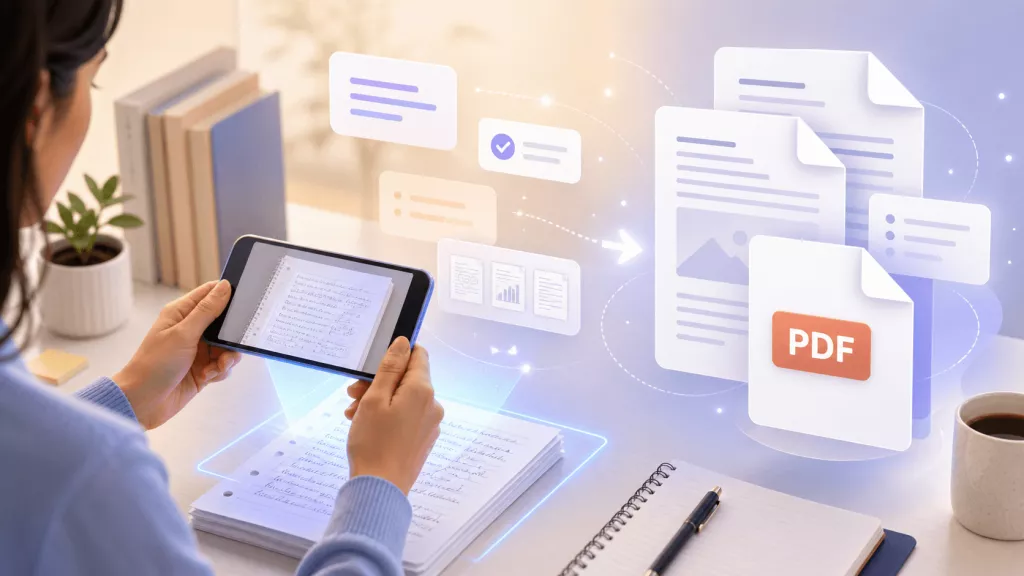
Converting images to PDF is one of the most common document tasks — whether you're combining photos from a shoot into a single shareable file, sending a scanned contract, or turning a batch of screenshots into an organized report. The challenge is choosing the right method: converting one image at a time, batch-converting many images into separate PDFs, or merging multiple images into a single PDF document.
This guide covers all three scenarios using UPDF, available on Windows, Mac, iOS, and Android. Each method takes less than a minute and requires no technical knowledge.
Windows • macOS • iOS • Android 100% secure
Part 1. Convert a Single Image to PDF
If you need to convert a single image file to PDF, UPDF offers two quick methods on desktop — one menu-driven, one drag-and-drop — plus a dedicated mobile workflow for iOS and Android. Choose whichever suits your current device.
Windows • macOS • iOS • Android 100% secure
On Desktop
Method 1. Create PDF from Image
- Open UPDF. In the bottom toolbar, click Tools → Other → PDF from Image.
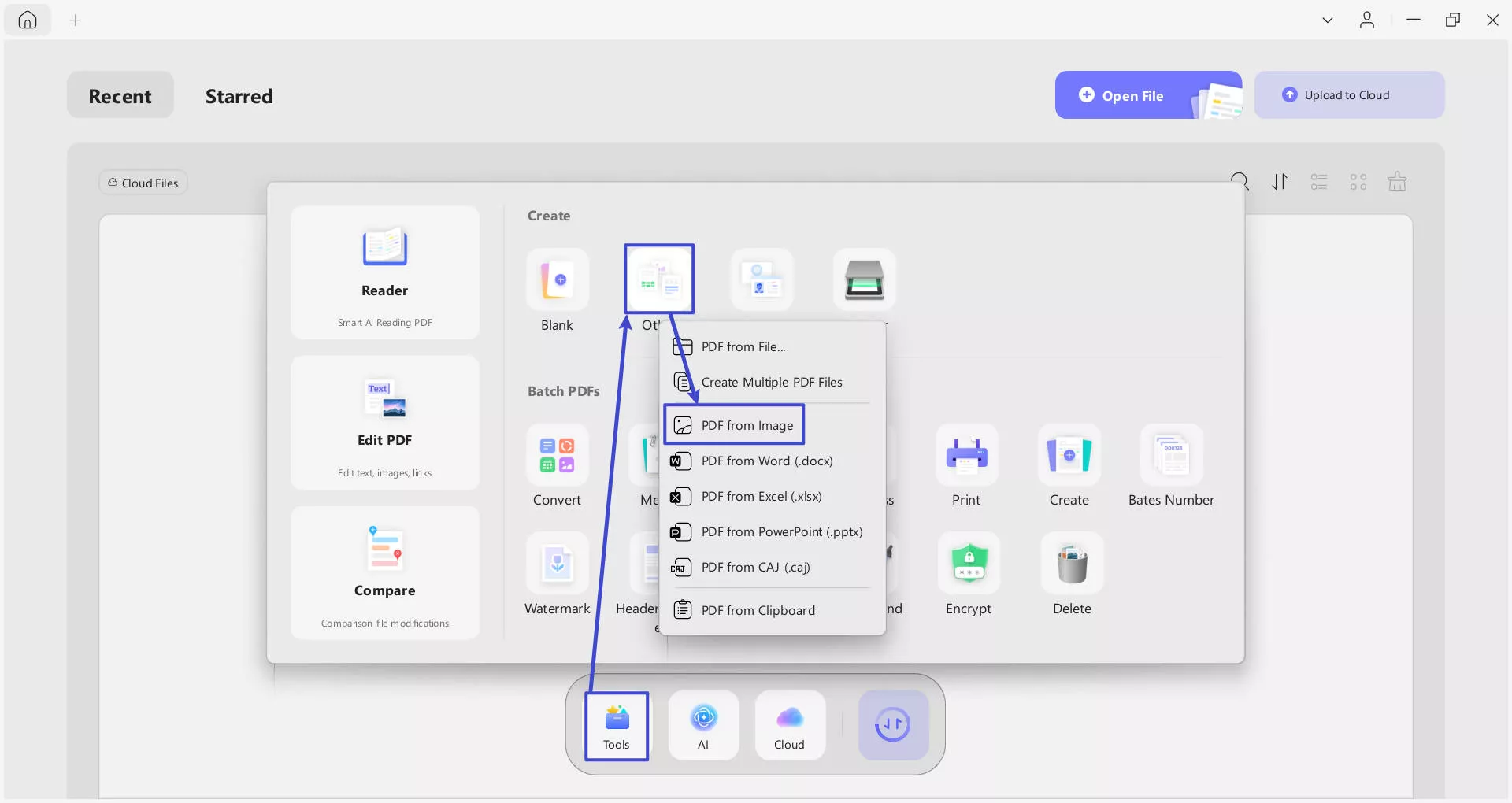
- In the file picker, select the image you want to convert (supports JPG, PNG, TIFF, BMP, GIF, and more) and click Open.
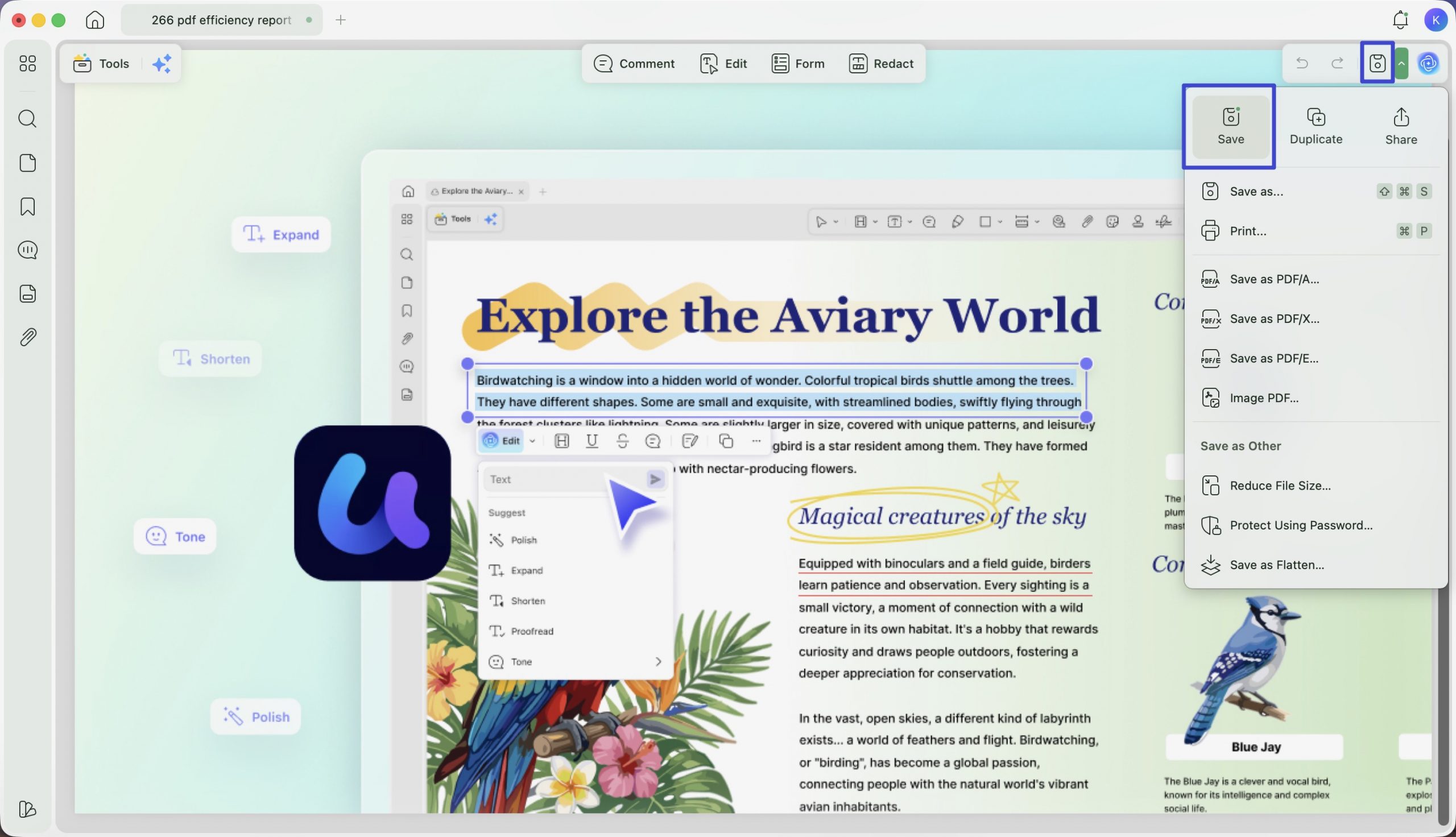
- UPDF opens the image as a PDF. Go to Save to save it to your chosen location.
Method 2. Drag and Drop to Convert Image to PDF
- Open UPDF. Drag your image file directly from your desktop or file explorer onto the UPDF window.
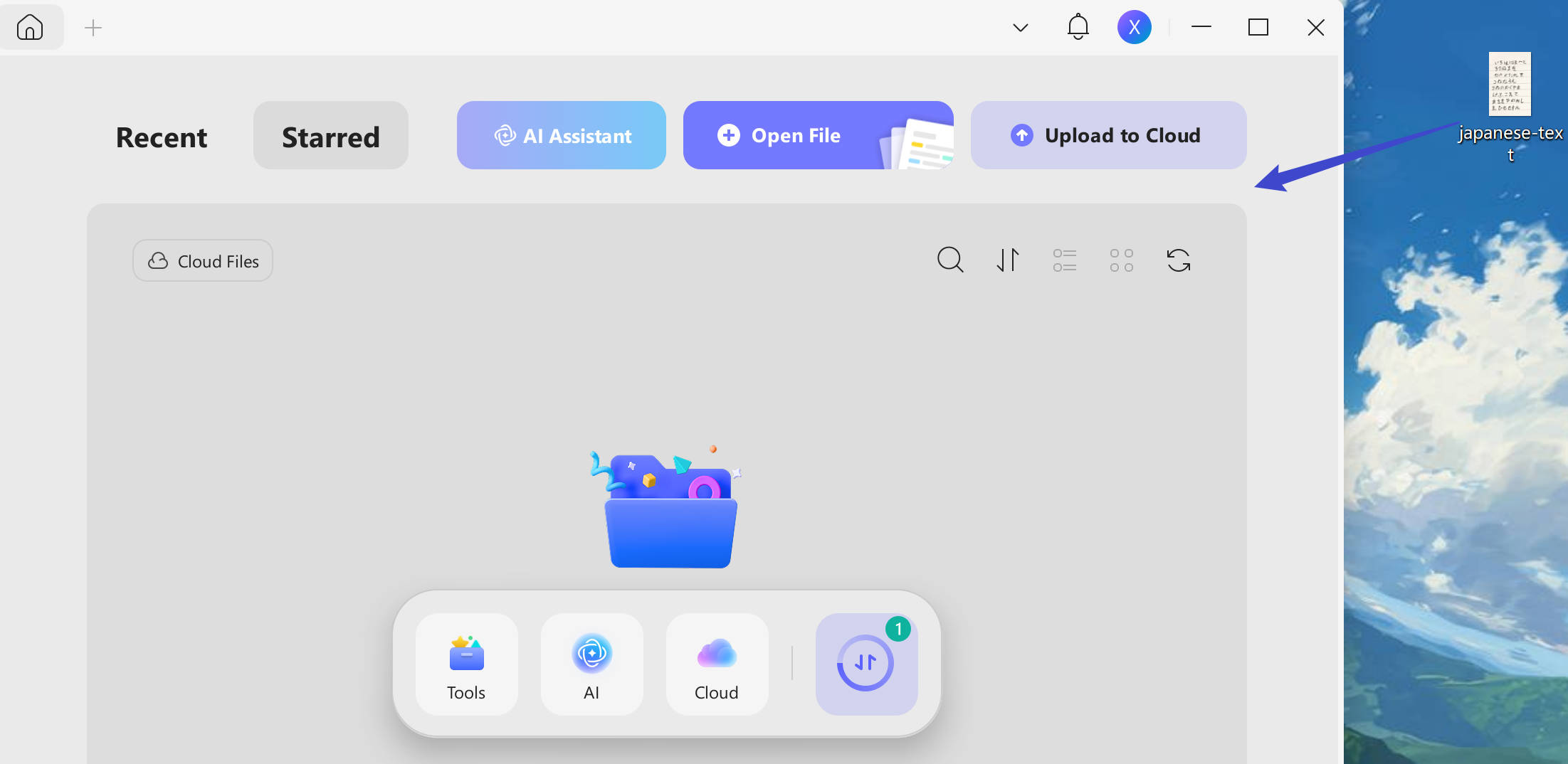
- UPDF opens the image as a PDF. Edit it if needed — you can crop, rotate, or annotate at this stage.
- Click the "Save" in the top toolbar to save the file as a PDF to your preferred location.
On Mobile
If you only have a mobile phone on the go, you can download UPDF for iOS from the App Store or UPDF for Android from the Play Store and follow the guide below to convert one image to one PDF.
Windows • macOS • iOS • Android 100% secure
Step 1. Open UPDF on your mobile phone. Tap on the "Tools" > "Image to PDF" button.
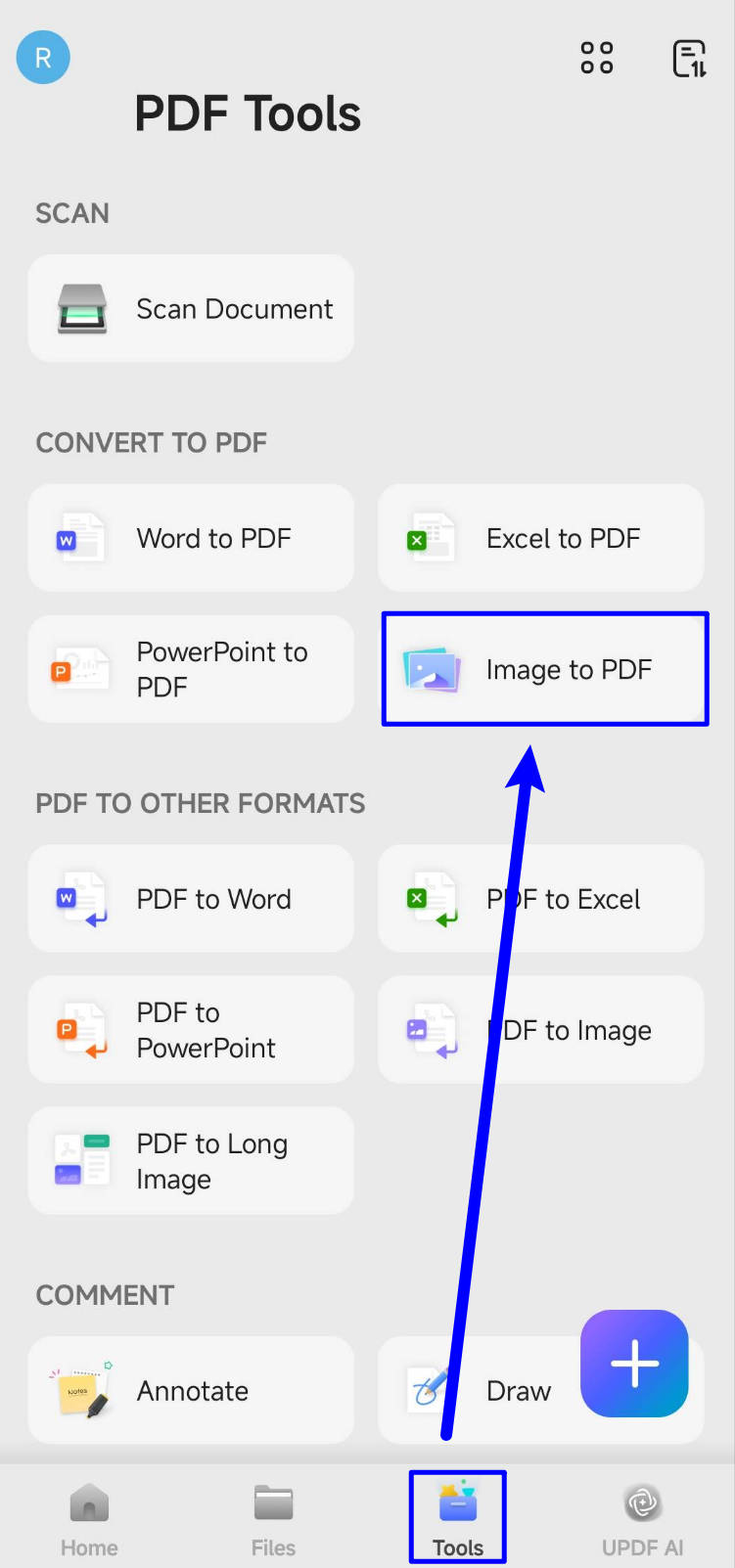
Step 2. Select the image you want to convert. UPDF converts it to PDF automatically. Tap Save to store the PDF on your device or upload it to UPDF Cloud for cross-device access.
That's it! This is a simple answer for how to convert images to PDF using UPDF. However, if you want to convert multiple images to PDF at once, we also have a solution for that.
Let's explore it together!
Part 2. Batch Convert Multiple Images into Separate PDFs (or One PDF)
When you have a folder full of images — product photos, scanned pages, screenshots — and need to convert them all at once, UPDF's Batch Create feature handles the job in one operation. You can choose to output each image as its own separate PDF, or combine all images into one multi-page PDF document.
Here is how you can convert images to one or multiple PDFs using UPDF:
Step 1: Download UPDF via the below button. Open it and click the "Tools" option on the left menu.
Windows • macOS • iOS • Android 100% secure
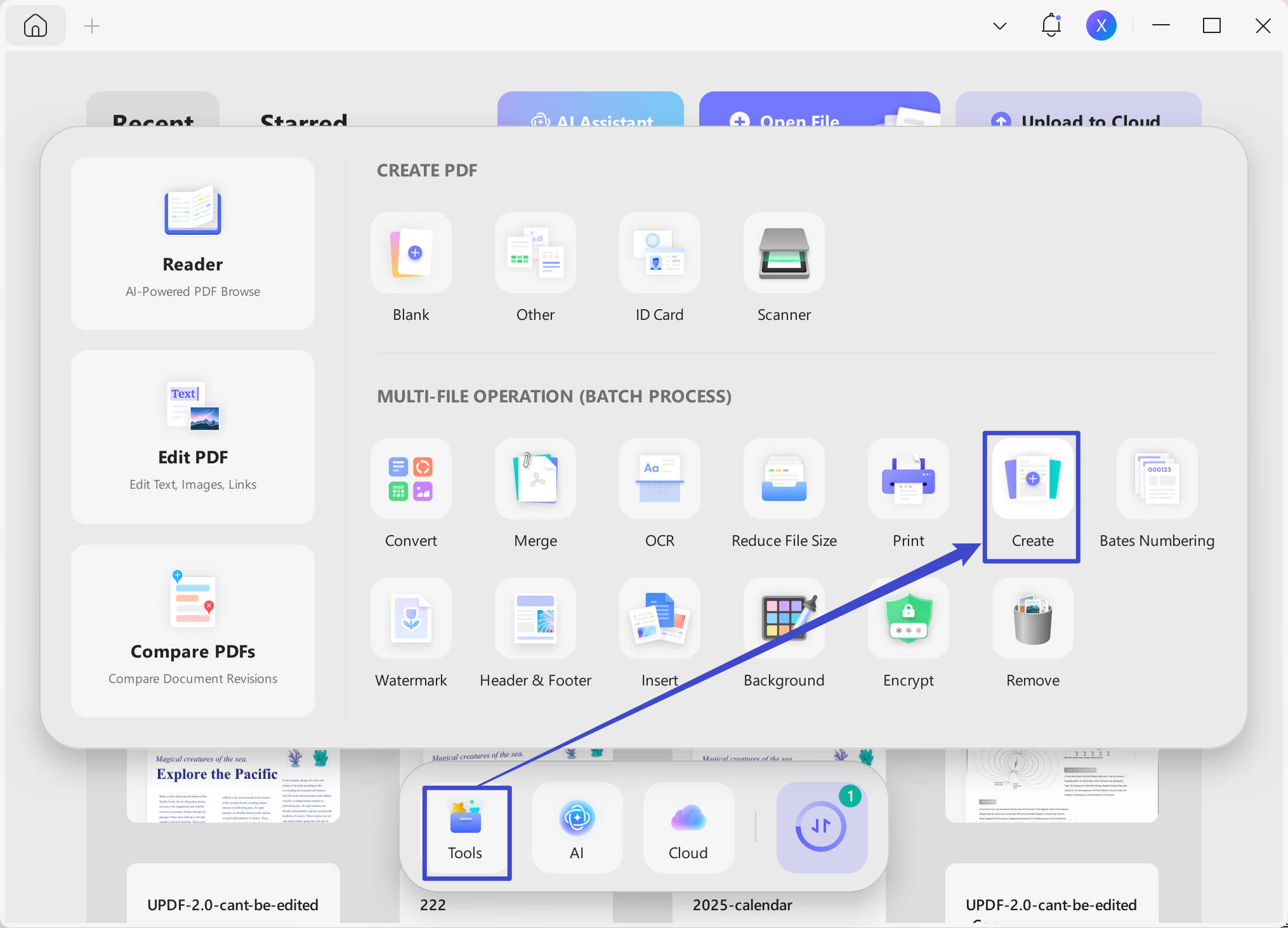
Step 2: Then click the "Create" feature.
Step 3: Click Add Files and select all the images you want to convert. On the right side of the panel, choose your output preference:
- Combine into one: all images become pages in a single PDF document.
- Create separately: each image is saved as its own individual PDF file.
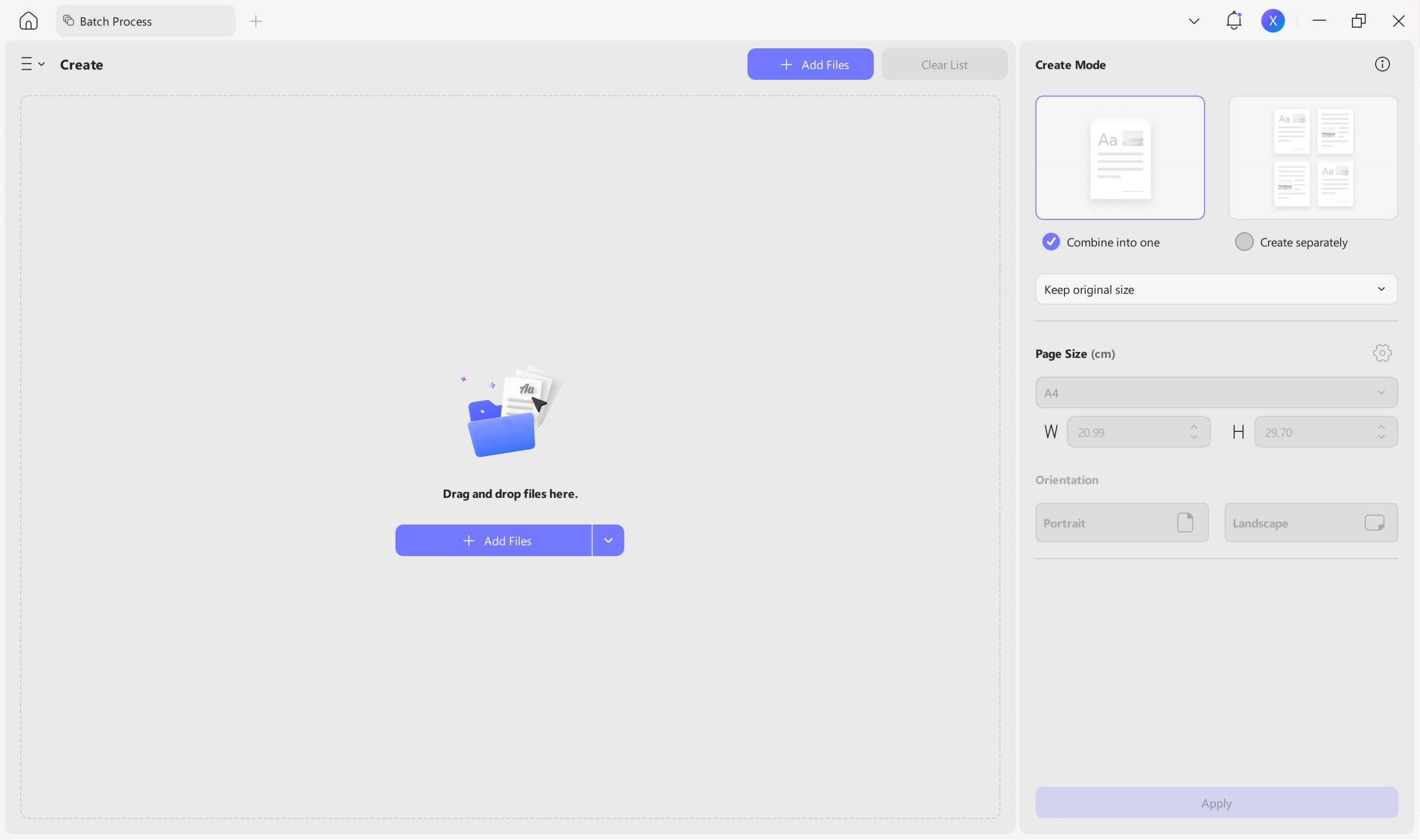
Step 4: Click Apply, choose a save location, and UPDF processes all images at once.
That’s not it! There is one more way to convert image to PDF.
Let’s find it out!
Part 3. Merge Multiple Images into One PDF (Batch Combine)
Part 3 vs. Part 2: Both methods can merge images into one PDF, but they work differently. Part 2's Batch Create gives you the additional option to output separate PDFs. Part 3's Batch Combine (Merge) is dedicated to combining files — images, PDFs, or a mix of both — into a single document, and is slightly more straightforward when merging is your only goal.
Step 1: Step 1. Open UPDF. Click Tools in the bottom toolbar, then select Merge.
Windows • macOS • iOS • Android 100% secure
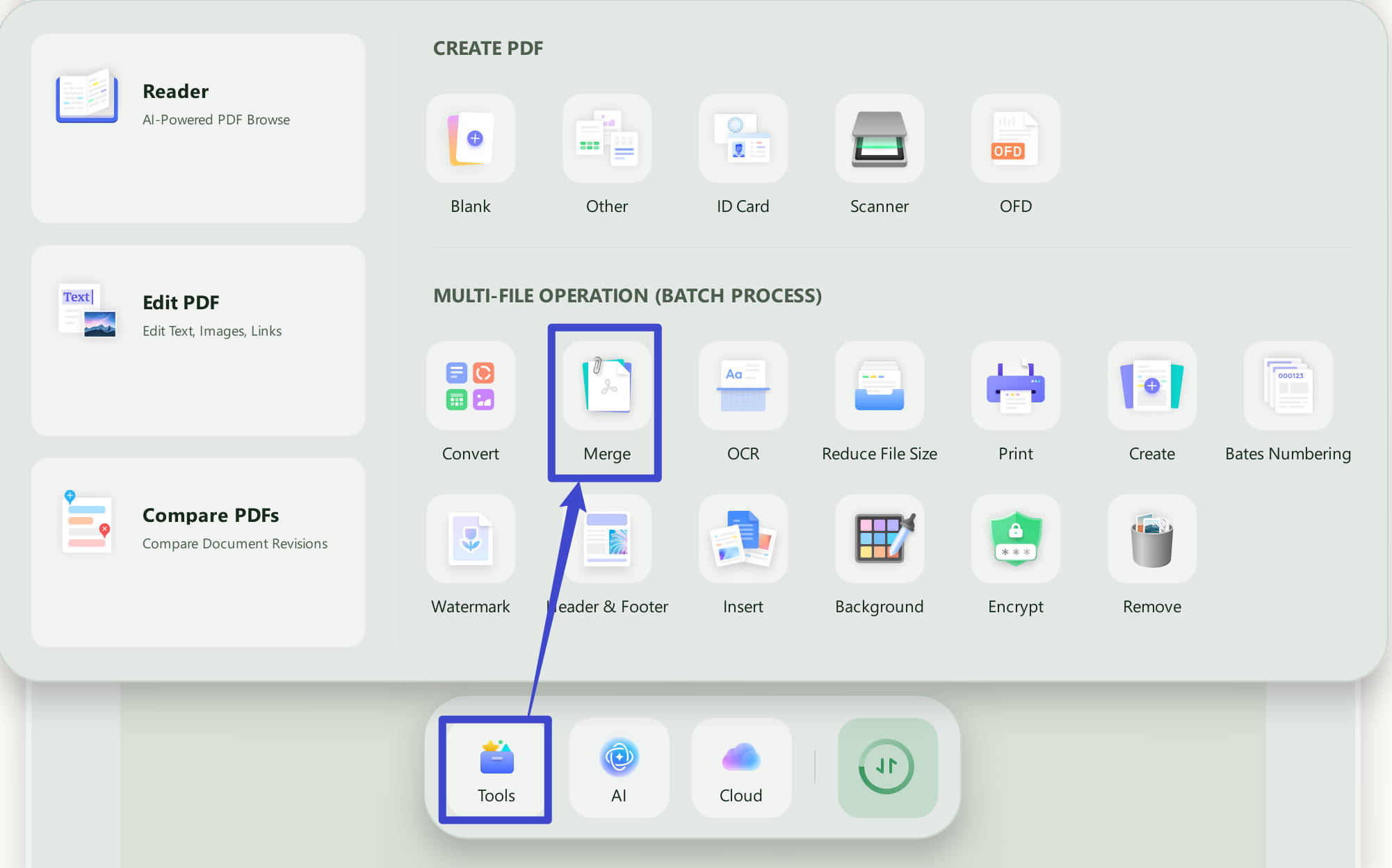
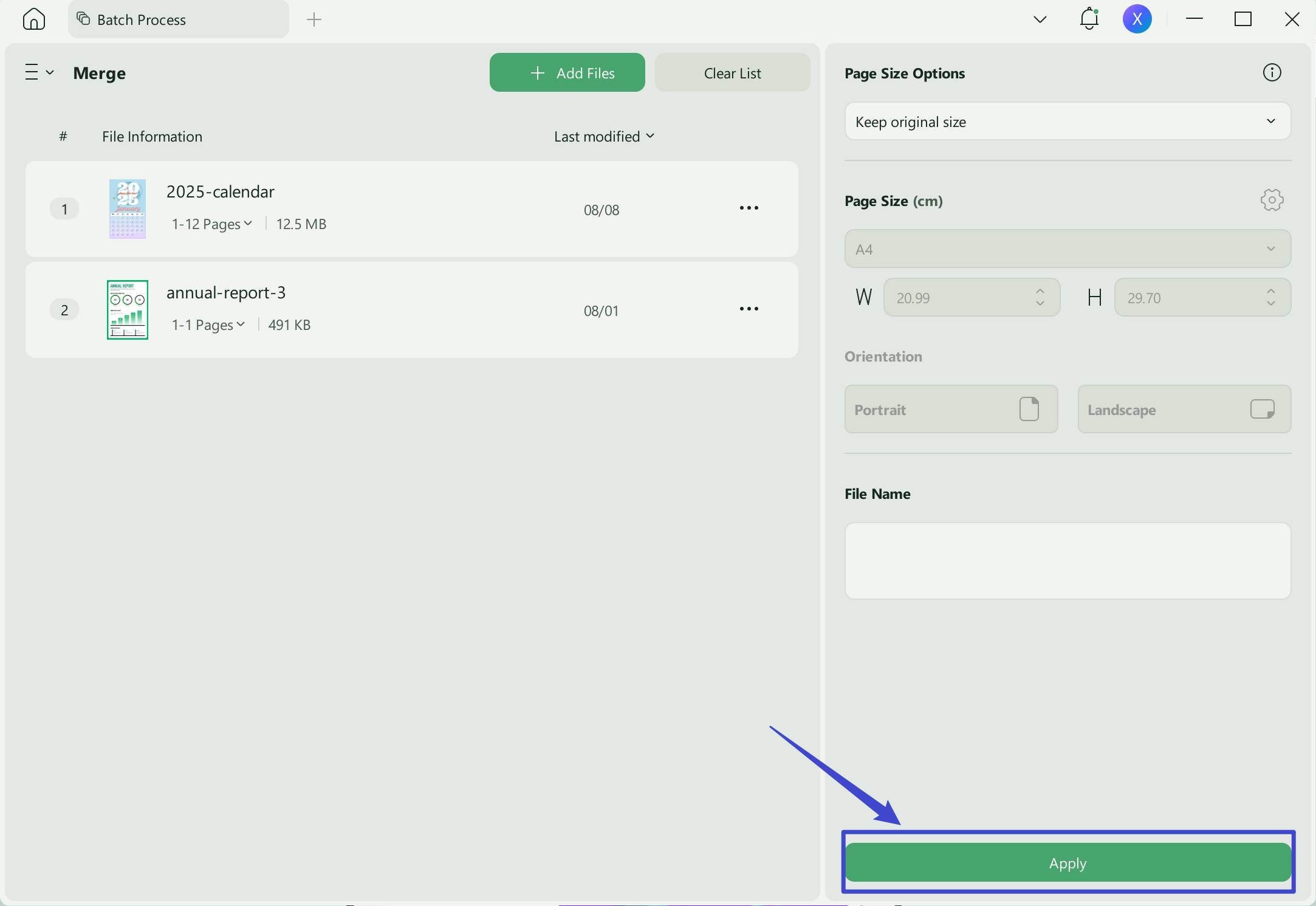
Step 2: Click Add Files and select the images you want to combine. You can also add existing PDF files alongside your images if you want to mix content types in the output.
Step 3: Click Apply, choose a save location, and UPDF merges all files into a single, ordered PDF document.
You can also watch the video below to learn how to create PDF in detail.
Once your images are converted to PDF, UPDF gives you a full set of tools to work with the result immediately — without opening a second application:
- OCR: If your images contain text (scanned documents, whiteboards, screenshots of documents), use UPDF's OCR engine (38 languages) to make the text searchable and selectable in the converted PDF.
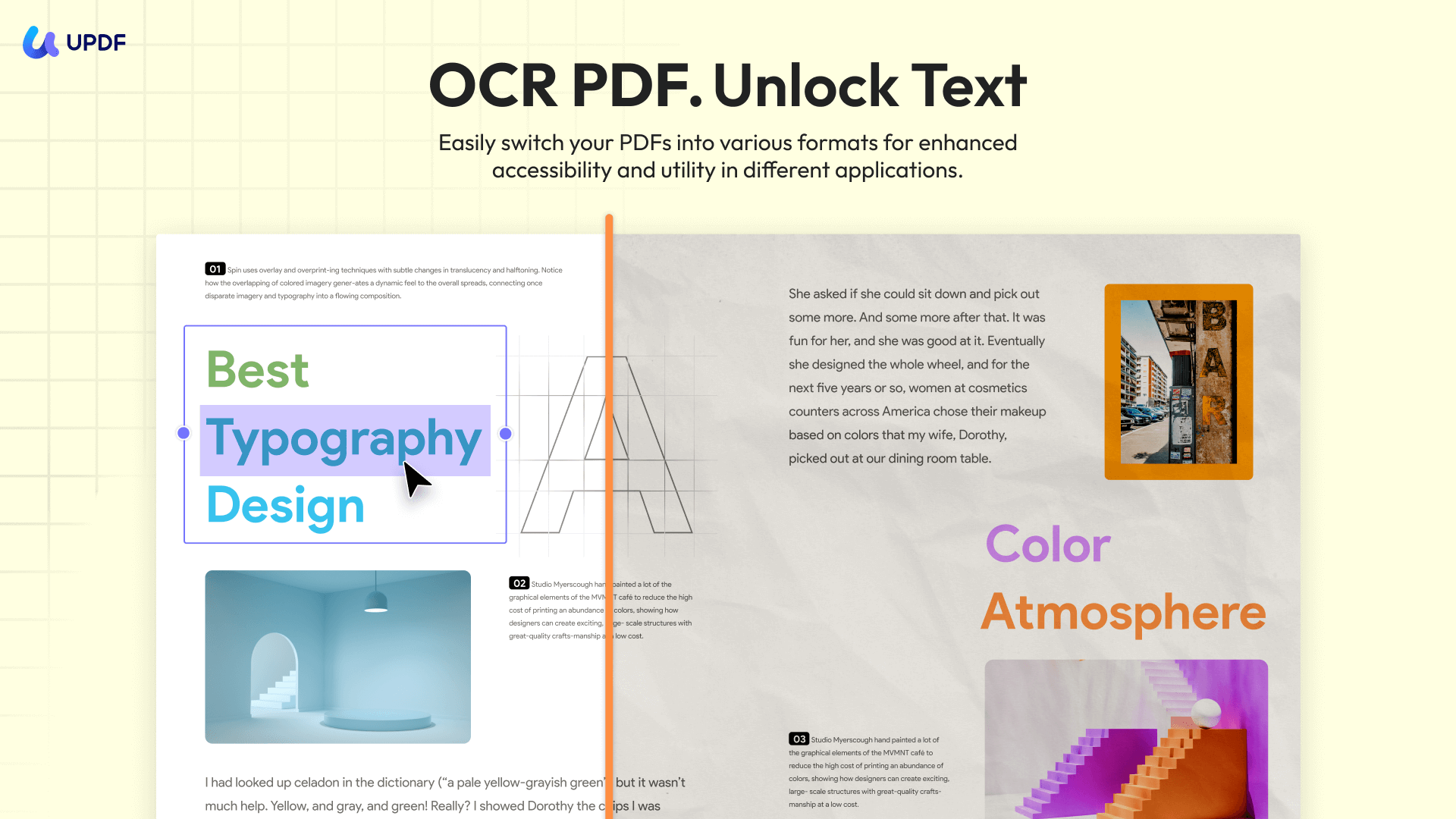
- Edit: Modify text, insert or replace images, add links, adjust backgrounds, headers, and footers.
- Annotate: Highlight, underline, add sticky notes, draw, and stamp pages.
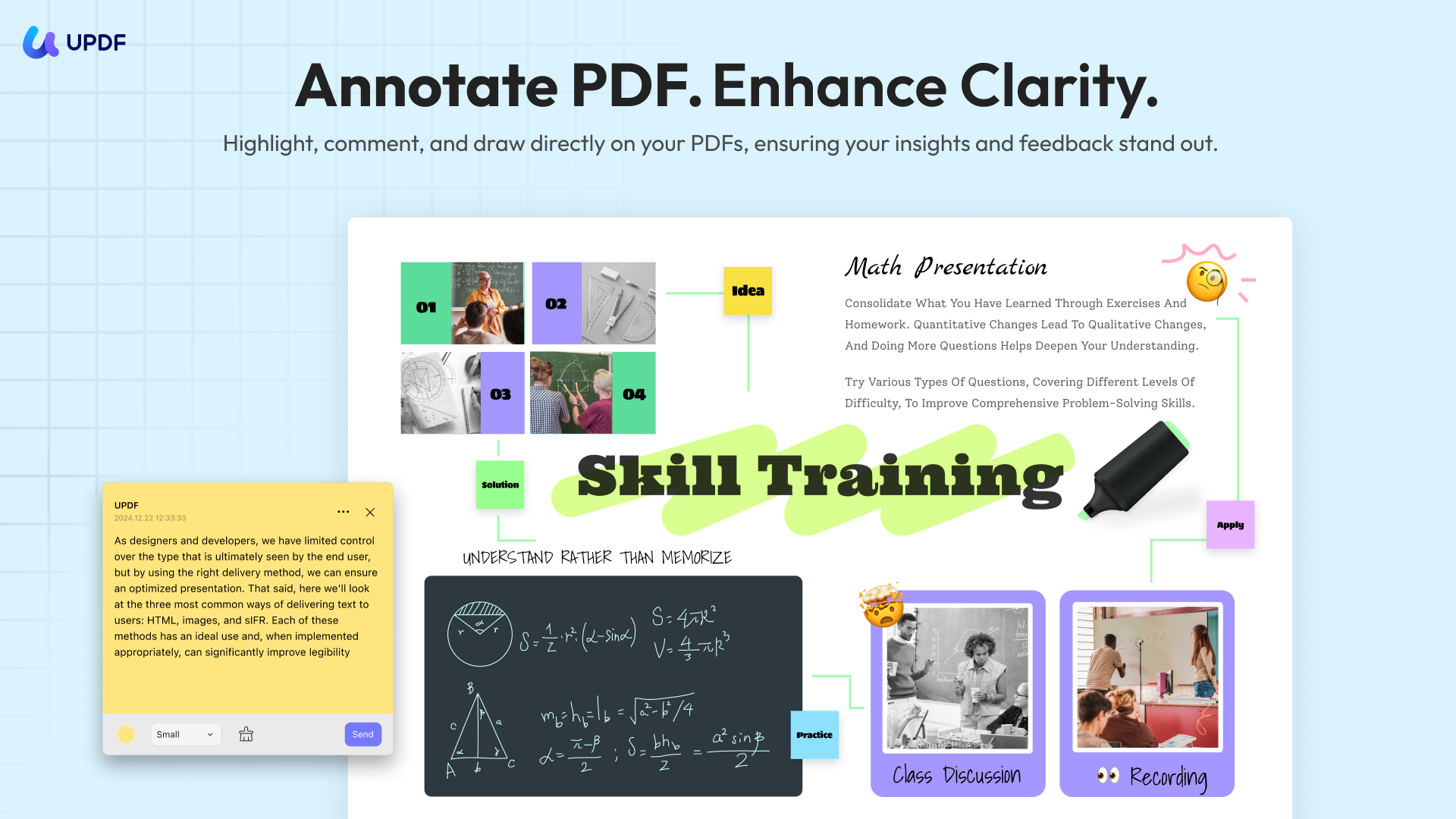
- AI Editing Suite: After converting, if you need to add or refine text content inside the PDF — rephrasing a caption, rewriting a label, or drafting a description — the AI Editing Suite lets you do it directly inside the document without switching to a word processor.
- Share: Send via email, generate a shareable link, or upload to UPDF Cloud for cross-device access.
Windows • macOS • iOS • Android 100% secure
In The End
Converting images to PDF with UPDF takes less than a minute regardless of which method you use. Use Part 1 for a single image on desktop or mobile, Part 2 (Batch Create) when you need to output multiple images as separate PDFs or one combined file, and Part 3 (Batch Merge) when combining images — alongside other PDF files — into a single document is your only goal.
After converting, keep the workflow inside UPDF. Download UPDF for free and convert your first image to PDF today.
Windows • macOS • iOS • Android 100% secure







 Enola Miller
 Enid Brown
 Enya Moore
 Lizzy Lozano
 Engelbert White