UPDF
UPDF
 UPDF for Windows
 UPDF for Mac
 UPDF for iPhone/iPad
 UPDF for Android
 UPDF AI Online
 UPDF Sign
 Edit PDF
 Annotate PDF
 Create PDF
 PDF Form
 Edit links
 Convert PDF
 OCR
OCR PDF to Word
 PDF to Image
 PDF to Excel
 Organize PDF
 Merge PDF
 Split PDF
 Crop PDF
 Rotate PDF
 Protect PDF
 Sign PDF
 Redact PDF
 Sanitize PDF
 Remove Security
 Read PDF
 UPDF Cloud
 Compress PDF
 Print PDF
 Batch Process
 About UPDF AI
 UPDF AI Solutions
 AI User Guide
 FAQ about UPDF AI
 Summarize PDF
 Translate PDF
 Chat with PDF
 Chat with AI
 Chat with image
 PDF to Mind Map
 Explain PDF
 PDF AI Tools
 Image AI Tools
 AI Chat Tools
 AI Writing Tools
 AI Study Tools
 AI Working Tools
 Other AI Tools
 AI Bookmark Generation
 AI Bookmark Summary
 AI Watermark Generation
 AI Background Generation
 AI Sticker Generation
 AI Stamp Generation
 AI Editing Suite
 UPDF Copilot
 AI Page Management
 AI Semantic Search
 PDF to Word
 PDF to Excel
 PDF to PowerPoint
 Enterprise Solution
 Enterprise Sign
 Enterprise AI
 Enterprise Plan
 Enterprise User Guide
 Enterprise Webinar
 Banking
 Healthcare
 Insurance
 Legal
Legal Manufacturing
 Government
 Education Solution
 Customer Stories
 User Guide
 UPDF Tricks
 FAQs
FAQs UPDF Reviews
 Download Center
 Blog
Blog Newsroom
 Tech Spec
 Updates
 UPDF vs. Adobe Acrobat
 UPDF vs. Foxit
 UPDF vs. PDF Expert

In today’s digital world, stamps are no longer just physical tools but have become a vital part of modern document processes. Whether you need to mark a document as "Approved," add a branded seal to a report, or create a certification stamp for official use, having a dependable digital stamp solution saves time, cuts paper waste, and maintains a professional appearance.
In this article, I have outlined three different methods to create digital stamps using a UPDF AI Stamp Creator, free online tools, and designing customized stamps in Procreate for artistic flair. From my experience, the fastest and most effective practical solution is the UPDF AI Stamp Creator, inside UPDF, because it lets me create and insert stamps directly into my documents without switching apps. It requires no design skills, works instantly, and produces professional results in seconds.
Windows • macOS • iOS • Android 100% secure
Stick with me until the end, I have compared all three methods so you can decide which one fits your workflow best.
Part 1. Why Digital Stamps Matter?
In today's digital world, more work is done remotely, documents are shared electronically, and signing or approving things in person isn't always feasible. Most of my approvals, signatures, and reviews are handled digitally, and having a quick way to add a stamp saves me a lot of time.
Compared to traditional stamps, digital ones are much more flexible. I can edit them anytime, reuse them across multiple documents, and avoid printing completely. You don't need to re-order them, store them, or worry about running out of ink. This makes my workflow faster and more eco-friendly.
They’re not just about signatures, used for document approval, adding branding elements, or marking certifications; the range goes well beyond that. Any time a document needs a clear visual mark of status or authority, a digital stamp gets the job done cleanly.
Here are 3 ways you can start to make your own digital stamp
Part 2. Method 1: UPDF AI Stamp Creator:
If you are someone like me who works with PDFs daily, this method saves a lot of time because everything happens in one place, and I don’t need to switch between apps or upload files to external tools.
- What is UPDF AI Stamp Creator?
UPDF AI Stamp Creator is a built-in AI tool inside UPDF , which is one of the most complete PDF editors available today. It allows you to generate high-resolution professional stamps automatically by simply describing what you need in a few easy steps. I can also choose from multiple preset templates, customize them, and insert them directly into my PDF with a single click. Whether I need an “Approved” stamp, a company logo, or a certification mark, UPDF AI handles it instantly.
Windows • macOS • iOS • Android 100% secure
How to Create a Stamp with UPDF AI
1. Open PDF: Drag and drop the PDF document you want to stamp. By default, you'll land in Comment mode. If you're not there, access comment mode by clicking "Comment" from the top left-hand toolbar.
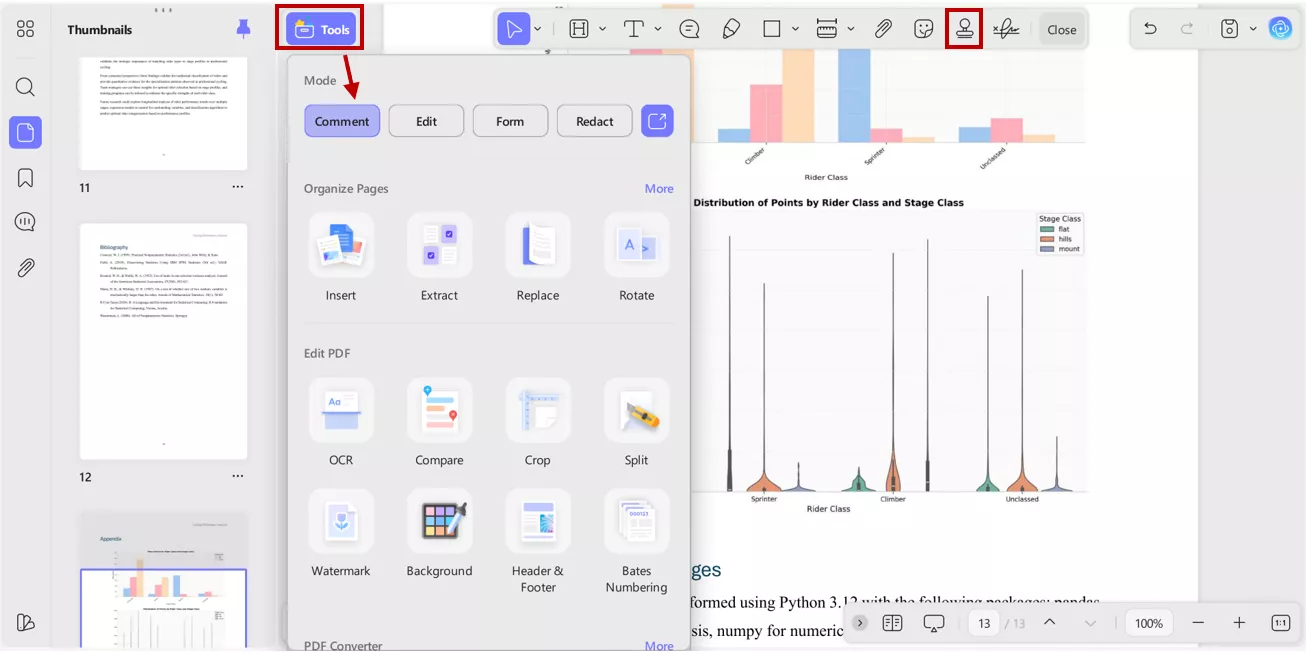
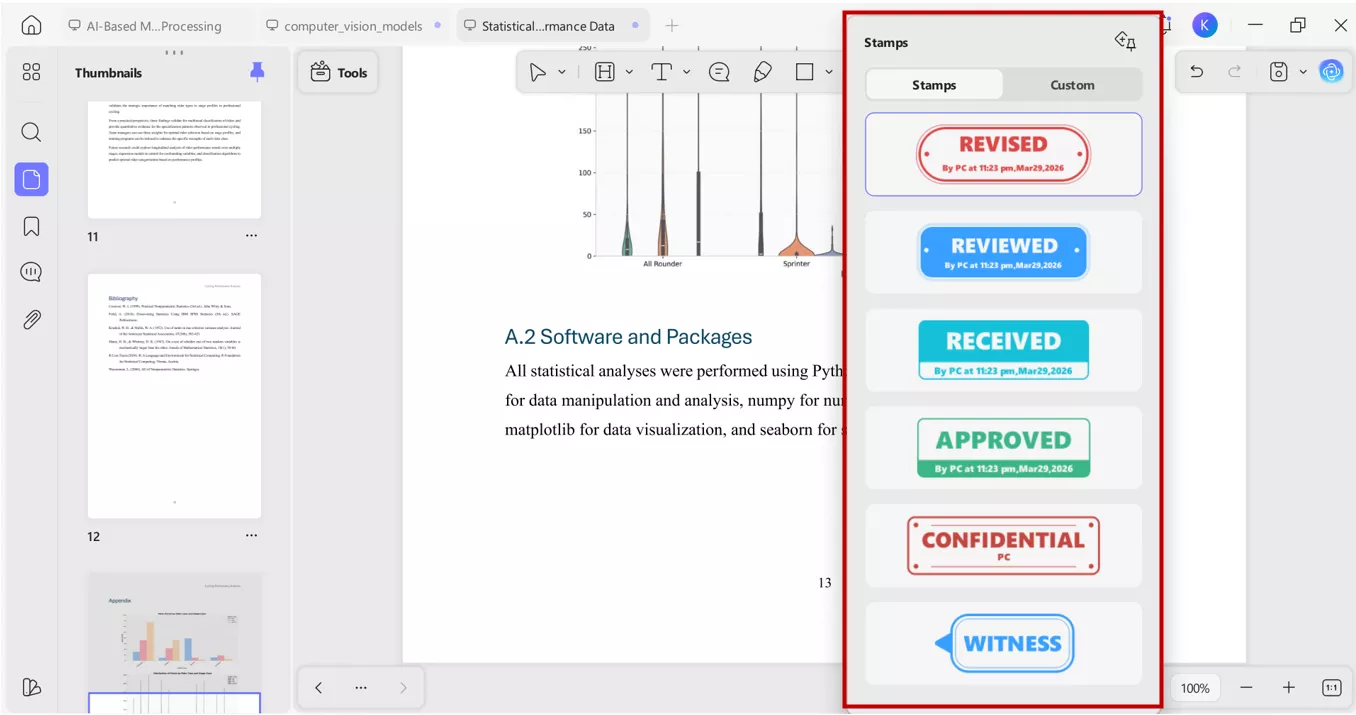
2. Open the stamp tool: Click the Stamp icon on the top menu, select from pre-made templates or switch to custom mode and create you own stamp.
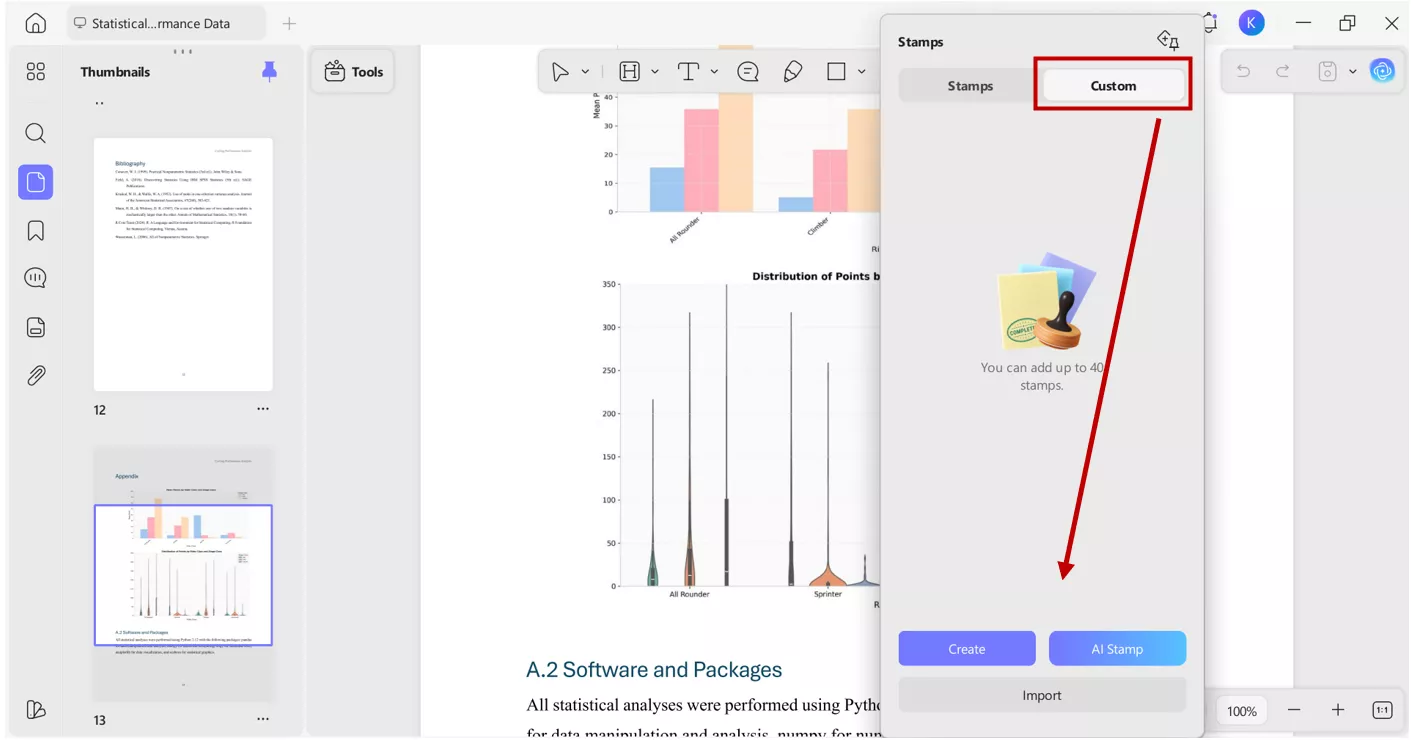
3. In custom mode, there are three options available: create, AI stamp and import. Select create, choose tempelate, add placeholder text and edit stamp as you want. You can also import a stamp to use it in your PDF.
4. AI stamp: From the custom mode, navigate to AI stamp. A new window will open. This is the AI-generated stamp tool where all the magic happens.
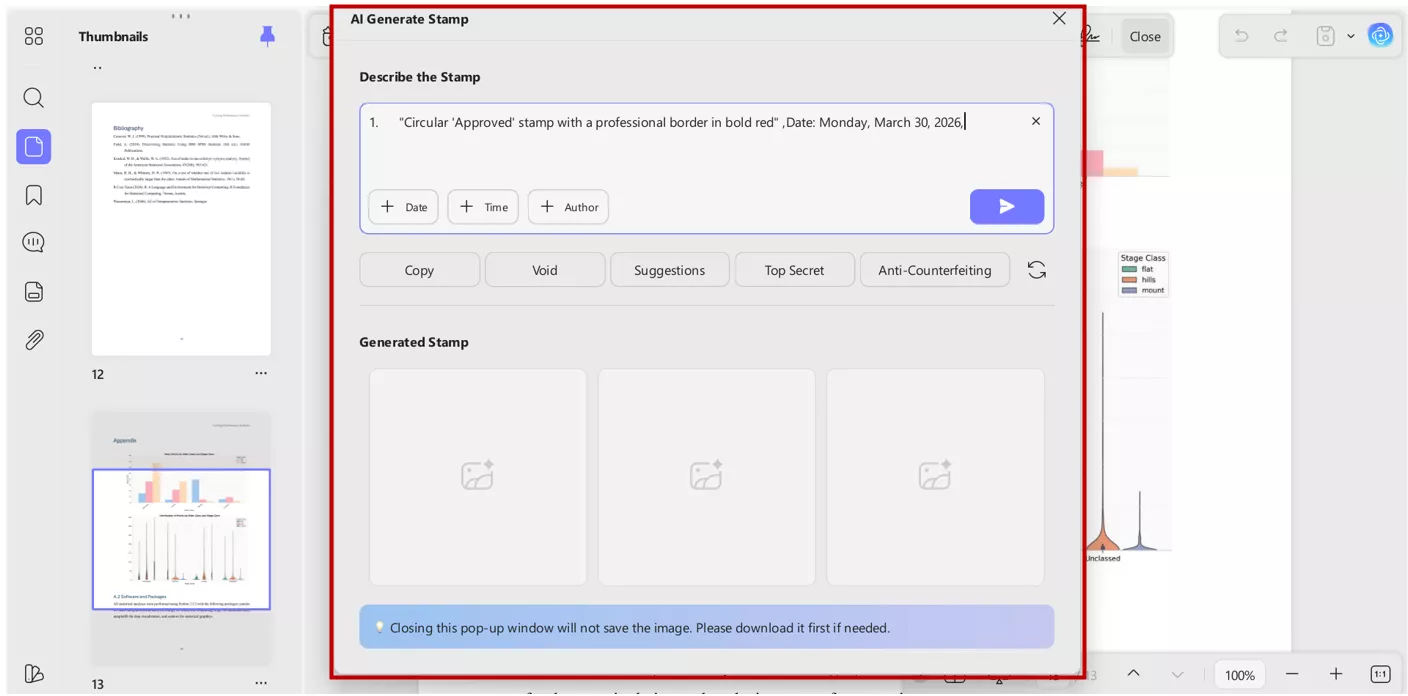
5. Describe your vision: Enter your desired prompt for stamp generation like "Circular 'Approved' stamp with a professional border" or "Rectangular 'Draft' stamp in bold red". The AI generates three variations. Choose your favourite to customize and insert it directly into your PDF.
Why Choose UPDF?
I’ve found that UPDF is more than just a stamp maker ; it’s a full productivity ecosystem.
- Zero Design Skills Required: The AI handles the layout, spacing, and typography so you don't have to.
- One-Click Insertion: Since it’s integrated with PDF editing tools, there’s no exporting or re-uploading needed.
- Professional Versatility: You can choose from 20 preset styles or create "Dynamic" stamps that automatically include the date and time and customize it by your own.
- All-in-One Solution: Beyond stamps, you can edit text, OCR-scanned documents, and protect your files with passwords, all with one license that works across four devices.
If you want to try it yourself, download UPDF and give it a go. The free trial gives you full access to explore.
Windows • macOS • iOS • Android 100% secure
Part 3. Method 2: Free Online Stamp Makers (Quick & Simple)
Before I discovered UPDF AI, I often tried free online stamp maker tools because they’re quick and don’t require any downloads. These web‑based platforms are perfect if you just need a simple stamp fast, without worrying about advanced customization or PDF integration. These tools allow you to download your creation as a PNG or JPG to use later.
Here are three popular options I’ve tested for quick results:
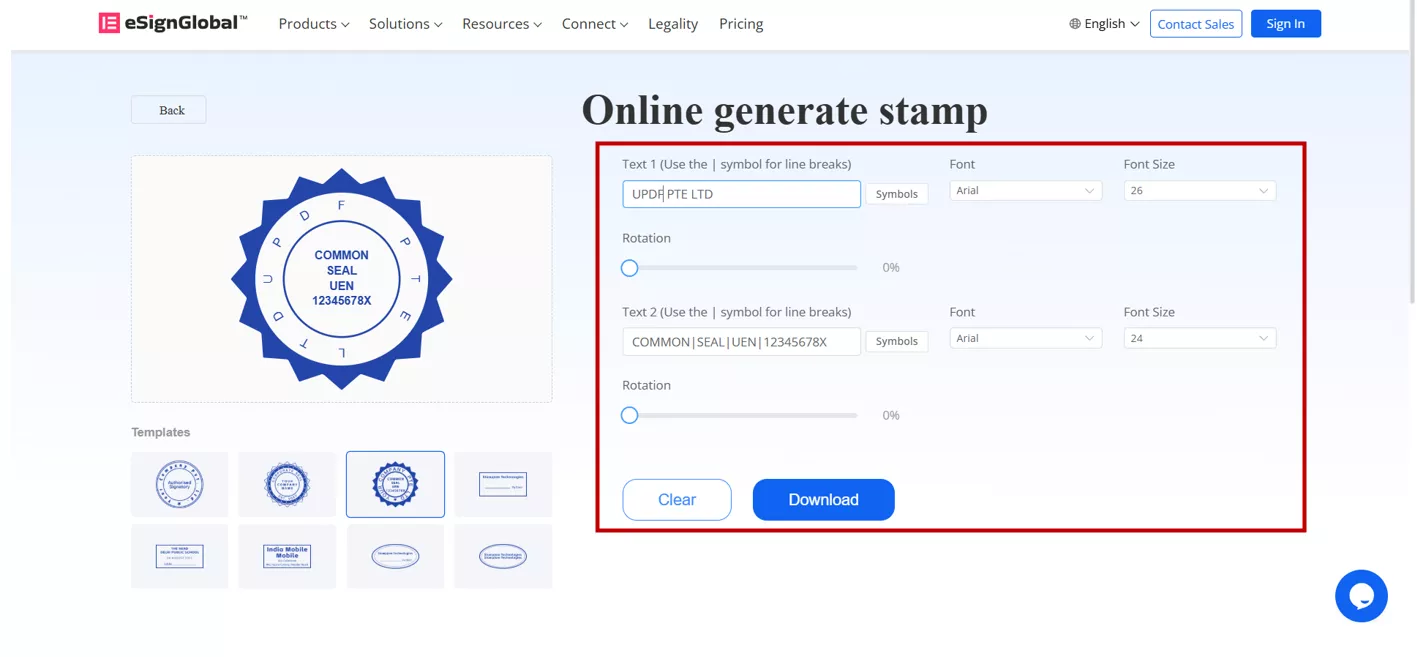
1. eSignGlobal Stamp Generator This is one of the cleanest and most straightforward options available. It works in two simple ways to create a stamp. A simple interface lets you create approval or signature stamps quickly.
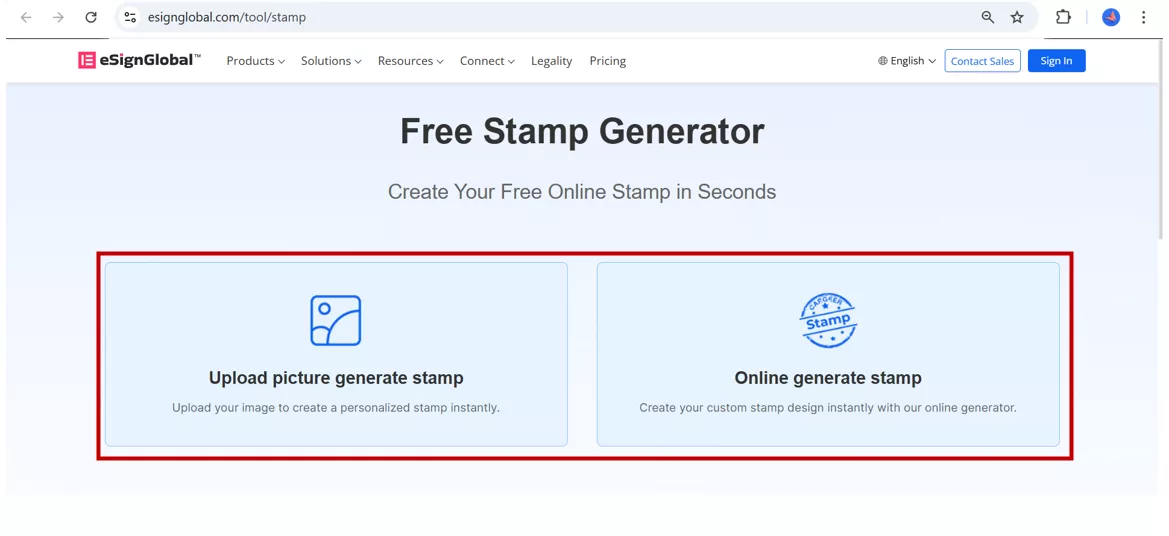
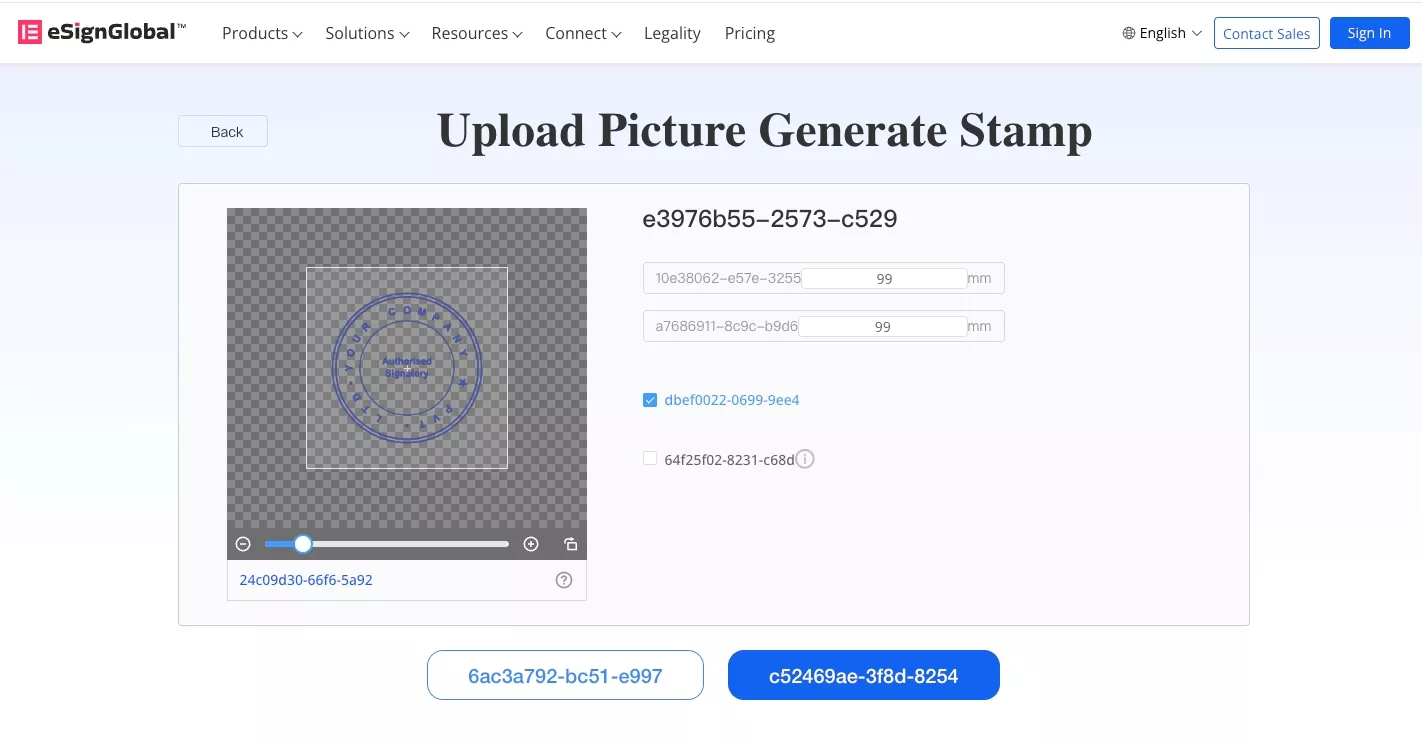
1. Upload your image: If you already have a logo or design, upload it, and the tool automatically converts it into a clean, standalone stamp image with a transparent background.
2. Use a ready-made template: Pick a professionally designed template, replace the placeholder text with your own company name or date, and your stamp is ready in seconds.
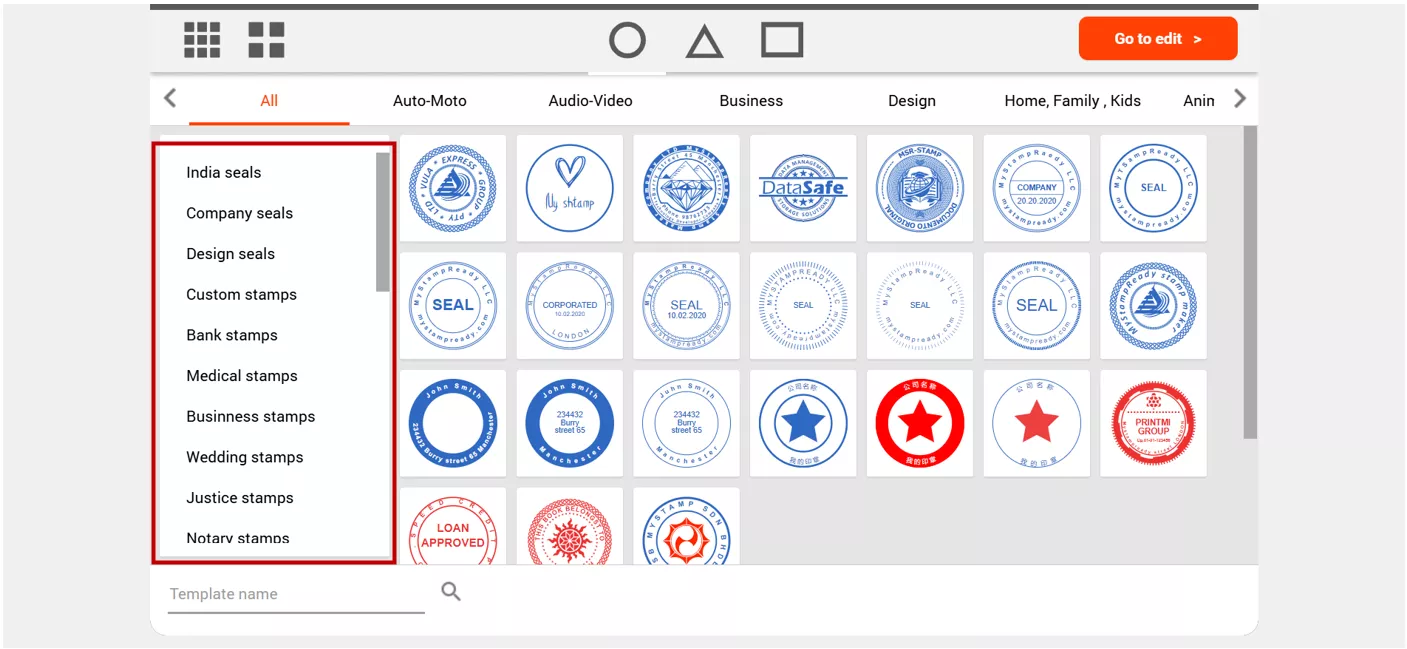
This tool gives you more creative control than most free options. It has over 300 templates across categories like corporate seals, business stamps, notary stamps, medical stamps, and more, so you'll almost always find a starting point that fits your use case.
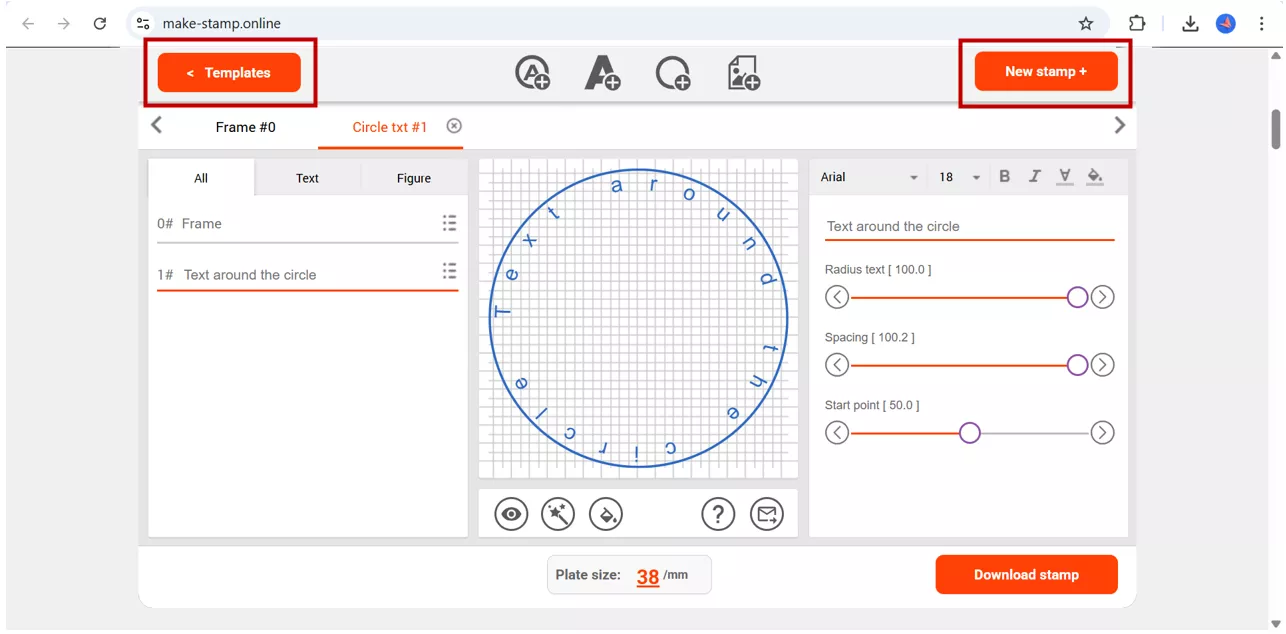
Here's how it works:
Using New Stamp:
Click "New Stamp" and choose your stamp shape and size.
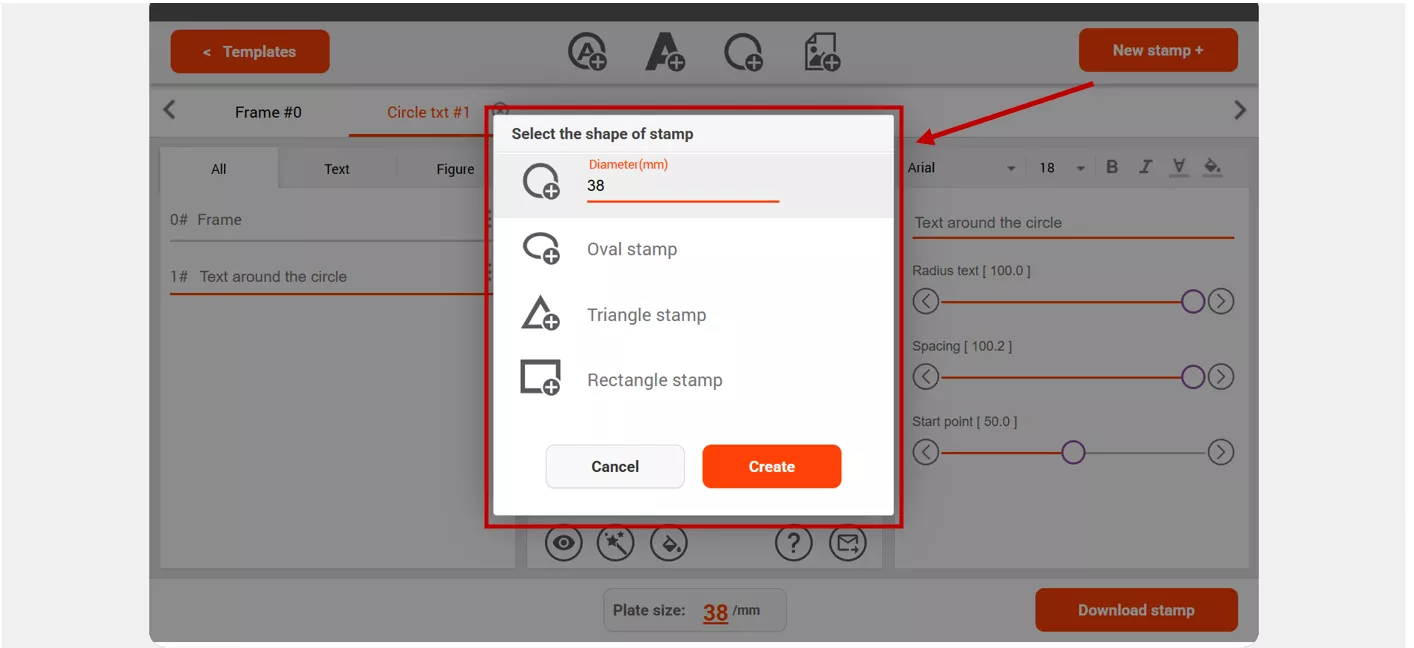
Click "Add Ring" to create the outer border and adjust its thickness. Add your text using "Text in Circle" or "Text in Line" and customize the font, spacing, and size. Choose a template image or upload your own SVG logo. Pick your colour, preview the result, and download the stamp.
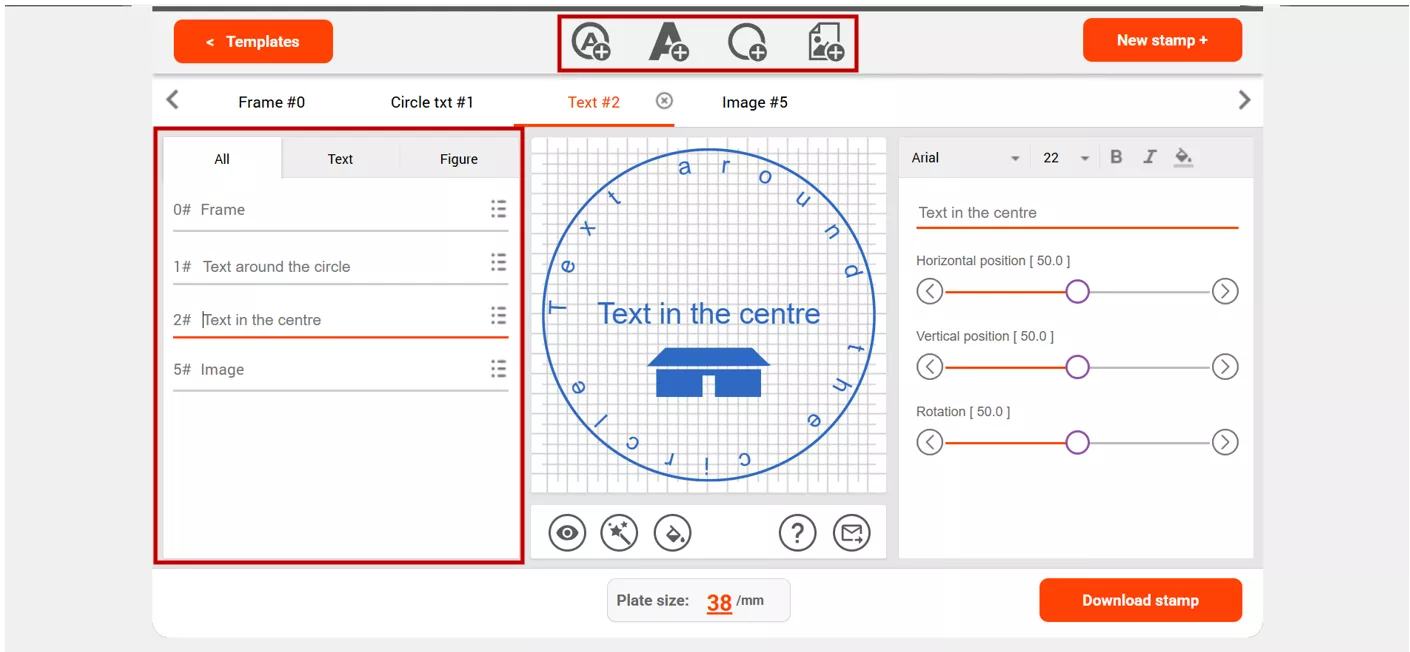
Using Template:
Click on the template and select your desired template from a wide variety of collections, edit and customize the template, and download it to use as your digital stamp on PDFs.
3. Canva
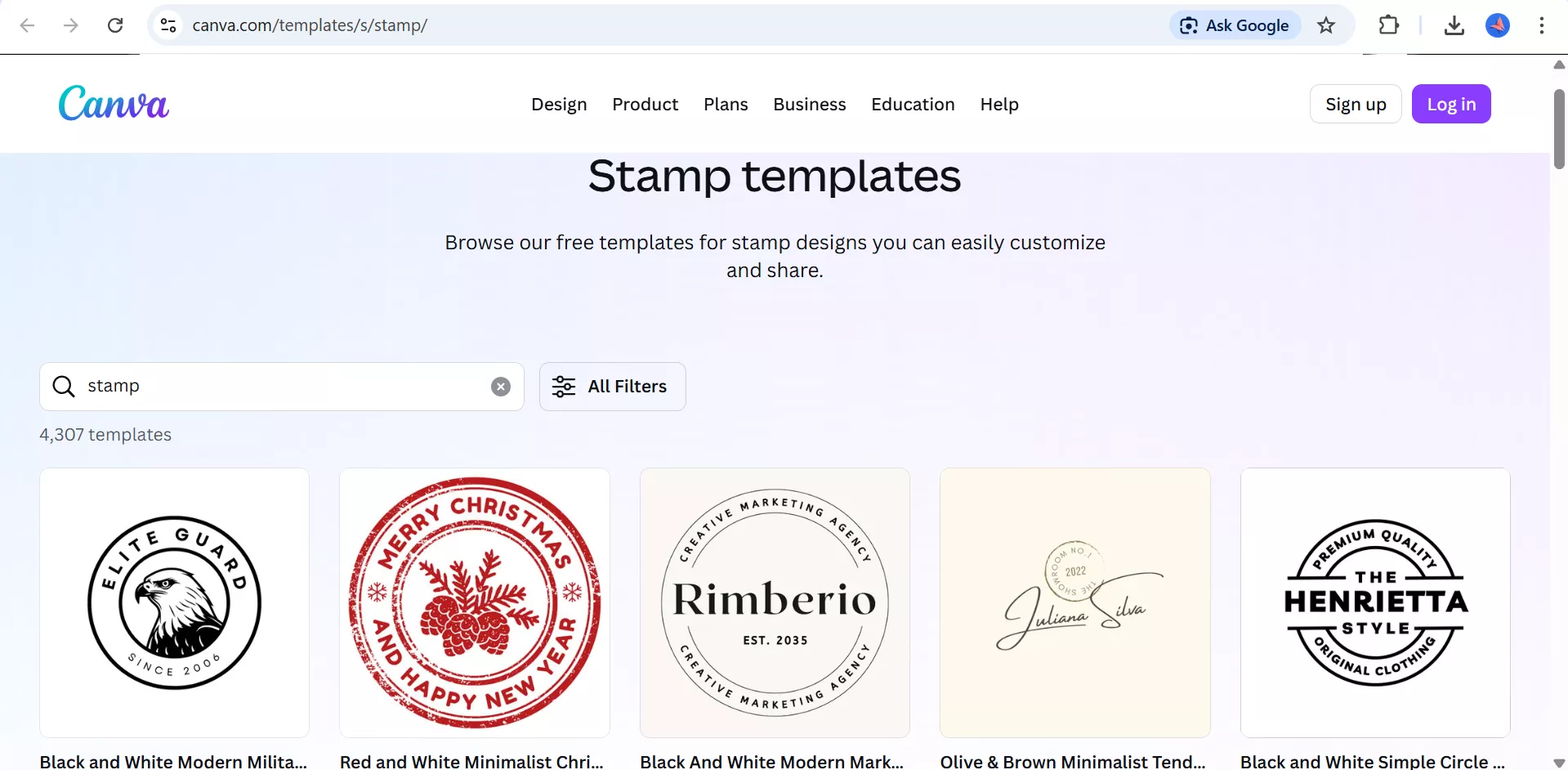
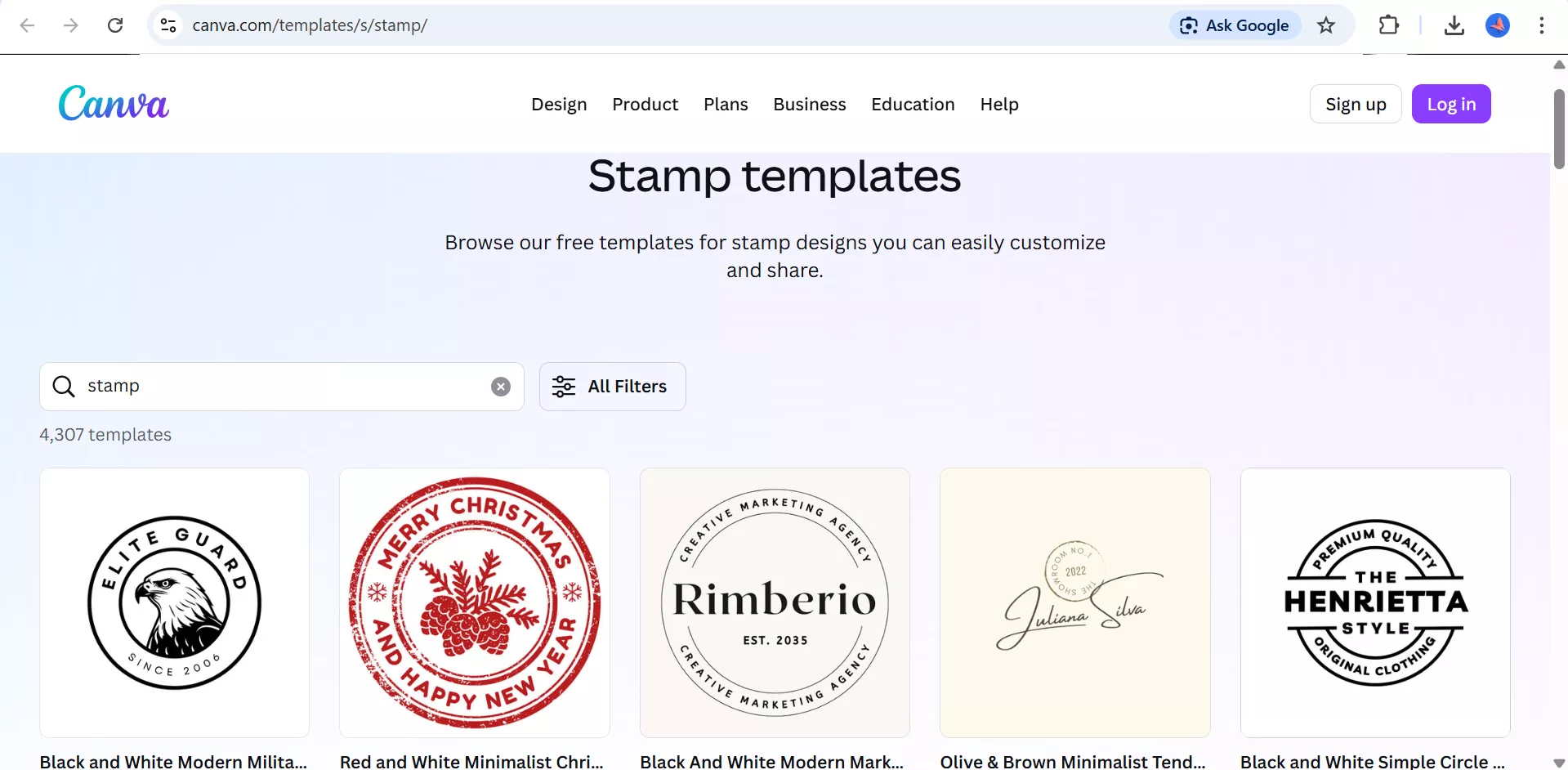
If you're already using Canva for other design work, this is the most familiar option. Canva has a solid collection of stamp templates you can browse, customize, and download directly.
Here's how to use it:
1. Go to the stamp templates page and pick a design that fits your style
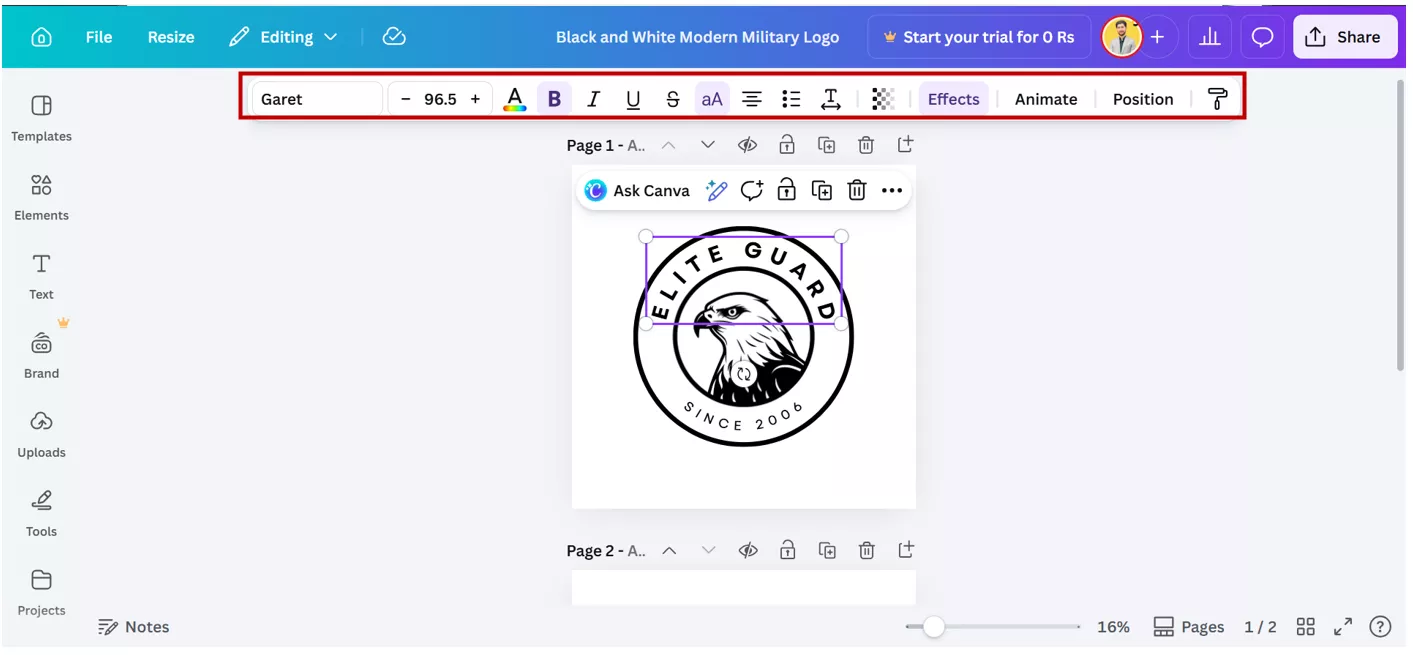
2. Click on any element in the template such as text, shape, colour, etc., to edit it directly on the canvas. Replace the placeholder text with your own name, company, or message. Adjust colours, fonts, and layout as needed.
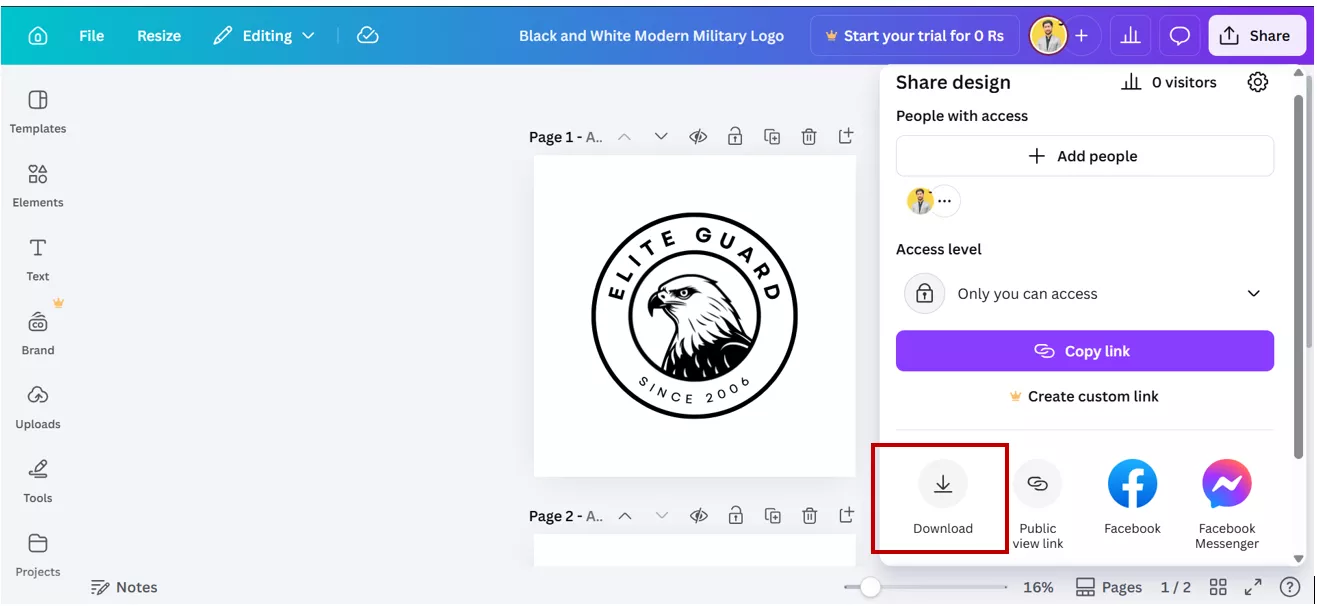
3. Download your finished stamp as a PNG with a transparent background. Import it into the PDF editing tool and add it to the document.
Part 4. Method 3: Create Custom Stamps In Procreate (Most Creative)
When I want full creative control, I prefer using Procreate. This method is not the fastest, but it gives me complete freedom to design something unique, especially when basic tools feel limiting.
Who Should Use This Method?
From my experience, this approach works best if:
- I need a highly customized stamp design
- I’m working on branding or signature-style stamps
- I already use Procreate on my iPad
- I enjoy designing instead of relying on templates.
If you want to know how to make your own stamp with a personal touch rather than relying on ready-made templates, this is the method I’d recommend.
How To Make A Stamp In Procreate
Here’s how I usually do it:
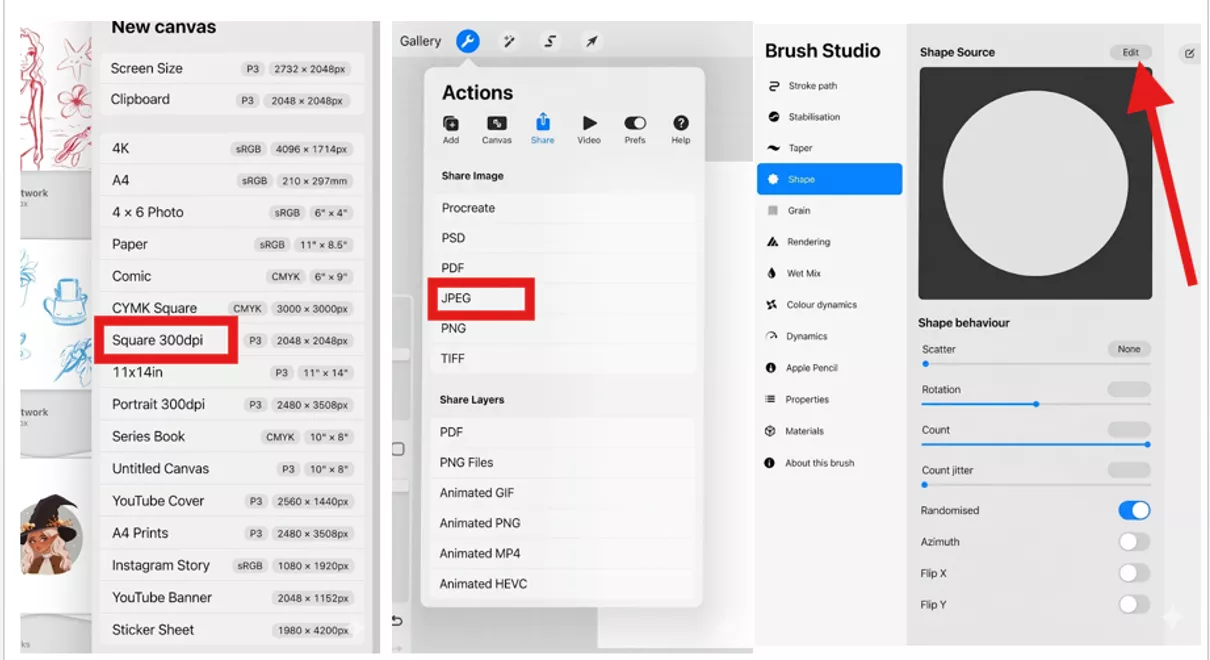
- First, I open Procreate, and then I create a new canvas (preferably square). Procreate already has a square canvas named "Square 300 dpi".
- Using brushes, I design my stamp like text, shapes, or icons. Moreover, I would recommend using black ink.
- I keep the background transparent for better usability. Now save your canvas as .jpeg.
- Again, create a new canvas, then go to brushes, then the stamps section. Click + to create a new one.
- A new menu will appear. Click on the shape source, import your previous shape, and you’re done.
- Finally, I adjust the contrast and clean up the edges for a sharper look, then click Done.
If you’re specifically searching for how to make a stamp in Procreate, then don't worry, as this process becomes easier with practice.
Part 5. Comparison: Which Method Is Right For You?
After trying all three methods myself, I realized that the “best” option depends on what I actually need. Here’s a simple breakdown based on my experience:
| Method | Difficulty | Time | Best For | Cost |
| Online Tools | Low | 5 min | Quick simple needs | Free |
| UPDF AI ⭐ | Very Low | 2 min | PDF documents (without design skills) | Free trial |
| Procreate | Medium-High | 30+ min | Creative designs | App purchase |
My Honest Take
- When I need something fast, I go for a free online stamp maker tool.
- If I’m working with documents, especially PDFs, I prefer UPDF because it saves time. It gives everything from PDF tools toUPDF AI in one place.
Windows • macOS • iOS • Android 100% secure
- But when I want something unique, I switch to Procreate.
If you’re still thinking about how to make your own stamp, my advice is simple:
Start with free online tools, then move to advanced options as your needs grow.
Part 6. FAQs
Can I Print My Own Stamps At Home?
Yes, I can print my own stamps at home, but there’s a small difference between a digital stamp and a physical one. When I use a free online stamp-making tool, I usually download the design and print it on paper or sticker sheets. If I want a real rubber stamp, I send that design to a stamp-making service.
What Kind Of Ink To Use For Stamps?
If I’m using a physical stamp, I prefer oil-based or pigment ink because it lasts longer and doesn’t fade easily. For everyday office use, water-based ink is also fine. But when I use digital stamps in PDFs, I use dry ink because of better visibility.
Are Picture Stamps Still Legal?
In my case, pictures or digital stamps are really accepted in internal documents, approvals, and branding. However, for official or legal documents, the regulations may differ by office (or Country). So I always check the guidelines in cases I want to use a digital stamp in an official procedure.
Conclusion
After trying different methods, I’ve realized that creating stamps today is easier than ever. Whether I use a free online stamp maker, design something creative in Procreate, or rely on an AI-powered tool like UPDF, each method serves a different purpose.
Personally, when I want speed and accuracy, especially for PDFs, I prefer using UPDF AI Stamp Creator because it removes the need for design skills and saves a lot of time. But if my goal is creativity and I have a lot of time, I switch to manual design tools.
Windows • macOS • iOS • Android 100% secure



 Lizzy Lozano
 Enrica Taylor
 Engelbert White
 Enola Miller