 UPDF
UPDF
 UPDF for Windows
 UPDF for Mac
 UPDF for iPhone/iPad
 UPDF for Android
 Nomostar
 UPDF AI Online
 UPDF Sign
 IvyCraft
 Edit PDF
 Annotate PDF
 Create PDF
 PDF Form
 Edit links
 Convert PDF
 OCR
OCR PDF to Word
 PDF to Image
 PDF to Excel
 Organize PDF
 Merge PDF
 Split PDF
 Crop PDF
 Rotate PDF
 Protect PDF
 Sign PDF
 Redact PDF
 Sanitize PDF
 Remove Security
 Read PDF
 UPDF Cloud
 Compress PDF
 Print PDF
 Batch Process
 About UPDF AI
 UPDF AI Solutions
 AI User Guide
 FAQ about UPDF AI
 Summarize PDF
 Translate PDF
 Chat with PDF
 Chat with AI
 Chat with image
 PDF to Mind Map
 Explain PDF
 PDF AI Tools
 Image AI Tools
 AI Chat Tools
 AI Writing Tools
 AI Study Tools
 AI Working Tools
 Other AI Tools
 AI Bookmark Generation
 AI Bookmark Summary
 AI Watermark Generation
 AI Background Generation
 AI Sticker Generation
 AI Stamp Generation
 AI Editing Suite
 UPDF Copilot
 AI Page Management
 AI Semantic Search
 PDF to Word
 PDF to Excel
 PDF to PowerPoint
 Enterprise Solution
 Enterprise Sign
 Enterprise AI
 Enterprise Plan
 Enterprise User Guide
 Enterprise Webinar
 Banking
 Healthcare
 Insurance
 Legal
Legal Manufacturing
 Government
 Researchers & PhDs
 Solopreneurs & Freelancers
 Lawyers & Legal Professionals
 Real Estate Agents & Brokers
 Education Solution
 Customer Stories
 User Guide
 UPDF Tricks
 FAQs
FAQs UPDF Reviews
 Download Center
 Blog
Blog Newsroom
 Tech Spec
 Updates
 UPDF vs. Adobe Acrobat
 UPDF vs. Foxit
 UPDF vs. PDF Expert

Scanning paper documents on your phone sounds simple. However, without a reliable app, you end up with blurry and skewed images that require manual effort to optimize.
This is a common struggle for many students, professionals, and freelancers who often need to quickly scan multiple documents.
Adobe Scan for Android makes this easier with its AI-driven scanning and OCR features. This article reviews the Adobe scanner app for Android, covering features, pricing, limitations, and user reviews. So, you can see if it's a reliable tool to use.
Part 1: Adobe Scan for Android In-depth Overview
Adobe Scan offers a comprehensive solution for capturing and digitizing paper documents right on your smartphone. Below, you will find a rundown of its key features, pricing, limitations, and real user reviews.
Section 1: Core Features
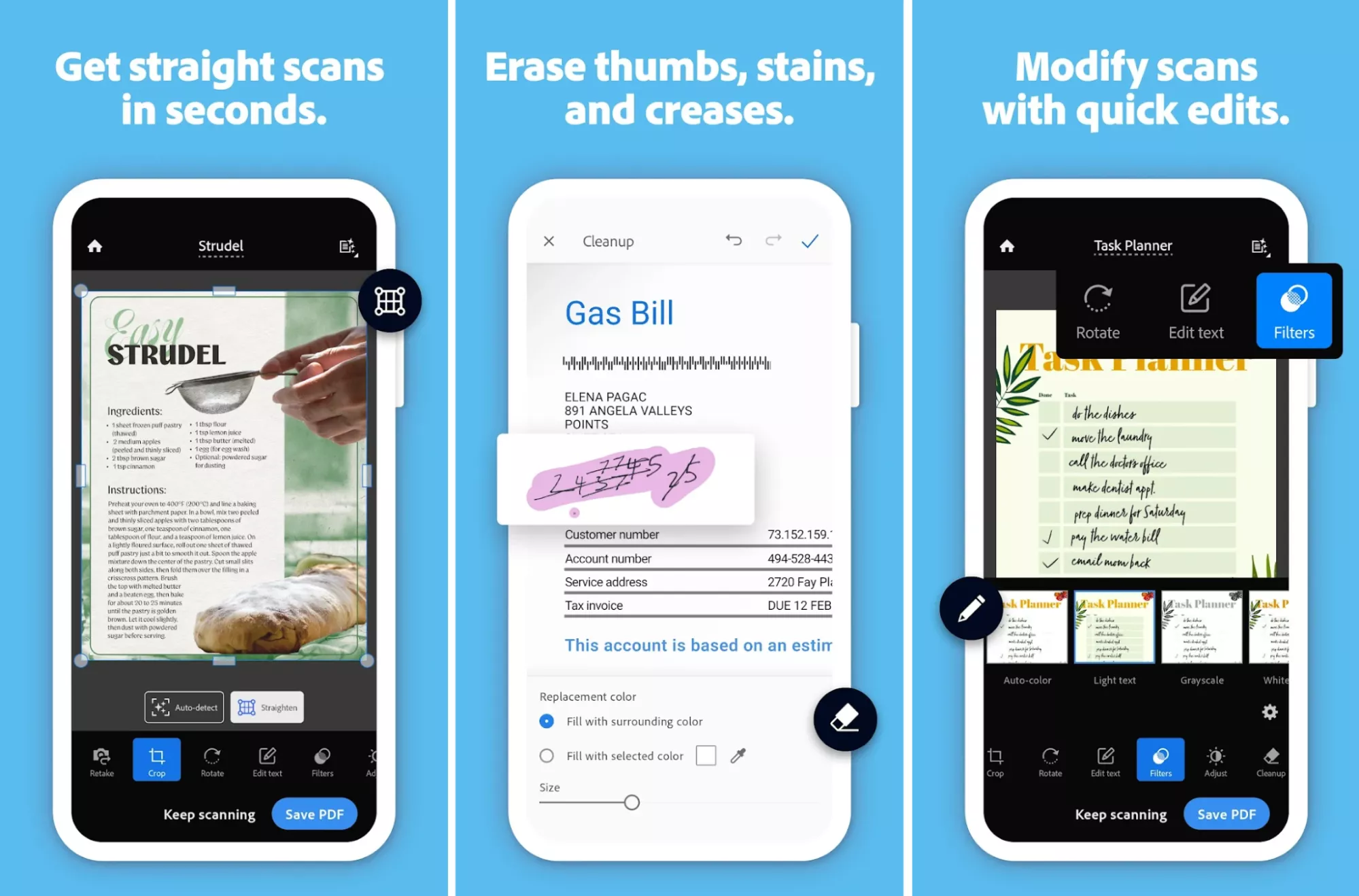
Adobe scanner app for Android offers many features to help you create professional-looking scans and manage them directly on your smartphone. Let’s review these in detail.
- AI-Powered Smart Scanning: Adobe Scan includes an integrated AI tool that automatically detects document edges, sharpens content, and corrects tilted pages. It also includes dedicated scan modes for books, ID cards, whiteboards, and more
- High-Speed Scanning Mode: This feature allows you to scan multiple pages of books or documents continuously with a single tap. So, you don't need to capture one page at a time.
- Magic Eraser & Page Extraction: Adobe Scan uses AI to remove unwanted stains, marks, or shadows from your scans for a cleaner look. Moreover, you can select specific pages to extract as separate PDFs.
- Powerful Text Recognition & Conversion: Once scanned, you can directly enable OCR to recognize text and copy it. With a paid subscription, you can also edit text within the file after saving it.
- AI-Generated Summaries: When viewing your scanned documents, you can use the Generative Summary tool to automatically generate an outline with headings. It also includes section summaries to highlight the key points in a document.
Section 2: Free vs. Premium: How to Choose?
Adobe Scan on the Play Store is free to download and use. However, several of its advanced features, such as the high-speed scan and Office format exports, require a paid subscription.
However, Adobe does not provide official pricing details for its Android scanner app. The following chart shows pricing based on third-party sources.
| Plan | Pricing |
| Adobe Scan Monthly | $9.99 per month |
| Adobe Scan Yearly | $49.99 to $69.99 per year |
Section 3: Limitations: What Happens after Scanning?
Although the Adobe scanner app for Android performs well when scanning documents, it lacks several important features. Many advanced tools are locked behind a paid subscription. In addition, the free version offers only limited options for editing and processing documents after scanning
Here’s a quick look at its limitations.
| Limitations | Specific Manifestations |
| Free Version OCR Limitations | 5 pages per scan |
| Edit Complex PDFs on Phone | Only edit text style, size, font; cannot edit images |
| Advanced features require a subscription | High-Speed Scan, Magic Eraser, password protection, and export to Office formats |
| Inconsistent quality of format conversion | Deformed exported documents, formatting errors in Word or Excel exports |
| Weak integration with other cloud services | Copy files to Google Drive, OneDrive, and Microsoft Teams |
As you can see, Adobe Scan performs well at the first stage of document work. However, it offers limited options for deeper file processing. As a result, it is not the best option if you want to edit, convert, or manage documents fully on Android devices.
If you need a more complete solution, UPDF is built for exactly this purpose. In addition to including a PDF scanner, it offers complete PDF editing tools and a smart AI assistant to make document processing much easier.
Windows • macOS • iOS • Android 100% secure
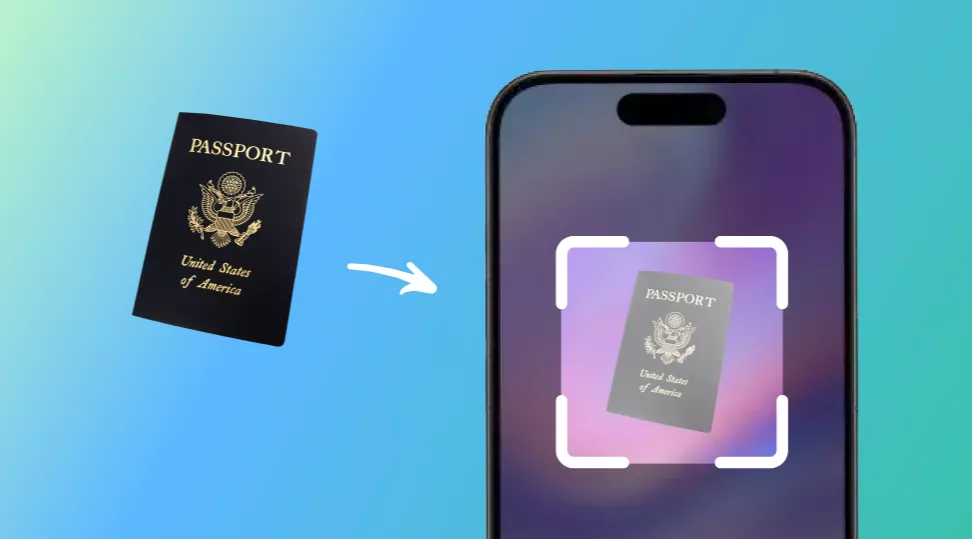
⚡It is worth mentioning that our new member, NomoStar, an AI-powered scanning tool optimized for mobile and desktop, is designed to handle common document types like receipts, passports, and certificates. A core feature is its integrated translation engine for 12 languages, which helps users instantly convert foreign text. For professionals managing both personal archives and business receipts, NomoStar provides a clutter‑free scanning environment to build a fully searchable digital archive of physical documents. It stands out by prioritizing translation and ease‑of‑use over bulky, feature‑heavy software.
Section 4: Real Reviews
To assess if Adobe Scan is really reliable, let’s look at the community feedback. Below are authentic reviews to help you decide whether the app is worth your time.
The Positives:
Review 1: “Probably the best PDF scanner out there. No ads, easy to navigate, amazing auto capture so those with shaky hands can easily snap the object…” as read on the Play Store.
Review 2: “This is an incredible product! It easily creates PDFs from any image. The capture feature automatically levels the page and brightens the image...” as read on the App Store.
The Negatives:
Review 1: “Garbage page detection. App should be really good, but trying to scan multiple pages in a document wastes more time than it would save…” as read on the Play Store.
Review 2: “Some of my pages in pdf have an unusual grey border to them. Some pages don't have it and some do, and its really random…” as read on the App Store.
Part 2: How to Fix Adobe Scan for Android Not Working
If Adobe Scan for Android feels too limited, there are many other options you can try instead. One of the best options is UPDF, with its advanced scanning and full PDF management tools in one platform.
With UPDF for Android, you can scan paper documents in high resolution. Once the scan is complete, you can save it directly as a PDF. In addition, you can convert the scanned file into Word, Excel, PowerPoint, or image formats, which makes editing and sharing much easier.
That said, here’s how to scan with UPDF for Android.
Windows • macOS • iOS • Android 100% secure
Step 1. Open UPDF for Android and tap the “+” button in the bottom right. Then, select “Scan” from the pop-up menu.
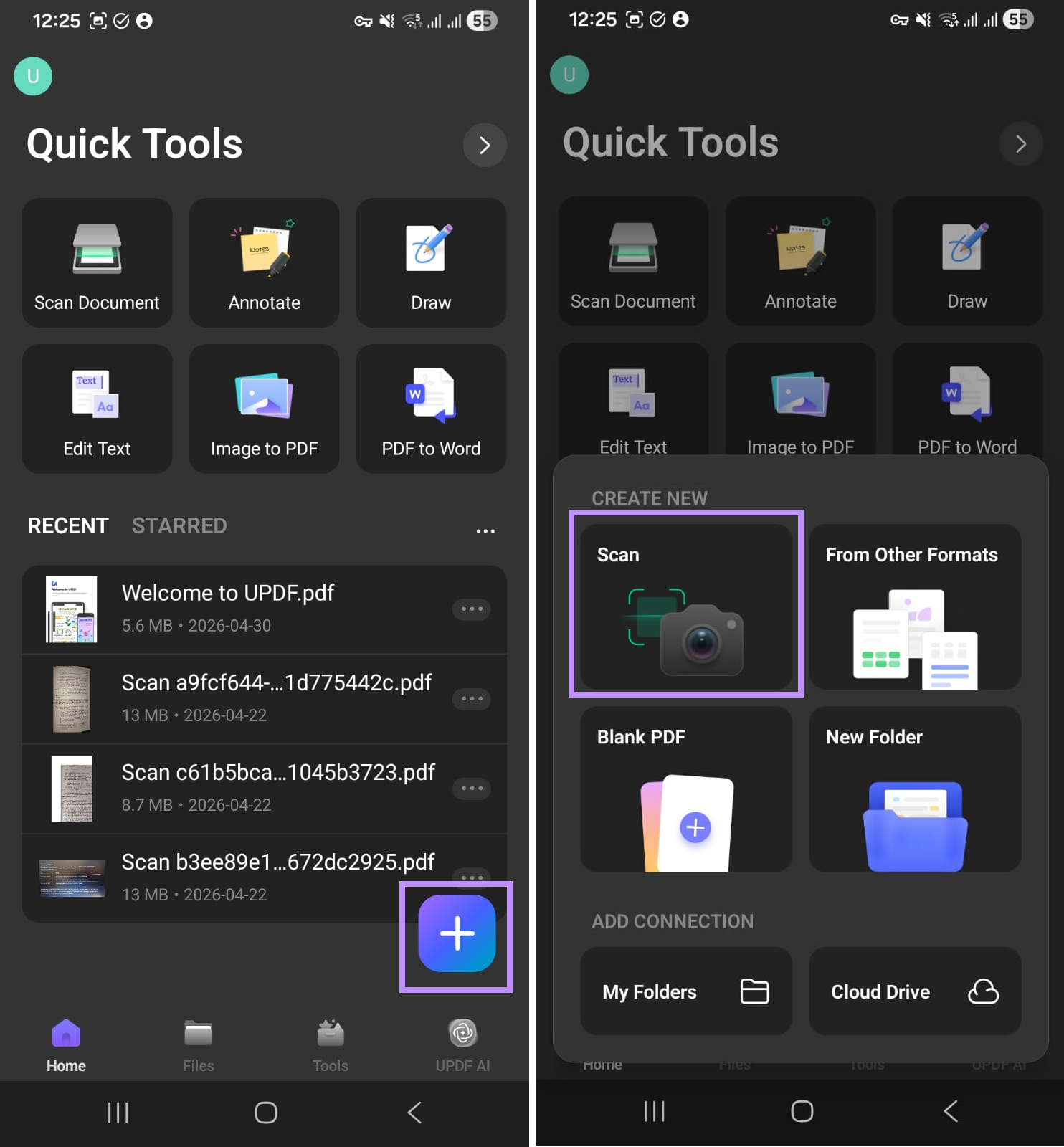
Step 2. Point your camera at the page you want to scan and tap the “Capture” button. Review the image and press “OK” or “Retry” if needed.
Step 3. UPDF will automatically detect the borders to correct the angle. From here, tap “Done” to proceed.
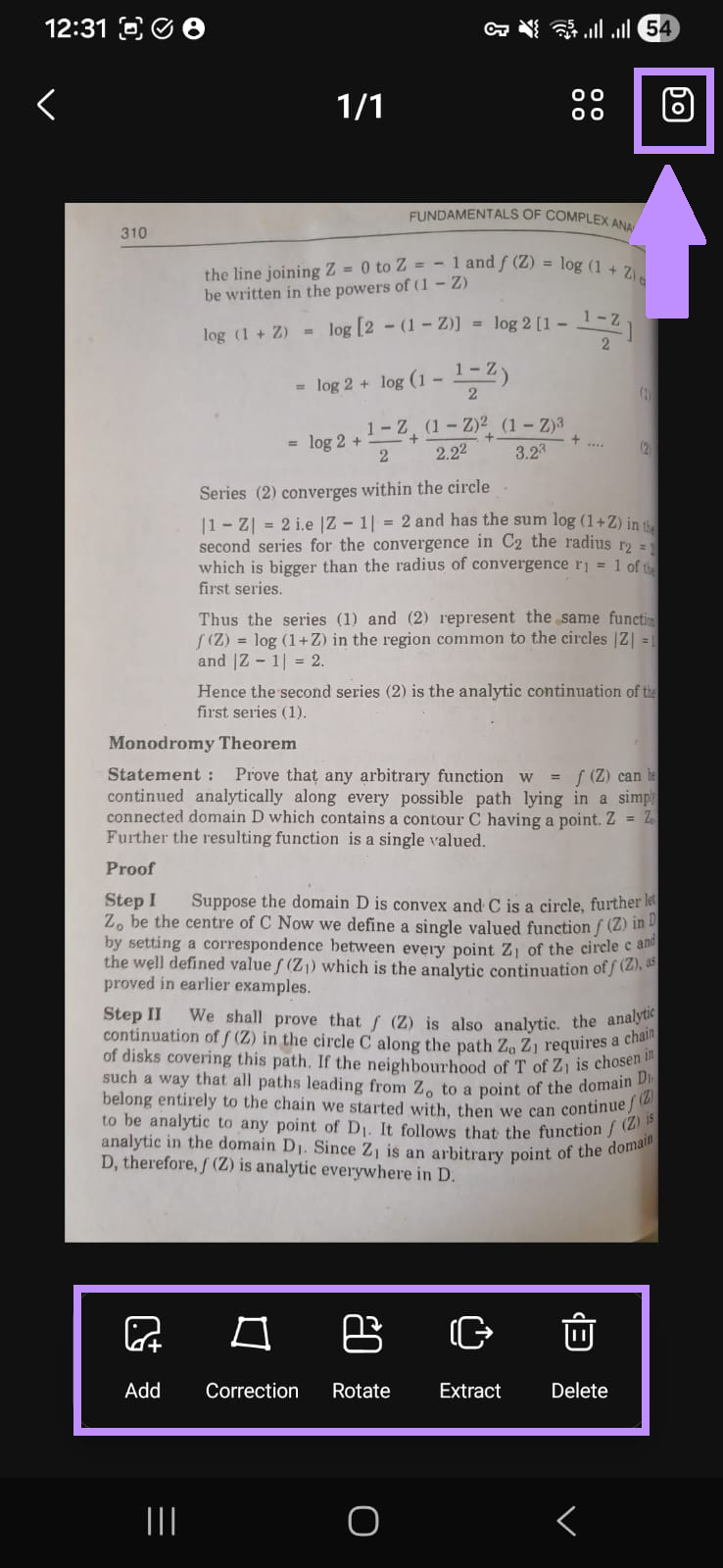
Step 4. Use the toolbar at the bottom to correct and rotate the image. You can also tap “Add” to scan more pages or “Delete” to remove existing ones. If you want to save a certain page as a separate PDF file, press “Extract.” Once done, tap the “Save” button in the top right to store the file.
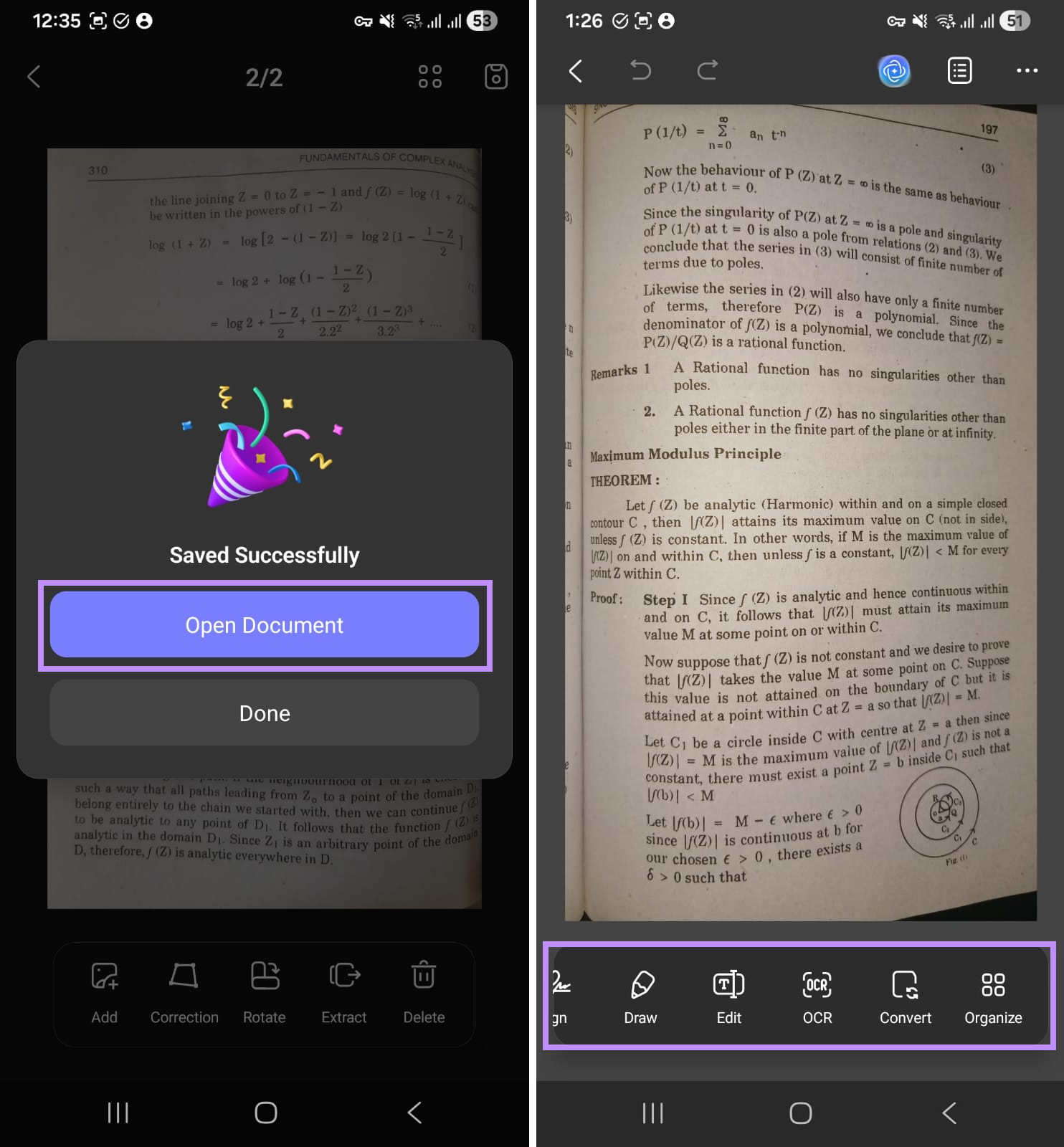
Step 5. After saving the file, press “Open Document” from the pop-up to start editing your file. Then, you can use the toolbar at the bottom to further process your document.
Why Do You Need UPDF Even More after Scanning?
- Convert Scanned Images into Fully Editable Office Documents: UPDF allows you to convert your scanned documents into Word, Excel, and PowerPoint formats. Before conversion, you can perform OCR to make your scans fully editable and searchable.
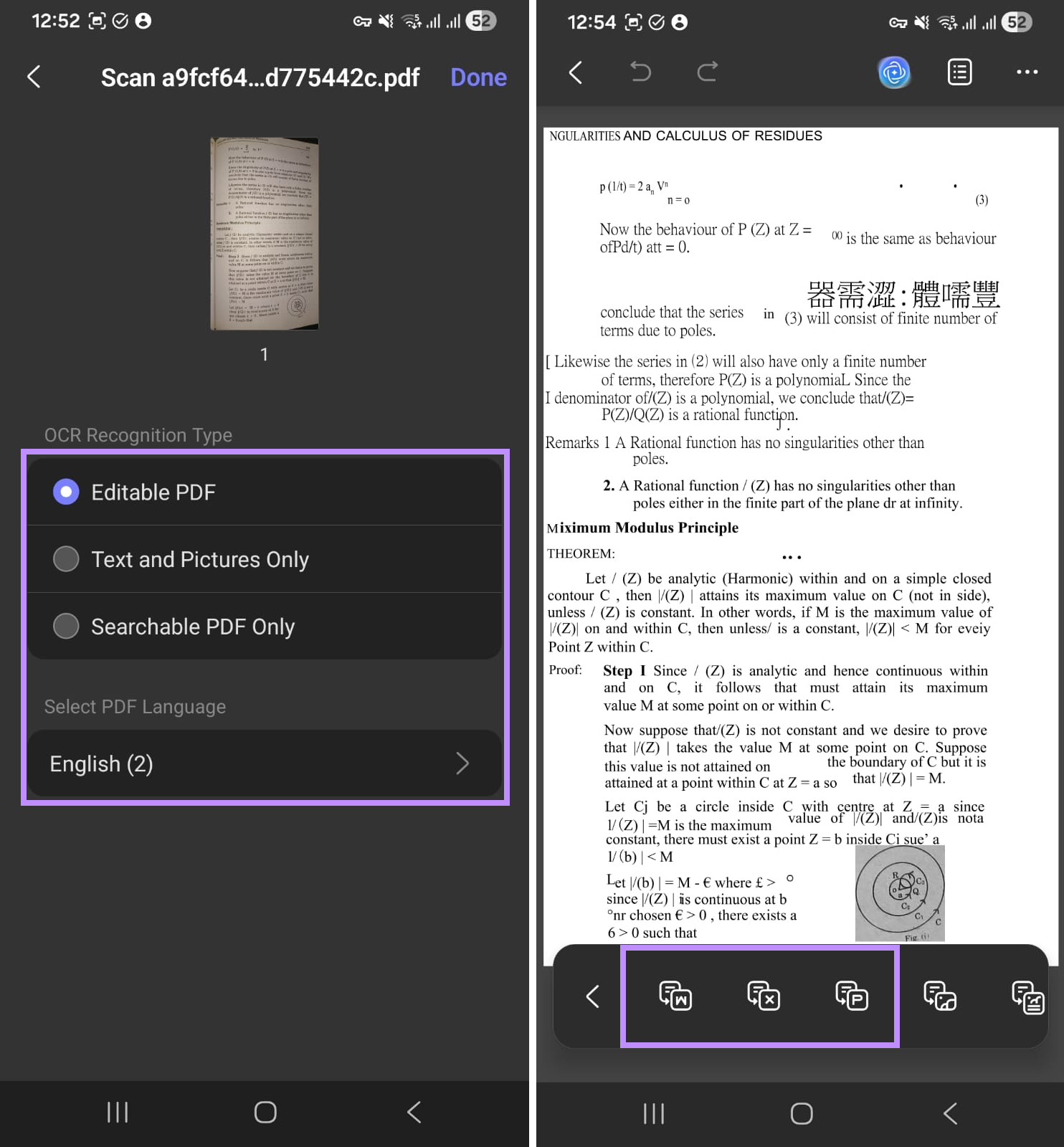
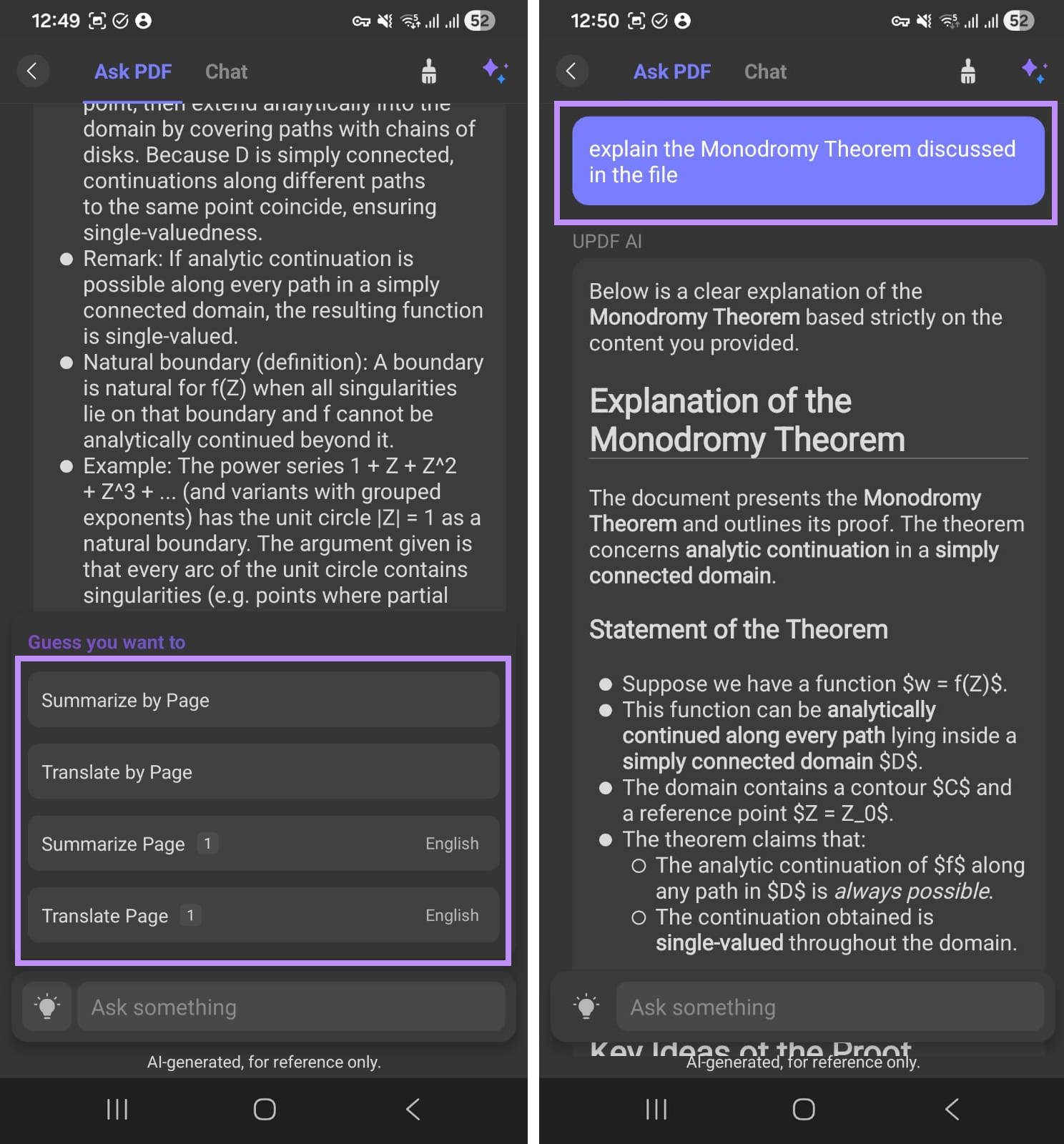
- Apply Advanced AI Processing to Scanned Documents: After scanning a document, you can use the built-in AI assistant to summarize, explain, translate, and ask specific questions about the document.
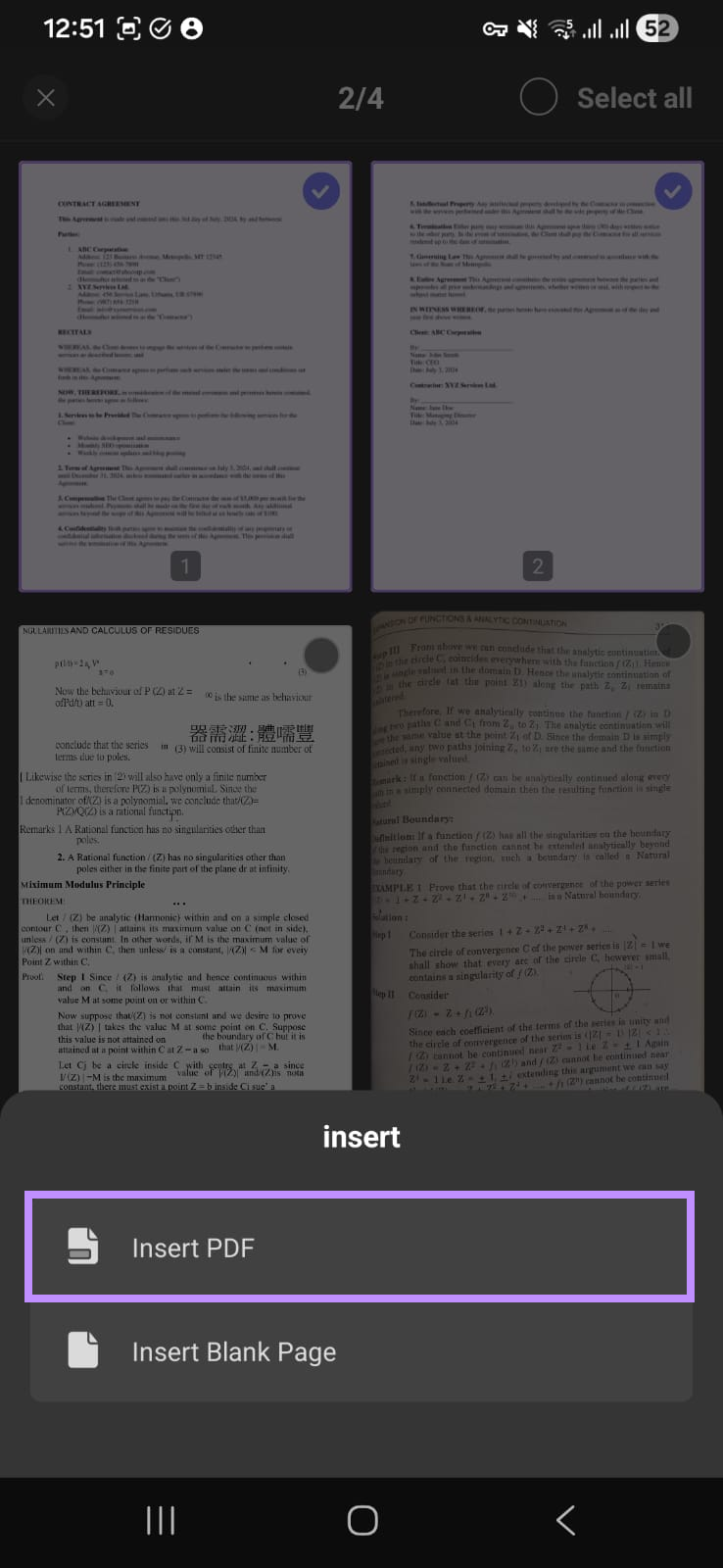
- Compile and Merge Multiple Scanned Documents: On UPDF for Android, you can use the “Insert” tool under the Organize Pages menu to combine multiple scanned PDFs into one comprehensive document.
- Add Security Protection to Scanned Files: UPDF’s desktop app allows you to add an open and permissions password to restrict who can access your scanned documents before sharing with others.
- Switch Seamlessly Across Platforms: UPDF includes a built-in cloud storage to help you sync your documents seamlessly across all platforms. SO, you can start scanning on Android and access the same document on iOS, Mac, and Windows.
Final Words
Adobe Scan for Android is a great scanning tool with smart AI features and a solid OCR. However, it is very limited when you need to edit, convert, or deeply process your scanned files. UPDF fills in this gap by offering a powerful scanner, full PDF editing, AI processing, and format conversion in one app. Plus, you can access and sync your files across all platforms. So, give it a try.
Windows • macOS • iOS • Android 100% secure





 Enola Miller
 Enya Moore
 Enrica Taylor
 Enid Brown