 UPDF
UPDF
 UPDF for Windows
 UPDF for Mac
 UPDF for iPhone/iPad
 UPDF for Android
 Nomostar
 UPDF AI Online
 UPDF Sign
 IvyCraft
 Edit PDF
 Annotate PDF
 Create PDF
 PDF Form
 Edit links
 Convert PDF
 OCR
OCR PDF to Word
 PDF to Image
 PDF to Excel
 Organize PDF
 Merge PDF
 Split PDF
 Crop PDF
 Rotate PDF
 Protect PDF
 Sign PDF
 Redact PDF
 Sanitize PDF
 Remove Security
 Read PDF
 UPDF Cloud
 Compress PDF
 Print PDF
 Batch Process
 About UPDF AI
 UPDF AI Solutions
 AI User Guide
 FAQ about UPDF AI
 Summarize PDF
 Translate PDF
 Chat with PDF
 Chat with AI
 Chat with image
 PDF to Mind Map
 Explain PDF
 PDF AI Tools
 Image AI Tools
 AI Chat Tools
 AI Writing Tools
 AI Study Tools
 AI Working Tools
 Other AI Tools
 AI Bookmark Generation
 AI Bookmark Summary
 AI Watermark Generation
 AI Background Generation
 AI Sticker Generation
 AI Stamp Generation
 AI Editing Suite
 UPDF Copilot
 AI Page Management
 AI Semantic Search
 PDF to Word
 PDF to Excel
 PDF to PowerPoint
 Enterprise Solution
 Enterprise Sign
 Enterprise AI
 Enterprise Plan
 Enterprise User Guide
 Enterprise Webinar
 IT
IT Education
 Construction
 Financial Service
 Healthcare
 Insurance
 Legal
Legal Manufacturing
 Government
 Researchers & PhDs
 Solopreneurs & Freelancers
 Lawyers & Legal Professionals
 Real Estate Agents & Brokers
 Education Solution
 Customer Stories
 User Guide
 UPDF Tricks
 FAQs
FAQs UPDF Reviews
 Download Center
 Blog
Blog Newsroom
 Tech Spec
 Updates
 UPDF vs. Adobe Acrobat
 UPDF vs. Foxit
 UPDF vs. PDF Expert

Quick Answer:
Sharing images and files across multiple platforms has become a norm on the internet. The format you choose for your pictures, files, and text depends on the various applications that can open your file. Although there are many formats, PDF and JPG provide you with the best quality. Therefore, having a basic knowledge of the difference between JPEG and PDF can save time and resources.
PDF is mainly a file format that can store your texts and handle image-based documents. However, JPG format is more suitable for images you can share across different platforms. Therefore, this article will provide you with a direct JPG vs. PDF comparison.
Part 1: What is a JPG Format?
JPG refers to the image-coding standard developed by the Joint Photographic Experts Group. JPG and JPEG are common filename extensions for files in this family; .jpg became common when older systems favored three-character extensions.
Ordinary JPG photos normally use lossy compression. The encoder discards some visual information to reduce file size. With sensible settings, the change may be hard to notice in a photograph. Heavy compression is much easier to see around text, logos, sharp edges, and flat-color graphics.
The JPEG 1 standard also defines less common modes, so "every JPEG is always lossy" is too absolute. For everyday .jpg and .jpeg files, however, you should plan around a flattened, usually lossy still image.
Best for:
- photographs, email previews, web images, and platforms that expect an image upload.
Not for:
- a designed document where the recipient still needs selectable text, working links, form fields, or several pages in order. A JPG can show those elements, but only as pixels.
Part 2: What is PDF Format?
PDF stands for Portable Document Format. ISO 32000 defines it as a digital representation of an electronic document intended for exchange and viewing independent of the environment in which it was created, viewed, or printed.
A PDF page can contain text, vector graphics, raster images, annotations, links, form controls, tags, metadata, and security settings. It can also contain nothing more than a photographed page. That is why two files with the same .pdf extension can behave very differently: one may have searchable text and live links, while another is only an image inside a PDF wrapper.
Best for:
- documents with ordered pages, fixed page dimensions, text, vectors, forms, links, signatures, comments, or accessibility structure.
Not for:
- a website field that accepts only image uploads. The document may look correct, but the destination cannot use a PDF.
Also Read: Advantage of PDF >>
Part 3: What's the Difference between PDF and JPG/JPEG
As we have discussed the JPG vs. PDF difference, we have learned that both these file formats are used for saving and sharing content on the internet. When it comes to displaying images and documents, each of the formats has its pros and cons. Therefore, let's take a deeper look at JPG and PDF's specific functions through the following table.
| Difference | JPG/JPEG | |
|---|---|---|
| Primary job | Store and display a still raster image | Represent an electronic document |
| Pages | One image canvas per file | One or many ordered pages |
| Text | Pixels unless another system supplies separate text | Can contain selectable/searchable text or image-only pages |
| Vectors and typography | Flattened to pixels | Can preserve vector shapes and font-based text |
| Links and buttons | No standalone clickable-link object | Can contain interactive links and controls |
| Forms and annotations | Not supported as live document objects | Can contain form fields, comments, and annotations |
| Compression | Everyday JPEG is normally lossy | May use several compression methods, including JPEG for images |
| Transparency | Ordinary JPG has no alpha transparency | A PDF page can use transparency, subject to the content and viewer |
| File size | Efficient for photographs; depends on dimensions and quality | Depends on text, vectors, images, fonts, and compression settings |
| Editing | Pixel editing changes the image | Object-level editing may be possible when the PDF contains editable objects |
| Accessibility | Usually supplied by surrounding HTML, such as alt text | Can contain tags, reading order, alt text, and form labels if properly authored |
| Security | No standard document password/permissions model | Can support encryption, permissions, digital signatures, and redaction workflows |
Part 4: How to Convert JPG and PDF with UPDF
When you require a trustworthy solution for switching between JPG and PDF formats, UPDF is here to simplify the process. In addition to this conversion, this multi-functional tool transforms PDF from and to popular formats such as Word, Excel, and PPT.
Moreover, UPDF's OCR technology converts your scanned documents, images, and paper documents into editable files. You can import multiple files on this exquisite tool that offers batch conversion to carry out your desired conversions. As mentioned before, you can carry out both kinds of conversions with the help of this multi-dimensional PDF converter.
Moreover, UPDF's JPG from or to PDF feature is available on Windows, Mac, Android, and iOS. So, you can perform the process anytime and anywhere.
To get this PDF converter, click on the "Free Download" button and try it today to witness the seamless transformations of your files. Moreover, if you upgrade to UPDF Pro now, you will get a big discount on your purchase.
Windows • macOS • iOS • Android 100% secure
Guide to Convert JPG to PDF
The transformation of your JPG image into PDFs using UPDF is a straightforward procedure that streamlines file management and sharing. Below, you will find easy-to-follow steps for efficiently completing this task.
For one File:
Step 1. Initiate the process by launching UPDF on your devices and accessing its main interface. Now, select the "Tools" option at the bottom, where you will be given a menu window. Choose the "Other" option from the given menu to access the "PDF from Image" button on the tool. Afterward, browse the JPG file from the system and click the "Select Files" button to import the file for the conversion.
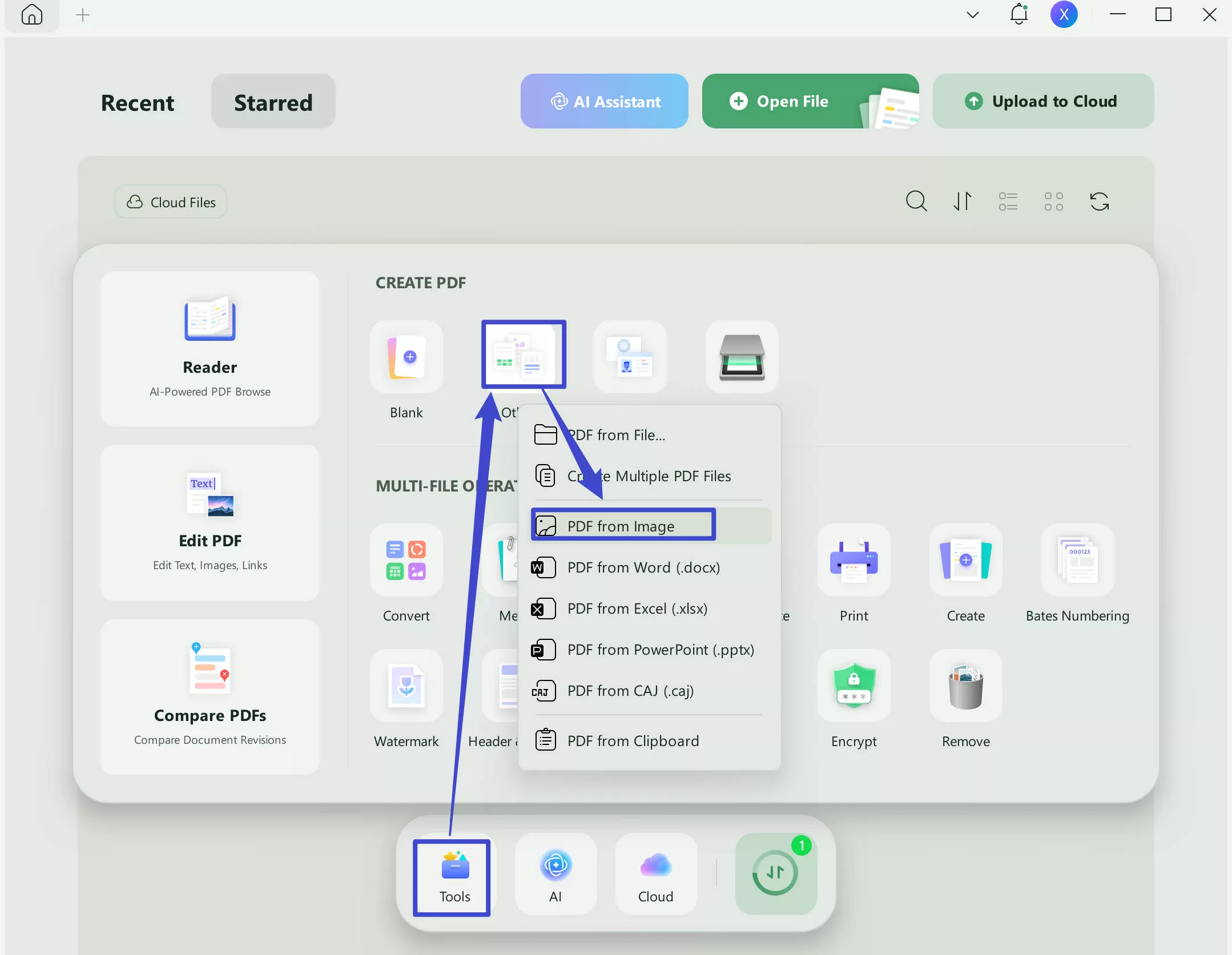
Step 2. Once you have imported your JPG file into UPDF, make the changes and click on "Apply" to create the PDF from the JPG. Now, click on the "Save" button at the top right menu to save it. You have a converted file from JPG to PDF with you while using UPDF.
For Multiple Files:
If you have multiple JPG files and want to convert them all into PDF Files, you can use the batch creation feature. Here is the guide:
Step 1. Launch the UPDF, click on the "Tools" > "Create".
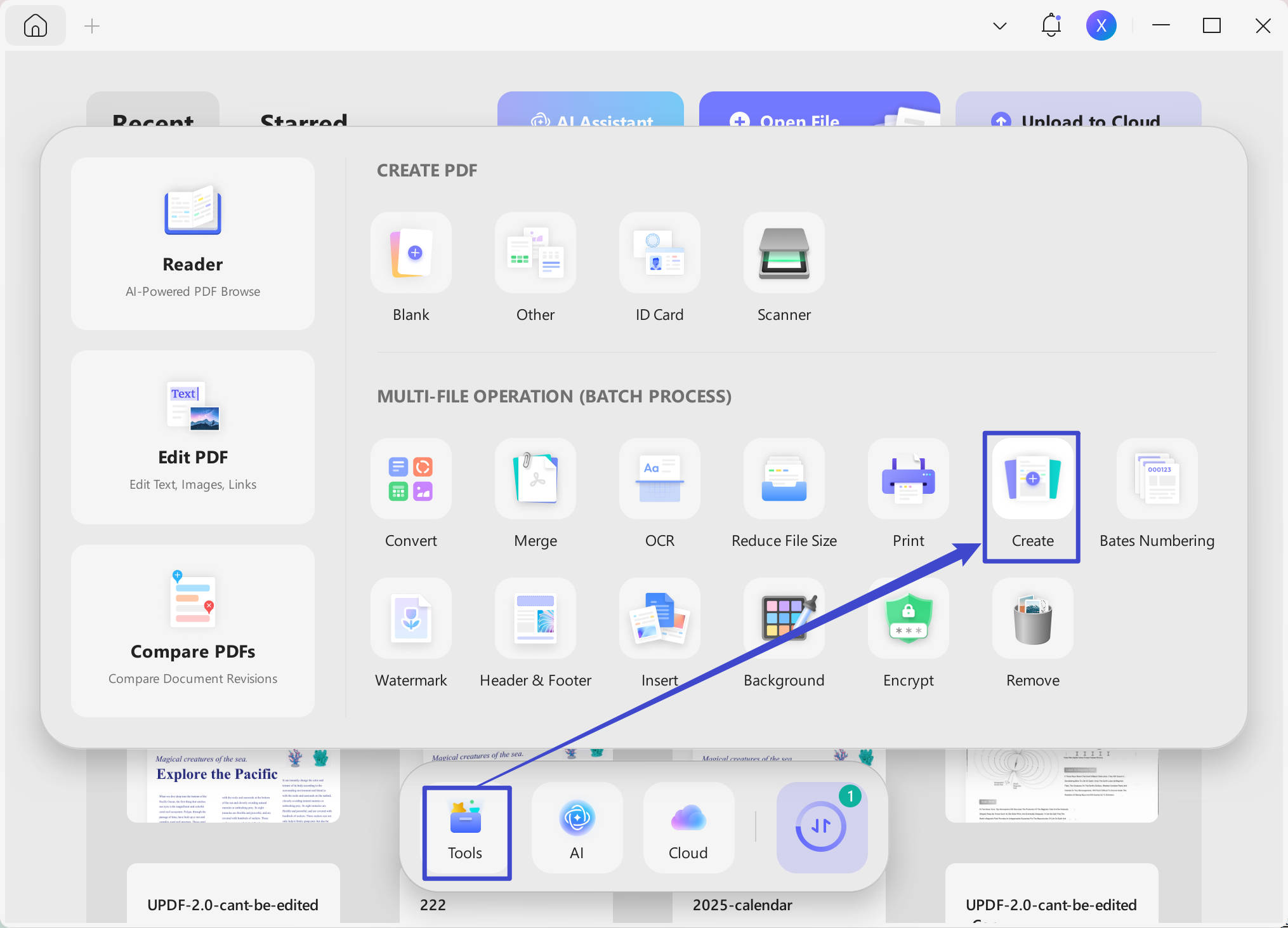
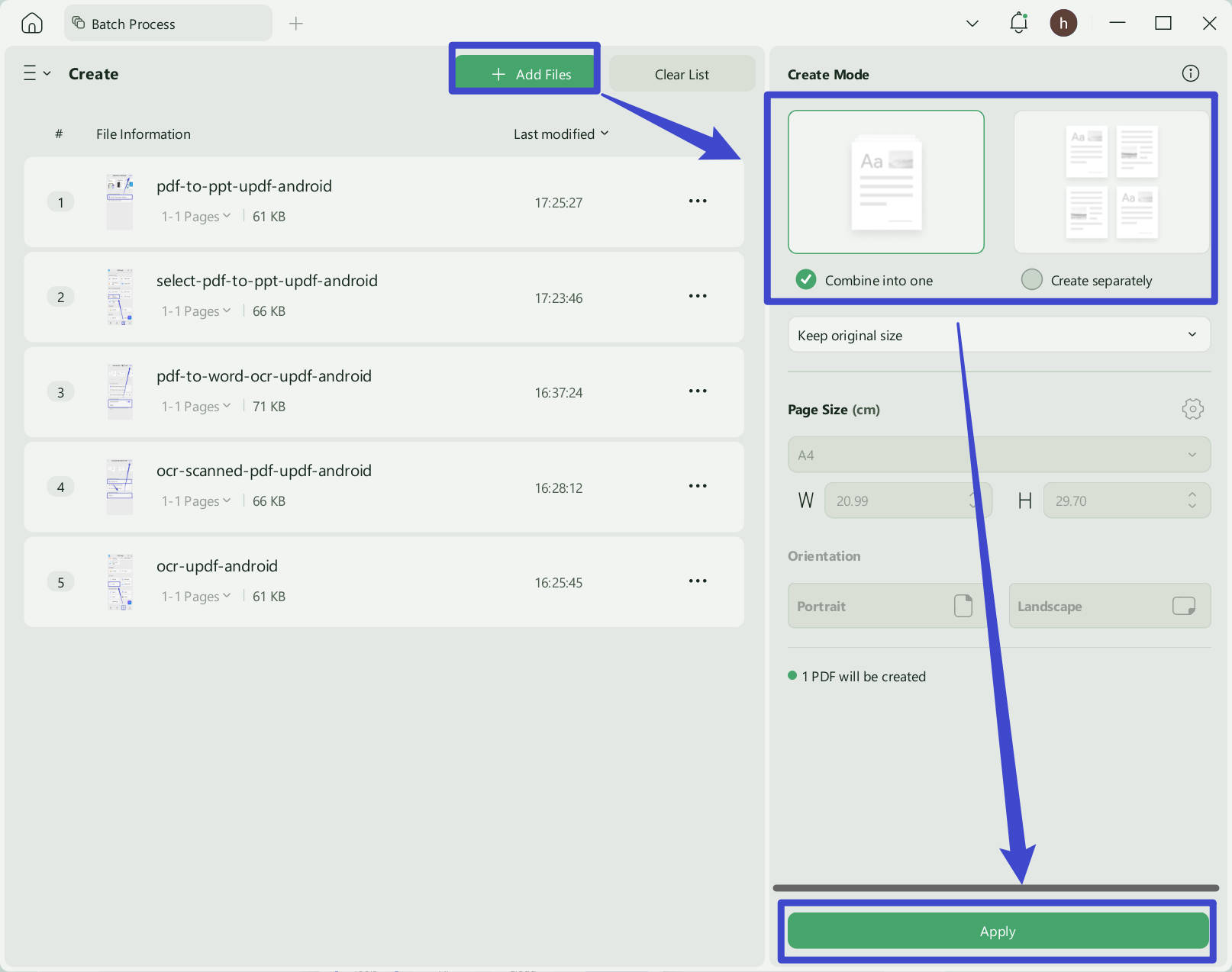
Step 2. Click on the "Add Files" to upload all the JPG files. Select "Combine into one" or "Create Separately" in the Create Mode, then, click on the "Apply' to convert all the JPG Files into PDF Files.
Guide to Convert PDF to JPG
Now, let's explore a new approach to converting PDFs into JPGs using UPDF, allowing you to customize your files for different purposes. In the following section, you can get a sequential guide to convert your documents into an image format.
For One File:
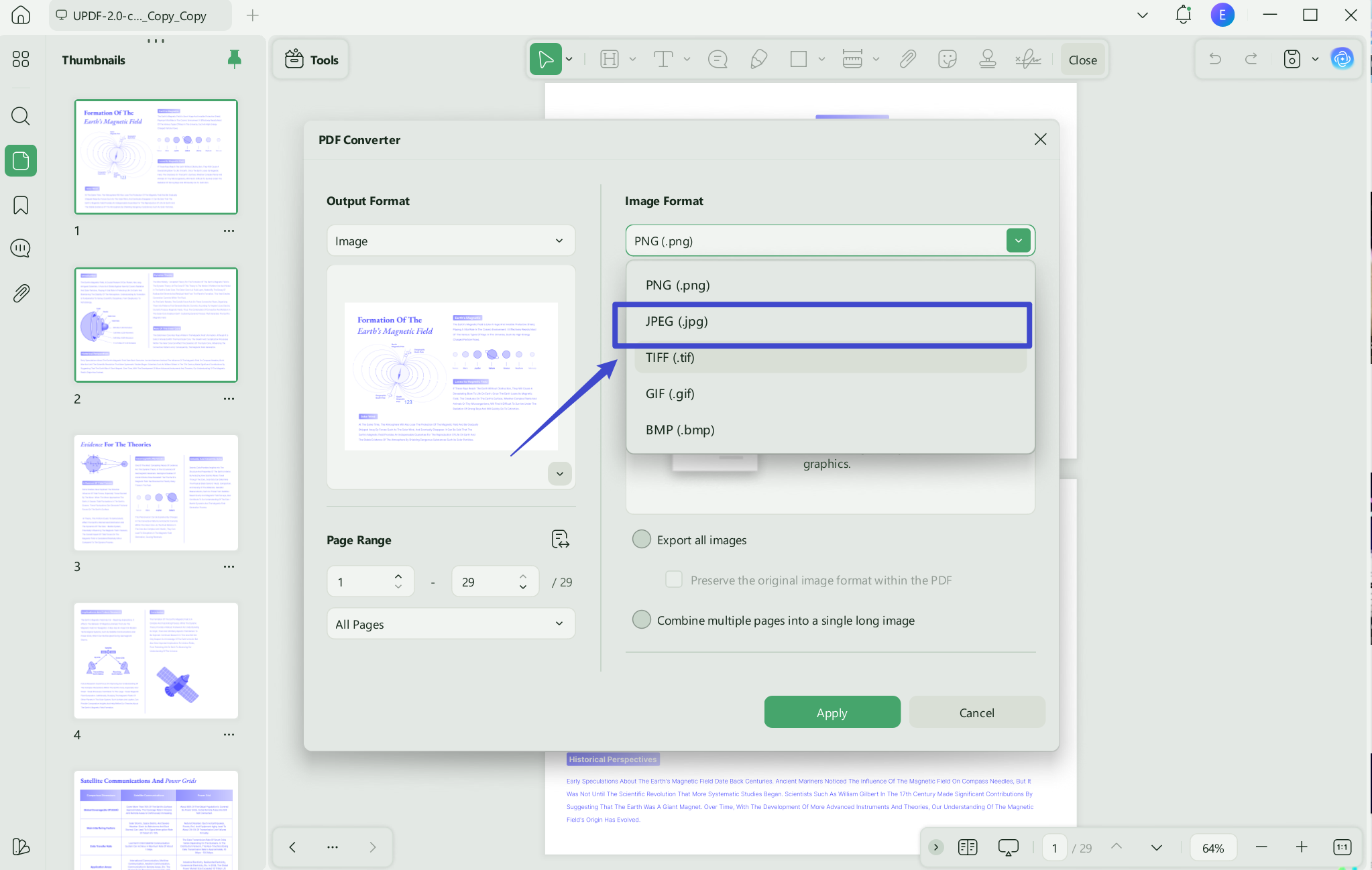
Step 1. Download UPDF via the button below and launch UPDF. Select the "Open File" from the main window to select the PDF file from the device. After importing the file, hit the "Tools" icon on the left side of your screen, find "PDF Converter" and click "Image".
Windows • macOS • iOS • Android 100% secure
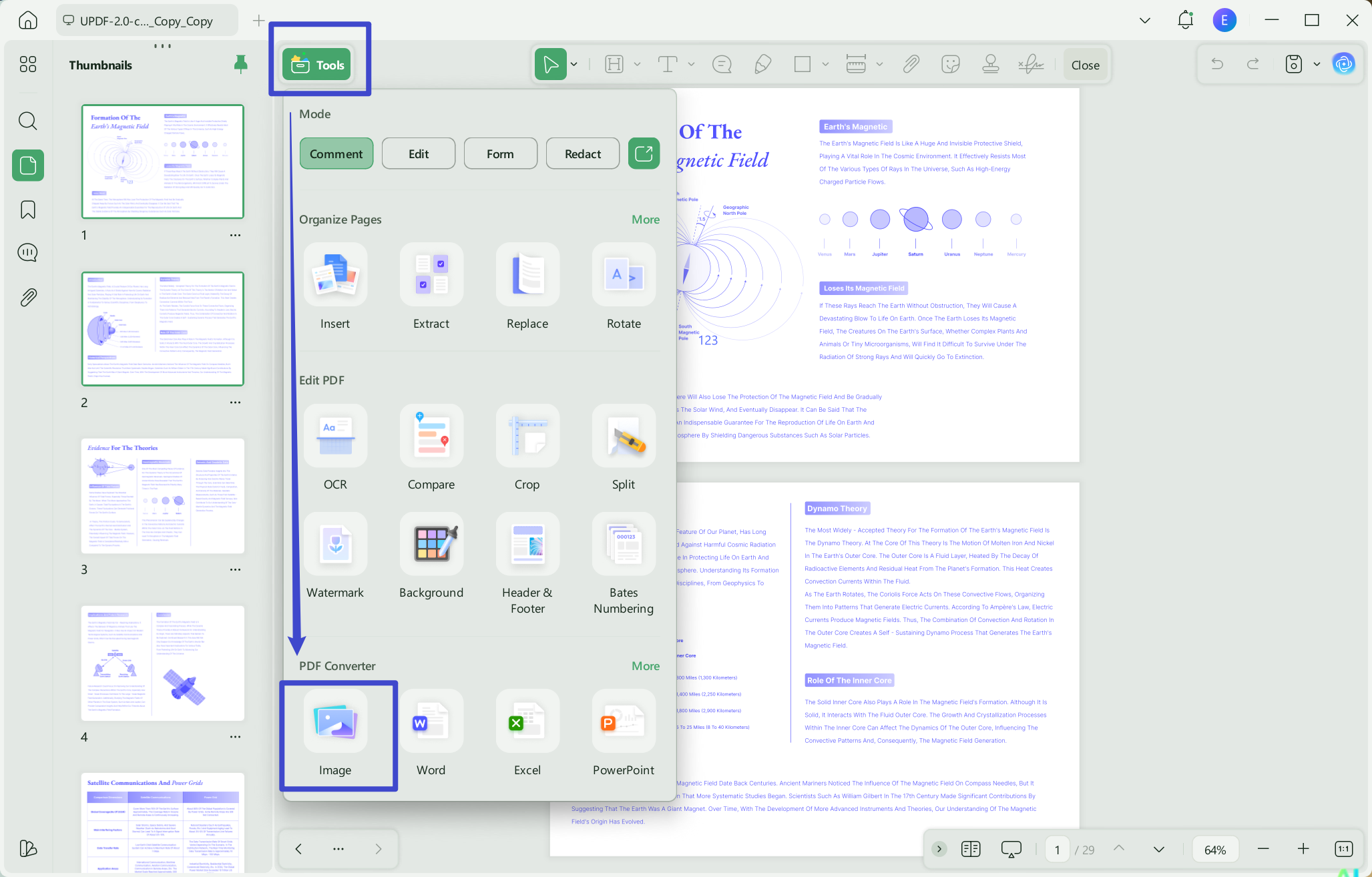
Step 2. After accessing the image's file format, the "Image Format" window will appear where you need to choose the image format as "JPG." Here, you have the customization options of setting the page range and the number of pages to get only odd or even pages in the converted form. After making your desired changes, select the "Apply" button to get your converted file from PDF to JPG.
For Multiple Files:
You can also use UPDF to convert multiple PDF Files into JPG files. Here is the guide.
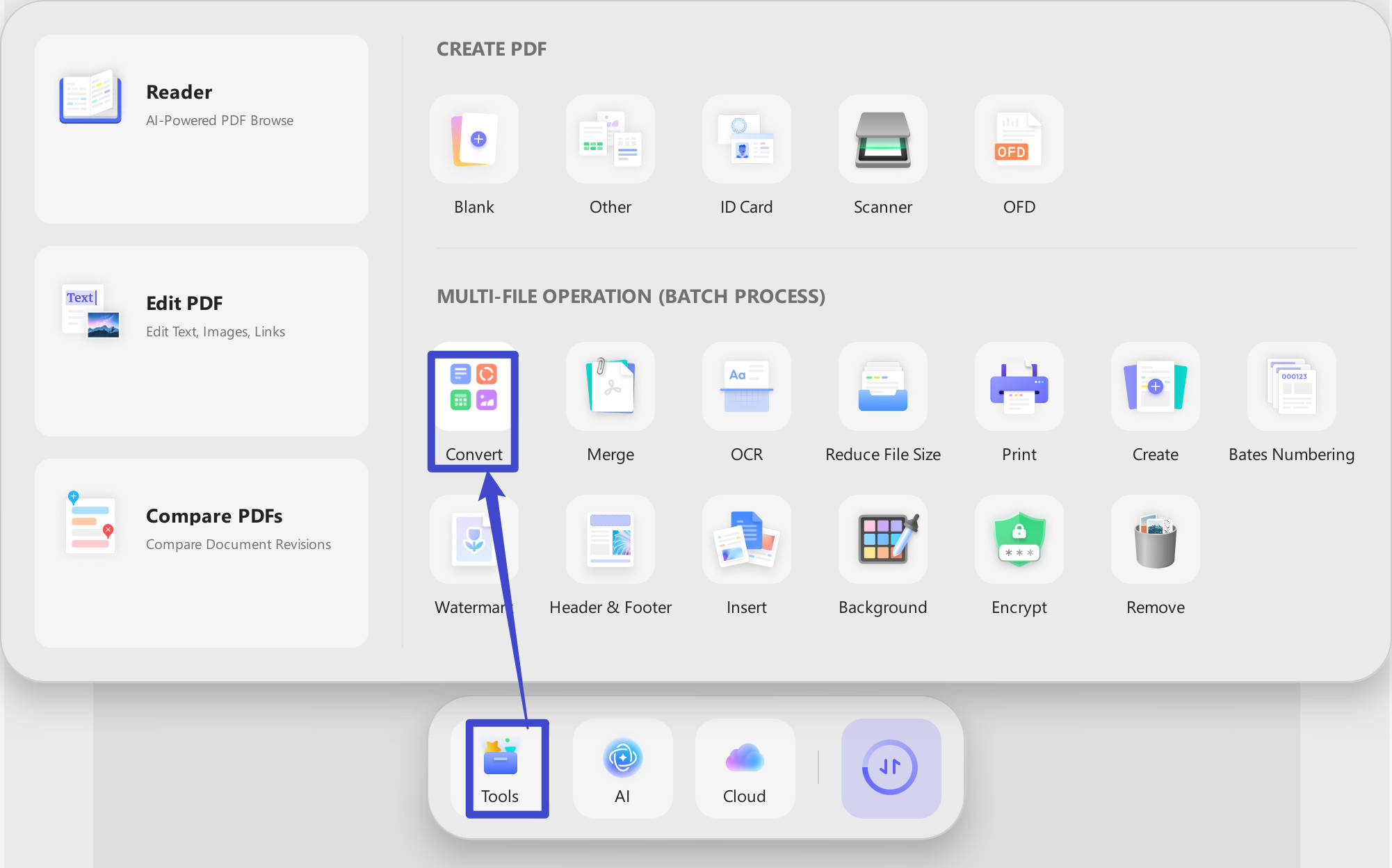
Step 1. Open UPDF on your desktop, then, go to "Tools" > "Convert".
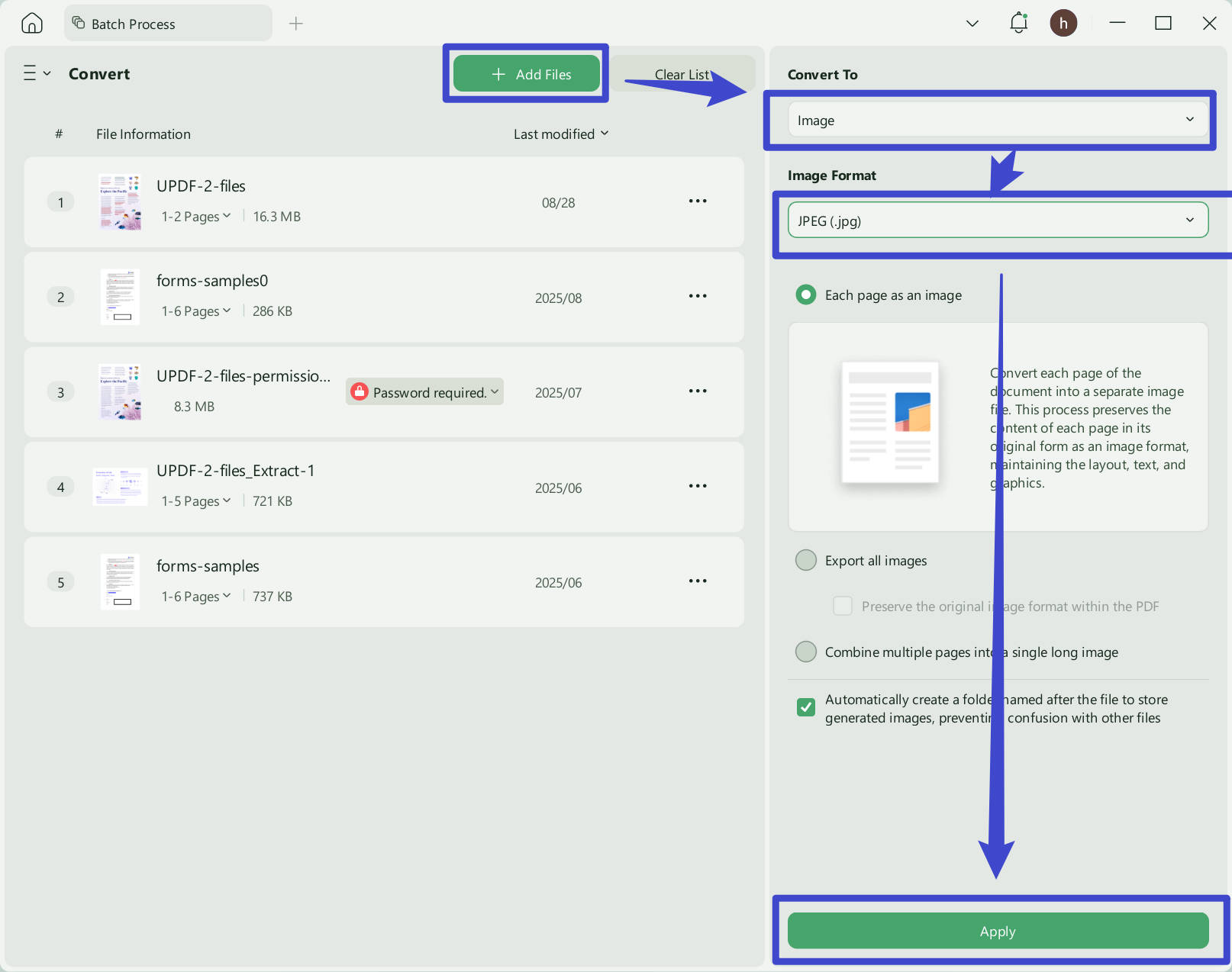
Step 2. Now, click on the "Add Files", choose the "Image" in the "Convert To" section, and select the "JPEG" as the image format. Click on the "Apply" to convert all the PDF files ot JPG.
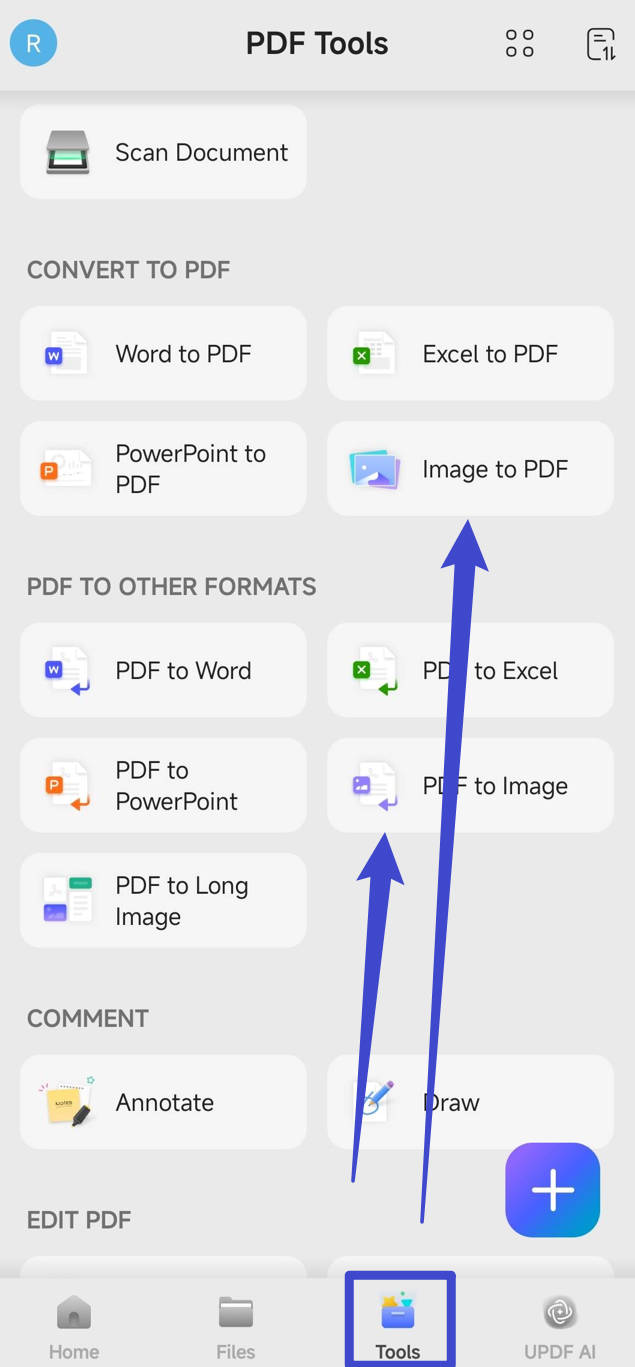
Some of you may find that the methods mentioned above are for desktops. How about a mobile device? No worry. UPDF for Android and iOS can also help you convert PDF to JPG or JPG to PDF. The Guide is very easy. Just download UPDF for Android and iOS from Play Store or App Store.
Steps: Launch your UPDF on iOS or Android, now, go to "Tools" > "PDF to Image" or "Image to PDF". Then, select the Files, and customize the output settings to convert.
Video guide on How to Convert a PDF
FAQs
Q1: Is PDF or JPG better for scanning documents?
PDF is usually better for document scans. It keeps multiple pages in order and can carry an OCR text layer. JPG is reasonable for one photo-like scan, but saving an image as PDF does not make the text searchable automatically.
Q2: Does converting JPG to PDF improve image quality?
No, conversion does not restore detail. The PDF can package the JPG on a page and add document features, but it cannot recreate pixels discarded by resizing or compression. Start from the highest-quality source available.
Q3: Can I convert a JPG into a searchable PDF?
Yes, but OCR is required. First create the PDF from the image, then run OCR to add recognized text. Review names, numbers, tables, and low-quality areas because OCR output can contain errors.
Conclusion
To conclude the article, you must have learned what is the difference between JPEG and PDF. Now, you can confidently choose between the two formats for your text and images. Whatever format you choose, the most effective editor to convert PDF into JPG or JPG into PDF is UPDF editing software. It is a powerful tool that can easily manage and adjust your documents efficiently on various operating systems.
UPDF editing feature lets you customize, edit, and organize your document content according to your requirements. Moreover, the OCR feature enables you to convert your scanned images into editable ones. Therefore, UPDF is the most recommended editing tool that can convert your files using its AI-powered tools. So, click on the "Free Download" button below to get the full advantage of this PDF converter.
Windows • macOS • iOS • Android 100% secure






 Enola Miller
 Enrica Taylor
 Enya Moore
 Enid Brown