 UPDF
UPDF
 UPDF for Windows
 UPDF for Mac
 UPDF for iPhone/iPad
 UPDF for Android
 Nomostar
 UPDF AI Online
 UPDF Sign
 IvyCraft
 Edit PDF
 Annotate PDF
 Create PDF
 PDF Form
 Edit links
 Convert PDF
 OCR
OCR PDF to Word
 PDF to Image
 PDF to Excel
 Organize PDF
 Merge PDF
 Split PDF
 Crop PDF
 Rotate PDF
 Protect PDF
 Sign PDF
 Redact PDF
 Sanitize PDF
 Remove Security
 Read PDF
 UPDF Cloud
 Compress PDF
 Print PDF
 Batch Process
 About UPDF AI
 UPDF AI Solutions
 AI User Guide
 FAQ about UPDF AI
 Summarize PDF
 Translate PDF
 Chat with PDF
 Chat with AI
 Chat with image
 PDF to Mind Map
 Explain PDF
 PDF AI Tools
 Image AI Tools
 AI Chat Tools
 AI Writing Tools
 AI Study Tools
 AI Working Tools
 Other AI Tools
 AI Bookmark Generation
 AI Bookmark Summary
 AI Watermark Generation
 AI Background Generation
 AI Sticker Generation
 AI Stamp Generation
 AI Editing Suite
 UPDF Copilot
 AI Page Management
 AI Semantic Search
 PDF to Word
 PDF to Excel
 PDF to PowerPoint
 Enterprise Solution
 Enterprise Sign
 Enterprise AI
 Enterprise Plan
 Enterprise User Guide
 Enterprise Webinar
 IT
IT Education
 Construction
 Financial Service
 Healthcare
 Insurance
 Legal
Legal Manufacturing
 Government
 Researchers & PhDs
 Solopreneurs & Freelancers
 Lawyers & Legal Professionals
 Real Estate Agents & Brokers
 Education Solution
 Customer Stories
 User Guide
 UPDF Tricks
 FAQs
FAQs UPDF Reviews
 Download Center
 Blog
Blog Newsroom
 Tech Spec
 Updates
 UPDF vs. Adobe Acrobat
 UPDF vs. Foxit
 UPDF vs. PDF Expert

Quick Answer
The "Raise without handler" error is an Acrobat crash triggered by an unaccepted EULA, an outdated build, a non-admin user launch, or a conflicting Accessibility plugin on macOS.
Fix it in this order: (1) Run Eula.exe and accept the license, (2) Update Acrobat via Help > Check for Updates, (3) On macOS, delete Accessibility.acroplugin from Acrobat's Plug-ins folder. If the error persists, switch to a PDF tool that doesn't depend on Acrobat's plugin architecture.
When Adobe Acrobat shows a “Raise without handler” error, it can abruptly close the app and leave you frustrated. This bug often happens when opening or combining PDFs, leaving important work unfinished.
Users on community forums often complain that this error keeps returning even after reinstalling Acrobat. In this guide, I’ll explain what this error means and give you three effective fixes. You’ll see why it happens and how to resolve this annoying error.
⚠️ Before you try anything: If you're seeing "Attempt to call a method that has not been implemented" followed by "Raise without Handler!", this is a known issue affecting non-admin users on Windows after machine-scope installation. See Part 2 for the specific fix — the standard EULA solution will not work in this case.
If all else fails, I’ll show you a faster Acrobat alternative, UPDF, which easily merges files and avoids this bug. Download and purchase UPDF now to get rid of this frustrating “Adobe raise without handler” error.
Windows • macOS • iOS • Android 100% secure
TL;DR
To get rid of this crashing issue, you can either go for an alternative or try other workarounds. Before digging deep into the fixes, have a quick glance at these solutions.
- 📌 Best for quick recovery (most users): Run Eula.exe → Accept license → Restart Acrobat
- 📌 Best for persistent crashes after EULA fix: Update to the latest Acrobat build — Adobe shipped a hotfix for this specific error in the November 2022 optional update, but regressions have occurred in later builds
- 📌 Best for macOS users: Delete Accessibility.acroplugin from Acrobat's Plug-ins folder
- 📌 Best for non-admin Windows users: Run Acrobat as Administrator once, or reinstall with user scope instead of machine scope
- 📌 Best for avoiding the error entirely: Switch to a PDF tool that doesn't use Acrobat's plugin architecture — UPDF handles merging without the handler dependency
Part 1. What is Adobe Raise Without Handler Error?
The Acrobat Raise Without Handler error is a crashing bug in Adobe apps when opening or merging PDF files. When this error occurs, Acrobat is trying to run some code but can’t find the correct “handler” to execute it, so it gives up.
This usually happens with older Acrobat versions and even on up-to-date systems. For example, users on Mac or Windows often get the error despite having the latest updates. It’s especially common when opening certain PDFs with unusual content or using the built-in combine feature.
⚠️ Error message variations you may see: Depending on your Acrobat version and OS, the exact text can differ:
- "There was a RAISE without a handler. The application will now exit." (most common)
- "Attempt to call a method that has not been implemented" followed by "Raise without Handler!" (non-admin Windows users)
- "Raise without Handler!" with no additional context (Acrobat Reader on Windows 11)
Part 2. Why Do I Get Acrobat “Raise Without Handler”?
Users can face this “Raise Without Handle” error due to several causes. Here are the main reasons I have identified after thorough research:
- License (EULA) Not Accepted
If the Acrobat EULA was never confirmed, the application won’t run properly. Running the Eula.exe installer in the Acrobat folder and re-accepting the license often clears the error.
- Outdated Version
The bug dates back to early Acrobat versions, as it was seen in the Acrobat 5 version. When you’re on an older build or mixing 32-bit/64-bit installs, compatibility breaks.
- Conflicting Extension
Some plugins or browser extensions have been known to trigger this error. Disabling or removing such extensions can prevent the conflict.
- Problematic PDF Content
Certain PDFs can contain unusual objects or constructs that Acrobat can’t handle. As one user noted, “unknown imaging construct was encountered” when opening a PDF, leading to the handler error.
- User Permissions
On Windows, launching Acrobat as a non-admin user or with restricted permissions can block needed functions. In one report, running Acrobat as a standard user produced the error, while running it as Administrator worked fine.
On Windows, launching Acrobat as a non-admin user after a machine-scope installation can trigger both "Attempt to call a method that has not been implemented" and "Raise without Handler!" This is a known regression introduced in Acrobat Reader 64-bit version 25.001.20474 (May 2025). The installation works correctly for administrators but fails completely for standard users.
How to identify this scenario:
- You installed Acrobat via winget install --scope machine or a system-wide deployment
- The error appears only when a non-admin user launches Acrobat
- Running as Administrator works without issue
- Uninstalling and reinstalling does NOT fix it
Fix: Run Acrobat once as Administrator (right-click → Run as administrator), or reinstall using user scope instead of machine scope.
- macOS Accessibility Plugin Conflict
On macOS, the crash is triggered when Acrobat tries to load a plugin that conflicts with the system's accessibility framework — most commonly Accessibility.acroplugin. The crash often occurs when opening or scrolling a PDF, sometimes seconds after launch. This is a known issue that originally surfaced with macOS Catalina (10.15) and has recurred after various OS and Acrobat updates.
Fix: In Finder, go to Applications → right-click Adobe Acrobat → Show Package Contents → Contents/Plug-ins. Move Accessibility.acroplugin to the desktop (as a backup). Restart Acrobat. Some users have also needed to remove WebLink.acroplugin.
⚠️ Side effect: Removing Accessibility.acroplugin disables in-app accessibility features (VoiceOver, three-finger lookup, etc.). Only remove it if you don't rely on those features.
Part 3. How to Fix the “Acrobat There Was a Raise Without a Handler” Error?
I’ll walk you through three solutions you can try to fix the “Adobe Acrobat DC raise without handler” error. The first is to avoid the problem entirely by using a better PDF tool. The next two target Acrobat itself, which you can try upon going through this section.
Fix 1. Use an Acrobat Alternative
Best for
Users who have tried all Acrobat fixes and still see the error, or who need to merge PDFs immediately without troubleshooting.
Before switching, make sure you've tried the EULA fix and the update fix. If you're a paying Acrobat customer and the error keeps returning after updates, you're not alone — Adobe's own hotfix for this issue has been regressed in later builds, meaning the same error can come back after an update.
UPDF handles PDF merging without Acrobat's plugin architecture, so the handler dependency doesn't exist.
Moreover, UPDF can combine dozens of PDFs in seconds, a process that often crashes Acrobat under “Raise without handler.” So, download UPDF now and perform the following steps if you want to combine your PDF files.
Windows • macOS • iOS • Android 100% secure
Also Read: UPDF vs Adobe Acrobat
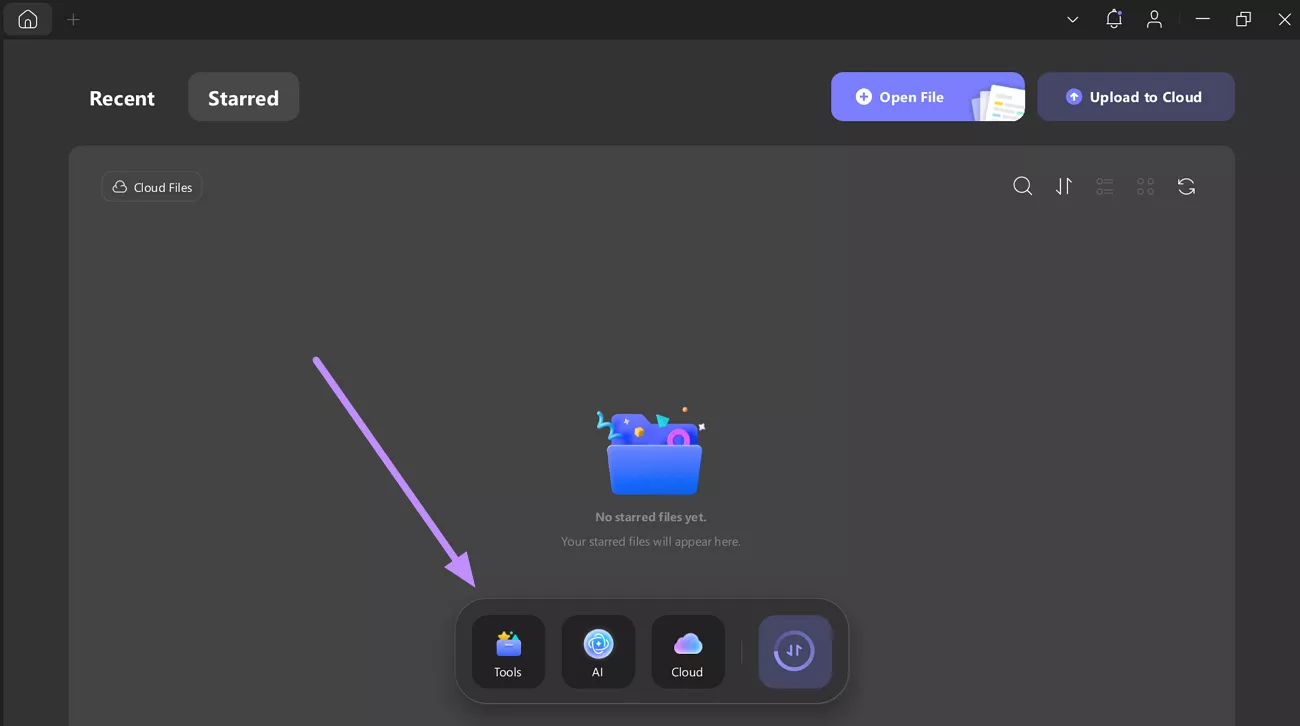
Step 1. Launch UPDF and Access Tools
Start the process by downloading UPDF and launching this PDF merger. From its main interface, tap the Tools button to proceed.
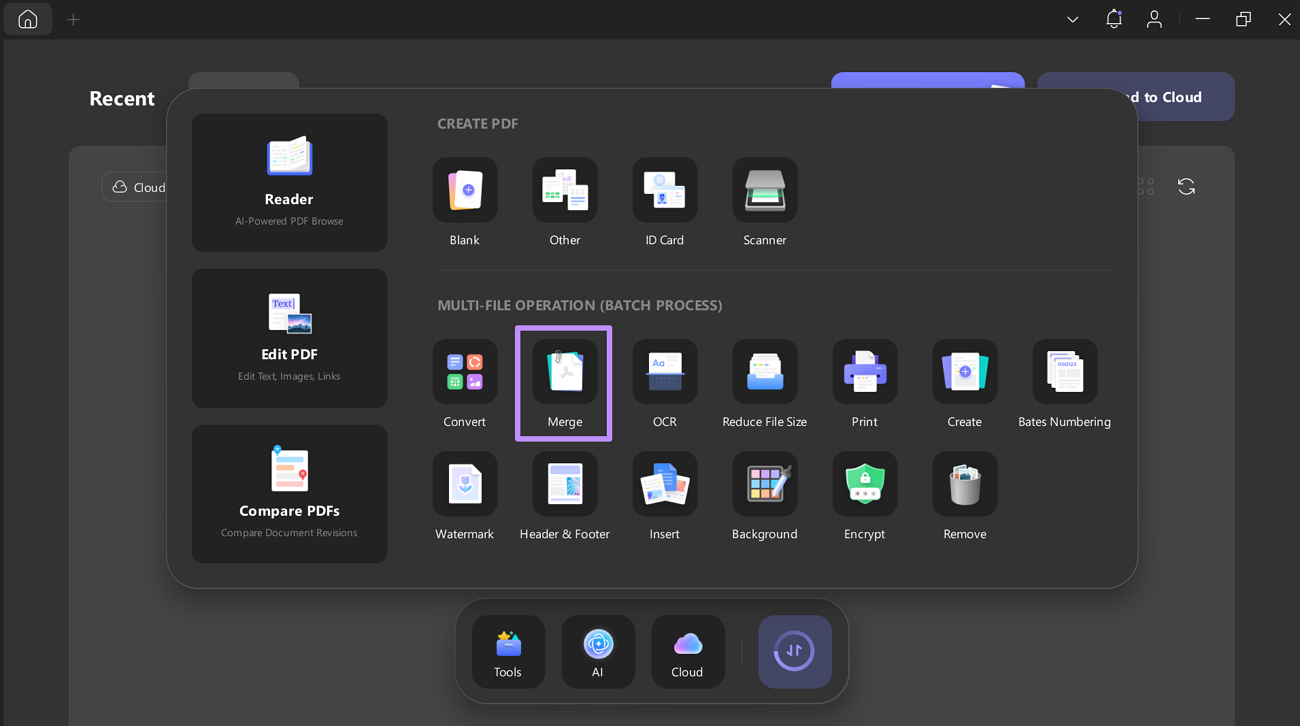
Step 2. Enter the Merge Tool
On the new pop-up screen, tap on the Merge tool within the Multi-File Operation (Batch Process) section.
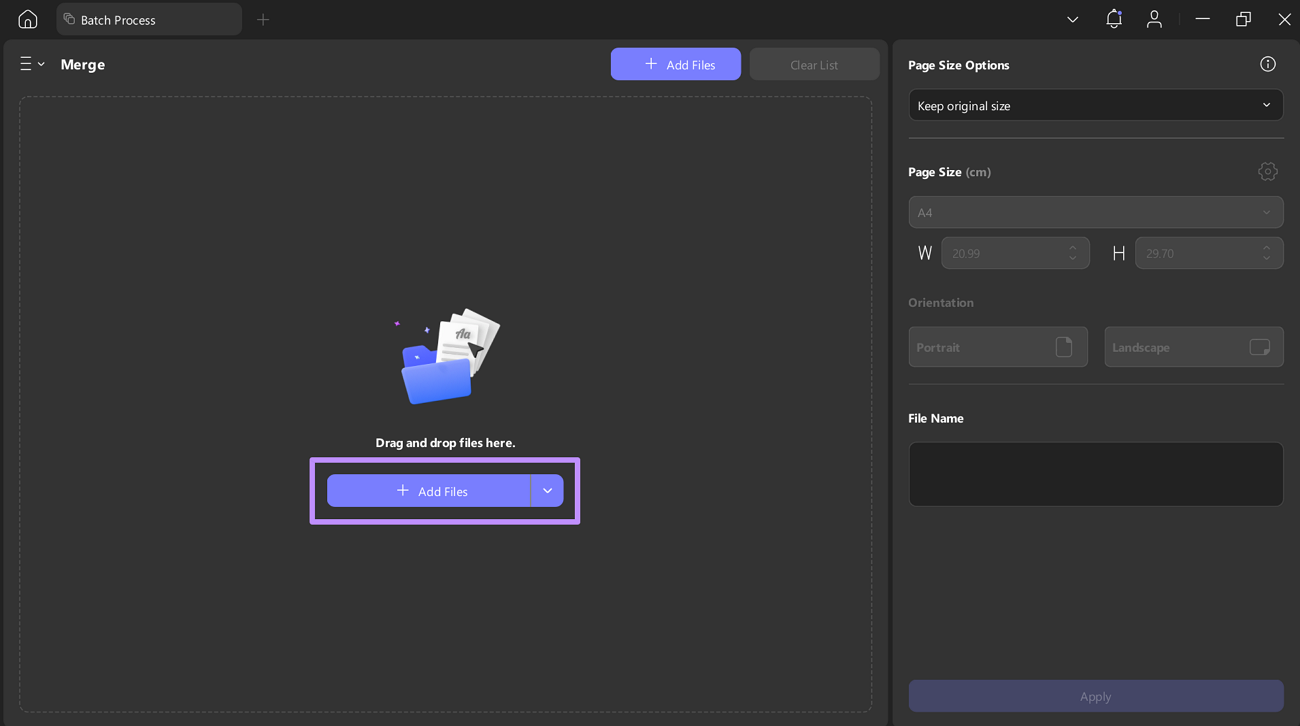
Step 3. Import Files to Merge Them
Upon reaching the Merge tool screen, hit the + Add Files button to open a new dialog box. From here, choose the PDF files you want to merge and open them in this tool.
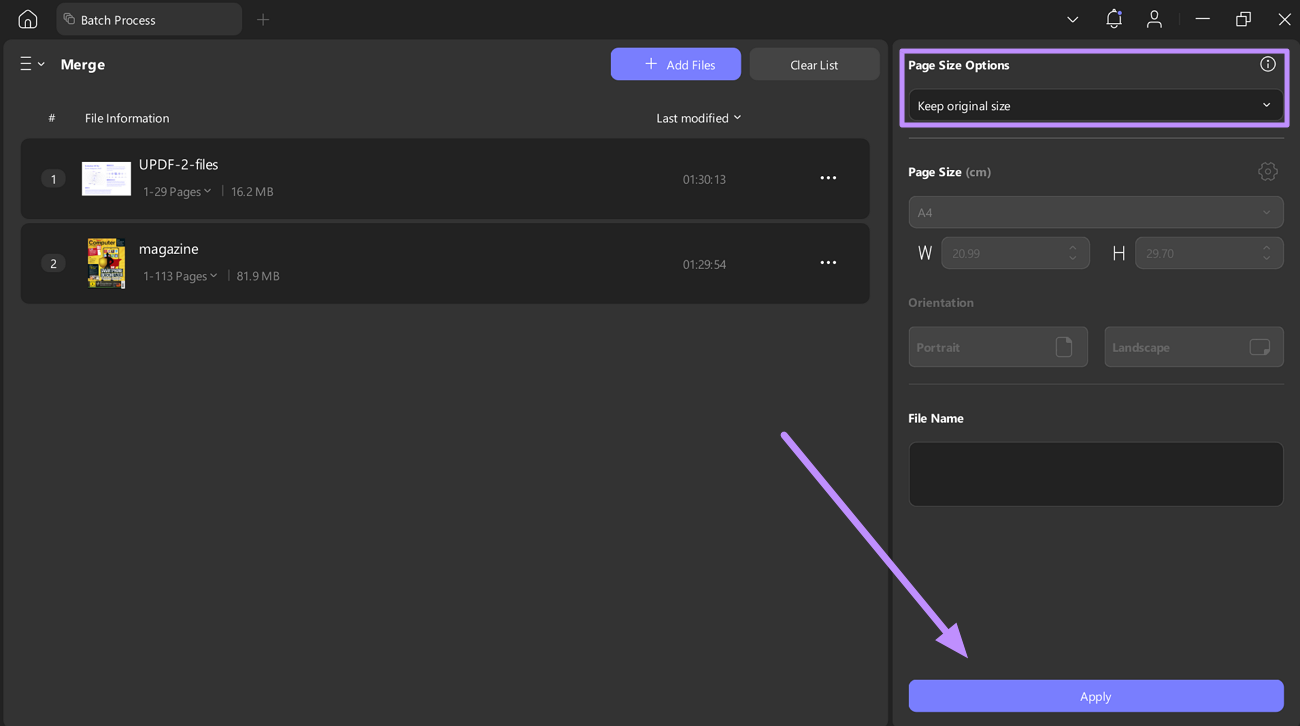
Step 4. Optimize Settings and Merge Files
Once you upload the files, choose the desired setting from the Page Size Options dropdown menu. Finally, tap the Apply button to save the merged PDF.
Other Features of UPDF
UPDF isn’t just a quick merge tool, as it’s a full PDF suite with features including:
- AI Chatbot: After merging PDF files, you can use its built-in AI assistant for summarizing, translating, or reviewing text.
- Cloud Sync: With this feature, users can keep their merged files safe in cloud storage, as they sync across all devices.
- Form Tools: UPDF even allows you to create or edit interactive PDF forms with this feature. You can even add digital signatures using the Form tool.
- Page Organization: Upon combining documents, use this tool to insert, delete, or reorder pages for better file organization.
- Annotations: It offers a complete range of commenting and markup features for collaboration and review purposes.
For more on UPDF capabilities, check out this AppleInsider review and watch this video. All in all, it is wise to download UPDF to merge files if Acrobat keeps failing.
Fix 2. Run EULA
The EULA.exe setup solves the error by re-accepting Acrobat’s license agreement. If the EULA wasn’t accepted when Acrobat first ran, it can block PDF handling. However, you can run this setup any time to solve the “Adobe raise without handler” error. Go through the steps below to successfully execute this fix.
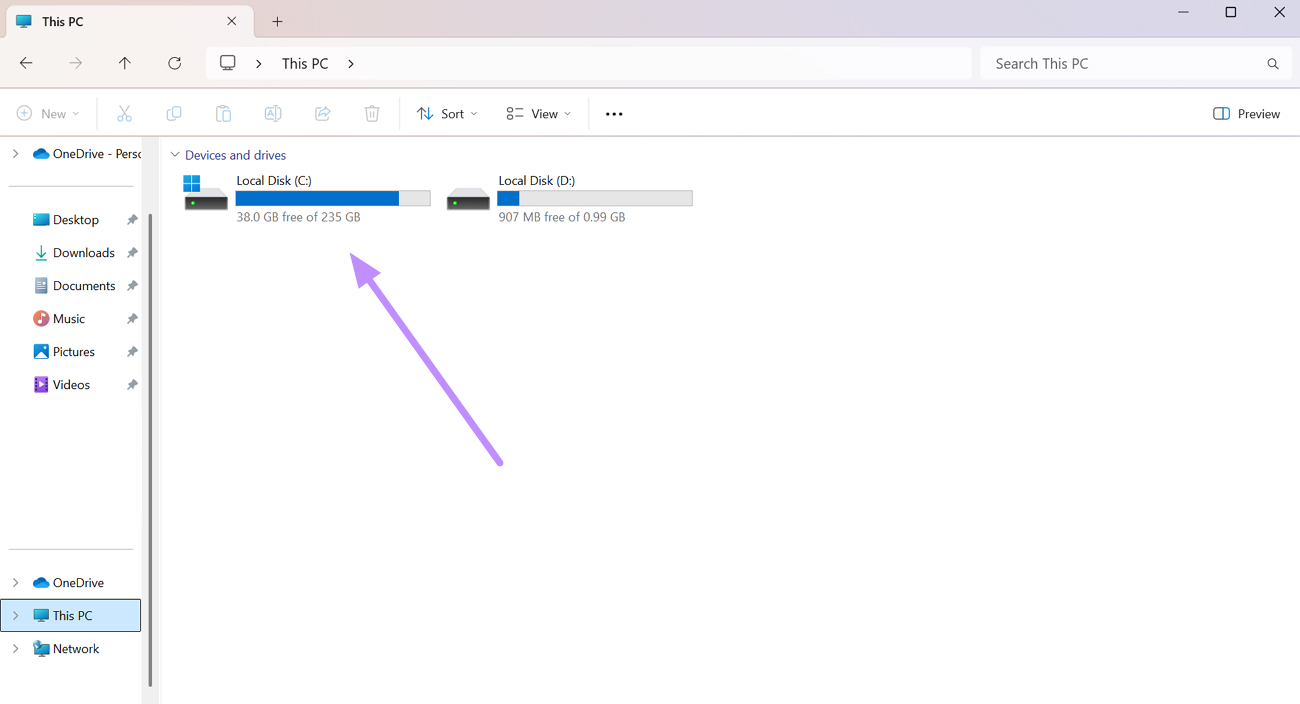
Step 1. When Adobe continuously gives this error, close the software and open This PC to access the Local Disk (C:) drive.
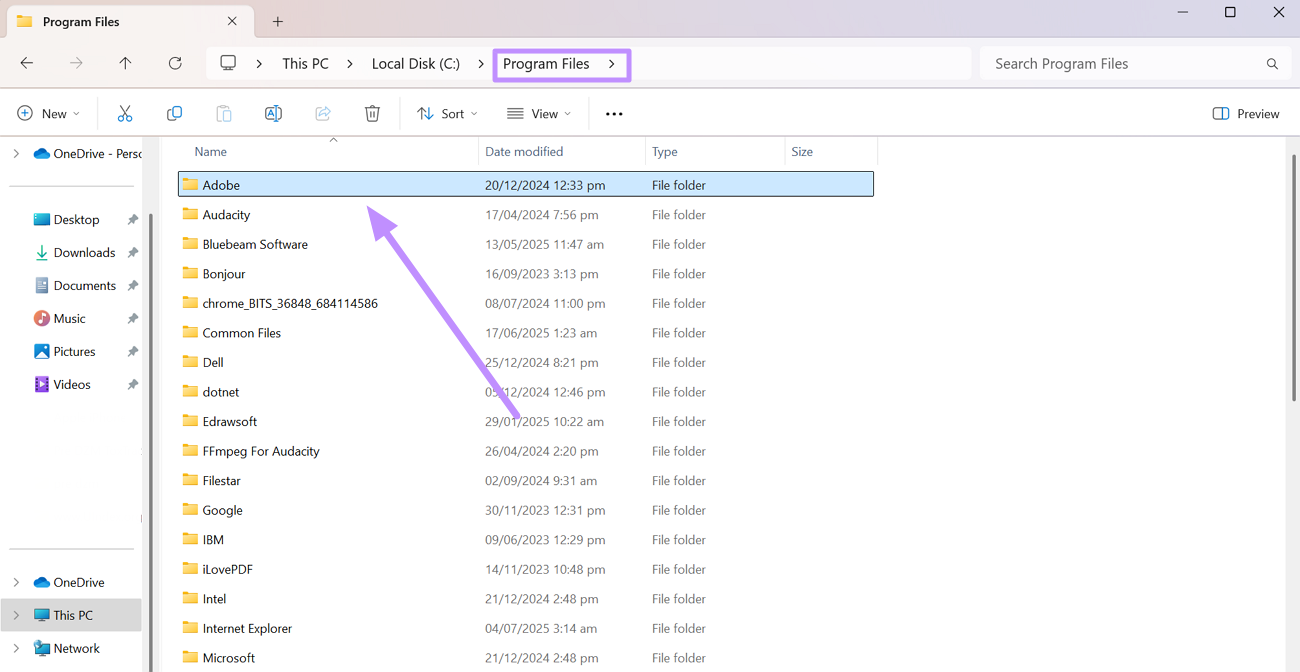
Step 2. Now, enter the Program Files folder and tap on Adobe to access its installation folder.
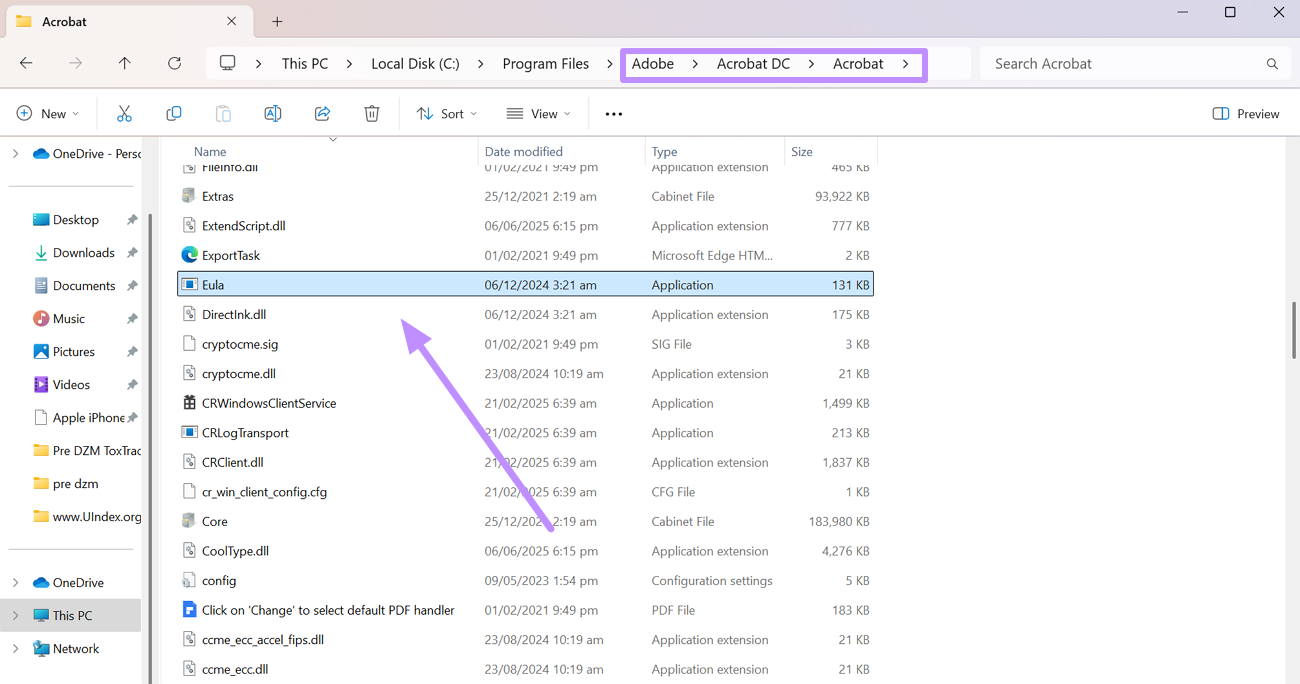
Step 3. Afterwards, follow the “Adobe > Acrobat DC > Acrobat” path and launch the EULA.exe setup.
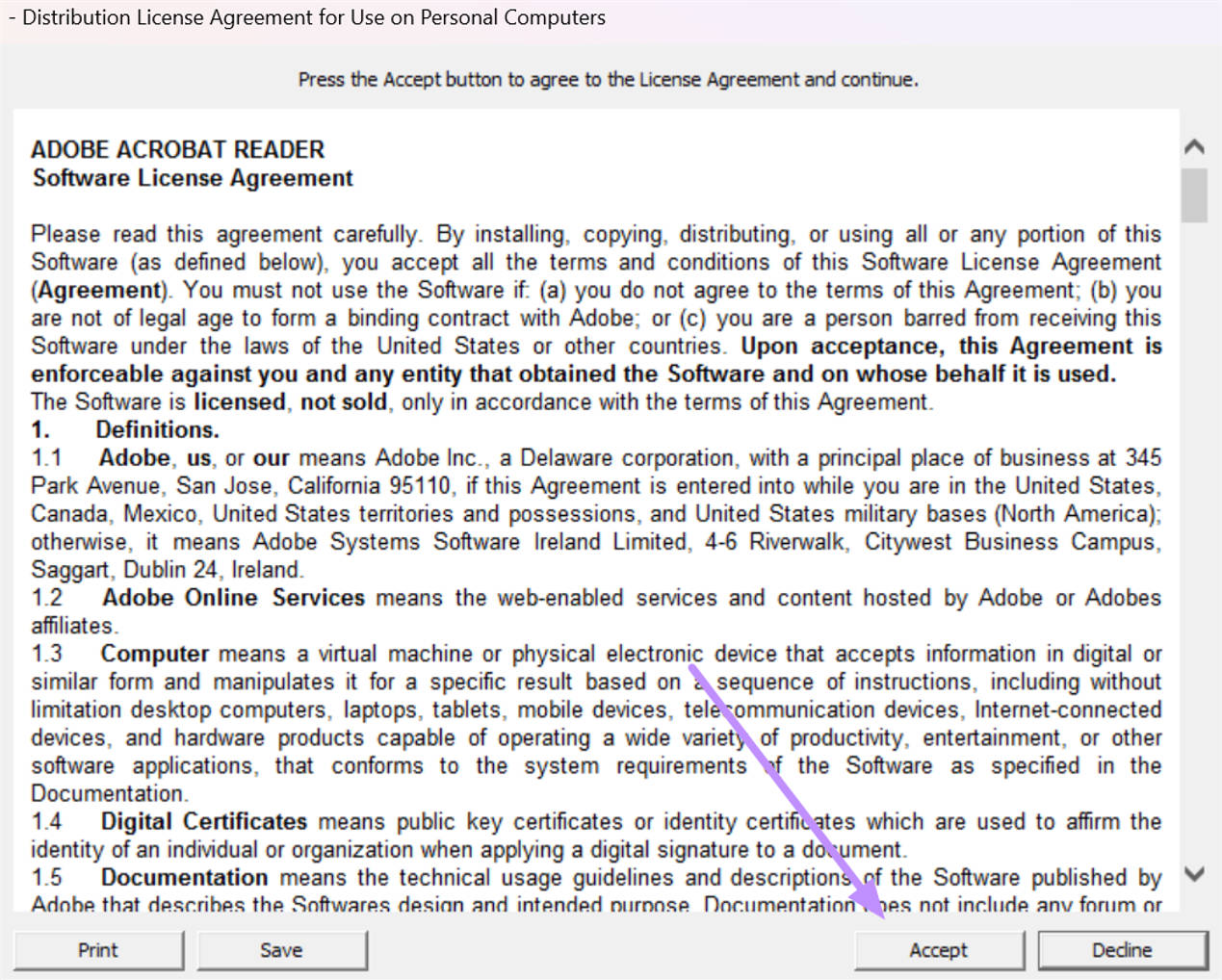
Step 4. Upon launching this setup, you will see a new pop-up screen on which you have to tap Accept to agree to Adobe’s license.
Fix 3: Update to the Latest Version
Sometimes, the “Acrobat Raise without Handler” error is caused by bugs in Adobe that have been fixed in newer updates. Moreover, the older versions may face compatibility issues, leading to this error. So, always keep your software updated using these simple instructions.
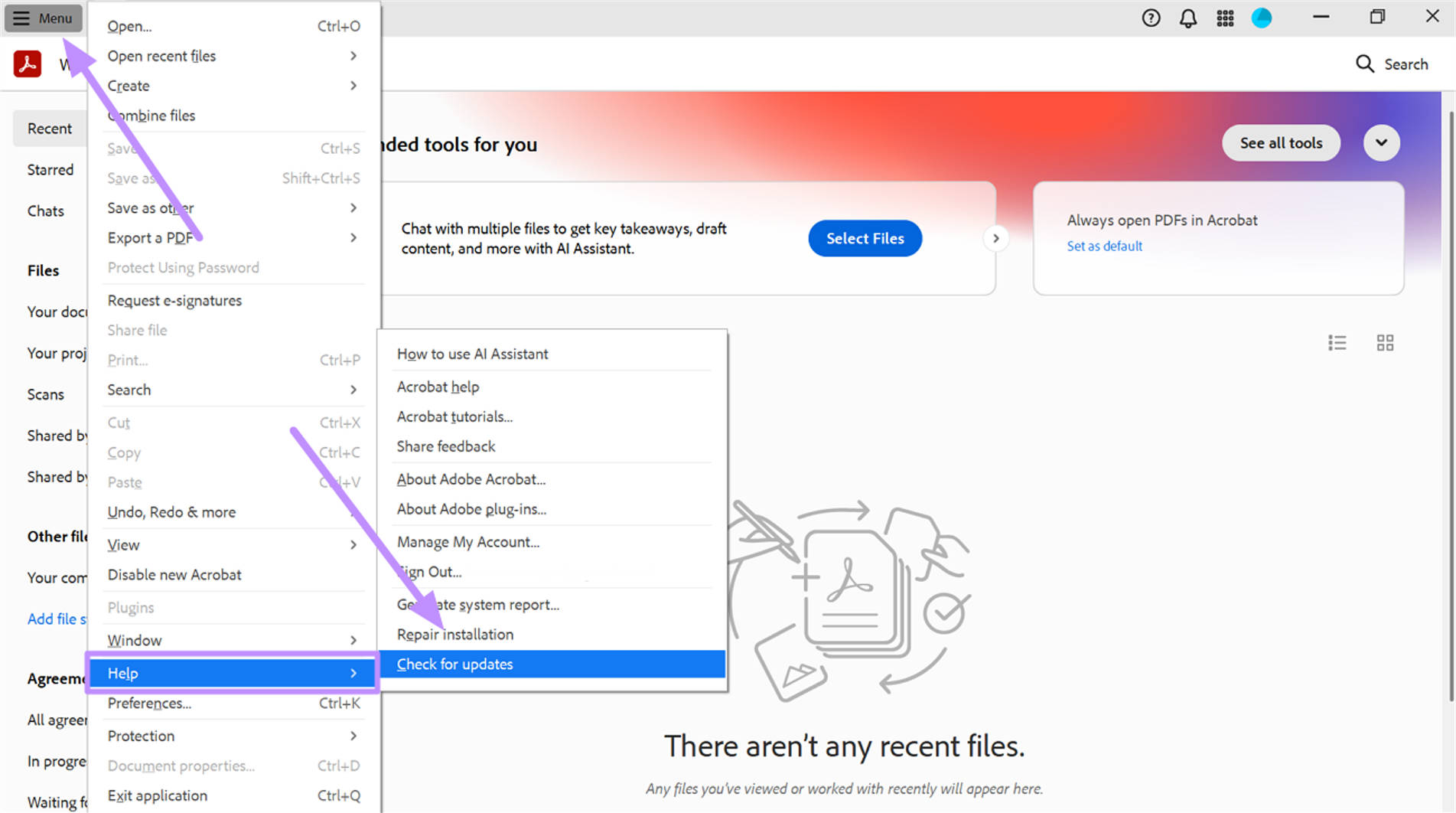
Step 1. After launching Adobe Acrobat, tap on Menu to access a new dropdown menu. From here, hover over Help and tap the Check for Updates option.
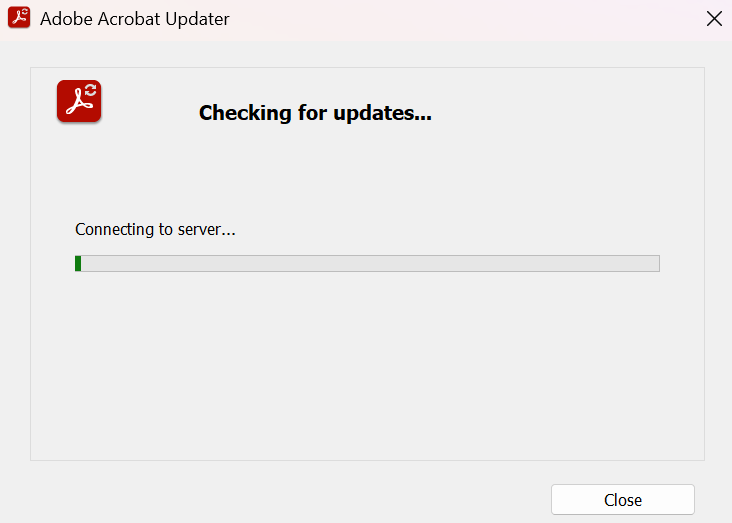
Step 2. Now, the app will connect to Adobe’s servers and check for a new update. If an update is found, follow the prompts to download and install the latest version.
Also Read: "Acrobat Failed to Connect to a DDE Server" Fixed Now
Final Words
In summary, the “Raise without handler” error often happens if the Acrobat license wasn’t accepted or it’s running in a problematic environment. By re-accepting the EULA or installing the latest Acrobat update, you can eliminate the problem.
Personally, I recommend switching to UPDF if Acrobat keeps crashing, as it handles PDF merging at a much lower cost. Download and purchase UPDF to combine PDFs without the annoying “Adobe raise without handler” message. No subscription required to try, and no Acrobat plugin architecture to trigger "Raise without handler."
Windows • macOS • iOS • Android 100% secure










 Enola Davis
 Enid Brown
 Lizzy Lozano