 UPDF
UPDF
 UPDF for Windows
 UPDF for Mac
 UPDF for iPhone/iPad
 UPDF for Android
 Nomostar
 UPDF AI Online
 UPDF Sign
 IvyCraft
 Edit PDF
 Annotate PDF
 Create PDF
 PDF Form
 Edit links
 Convert PDF
 OCR
OCR PDF to Word
 PDF to Image
 PDF to Excel
 Organize PDF
 Merge PDF
 Split PDF
 Crop PDF
 Rotate PDF
 Protect PDF
 Sign PDF
 Redact PDF
 Sanitize PDF
 Remove Security
 Read PDF
 UPDF Cloud
 Compress PDF
 Print PDF
 Batch Process
 About UPDF AI
 UPDF AI Solutions
 AI User Guide
 FAQ about UPDF AI
 Summarize PDF
 Translate PDF
 Chat with PDF
 Chat with AI
 Chat with image
 PDF to Mind Map
 Explain PDF
 PDF AI Tools
 Image AI Tools
 AI Chat Tools
 AI Writing Tools
 AI Study Tools
 AI Working Tools
 Other AI Tools
 AI Bookmark Generation
 AI Bookmark Summary
 AI Watermark Generation
 AI Background Generation
 AI Sticker Generation
 AI Stamp Generation
 AI Editing Suite
 UPDF Copilot
 AI Page Management
 AI Semantic Search
 PDF to Word
 PDF to Excel
 PDF to PowerPoint
 Enterprise Solution
 Enterprise Sign
 Enterprise AI
 Enterprise Plan
 Enterprise User Guide
 Enterprise Webinar
 IT
IT Education
 Construction
 Financial Service
 Healthcare
 Insurance
 Legal
Legal Manufacturing
 Government
 Researchers & PhDs
 Solopreneurs & Freelancers
 Lawyers & Legal Professionals
 Real Estate Agents & Brokers
 Education Solution
 Customer Stories
 User Guide
 UPDF Tricks
 FAQs
FAQs UPDF Reviews
 Download Center
 Blog
Blog Newsroom
 Tech Spec
 Updates
 UPDF vs. Adobe Acrobat
 UPDF vs. Foxit
 UPDF vs. PDF Expert

EPS files are often used for vector graphics, logos, illustrations, and print-ready designs. However, they are not always easy to open or share, especially if the recipient does not have professional design software installed. That is why many users choose to convert EPS to PDF.
PDF is easier to open, view, print, and share across different devices. After converting EPS to PDF, you may also need to review, annotate, compress, protect, or share the file. In that case, UPDF can help you continue working with the converted PDF instead of stopping at file conversion.
Windows • macOS • iOS • Android 100% secure
What is an EPS File?
EPS, short for Encapsulated PostScript, is a vector-based image file format often used for professional printing, logos, illustrations, posters, and marketing materials. Because EPS files can preserve high-quality graphics, they are commonly used by designers and print professionals.
However, EPS files are not as convenient for everyday use as PDFs. Many common programs cannot open EPS files directly, and users may need specialized software to view or edit them. In comparison, PDF files are easier to open, share, print, and manage on almost any device.
That is why converting EPS to PDF is a practical choice when you want better compatibility and easier file sharing.
How to Change EPS to PDF Online for Free
If you only need to change the file format, online converters can help you convert EPS to PDF directly in your browser. They are convenient for occasional use because you do not need to install extra software.
Below are three easy online methods.
1. Cloudconvert
CloudConvert is a popular online file conversion tool. It supports many file formats, including documents, images, videos, audio files, archives, and vector graphics. You can use it to convert EPS to PDF directly in your browser.
How to Change EPS to PDF Online Free with Cloudconvert:
1. Go to their website and click the "Select File" button at the center.
2. Once you have chosen your EPS file and uploaded it to their website, you can then choose what format you can convert it to. Click on the drop-down table beside "Convert to" and then choose PDF
3. Click the red "Convert" button and then wait for it to finish converting.
4. Lastly, select the "Download" button, and then you have successfully converted EPS to PDF online.
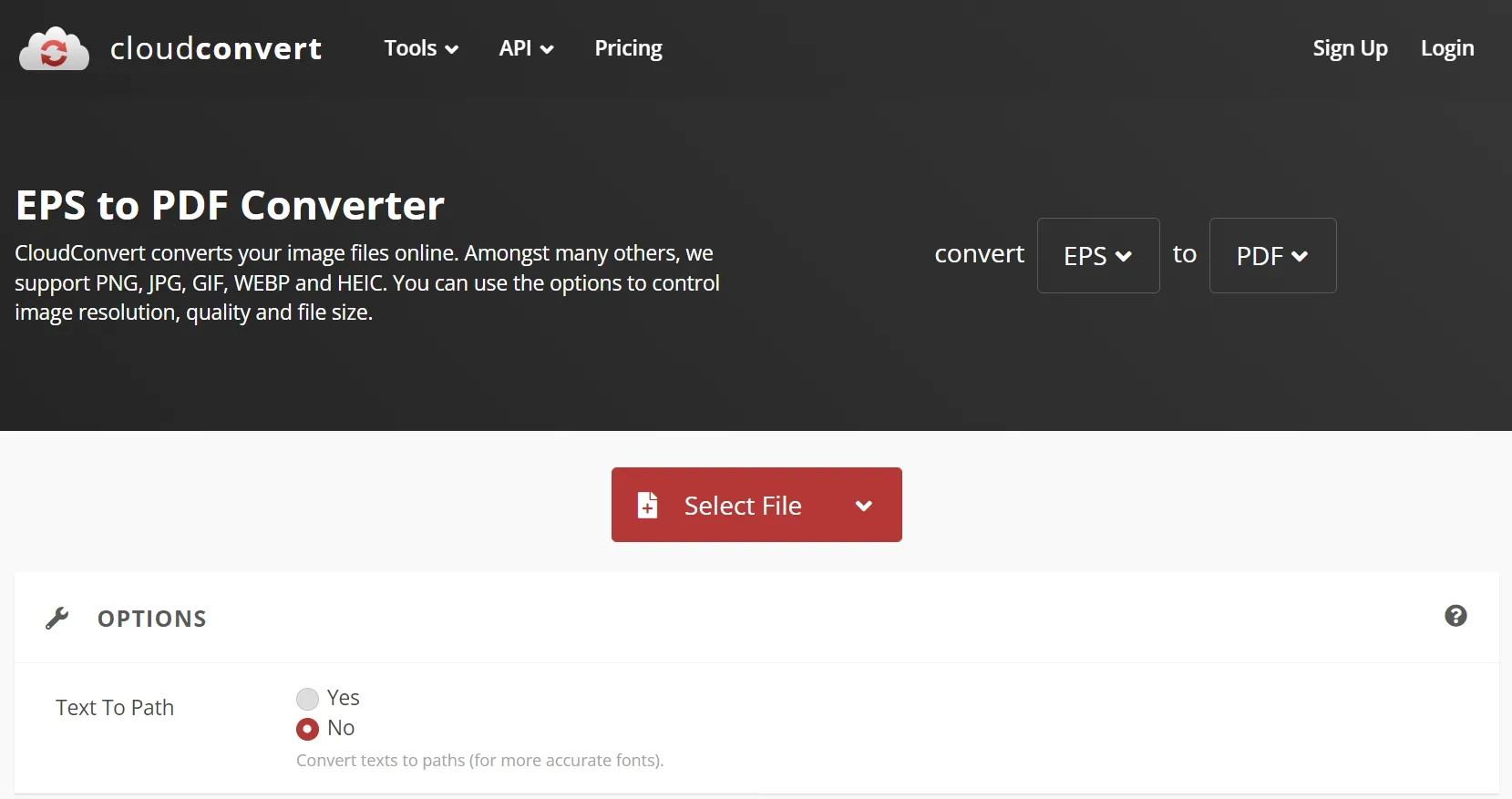
However, even though it is easy and doesn't require you to register on their website, the free version of Cloudconvert only lets you convert 25 files per day. Where you would have to buy credits to convert above that limit.
After downloading the converted file, you can open the PDF in UPDF to check the result, add comments, or compress it before sharing.
2. Convertio
Another tool you could use to change EPS to PDF is Convertio. It's another free online tool that lets you convert other file formats aside from PDF to EPS with over 200 other formats available.
How to Convert EPS to PDF using Convertio:
1. Access the Convertio website and upload your EPS file by selecting the "Choose Files" button.
2. Once you have successfully uploaded your file to Convertio, choose the PDF format and click "Convert".
3. Wait for the file to finish converting and then you can now download your newly converted PDF File.
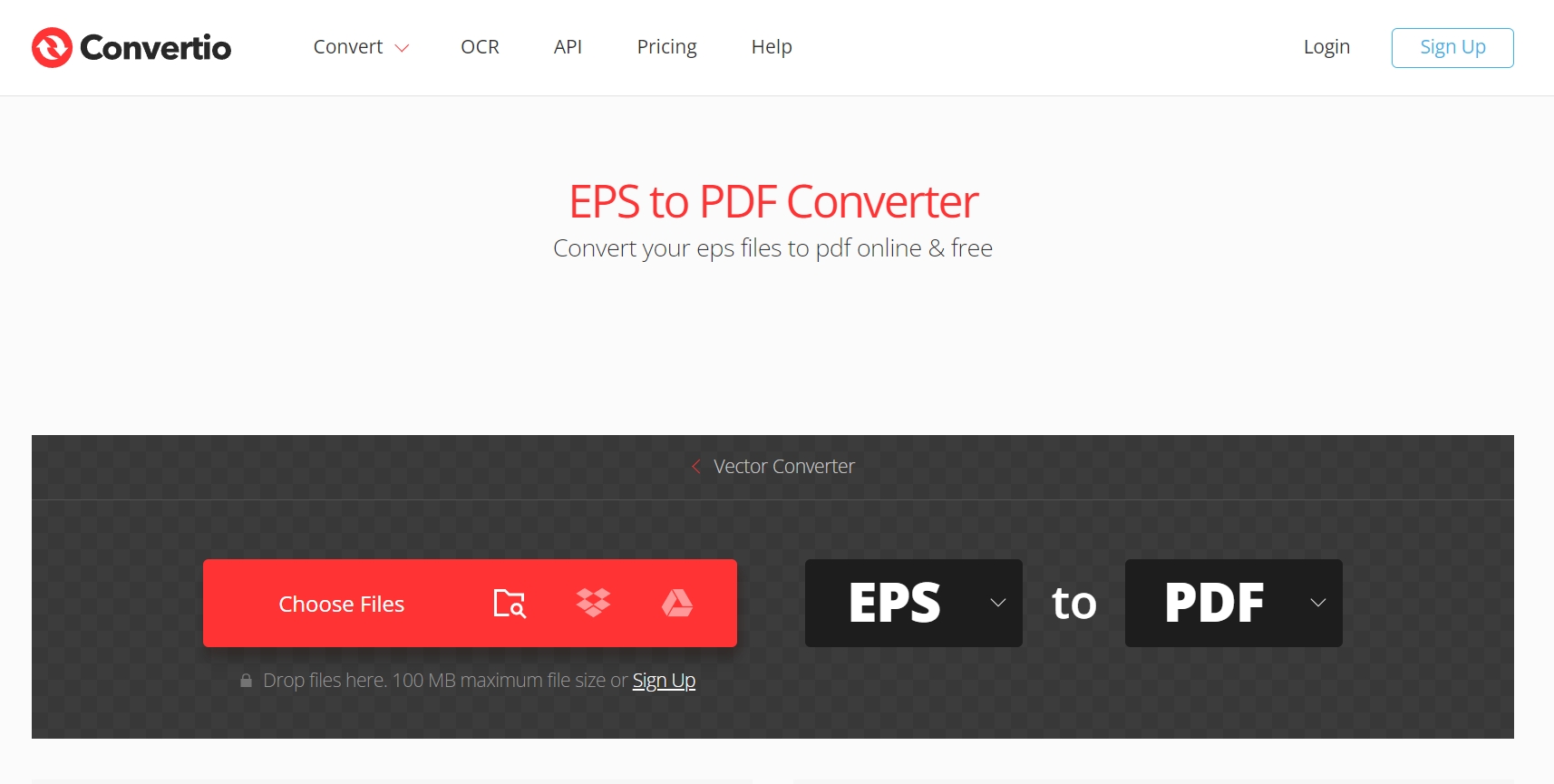
It may look good and all but one thing to consider about Convertio is the fact that the conversion speed is slower than usual and the 100MB maximum file size limits users from converting long or high-quality videos that take up more storage.
Once the PDF is ready, you can use UPDF to annotate the file, protect it with a password, or share it through a secure link.
3. Zamzar
Similar to the last two we have mentioned, Zamzar is an online file conversion that you can use to convert EPS to PDF online. Interestingly enough, you can also download Zamzar as a desktop application as well. Zamzar also has a more human side to them as they plant a tree for every 10,000 files and donate 2% of their profits to charities.
How to Change EPS to PDF using Zamzar:
1. Go to the Zamzar website and select the "Choose Files" option. You can also drag & drop your files.
2. Now that you've chosen your EPS file, you can choose a format and select PDF.
3. Select "Convert Now" and once it's done you can now download your PDF.
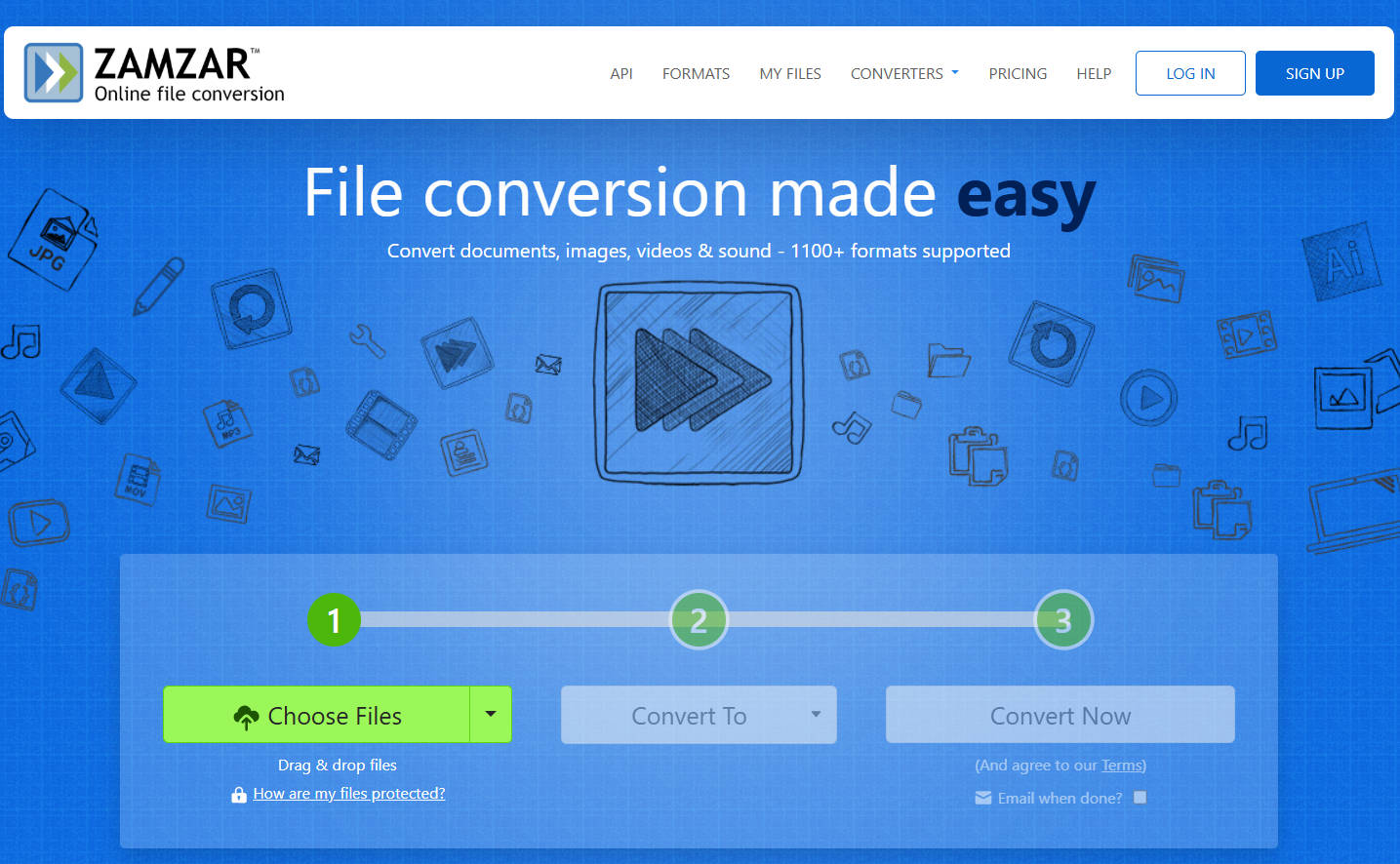
If you thought the 100MB limitation on Convertio was rough, then Zamzar only converts files for free if they are below 5MB. To upload much larger files, you would need to avail their basic package which costs $12 per month.
For large converted PDFs, you can use UPDF to compress the file before sending it by email or sharing it online.
After Converting EPS to PDF: Edit and Manage It with UPDF
It was mentioned before that both EPS and PDF are files that mostly cannot be edited but if you convert your EPS to PDF, there's one tool that can help you make the most out of it. Introducing UPDF, an all-in-one PDF software that even has its own AI. With it, you can edit your PDFs and more with its extensive features and powerful capabilities.
Windows • macOS • iOS • Android 100% secure
After converting your EPS file to PDF, you can open it with UPDF. UPDF allows you to edit and mark up your file. You can edit the text, watermarks, images, links, backgrounds, headers and footers, and even the pages of your PDF file as if it were a Word Document. It's smooth and fast to the point where you can even edit multiple PDFs at the same time and combine them all into one file.
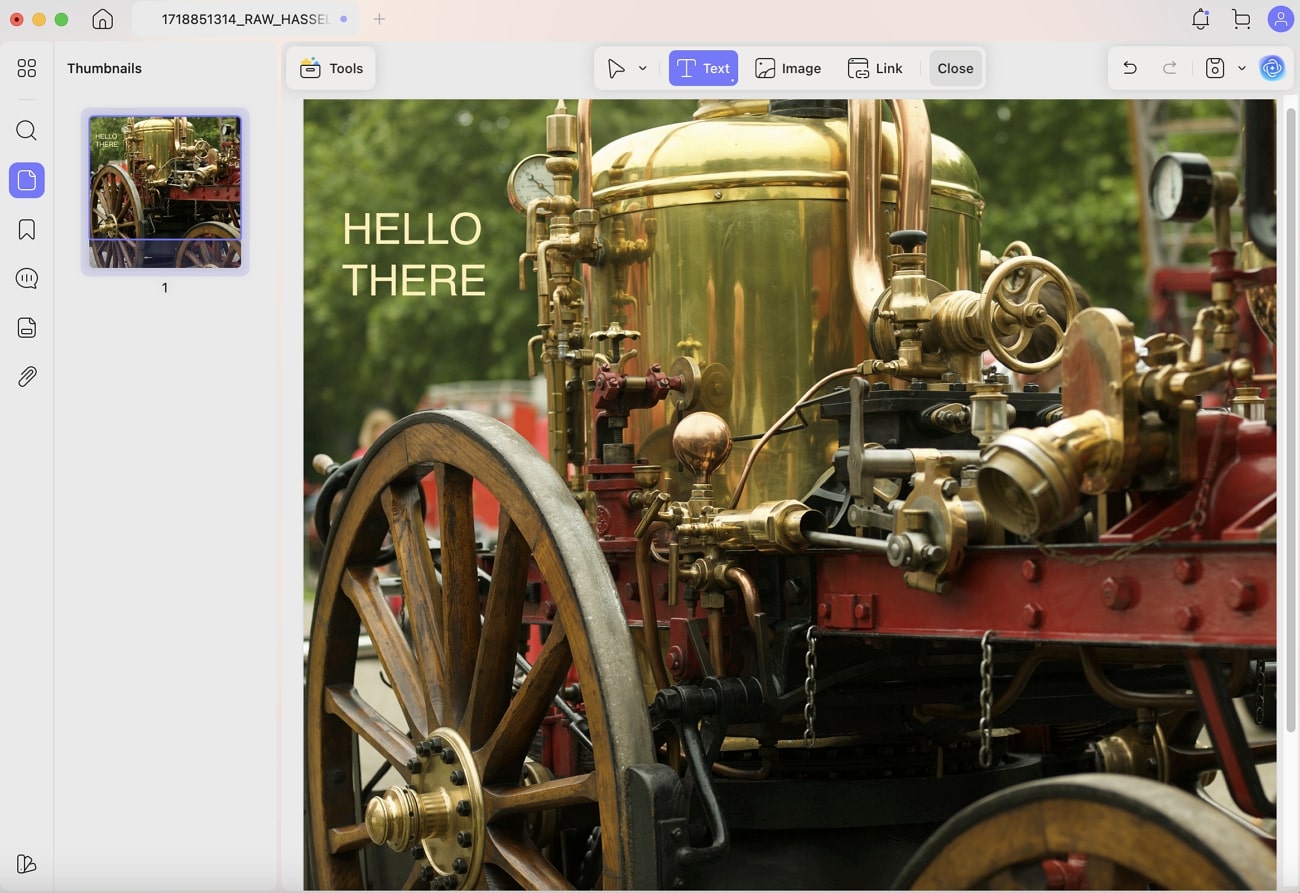
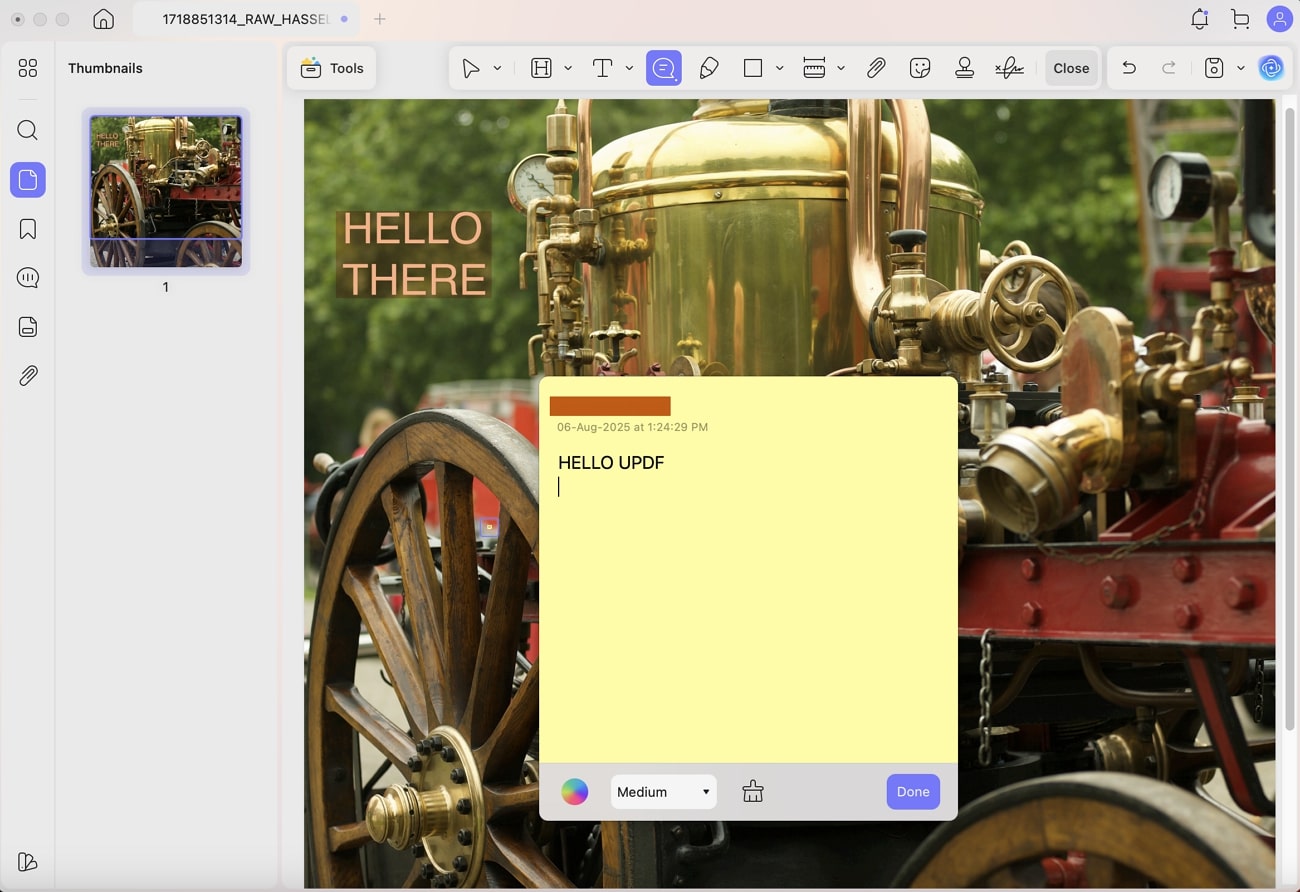
Aside from editing the elements of the PDF, you could also annotate using the 13 Versatile PDF Markup Utilities. You can add comments, underlines, strikethroughs, sticky notes, and even highlights. Not only that, you can also add shapes, and stickers and draw with ease.
Quick Tip:
UPDF offers more than just editing and annotation. It also gives you full control to:
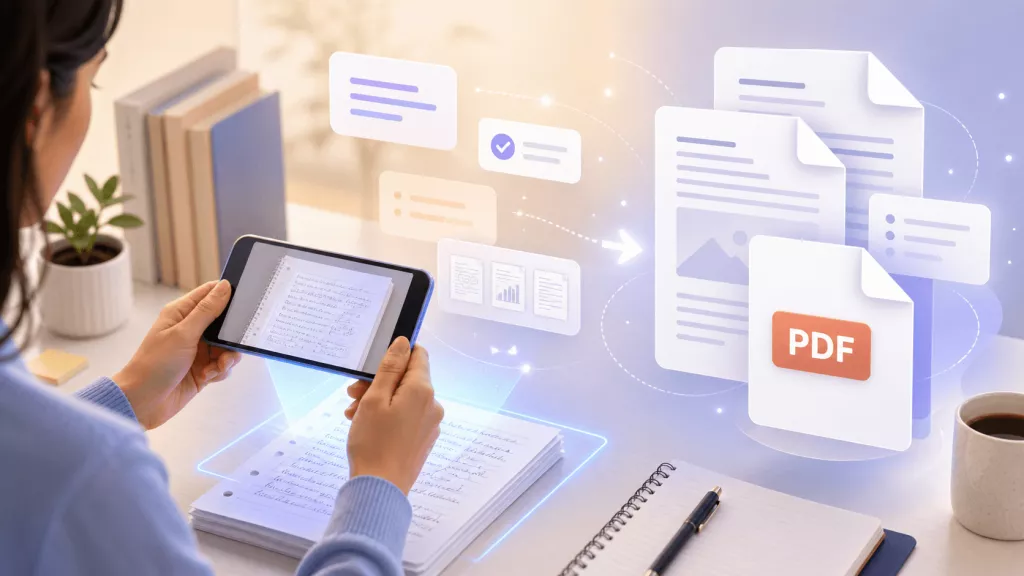
- OCR PDF: Another great feature that UPDF has is the OCR tool which lets you convert scanned PDFs into searchable and editable files. This technology supports a total of 38 languages and uses AI to recognize text and images.
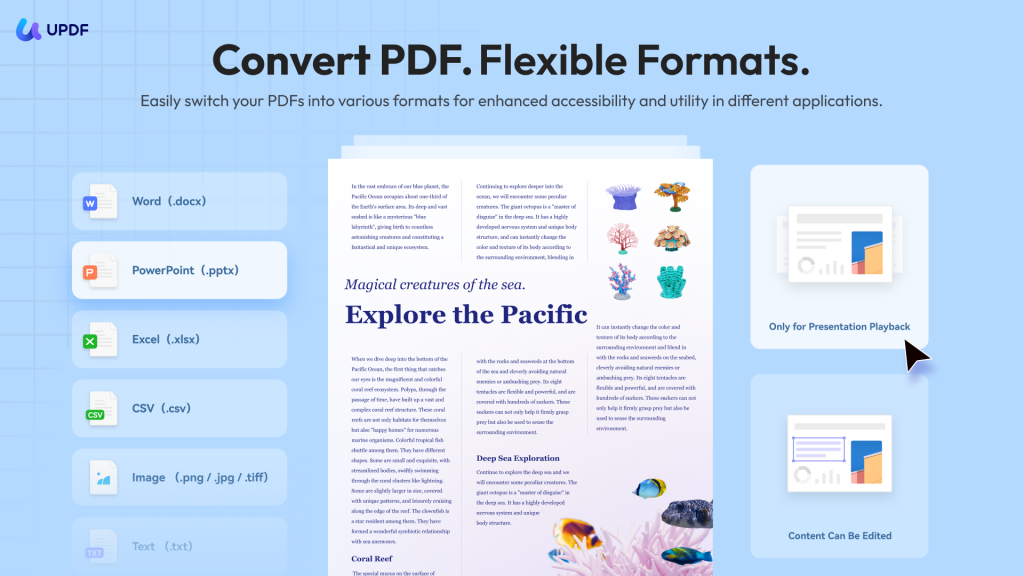
- Convert PDF: You can convert your HEIC files to PDFs or other formats, into Word, PDF, PowerPoint, Excel, CSV, PNG, JPG, and more. You can also efficiently upload and transform multiple HEIC files simultaneously, leveraging batch conversion to save time and optimize productivity. In addition, after conversion, you can also edit the converted PDFs and do more with its rich functionality.
- UPDF AI: Perhaps UPDF's most unique and most advanced feature is UPDF AI. UPDF AI allows users to summarize, translate, explain, and even generate ideas or ask questions about the PDF with its own AI Assistant. It can even polish your PDF for you by eliminating grammatical errors as it scans your entire file even if it's 100 pages long.
- Password Security: To safeguard your PDF from unauthorized access, you can implement an open password to guarantee that only permitted users can view or modify the document. Whenever an unfamiliar individual attempts to open the file, they must enter the password you set.
UPDF is a powerful tool that can help you make the most out of your PDFs. The best thing is that you can try it for free! So download UPDF and if you are amazed by it, you can purchase any of its affordable packages. If you want to learn more about this software, watch the short video below.
Why Use UPDF After EPS to PDF Conversion?
Online converters can help you change EPS to PDF, but they usually stop there. If you need to do more with the converted file, a PDF editor is more practical.
UPDF is helpful after EPS to PDF conversion because it lets you continue working with the PDF without switching between multiple tools.
For example, you can use UPDF to:
- Review the converted design before sending it out
- Add feedback or revision notes
- Compress the PDF if the file is too large
- Add password protection for private or client-related files
- Organize pages if the PDF contains multiple designs
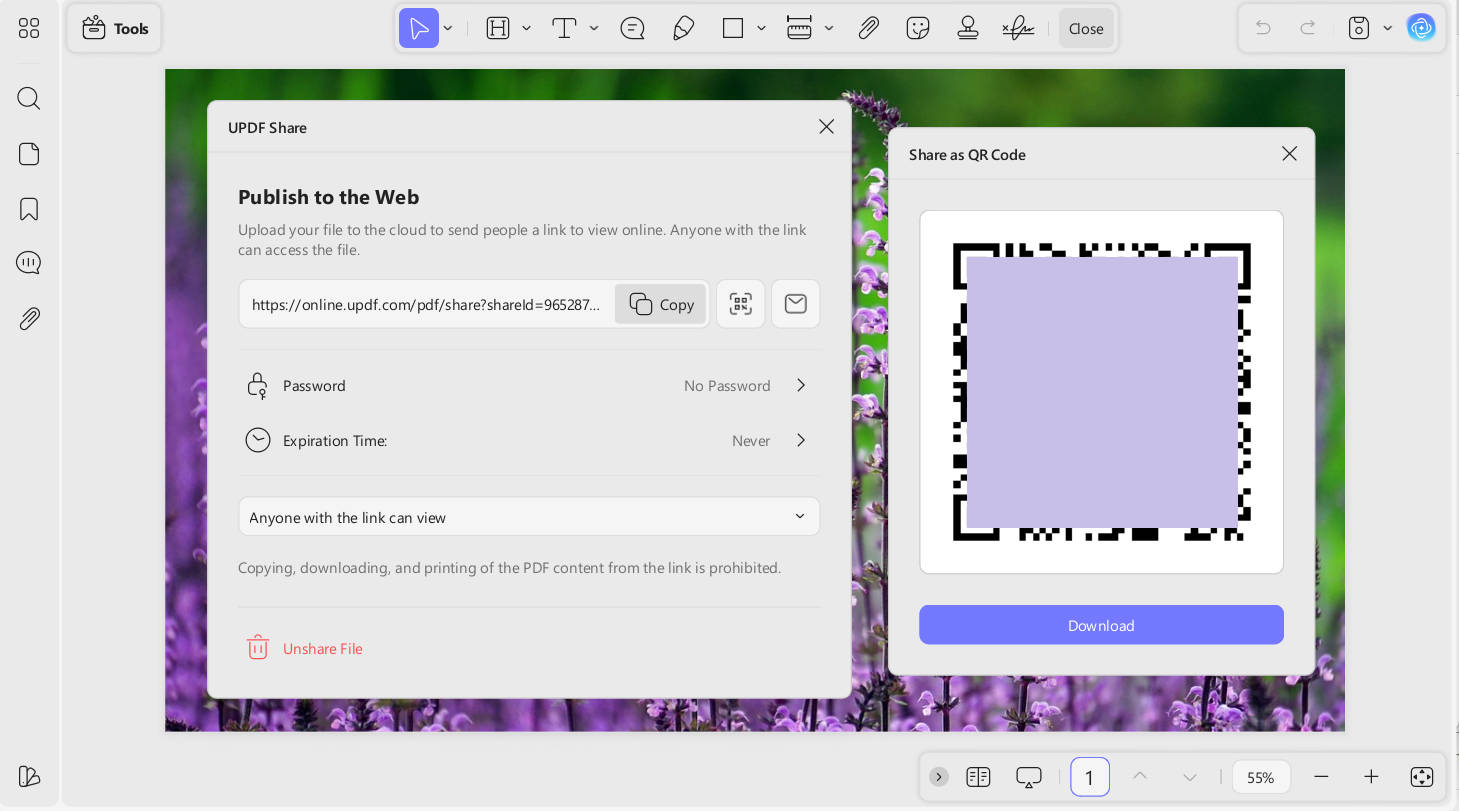
- Share the file through a link or QR code
FAQs about Converting EPS to PDF
1. Is an EPS file the same as a PDF?
There are clear differences between an EPS file and a PDF file. Although both serve similar purposes, an EPS is owned and copyrighted by Adobe while PDF is an open standard format. Another thing is that EPS has a larger file size than PDF and PDF is more suited for modern software.
2. Are EPS files obsolete?
EPS files are still widely used today but they are mainly being incorporated with large-scale printing projects such as billboards or massive posters. For normal files, PDF or other vector-based file formats are better for everyday use.
3. Why is my EPS file downloading as a PDF?
It might seem off but your files aren't able to convert themselves. One reason this might be happening is that you have no software that can open EPS files or there are certain programs that want to open the file in both PDF and EPS file formats.
4. Can you open EPS files in PDF?
You cannot open EPS files with PDF or any other software that does not support the file format. You must have a specialized software program that's compatible with EPS but otherwise, you would need to convert EPS file to PDF.
5. What program do you use to open an EPS file?
Programs that you can use to open an EPS file may vary but the ones that you can be sure of are Adobe Reader, IrfanView, and EPS Viewer. There are also lesser-known programs such as OpenOffice Draw, Okular, and GIMP.
6. Does Word support EPS?
Unfortunately, Word does not support EPS files ever since the Office 2019 release. Older versions of Word may work but the newer ones are incompatible and if you try to open an EPS file with it, it will only show you random text and code.
Conclusion
EPS files were once an industry standard for high-quality vector images, especially for large print projects. However, over time they have become less compatible as software evolves. Nowadays, PDF files are better suited for sharing and printing documents. While EPS files still have their uses in certain niches, converting them to PDF or other formats makes them more accessible.
EPS served an important role in the past but has drawbacks today. Converting to PDF or other formats improves compatibility and opens new possibilities for editing. Online converters provide a fast way to change file formats. For more intricate editing afterward, specialized software like UPDF unlocks the full potential of PDFs. So download and try UPDF now and check out their time-limited offer when purchasing the software.
Windows • macOS • iOS • Android 100% secure






 Lizzy Lozano

 Enola Miller
 Delia Meyer