UPDF
UPDF
 UPDF for Windows
 UPDF for Mac
 UPDF for iPhone/iPad
 UPDF for Android
 UPDF AI Online
 UPDF Sign
 Edit PDF
 Annotate PDF
 Create PDF
 PDF Form
 Edit links
 Convert PDF
 OCR
OCR PDF to Word
 PDF to Image
 PDF to Excel
 Organize PDF
 Merge PDF
 Split PDF
 Crop PDF
 Rotate PDF
 Protect PDF
 Sign PDF
 Redact PDF
 Sanitize PDF
 Remove Security
 Read PDF
 UPDF Cloud
 Compress PDF
 Print PDF
 Batch Process
 About UPDF AI
 UPDF AI Solutions
 AI User Guide
 FAQ about UPDF AI
 Summarize PDF
 Translate PDF
 Chat with PDF
 Chat with AI
 Chat with image
 PDF to Mind Map
 Explain PDF
 PDF AI Tools
 Image AI Tools
 AI Chat Tools
 AI Writing Tools
 AI Study Tools
 AI Working Tools
 Other AI Tools
 PDF to Word
 PDF to Excel
 PDF to PowerPoint
 Enterprise Solution
 Enterprise Sign
 Enterprise AI
 Enterprise Plan
 Enterprise User Guide
 Enterprise Webinar
 Banking
 Healthcare
 Insurance
 Legal
Legal Manufacturing
 Government
 Education Solution
 Customer Stories
 User Guide
 UPDF Tricks
 FAQs
FAQs UPDF Reviews
 Download Center
 Blog
Blog Newsroom
 Tech Spec
 Updates
 UPDF vs. Adobe Acrobat
 UPDF vs. Foxit
 UPDF vs. PDF Expert

Are you struggling with PDFs that seem like secret code puzzles rather than readable documents? Or the PDF you painstakingly created turns out to be filled with tiny text, blurry images, and text that cannot be selected? If so, you're not alone.
Many people face the same challenge when dealing with PDF files. There are many online or offline tools you can use for the OCR feature.
In this guide, we will show you how to convert PDFs to readable text like a pro. So, let's jump in.
Prerequisites: What is Readability?
A PDF readable format refers to a PDF document that contains text that is easily accessible and legible. You can achieve this by using the OCR technology. Simply convert scanned PDFs or images into text-based PDFs. It makes the content readable and editable. So let's see the online and offline tools to make PDF readable.
It's worth mentioning that UPDF, with its powerful AI capabilities, can now detect OCR pages in documents with a single click and convert them into editable pages in one go.
Windows • macOS • iOS • Android 100% secure
How to Convert PDF to Readable Text Offline with UPDF
If you have a picture or a scanned document in PDF and you want to convert it to readable text, you need the OCR technology.
OCR or Optical Character Recognition enables computers to recognize and interpret text within images or scanned documents. It converts printed or handwritten characters into machine-readable text.
Thus, it is essential to make content readable and editable.
What is UPDF's OCR Feature?
UPDF is an all-in-one PDF solution that fulfils all your requirements. It has a user-friendly interface and strong compatibility with all platforms.
Among many of its features lies the OCR feature. This feature is powered by AI and supports 38 languages. You can use it to convert books, invoices, or other paper-based materials into readable PDF text.
Now, let's see how you can use the OCR feature in UPDF to turn PDF to readable text.
Step-by-Step Guide on Creating Readable PDF
Provided below are the easy steps to check pages requiring OCR across a PDF using AI with UPDF:
Windows • macOS • iOS • Android 100% secure
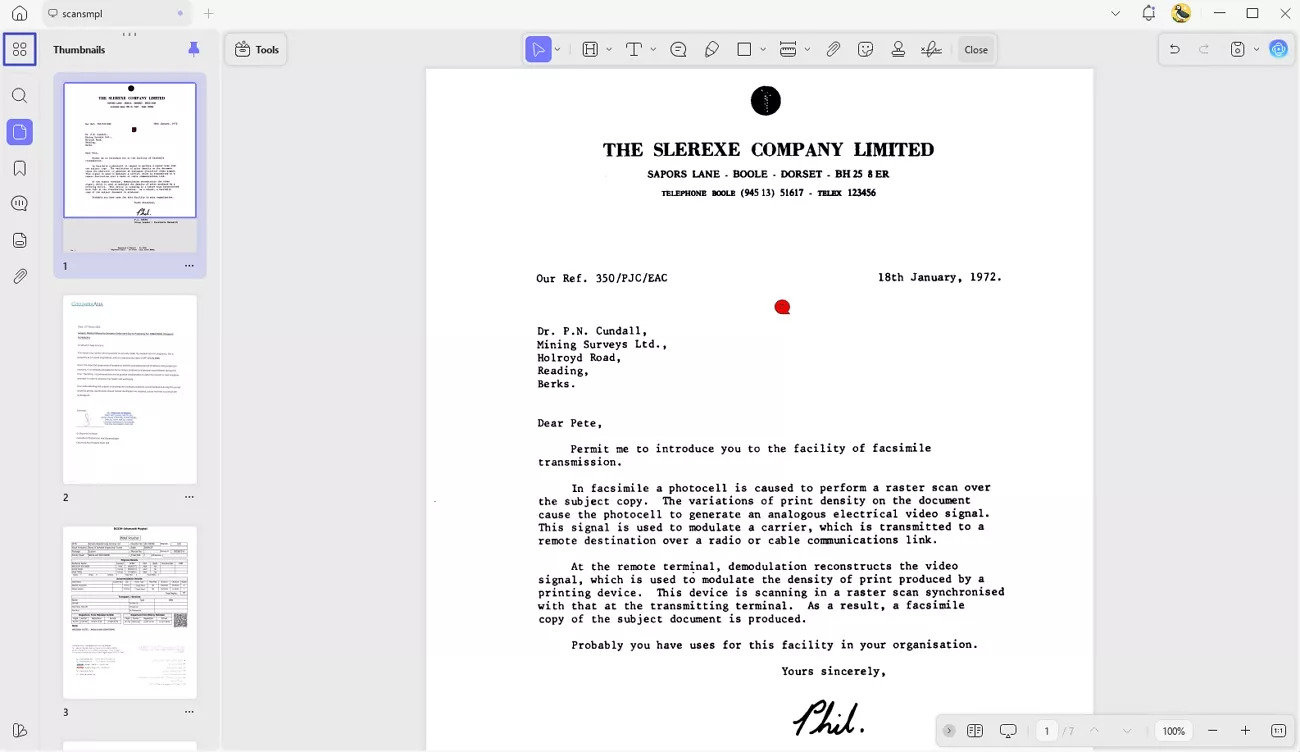
1: Access UPDF across your device and select the "Open File" button at the top to add your OCR-required PDF. After opening the PDF document, proceed to the "Organize Pages" button on the left section to open a new window.
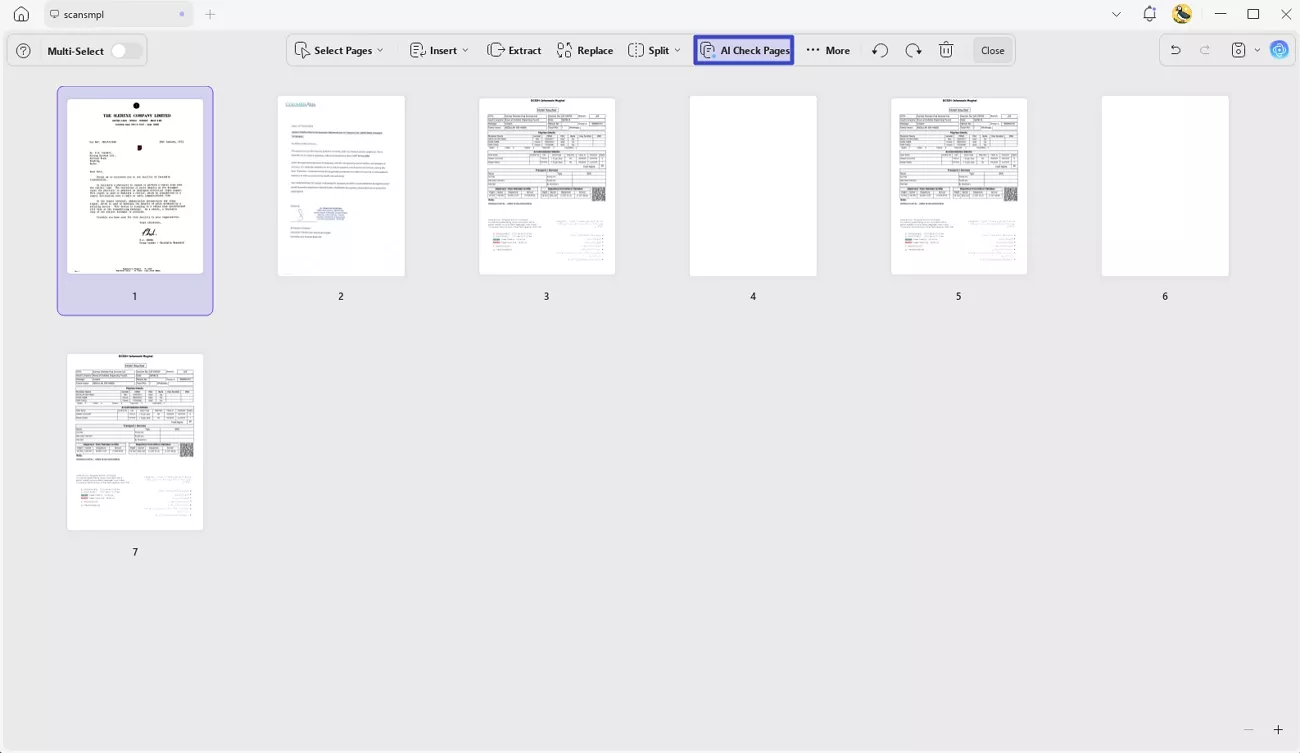
2: On the new window, look for the “AI Check Pages” button and tap to execute the process.
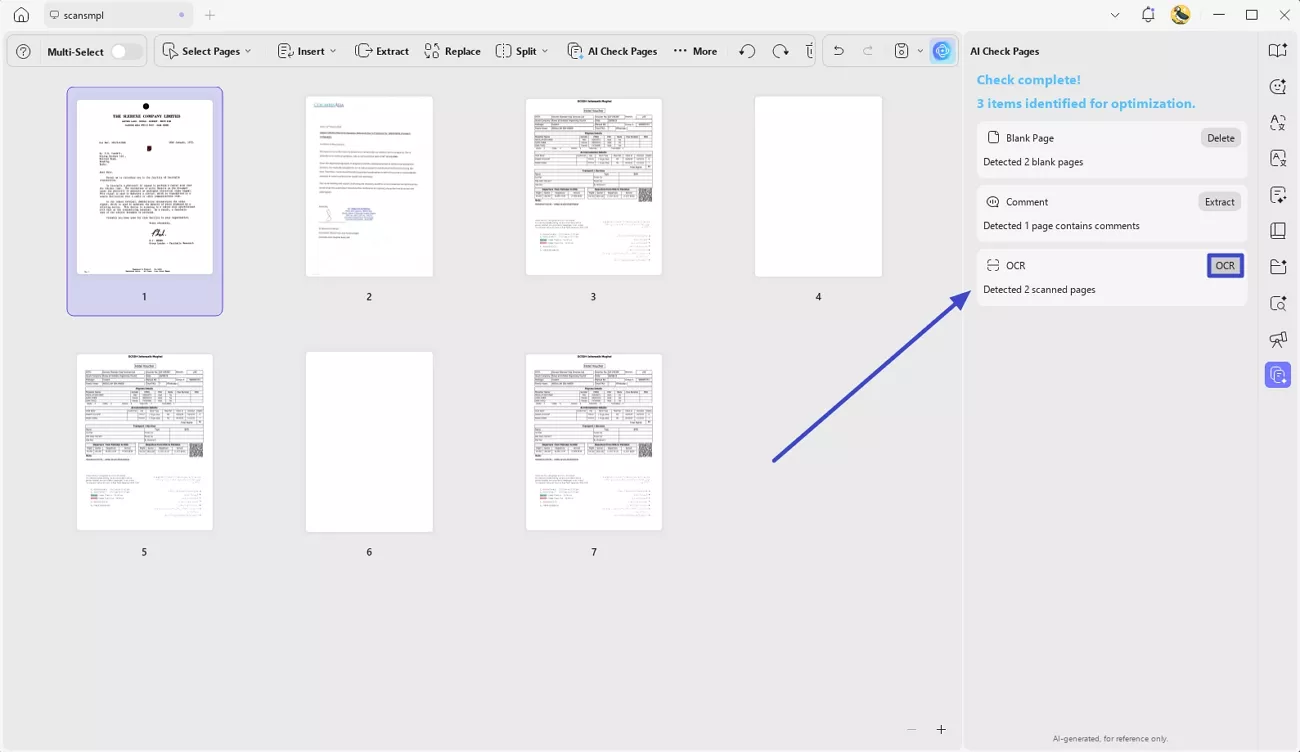
3: You can view the checked results in the right section of the window and discover the detected OCR pages within the PDF. To easily fix it and make it editable, tap the "OCR" button adjacent to it.
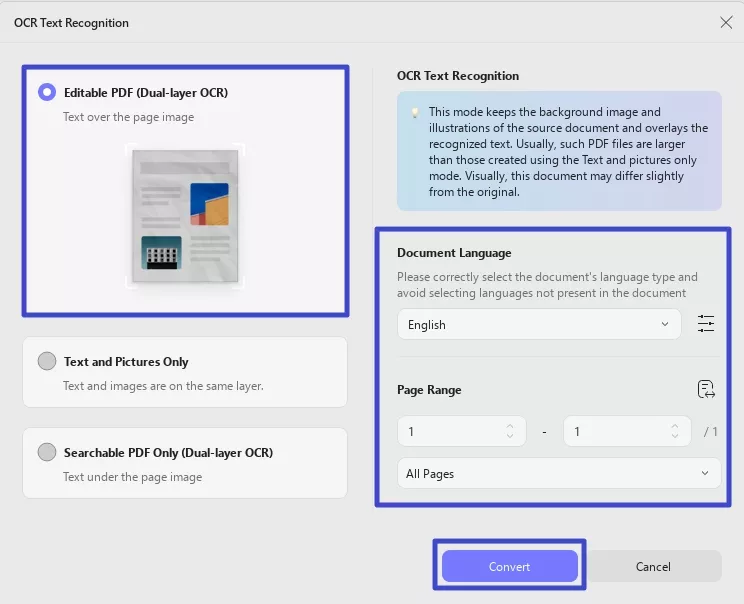
4: A new window opens up, which requires defining the OCR detection settings. Select the "Editable PDF (Dual-layer OCR)" option and set the other settings before clicking "Convert."
5: UPDF asks you to save the OCR file in an appropriate location and then performs the conversion process. It automatically opens up the editable PDF file to let you check the results.
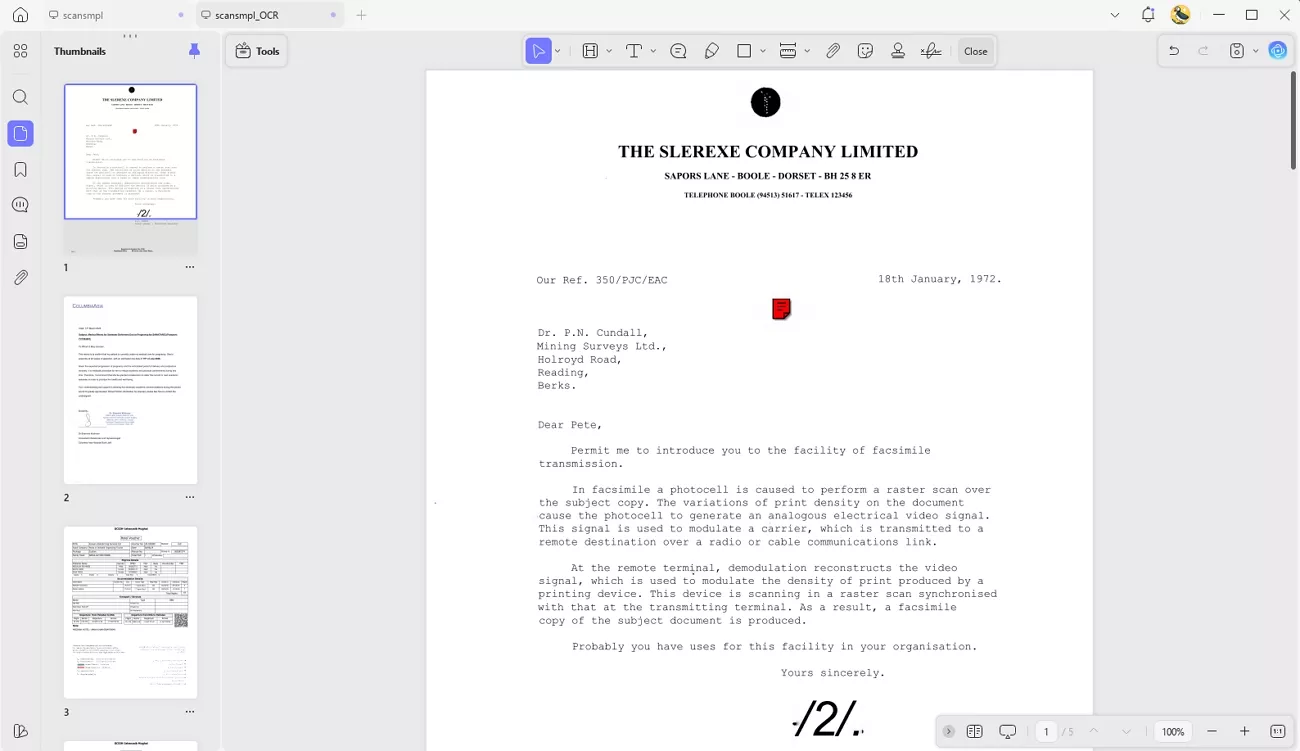
Now that your PDF is editable and searchable, you can go to the "Edit" mode in "Tools" and make any changes to your PDF documents.
How to Convert PDF to Readable Text Online
If you want to convert PDF to readable text, you can also use online tools. One such tool is Image to Text Converter - OnlineOCR.
It is an online converter that uses the OCR technology. You can convert images to text or convert PDF to Word, Excel, or Text formats.
Step-by-Step Guide
In order to use this tool, follow the steps below.
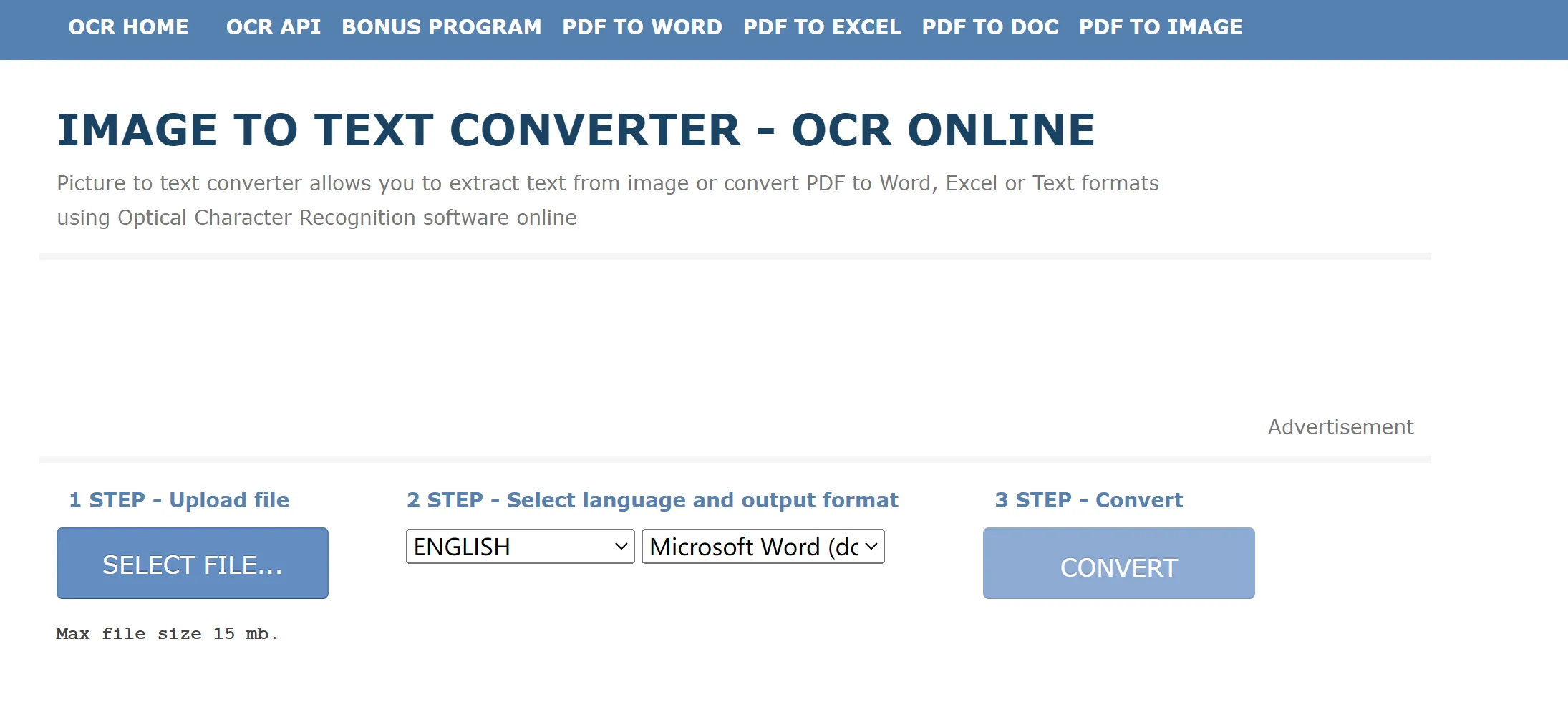
- Step 1: Go to the OnlineOCR website.
- Step 2: Upload the file you want to convert into readable text.
- Step 3: Choose the language and output format.
- Step 4: Click on "Convert."
- Step 5: Save the document on your PC.
Limitations and Disadvantages of Converting PDF to Readable Text
Although this is a quick and easy way to create readable text, it is not the most ideal solution. There are certain disadvantages and limitations that come with this tool.
- Only supports 15MB file size.
- Converts to only 3 formats: Word, Excel, and Plain Text.
- Requires you to sign up for more features.
- It may not always preserve the formatting of the original document.
- No use without the Internet.
Considering these disadvantages, it might be better to opt for a proper PDF tool such as UPDF.
Which Tool Suits You Best for Creating Readable PDF?
In order to help you decide which of the 2 methods discussed above is better, we are going to compare them. The factors that we will judge are pricing, stability, OCR results, and more.
| UPDF OCR | OCR Online | |
| Stability | More stable | Less stable |
| OCR Results | Very accurate | Formatting may change |
| Rating | 4.8/5 | 4.2/5 |
| Pros | Secure and safe Stable and accurate Available offline Lots of editing features Make PDF Readable in Clicks | Free No need for installation Speedy results Convert to different formats |
| Cons | Requires downloading Need premium version for advanced features | File size limit Only converts to 3 formats Not very stable Changes formatting Requires the Internet |
Conclusion
The frustration of a non-readable PDF is very common. Considering this issue, it is important to convert such PDFs into readable text.
For that purpose, you can use UPDF's OCR feature or an online tool called OCR Online. Both tools can get you the results. However, online tools are not very reliable in terms of accuracy, file size, and more.
That's why UPDF is the ultimate choice to create readable PDFs.
So, go and get UPDF now!
Windows • macOS • iOS • Android 100% secure





 Delia Meyer
 Enola Davis
 Enya Moore