UPDF
UPDF
 UPDF for Windows
 UPDF for Mac
 UPDF for iPhone/iPad
 UPDF for Android
 Nomostar
 UPDF AI Online
 UPDF Sign
 IvyCraft
 Edit PDF
 Annotate PDF
 Create PDF
 PDF Form
 Edit links
 Convert PDF
 OCR
OCR PDF to Word
 PDF to Image
 PDF to Excel
 Organize PDF
 Merge PDF
 Split PDF
 Crop PDF
 Rotate PDF
 Protect PDF
 Sign PDF
 Redact PDF
 Sanitize PDF
 Remove Security
 Read PDF
 UPDF Cloud
 Compress PDF
 Print PDF
 Batch Process
 About UPDF AI
 UPDF AI Solutions
 AI User Guide
 FAQ about UPDF AI
 Summarize PDF
 Translate PDF
 Chat with PDF
 Chat with AI
 Chat with image
 PDF to Mind Map
 Explain PDF
 PDF AI Tools
 Image AI Tools
 AI Chat Tools
 AI Writing Tools
 AI Study Tools
 AI Working Tools
 Other AI Tools
 AI Bookmark Generation
 AI Bookmark Summary
 AI Watermark Generation
 AI Background Generation
 AI Sticker Generation
 AI Stamp Generation
 AI Editing Suite
 UPDF Copilot
 AI Page Management
 AI Semantic Search
 PDF to Word
 PDF to Excel
 PDF to PowerPoint
 Enterprise Solution
 Enterprise Sign
 Enterprise AI
 Enterprise Plan
 Enterprise User Guide
 Enterprise Webinar
 IT
IT Education
 Construction
 Financial Service
 Healthcare
 Insurance
 Legal
Legal Manufacturing
 Government
 Researchers & PhDs
 Solopreneurs & Freelancers
 Lawyers & Legal Professionals
 Real Estate Agents & Brokers
 Education Solution
 Customer Stories
 User Guide
 UPDF Tricks
 FAQs
FAQs UPDF Reviews
 Download Center
 Blog
Blog Newsroom
 Tech Spec
 Updates
 UPDF vs. Adobe Acrobat
 UPDF vs. Foxit
 UPDF vs. PDF Expert

Zamzar is one of the easiest online options to try for you to turn a PDF into an editable Word document. Upload a PDF, choose Word as the output format, and download the converted file, then the PDF-to-Word conversion is done.
But whether Zamzar is the right choice depends on the PDF you are converting.
For a small, simple, non-sensitive PDF, Zamzar can be convenient for a one-time conversion. However, file-size restrictions, conversion quality, scanned PDFs, password-protected files, and the need to edit or process the document afterward can make another PDF tool a better fit.
This guide shows the step-by-step process to convert PDF to Word with Zamzar, what its current limits and pricing look like, what to expect from the conversion quality, and an alternative - UPDF that makes more sense for different PDF workflows and scanned or large PDF files in batch processing.
Windows • macOS • iOS • Android 100% secure
How to Convert PDF to Word With Zamzar?
Zamzar's online version is a popular choice for file conversion. It supports around 1100+ formats. However, Zamzar’s PDF to Word conversion is the most commonly used feature. Since it is a web-based tool, you can open it anywhere, on any device with an internet connection.
Here is how you can use the Zamzar PDF to DOC feature:
Step 1: Open the official website of Zamzar on your web browser.
Step 2: Here, click "Choose File" and select the PDF file you wish to convert from your desktop.
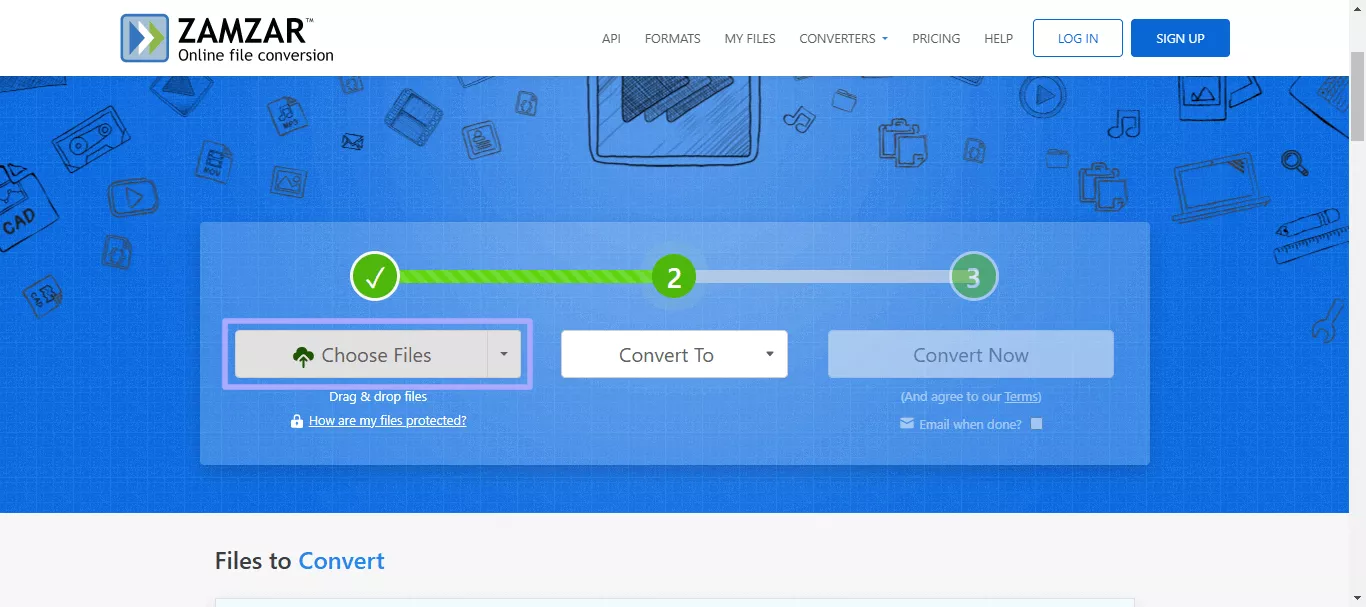
Step 3: Next, you are supposed to select the format “Doc”. Then click the "Convert" button. Zamzar will start converting your PDF to the selected format.
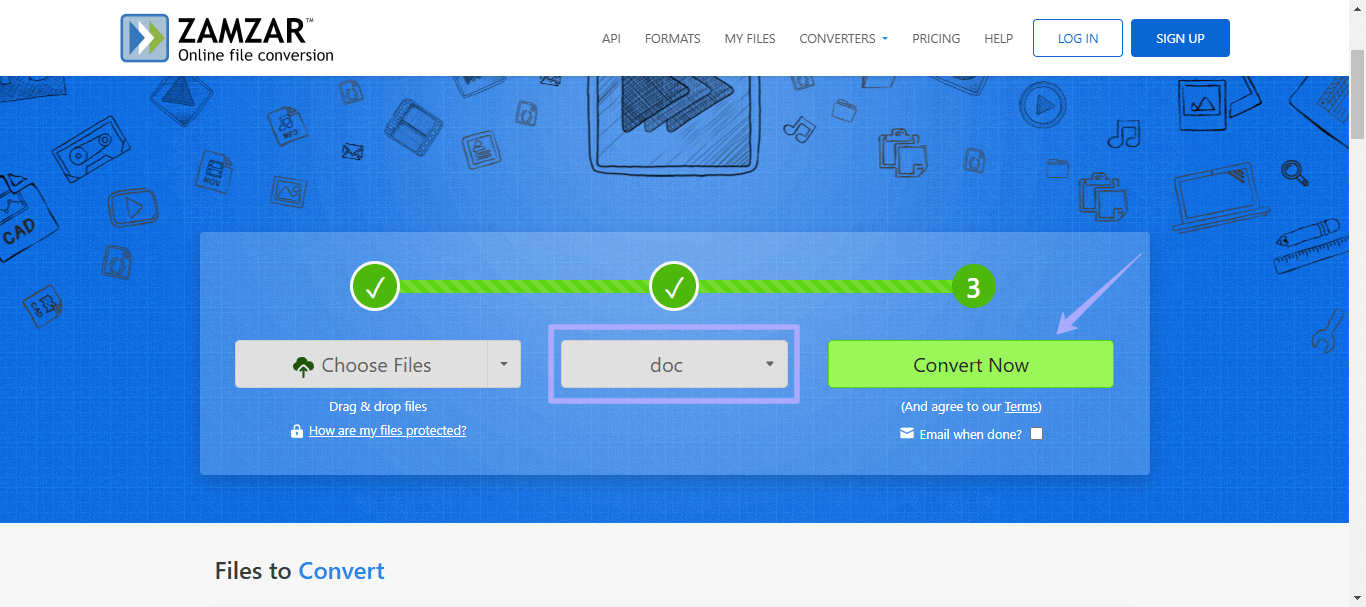
Step 4: Once the conversion is finished, click "Download" to download the Word file.
That's it! This is how you can use the Zamzar to convert PDF to DOCX feature. While it is convenient, it has some drawbacks.
Let's explore the pros and cons of the Zamzar online tool.
Pros & Cons of Zamzar Online
Pros:
- The interface of the online version is very simple and easy to navigate.
- You can convert your PDF to both DOC and DOCX formats.
- You can convert two files per day for free.
Cons:
- Uploading takes a long time, especially for large files.
- The conversion result is not accurate. Text and images may have strange shadows after conversion. Image positions can shift, affecting the document layout.
- It does not support password-protected PDFs.
- The free version only supports 2 files per day and up to 3 MB per file.
- The price is not low, as it costs USD 12 per month.
- It only supports conversion. You cannot edit PDFs, organize PDFs, annotate PDFs, etc.
- You have to have a network to convert PDF to Word.
Let's move forward to another method of Zamzar convert PDF to Word!
Zamzar also offers a desktop version of the file converter. It was basically developed for users who prefer offline conversions without opening the browser. It is the best option for those with slow internet. Like Zamzar's online version, its desktop version also converts PDFs to Word and supports a wide range of file formats.
Here is how Zamzar converts PDF to Word on a desktop:
Step 1: Click here to download the desktop version of Zamzar. Once the download is complete, install it.
Step 2: Now, right-click on the PDF file you want to convert to DOC/DOCX. A menu will appear.
Step 3: Select the "Convert to" option and then select docx/doc or any other format to which you want to convert your PDF. Zamzar will automatically start converting your file.
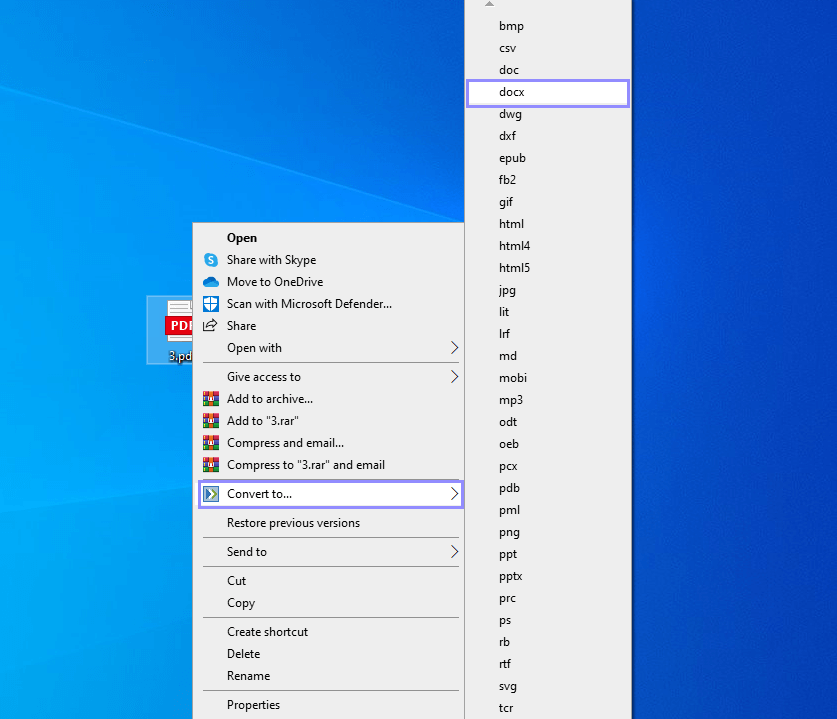
Step 4: Once the conversion is completed, the docx/doc file will be saved to the same location.
There are also plus points and downsides of using the Zamzar on desktop. Let's explore them!
Pros & Cons of Zamzar Desktop
Pros:
- There is no need to log in; you can use Zamzar directly.
- It offers around 25 free conversions.
Cons:
- It doesn't support locked PDFs.
- Uploading files sometimes takes too long.
- Supports only .DOC format, not .DOCX.
- It might make blunders when changing complex PDFs.
- Even a desktop version requires an internet connection.
- On opening, the tool appears in the lower right corner. The interface is not really user-friendly. You cannot resize the window.
After exploring both methods and their drawbacks, you must be curious to learn about the best alternative. Let's discover it!
How Much Does Zamzar PDF to Word Conversion Cost?
Zamzar offers a free service as well as paid plans. The important point is that the general upload limit should not be confused with the limit for a particular conversion format.
Zamzar's current paid plans are:
| Plan | Price | Maximum File Size | Website Conversions | Desktop Conversions/Day |
|---|---|---|---|---|
| Free | $0 | Format-specific limits | Limited | — |
| Basic | $12/month | 200 MB | Unlimited | 50 |
| Pro | $19/month | 400 MB | Unlimited | 100 |
| Business | $39/month | 2 GB | Unlimited | 500 |
Zamzar's current pricing page lists maximum file sizes of 200 MB, 400 MB, and 2 GB for Basic, Pro, and Business, respectively, with unlimited website conversions and different desktop conversion allowances.
What Is Zamzar's Free PDF-to-Word Limit?
This is where Zamzar can be confusing.
Zamzar's general free service can accept files up to a larger size, but individual conversion formats can have their own restrictions. PDF-to-DOC and PDF-to-DOCX have historically had much smaller format-specific limits than the general upload allowance.
Therefore, if a PDF that appears to be within Zamzar's general file-size range cannot be converted for free, check the specific PDF-to-Word limitation rather than assuming the entire service has the same limit.
For users converting PDFs regularly or working with large documents, this distinction can make the free version less practical than it first appears.
Zamzar vs. Other PDF-to-Word Solutions
There is no single best alternative for every user.
Instead of choosing a tool based only on the number of features it advertises, consider what you actually need.
The goal is not to prove that one tool is universally better. Each product solves a slightly different problem.
- Zamzar: You need to convert between many different file types (video, audio, images, documents) — not just PDF.
- Smallpdf: You primarily work with PDFs and want a clean, web-based suite of tools. iLovePDF to Word is a similar free online solution with file and batch limitations.
- UPDF: You need PDF-to-Word conversion plus editing, annotation, OCR, AI summarization, and cross-platform support — all in one place.
- Adobe Acrobat: You're in an enterprise environment and need the industry standard, regardless of cost.
As you can see, there are various drawbacks to the Zamzar PDF to DOC converter. Therefore, you need a better alternative.
UPDF uses advanced technology and is designed for both casual and professional users. It offers a smoother conversion from PDF to Word while keeping the layout, text, and images intact, much better than Zamzar.
The best part? UPDF helps you solve how to convert PDF to Word in just a few clicks. Just click the button below to download UPDF and give it a test.
Windows • macOS • iOS • Android 100% secure
Why Convert PDF to Word Using UPDF?
- UPDF converts PDFs to Word without changing the content format.
- It gives you the option to select specific pages to convert.
- It also works with scanned PDFs. You can turn them into editable Word documents.
- You can also convert multiple PDFs at once, making it faster for bulk tasks.
- It can handle password-protected PDFs. You can also convert locked files.
- UPDF allows you to convert up to two files for free each day. And if you need to upgrade to the pro version, the price is very cheap. You can check and upgrade here.
Now, let's jump to the steps of using UPDF!
How to Convert PDF to Word With UPDF?
Converting PDFs to Word with UPDF is no rocket science. It is very simple; even beginners can do this task without learning anything. Moreover, there is no need to worry about compatibility; UPDF works on both Windows and Mac OS. Plus, there are two methods to convert your PDF files.
Before we move forward to the steps, make sure to download and install the UPDF software on your device. Then follow the instructions given below:
Windows • macOS • iOS • Android 100% secure
Method 1: Convert a PDF File to Word
Step 1: Launch the UPDF software on your device, upload the file you want to convert and click "Tools" on the left side menu.
Step 2: Then, under the "PDF Converter" section, click "Word" and select the PDF file you want to convert.
Step 3: In the next window, select the layout setting that fits your preference.
Step 4: Then, select the page range and click "Apply". Your PDF file will be converted to Doc and saved to the selected location. Let's explore another method.
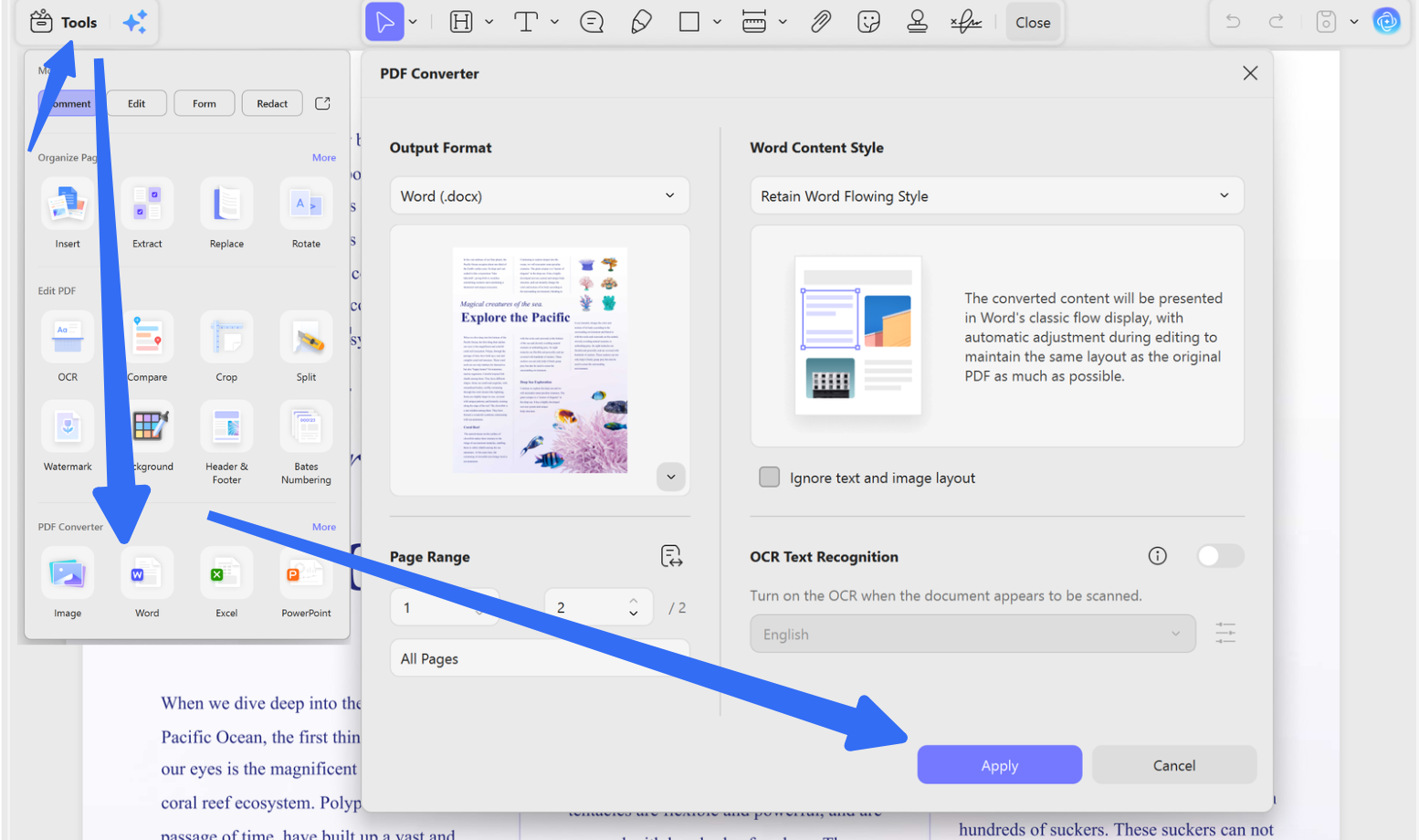
This method is for converting one PDF to Word. If you have many PDF files and want to convert them into Word in bulk, you can follow the guide below.
Method 2: Convert Multiple PDF Documents to Word at a Time
Step 1: On the UPDF homepage, click "Tools", next, click "Convert" from the options.
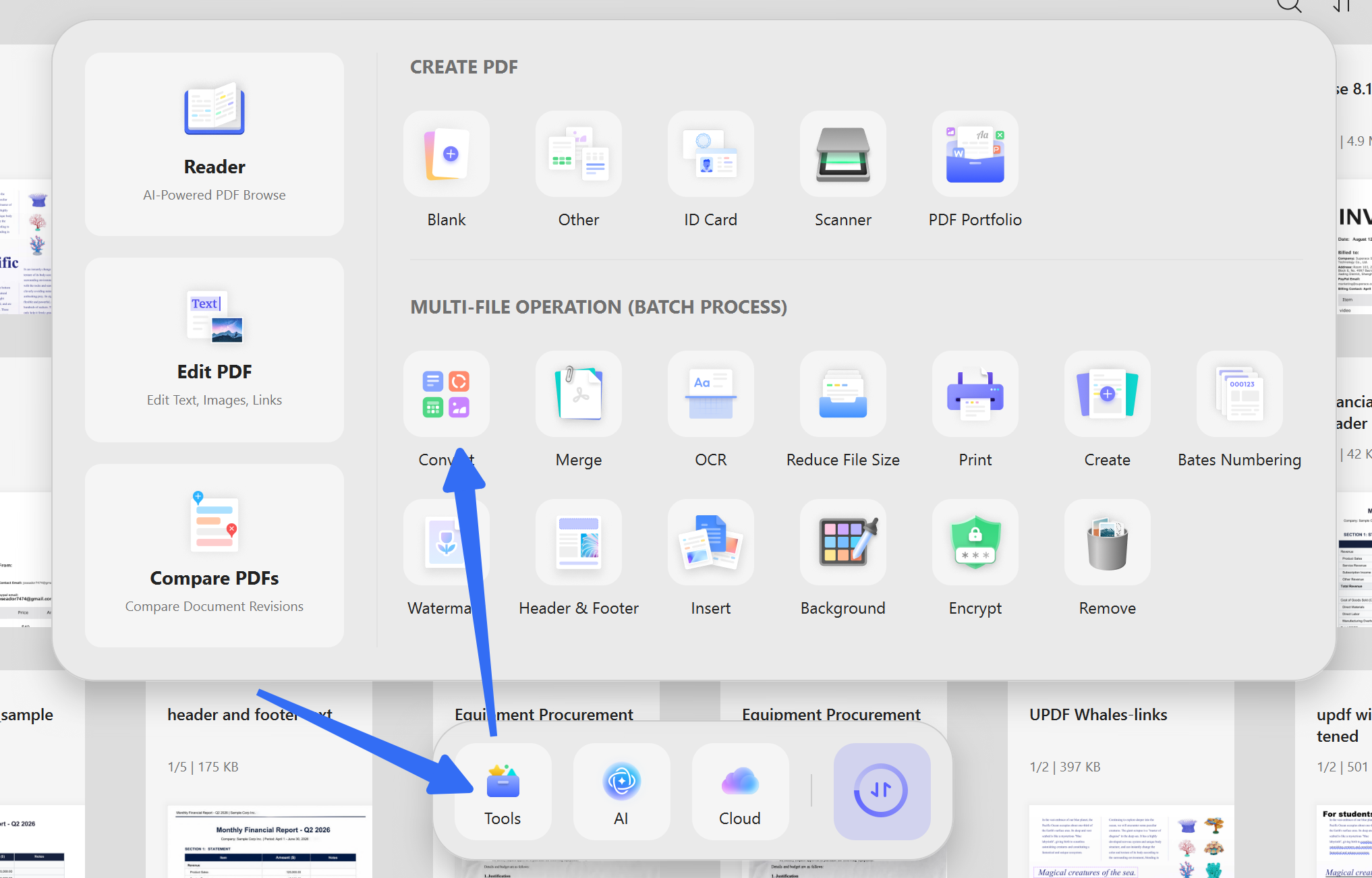
Step 2: Click "Add Files" and select all PDFs at once.
Step 4: After adding files, select "Word(.docx)" as your output format. Change the layout settings and click "Apply."
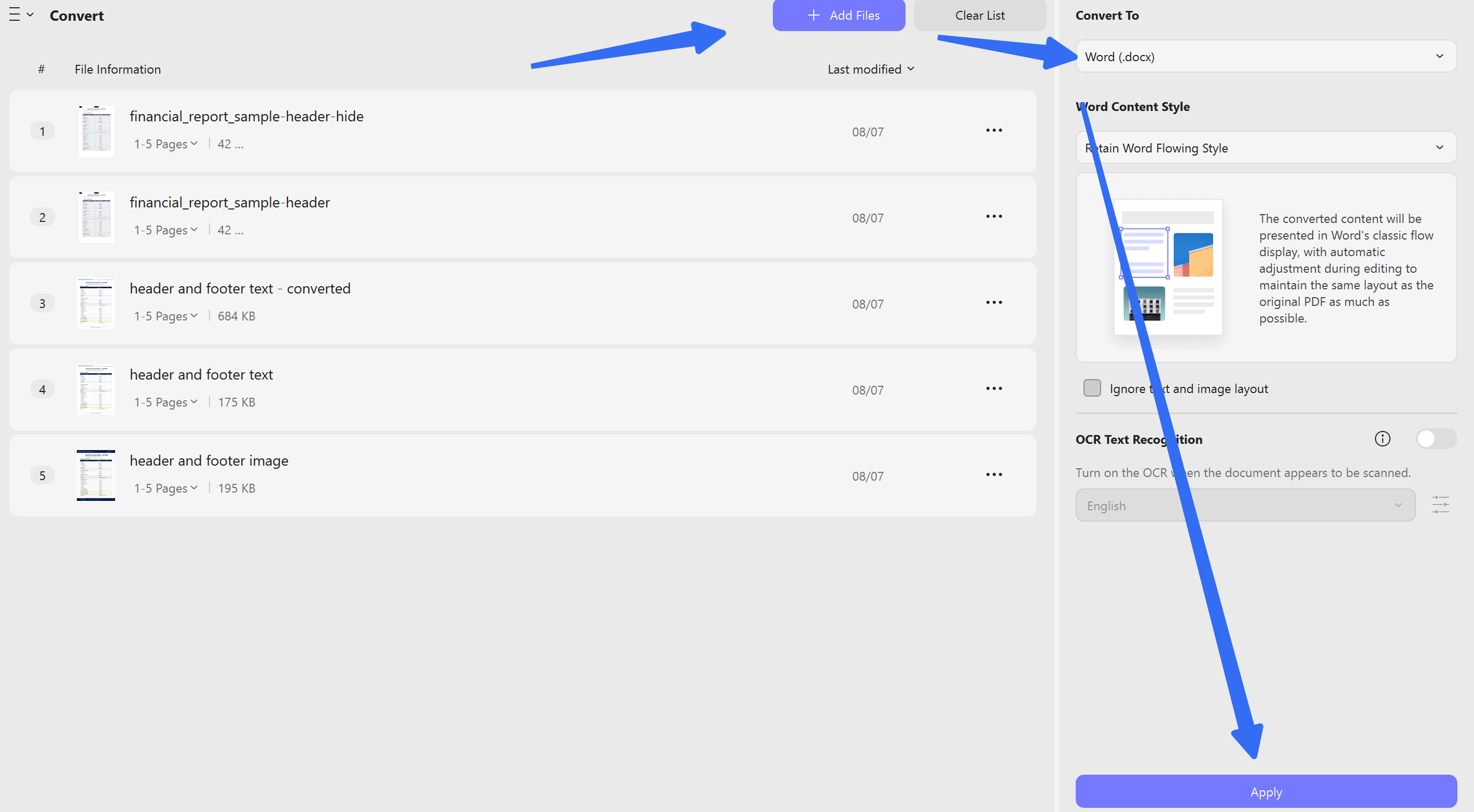
That's it! Did you see how quickly and easily it is to convert PDF to Word with UPDF? For a more detailed guide, you can watch the video below.
However, UPDF is not limited to conversion. Let's see what else it holds for its users!
What Else Can UPDF Do?
Apart from conversion, UPDF offers a lot of PDF editing options. It's a complete toolkit to edit, annotate, and organize your PDFs.
Here are some of the key features of UPDF:
- PDF Editing: Edit text, images, and layouts in your PDF files like a pro.
- UPDF AI: You can use UPDF AI assistant to summarize, translate, and pull out key info from your PDFs.
- Annotation Tools: Highlight, underline, and comment on PDFs for easy collaboration.
- Document Organization: Merge, split, or reorder pages to manage files efficiently.
- OCR: You can even turn scanned PDFs into editable and searchable text.
To experience all these features yourself, download UPDF for a trial. You can also read this review article on UPDF to learn more about it.
Common Zamzar PDF to Word Problems
Why is my converted Word file missing formatting?
PDF-to-Word conversion requires reconstructing a fixed PDF layout into an editable Word structure.
Complex tables, columns, fonts, images, and page layouts are more likely to require manual correction.
Can I convert a scanned PDF to Word?
You need OCR if the PDF contains images of text rather than selectable text.
A dedicated OCR-enabled PDF converter is usually a better choice for this type of document.
Can I convert a large PDF with Zamzar?
Paid Zamzar plans support larger files, with current maximum file sizes of 200 MB for Basic, 400 MB for Pro, and 2 GB for Business. However, the exact limit can depend on the conversion format.
Is there a free alternative to Zamzar?
Yes. PDFgear offers a free PDF-to-Word workflow, including OCR for scanned PDFs, while other tools such as UPDF and iLovePDF provide different combinations of conversion and PDF-management features.
Conclusion
To wrap up, converting PDFs to Word can be challenging, but tools like Zamzar and UPDF make it easier. While the Zamzar PDF to Word feature works well, it has some downsides, like slow uploads and image issues. UPDF, however, gives you a better experience with high-quality conversions and extra features like editing and OCR.
It's simple to use and works well for all your PDF needs. If you want a reliable tool, UPDF is the way to go. Download it today for a free trial and see for yourself!
Windows • macOS • iOS • Android 100% secure




 Enya Moore
 Enola Miller
  Enid Brown
 Enola Davis