 UPDF
 UPDF for Windows
 UPDF for Mac
 UPDF for iPhone/iPad
 UPDF for Android
 Nomostar
 UPDF AI Online
 UPDF Sign
 IvyCraft
 Edit PDF
 Annotate PDF
 Create PDF
 PDF Form
 Edit links
 Convert PDF
 OCR
 PDF to Word
 PDF to Image
 PDF to Excel
 Organize PDF
 Merge PDF
 Split PDF
 Crop PDF
 Rotate PDF
 Protect PDF
 Sign PDF
 Redact PDF
 Sanitize PDF
 Remove Security
 Read PDF
 UPDF Cloud
 Compress PDF
 Print PDF
 Batch Process

 About UPDF AI
 UPDF AI Solutions
 AI User Guide
 FAQ about UPDF AI
 Summarize PDF
 Translate PDF
 Chat with PDF
 Chat with AI
 Chat with image
 PDF to Mind Map
 Explain PDF
 PDF AI Tools
 Image AI Tools
 AI Chat Tools
 AI Writing Tools
 AI Study Tools
 AI Working Tools
 Other AI Tools
 AI Bookmark Generation
 AI Bookmark Summary
 AI Watermark Generation
 AI Background Generation
 AI Sticker Generation
 AI Stamp Generation
 AI Editing Suite
 UPDF Copilot
 AI Page Management
 AI Semantic Search
 PDF to Word
 PDF to Excel
 PDF to PowerPoint
 Enterprise Solution
 Enterprise Sign
 Enterprise AI
 Enterprise Plan
 Enterprise User Guide
 Enterprise Webinar
 IT
 Education
 Construction
 Financial Service
 Healthcare
 Insurance
 Legal
 Manufacturing
 Government
 Researchers & PhDs
 Solopreneurs & Freelancers
 Lawyers & Legal Professionals
 Real Estate Agents & Brokers
 Education Solution
 Customer Stories
 User Guide
 UPDF Tricks
 FAQs
 UPDF Reviews
 Download Center
 Blog
 Newsroom
 Tech Spec
 Updates
 UPDF vs. Adobe Acrobat
 UPDF vs. Foxit
 UPDF vs. PDF Expert


A blurry PDF has two very different causes, and they don’t have the same fix.
If the PDF was scanned at a low DPI, the page is essentially a low-resolution image. Software can sharpen it, clean the background, and add a searchable text layer — but it cannot invent detail that was never captured. If the original file is gone, rescanning at 300 DPI is the only real repair; anything else is making the best of a bad source.
If the PDF is a digital file with blurry embedded images — a report exported from Word with screenshots pasted in, for example — the fix is different: replace the low-resolution images at the source and re-export, or re-render the page at a higher resolution. Repeatedly saving a blurry PDF at a larger size does not restore pixels.
This guide helps you diagnose which case you’re in first, then use the right tool for that case — OCR and text-layer recovery when the scan is readable enough, and clear guidance on when to stop trying to “enhance” and go back to the source.
Part 1. Essential Reasons Explaining Why Convert Low-Quality PDF to High-Quality PDF
Before “converting,” check two things.
1. Can you select the text with your cursor? If yes, the page has a real text layer. The blur is in the embedded images, not the text. OCR will do almost nothing here — the fix is re-exporting with higher-resolution images or replacing the images.
2. Does the whole page blur when you zoom to 300–400%? If text and images both dissolve, it’s a scanned/image-based PDF. OCR can build a searchable text layer on top, but the underlying image stays as sharp — or as soft — as it was scanned.
A scanned page at 150 DPI does not contain the detail a 300 DPI scan does. No export setting can put that detail back. If you still have the paper, rescanning at 300 DPI for text, 600 DPI for small print or line art, is the only step that genuinely raises quality. Enhancement after the fact is preservation and cleanup, not repair.
Part 2. A Comprehensive Guide to Converting Low-Quality PDFs to High Quality
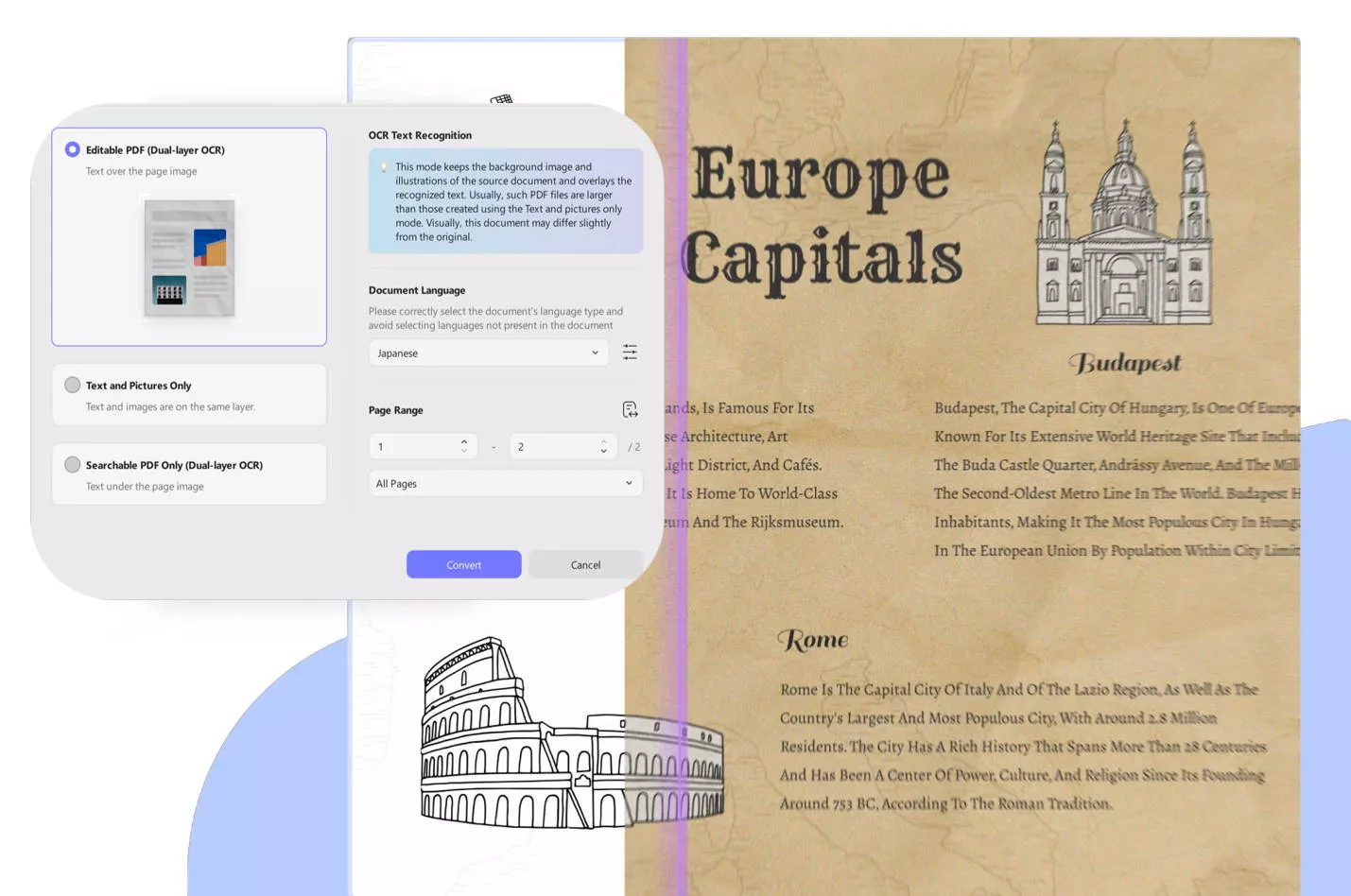
OCR PDF is useful when the scanned image is readable to a human but not selectable by a computer. It adds a text layer so you can search, copy, and edit. It does not make a blurry image sharper, and it does not fix a scan that was captured at too low a resolution. If the text is barely legible to you, OCR will struggle too — UPDF’s own documentation notes that recognition accuracy depends on image clarity, font, and background complexity.
With that caveat, here’s how UPDF’s OCR works. The six setup steps are below; the three output types are summarized in a table instead of separate sections.
| Output Type | What It Does | Best For | Trade-off |
|---|---|---|---|
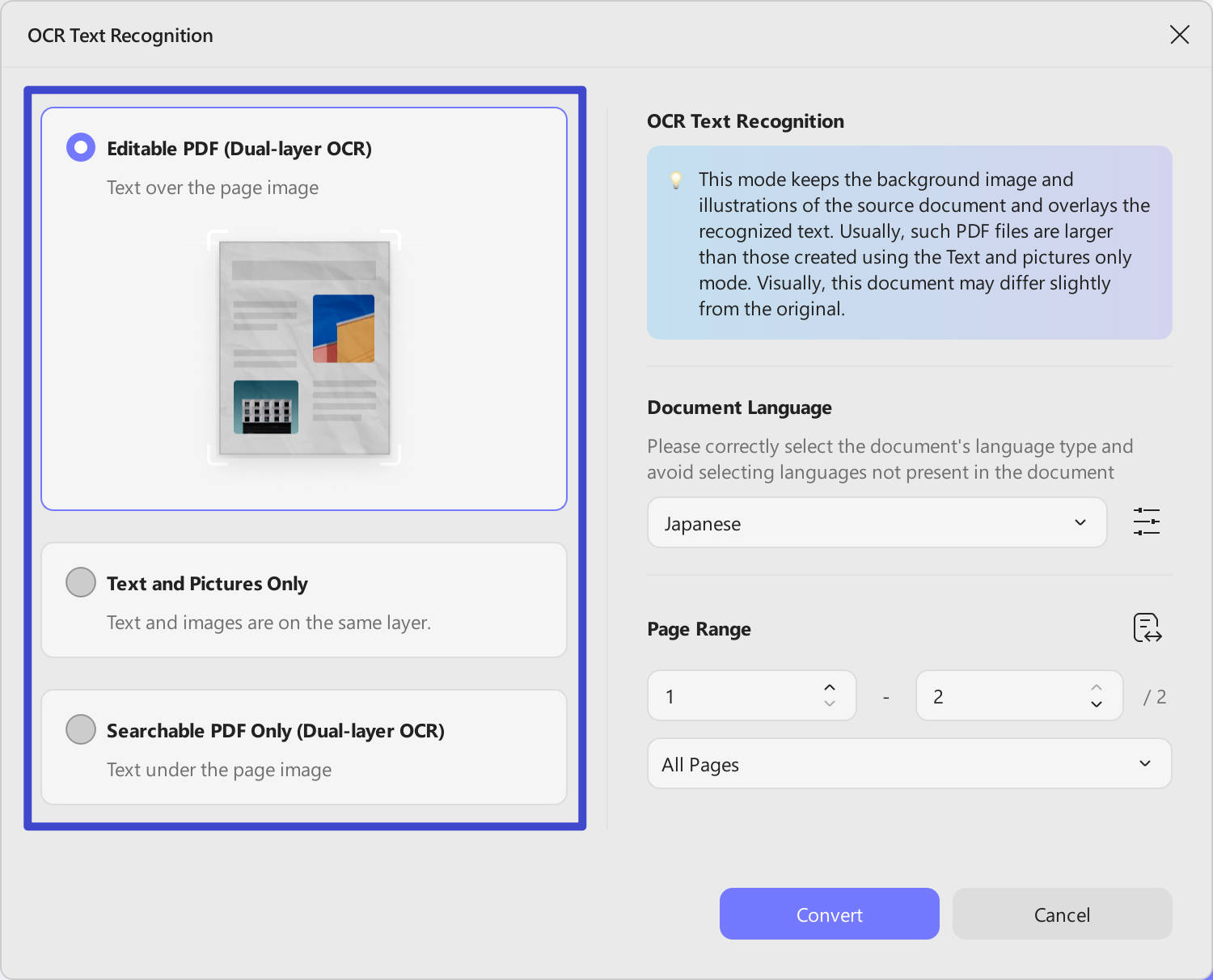
| Editable PDF | Keeps recognized text and images while discarding backgrounds and complex formatting. | Editing text when preserving the original appearance is less important. | The layout may differ from the original. |
| Text and Pictures Only | Preserves backgrounds and illustrations, with recognized text layered on top. | Keeping a close visual match while making text searchable and selectable. | File sizes may be larger. |
| Searchable PDF | Preserves each page as an image and adds an invisible text layer. | Searching and copying text without changing the page layout. | Looks almost identical to the original, but text cannot be edited directly. |
Step 1. Get Access to OCR in UPDF
After you have UPDF installed and running on your system, employ the "Open File" option to access the low-quality PDF file. Once it is displayed on the window, click the "OCR" icon in "Tools" from the left side panel to access the available options.
Windows • macOS • iOS • Android 100% secure
Step 2. Select Document Type & Document Layout
The next thing you need to do is select the document type you want in the result after performing OCR. You can choose "Editable PDF", "Text and Pictures Only", "Searchable PDF Only" for different needs.
Step 3. Make Desired Choices in Layout Settings
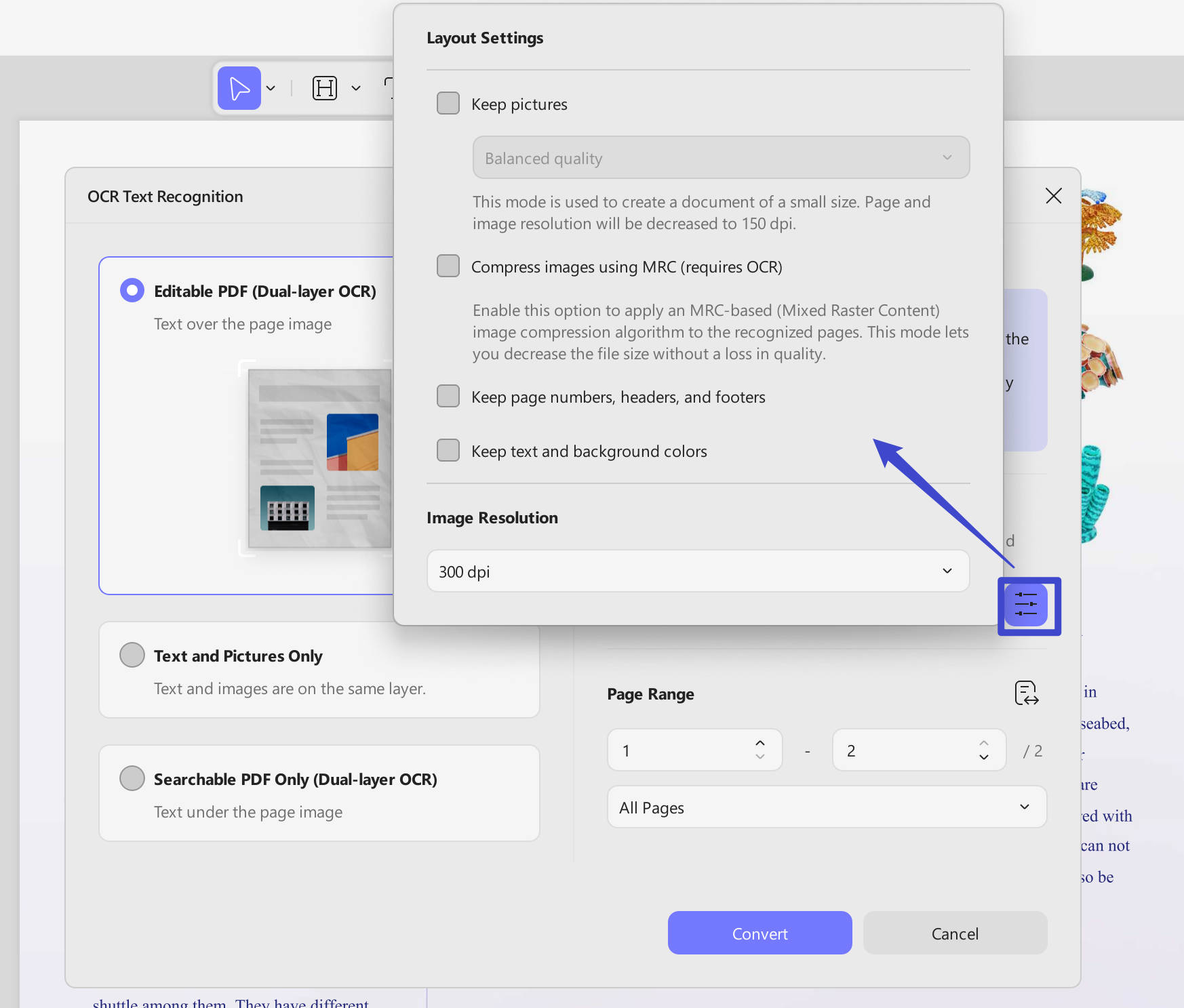
Apart from choosing a layout, you can further customize it by clicking the "Gear" icon to access "Layout Settings". Here, you can select "Keep Pictures" by defining image quality as "low," "balanced," and "high." You can also choose to enable image compression using the MRC-based technique. Other choices that can be made are "Keep Page Numbers, Headers, and Footers" and "Keep Text and Background Colors." Also, you can adjust "Image Resolution".
Step 4. Define Document Language and Image Resolution
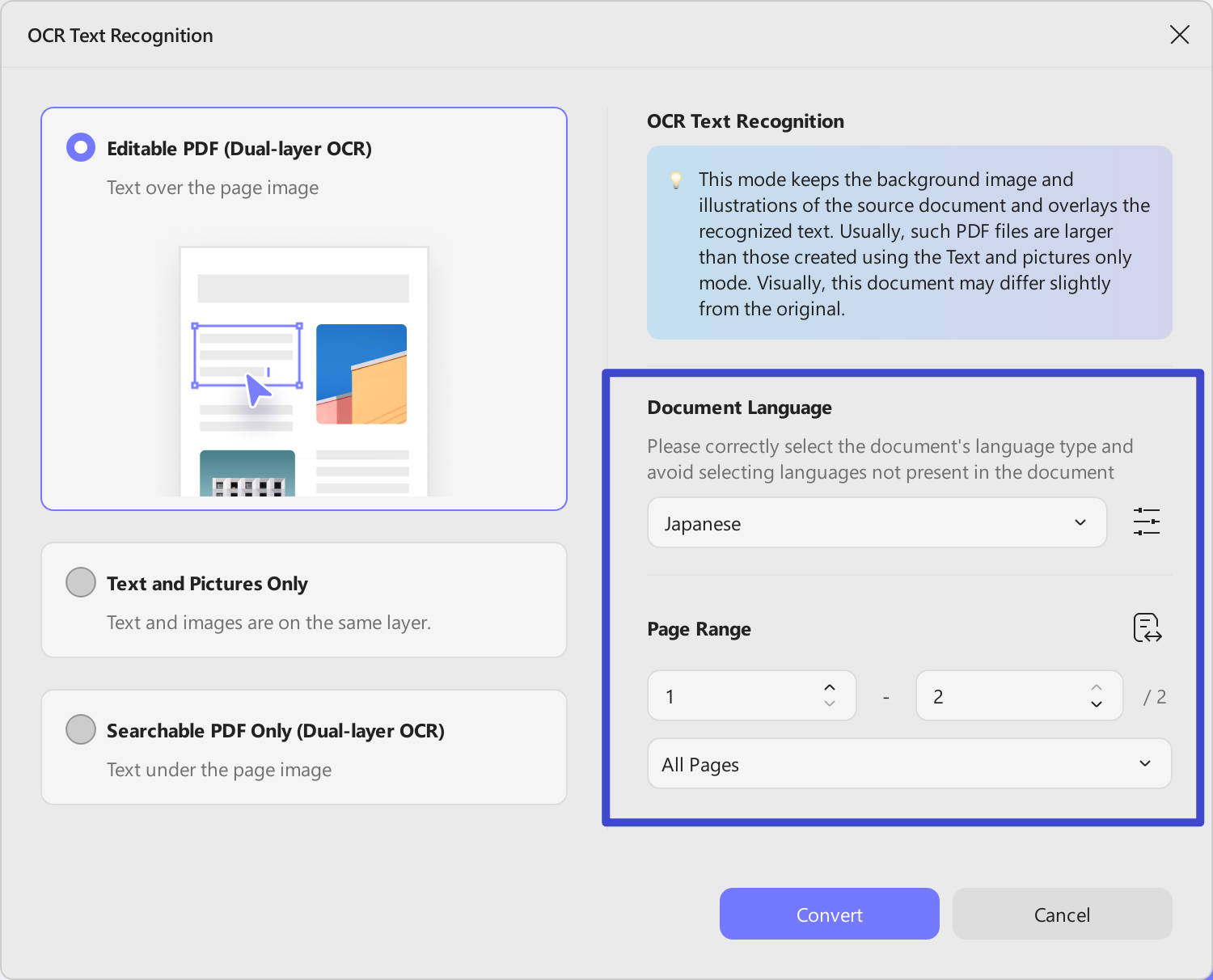
When done with layout settings, move to select the language of your targeted low-quality document. UPDF offers support for more than 38 languages, and you can even select more than one language for OCR. Following that, you can also adjust the "Page Range".
Step 5. Select the Document Pages for OCR
Next, you can select the specific page range of the document if you don't want to run OCR on the whole document. The other option available in this scenario is to select between odd or even pages for the operation. When you are done with all the required settings, hit "Convert" to kickstart the quality conversion process.
Step 6. Complete OCR to Get High-Quality PDF
Once you tap "Convert", the program will need you to save the new file first. When you do that, the OCR conversion will start with the progress being shown on the screen. The newly converted file will automatically open in UPDF where you will be able to perform other necessary edits.
New users can learn quickly with our guided video!
OCR Document
As we mentioned before, there are three options available when performing OCR on a PDF. To better understand what each option means and the result you get, they are summarized below:
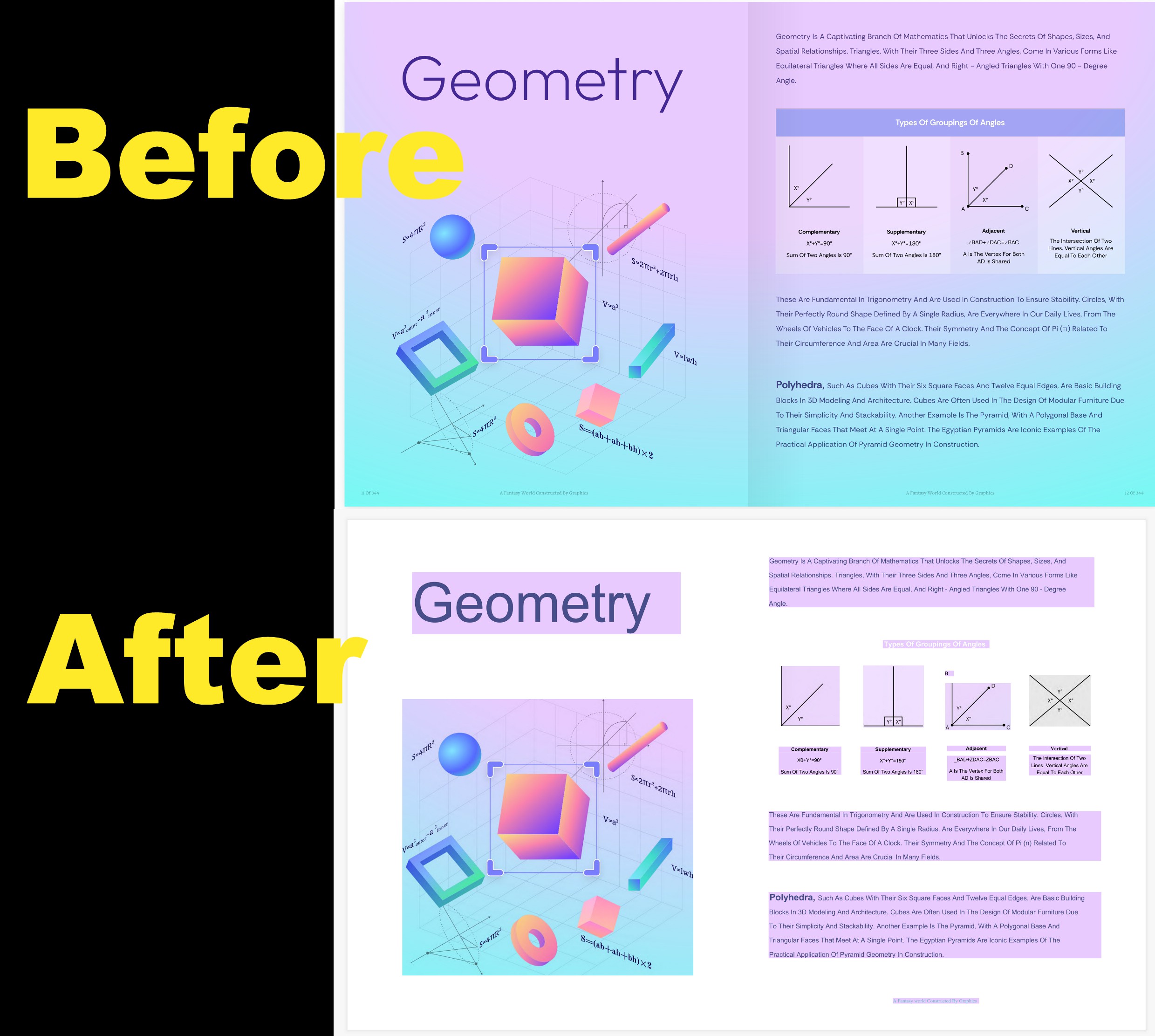
1. Editable PDF
This layout option processes the scanned document by recognizing and extracting only the text and pictures. It ignores any background images or complex layout elements, and the document usually looks slightly different from the original.
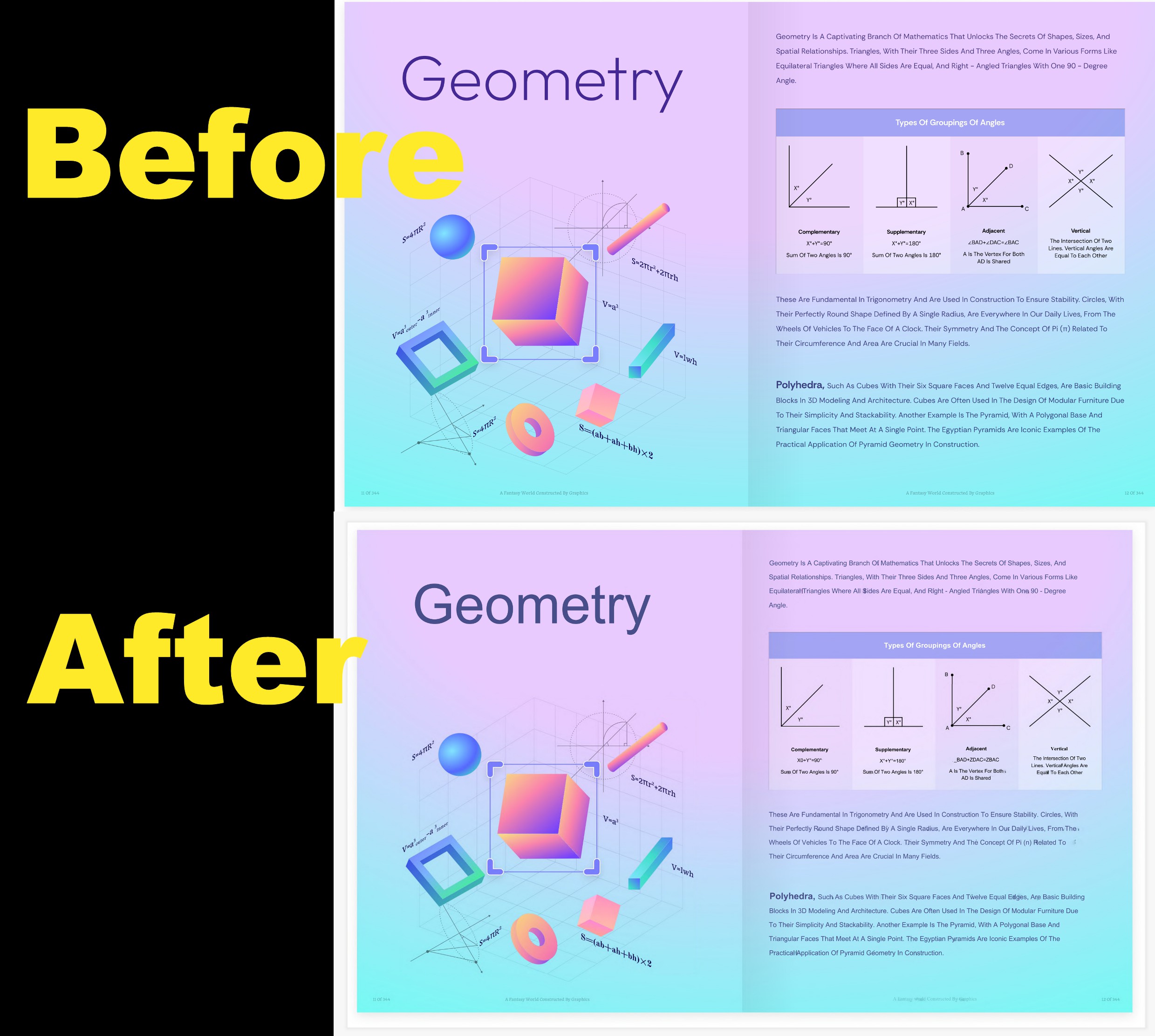
2. Text and Picture Only
The source’s background and illustrations are preserved, with the recognized text overlaid on top. Resulting files are typically larger than those from the Editable PDF option, and the visual appearance can differ marginally.
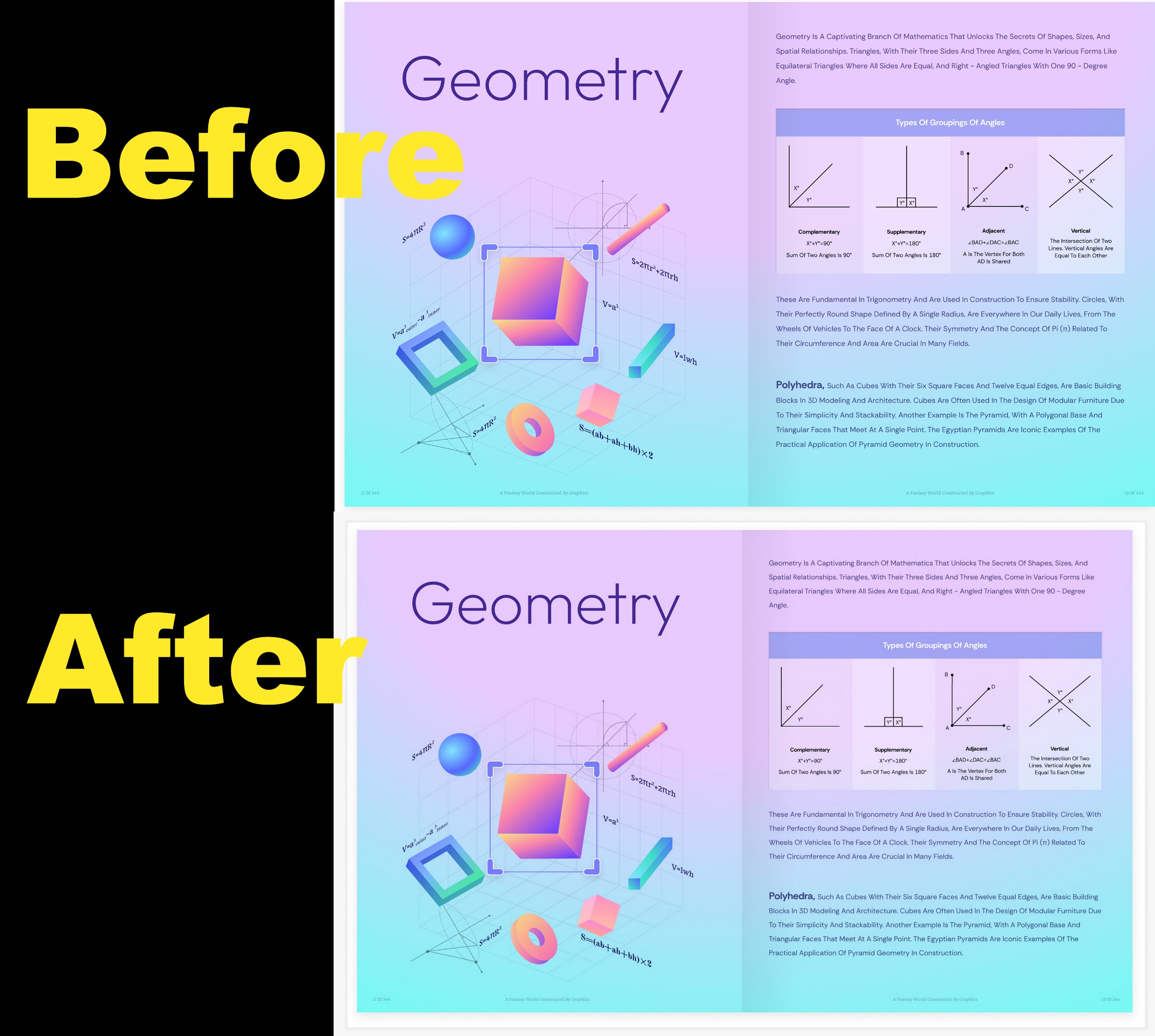
3. Searchable PDF
A full-page image is retained, while the recognized text is hidden beneath it in an invisible layer. The output remains virtually indistinguishable from the original.
Ready to turn your low-quality PDF to a high-quality one? Download UPDF!
Windows • macOS • iOS • Android 100% secure
Also Read: How to Recognize Text in PDF? (The Complete Guide)
Part 3. Which Fix Actually Matches Your PDF? A Branch-by-Branch Guide
After diagnosis, your file will usually fall into one of four cases. Each has a different "best first move" — and OCR is not the right move for all of them.
The four cases at a glance:
| Your situation | Best first move | Will OCR help? | Will software enhancement help? |
|---|---|---|---|
| Text selectable, images soft | Go back to the source, swap in high-res images, re-export | Barely | Can't recover lost pixels |
| Full-page scan, readable to the eye | OCR for a text layer + despeckle/deskew cleanup | ✅ Core use case | Improves readability, not true resolution |
| Full-page scan, hard to read | Rescan at 300/600 DPI | Low accuracy, not recommended as the main fix | Surface cleanup only |
| Blurry in only one viewer | Switch viewers / compare zoom levels | Not needed | Not needed |
Where UPDF fits in this table: it sits in Case B — using OCR to build a text layer on a readable scan, and cleanup tools to improve how it looks. It is not a universal "turn any low-quality PDF into a high-quality one" repair tool, and it shouldn't be used as one. If your file is Case C, finding a better source or rescanning will do more than any setting in any app.
Windows • macOS • iOS • Android 100% secure
Case A: The text is selectable; only the images look soft.
That means the PDF already has a real text layer, and the blur comes from embedded images or screenshots. OCR will do almost nothing here — the text itself is already clean vector text. The fix is to go back to the original document (Word, PowerPoint, or the design file), replace the low-resolution images with high-resolution versions, and re-export the PDF. As one guide puts it bluntly, post-processing a PDF "cannot restore pixels that were never saved." If the source file is gone, you can try extracting the images, processing them separately, and putting them back — but that's far more work than fixing the source.
Case B: The whole page is blurry, the text isn't selectable, but you can still read it.
This is where OCR actually earns its keep. The scanned image itself won't get sharper, but OCR can lay a searchable, copyable text layer on top, turning the document from "view-only" into something you can work with. You can also run cleanup tools — despeckle, deskew, background removal — to improve readability. Just be clear on what these do: they clean and preserve; they don't restore. If the scan was captured at a low resolution, the cleaned image is still low-resolution.
Case C: The whole page is blurry, and reading it is already a strain.
This is the case most likely to get misled by "one-click enhance" tools. OCR accuracy depends heavily on input quality: a clean 300 DPI scan can hit 95–98% character accuracy, while the same document scanned at 150 DPI can drop below 90%. When a human can barely make out the text, the OCR engine is guessing too — the text layer will be full of errors, and cleanup tools will only make the blur slightly more pleasant. If the original is still available, rescanning at 300 DPI (text) or 600 DPI (small print or line art) is the only step that genuinely raises quality. As Xodo's repair guide notes, if the original scan is "heavily blurred, out of focus, or missing detail," software "can't fully restore it" — rescanning at a higher quality is the better option.
Case D: The file is fine; it just looks blurry in one viewer.
An often-overlooked fact: a vector PDF with selectable text should be sharp at any zoom level. If text looks fuzzy in one viewer, drag the same file into Chrome or Edge and compare. If it's crisp in the browser, the problem isn't the file — it's the original viewer's zoom or rendering settings. No "conversion" or "enhancement" needed.
FAQ
Can I increase a scanned PDF's resolution?
Depends on what you mean by "resolution." If the page is a low-resolution image, you cannot add true detail after the fact. Software can enlarge pixels and sharpen edges — but that's rendering a bigger image, not recovering more information. If the scan is below roughly 150 DPI, rescanning is the most effective fix. If the original is gone, OCR can add a searchable text layer, but the image itself stays at its original sharpness ceiling.
Why is my PDF blurry when zoomed in?
f text is sharp at 100% or fit-to-width and only blurs when you zoom, it's most likely your viewer's rendering or zoom settings, not the file. True vector text should stay sharp at any zoom. Drag the same file into a browser (Chrome/Edge) and compare — if it's crisp there too, switch viewers or adjust zoom.
Does OCR make a blurry PDF sharp?
No. OCR recognizes text in an image and generates a searchable, copyable text layer on top; it doesn't change the underlying scan's sharpness. For scans that are "readable to a human but not selectable by a computer," OCR solves a usability problem, not a visual clarity problem.
What DPI should I scan at?
Adobe's scanning guidance: 300 DPI for grayscale and color documents, 600 DPI for black-and-white documents. For pages with small print or line art, 600 DPI is safer. Below about 150 DPI, character strokes start breaking up, and both OCR and readability drop noticeably.
Conclusion
Most "low-quality PDF" problems come down to one question: do you still have a better source?
If yes, rescan at 300 DPI or re-export with high-res images — no software can recover detail that was never captured. If the scan is readable but not searchable, OCR is the right tool: it adds a text layer and makes the document usable again. And if the scan is too blurry to read reliably, a better copy of the document is worth more than any enhancement setting.
UPDF fits the middle case — readable scans that need a searchable text layer and cleanup — and that's exactly where it's worth using. Try UPDF free or check the lifetime plan if you already know OCR is what you need.
Windows • macOS • iOS • Android 100% secure




 Enrica Taylor

 Engelbert White
 Čserná Anna
 Enya Moore
 Enola Miller