 UPDF
UPDF
 UPDF for Windows
 UPDF for Mac
 UPDF for iPhone/iPad
 UPDF for Android
 Nomostar
 UPDF AI Online
 UPDF Sign
 IvyCraft
 Edit PDF
 Annotate PDF
 Create PDF
 PDF Form
 Edit links
 Convert PDF
 OCR
OCR PDF to Word
 PDF to Image
 PDF to Excel
 Organize PDF
 Merge PDF
 Split PDF
 Crop PDF
 Rotate PDF
 Protect PDF
 Sign PDF
 Redact PDF
 Sanitize PDF
 Remove Security
 Read PDF
 UPDF Cloud
 Compress PDF
 Print PDF
 Batch Process
 About UPDF AI
 UPDF AI Solutions
 AI User Guide
 FAQ about UPDF AI
 Summarize PDF
 Translate PDF
 Chat with PDF
 Chat with AI
 Chat with image
 PDF to Mind Map
 Explain PDF
 PDF AI Tools
 Image AI Tools
 AI Chat Tools
 AI Writing Tools
 AI Study Tools
 AI Working Tools
 Other AI Tools
 AI Bookmark Generation
 AI Bookmark Summary
 AI Watermark Generation
 AI Background Generation
 AI Sticker Generation
 AI Stamp Generation
 AI Editing Suite
 UPDF Copilot
 AI Page Management
 AI Semantic Search
 PDF to Word
 PDF to Excel
 PDF to PowerPoint
 Enterprise Solution
 Enterprise Sign
 Enterprise AI
 Enterprise Plan
 Enterprise User Guide
 Enterprise Webinar
 IT
IT Education
 Construction
 Financial Service
 Healthcare
 Insurance
 Legal
Legal Manufacturing
 Government
 Researchers & PhDs
 Solopreneurs & Freelancers
 Lawyers & Legal Professionals
 Real Estate Agents & Brokers
 Education Solution
 Customer Stories
 User Guide
 UPDF Tricks
 FAQs
FAQs UPDF Reviews
 Download Center
 Blog
Blog Newsroom
 Tech Spec
 Updates
 UPDF vs. Adobe Acrobat
 UPDF vs. Foxit
 UPDF vs. PDF Expert

You may assume deleting PDF images is as simple as right-clicking and removing a picture. In reality, PDF image editing is far less straightforward, and casual covering or quick fixes can leave hidden risks, including residual data and privacy leaks.
Example: If a proposal contains an outdated logo on every page, first determine whether it is a normal image, a watermark, or part of a scanned page because each requires a different removal method. For a related workflow, see extract an image from a PDF before removing it.
To solve different PDF image issues correctly, there are three professional solutions: permanent deletion, white-out covering, and secure redaction, each designed for specific usage scenarios and security needs. You need to select the right method and tool based on your specific scenarios, security requirements, and efficiency needs.
That’s where UPDF stands out as the optimal middle-ground solution. Offline secure redaction, batch edits, cheaper than Adobe and safer than online tools.
Windows • macOS • iOS • Android 100% secure
Part 1. Choose PDF Image Remover in Your Scenario
White-Out vs. Redaction: This is a critical distinction that affects both security and document integrity.
| Method | What It Does | Security Level | Applicable Image Types | Applicable File Types | Recommended Tool Type | When to Use |
|---|---|---|---|---|---|---|
| White-Out (Cover) | Places a white shape over the image | ❌ Not secure — image may still be recoverable | Inline images only | Drafts, quick previews, non‑sensitive content | Online | Visual cleanup, internal drafts |
| Delete | Removes the image from the PDF | ✅ Secure — image is removed from the file | Inline images only | General documents, presentations, forms | Online or Desktop | Removing unnecessary graphics, reducing file size |
| Background Removal | Removes the background image layer | ✅ Secure | Background images only | Watermarked PDFs, branded documents, letterhead | Desktop | Removing watermarks, company letterhead, textured backgrounds |
| Redact | Permanently removes the image — cannot be recovered | ✅✅ Most secure | Inline images & Background images | Contracts, legal, medical, IDs, passports, financial reports | Desktop | Confidential images, faces, signatures, IDs |
Now that you know the methods for removing images from PDFs, you can explore the available tools to see which ones are suitable.
Part 2: Top 5 PDF Image Removers Online
Online PDF editors let you upload your file, delete images directly in your browser, and download the updated version. Most tools work by selecting the image and choosing the Delete Image option, like PDF Image Tool and PDF2Go — though some only offer "white-out" (covering the image with a white shape rather than actually deleting it), like Smallpdf and iLovePDF.
| Tool | Remove Individual Images | Batch Image Removal | Max File Size (Free) | Free Plan | Privacy | Preserve Layout | Best For |
|---|---|---|---|---|---|---|---|
| PDF Image Tool | ❌ | ✅ | Small–Medium | Free | ⭐⭐ Uploaded to server | ⭐⭐⭐ | Quick removal of all images |
| PDF2Go | ❌ | ✅ | ~100 MB | Limited | ⭐⭐⭐ Cloud processing | ⭐⭐⭐⭐ | Casual editing |
| DocHub | ⚠️ Via editing | ❌ | Limited | Limited | ⭐⭐⭐ | ⭐⭐⭐ | Document collaboration |
| iLovePDF | ⚠️ Indirect | ❌ | ~100 MB | Limited | ⭐⭐⭐ | ⭐⭐⭐ | General PDF editing with limited free quota |
| Smallpdf | ⚠️ Indirect | ❌ | ~100 MB | Limited | ⭐⭐⭐ | ⭐⭐⭐⭐ | Simple online editing with limited free quota |
The process to remove PDF images on PDF Image Tool and PDF2Go is quite the same: upload the file, choose remove images, then wait to download the PDF without images, including background. They support deleting all images in one or over one PDF files, but you can't select which images you want to delete.
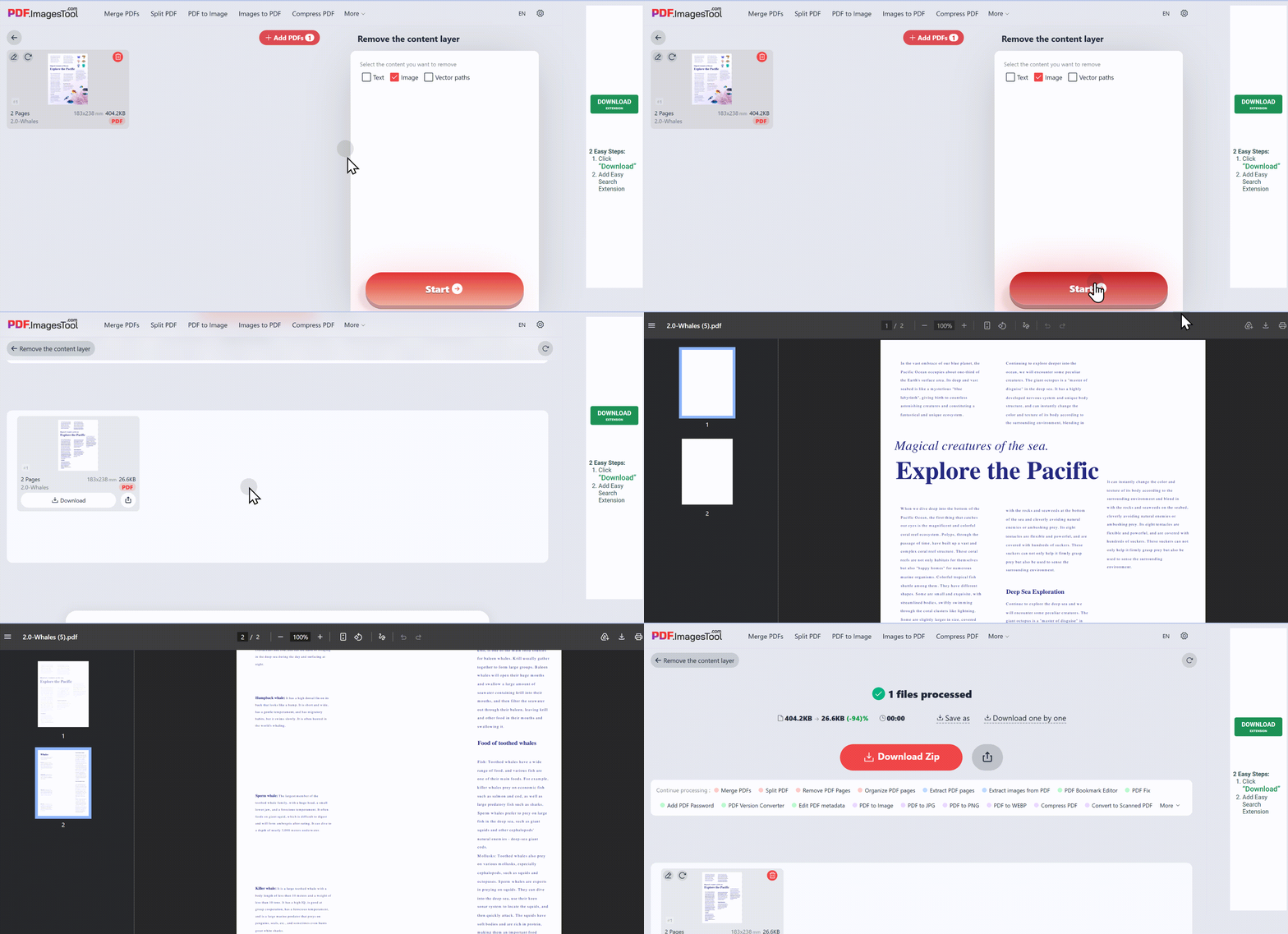
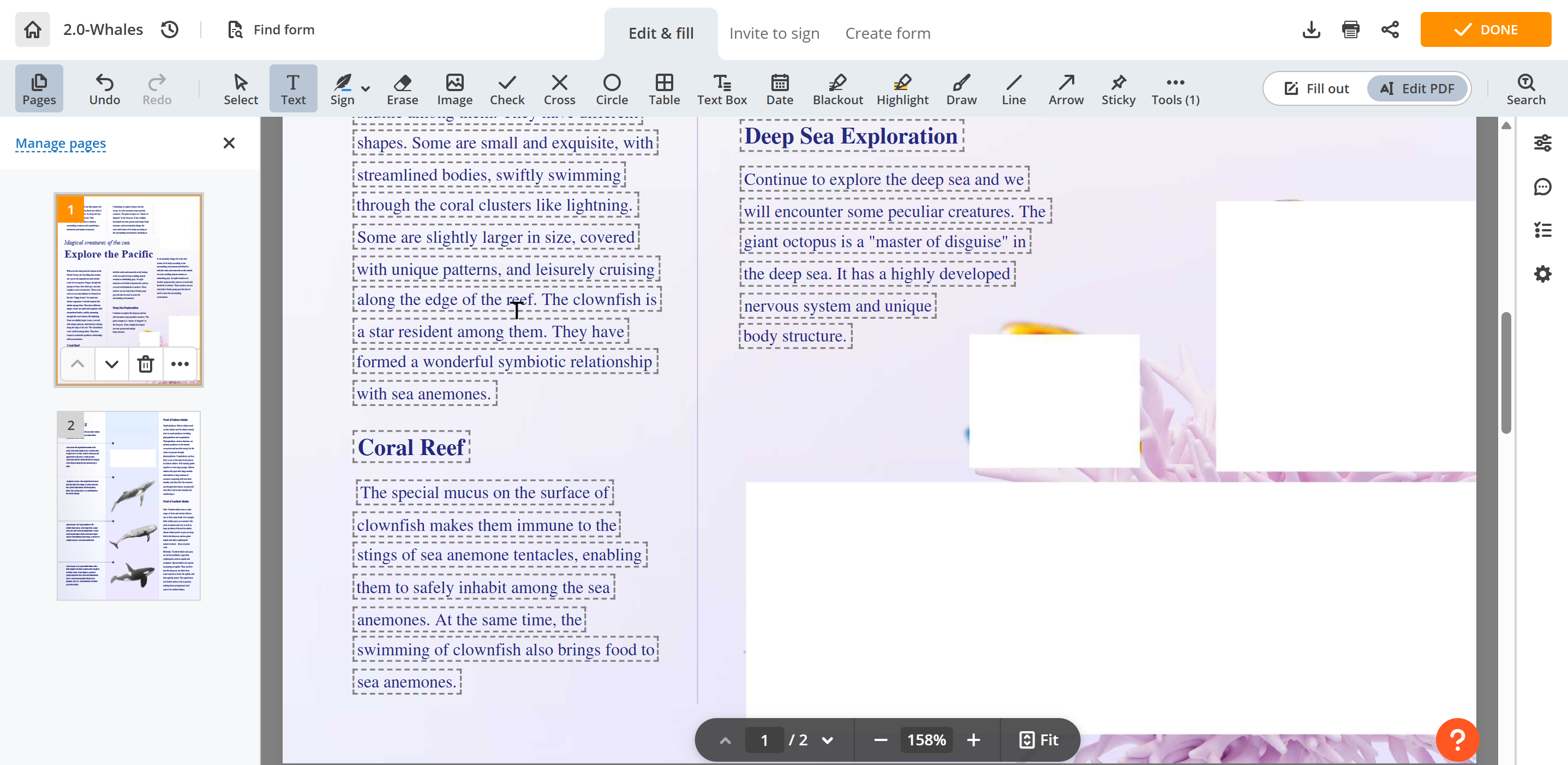
Tools like Smallpdf, iLovePDF, and Dochub are online PDF editors; Dochub allows us to delete images one by one; however, the deletion results are poor and will affect the background. Smallpdf and iLovePDF just cover it with a white box or redact the images.
Watch out: Most online tools require uploading files to cloud servers — not suitable for confidential documents (contracts, IDs, medical records). Let's continue to check the professional PDF image removers offline.
Part 3. Top 4 PDF Image Removers Offline
Online PDF tools carry cloud upload risks and often fail scanned PDFs. Desktop offline editors deliver secure, permanent image deletion for business & confidential files. We’ve sorted the four most capable desktop PDF image removers, evaluating single- and batch-erase, background stripping, image redaction, scanned-file support, and pricing to help you pick the best offline solution.
| Tool | Pricing | Delete Inline Image | Delete All Inline Images | Remove Background Image | Redact Images | Batch | Applicable File Types | Pros | Cons |
|---|---|---|---|---|---|---|---|---|---|
| Adobe Acrobat Pro | Subscription (~$240/year) | ✅ | ✅ | ✅ | ✅ | ❌ | Contracts, legal, medical, IDs, watermarked documents | Industry standard, comprehensive background removal | Expensive (subscription), steep learning curve |
| UPDF | One-time ($79.99) | ✅ | ✅ | ✅ | ✅ | ✅ | Contracts, legal, medical, IDs, passports, watermarked documents | Best value — one-time, cross-platform, full features including background removal | Paid for full features |
| Foxit PDF Editor | Subscription (~$130/year) | ✅ | ✅ | ✅ | ✅ | ✅ | Enterprise documents, contracts, legal files | Enterprise-grade, powerful batch processing | Subscription-based |
| PDFgear | Completely free | ✅ | ❌ | ❌ | ❌ | ❌ | Simple documents, non‑sensitive files | Completely free, no registration, offline | No background removal, no redaction, no batch deletion |
UPDF excels at PDF image handling: single- or batch-deletion, background removal, image replacement, and permanent redaction. Fully offline for privacy, cross-platform with one low one-time fee, far more cost-effective than Adobe.
Windows • macOS • iOS • Android 100% secure
Remove Inline Images with UPDF
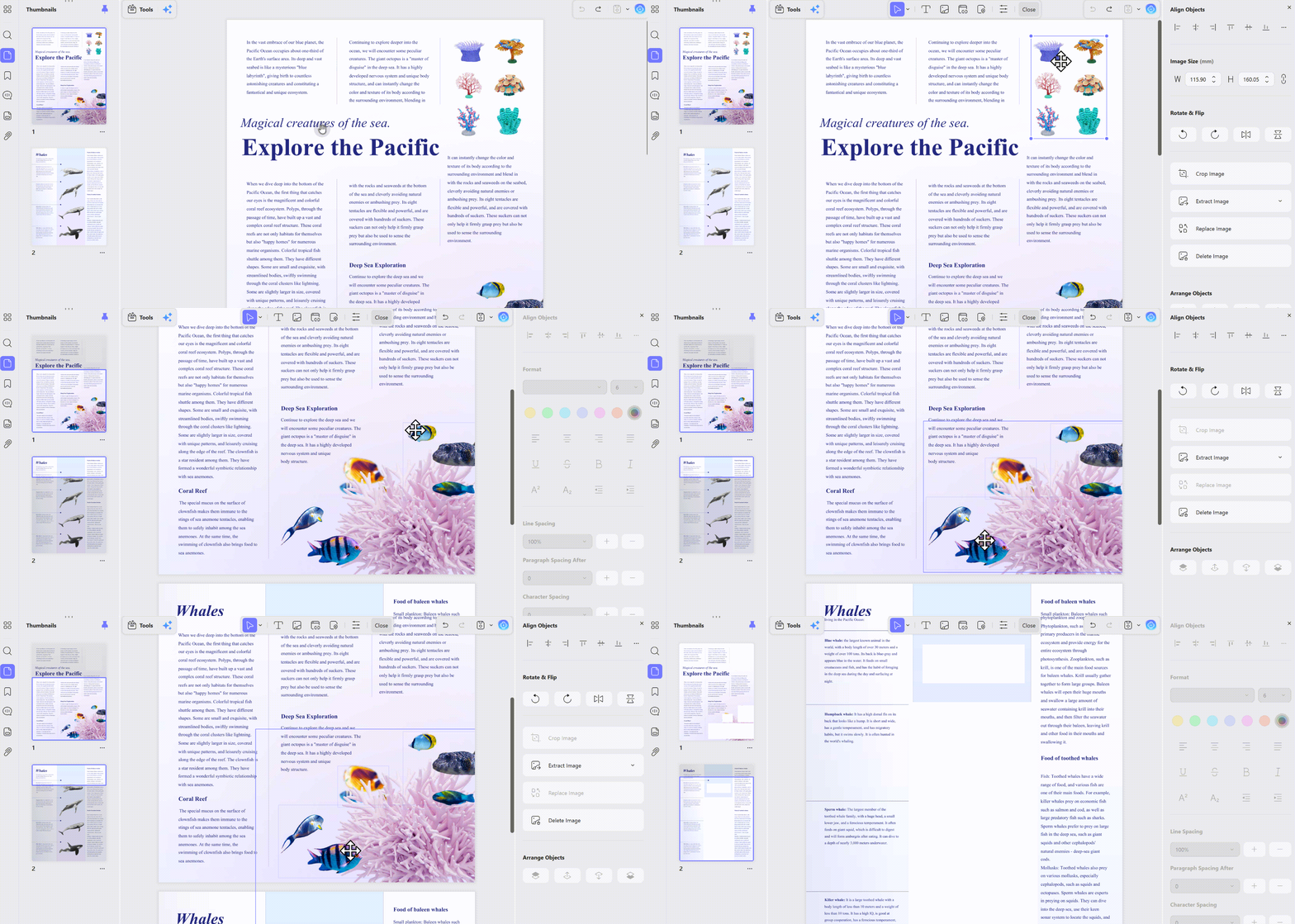
Tired of messy inline graphics cluttering your PDF? UPDF’s edit mode lets you erase single images instantly or batch-delete all embedded visuals to shrink file size. No complicated tweaks needed—just simple clicks to clear unwanted photos, icons, and charts effortlessly.
Open the file on UPDF and click Tools to enter Edit mode; then you can delete the images you don't like. For batch removal, use the shortcut Ctrl+left mouse click for Windows, Command+left mouse click to select images to remove.
Remove a Background Image with UPDF
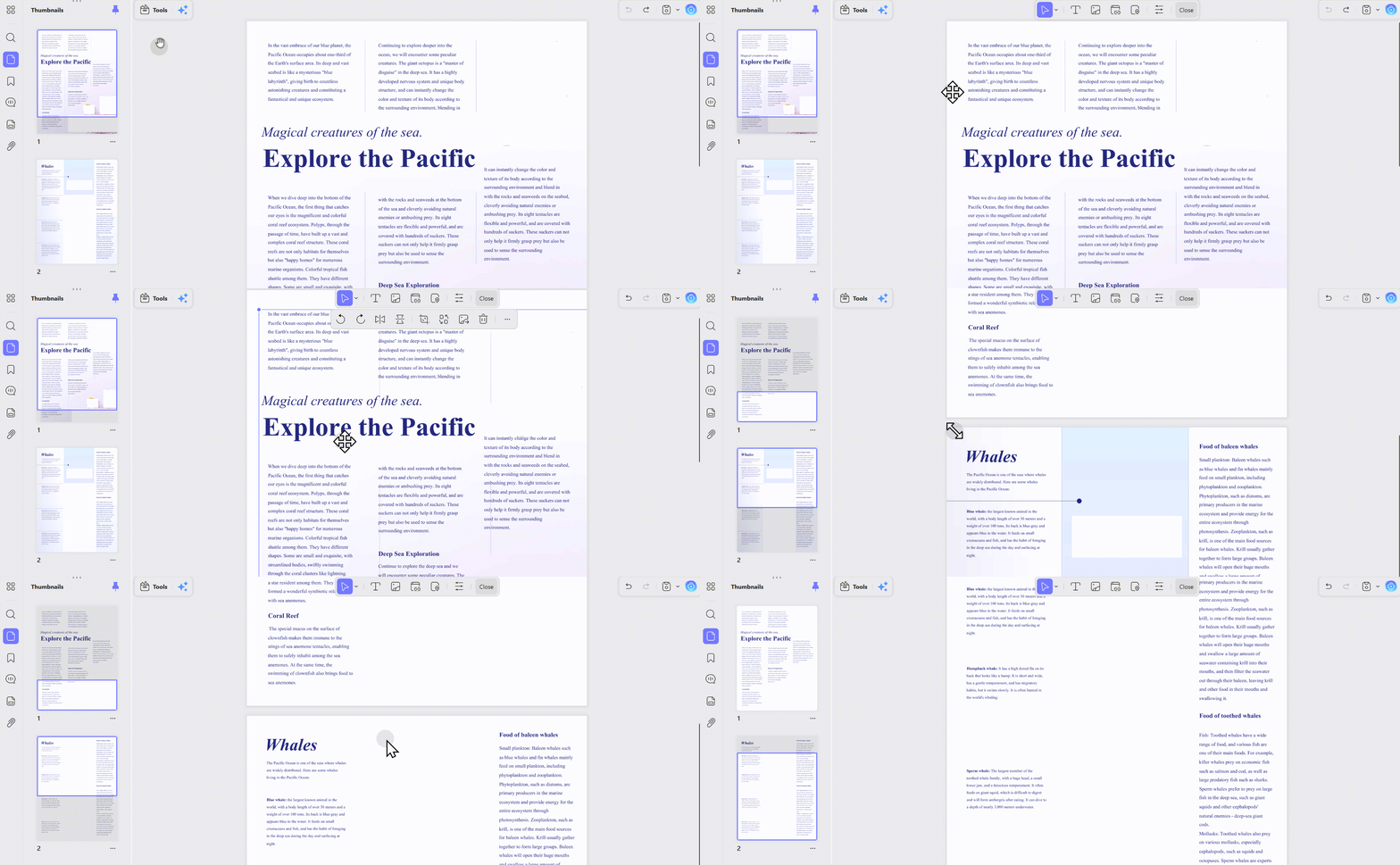
Annoying watermarks, branded letterheads, or textured backdrops ruin your PDF layout. UPDF - an all-in-one PDF editor features a dedicated background remover tool to wipe underlying layer images cleanly, restoring plain blank pages without altering your foreground text and core content.
A quick look at the resulting image helps confirm that small text is still readable. The video below offers a closer look at editing PDF content in UPDF.
Also, enter Edit mode and then drag the background to delete, just so easy.
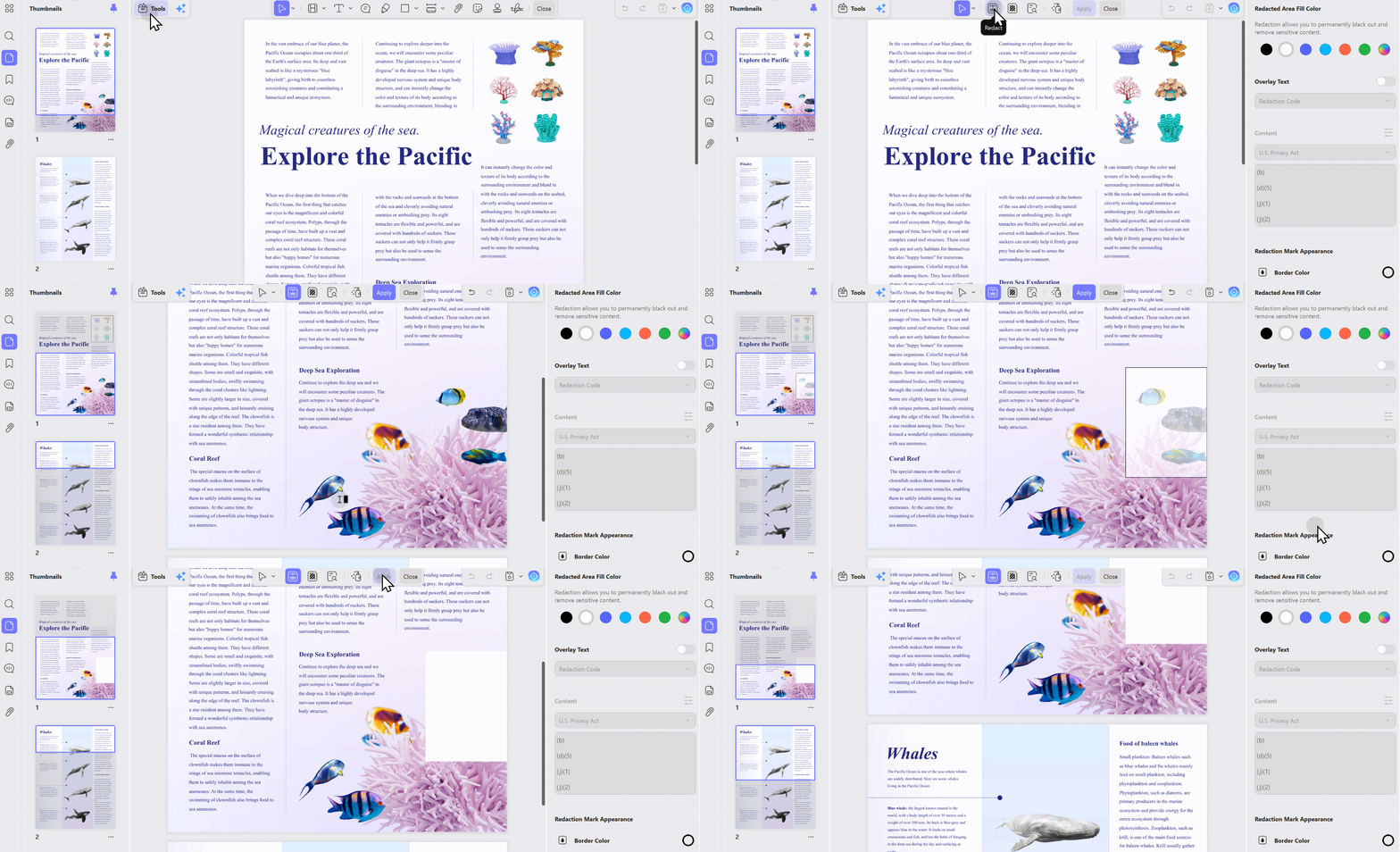
Redact Sensitive Images with UPDF
Protect confidential visual data like IDs, signatures, and facial photos from leaks. UPDF’s image redaction function permanently erases sensitive graphics with zero recovery possibility, ideal for official files that demand strict data privacy and compliance standards.
Remove Images from Scanned PDF
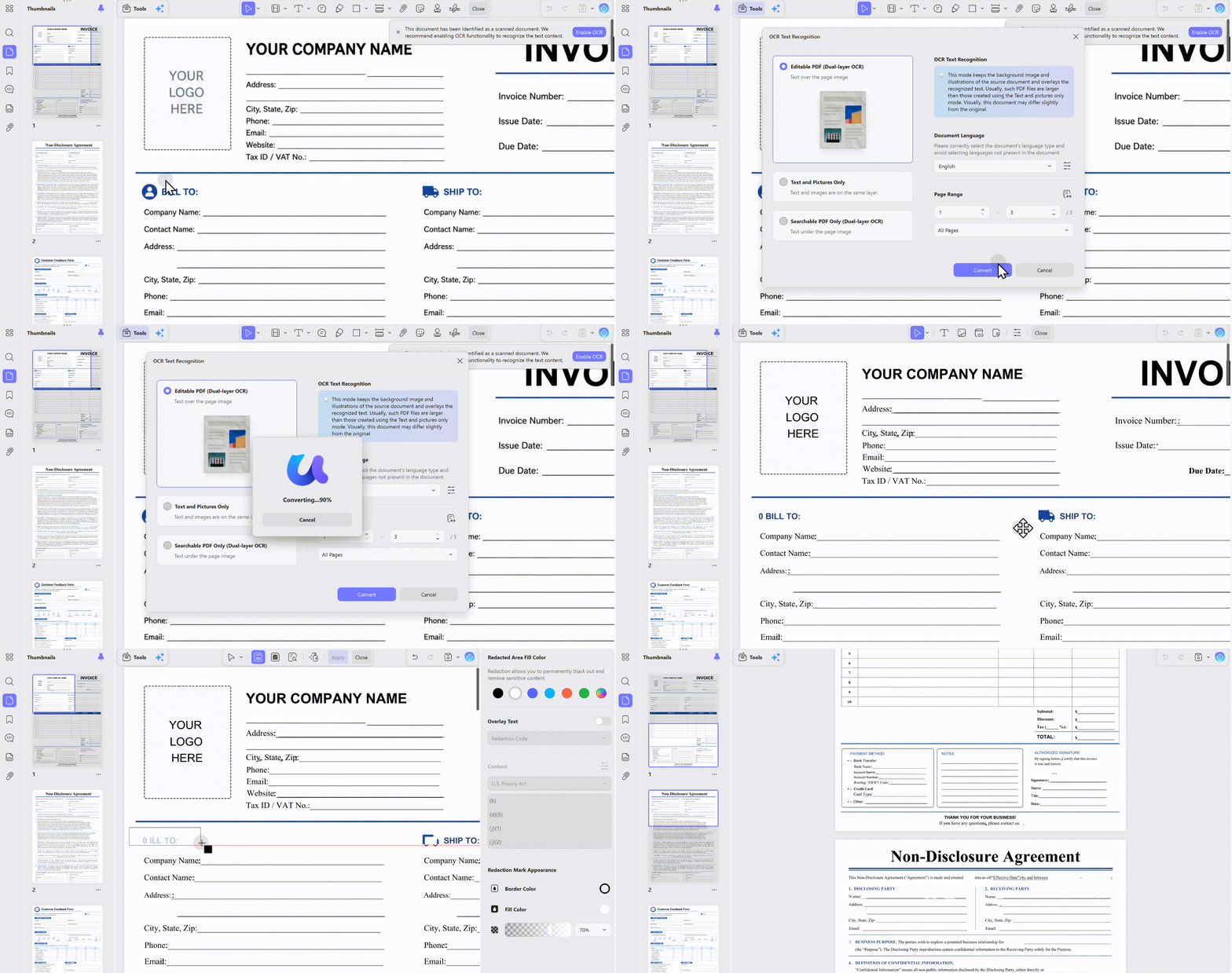
Scanned PDF picture clutter is hard to edit for most tools, yet UPDF handles it smoothly. Its OCR-enabled editor recognizes image layers within scanned files, supporting targeted deletion of unwanted photos without damaging scanned text content. Online tools can enable OCR, but the file can't be edited after the OCR process; they just turn scanned pages into searchable pages, not editable.
Click OCR to choose the editable PDF option, and then after the process, you can repeat the steps above to remove inline images or background images in seconds!
Windows • macOS • iOS • Android 100% secure
FAQ
Why can’t I select an image in a PDF?
The image may be flattened into a scanned page, embedded in the background, or applied as a watermark. Identify its type before choosing the removal tool.
Can I remove an image without moving nearby text?
Usually, if the image is a separate object. After deletion, inspect the page because overlapping objects or text wrapping can still affect the layout.
How do I remove the same image from every PDF page?
If it is a repeated watermark or header, use a batch watermark or header-removal tool instead of deleting each instance manually.
Final Words
Removing images from a PDF isn’t a one-size-fits-all task. Whether you need to clean up clutter, shrink a bloated file size, or permanently erase a sensitive photo for privacy, the right approach depends on your goal.
However, for the reasons discussed throughout the article, we’ll again suggest UPDF for tackling every PDF problem. If you are not convinced, click the download button and try UPDF yourself to approve our testimonials.
Windows • macOS • iOS • Android 100% secure






 Enrica Taylor
  Enola Davis

 Enya Moore
 رغداء محمد