UPDF
UPDF
 UPDF for Windows
 UPDF for Mac
 UPDF for iPhone/iPad
 UPDF for Android
 Nomostar
 UPDF AI Online
 UPDF Sign
 IvyCraft
 Edit PDF
 Annotate PDF
 Create PDF
 PDF Form
 Edit links
 Convert PDF
 OCR
OCR PDF to Word
 PDF to Image
 PDF to Excel
 Organize PDF
 Merge PDF
 Split PDF
 Crop PDF
 Rotate PDF
 Protect PDF
 Sign PDF
 Redact PDF
 Sanitize PDF
 Remove Security
 Read PDF
 UPDF Cloud
 Compress PDF
 Print PDF
 Batch Process
 About UPDF AI
 UPDF AI Solutions
 AI User Guide
 FAQ about UPDF AI
 Summarize PDF
 Translate PDF
 Chat with PDF
 Chat with AI
 Chat with image
 PDF to Mind Map
 Explain PDF
 PDF AI Tools
 Image AI Tools
 AI Chat Tools
 AI Writing Tools
 AI Study Tools
 AI Working Tools
 Other AI Tools
 AI Bookmark Generation
 AI Bookmark Summary
 AI Watermark Generation
 AI Background Generation
 AI Sticker Generation
 AI Stamp Generation
 AI Editing Suite
 UPDF Copilot
 AI Page Management
 AI Semantic Search
 PDF to Word
 PDF to Excel
 PDF to PowerPoint
 Enterprise Solution
 Enterprise Sign
 Enterprise AI
 Enterprise Plan
 Enterprise User Guide
 Enterprise Webinar
 IT
IT Education
 Construction
 Financial Service
 Healthcare
 Insurance
 Legal
Legal Manufacturing
 Government
 Researchers & PhDs
 Solopreneurs & Freelancers
 Lawyers & Legal Professionals
 Real Estate Agents & Brokers
 Education Solution
 Customer Stories
 User Guide
 UPDF Tricks
 FAQs
FAQs UPDF Reviews
 Download Center
 Blog
Blog Newsroom
 Tech Spec
 Updates
 UPDF vs. Adobe Acrobat
 UPDF vs. Foxit
 UPDF vs. PDF Expert

Quick answer:
Yes. Mac Preview has a Redaction Selection tool for permanently removing selected PDF text when the document is closed. Use that tool—not a black rectangle from Shapes—on a duplicate of your file. Reopen the saved copy and verify the result before sharing it.
A PDF can look protected while the underlying content is still present. Apple’s Preview guide distinguishes the dedicated Redaction Selection tool from ordinary Shapes markup. This tutorial shows how to use Preview for a few visible text items, how to check the saved copy, and when a broader Mac redaction workflow is useful.
Part 1. Can Mac Preview Actually Redact a PDF?
Yes—for selected visible PDF text, Preview provides a dedicated Redaction Selection tool. Apple says you can adjust a redaction while editing and that it becomes permanent when you close the document. By contrast, a black rectangle created with Shapes is markup placed over the page; do not treat it as proof that the original content was removed.
Preview is a sensible choice for a short PDF with a few visible text passages. If you must review repeated terms, image regions, entire pages, or hidden document information, plan a more thorough workflow. Redacting the page you can see is not the same as checking every place a sensitive name or number may remain.
Part 2. How to Redact Text in Preview on Mac
Step 1. Work on a copy and open it in Preview
Duplicate the PDF in Finder, then open the copy in the Preview app. Keep the original untouched in case you select the wrong material or need to compare the result.
Step 2. Show the Markup Toolbar
Click Show Markup Toolbar if the toolbar is hidden. The icon layout can vary, so identify the command by its name rather than relying on a fixed position.
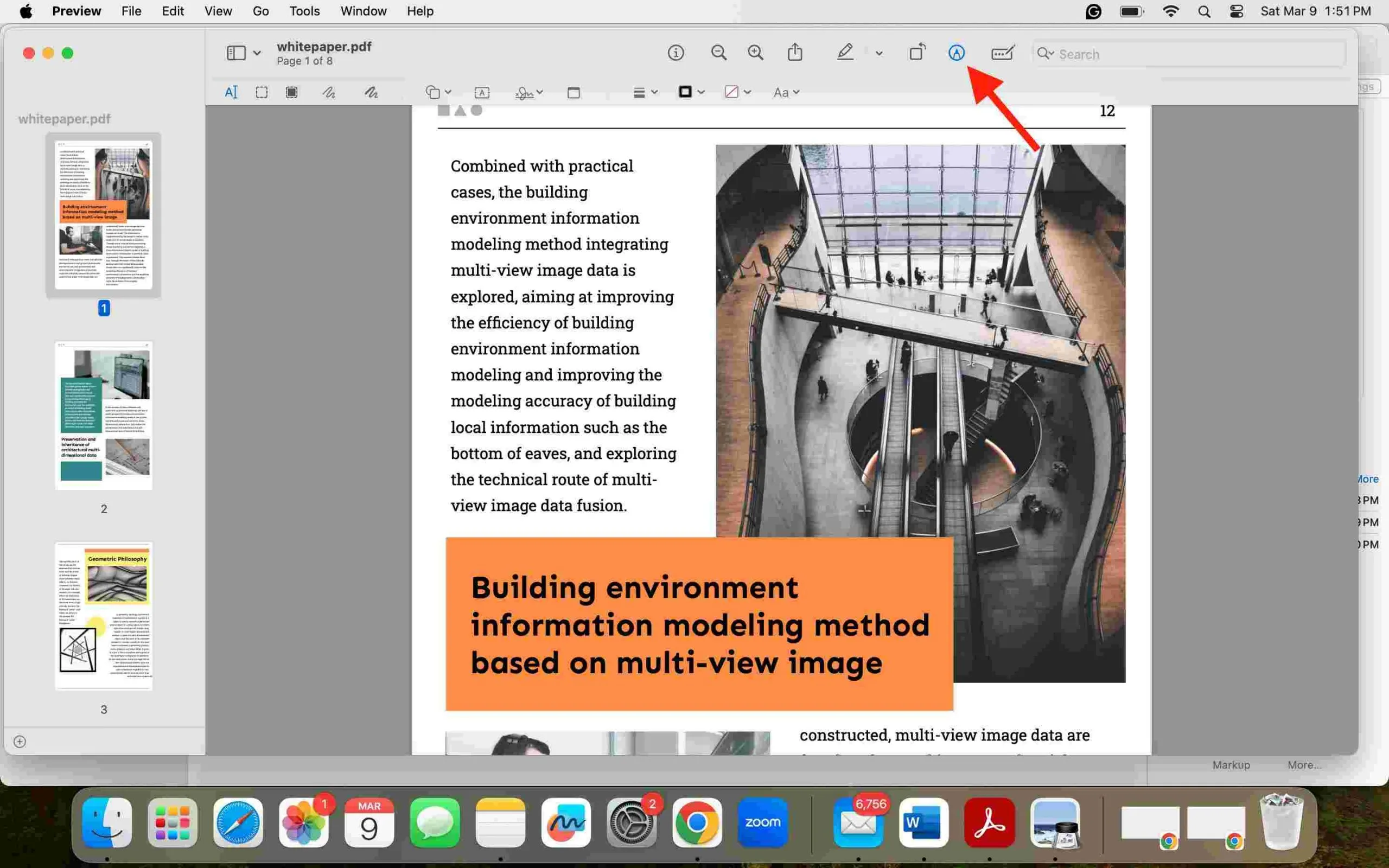
Step 3. Choose Redaction Selection
Select Redaction Selection in the Markup Toolbar. Do not choose a filled rectangle under Shapes: a visual cover and a redaction are not interchangeable.
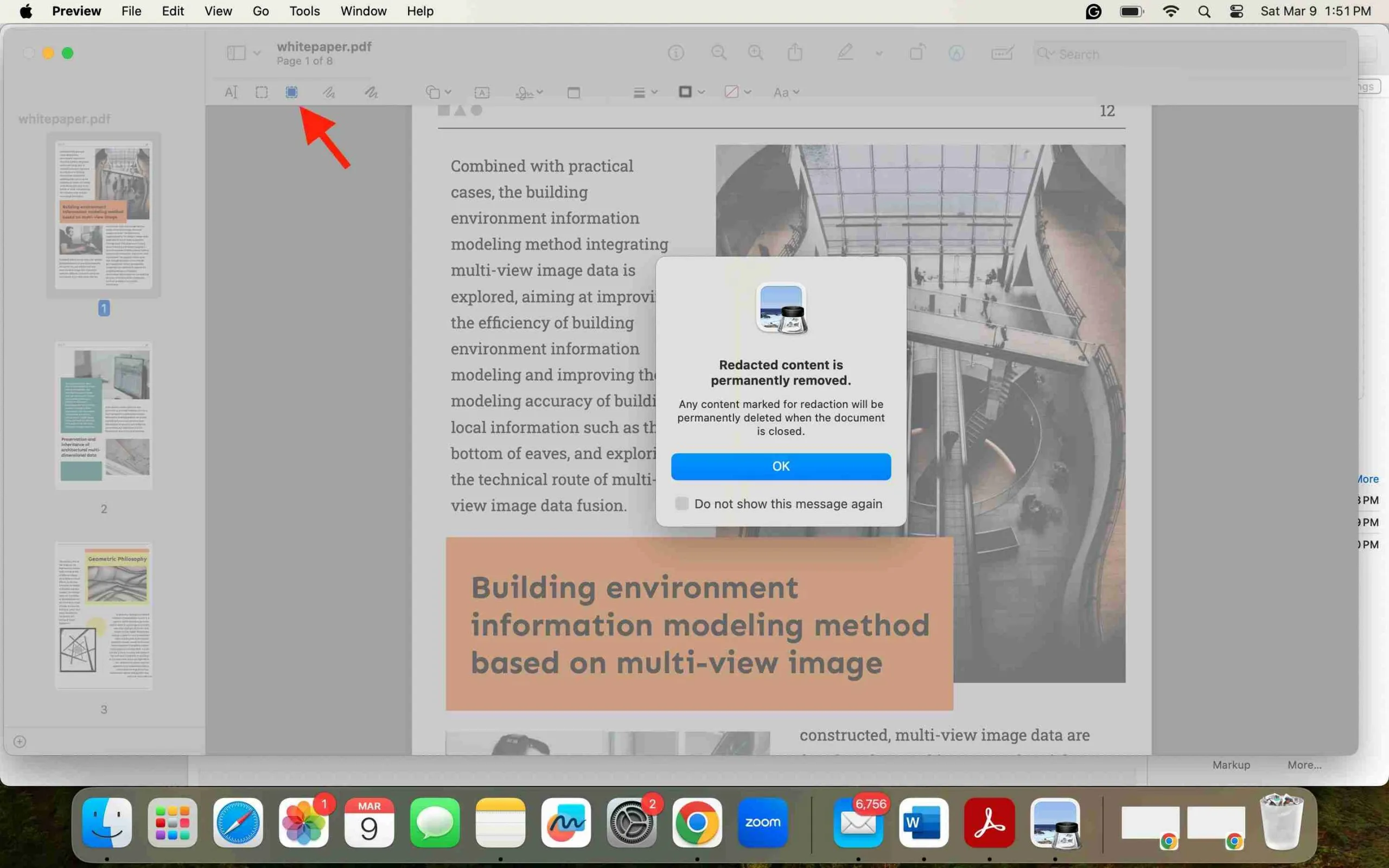
Step 4. Mark the sensitive text
Drag over the text you need to remove. Review each marked passage, including repeated names or numbers in headers and footers. Apple describes this tool as selecting text; do not assume it handles every image-based PDF in the same way.
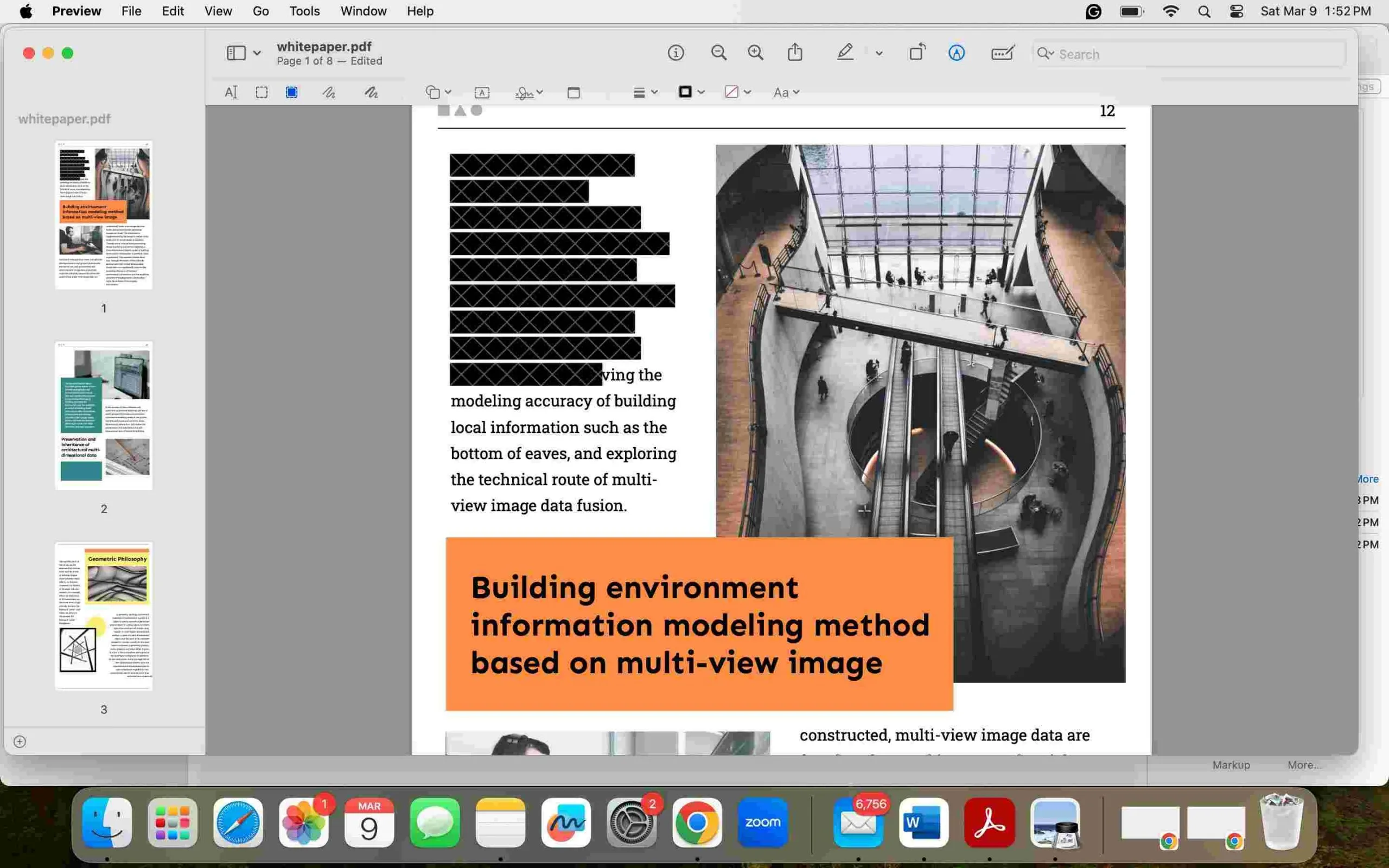
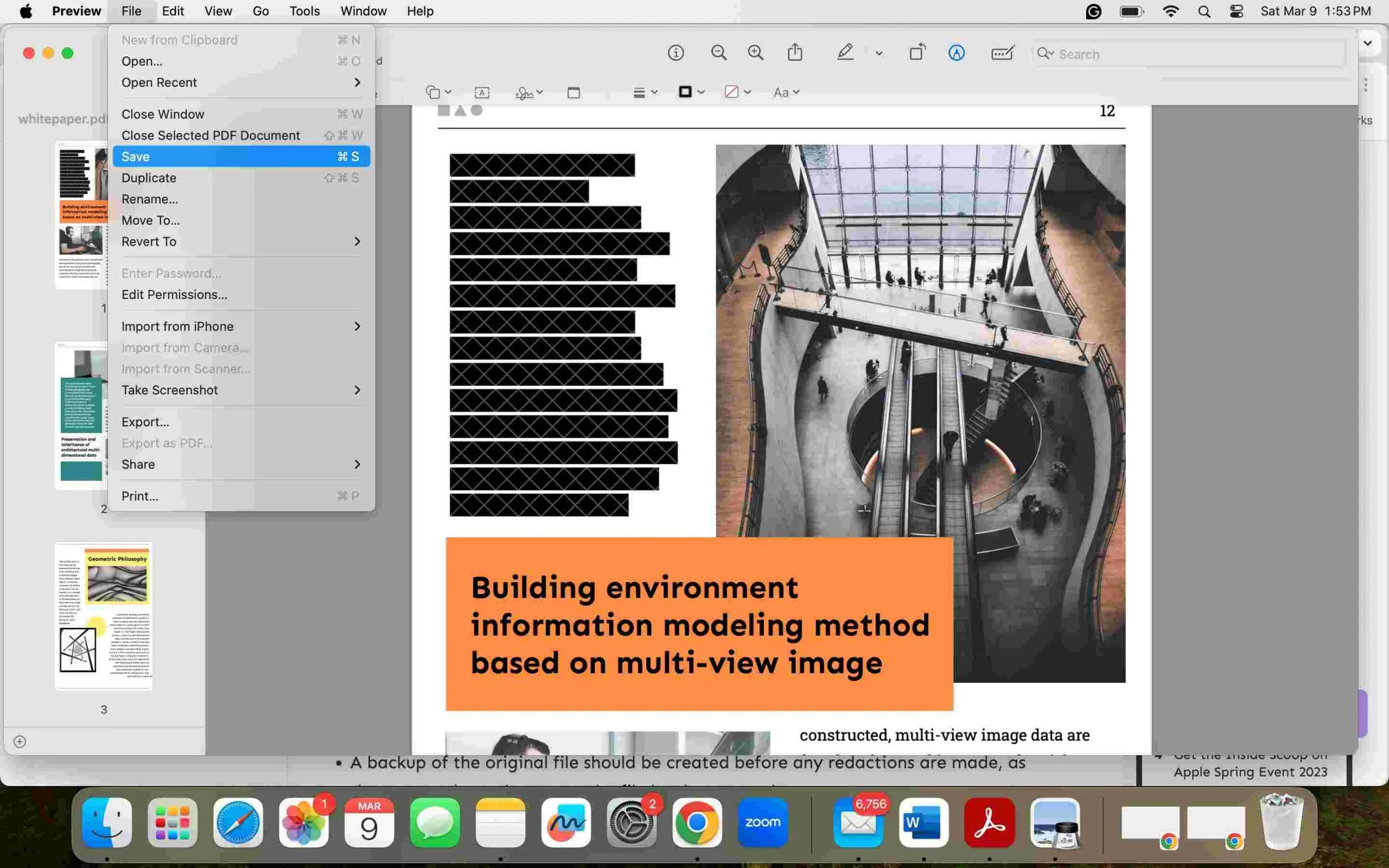
Step 5. Save, close, and reopen the copy
Save the edited PDF and close its Preview window. Apple states that the redaction becomes permanent once the document is closed. Reopen the saved copy before sending it to anyone.
Part 3. How to Verify a Preview Redaction Before Sharing
- Search the reopened PDF for a distinctive word or number that was redacted.
- Try selecting and copying at the redacted location. The removed text should not be available as ordinary selectable text.
- Inspect the page at higher zoom for uncovered characters or missed repeats.
- Check navigation elements and document information separately; removing visible text does not establish that all other information has been cleared.
A failed search-and-copy check is a reason to stop and rework the file, not to add another black rectangle. If the document is sensitive, review the output on a copy before distributing it.
Part 4. When to Use UPDF for PDF Redaction on Mac
Preview handles a few manual text selections. For a longer PDF, UPDF’s redaction tools add Find Text & Redact for reviewing repeated matches, Redact Pages for page-level work, and Sanitize Document for hidden data and metadata. These are separate checks; no tool should be assumed to have found every sensitive item without review.
If the Preview workflow does not cover the information in your document, download UPDF for free and test the Mac redaction tools on a copy first. Installation is free; Pro removes the trial watermark from exported files.
Windows • macOS • iOS • Android 100% secure
Redact selected content or repeated terms
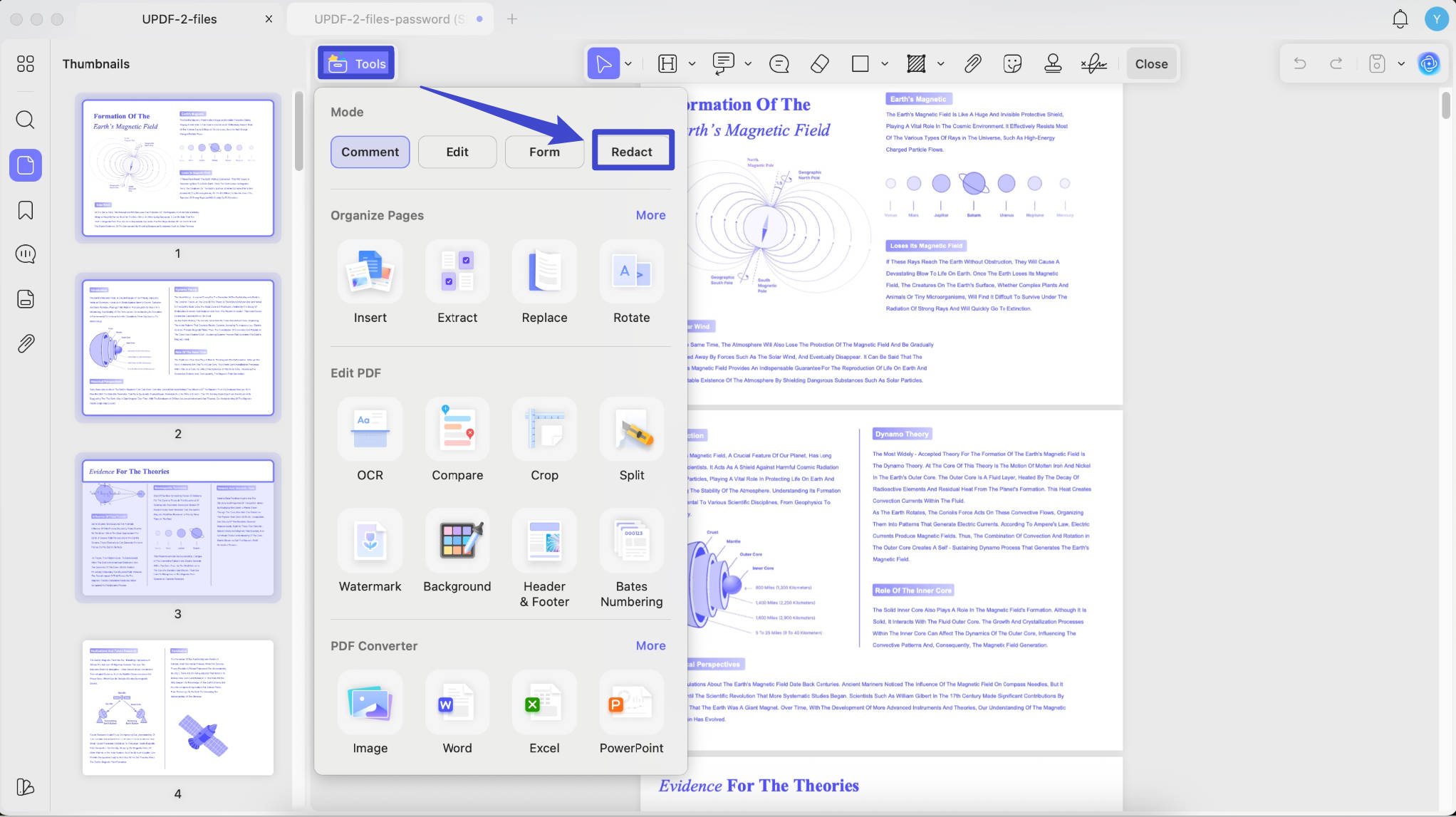
- Open a copy of the PDF in UPDF for Mac and choose Tools > Redact.
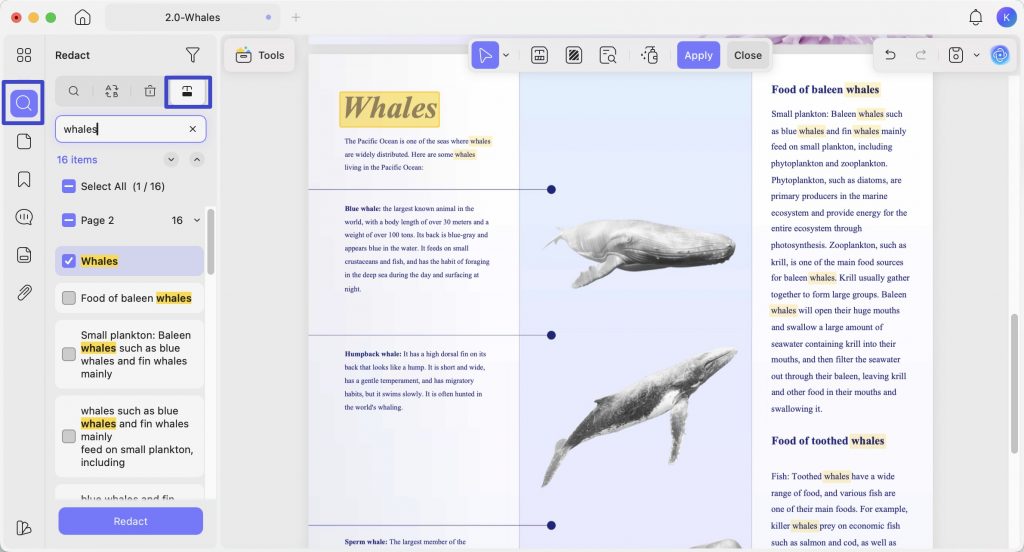
- Use Redact Text & Images to mark a specific region. For a repeated word or phrase, use Find Text & Redact, inspect the matches, and select the relevant results.
- Apply the redactions.
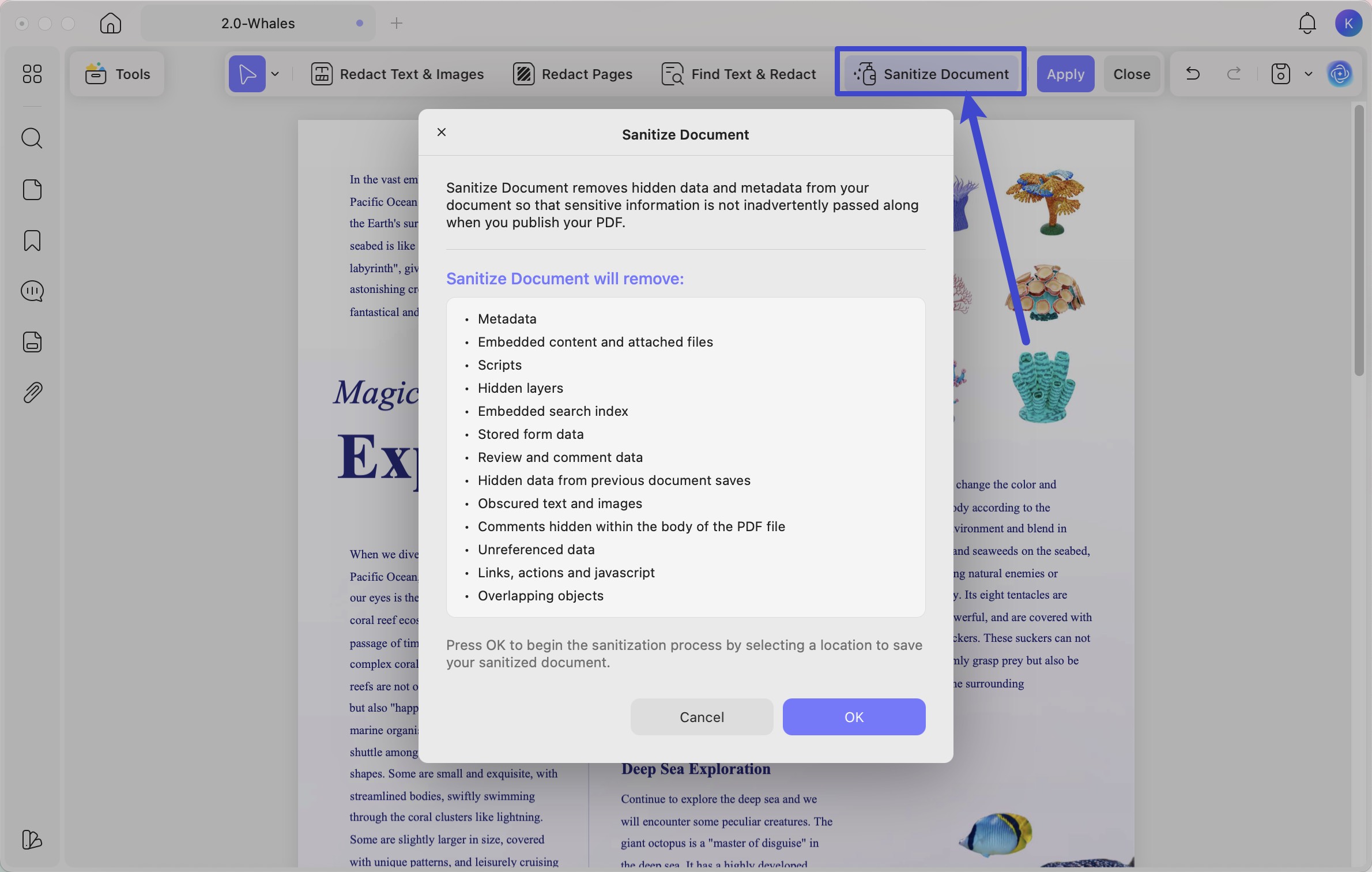
If hidden data and metadata must also be handled, use Sanitize Document and review its prompt. Save the resulting PDF.
These Mac controls are documented in the current UPDF user guide. For the wider task—including other PDF redaction approaches—see the PDF redaction guide. The existing video below demonstrates UPDF redaction.
Before sharing the UPDF output, reopen it and repeat the visual, search, and copy checks. If you need a wider Mac-specific overview, see how to redact a PDF on Mac.
For a document with repeated confidential terms or information beyond the visible page, download UPDF for free to apply and verify redactions on a working copy. Pro removes the trial watermark from exported files.
Windows • macOS • iOS • Android 100% secure
Part 5. If Preview Does Not Behave as Expected
“I selected the text, but Preview will not let me copy it.”
The PDF may have selection restrictions. Apple advises checking Tools > Show Inspector > Encryption Inspector and entering the authorized password if one is required. Do not work around a restriction on a file you do not have permission to edit. See Apple’s troubleshooting guide.
“I opened the file, but there is no Redaction Selection tool.”
Confirm that the file is open in the Preview app rather than only in Quick Look, then show the Markup Toolbar. If the command is still unavailable, check the Preview guide for your macOS version before assuming that a Shapes overlay is an equivalent substitute.
Part 6. FAQs About Redacting in Mac Preview
1. Does Preview remove table-of-contents links to redacted text?
No. Apple says linked table-of-contents entries are not removed automatically when their target text is redacted. Inspect and remove sensitive navigation text separately before sharing the PDF.
2. Can Preview redact text in a scanned PDF?
Not always with text selection alone. A scan may be an image rather than selectable text. Apple documents an Embed Text option for some image-based PDFs, but recognition does not replace a review of the visible pixels. Use an appropriate area-redaction workflow and verify the saved file.
Conclusion
Mac Preview can permanently redact selected visible text when you use Redaction Selection and close the document. A black shape is not the same operation. Keep an original copy, verify the saved result, and choose a broader workflow when repeated terms, image areas, or hidden information need attention.
If Preview is too manual for your file, download UPDF for free to try Mac redaction on a copy, then check the saved output before sharing. Pro removes the trial watermark from exported files.
Windows • macOS • iOS • Android 100% secure





 Enola Miller
 Delia Meyer
 Enrica Taylor
 Enola Davis