UPDF
UPDF
 UPDF for Windows
 UPDF for Mac
 UPDF for iPhone/iPad
 UPDF for Android
 Nomostar
 UPDF AI Online
 UPDF Sign
 IvyCraft
 Edit PDF
 Annotate PDF
 Create PDF
 PDF Form
 Edit links
 Convert PDF
 OCR
OCR PDF to Word
 PDF to Image
 PDF to Excel
 Organize PDF
 Merge PDF
 Split PDF
 Crop PDF
 Rotate PDF
 Protect PDF
 Sign PDF
 Redact PDF
 Sanitize PDF
 Remove Security
 Read PDF
 UPDF Cloud
 Compress PDF
 Print PDF
 Batch Process
 About UPDF AI
 UPDF AI Solutions
 AI User Guide
 FAQ about UPDF AI
 Summarize PDF
 Translate PDF
 Chat with PDF
 Chat with AI
 Chat with image
 PDF to Mind Map
 Explain PDF
 PDF AI Tools
 Image AI Tools
 AI Chat Tools
 AI Writing Tools
 AI Study Tools
 AI Working Tools
 Other AI Tools
 AI Bookmark Generation
 AI Bookmark Summary
 AI Watermark Generation
 AI Background Generation
 AI Sticker Generation
 AI Stamp Generation
 AI Editing Suite
 UPDF Copilot
 AI Page Management
 AI Semantic Search
 PDF to Word
 PDF to Excel
 PDF to PowerPoint
 Enterprise Solution
 Enterprise Sign
 Enterprise AI
 Enterprise Plan
 Enterprise User Guide
 Enterprise Webinar
 IT
IT Education
 Construction
 Financial Service
 Healthcare
 Insurance
 Legal
Legal Manufacturing
 Government
 Researchers & PhDs
 Solopreneurs & Freelancers
 Lawyers & Legal Professionals
 Real Estate Agents & Brokers
 Education Solution
 Customer Stories
 User Guide
 UPDF Tricks
 FAQs
FAQs UPDF Reviews
 Download Center
 Blog
Blog Newsroom
 Tech Spec
 Updates
 UPDF vs. Adobe Acrobat
 UPDF vs. Foxit
 UPDF vs. PDF Expert

Quick answer:
The goal is not always the smallest possible PDF. A document that meets an upload limit but makes receipt totals, diagrams, or scanned text unreadable is not a usable result.
Start with the recipient’s file-size limit and quality requirements. Then choose a compression setting, save a copy, and check both the file size and the content.
Part 1. How to Reduce PDF File Size on Mac with UPDF
UPDF for Mac provides output-quality settings so you can compare file size against readability. Keep the original PDF and test compression on a separate copy rather than assuming the strongest setting will produce the best result.
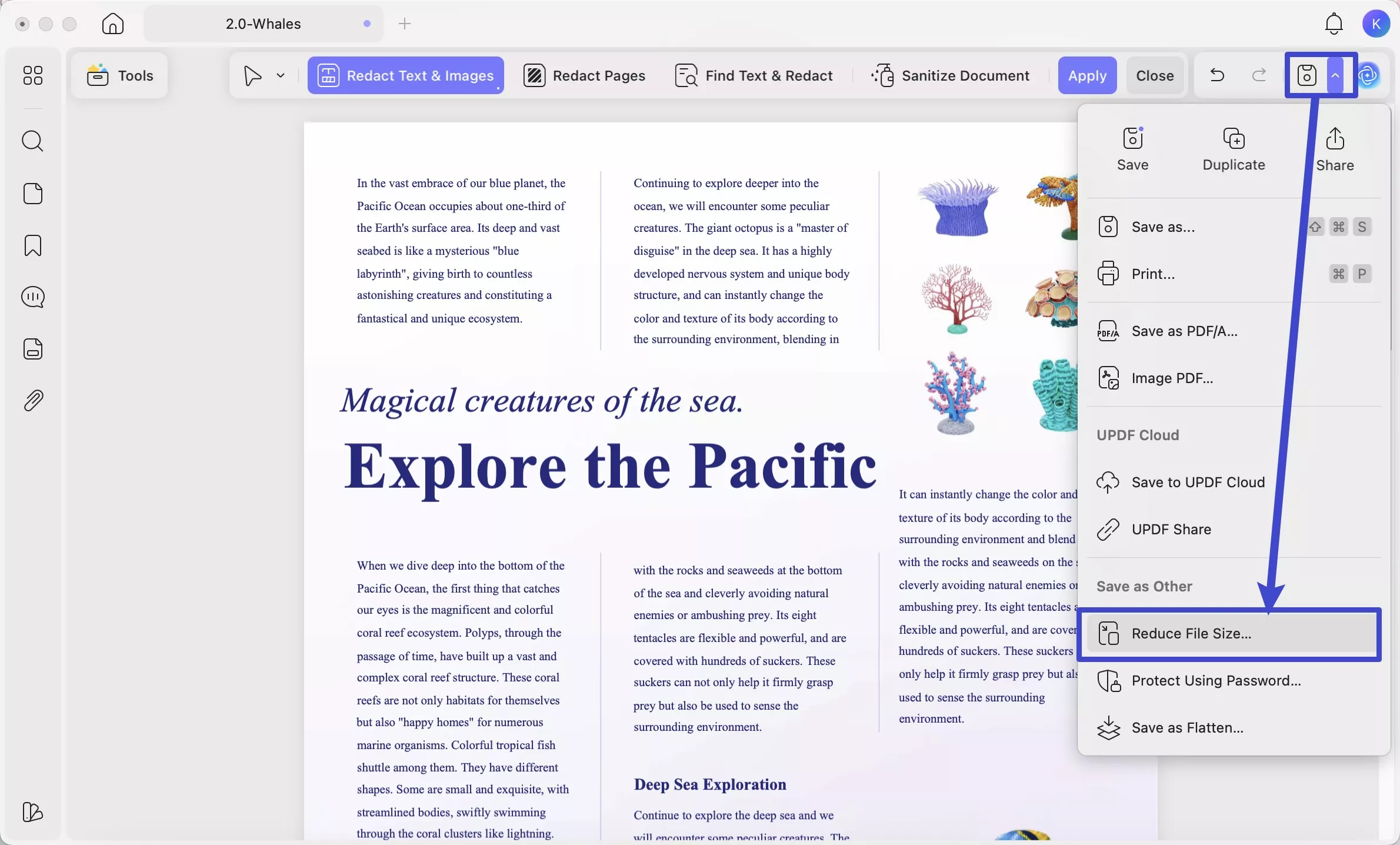
Step 1. Open the File-Size Reduction Options
Open your PDF in UPDF. Expand the menu beside the Save icon and select Reduce File Size….
Step 2. Choose the Output Quality
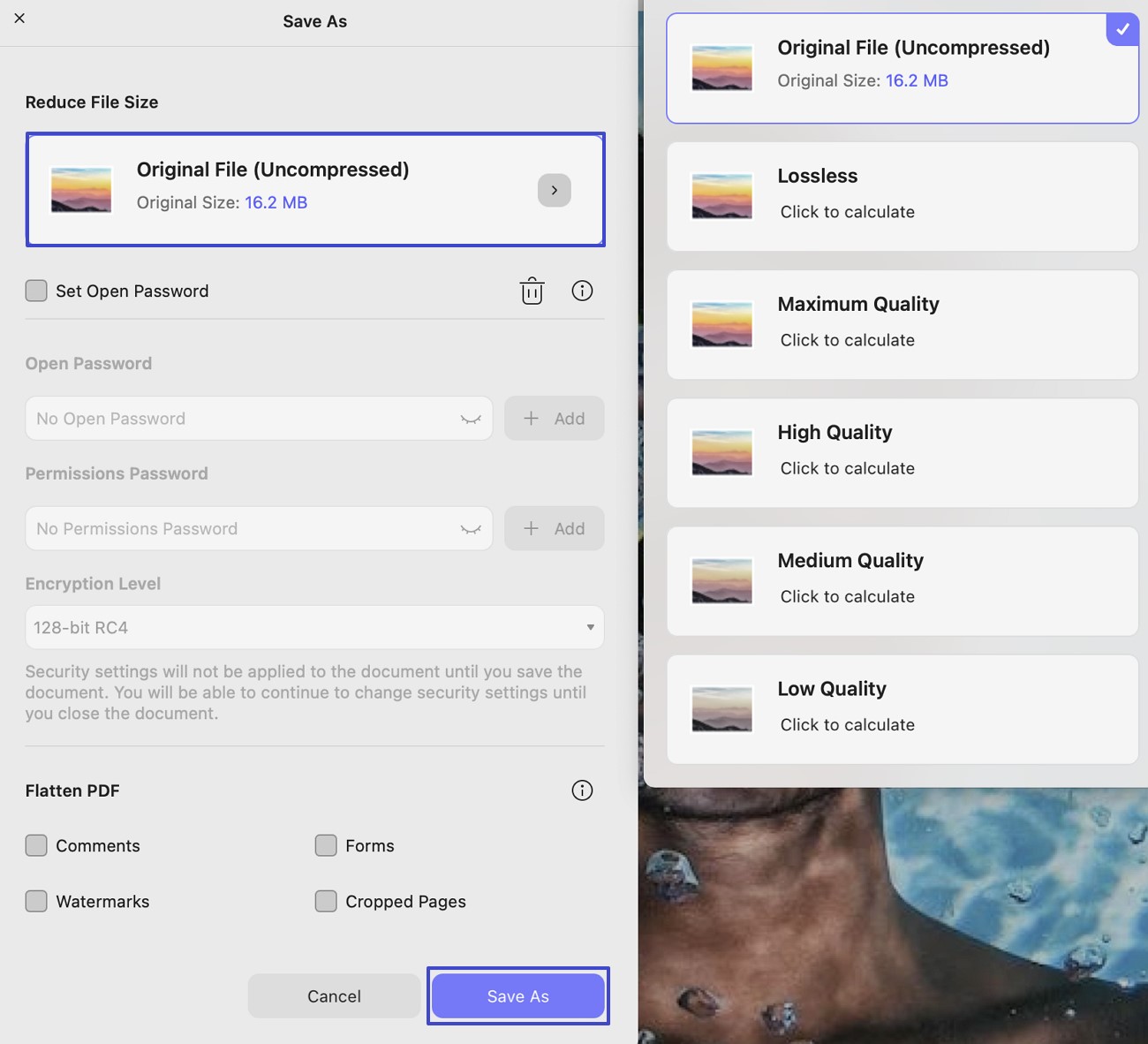
Expand Output Document Quality to review the available settings: Uncompressed, Lossless, Maximum, High, Medium, and Low. Start with Lossless when preserving quality is the priority. If the saved file is still too large, compare a lower-quality setting using the original PDF.
Uncompressed is not a size-reduction setting. Lower-quality options may produce smaller files, but check small text and image details before choosing the final copy.
Step 3. Save a Separate Copy
Click Save As, enter a new filename and location, and click Save. Check the saved file’s size and open it again before sharing.
Want to compare these settings on your own document? Download UPDF for Mac and test a copy of your PDF.
Windows • macOS • iOS • Android 100% secure
The video below provides a cross-platform overview of UPDF compression. For the current Mac interface, follow the written steps and screenshots above. Output quality depends on the settings and the original document.
Part 2. How to Reduce PDF File Size on Mac with Adobe Acrobat
If you already use Acrobat, its Reduced Size PDF command provides a direct way to create a smaller copy.
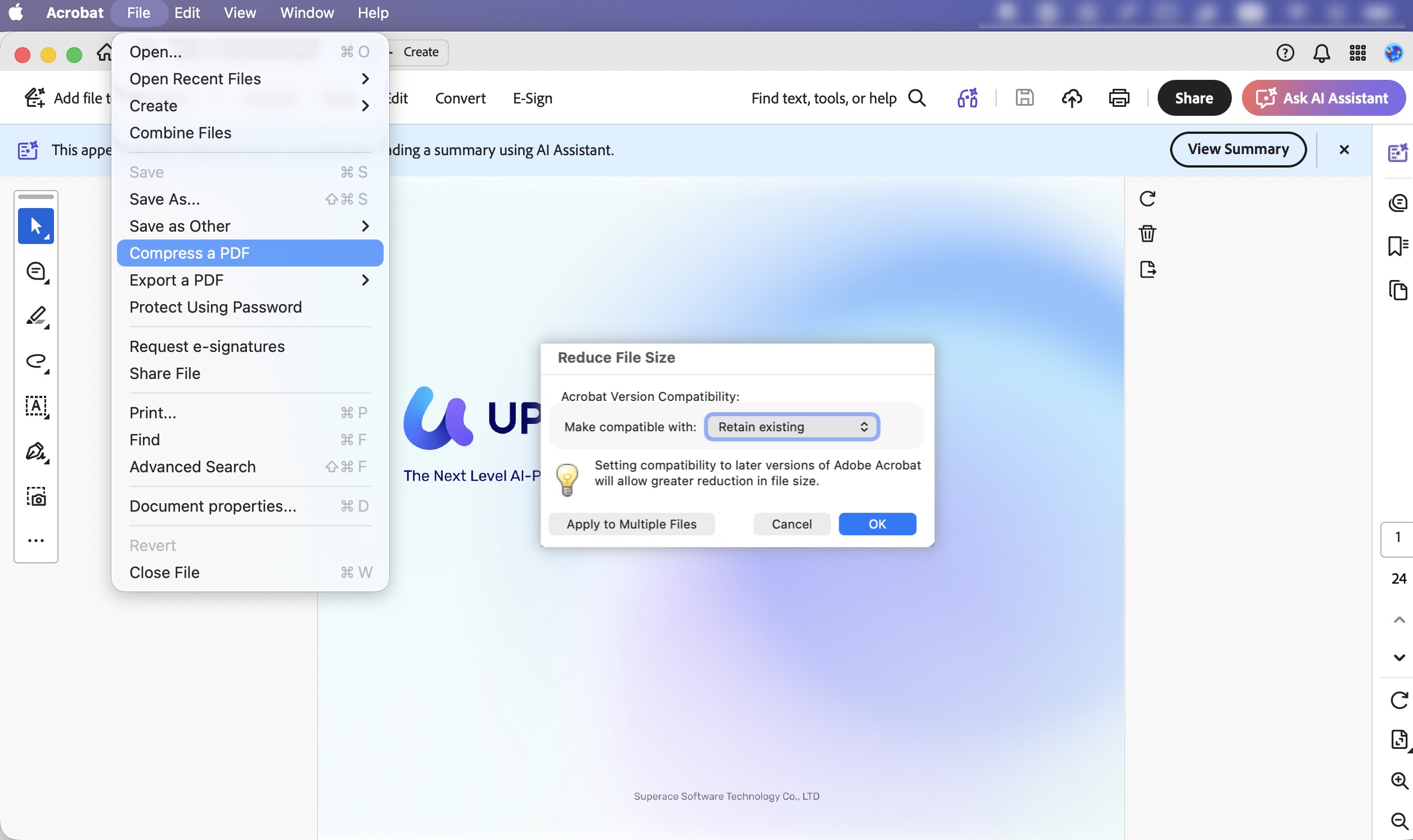
- Open your PDF in Acrobat on Mac.
- Choose File > Compress a PDF.
- Select the compatibility setting that suits the people receiving the document.
- Click OK, then save with a new filename to preserve the original.
- Reopen the saved PDF and check its size and readability.
Do not assume file-size reduction leaves every image unchanged. Refer to Adobe’s current file-size reduction instructions if your interface differs.
Part 3. How to Reduce PDF File Size on Mac with Preview
Preview is built into macOS and can compress a PDF during export.
- Open the PDF in Preview.
- Choose File > Export.
- In the Quartz Filter pop-up menu, select Reduce File Size.
- Use a different filename to keep the original, then click Save.
- Reopen the exported PDF and check the result.
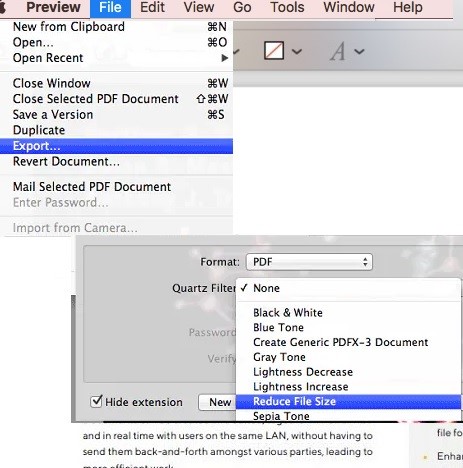
The resulting size and image quality depend on the file and export settings. If scanned text or diagrams become unclear, return to the original rather than repeatedly compressing the degraded copy. See the dedicated guide to compressing PDFs in Preview for Preview-specific instructions.
Part 4. How to Shrink PDF on Mac Online
For a file you are permitted to upload to an online service, iLovePDF offers three compression levels: Extreme compression, Recommended compression, and Less compression.
- Open iLovePDF’s Compress PDF tool and select your file.
- Choose a compression level and click Compress PDF.
- Download the result, check its file size, and review the content before sharing.
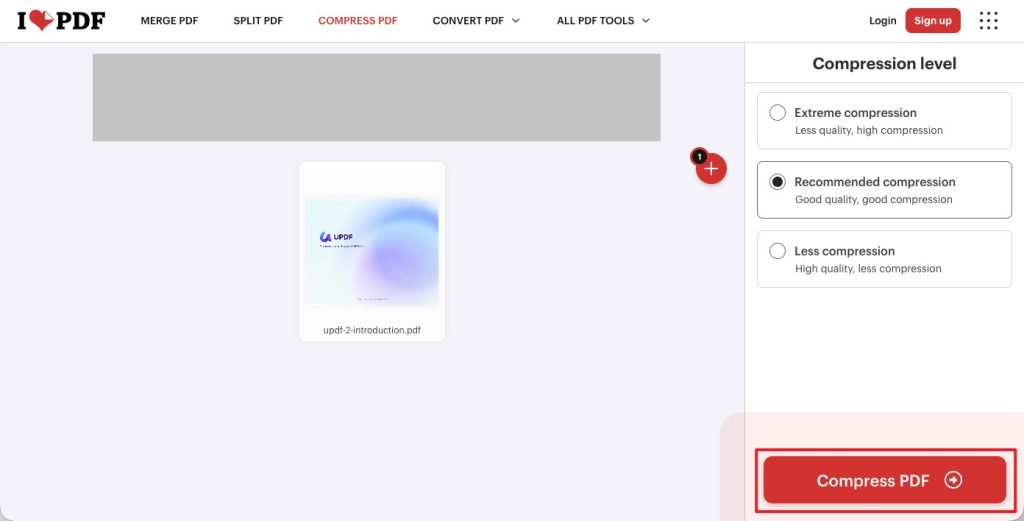
Start with Recommended compression for a comparison. Extreme compression prioritizes a smaller file over image quality, while Less compression prioritizes higher quality.
Online processing requires uploading the document. For confidential files, follow your organization’s rules before using a third-party service.
Part 5. Meet a File-Size Limit Without Making the PDF Unreadable
A compression preset is not a promise of an exact output size. The result depends on the original document, including its images and existing compression.
Start with the highest-quality setting that may meet your limit. If the saved file is still too large, test a stronger setting from the original and compare the results.
What to Check Before Sharing
- Fine details: Compare small labels, thin lines, and diagrams. Start with Lossless or a higher-quality option.
- Upload limits: Check the actual saved file size and confirm that all required pages remain present.
- Scanned documents: Inspect numbers, punctuation, stamps, and handwriting—not just large headings.
- Print-ready files: Follow the recipient’s print-quality requirements rather than optimizing only for screen viewing.
Example Workflow: A Scanned Application with a 5 MB Upload Limit
Save two versions from the original using different compression settings. Check both files in Finder, then compare the page containing the smallest text. Choose the clearer version that meets the limit—not automatically the smallest file.
If neither version is acceptable, check whether the recipient allows separate files. Splitting creates multiple documents; it does not compress the same complete document into one smaller file.
Why Is the PDF Still Too Large?
A PDF that has already been optimized may have little room for further reduction. Repeating the same compression process does not guarantee a smaller result.
If stronger compression makes the document unreadable, stop and return to the original. Consider adjusting the source export settings, removing only genuinely unnecessary content, or asking the recipient whether another submission method is acceptable.
Need to compare compression settings on your own document? Download UPDF for Mac and test a copy before sending the final file. Explore the PDF compression features for more details.
Windows • macOS • iOS • Android 100% secure
Part 6. FAQs on Reducing PDF Size on Mac
1. How Do I Check a PDF’s File Size on Mac?
Select the PDF in Finder and choose File > Get Info, or press Command+I. Read the Size information for the saved file. Compare the original and compressed copies rather than relying only on an estimate shown before export.
2. Does a Larger Font Size Make a PDF Much Bigger?
Not necessarily. The visible point size of text is not a reliable explanation for a large PDF. High-resolution images, scanned pages, embedded fonts, and attachments can contribute to file size. Check the document’s contents before deciding that stronger image compression is the right solution.
Conclusion
Reducing PDF size on Mac means balancing the recipient’s file-size limit with the document’s readability. Keep the original, save a compressed copy, and check the actual output before sharing.
Preview provides a built-in option, while UPDF lets you compare output-quality settings. If the document is already optimized or becomes unreadable at stronger settings, reconsider the source export or submission requirements instead of repeatedly compressing it.
Ready to test a smaller copy? Download UPDF for Mac and compare the result with your original PDF before sharing.
Windows • macOS • iOS • Android 100% secure




 Enola Miller

 Lizzy Lozano