 UPDF
UPDF
 UPDF for Windows
 UPDF for Mac
 UPDF for iPhone/iPad
 UPDF for Android
 Nomostar
 UPDF AI Online
 UPDF Sign
 IvyCraft
 Edit PDF
 Annotate PDF
 Create PDF
 PDF Form
 Edit links
 Convert PDF
 OCR
OCR PDF to Word
 PDF to Image
 PDF to Excel
 Organize PDF
 Merge PDF
 Split PDF
 Crop PDF
 Rotate PDF
 Protect PDF
 Sign PDF
 Redact PDF
 Sanitize PDF
 Remove Security
 Read PDF
 UPDF Cloud
 Compress PDF
 Print PDF
 Batch Process
 About UPDF AI
 UPDF AI Solutions
 AI User Guide
 FAQ about UPDF AI
 Summarize PDF
 Translate PDF
 Chat with PDF
 Chat with AI
 Chat with image
 PDF to Mind Map
 Explain PDF
 PDF AI Tools
 Image AI Tools
 AI Chat Tools
 AI Writing Tools
 AI Study Tools
 AI Working Tools
 Other AI Tools
 AI Bookmark Generation
 AI Bookmark Summary
 AI Watermark Generation
 AI Background Generation
 AI Sticker Generation
 AI Stamp Generation
 AI Editing Suite
 UPDF Copilot
 AI Page Management
 AI Semantic Search
 PDF to Word
 PDF to Excel
 PDF to PowerPoint
 Enterprise Solution
 Enterprise Sign
 Enterprise AI
 Enterprise Plan
 Enterprise User Guide
 Enterprise Webinar
 Banking
 Healthcare
 Insurance
 Legal
Legal Manufacturing
 Government
 Education Solution
 Customer Stories
 User Guide
 UPDF Tricks
 FAQs
FAQs UPDF Reviews
 Download Center
 Blog
Blog Newsroom
 Tech Spec
 Updates
 UPDF vs. Adobe Acrobat
 UPDF vs. Foxit
 UPDF vs. PDF Expert

Quick answer:
I ran into this when an accounting system would only ingest invoice data as XML, but every vendor sent me PDFs. The conversion itself is quick — the part nobody warns you about is that a scanned PDF or a password-locked one will fail or produce useless output unless you handle it first. Below I cover the fastest desktop route (with built-in OCR for scans), an online option for when you can't install anything or the file is on your phone, and how to fix the messy results people most often hit.
One thing worth setting straight up front: XML stores data as structured, tagged text, while a PDF stores how a page looks. So converting PDF to XML isn't a perfect one-to-one transfer — the cleaner and more text-based your PDF is, the cleaner the XML. I'll come back to this in the edge cases.
Part 1. Which Method Should You Use?
| Your situation | Method | Best for |
|---|---|---|
| A text-based or scanned PDF on your computer | Method 1: UPDF desktop (with built-in OCR) | Fast, private, local conversion |
| The file is on your phone, or you can't install anything | Method 2: Online converter | Quick, non-sensitive one-off files |
| A whole folder of PDFs at once | Batch convert (under Method 1) | Invoices, reports, recurring data work |
Part 2. Method 1. Convert PDF to XML with UPDF (Windows & Mac)
This is the fastest and most private route, because UPDF converts the file locally on your computer instead of uploading it to a server — which matters for invoices, contracts, and anything with personal data.
Step 1. Open the PDF in UPDF — if you don't have it yet, download UPDF for free and install it in under a minute, then open your file.
Windows • macOS • iOS • Android 100% secure
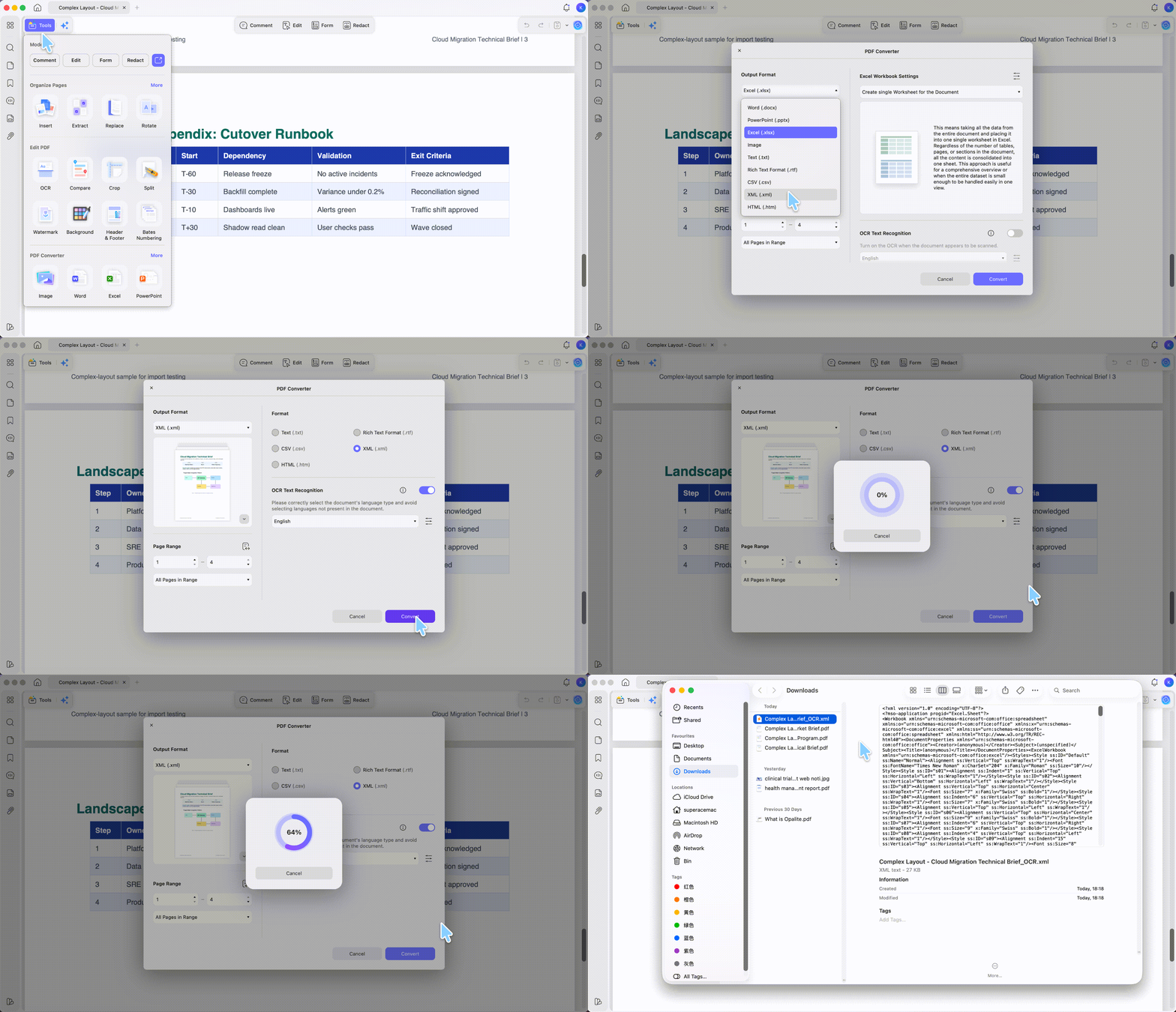
Step 2. Click Tools in the top-left corner, then under PDF Converter select the Excel icon (or click More) to open the PDF Converter dialog.
Step 3. In the dialog, set Output Format to XML (.xml) and choose your Page Range if you only need part of the document.
Step 4. If your PDF is scanned or photographed, switch on OCR Text Recognition in the same dialog and pick the document's language — this turns the image into real text so the XML isn't empty. Skip this for normal text-based PDFs.
Step 5. Click Convert. UPDF saves the converted .xml file to your chosen location.
Converting many PDFs to XML at once
If you have a folder of vendor invoices or reports to convert, you don't have to do them one by one.
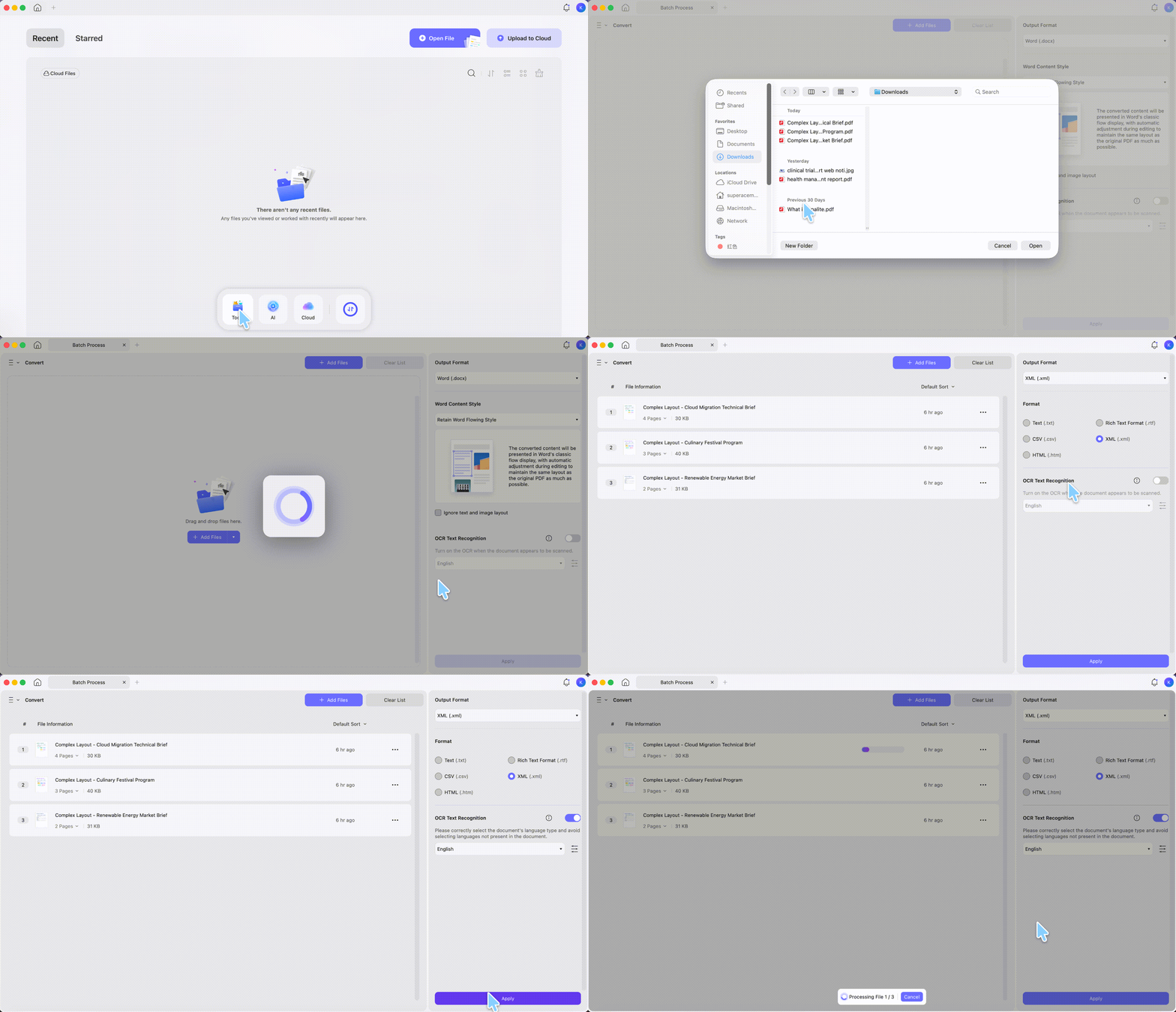
Step 1. On the UPDF home screen, click Tools and choose Convert under Batch PDFs.
Step 2. In the Batch Process window, click Add Files (or drag and drop your PDFs).
Step 3. Set Output Format to XML on the right. If some files are scanned, switch on OCR Text Recognition and pick the document language in the same panel.
Step 4. Click Apply to convert them all in one pass.
Best for:
- any PDF on your computer, text-based or scanned, that you want converted quickly and kept off third-party servers.
Not for:
- phones — the UPDF mobile app doesn't export XML, so convert on a computer or use an online tool (Method 2).
Video guide on How to Convert PDF on Desktop
Part 3. Method 2. Convert PDF to XML Online (or From Your Phone)
UPDF's mobile app converts PDFs to many formats, but XML isn't one of them on phones — so if the file is on your phone, you have two options.
The safest is to move the file to your computer and convert it locally with UPDF (Method 1) — nothing leaves your device, which matters for invoices and personal records. If you can't get to a computer, a browser-based converter works on any phone: search for a "PDF to XML online" tool, open it in your mobile (or desktop) browser, upload the file, click convert, and download the result. No app install needed.
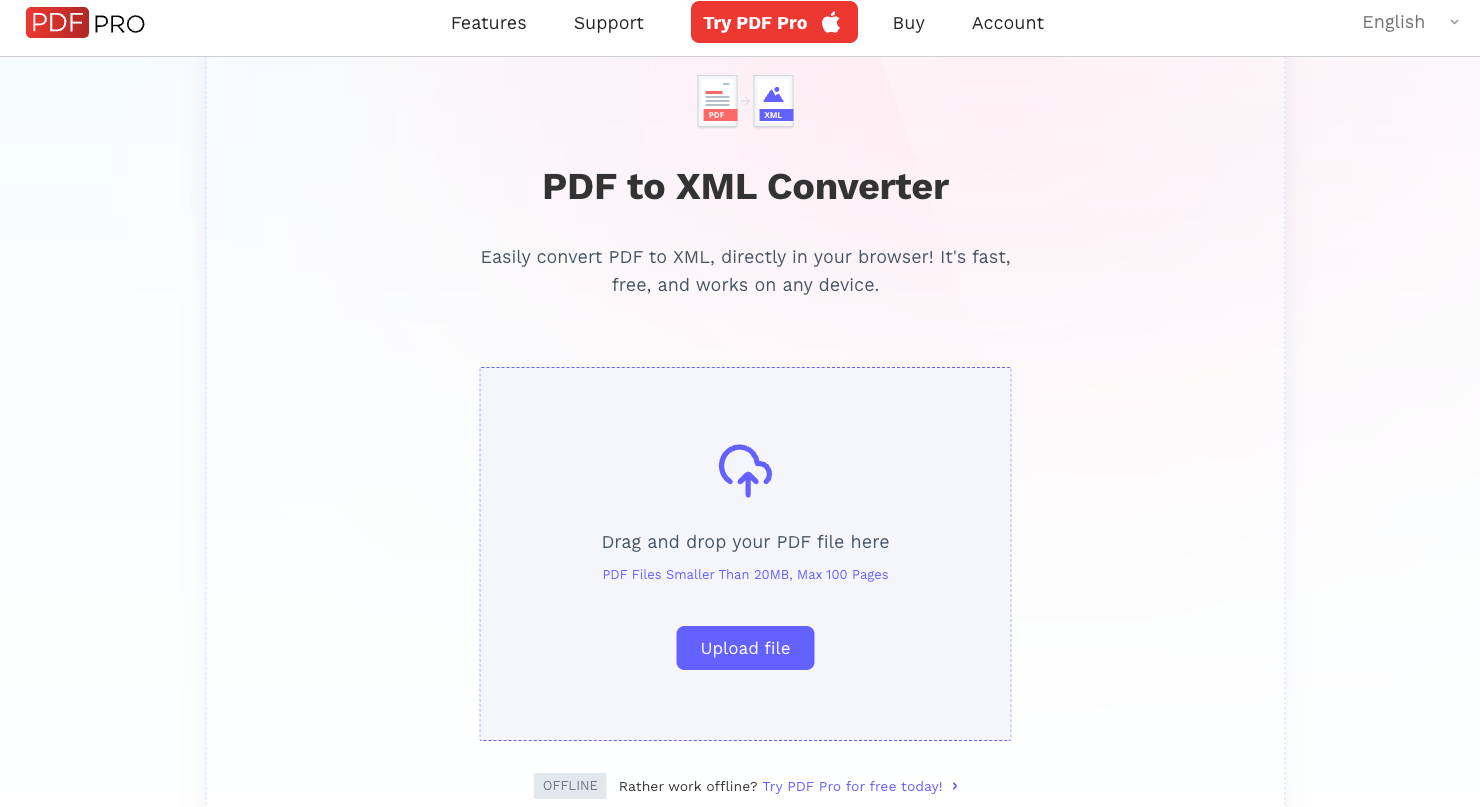
The trade-off is real, though. Online tools upload your document to a third-party server, which is a privacy risk for anything sensitive, and most cap the file size or number of conversions. Use online converters only for non-sensitive, one-off files; for anything confidential, convert locally with UPDF instead.
For the full range of formats and conversion options, see UPDF's guide on how to convert PDF.
Best for:
- quick conversions on the go, or files you received in a mobile chat or email.
Not for:
- large batches — desktop handles bulk conversion and OCR more comfortably.
Part 4. When PDF-to-XML Goes Wrong (and How to Fix It)
These are the snags people actually hit:
- "The conversion failed on a password-protected file." Encrypted PDFs can't be converted until they're unlocked. Open the file with its password and save an unprotected copy first, then convert.
- "My XML is empty or full of gibberish." The PDF is almost certainly scanned or image-based. Switch on OCR Text Recognition in the converter dialog (Method 1, Step 4) so the text becomes machine-readable before converting.
- "The XML isn't clean structured data." PDF doesn't store semantic tags the way XML expects, so a complex layout — multi-column pages, nested tables — won't map perfectly. Simplify the source where you can, and expect to clean up the tags for heavily designed documents.
- "It worked on 2 pages but failed on more." Some converters choke on longer or mixed text-and-image files. Convert in smaller page ranges, or turn on OCR in the dialog to standardize the content.
Part 5. FAQs
1. Is converting PDF to XML with UPDF free?
Yes — UPDF's free version converts to XML. The free tier adds a trial watermark on export, which Pro removes; conversion itself isn't blocked.
2. Should I convert my PDF to XML or JSON?
Both store structured data. Choose XML if the system you're feeding expects tags and hierarchy (many enterprise and accounting tools), and JSON if it's a web app or API — JSON is lighter for those.
3. Can I turn the XML back into a PDF later?
Yes, but the round trip won't restore the original design. XML keeps the data, not the page layout, so rebuilding a PDF from it produces a fresh layout rather than the exact original.
4. Does converting change my original PDF?
No. Conversion creates a new .xml file and leaves the source PDF untouched, so you can keep both.
5. What opens an XML file after conversion?
Any text editor (Notepad, TextEdit), a browser, or a code editor like VS Code will display it. Spreadsheet and database programs can also import XML directly.
Conclusion
Converting PDF to XML takes seconds once the source is in the right shape: convert directly in UPDF for text-based PDFs, flip on OCR in the same dialog for scans, batch-convert a whole folder when you have many files, and use a browser-based tool only when the file is on a phone or you can't install anything. UPDF handles the conversion locally on Windows and Mac, with OCR built in for the scanned documents that trip up most converters — so your data stays on your device.
Download UPDF for free to convert your PDF to XML on your own device — installation is free, and Pro removes the trial watermark when you export your final file.
Windows • macOS • iOS • Android 100% secure




 Enola Miller
 Enid Brown
