 UPDF
UPDF
 UPDF for Windows
 UPDF for Mac
 UPDF for iPhone/iPad
 UPDF for Android
 UPDF AI Online
 UPDF Sign
 Edit PDF
 Annotate PDF
 Create PDF
 PDF Form
 Edit links
 Convert PDF
 OCR
OCR PDF to Word
 PDF to Image
 PDF to Excel
 Organize PDF
 Merge PDF
 Split PDF
 Crop PDF
 Rotate PDF
 Protect PDF
 Sign PDF
 Redact PDF
 Sanitize PDF
 Remove Security
 Read PDF
 UPDF Cloud
 Compress PDF
 Print PDF
 Batch Process
 About UPDF AI
 UPDF AI Solutions
 AI User Guide
 FAQ about UPDF AI
 Summarize PDF
 Translate PDF
 Chat with PDF
 Chat with AI
 Chat with image
 PDF to Mind Map
 Explain PDF
 PDF AI Tools
 Image AI Tools
 AI Chat Tools
 AI Writing Tools
 AI Study Tools
 AI Working Tools
 Other AI Tools
 PDF to Word
 PDF to Excel
 PDF to PowerPoint
 Enterprise Solution
 Enterprise Sign
 Enterprise AI
 Enterprise Plan
 Enterprise User Guide
 Enterprise Webinar
 Banking
 Healthcare
 Insurance
 Legal
Legal Manufacturing
 Government
 Education Solution
 Customer Stories
 User Guide
 UPDF Tricks
 FAQs
FAQs UPDF Reviews
 Download Center
 Blog
Blog Newsroom
 Tech Spec
 Updates
 UPDF vs. Adobe Acrobat
 UPDF vs. Foxit
 UPDF vs. PDF Expert

If you want to extract and share PDF form data, converting it to an XFDF file is the best solution. The XFDF format makes it easier to reuse data across multiple forms. You can even import the same information into a new PDF. But creating this file by hand can be complex. Plus, it may not merge back into the PDF correctly.
That's why you need a reliable tool to convert data into a functional XFDF file. This article shares a complete guide to accurately convert PDF to XFDF file and import it back to a PDF in easy steps. Make sure to read till the end so you have all the information to make this process effective.
Part 1. What is an XFDF File? Can You Convert a PDF to XFDF?
XFDF stands for XML Forms Data Format. It is a lightweight XML-based file type used to store data extracted from PDF forms. Instead of saving the entire PDF, an XFDF file only contains the names and values of form fields, comments, or annotations in a structured text format. Because of this, it's easy to edit.
XFDF files are commonly used by teams that need to collect form inputs or process a large amount of form data in bulk. These file types also support rich data structuring. Therefore, they are widely used to import or export data or share it across platforms. As a result, they're extremely useful in business operations that involve surveys or repeated data entry.
About Converting PDF to XFDF
You can absolutely convert PDF to an XFDF file. This conversion works by exporting the form data and annotations from a filled PDF form into an XFDF format. The resulting XFDF file has all the field entries in place, but in a more manageable text file. But you will need a reliable tool that supports exporting form data in XFDF format.
This is where UPDF for Mac can help you. It lets you convert a PDF form into an XFDF file in just a few clicks. All your form data remains intact and ready to share right away. Currently, this conversion is only available in the Mac version of UPDF. So, make sure to download and install UPDF for Mac on your device. Then, follow the steps in the following section to convert your file.
Part 2. How to Convert a PDF to an XFDF File
Once you understand how XFDF files work, the next thing you'll want is a simple way to generate them from your PDF forms. UPDF for Mac makes this process simple. It allows you to directly export form data in XFDF and even in other formats like FDF, XML, and TXT formats.
Even better, you can edit or fill your PDF forms directly in UPDF before export. It also includes automatic form field recognition, which turns static or non-interactive PDFs into fully fillable forms, so you can fill in data more easily. Overall, it's an all-in-one toolkit to help you handle digital forms more productively.
Follow the steps below to convert PDF to XFDF file using UPDF for Mac.
Step 1. Launch UPDF and click "Open File." Then, import the PDF form you want to convert.
Windows • macOS • iOS • Android 100% secure
Step 2. Once your document opens, click "Tools" from the top left. Then, select "Form" from the menu.

Step 3. You will see a toolbar at the top. From here, click "More" and choose "Export Data" to convert the PDF to XFDF.
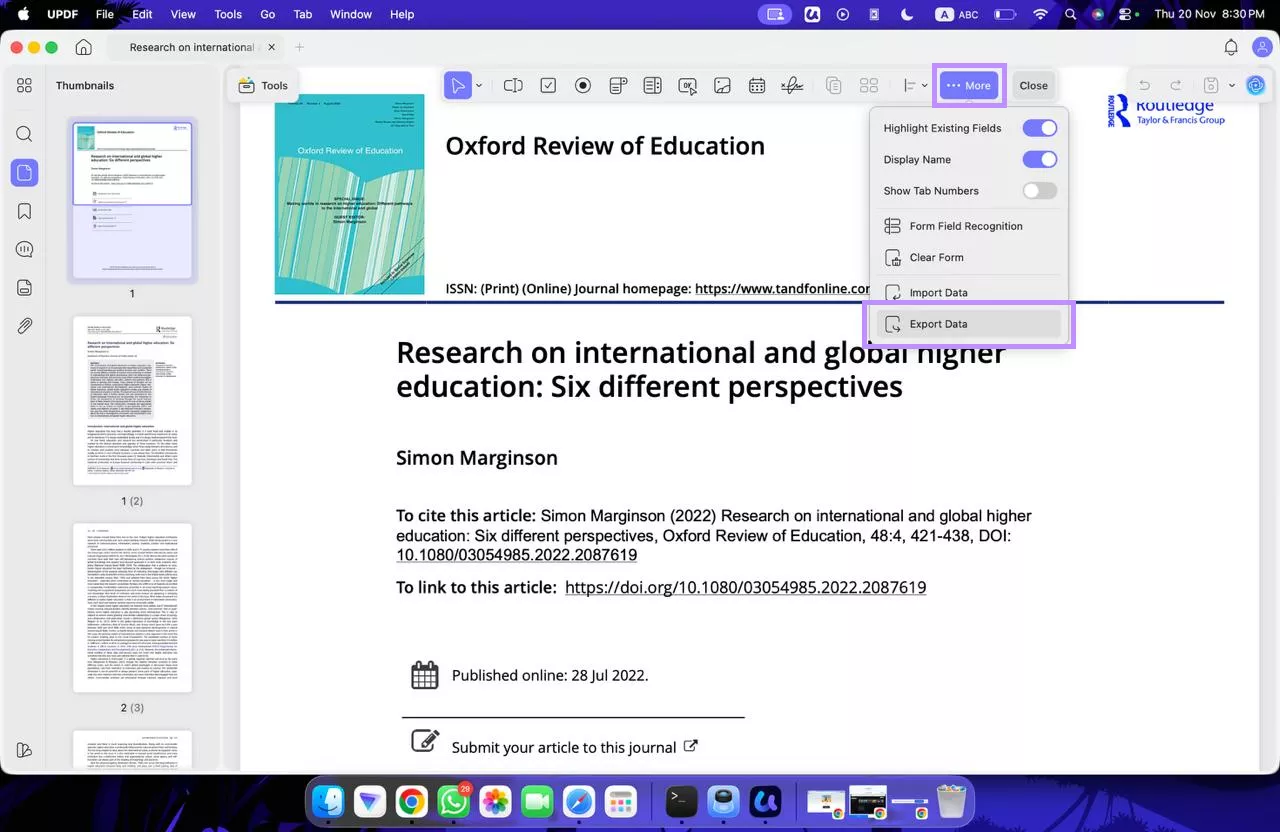
Step 4. Choose your desired data format. Then, give your new file a name and choose a location to save it on your device.
Part 3. Bonus: How to Import an XFDF File into a PDF Form
If you need to fill out multiple copies of the same document, typing everything manually every time can feel overwhelming. But importing the form data directly into your PDF makes things much easier. Instead of re-entering the values for each field, UPDF for Mac lets you load an existing XFDF file and have it fill in the PDF form automatically. It's also a convenient way to convert XFDF file to PDF form when needed.
Here's how it works.
Step 1. Open your PDF form in UPDF. Then, go to "Tools" and choose "Form."

Step 2. Click "More" from the top toolbar and select "Import Data."

Step 3. Read the warning that this action cannot be undone and click "Continue." Select your XFDF file. UPDF will open it and fill all data in the relevant fields.
Apart from filling and converting forms, UPDF is a complete solution to help you manage your documents more effectively. Here are some of its key features.
- Edit PDF text, images, links, background, header, footer, and more.
- Annotate with text comments, sticky notes, shapes, highlights, etc.
- Convert PDF to Word, Excel, PPT, XML, HTML, and more
- Sign PDFs with handwritten, typed, image-based, or digital signatures.
- Use OCR to make scanned and image-based documents editable and searchable.
- Protect PDFs with open and permission passwords, redaction, and sanitizing metadata.
- Batch-process multiple documents at once.
With these useful tools, UPDF can help you handle your documents much smarter. You can even try all these features for free. So, don't wait. Download UPDF and get started today. And if you want to access these tools without limits, you can upgrade with affordable price plans that fit your budget. You can click here to buy UPDF now.
Windows • macOS • iOS • Android 100% secure
Conclusion
That wraps up the guide on how to convert PDF to XFDF file and back to PDF if needed. XFDF files are smaller in size and more readable than standard PDF forms. However, PDFs are easier to share and open across any platform. UPDF makes converting these files back and forth simple. You can export form data in XFDF or import it directly into your PDF file. It's also super easy to use. Plus, you can get started for free. Try it today!




 Engelbert White
 Enid Brown
 Enrica Taylor