 UPDF
UPDF
 UPDF for Windows
 UPDF for Mac
 UPDF for iPhone/iPad
 UPDF for Android
 Nomostar
 UPDF AI Online
 UPDF Sign
 IvyCraft
 Edit PDF
 Annotate PDF
 Create PDF
 PDF Form
 Edit links
 Convert PDF
 OCR
OCR PDF to Word
 PDF to Image
 PDF to Excel
 Organize PDF
 Merge PDF
 Split PDF
 Crop PDF
 Rotate PDF
 Protect PDF
 Sign PDF
 Redact PDF
 Sanitize PDF
 Remove Security
 Read PDF
 UPDF Cloud
 Compress PDF
 Print PDF
 Batch Process
 About UPDF AI
 UPDF AI Solutions
 AI User Guide
 FAQ about UPDF AI
 Summarize PDF
 Translate PDF
 Chat with PDF
 Chat with AI
 Chat with image
 PDF to Mind Map
 Explain PDF
 PDF AI Tools
 Image AI Tools
 AI Chat Tools
 AI Writing Tools
 AI Study Tools
 AI Working Tools
 Other AI Tools
 AI Bookmark Generation
 AI Bookmark Summary
 AI Watermark Generation
 AI Background Generation
 AI Sticker Generation
 AI Stamp Generation
 AI Editing Suite
 UPDF Copilot
 AI Page Management
 AI Semantic Search
 PDF to Word
 PDF to Excel
 PDF to PowerPoint
 Enterprise Solution
 Enterprise Sign
 Enterprise AI
 Enterprise Plan
 Enterprise User Guide
 Enterprise Webinar
 IT
IT Education
 Construction
 Financial Service
 Healthcare
 Insurance
 Legal
Legal Manufacturing
 Government
 Researchers & PhDs
 Solopreneurs & Freelancers
 Lawyers & Legal Professionals
 Real Estate Agents & Brokers
 Education Solution
 Customer Stories
 User Guide
 UPDF Tricks
 FAQs
FAQs UPDF Reviews
 Download Center
 Blog
Blog Newsroom
 Tech Spec
 Updates
 UPDF vs. Adobe Acrobat
 UPDF vs. Foxit
 UPDF vs. PDF Expert

If you are searching all over the Acrobat menus for a translation button, stop looking—it doesn't exist. Adobe Acrobat Pro, Standard, and Document Cloud do not have a built-in PDF translation feature.
However, this article will explain three "workaround" paths provided by Adobe, as well as a more comprehensive alternative.
3 Ways to Translate PDF with Adobe Acrobat (Express, AI & Word)
First of all, let's check when to use these 3 ways to translate a PDF with Adobe Acrobat according to your scenario.
| Your Scenario | What You Need | Recommended Method | Jump to |
|---|---|---|---|
| Quick translation of a text‑heavy document | Speed, no formatting concerns | Acrobat Reader AI Assistant | Way 2 |
| Branded or formatted document needs layout preserved | Formatting preservation | Adobe Express | Way 1 |
| Don't have an Acrobat Pro subscription | Free or lower‑cost option | Word Workaround | Way 3 |
| Scanned PDF needs translation | OCR + translation | Adobe Express (handles scanned PDFs) | Way 1 |
| Need to translate into 20+ languages | Multi-language bulk translation | Adobe Express | Way 1 |
| Sensitive document — don't want cloud upload | Privacy, local processing | Word Workaround (local) | Way 3 |
Way 1. Translate PDF with Acrobat Express
Adobe Express offers a more robust translation workflow that preserves formatting and layout.
When your Acrobat app language differs from a PDF's language, Acrobat Reader now prompts you to translate it, saving the file to Adobe cloud storage and opening it in Adobe Express for editing. Alternatively, you can directly use Adobe Express to translate a PDF.
Step 1: Open your PDF in Adobe Express directly (Click the link to translate online or download Express to your computer)
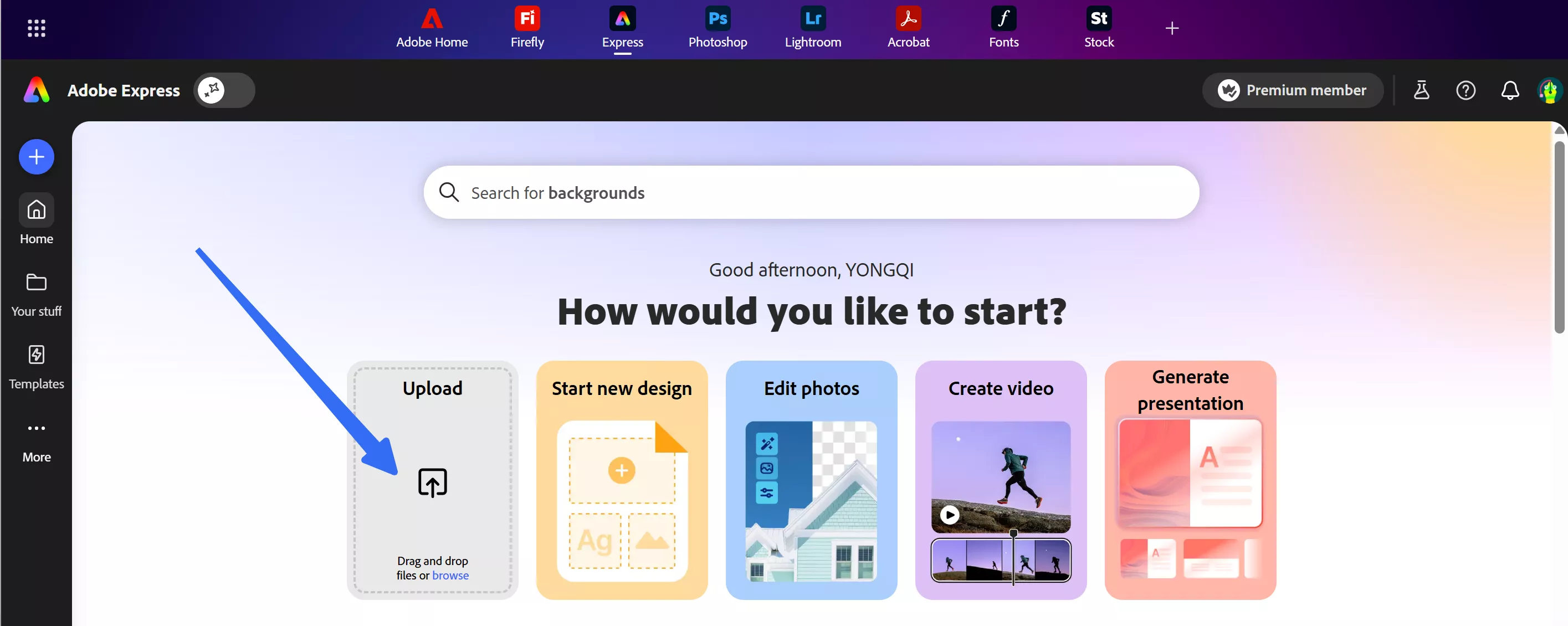
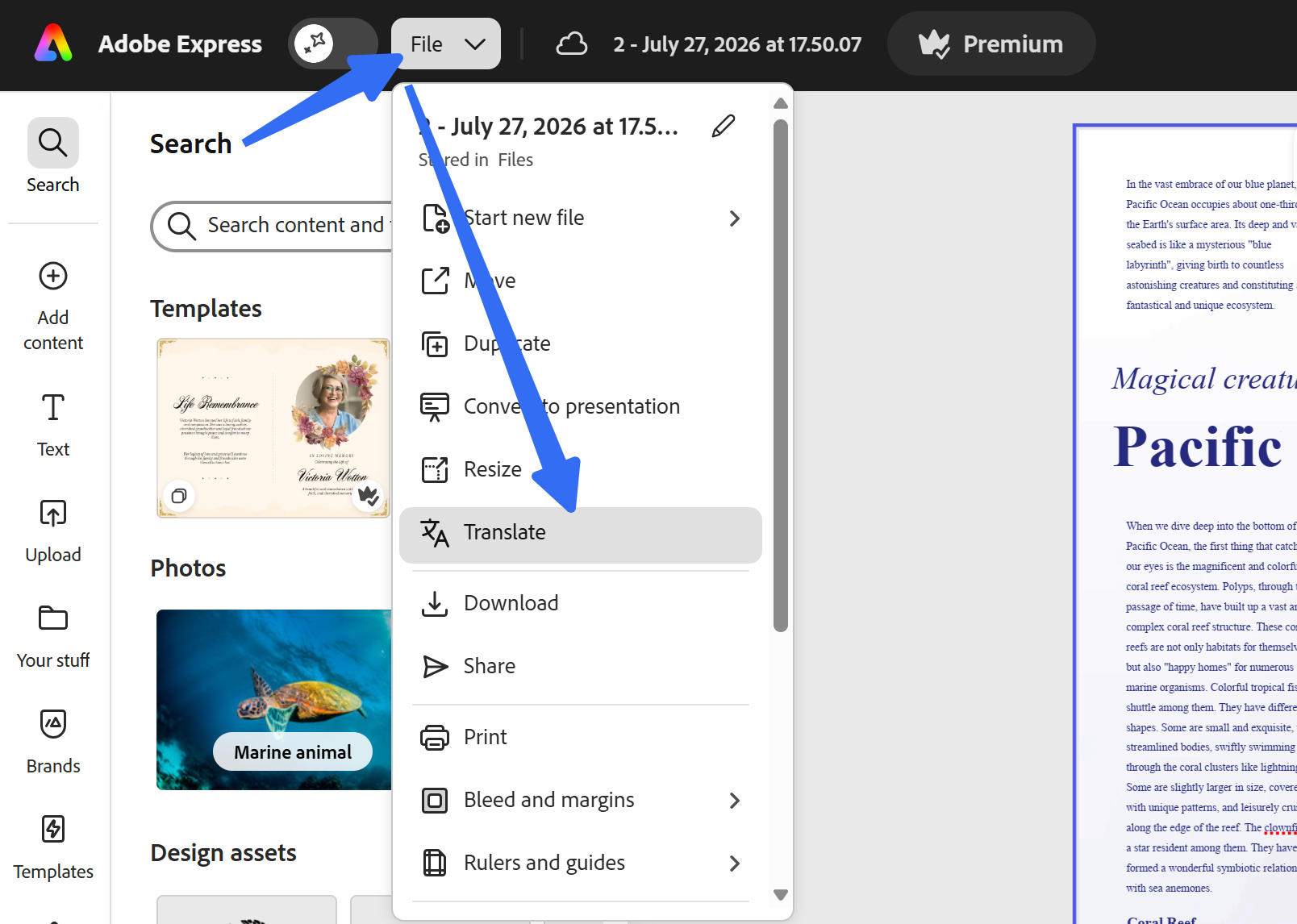
Step 2: Click File to Choose "Translate" this PDF
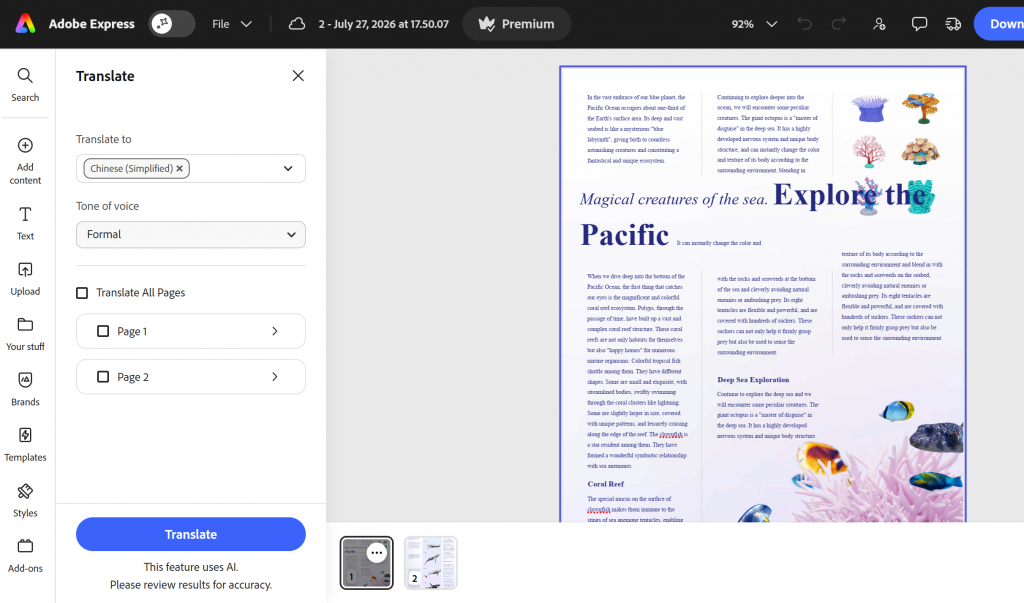
Step 3: Select your target language from the available options (up to 46 languages), and you can choose to translate the selected pages or the whole file. You can even select the tone of the translation: formal or informal, or keep the original tone.
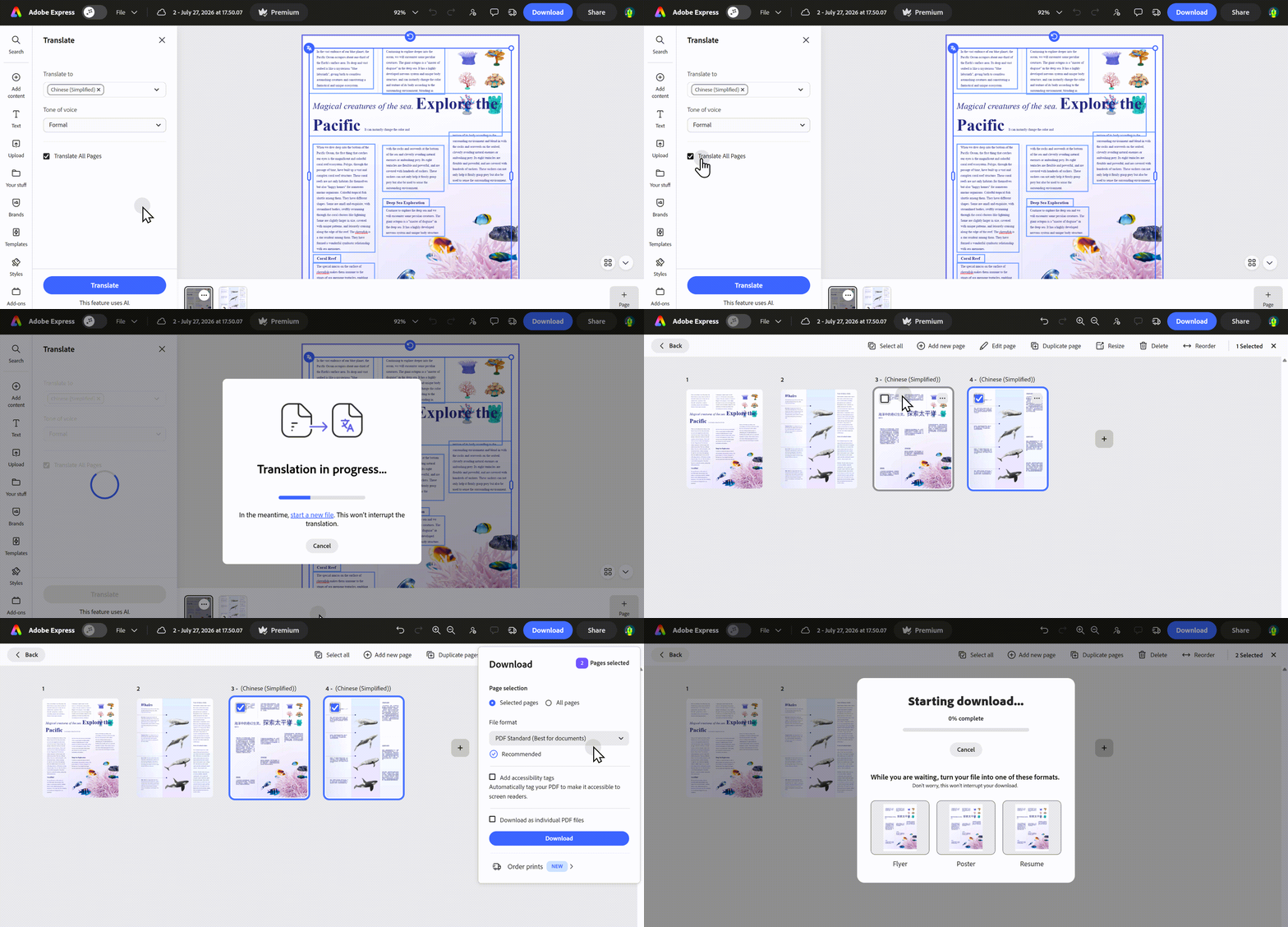
Step 4: Click to translate — the document processes with layout preservation, and choose to download the translated PDF pages. Or you can download the whole file with the original pages.
If Acrobat detects that your app language differs from the PDF's language, you'll be prompted to translate it automatically. The file saves to Adobe cloud storage and opens in Adobe Express for editing. However, the quality of the translation and the preservation of the original layout are inconsistent.
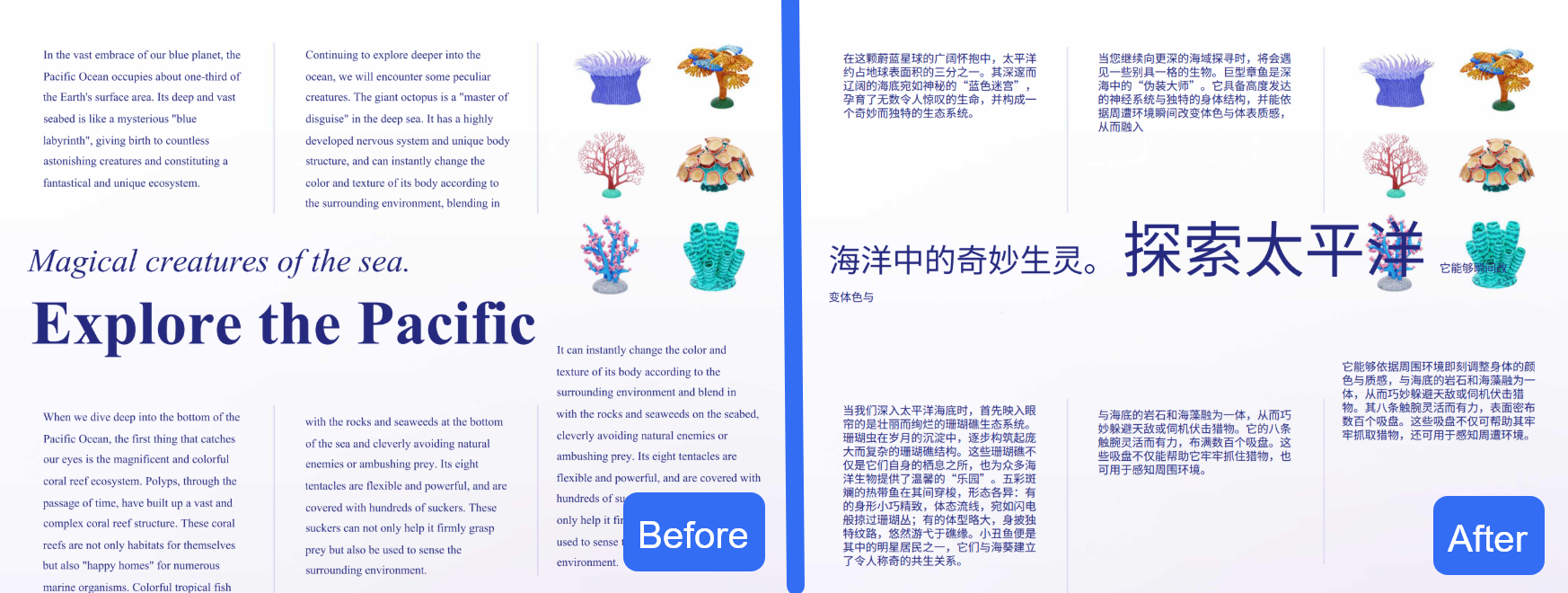
Limitation: The document is processed via an external platform rather than internally within Acrobat. More critically, a 99-page limit applies: even if a user intends to translate only 40 pages, this limit may still be triggered—due to factors such as multi-language translation or the page count being doubled to accommodate both the original text and the translation—resulting in a translation failure.
| Consideration | Why It Matters |
|---|---|
| Requires an Adobe account to subscribe to the plan | Free sign-in required and need to add a credit card to have a free trial; subscription fee is high for translation |
| Files saved to Adobe cloud | Privacy consideration for sensitive documents |
| Non-Latin script support varies | Some languages may have rendering issues |
| Adobe Express may not handle all complex layouts | Text expansion issues in tight layouts can occur |
Way 2. Translate PDF with AI
Acrobat's AI Assistant allows you to translate PDFs directly within the application using natural language prompts.
The AI Assistant processes your document text and returns a translation in a chat panel. The translation preserves basic formatting, but complex layouts may not translate perfectly.
Step 1: Open your PDF in Adobe Acrobat (the new Acrobat experience must be enabled)
Step 2: Click the "AI Assistant" button in the toolbar
Step 3: AI Assistant analyzes your PDF document
Step 4: In the chat panel, type a prompt such as "Translate this document into Spanish" or "Translate this PDF to Chinese"
Step 5: If prompted, confirm the source and target languages
Step 6: Review the translation in the AI Assistant panel
Step 7: Copy the translated text or save the translated version
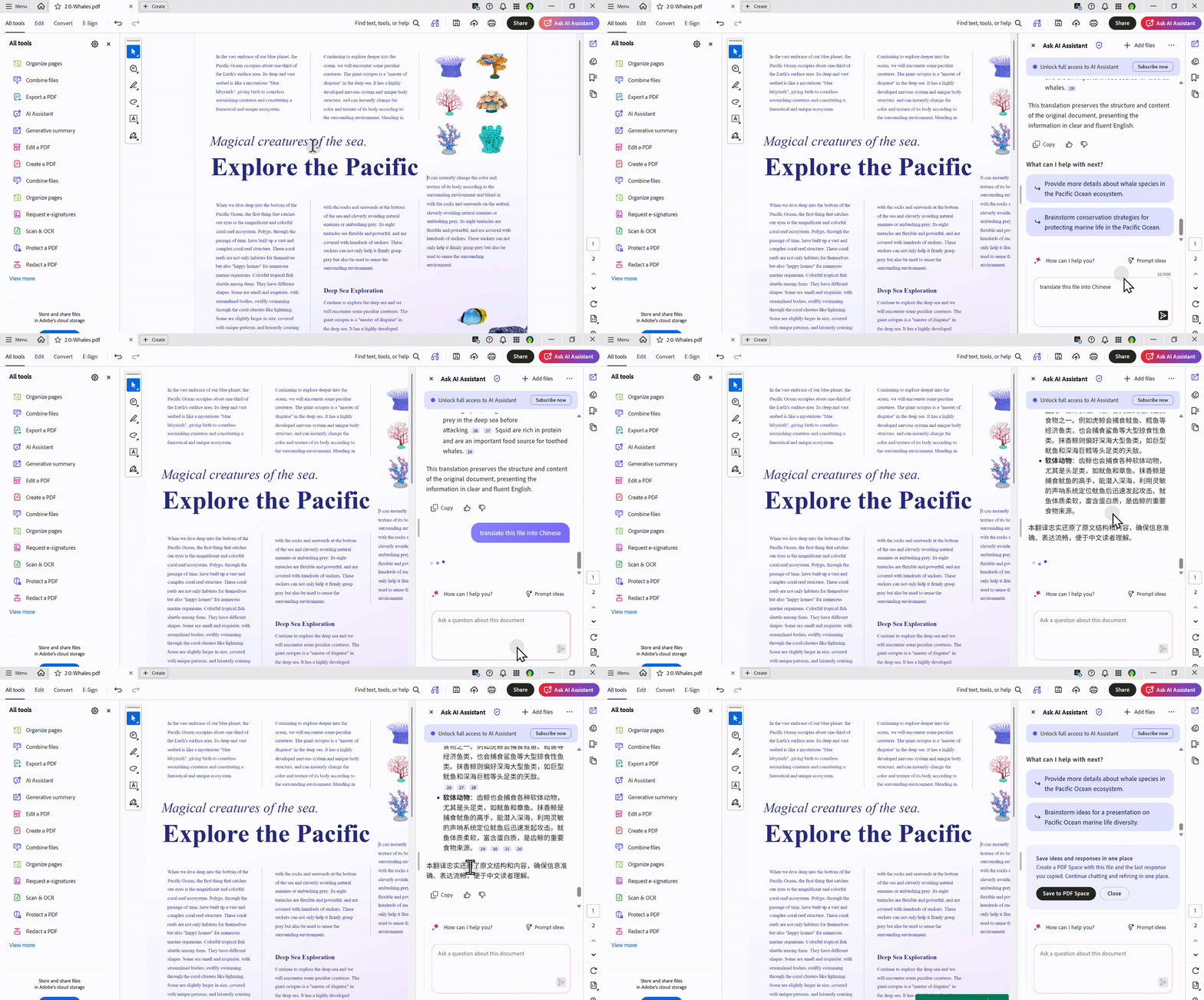
Limitation: Translation can only be generated segment by segment in a conversational manner; it is not possible to produce a completely translated file with a single click.
Way 3. Translate PDF with Adobe Acrobat's Conversion and Word's Translation Feature
This workaround uses Microsoft Word's translation feature to translate the PDF content.
You export the PDF to Word format, translate it using Word's built‑in translation tools, then convert it back to PDF.
Step 1 — Export PDF to Word:
Step 1.1: Open your PDF in Adobe Acrobat (Reader or Pro)
Step 1.2: Click File > Save As (or use the Export tool)
Step 1.3: Choose "Microsoft Word" as the export format
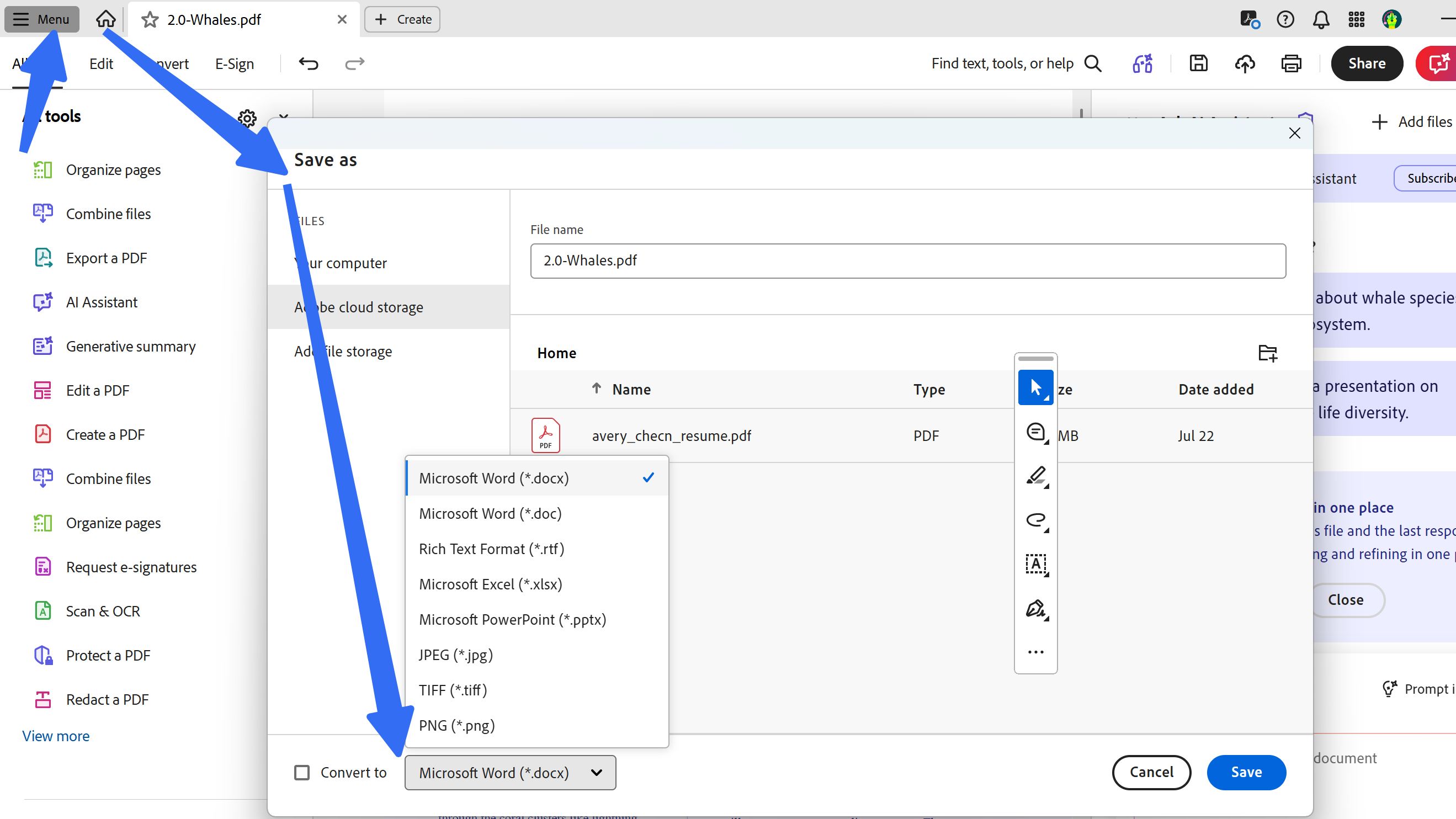
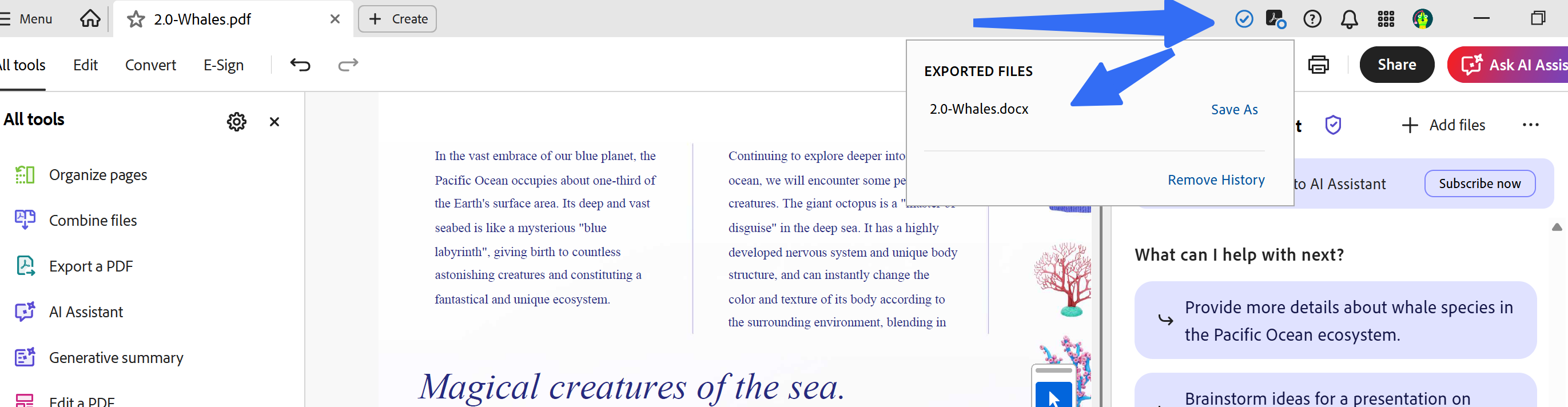
Step 1.4: Save the Word file to your computer
Step 2.1: Open the Word document
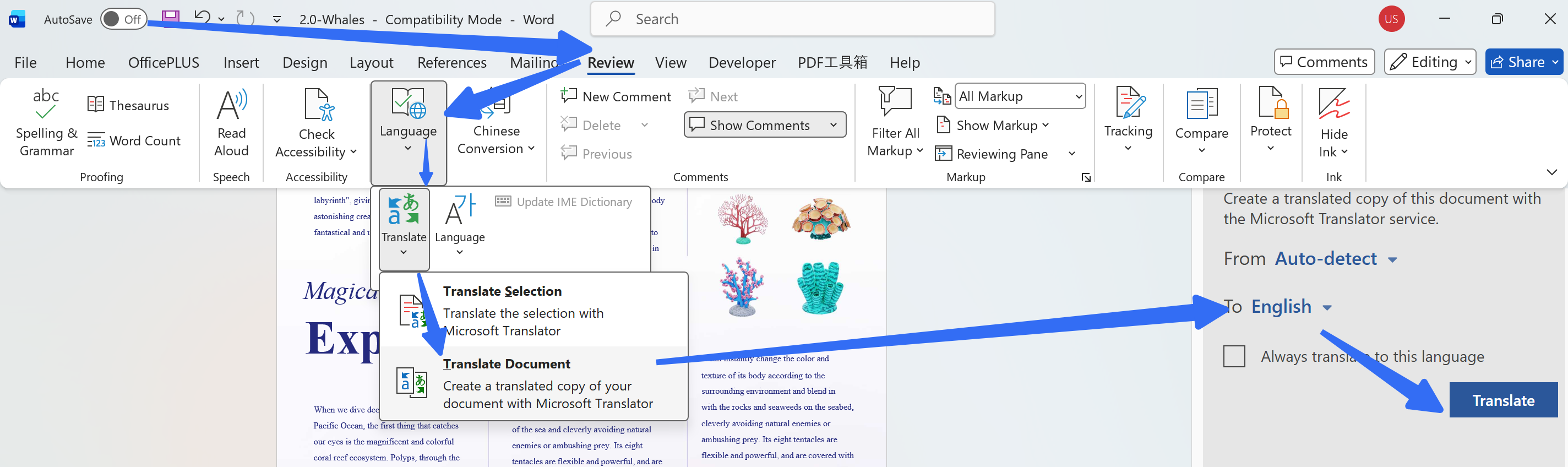
Step 2.2: Go to the "Review" tab
Step 2.3: Click "Translate" > "Translate Document"
Step 2.4: Select your target language and click "Translate"
Step 2.5: Word automatically translates the document
Have you translated the entire Word file? Great job, but you’re not done yet. We still need to convert the Word file back into a PDF.
Step 3 — Convert back to PDF:
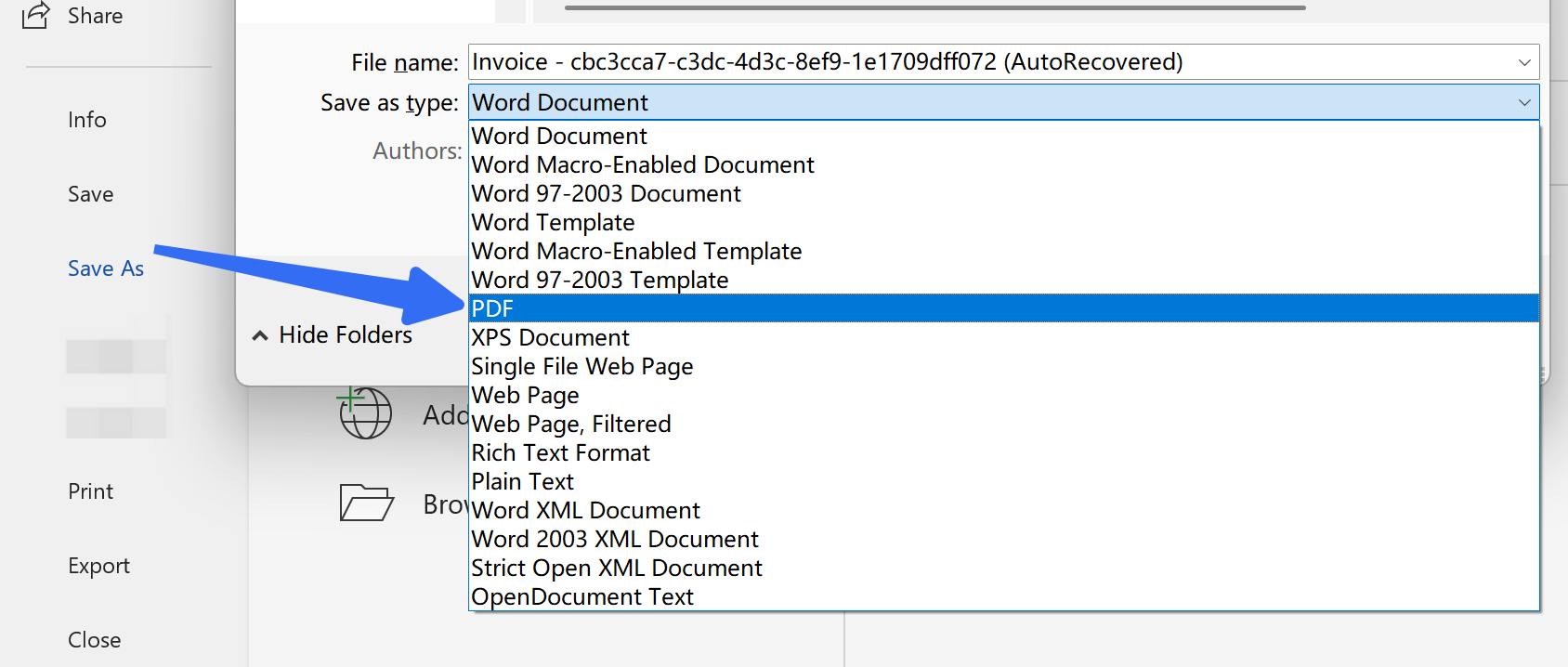
Step 3.1: In Word, go to File > Save As
Step 3.2: Choose PDF as the file format
Step 3.3: Save the translated PDF
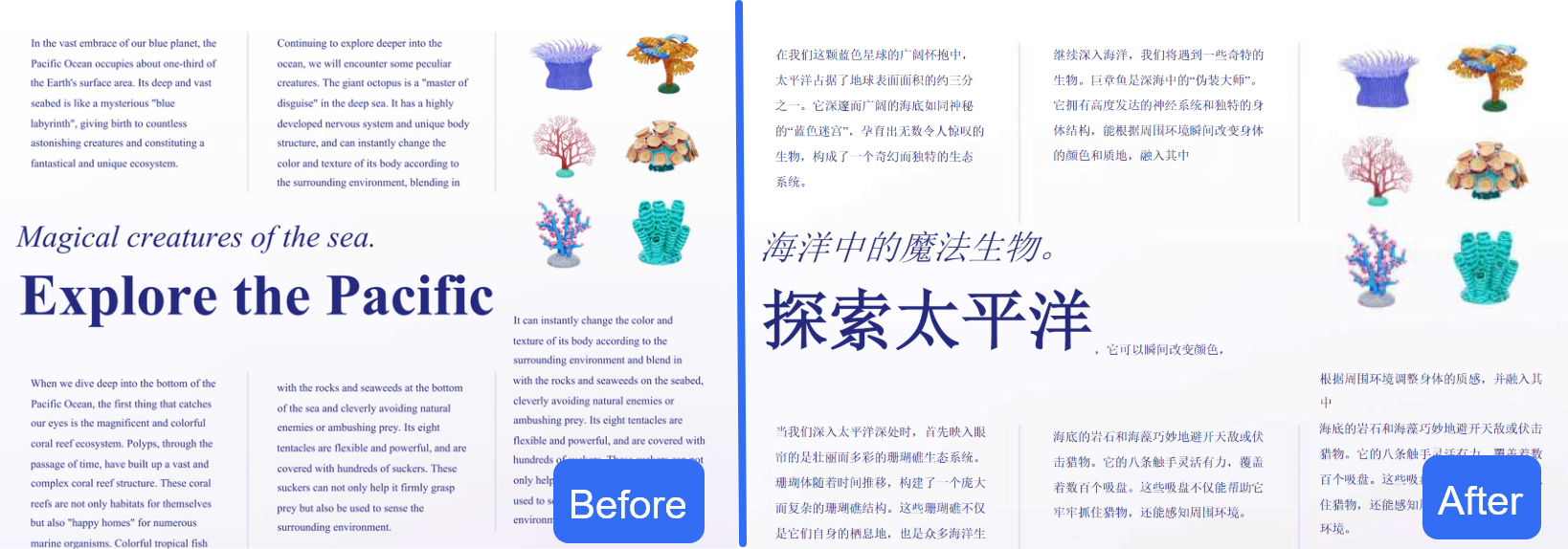
Limitation: Every format conversion serves as a point of information loss—characterized by changes in fonts, disrupted spacing, misaligned images, and the collapse of table structures. The most immediately apparent issues are the loss of image quality during format conversion and changes in fonts.
Based on real-world testing and user feedback, here are the main limitations of Adobe's PDF translation capabilities.
This way is similar to converting a PDF to HTML and then translating the file with Google Translate to finish the translation process, but Google Translate has limitations on file size and speed limitations for translation, and Adobe does not support PDF-to-HTML conversion. (UPDF supports this kind of conversion)
Still, Adobe’s official translation solutions come with noticeable drawbacks, including limited language support, cumbersome operation, and unstable layout retention. For accurate, efficient, and hassle-free PDF translation, UPDF emerges as a far more reliable and user-centric alternative. Let's see next!
How To Translate PDF With Adobe Acrobat Pro Alternative?
Users in the Adobe community have publicly demanded refunds due to translation limitations, labeling the product a "waste of money."
Instead of stubbornly battling with Adobe and complaining about its clunky features, you're better off simply switching to a user-friendly alternative. You can easily manage, edit, and translate your PDFs with UPDF, a flexible tool that has an AI assistant.
Windows • macOS • iOS • Android 100% secure
When Adobe Falls Short, UPDF Delivers
If any of the scenarios above sound familiar, UPDF offers a smarter alternative. Here's how it compares:
| Capability | Adobe Acrobat | UPDF |
|---|---|---|
| Layout preservation | Often breaks complex layouts | Preserves original formatting, structure, and images |
| Scanned PDF support | Requires separate OCR subscription | Built-in OCR (38 languages) |
| Batch translation | Slow, no batch support | Translate multiple PDFs simultaneously |
| Translation accuracy | Generic AI translation | Context-aware translation with industry terminology support |
| Output modes | One file per language | Translated Only + Bilingual Layout (side-by-side comparison) |
| Document types | PDF only | PDFs, screenshots, images, and plain text |
| Pricing | $240/year subscription | One-time payment (~1/4 the cost of Adobe) |
With UPDF, you can translate the entire document or specific pages, preserve the original layout, handle scanned PDFs through built-in OCR, and process multiple files at once—all in one place. No subscription, no formatting headaches, no hidden costs.
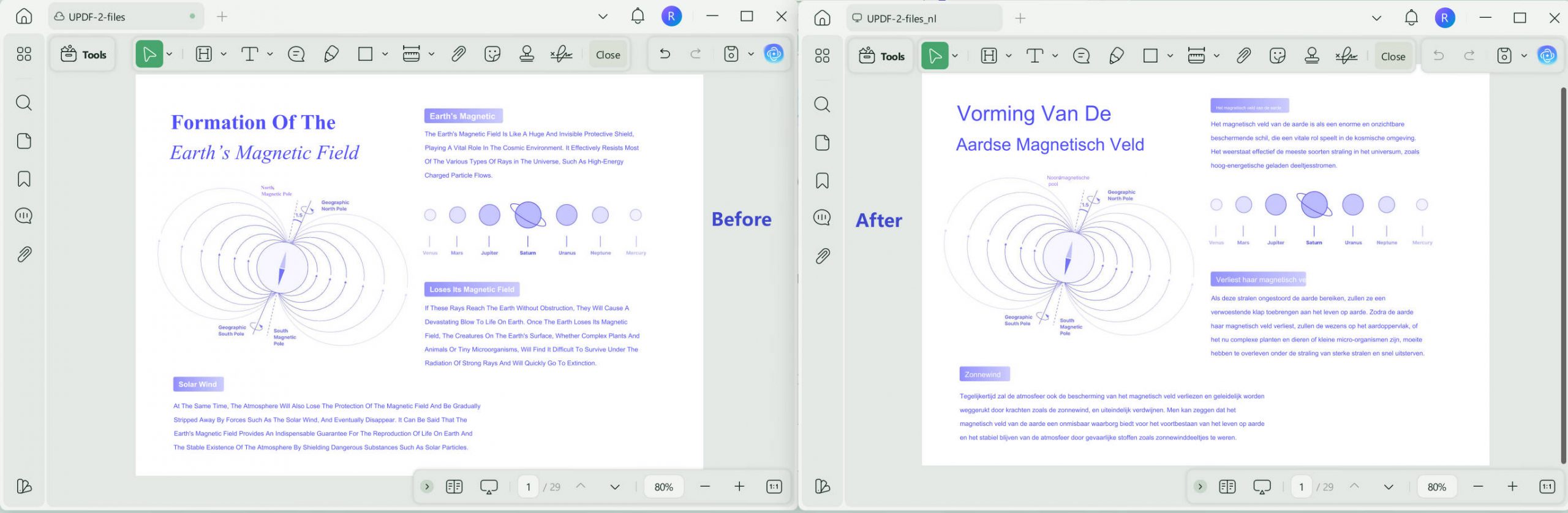
Way 1. Translate The Entire PDF with Layout Retention
If you need to translate the entire PDF with layout retention, you can first download the tool from the button below, install it, set it up, and then follow these steps:
Windows • macOS • iOS • Android 100% secure
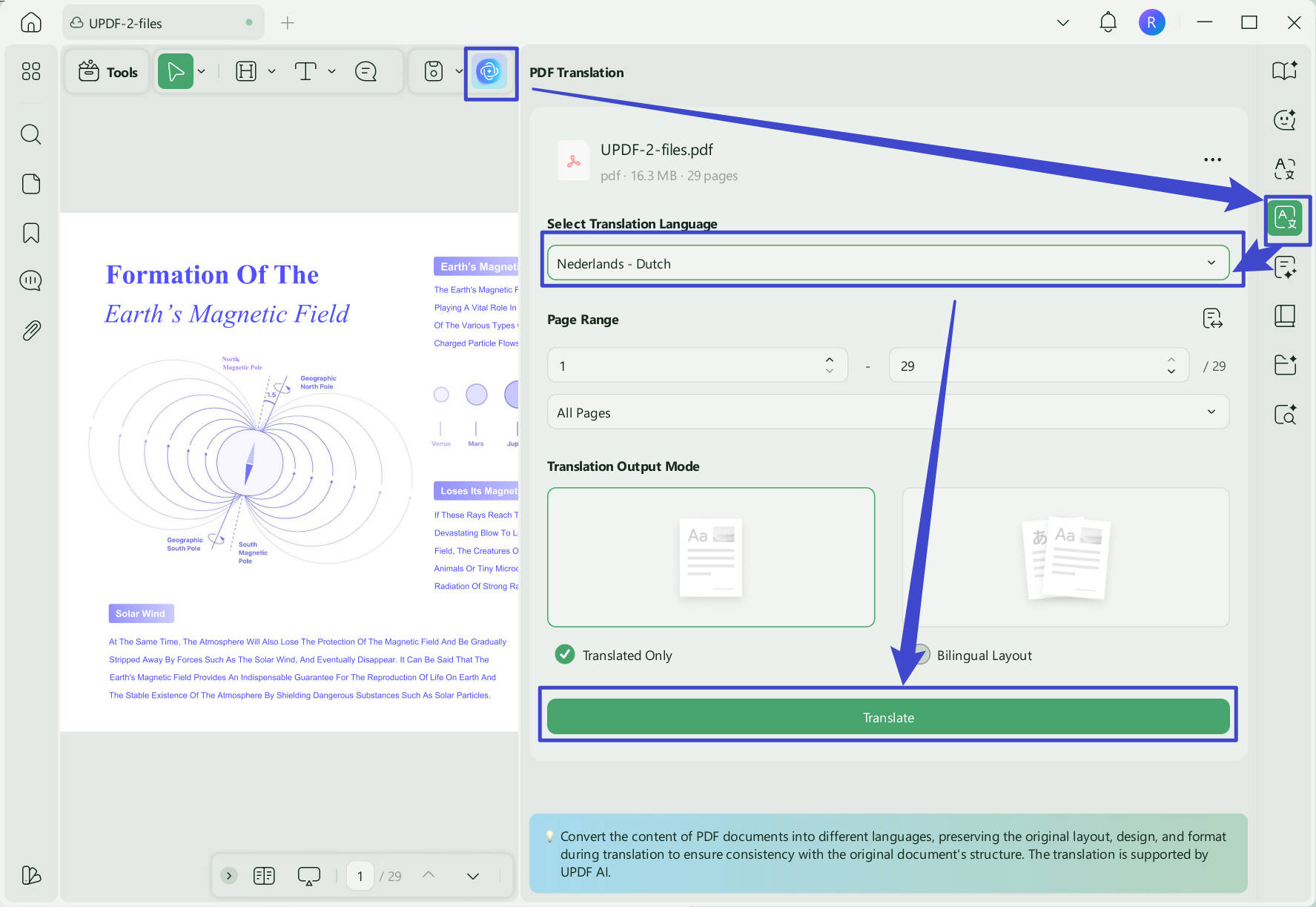
- Choose the PDF you want to translate by clicking the "Open File" option.
- On the top right corner, click the "UPDF AI" > “PDF Translation” icon from the menu bar.
- Choose the translation language and page range in the window, and click "Translate."
- Next, select the location where UPDF will save your translated file.
- Now, you can have the PDF translated into the language you need with layout keeping.
Way 2. Translate by Selecting
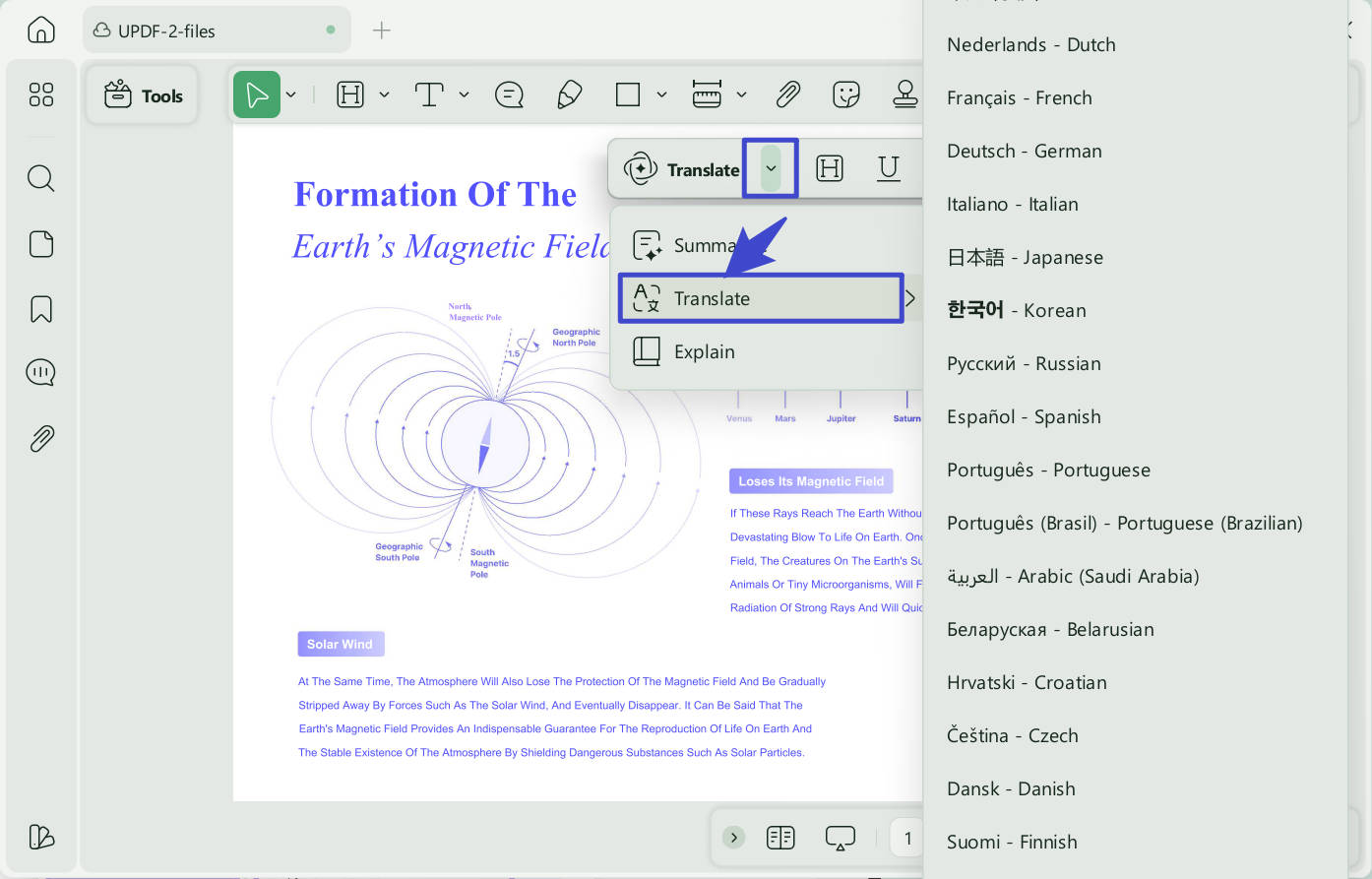
You can also select any parts of the PDF to get a quick translation. Open PDF in UPDF. Select the content, click on UPDF AI > Translate, and select the language. You'll get the translation in the pop-up.
Way 3. Translate by Page
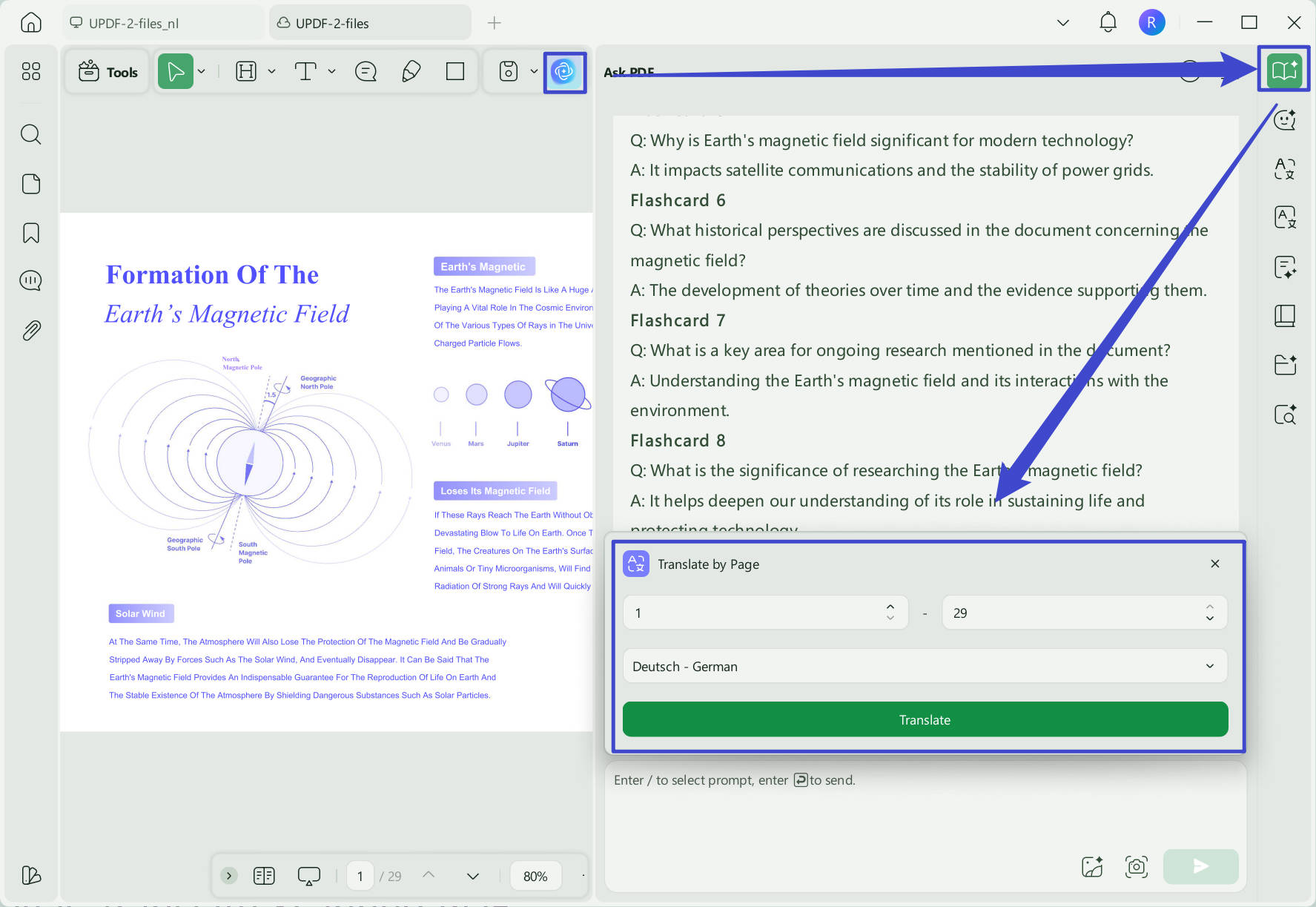
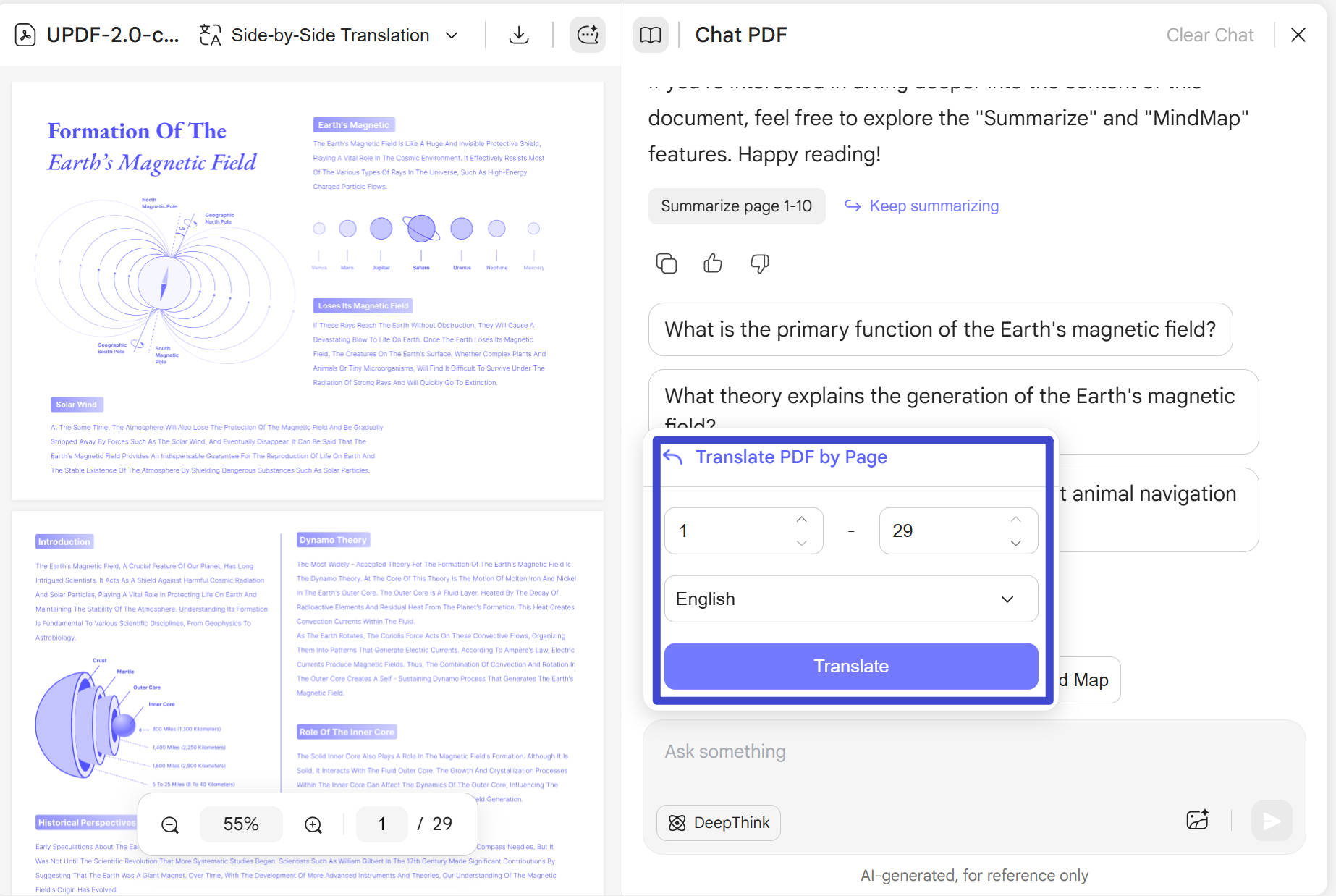
You can also translate your PDF page by page. Click on the “UPDF AI” icon, click on “Chat with PDF” to upload the PDF to UPDF AI. Then, click on “Translate”, choose the destination language and page range, then click on “Translate” to translate the PDF by page.
Windows • macOS • iOS • Android 100% secure
Way 4. Translate Scanned PDF
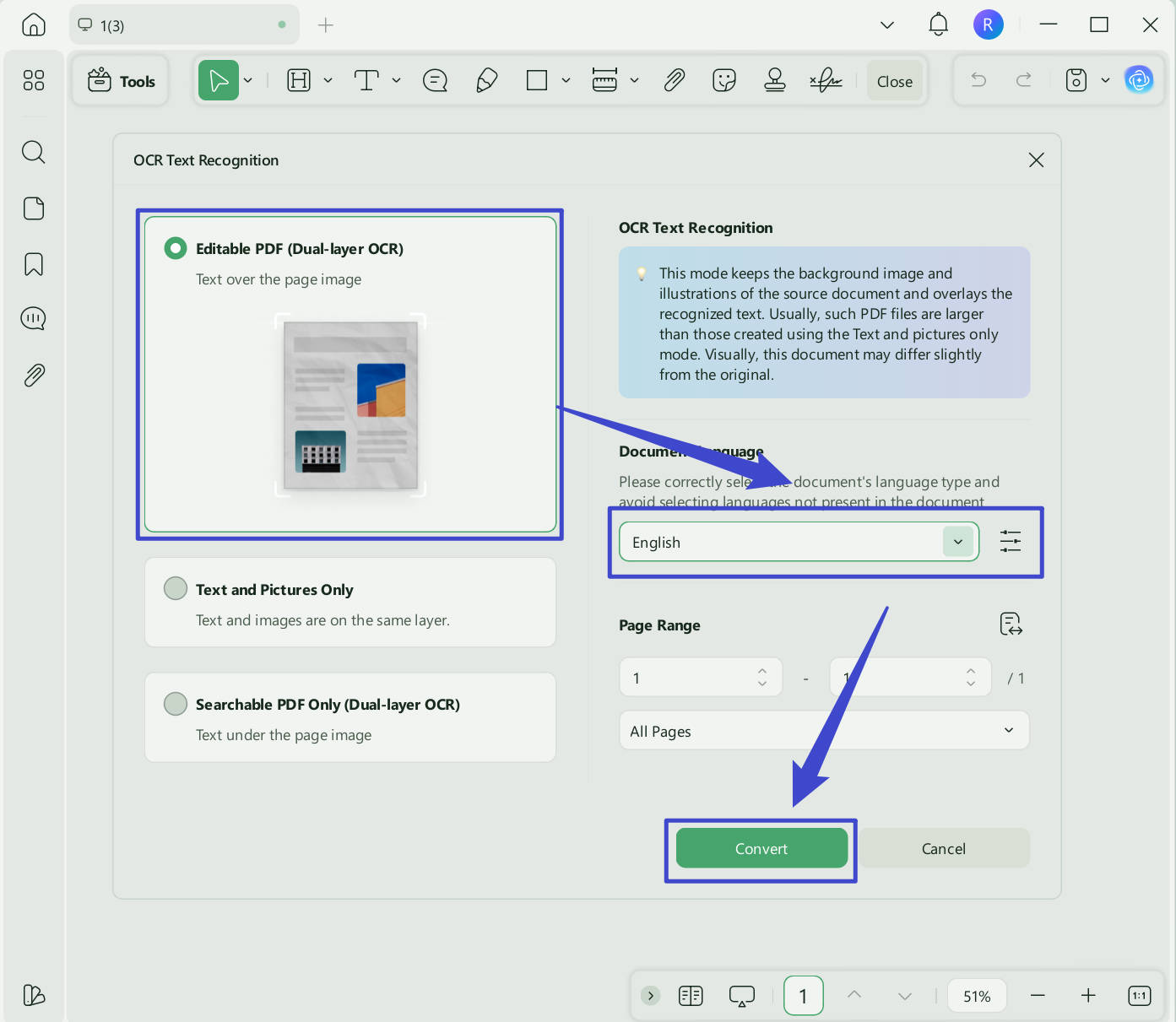
If you want to translate scanned PDF files, UPDF makes it easy. Open UPDF, load the scanned PDF, and click on "Tools" > "OCR". Choose your document language in the pop-up and click "Convert." Once the OCR process is complete, the OCRed file will open automatically, and translate it using the steps mentioned above.
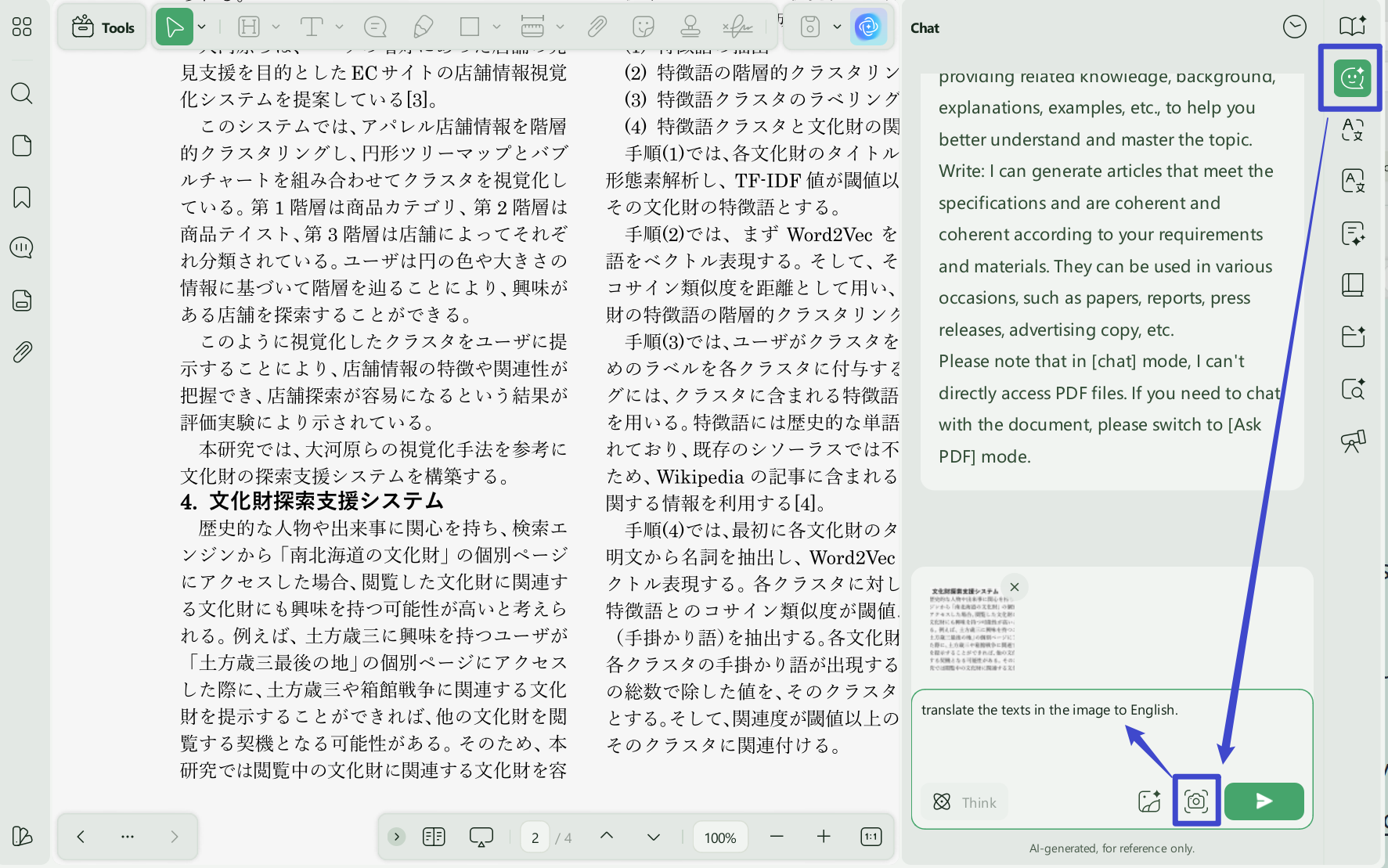
Way 5. Translate Texts on Images
When you want to translate long article images from abroad, you can use UPDF AI’s Image Translation feature. After opening the file in UPDF, click "Chat with PDF" in the UPDF AI menu bar, then select "Screenshot" in the dialog box. Capture the text you need to translate, then click Send. UPDF AI will quickly recognize the text and translate it for you.
So, have you seen how powerful and incredibly fast UPDF is when translating various PDF files? That is why I always use it. It makes my work much easier and saves me a lot of time so I can focus on other tasks. Besides that, I also use its editing and annotation features to help me handle documents, as well as its batch compression and conversion functions to save space on my computer.
To learn more about how this tool works, you can refer to the following UPDF review video or the blog post. After that, you can download and give it a try!
Windows • macOS • iOS • Android 100% secure
🚀Boost Your Productivity
How to Translate PDF with Adobe Express Online Alternative
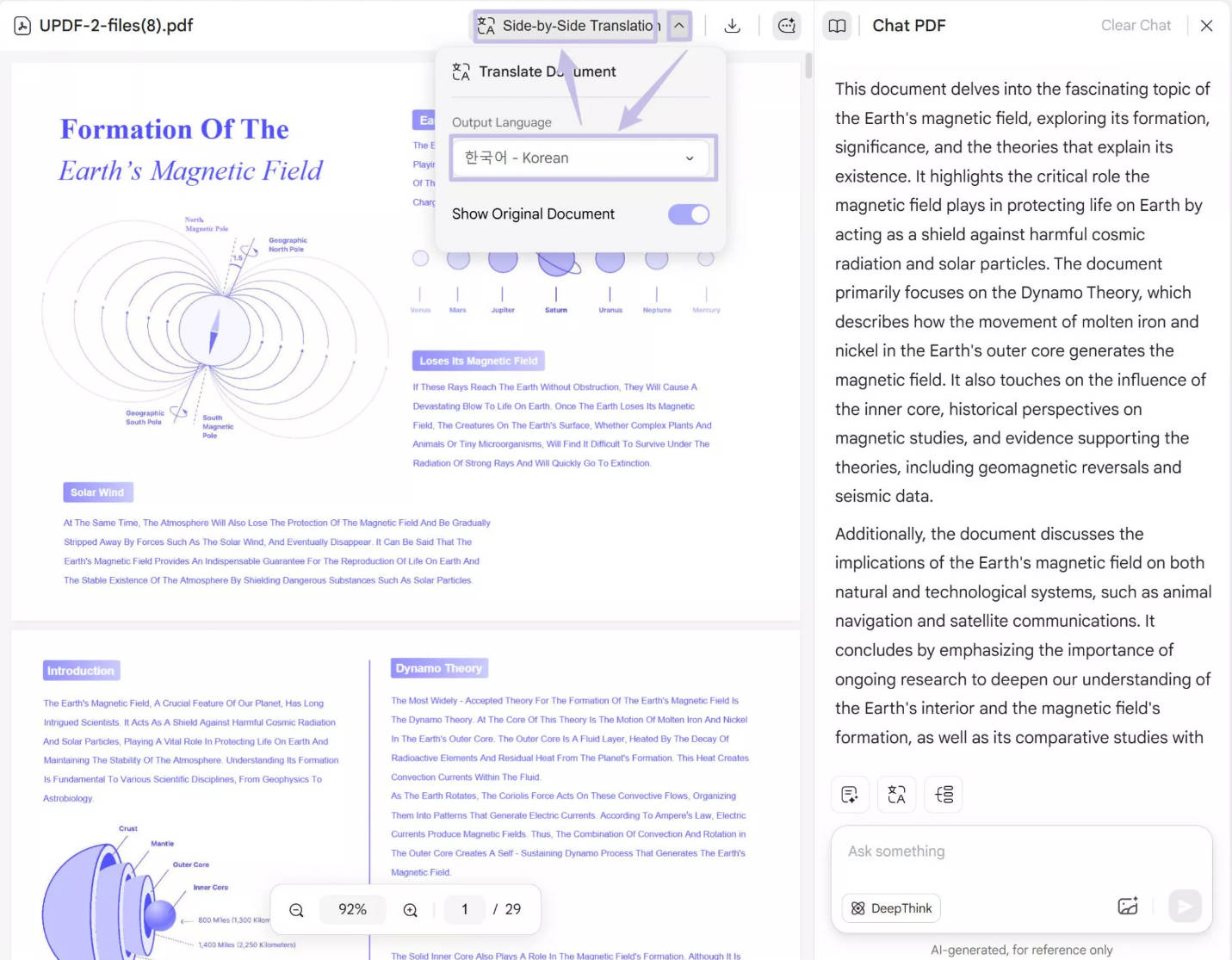
Do not want to download any software to translate PDF? We get you. You can use UPDF AI Online, which allows you to translate the whole PDF with layout keeping, translate page by page, or translate by copying and pasting. Moreover, it is free to use for the first 100 free prompts to chat PDF with AI. Just visit UPDF AI Online via the button below and follow the guides to translate PDF online.
Click on the "Upload File" icon to upload your PDF. Now, click on the "Start Chat with PDF".
If you want to translate the whole PDF with layout keeping, you can click on the "Arrow Down" icon near the "Side by Side Translation" icon, select the desired language, and click on the "Side by Side Translation" to start translating the whole PDF. When it is done, you can click on the download button to download the translated PDF.
You can also translate page by page by clicking on the "Translate" above the chatbox, selecting the page range, and choosing the language you need, then clicking on the "Translate."
If you want to translate English to Tagalog that can not be chosen from the options, you can also copy and paste the content in the Chatbox and let UPDF AI translate it.
FAQ
What languages does Adobe Acrobat support for translation?
Adobe Express supports translation into up to 46 languages, with bulk translation of 20 languages at one time. AI Assistant supports a smaller set: English, French, German, Spanish, Italian, Brazilian Portuguese, and Japanese.
Is Adobe Acrobat PDF translation free?
No. Translation features require Adobe Acrobat Pro (paid subscription) or Adobe Express (free with Adobe account). The free Adobe Reader does not support translation.
Why does Adobe Express sometimes fail to translate at all?
Some users have reported that Adobe Express says it has translated the document but does not translate at all. This may happen if the tool doesn't recognize the text and instead treats paragraphs as image blocks. If this occurs, try pasting the text directly into a new Adobe Express file rather than uploading the PDF.
Does AI Assistant understand the structure of my PDF?
No. AI Assistant understands conversation but not PDF structure. It doesn't know what's a header versus body text versus a table cell. It can't read a table and translate it while preserving the table layout. This is why complex documents often break during translation.
Final Words
While Adobe Acrobat is a trusted tool and can translate PDFs, it cannot meet all your requirements. Moreover, the price to use Acrobat is very high. That’s where UPDF shines. It translates PDFs quickly, edits seamlessly, and saves time and money. Download UPDF via the button below or visit UPDF AI Online now to manage and translate your PDFs conveniently!
This guide focuses specifically on translating PDFs using Adobe tools. If you're looking for a comprehensive guide on PDF AI chat and document translation — summarizing, translating, extracting insights, and more — visit our full pillar guide: PDF AI Chat.
Windows • macOS • iOS • Android 100% secure








 Engelbert White
 Enola Davis
 Lizzy Lozano
 Enrica Taylor