 UPDF
UPDF
 UPDF for Windows
 UPDF for Mac
 UPDF for iPhone/iPad
 UPDF for Android
 Nomostar
 UPDF AI Online
 UPDF Sign
 IvyCraft
 Edit PDF
 Annotate PDF
 Create PDF
 PDF Form
 Edit links
 Convert PDF
 OCR
OCR PDF to Word
 PDF to Image
 PDF to Excel
 Organize PDF
 Merge PDF
 Split PDF
 Crop PDF
 Rotate PDF
 Protect PDF
 Sign PDF
 Redact PDF
 Sanitize PDF
 Remove Security
 Read PDF
 UPDF Cloud
 Compress PDF
 Print PDF
 Batch Process
 About UPDF AI
 UPDF AI Solutions
 AI User Guide
 FAQ about UPDF AI
 Summarize PDF
 Translate PDF
 Chat with PDF
 Chat with AI
 Chat with image
 PDF to Mind Map
 Explain PDF
 PDF AI Tools
 Image AI Tools
 AI Chat Tools
 AI Writing Tools
 AI Study Tools
 AI Working Tools
 Other AI Tools
 AI Bookmark Generation
 AI Bookmark Summary
 AI Watermark Generation
 AI Background Generation
 AI Sticker Generation
 AI Stamp Generation
 AI Editing Suite
 UPDF Copilot
 AI Page Management
 AI Semantic Search
 PDF to Word
 PDF to Excel
 PDF to PowerPoint
 Enterprise Solution
 Enterprise Sign
 Enterprise AI
 Enterprise Plan
 Enterprise User Guide
 Enterprise Webinar
 IT
IT Education
 Construction
 Financial Service
 Healthcare
 Insurance
 Legal
Legal Manufacturing
 Government
 Researchers & PhDs
 Solopreneurs & Freelancers
 Lawyers & Legal Professionals
 Real Estate Agents & Brokers
 Education Solution
 Customer Stories
 User Guide
 UPDF Tricks
 FAQs
FAQs UPDF Reviews
 Download Center
 Blog
Blog Newsroom
 Tech Spec
 Updates
 UPDF vs. Adobe Acrobat
 UPDF vs. Foxit
 UPDF vs. PDF Expert

Quick answer:
Here's the fast way to know which tool you need: open the PDF and click a blank spot in the form. If a cursor, box outline, or checkbox appears, it's an interactive form and Edge can fill it directly. If nothing happens no matter where you click, the file is usually a scanned page, a flattened form, or a complex form Edge can't read — and that's where UPDF comes in.
This guide covers the three methods that actually matter on Windows 10 and 11: the built-in Microsoft Edge reader, UPDF for the forms Edge can't handle, and Adobe Acrobat if you're already inside the Adobe ecosystem. If you instead want to compare every form-filling tool on the market, see our PDF form filler comparison; if the form was emailed to you and you're on a phone, see how to fill a form emailed to you on iPhone.
Part 1. Which Method for Which Form on Windows
Windows gives you more than one path, and the right one depends entirely on the kind of form you have — not on which app is "best."
| Your situation on Windows | Method | Best for |
|---|---|---|
| Interactive form with real fields, quick one-off | Microsoft Edge (built-in) | Job applications, school forms, and government PDFs that already have clickable fields — no install |
| Scanned/image form (no text layer) | UPDF (OCR → Form Field Recognition) | Printed-then-scanned contracts and image-based intake forms — OCR first, then fields |
| Flattened electronic PDF (has text, no fields) | UPDF (Form Field Recognition) | Forms exported and flattened from Word/Excel — recognized directly, no OCR needed |
| A Word or Excel form someone sent you | UPDF (drag file in → auto-converts) | Turning a .docx or .xlsx form into a fillable PDF in one drag |
| You already work inside Adobe | Adobe Acrobat | Teams already on an Acrobat subscription or using Adobe Sign workflows |
One table, one decision. The rest of the article walks each method with steps and the point where it stops working.
Part 2. Interactive Form vs. Flat Form — Why Edge Fills One but Not the Other
This single distinction explains almost every "I can't type into my PDF on Windows" complaint.
An interactive form (a true AcroForm) has real, coded fields — text boxes, checkboxes, radio buttons, dropdowns — sitting inside the file. Any reader, including Edge, can click into them.
A flat form has no clickable fields, but there are two kinds and they're not the same. A scanned form is a pure image — a photo of a page with no text layer at all; before any tool can add fields, it has to OCR the image to recognize the text underneath. A flattened electronic PDF (say, a Word form exported and flattened) already has a real text layer — it just lacks form fields — so it can be recognized directly, no OCR required. In UPDF, both end up fillable: scanned files run OCR first, then Form Field Recognition; flattened electronic files skip straight to recognition.
Think of it like a photo of a paper form: you can't type into a photo until a tool reads the text (OCR) and draws real boxes on top of it (Form Field Recognition). That's why browsers and Edge fail on both — they do neither.
Summary: interactive = fields already exist (Edge works); flattened electronic = fields recreated directly (UPDF); scanned image = OCR first, then fields (UPDF).
Part 3. Method 1 — Fill PDF Forms Free with Microsoft Edge
Microsoft Edge ships with every copy of Windows 10 and 11 and has filled interactive PDF forms since Edge 79. For a standard form with real fields, it's the fastest option because there's nothing to download.
Step 1. Right-click the PDF, choose Open with → Microsoft Edge (or just double-click if Edge is your default PDF app).
Step 2. Click any form field and start typing. Checkboxes, radio buttons, and dropdown menus all respond to a click.
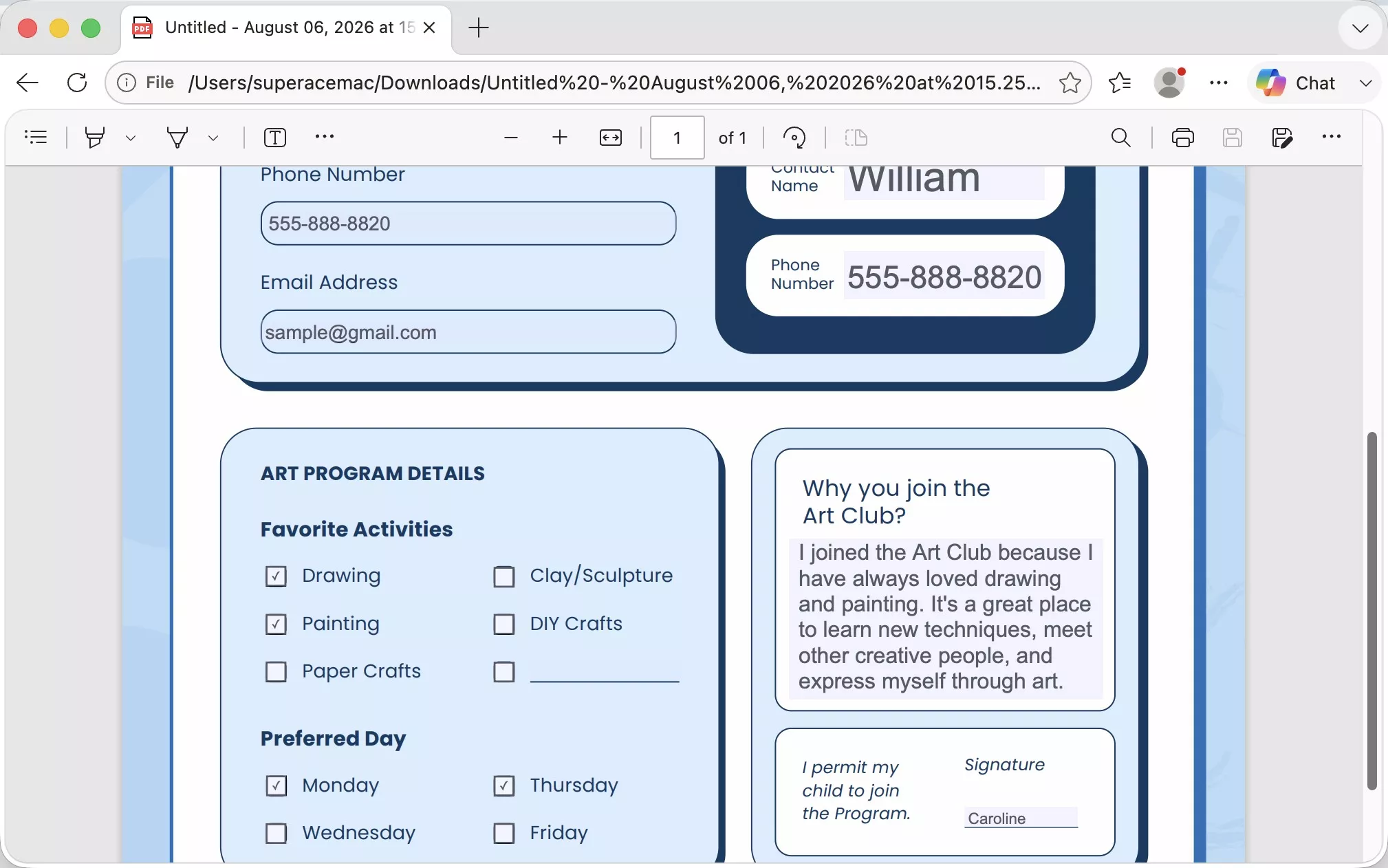
Step 3. Press Ctrl + S to save a filled copy, or use Save As to keep the blank original untouched.
What Edge can and can't fill. Edge's built-in "basic form filling" is reliable for ordinary forms but has clear limits — worth knowing before you rely on it:
- Standard AcroForm PDFs — ✅ fills normally.
- Forms driven by PDF JavaScript (auto-calculating fields, conditional logic) — ⚠️ may not work correctly.
- XFA / Adobe LiveCycle dynamic forms — ⚠️ limited support by default; not something to depend on.
- Scanned or flattened PDFs — ❌ no fields exist, so Edge has nothing to fill.
- Digital signatures — ❌ Edge can add a handwritten annotation, but not a Digital ID–based signature.
Microsoft documents this behavior in the official Microsoft Edge PDF reader documentation.
Best for:
- ordinary interactive forms you need to fill once and send back, with no software to install.
Not for:
- scanned or flattened forms, forms with heavy JavaScript logic, or anything needing a real digital signature — for those, use UPDF below.
Part 4. Method 2 — Fill Any Form (Including Scanned Ones) with UPDF
Where Edge stops, UPDF continues. It fills interactive forms just as easily, but its real advantage on Windows is the two situations Edge can't touch: flat forms (scanned images or flattened electronic PDFs) and Office files sent to you as forms.
Fill an interactive, flattened, or scanned form:
Step 1. Open the document in UPDF — if you don't have it yet, download UPDF for free and install it in under a minute — then use Open File to load your form.
Windows • macOS • iOS • Android 100% secure
Step 2. If your form is a scanned image, run OCR first: go to Tools → OCR, pick the document language, and convert it to a searchable PDF so the text becomes real, recognizable text. Skip this step for interactive forms and for flattened electronic PDFs that already have a text layer.
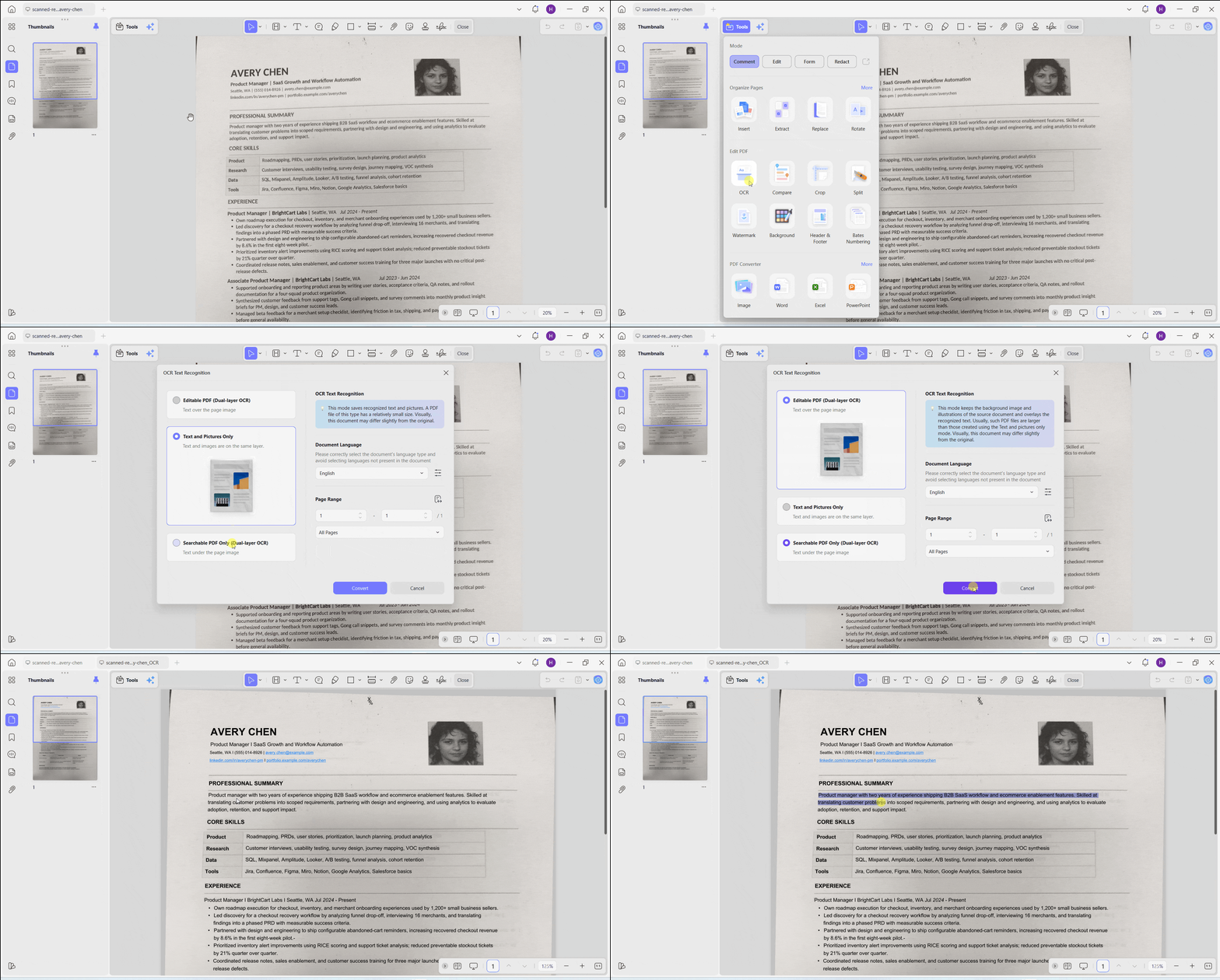
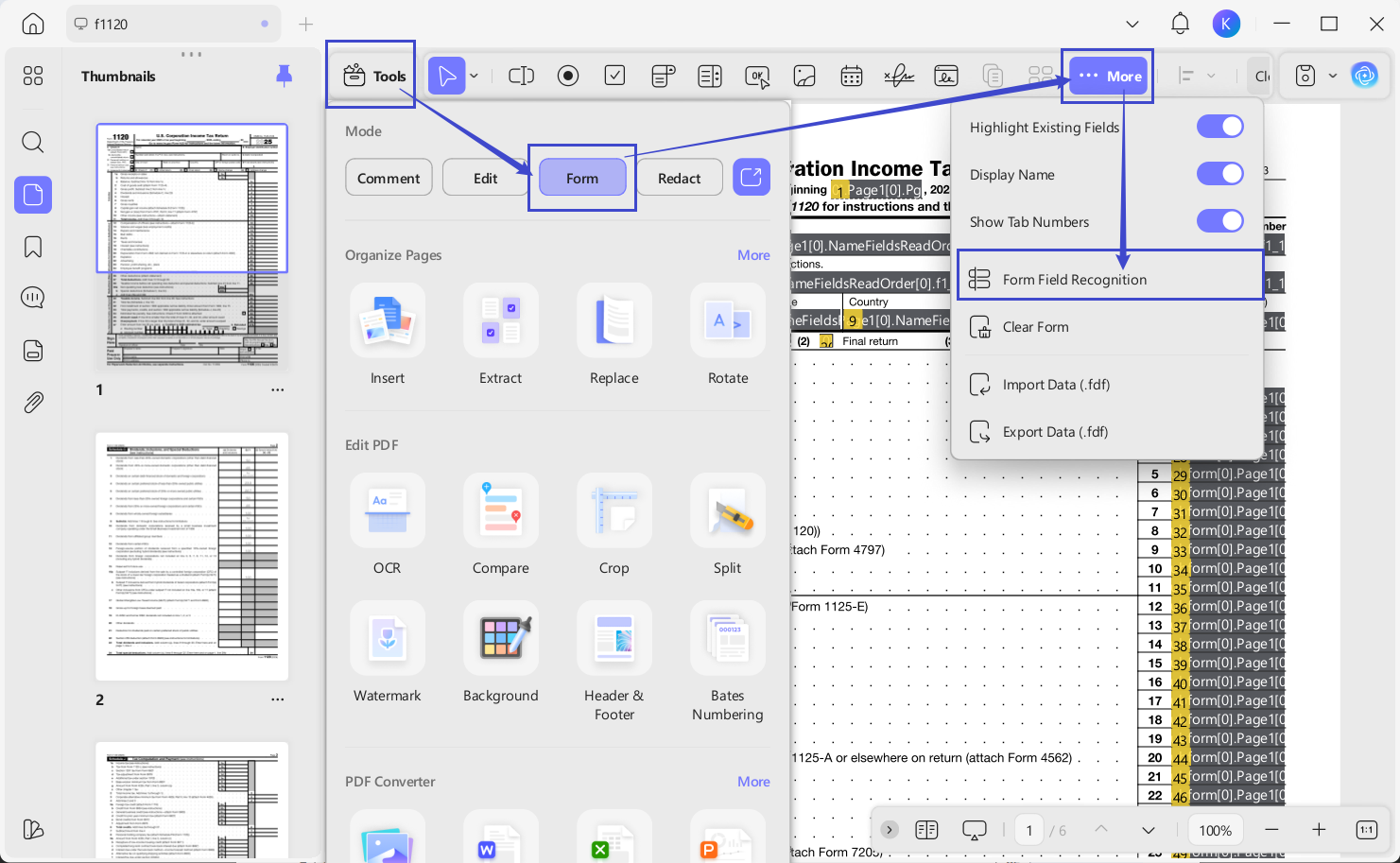
Step 3. Enter Form mode and turn on Form Field Recognition. On a flat or freshly-OCR'd form, UPDF detects where the fields belong and makes them fillable; on an interactive form it simply highlights the existing fields.
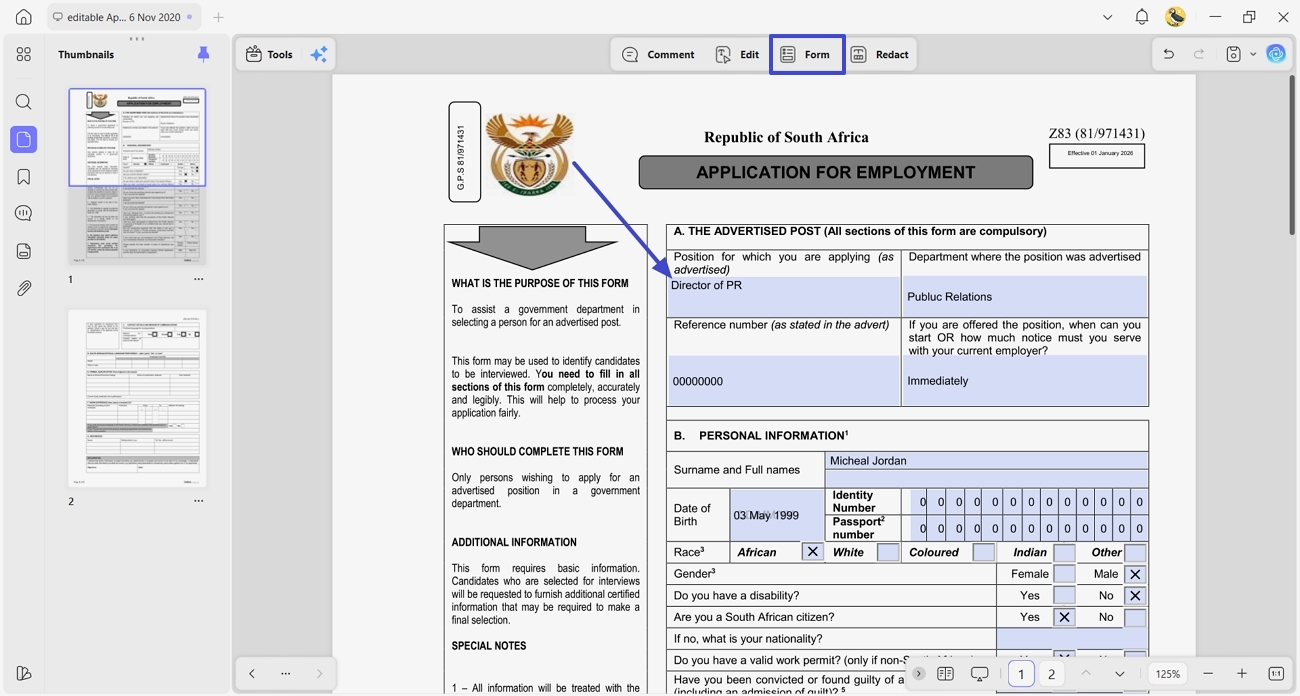
Step 4. Switch to Comment or Reader mode and click each field to type, tick checkboxes, or choose from dropdowns.
Step 5. Save the file. On the free trial, exported files carry a trial watermark; a Pro license removes it.
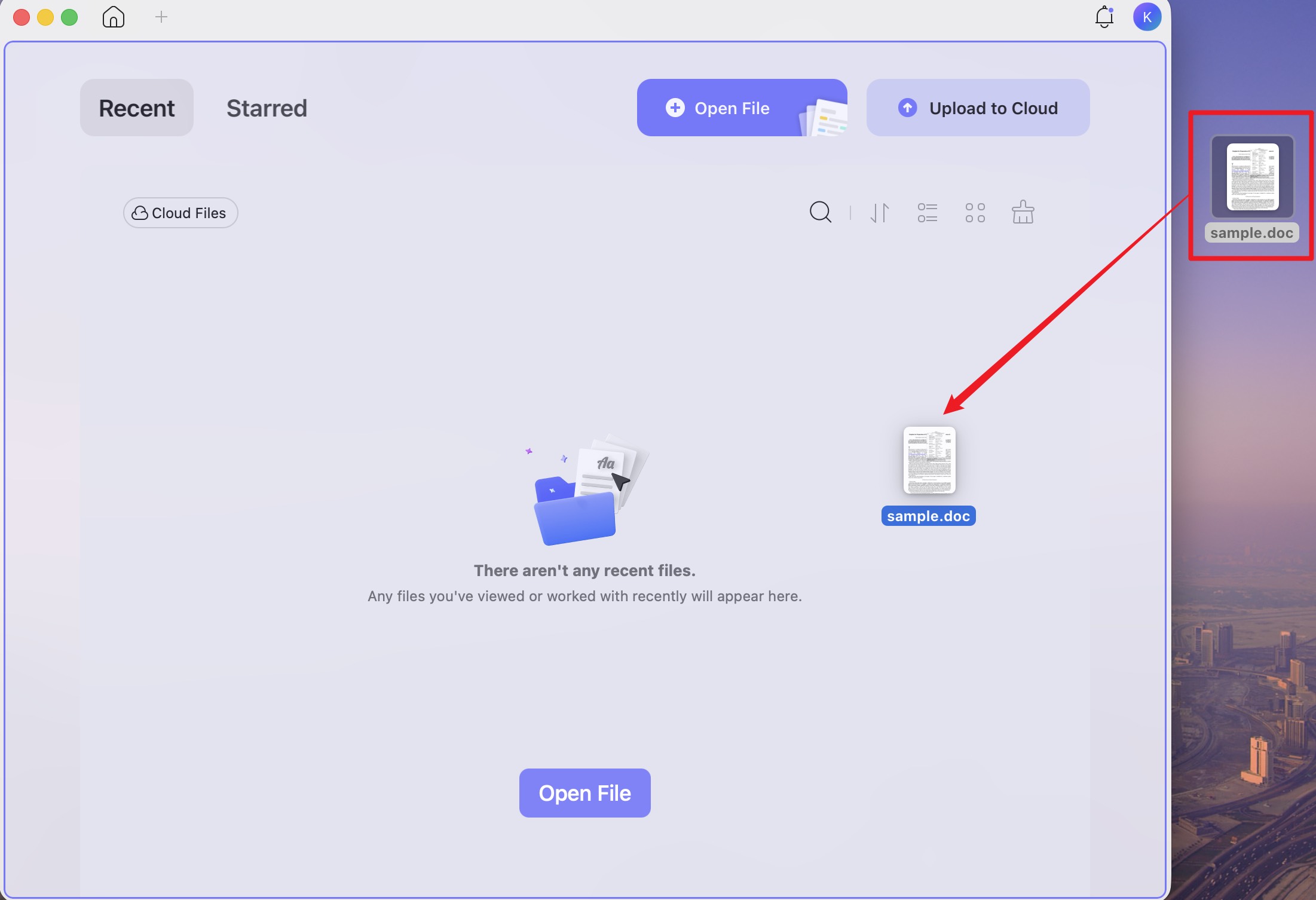
The drag-and-drop shortcut for Office forms. If someone sent you a form as a Word or Excel file, you don't need to convert it first. Drag the .docx, .xlsx, or image file straight onto the UPDF desktop window and it converts to a PDF automatically — then fill it with the steps above. This is a desktop-app convenience Edge and browser methods don't offer.
If you actually need to build a fillable form from scratch — adding your own text fields, checkboxes, and dropdowns — that's a different task; see how to create a fillable PDF without Acrobat.
A usable form needs clear labels as well as places to enter information. For a practical example of working with PDF forms in UPDF, watch the walkthrough below.
UPDF runs on Windows, Mac, iOS, and Android, so a form you start on your PC can be finished on your phone. Download UPDF for free to try filling a scanned form on your own file — installation is free, and Pro features are available when you need watermark-free export.
Windows • macOS • iOS • Android 100% secure
Best for:
- scanned/flat forms Edge can't read, Office files sent as forms, and anyone who wants one tool across Windows, Mac, and mobile.
Not for:
- users who only ever fill simple interactive forms and never touch a scanned document — Edge alone may be enough.
Part 5. Method 3 — Adobe Acrobat if You Already Use Adobe
If your team or workflow is already built around Adobe — an existing Acrobat subscription, shared Adobe Sign approvals, company-standard tooling — Acrobat fills and signs forms competently and fits what you already have.
Step 1. Open the form in Adobe Acrobat.
Step 2. Choose Fill & Sign from All tools.
Step 3. Click each field to type, or select options in dropdowns.
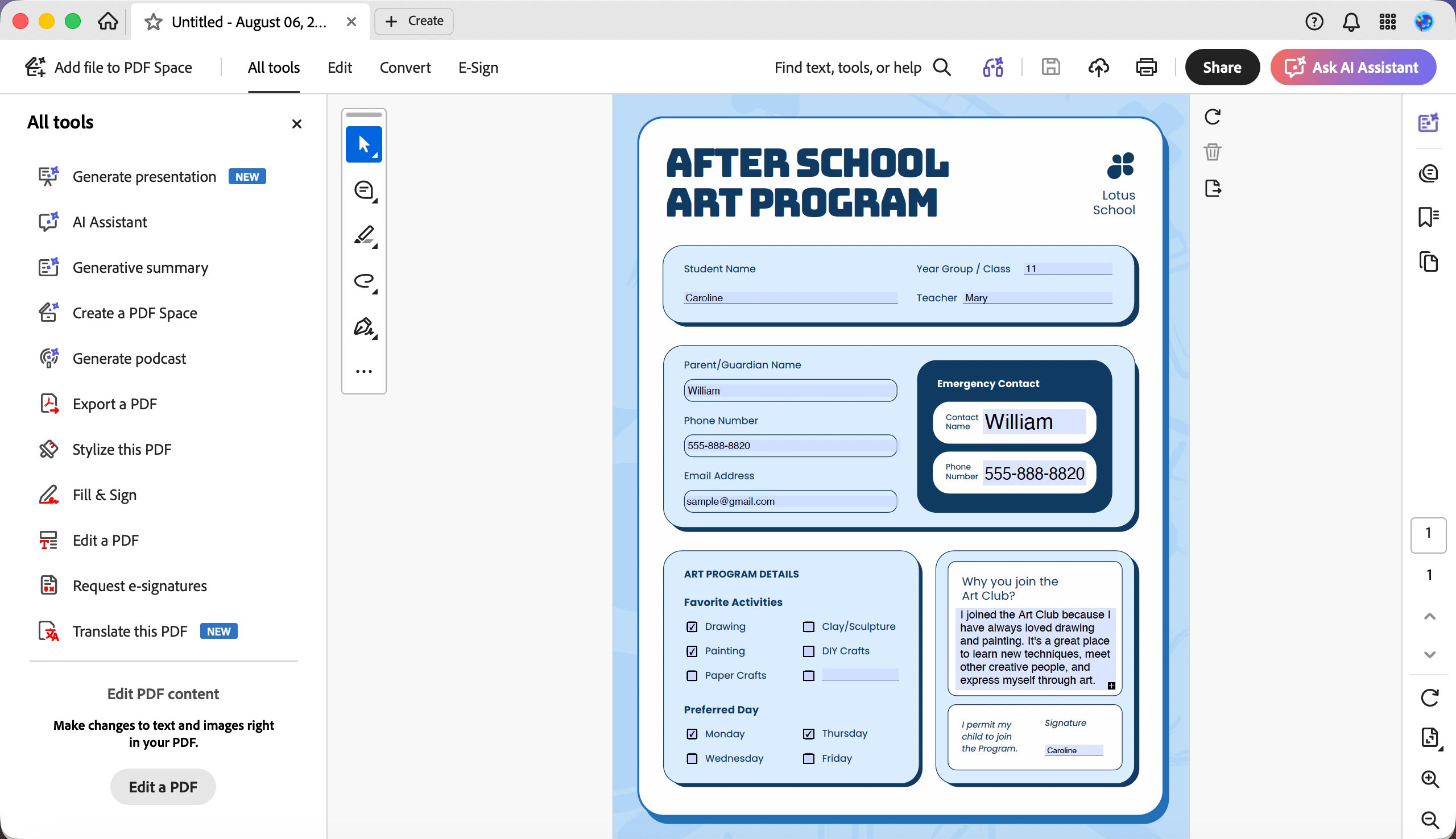
Step 4. To sign, use the digital signature field and apply your Digital ID; then save the filled form.
The trade-off is cost. Acrobat is subscription-only — around US$19.99/month on the annual plan (roughly US$239.88/year) — and Adobe has not offered a true perpetual license since 2021. For occasional form filling that's a steep price next to a built-in browser or a one-time UPDF license.
Best for:
- teams already paying for an Acrobat subscription or standardized on Adobe Sign.
Not for:
- filling a form once or twice — the subscription rarely justifies itself for casual use, and Edge or UPDF cover the same tasks without it.
Locking your answers into a clean copy. Once any form is filled, you can flatten it so the recipient can't change your entries: open the filled PDF, choose Print, pick Microsoft Print to PDF as the printer, and save. This built-in Windows printer produces a flattened copy — it doesn't fill forms itself, it just freezes a finished one.
Part 6. Windows Form-Filling Methods Compared
| Method | Fills scanned/flat forms | Digital signature | Cost | Main limitation |
|---|---|---|---|---|
| Microsoft Edge | ❌ No | Handwritten only | Free (built-in) | No fields on scanned forms; weak on JavaScript/XFA forms |
| UPDF | ✅ Yes (Form Field Recognition) | ✅ Electronic + Digital ID | Free trial (watermark on export); Pro $49.99/yr or $79.99 lifetime | Watermark on free-tier export |
| Adobe Acrobat | ✅ Yes | ✅ Electronic + Digital ID | ~$19.99/mo (~$239.88/yr) | Subscription-only; expensive for casual use |
Part 7. Edge Cases: When the Standard Method Fails
Real situations Windows users hit that the steps above don't cover:
- "I can click the fields in Edge and type, but when I reopen the file it's blank." You previewed and closed without saving. Edge does not auto-save form entries — press Ctrl + S (or Save As) before closing, and reopen the saved copy, not the original.
- "The form opens but there's nowhere to click — no cursor, no boxes." The file is flat — either a flattened electronic PDF or a scanned image, so it has no fields for any reader to fill. Open it in UPDF: if it's a scan, run OCR first, then Form Field Recognition to create fillable fields; a flattened electronic PDF can go straight to Form Field Recognition. You can also add text boxes manually.
- "Fields exist but nothing happens when I click — and it's not scanned." Two common causes: the PDF is password-protected with editing restrictions, or it's an XFA/LiveCycle dynamic form Edge can't render. XFA support in Edge's native reader is off by default and only an IT administrator can enable it (via the
PDFXFAEnabledpolicy) — and even then it's unreliable, so open the form in UPDF or Acrobat instead. - "My auto-calculating invoice fields don't add up in Edge." Those totals rely on PDF JavaScript, which Edge doesn't fully run. Fill the form in a dedicated editor so the calculations execute.
Part 8. FAQ
1. Can I fill out a PDF form on Windows without any software?
Yes. Microsoft Edge is built into Windows 10 and 11 and fills interactive PDF forms with no extra install.
2. Is there any difference between Windows 10 and Windows 11 for filling forms?
No meaningful difference. Edge behaves the same on both, and UPDF and Acrobat support both versions.
3. My checkbox turns into an "X" instead of a checkmark — can I change it?
That's the form's own field style, set by whoever built it. You can't change it in Edge; a dedicated editor like UPDF lets you edit the field's appearance if you need a specific mark.
4. A form field cuts off my text or won't fit the whole answer — what do I do?
The field has a fixed size or font set by its creator. In Edge you're stuck with it; in UPDF you can resize the field or shrink the font so the full answer shows.
Conclusion
Filling a PDF form on Windows comes down to matching the method to the form: Microsoft Edge handles ordinary interactive forms for free, UPDF fills the scanned, flattened, and Office-based forms Edge can't — thanks to Form Field Recognition and drag-and-drop conversion, and it signs them too — and Adobe Acrobat fits teams already standardized on Adobe.
For the widest coverage across form types and devices, download UPDF for free to try filling a scanned or flat form on your own file — installation is free, and Pro features are available when you need watermark-free export or advanced tools.
Windows • macOS • iOS • Android 100% secure







 Lizzy Lozano

 Enid Brown