UPDF
UPDF
 UPDF for Windows
 UPDF for Mac
 UPDF for iPhone/iPad
 UPDF for Android
 Nomostar
 UPDF AI Online
 UPDF Sign
 IvyCraft
 Edit PDF
 Annotate PDF
 Create PDF
 PDF Form
 Edit links
 Convert PDF
 OCR
OCR PDF to Word
 PDF to Image
 PDF to Excel
 Organize PDF
 Merge PDF
 Split PDF
 Crop PDF
 Rotate PDF
 Protect PDF
 Sign PDF
 Redact PDF
 Sanitize PDF
 Remove Security
 Read PDF
 UPDF Cloud
 Compress PDF
 Print PDF
 Batch Process
 About UPDF AI
 UPDF AI Solutions
 AI User Guide
 FAQ about UPDF AI
 Summarize PDF
 Translate PDF
 Chat with PDF
 Chat with AI
 Chat with image
 PDF to Mind Map
 Explain PDF
 PDF AI Tools
 Image AI Tools
 AI Chat Tools
 AI Writing Tools
 AI Study Tools
 AI Working Tools
 Other AI Tools
 AI Bookmark Generation
 AI Bookmark Summary
 AI Watermark Generation
 AI Background Generation
 AI Sticker Generation
 AI Stamp Generation
 AI Editing Suite
 UPDF Copilot
 AI Page Management
 AI Semantic Search
 PDF to Word
 PDF to Excel
 PDF to PowerPoint
 Enterprise Solution
 Enterprise Sign
 Enterprise AI
 Enterprise Plan
 Enterprise User Guide
 Enterprise Webinar
 Banking
 Healthcare
 Insurance
 Legal
Legal Manufacturing
 Government
 Researchers & PhDs
 Solopreneurs & Freelancers
 Lawyers & Legal Professionals
 Real Estate Agents & Brokers
 Education Solution
 Customer Stories
 User Guide
 UPDF Tricks
 FAQs
FAQs UPDF Reviews
 Download Center
 Blog
Blog Newsroom
 Tech Spec
 Updates
 UPDF vs. Adobe Acrobat
 UPDF vs. Foxit
 UPDF vs. PDF Expert

Quick Answer:
Do you want to put several images into one comprehensive file? Combining multiple photos is a great way to share them through email or create a portfolio of your visual content. And, what could be better than merging them into a secure file format like PDF?
PDF files are popular as they provide a reliable solution to share and view documents across all platforms. You can easily merge multiple images into a PDF on Mac with Preview. But, if you don't know how to do it, we are here to help!
This article will guide you on how to combine images into PDF on Mac with Preview. We will also introduce an AI-powered PDF editor - UPDF that offers versatile ways to put several images into a PDF. If you do not like Preview, you can click the below button to use UPDF directly.
Windows • macOS • iOS • Android 100% secure
So, let's get started!
Part 1. Which Method Should You Use?
| Your situation | Best method | Main limitation |
|---|---|---|
| You need one PDF quickly and do not want to install anything | Preview: Print to PDF | Limited post-creation editing and batch controls |
| You need to mix images with PDFs or office files, review a long batch, crop pages, edit the result, or run OCR | UPDF for Mac | Requires installing a separate app; some exported trial files may carry a watermark |
Preview is enough for a receipt packet, scanned homework, or a short photo set. UPDF becomes useful when creating the PDF is only the first step and the document still needs cleanup, searchable text, security, or page-level changes.
Part 2. How to Use Preview to Combine Images into One PDF?
Apple Preview's 'combine images into PDF' feature offers a handy solution as it is readily installed on all Mac devices. It is also easy to use for all skill levels. You can use it in two different ways to merge photos together in a PDF.
Read on below to find out more about these methods.
Method 1. Combine Images Into One PDF Using Exporting as PDF
Mac Preview can export multiple images to PDF including scanned images and photographs. This method is pretty straightforward and requires no technical steps.
However, the "Export as PDF" option will only export the top image in Preview as a PDF and not combine all of them. But this can be easily handled by merging all of the created PDFs into one using the Finder.
If you don't know how it's done, we've got a step-by-step guide for it below.
Step 1
Select the image you want to combine in a PDF and go to the "File" tab. Then select "Open" to view the image in Preview.
Step 2
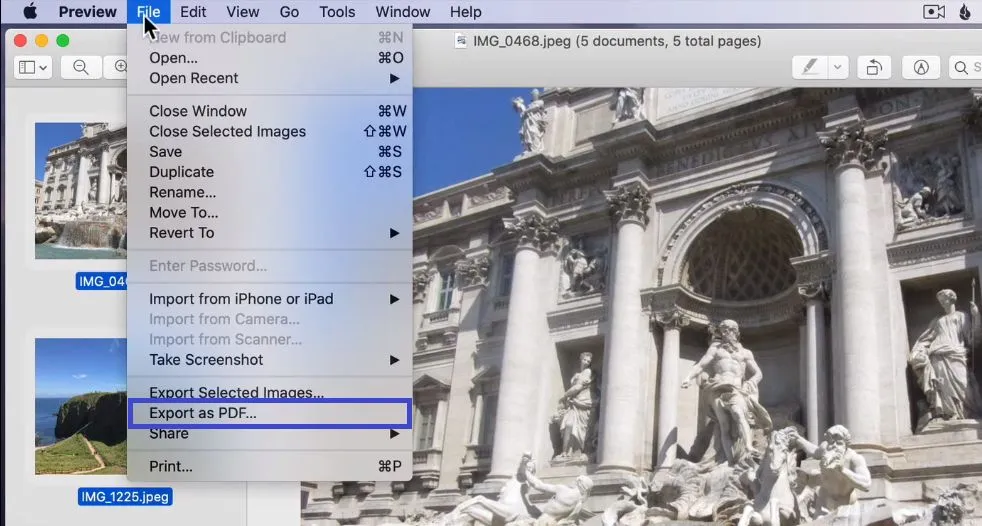
Click on "File" once your image is opened in Preview and select "Export as PDF." Do this for all the images until all are converted into a PDF.
Step 3
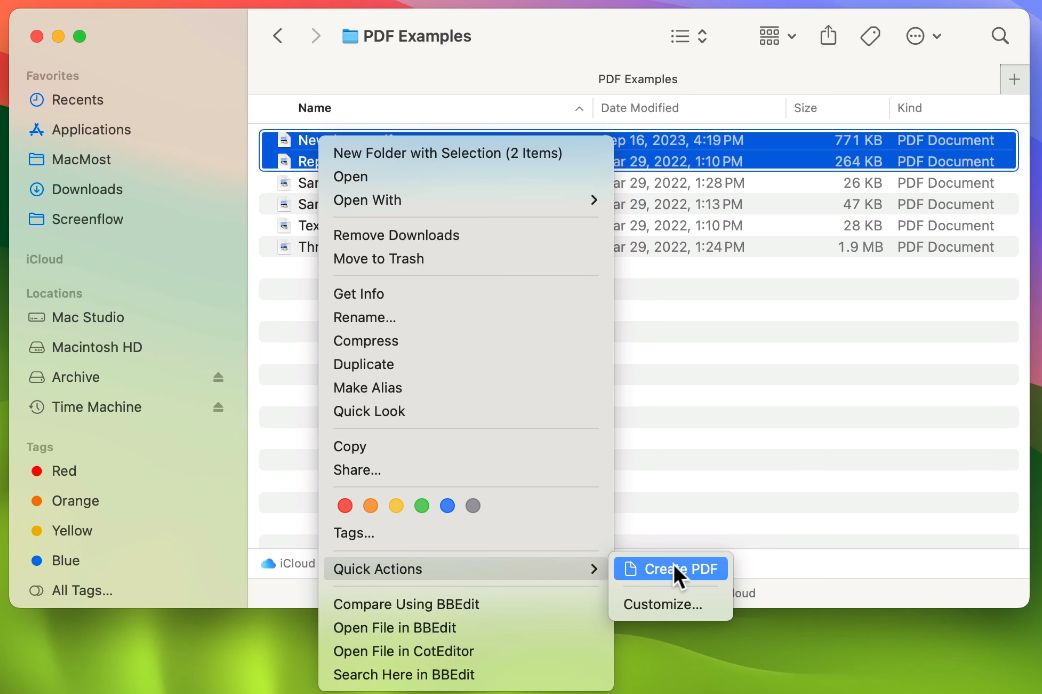
Select all the converted PDF files, and double-click on them. Select "Quick Actions" and choose "Create PDF." This will combine all images into one PDF.
Step 4
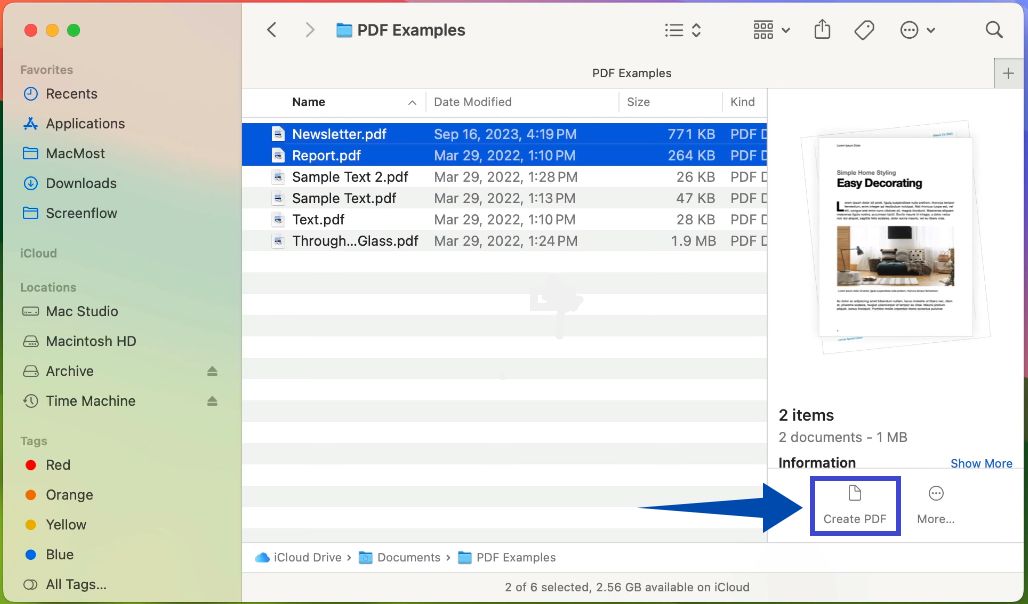
If you're not seeing a "Quick Actions" option, there is a way around it. Select all the converted PDF, click on "View" and choose "Show Preview" to bring up the files' preview on the right side.
Step 5
With your files still selected, go to their preview section and select "Create PDF" to merge all images into one PDF.
Now you're all done! This method is useful if you're looking to combine a small number of images. But, you can also use Mac Preview to create PDF from multiple images at once. Let's find out how it's done below.
Method 2. Combine Images into One PDF Using Printing
Mac Preview combines images into PDF with its handy print feature as well. It lets you adjust the page size, and orientation and even auto-rotate the images as required. You can also select the specific number of images you want to merge using the page range option.
Let's explore how to use this method to put several images into one PDF.
Step 1
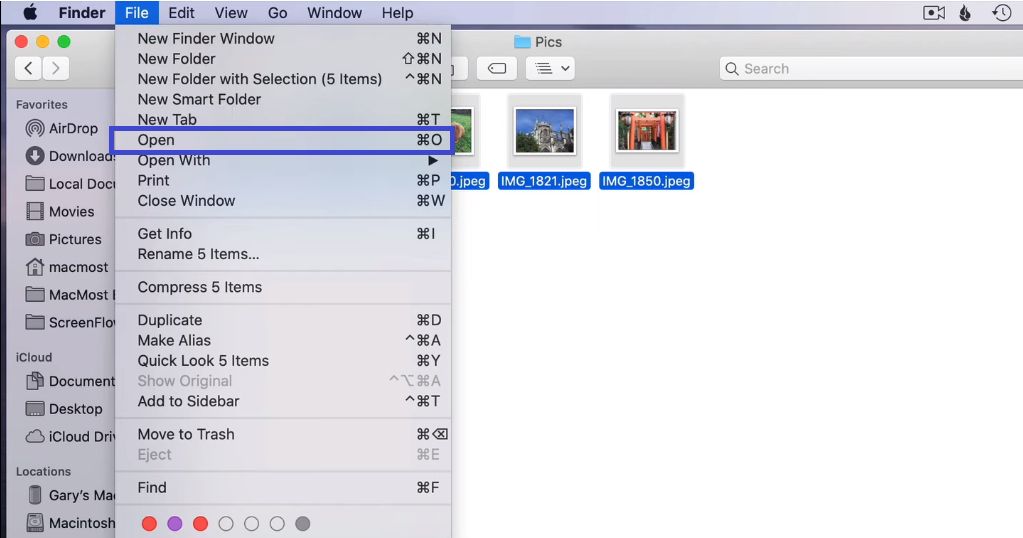
Select all of the images and go to the "File" tab. Select "Open" to view all of the images in Preview. If your images are scattered to different folders, you can drag and drop them into the Preview sidebar.
Step 2
If you don't see a thumbnail preview in the left sidebar, click on the small screen icon next to the image name. Then select "Thumbnails" to bring up the previews in the sidebar.
Step 3
Arrange the images in your preferred order with a quick drag and drop and select all the images. To do this, click on the first image then hold the SHIFT key and click on the last image to select all at once.
Step 4
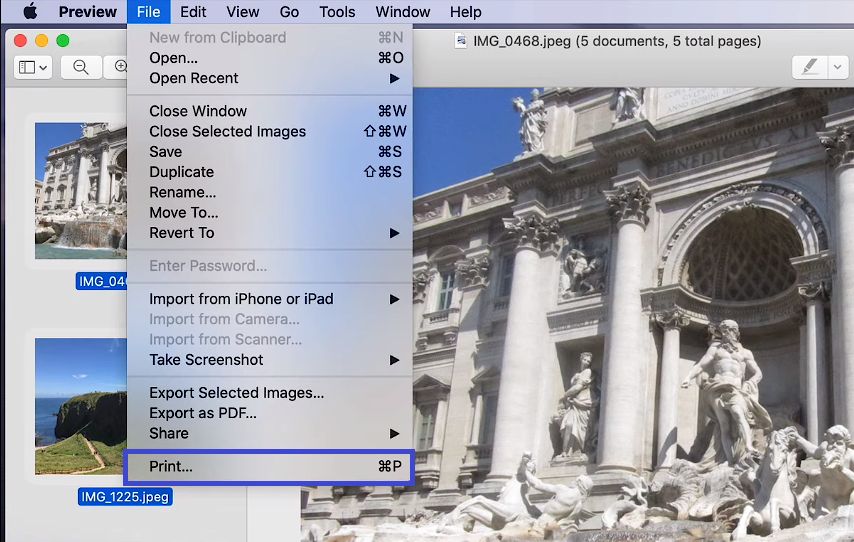
Once your images are all selected, go to the "File" tab in the top menu. Then, select "Print" located all the way to the end.
Step 5
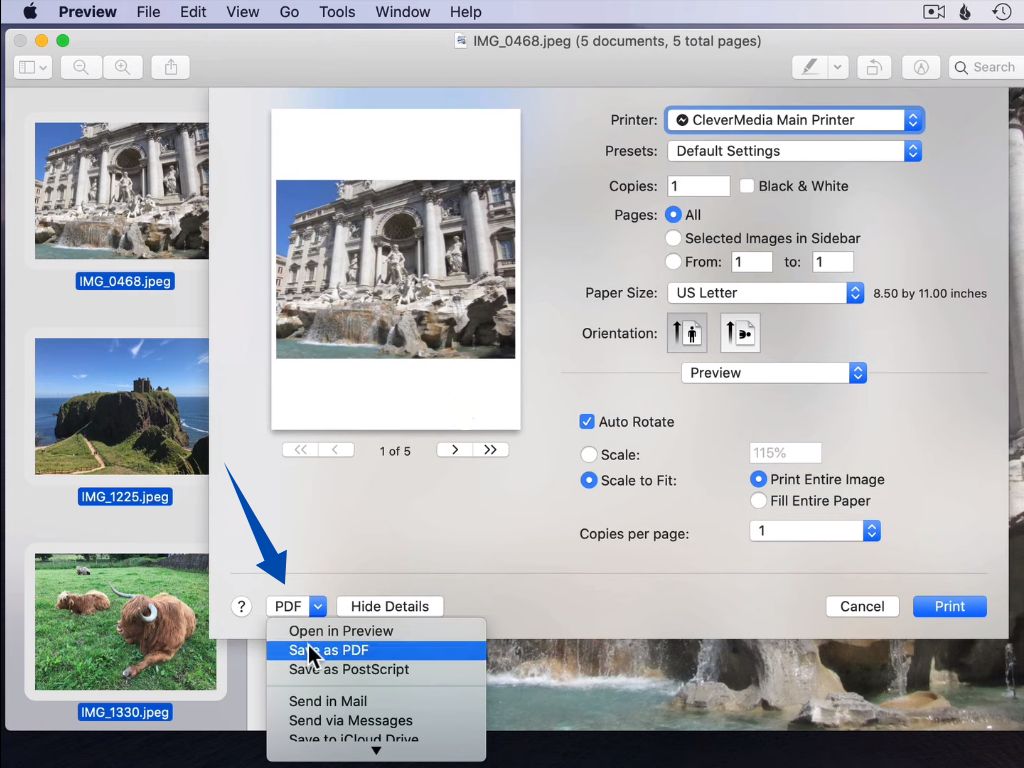
Uncheck "Auto Rotate" if you want to preserve the original orientation of your images. Then, click the dropdown arrow next to "PDF" at the bottom of the window and select "Save as PDF."
Step 6
Rename your file in the text field next to "Save as" and click on "Save" to store the PDF on your device.
That's all. Mac Preview can merge images into PDF in a straightforward process. However, it does not offer many customization options. You cannot edit your images or extract text from image-based scans.
Are you looking for a more versatile solution that gives you full command over editing and organizing all aspects of your images? We've got a powerful alternative to Mac Preview for you below!
Part 2. How to Combine Images into PDF on Mac Without Preview? (3 Ways)
You can easily merge several images into a PDF on Mac without using Preview. And the secret lies in using an advanced PDF solution like UPDF for Mac! It is the best alternative to Mac Preview with it versatile PDF managing solutions! Powered with AI, UPDF provides flexible ways to merge and organize your images into one PDF file format.
What makes UPDF a cut above is its ability to let you edit all elements of your images after combining them. Whether you need to crop, split, replace, delete, and add the images or the entire PDF pages, UPDF has got you covered! The cool thing about UPDF is that you can also combine other file formats with the images to create one PDF file. Just click the below button to test all features.
Windows • macOS • iOS • Android 100% secure
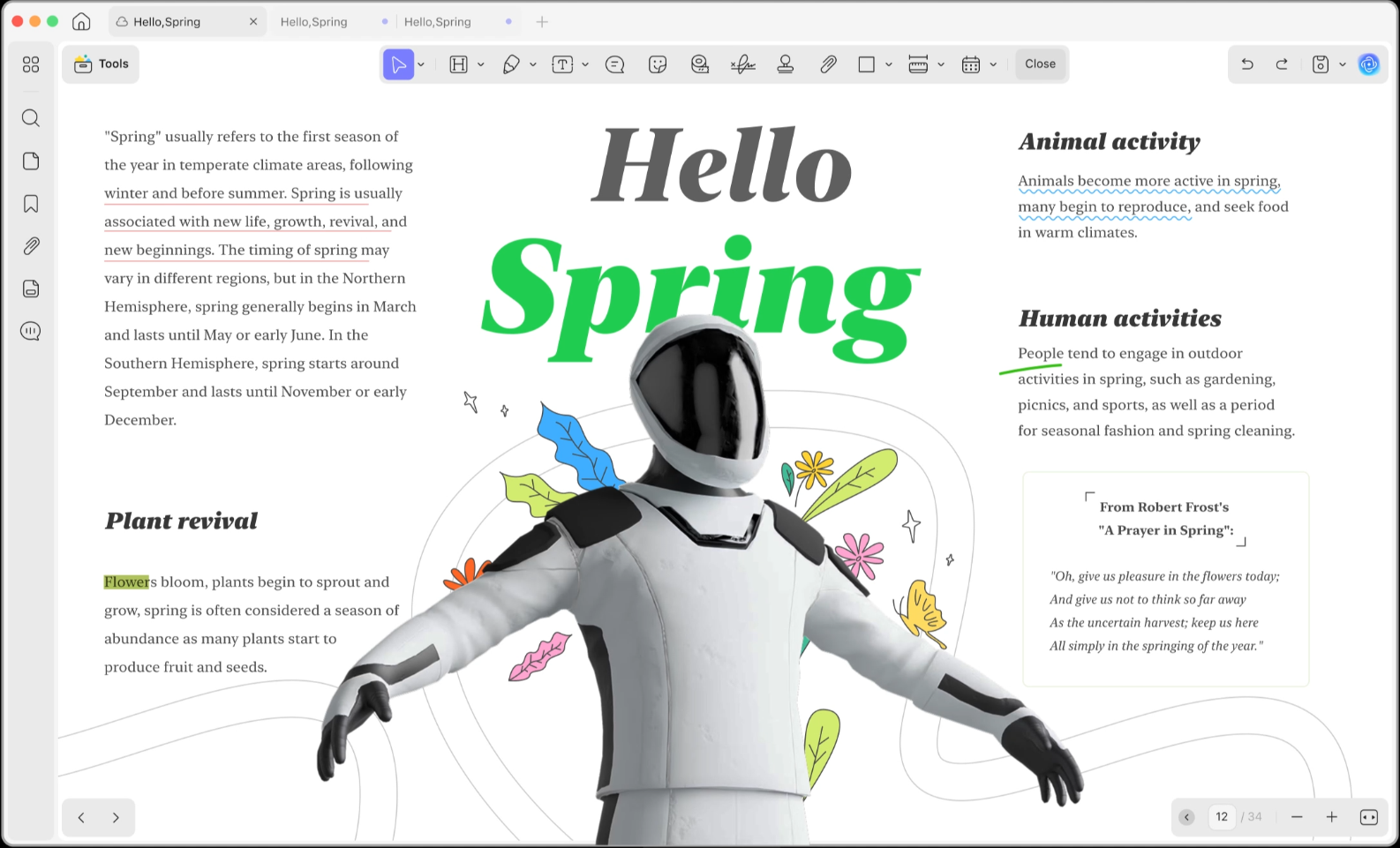
And, if you're looking to build a professional portfolio of your photographs, you can add new text, shapes, stamps, and stickers to highlight the important details. The best part? UPDF lets you password protect and add print limits to your image-turned-PDF files. This ensures that your photos remain untampered when shared across platforms!
But that's not all, UPDF has much more to offer! Learn more about its advanced features for Mac users by watching the video below.
If you want to experience the most productive solutions to handle your documents, give UPDF a try. It is the ultimate way to supercharge your creativity! Download it now and make your documents stand out with its powerful AI-driven solutions!
Windows • macOS • iOS • Android 100% secure
Owing to its versatility, UPDF lets you merge images into a PDF with a quick drag and drop, create PDF from files, and even batch combine. Let's explore how these methods work below!
Way 1. Combine Images into PDF using the Batch Combine Feature
The best tool that can be used is UPDF. This universal tool lets you merge images into a PDF in just seconds. There’s no need to worry about file formats—it supports PNG, GIF, JPG, JPEG, TIFF, BMP, and more. On Mac, it even works with nearly all image formats. Best of all, you don’t need any technical skills to use it. With just a few clicks, you can effortlessly combine multiple images into one high-quality PDF.
Step 1: Download UPDF
First of all, download UPDF from the button below. After downloading, follow the underneath steps:
Windows • macOS • iOS • Android 100% secure
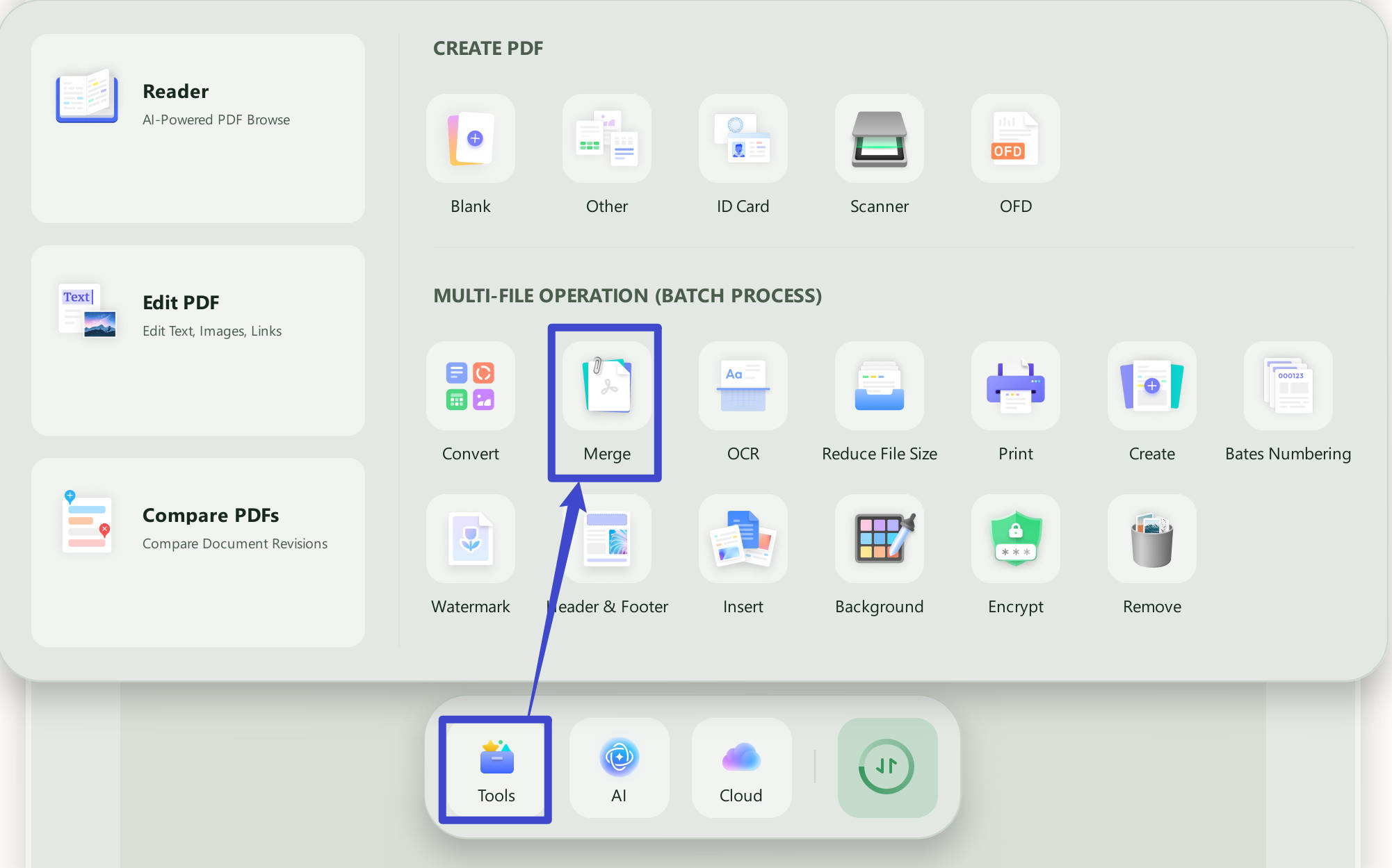
Step 2: Launch and Click "Tools > Merge"
Launch the UPDF on your device. Click on the "Tools". Now, select the "Merge" option.
Step 3: Combine Photos to a PDF
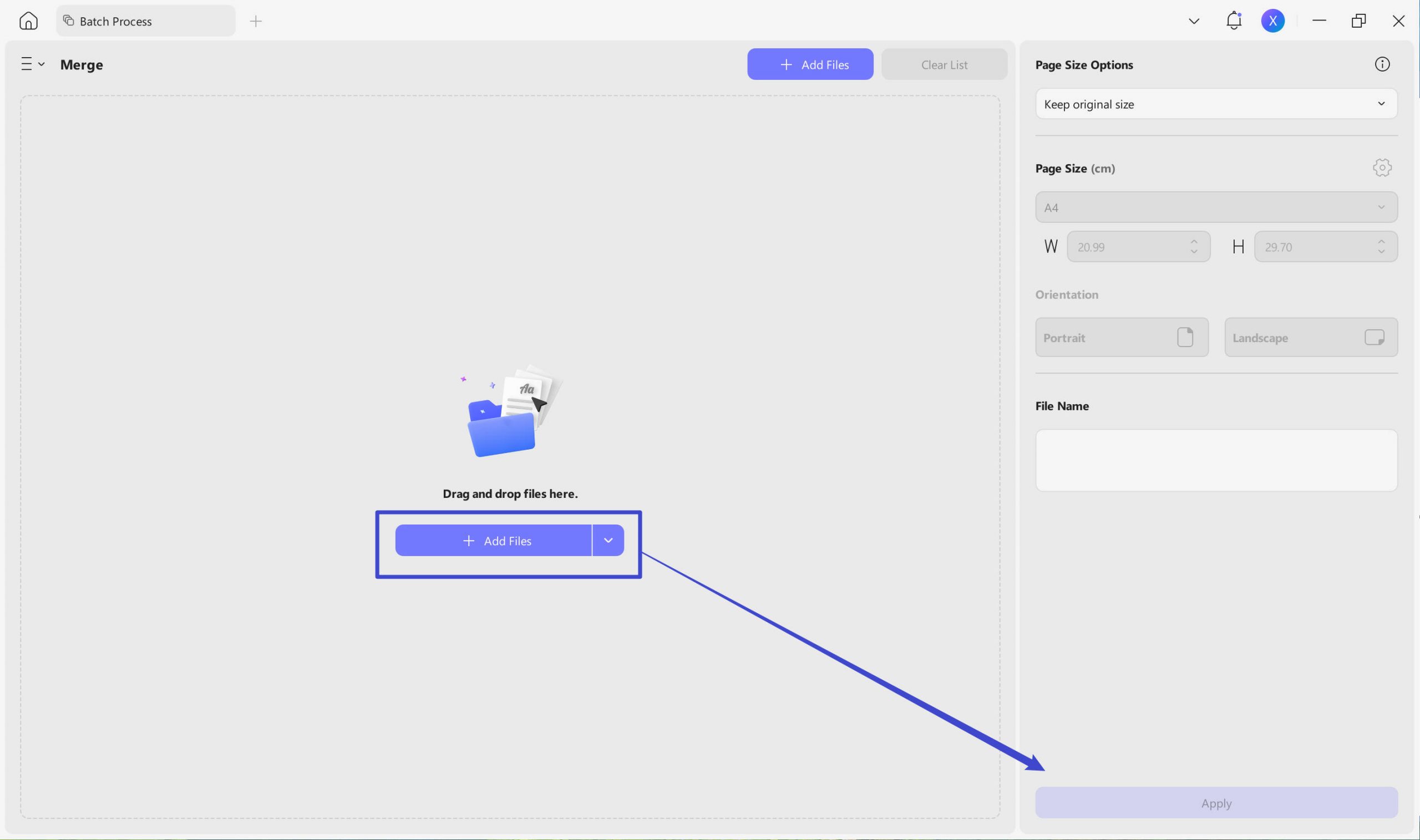
Select the "+ Add Files" button and hit "Add Files" to add all the images you want to merge into a PDF file.
After adding the images, you can remove the unnecessary or mistakenly added pictures from the list by clicking on the "Three Dots" menu and choosing the "Remove File" option. You can also reorder them by dragging and dropping them.
Once the image list is ready, click on the "Apply" button. Save the PDF file anywhere you want on your device with a suitable title.
Way 2. Combine Photos Into a PDF using the Create Feature
Simply follow the steps below to combine all your images into a single PDF using the Create from Image feature. Click the button below to download UPDF and get started right away.
Windows • macOS • iOS • Android 100% secure
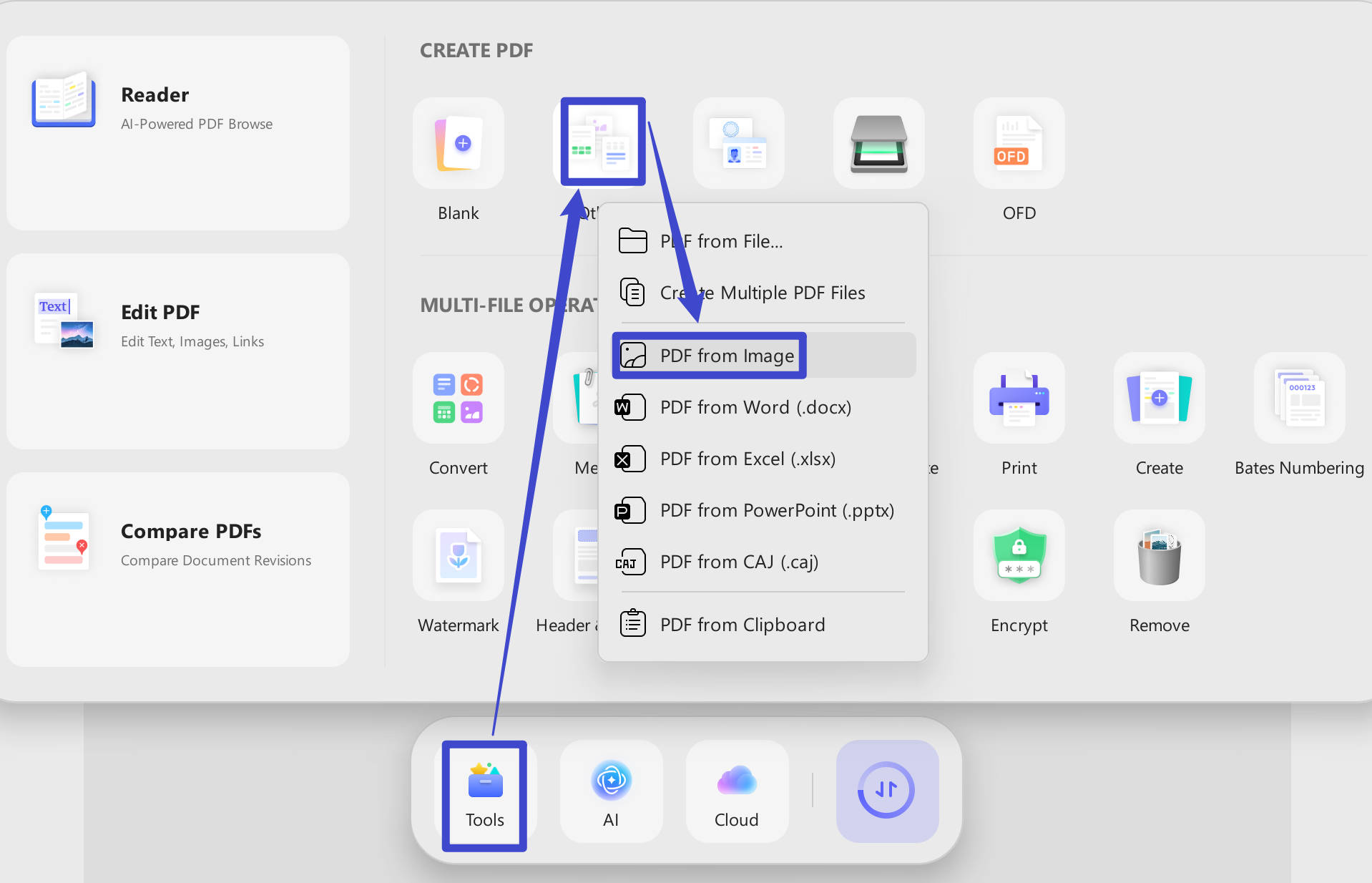
Step 1: Create a New PDF from Images
Open the UPDF tool on your device. Choose the "Tools" option to use the "PDF from Image" feature for combining images into a PDF.
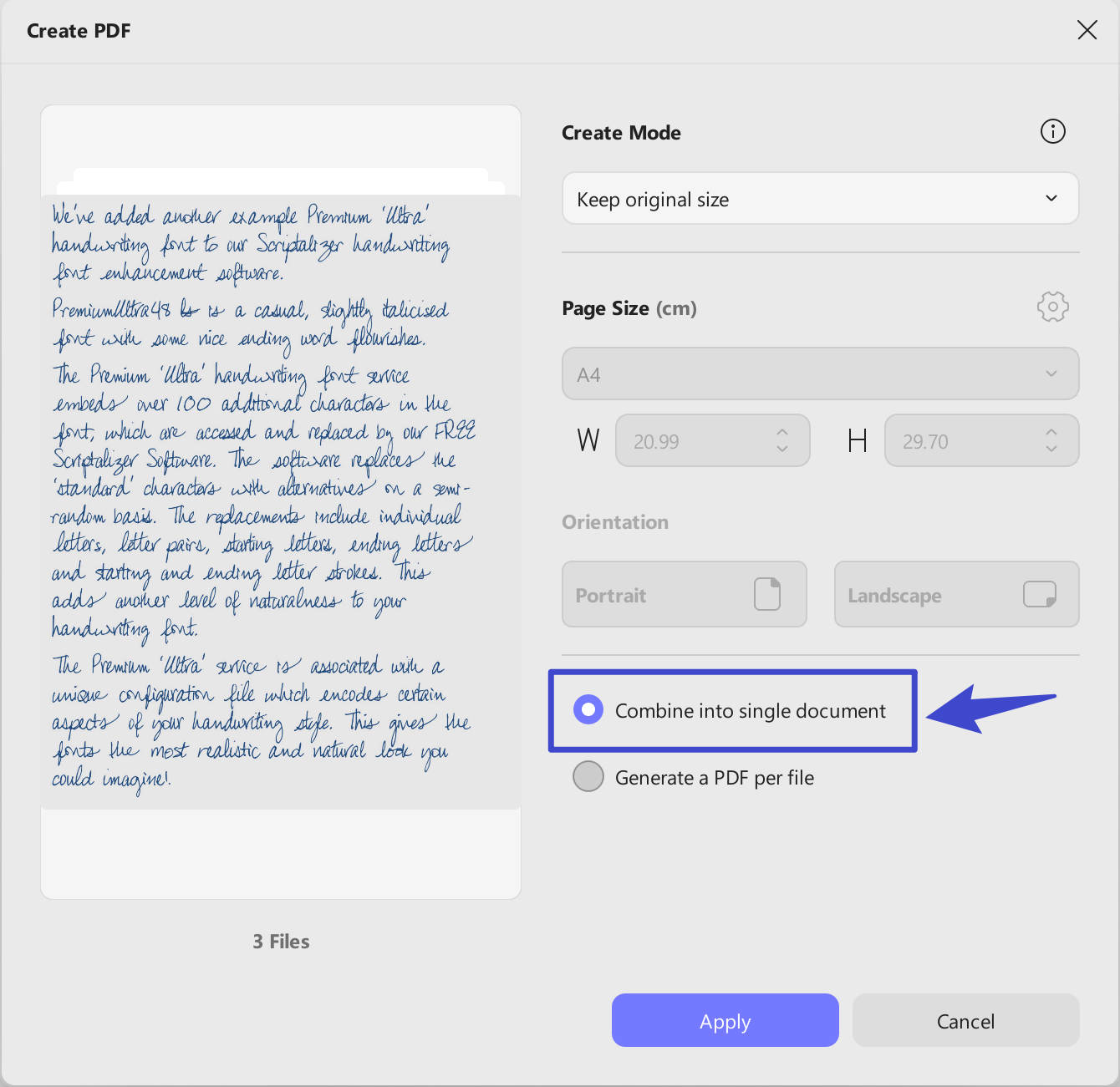
Step 2: Add and Combine Images to the Blank PDF
Now click on "Combine into single document" option. If you want all the images to be created into separate PDF files, click the "Generate a PDF per file" option. Then click "Apply" to finish the process.
Step 3: Save the PDF Document
Next, save the PDF on your device. Select the location and save it successfully.
FAQs
Q1. Can I combine JPG and PNG files in the same PDF on Mac?
Yes, if Preview opens both formats. Open the JPG and PNG files together, arrange their thumbnails, select all thumbnails, and save through the Print dialog.
Q2. Does combining images into a PDF reduce image quality?
Not necessarily. The merge itself does not require aggressive compression, but print scaling, export filters, and later compression can change resolution. Inspect the result at 100% zoom before deleting the source images.
Q3. Can I make the image text searchable after combining it?
Yes, by running OCR afterward. Preview's merge process only places images into PDF pages. Use an OCR-capable PDF editor, then proofread the recognized text.
Conclusion
Combining various images into a single PDF offers an organized way to share the visual content across all devices. It also lets you create presentations, compile reports or build a strong portfolio of your photography skills.
We have provided a full guide on how to combine images into PDF on Mac with Preview. It provides two easy ways to quickly combine your desired images into a PDF document using its export and print features.
If you're seeking a more advanced solution you can use UPDF to quickly create a PDF from images. It delivers versatile ways to merge images into a PDF and also enhances the appeal of your document with powerful PDF tools.
So, don't settle for less! Download UPDF now and make your documents stand out with one-click AI-driven solutions!
Windows • macOS • iOS • Android 100% secure



 Enola Miller
 Enid Brown

 Enrica Taylor