UPDF
UPDF
 UPDF for Windows
 UPDF for Mac
 UPDF for iPhone/iPad
 UPDF for Android
 Nomostar
 UPDF AI Online
 UPDF Sign
 IvyCraft
 Edit PDF
 Annotate PDF
 Create PDF
 PDF Form
 Edit links
 Convert PDF
 OCR
OCR PDF to Word
 PDF to Image
 PDF to Excel
 Organize PDF
 Merge PDF
 Split PDF
 Crop PDF
 Rotate PDF
 Protect PDF
 Sign PDF
 Redact PDF
 Sanitize PDF
 Remove Security
 Read PDF
 UPDF Cloud
 Compress PDF
 Print PDF
 Batch Process
 About UPDF AI
 UPDF AI Solutions
 AI User Guide
 FAQ about UPDF AI
 Summarize PDF
 Translate PDF
 Chat with PDF
 Chat with AI
 Chat with image
 PDF to Mind Map
 Explain PDF
 PDF AI Tools
 Image AI Tools
 AI Chat Tools
 AI Writing Tools
 AI Study Tools
 AI Working Tools
 Other AI Tools
 AI Bookmark Generation
 AI Bookmark Summary
 AI Watermark Generation
 AI Background Generation
 AI Sticker Generation
 AI Stamp Generation
 AI Editing Suite
 UPDF Copilot
 AI Page Management
 AI Semantic Search
 PDF to Word
 PDF to Excel
 PDF to PowerPoint
 Enterprise Solution
 Enterprise Sign
 Enterprise AI
 Enterprise Plan
 Enterprise User Guide
 Enterprise Webinar
 IT
IT Education
 Construction
 Financial Service
 Healthcare
 Insurance
 Legal
Legal Manufacturing
 Government
 Researchers & PhDs
 Solopreneurs & Freelancers
 Lawyers & Legal Professionals
 Real Estate Agents & Brokers
 Education Solution
 Customer Stories
 User Guide
 UPDF Tricks
 FAQs
FAQs UPDF Reviews
 Download Center
 Blog
Blog Newsroom
 Tech Spec
 Updates
 UPDF vs. Adobe Acrobat
 UPDF vs. Foxit
 UPDF vs. PDF Expert

Converting a PDF to Base64 turns the file’s binary bytes into text. You may need this when an API expects a document inside JSON, an integration accepts text fields, or an application requires a Data URI.
The encoding step is straightforward. The problems usually come from preparing the wrong document, exceeding a request limit, or sending the wrong output format.
This guide explains how to convert PDF to Base64 and verify the result. It also shows how UPDF and UPDF AI can support the document work surrounding conversion.
What Does PDF to Base64 Mean?
Base64 represents binary data using a text alphabet. It does not extract the words from a PDF, translate its content, or convert its pages into images.
A correct encode-and-decode round trip restores the original bytes. Consequently, a scanned PDF remains scanned, and a password-protected PDF remains protected unless you separately change it.
Base64 is also not encryption. Anyone with the encoded string can decode it. Protect the document and its transmission according to your requirements.
Standard Base64 expands each three input bytes into four characters. With padding, the output length is 4 × ceiling(input bytes ÷ 3), approximately 33% larger for substantial files. A 6 MiB PDF therefore produces about 8 MiB of Base64 text before JSON or other overhead. These figures follow the encoding defined in RFC 4648.
Tip
Choose Raw Base64 or a Data URI
Your destination determines which representation to generate.
Raw Base64 contains only the encoded data. An API may expect it as the value of a JSON field.
A Data URI includes a prefix identifying the media type and encoding:
data:application/pdf;base64,ENCODED_CONTENT
Do not add that prefix to an API field unless the specification requires it. Likewise, do not remove it from a destination that expects a complete Data URI.
Browser FileReader.readAsDataURL() produces a Data URL. MDN explains that its declaration must be removed when only the Base64 content is needed.
Warning:
Standard Base64 and Base64url use different alphabets. Follow the receiving system’s specification rather than substituting one automatically.
Prepare Your PDF with UPDF Before Encoding
Encoding preserves whatever is inside the file—including mistakes and unnecessary pages. Prepare the document first, then encode the final saved version.
UPDF’s desktop tools include editing, page organization, compression, OCR, and redaction. Availability should be checked for your platform and plan.
Windows • macOS • iOS • Android 100% secure
Correct Content and Assemble the Right Pages
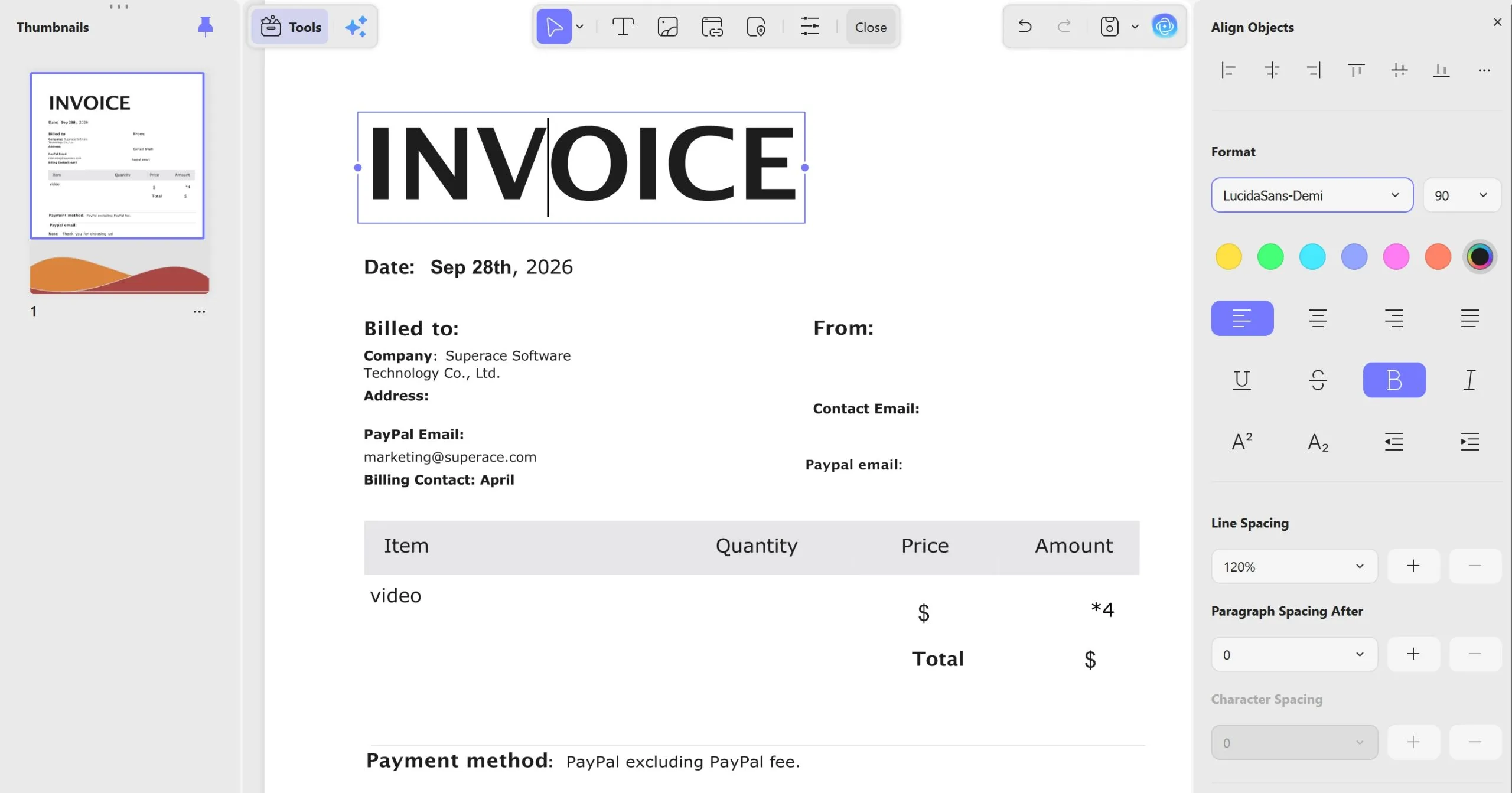
For an invoice integration, confirm the customer name, invoice number, total, and supporting pages before generating the string. Use editing and page tools to prepare the intended document.
The advantage is practical: one finalized file can become the source for both human review and machine delivery. Any later edit requires fresh encoding.
Reduce Size When the Destination Has a Limit
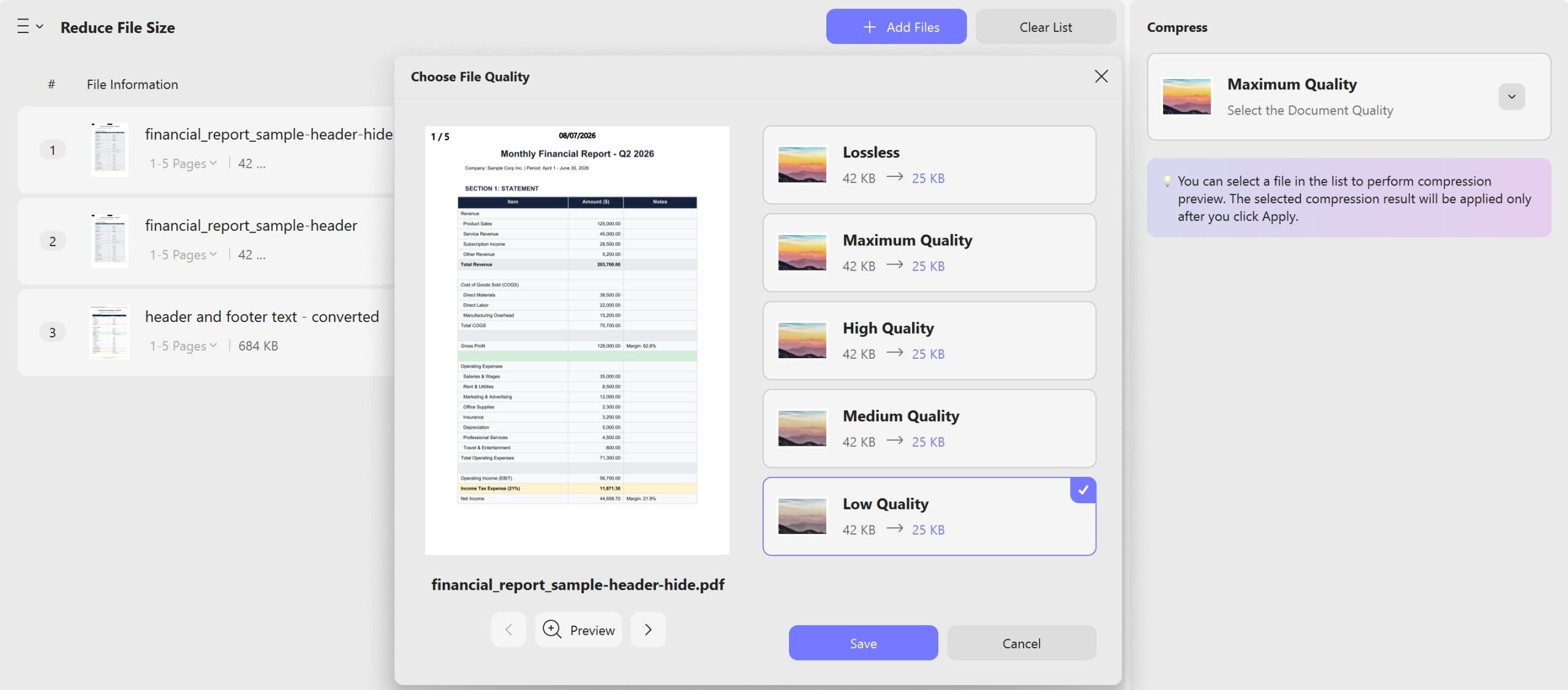
Compression can reduce the source PDF before Base64 adds overhead. Inspect small text, diagrams, stamps, and scanned details after compression.
For example, if a request has a strict limit, leave room for the encoded expansion and other fields. Do not assume that a PDF just below the request limit will fit once encoded.
Handle Scans and Sensitive Information Deliberately
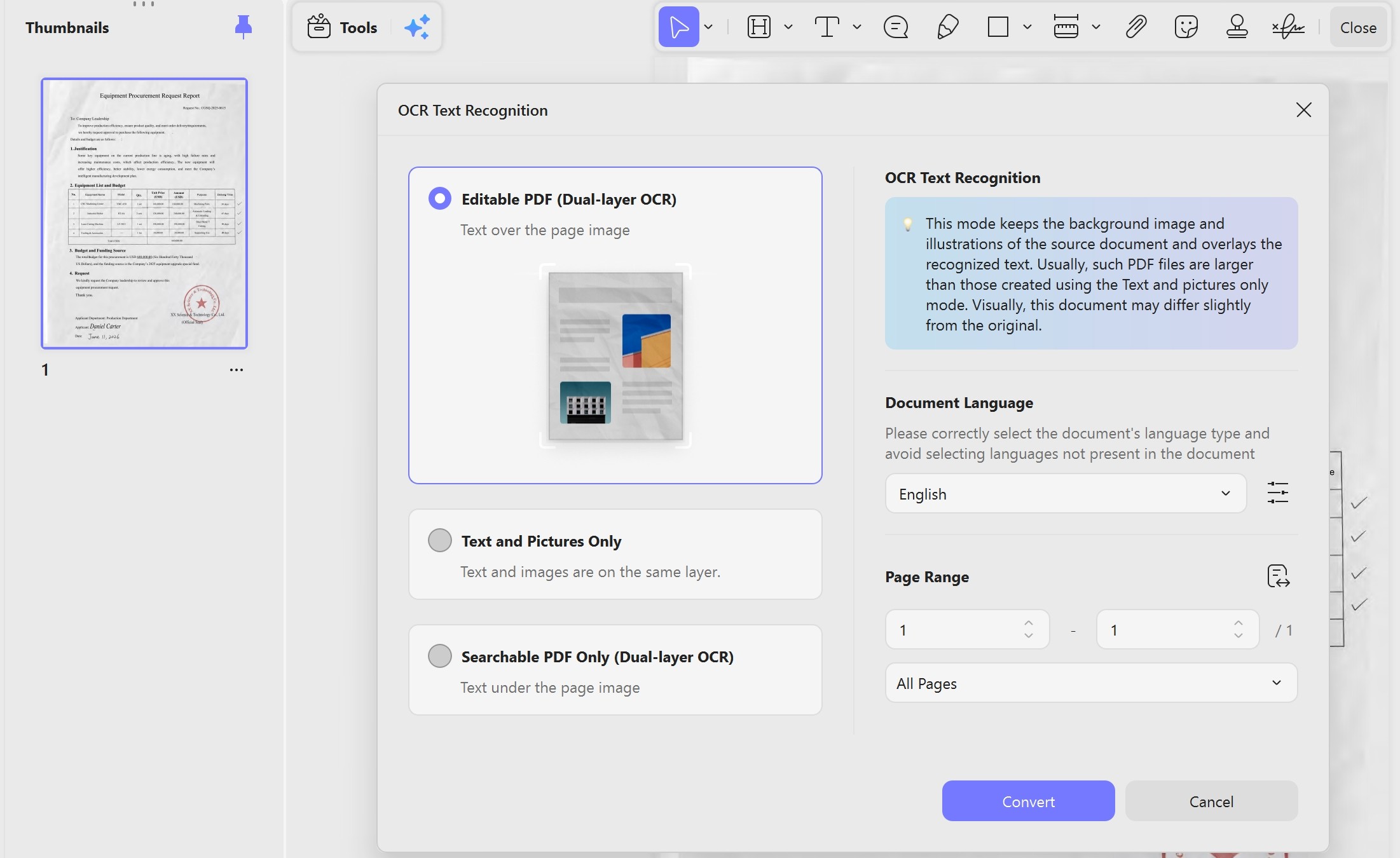
OCR may help when downstream work requires searchable text. It is unnecessary merely to encode a PDF and may change the file’s bytes or size.
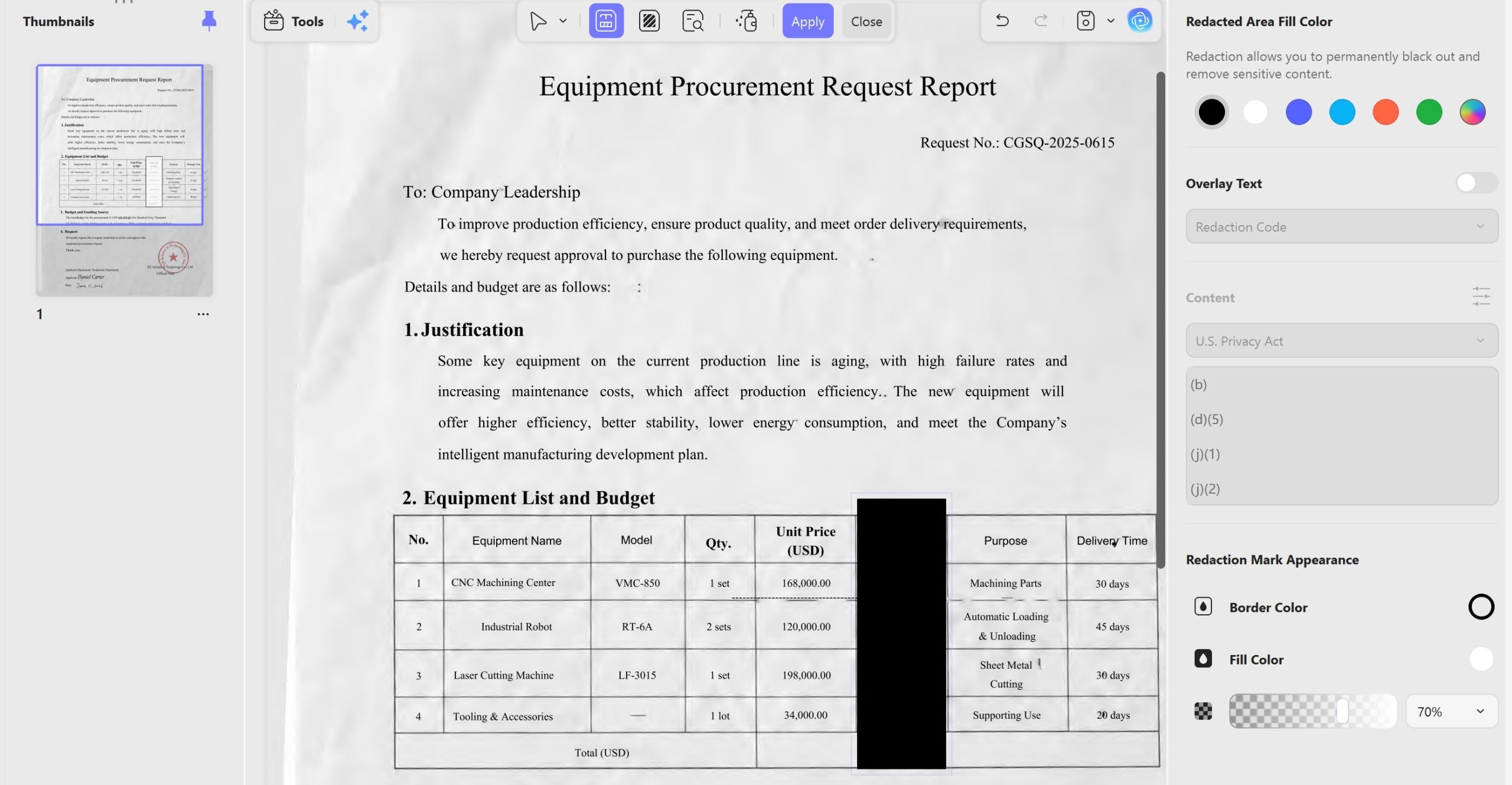
Similarly, remove confidential content through an appropriate redaction workflow before encoding. A visual cover should not be treated as verified removal.
Warning:
Editing or compressing a digitally signed document may affect signature validity. Preserve the signed original when its integrity must remain intact.
How to Convert PDF to Base64
Method A: Use a Browser Converter
A browser converter is convenient for occasional work.
Select a file-based PDF encoder, choose your finalized PDF, and select raw Base64 or Data URI output. Save the complete result and decode a copy to check it.
Tip
Choose a file encoder rather than copying the visible PDF text into a text encoder. Those operations produce different results.
Method B: Encode Locally with Python
Python’s standard library can encode the PDF bytes without a third-party package:
import base64 from pathlib import Path source = Path("final.pdf") encoded = base64.b64encode(source.read_bytes()).decode("ascii") Path("final.base64.txt").write_text(encoded, encoding="ascii")Reading bytes is essential; opening the PDF as ordinary text can corrupt the workflow. Python documents b64encode for binary input.
Tip
Method C: Encode Locally with PowerShell
On Windows, the same operation can use .NET methods:
$pdfBytes = [System.IO.File]::ReadAllBytes('C:\Docs\final.pdf') $pdfBase64 = [System.Convert]::ToBase64String($pdfBytes) [System.IO.File]::WriteAllText( 'C:\Docs\final.base64.txt', $pdfBase64, [System.Text.Encoding]::ASCII )Use paths appropriate to your files and avoid overwriting an output you need to retain.
Tip
Decode and Verify the Result
Validation should include both byte integrity and document usability.
With the Python-generated raw string:
import base64 from pathlib import Path original = Path("final.pdf").read_bytes() encoded = Path("final.base64.txt").read_text(encoding="ascii") decoded = base64.b64decode(encoded, validate=True) assert decoded == original, "Decoded bytes differ from the source" Path("decoded.pdf").write_bytes(decoded)This comparison confirms that the local encoded text restores the source bytes. Python’s validation option also rejects unexpected characters.
Then open decoded.pdf in UPDF and inspect the page count, orientation, content, and readability. Visual inspection complements byte comparison: identical bytes can still represent the wrong document.
If possible, validate the file received by the destination too. A successful local test does not prove that an API stored the complete payload.
Common Problems and FAQs
Why is my Base64 PDF too large?
Encoding adds overhead. Reduce the source appropriately or use binary upload when the API supports it.
Why does the receiver reject valid Base64?
Check the expected alphabet, Data URI prefix, padding, line breaks, and request schema.
Does Base64 make a PDF searchable?
No. Searchability depends on the PDF’s content and any OCR performed separately.
Can UPDF directly export Base64?
A native Base64 export was not verified in the official information reviewed. Use a dedicated encoder for that step.
Can UPDF AI check whether the string is complete?
Use decoding and byte comparison for integrity. AI-assisted content review serves a different purpose.
Conclusion
Finalize the PDF, select the required Base64 representation, encode its bytes, and verify the received result.
UPDF can support document preparation and reading checks, while UPDF AI can help organize content review and handoff notes. Pair those functions with a deterministic encoder and byte validation for a dependable PDF-to-Base64 workflow.
Windows • macOS • iOS • Android 100% secure





 Lizzy Lozano
 Enrica Taylor
 Enola Miller