 UPDF
 UPDF for Windows
 UPDF for Mac
 UPDF for iPhone/iPad
 UPDF for Android
 Nomostar
 UPDF AI Online
 UPDF Sign
 IvyCraft
 Edit PDF
 Annotate PDF
 Create PDF
 PDF Form
 Edit links
 Convert PDF
 OCR
 PDF to Word
 PDF to Image
 PDF to Excel
 Organize PDF
 Merge PDF
 Split PDF
 Crop PDF
 Rotate PDF
 Protect PDF
 Sign PDF
 Redact PDF
 Sanitize PDF
 Remove Security
 Read PDF
 UPDF Cloud
 Compress PDF
 Print PDF
 Batch Process

 About UPDF AI
 UPDF AI Solutions
 AI User Guide
 FAQ about UPDF AI
 Summarize PDF
 Translate PDF
 Chat with PDF
 Chat with AI
 Chat with image
 PDF to Mind Map
 Explain PDF
 PDF AI Tools
 Image AI Tools
 AI Chat Tools
 AI Writing Tools
 AI Study Tools
 AI Working Tools
 Other AI Tools
 AI Bookmark Generation
 AI Bookmark Summary
 AI Watermark Generation
 AI Background Generation
 AI Sticker Generation
 AI Stamp Generation
 AI Editing Suite
 UPDF Copilot
 AI Page Management
 AI Semantic Search
 PDF to Word
 PDF to Excel
 PDF to PowerPoint
 Enterprise Solution
 Enterprise Sign
 Enterprise AI
 Enterprise Plan
 Enterprise User Guide
 Enterprise Webinar
 IT
 Education
 Construction
 Financial Service
 Healthcare
 Insurance
 Legal
 Manufacturing
 Government
 Researchers & PhDs
 Solopreneurs & Freelancers
 Lawyers & Legal Professionals
 Real Estate Agents & Brokers
 Education Solution
 Customer Stories
 User Guide
 UPDF Tricks
 FAQs
 UPDF Reviews
 Download Center
 Blog
 Newsroom
 Tech Spec
 Updates
 UPDF vs. Adobe Acrobat
 UPDF vs. Foxit
 UPDF vs. PDF Expert


Quick answer: Adobe Scan is a capable Android scanner with automatic capture, edge detection, cleanup, OCR, and searchable PDF output. Its strongest points are fast capture and a simple workflow, while recurring complaints concern page detection, grey borders or blur, cloud-dependent workflows, and advanced features that require a subscription. If you want to scan and then continue editing, converting, organizing, or using AI on the same Android device, UPDF offers a broader end-to-end workflow.
This Adobe Scan for Android review combines official feature information with recurring feedback from Android users. It explains what the free and premium versions offer, how to fix common problems, and when UPDF for Android may be the more practical choice.
Want to test the alternative first? UPDF can scan paper documents, recognize text, edit and convert the resulting PDF, and keep the file available across Windows, macOS, iOS, and Android with one account.
Windows • macOS • iOS • Android 100% secure
Adobe Scan for Android: Feature Overview
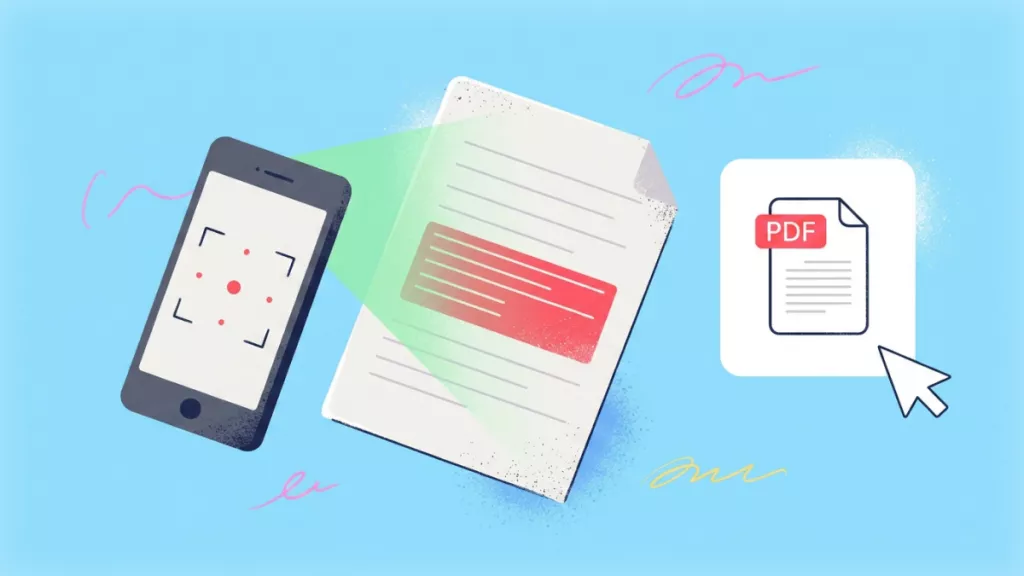
Adobe Scan turns an Android phone into a portable document scanner. It can capture receipts, notes, forms, whiteboards, ID cards, books, and other paper documents, then save the result as a PDF or image.
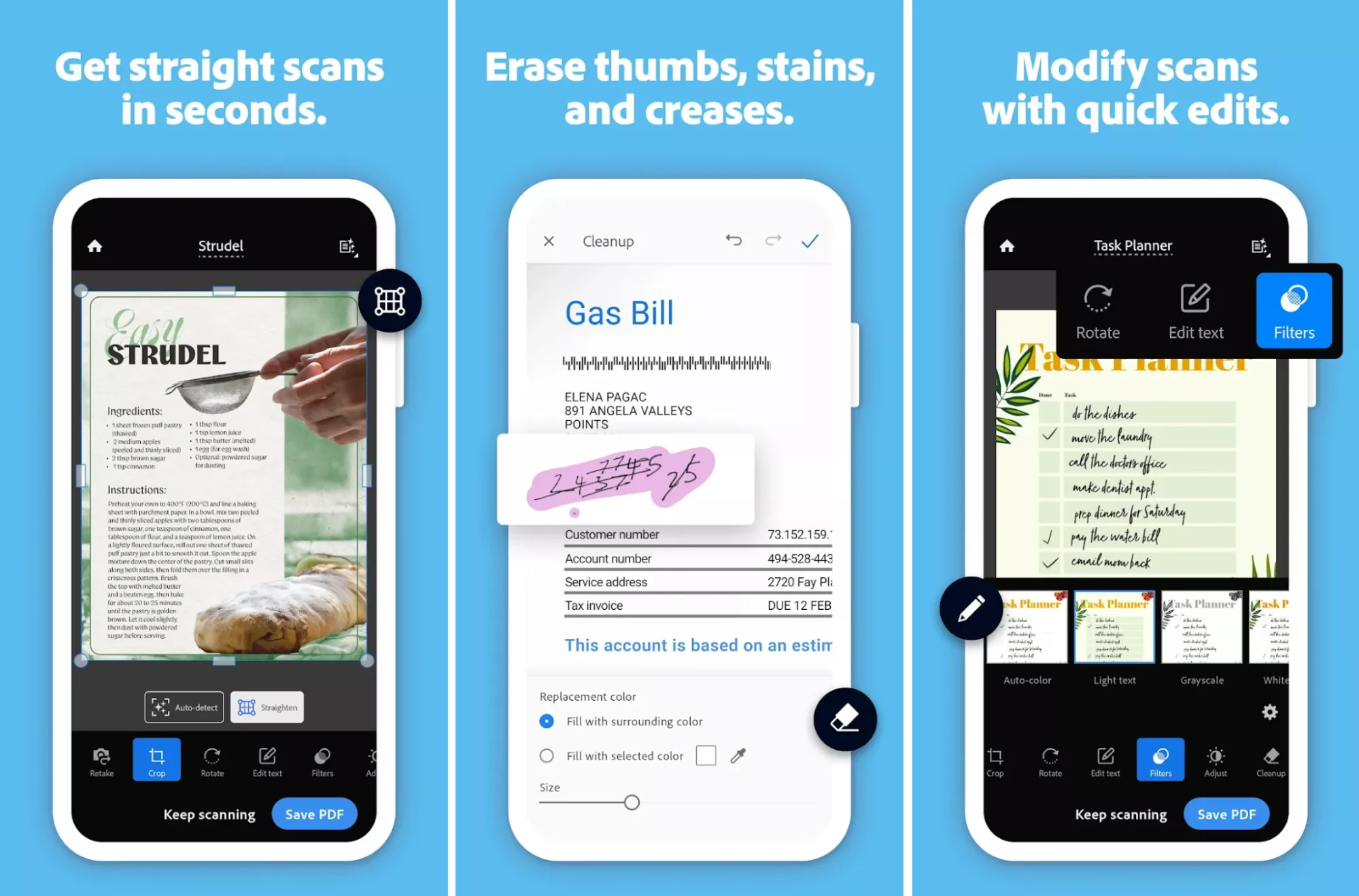
- Automatic capture and edge detection: The app detects a page, captures it, crops the edges, corrects perspective, and improves readability.
- Dedicated scan modes: Document, book, ID card, whiteboard, and business-card modes adapt the capture process to different materials.
- Cleanup tools: You can rotate, crop, reorder, delete, recolor, and clean up marks, glare, or shadows before saving.
- OCR and searchable PDFs: Adobe Scan recognizes printed text so you can search and copy content from supported scans.
- Multi-page scanning: Add several pages to one scan; premium high-speed scanning is designed for faster continuous capture.
- Acrobat integration: Scans can continue into Adobe's PDF workflow for editing, exporting, combining, compressing, password protection, and AI-assisted reading, depending on the subscription.
Adobe Scan Free vs. Premium: What Do You Get?
Adobe Scan is free to download, and its core capture workflow is usable without purchasing a separate scanner. The practical difference appears after capture: the free tier has lower OCR and cloud limits, while premium features are tied to an eligible Acrobat subscription and may vary by region or store.
| Capability | Free Adobe Scan | Premium/Eligible Acrobat Plan |
|---|---|---|
| Scan and save PDFs | Included | Included |
| OCR | Up to 5 pages per scan | Up to 100 pages per scan |
| Cloud storage | 5 GB | 20 GB |
| High-speed scanning | Not included | Included |
| Edit recognized text | Limited | Included |
| Export to Word, Excel, or PowerPoint | Not included | Included; internet required |
| Combine scans | Limited workflow | Combine up to 20 files |
| Compress and password-protect PDFs | Not included | Included |
Before subscribing, check the current offer displayed in Google Play or your Adobe account, because the exact plan name and price can differ by country and bundled Acrobat benefits.
What Android Users Like and Dislike About Adobe Scan
Feedback across Google Play, Adobe Community discussions, and Android scanner conversations shows a mixed but consistent pattern. These are recurring experiences rather than guarantees for every phone or document.
What users like
- Easy automatic capture: Users often praise the simple interface and the ability to capture a page without perfectly steady hands.
- Clean results for ordinary documents: Printed pages, receipts, forms, and whiteboards generally produce readable PDFs with little setup.
- Useful OCR: Searchable text is convenient for printed notes, contracts, and study materials.
- No intrusive advertising: Reviewers frequently prefer its clean experience to ad-heavy free scanner apps.
Common complaints
- Page detection can misfire: Some users report inaccurate cropping or repeated captures when scanning several pages.
- Grey borders, blur, or uneven cleanup: Difficult lighting, curved book pages, glossy paper, and low-contrast edges can produce inconsistent results.
- OCR is not equally reliable for every document: Handwriting, complex layouts, mixed languages, and poor images remain harder to recognize.
- Cloud and upload dependence: Users who prefer a local-first workflow may dislike waiting for uploads or troubleshooting sync failures.
- Premium gates after scanning: Editing text, Office export, compression, and other advanced actions require an eligible paid plan.
If a scan has an unexpected grey border, retake it on a contrasting background with even light, disable flash when it causes glare, and manually adjust the crop before saving. For OCR, use a sharp, straight image and select the correct language.
Adobe Scan vs. UPDF for Android: Which Is Better?
Both apps can scan documents on Android. The more useful question is what you need to do after capture. Adobe Scan is strong for fast automatic capture and Acrobat-connected workflows. UPDF is designed as an all-in-one PDF workspace, so scanning, OCR, editing, conversion, page management, and AI-assisted processing stay together.
| Comparison | Adobe Scan for Android | UPDF for Android |
|---|---|---|
| Best for | Quick automatic capture and Adobe-cloud workflows | Scan-to-finish PDF work on mobile and desktop |
| Automatic edge detection | Yes, with automatic capture and perspective correction | Yes, with automatic cropping and manual correction |
| Multi-page scanning | Yes; high-speed mode is premium | Yes; add, reorder, delete, rotate, or extract pages |
| Scan types | Documents, books, ID cards, whiteboards, business cards | Documents, ID cards, images, receipts, and business cards through standard scan and AI Vision tools |
| Cleanup | Crop, rotate, filters, cleanup, glare/shadow correction | Crop, correct, rotate, filters, page extraction, and post-scan PDF editing |
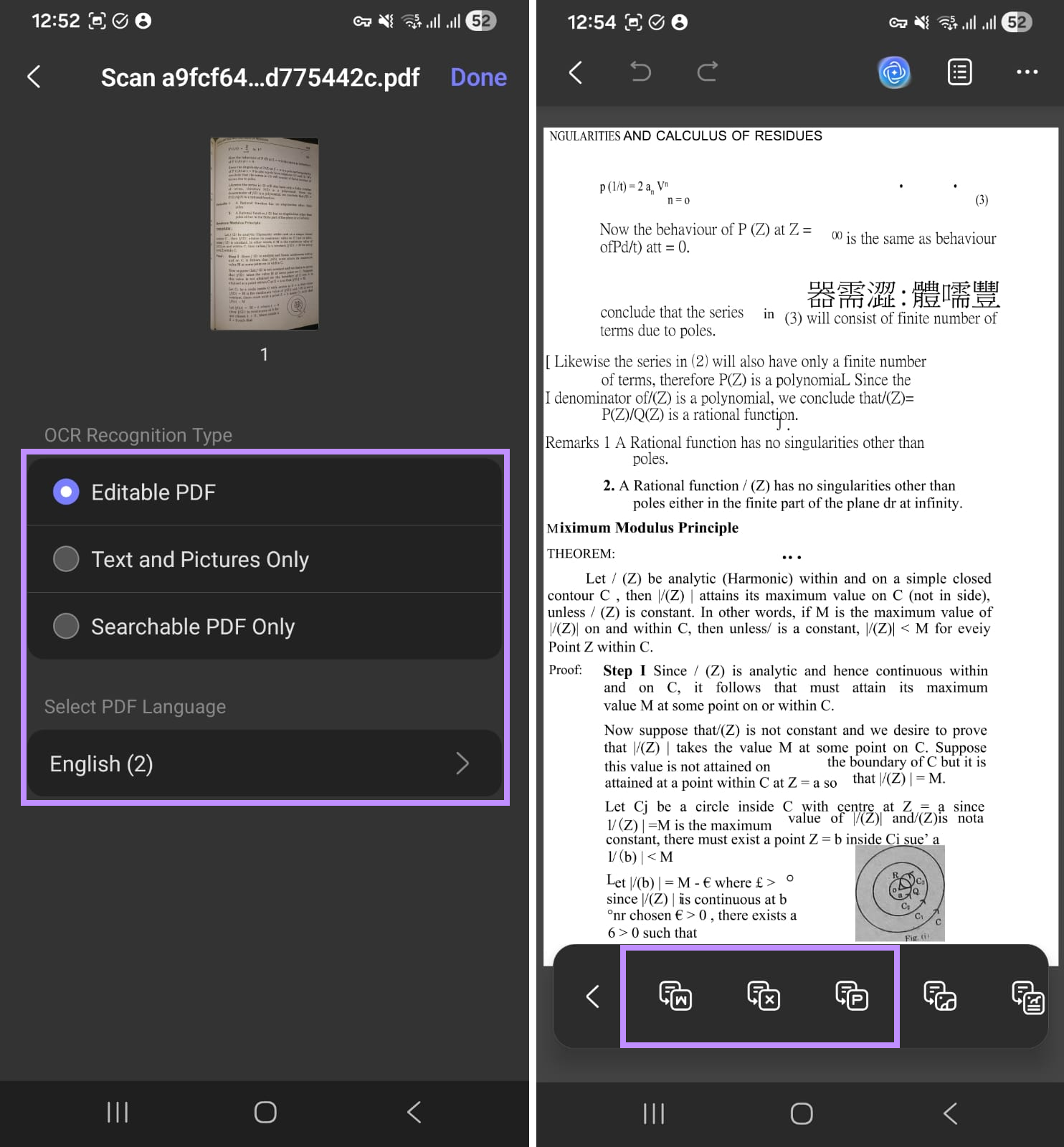
| OCR | 5 pages free; up to 100 with premium | 38 languages with Editable PDF, Text and Pictures Only, or Searchable PDF Only output |
| Edit after scanning | Advanced text editing requires an eligible plan | Edit PDF text and images directly on Android |
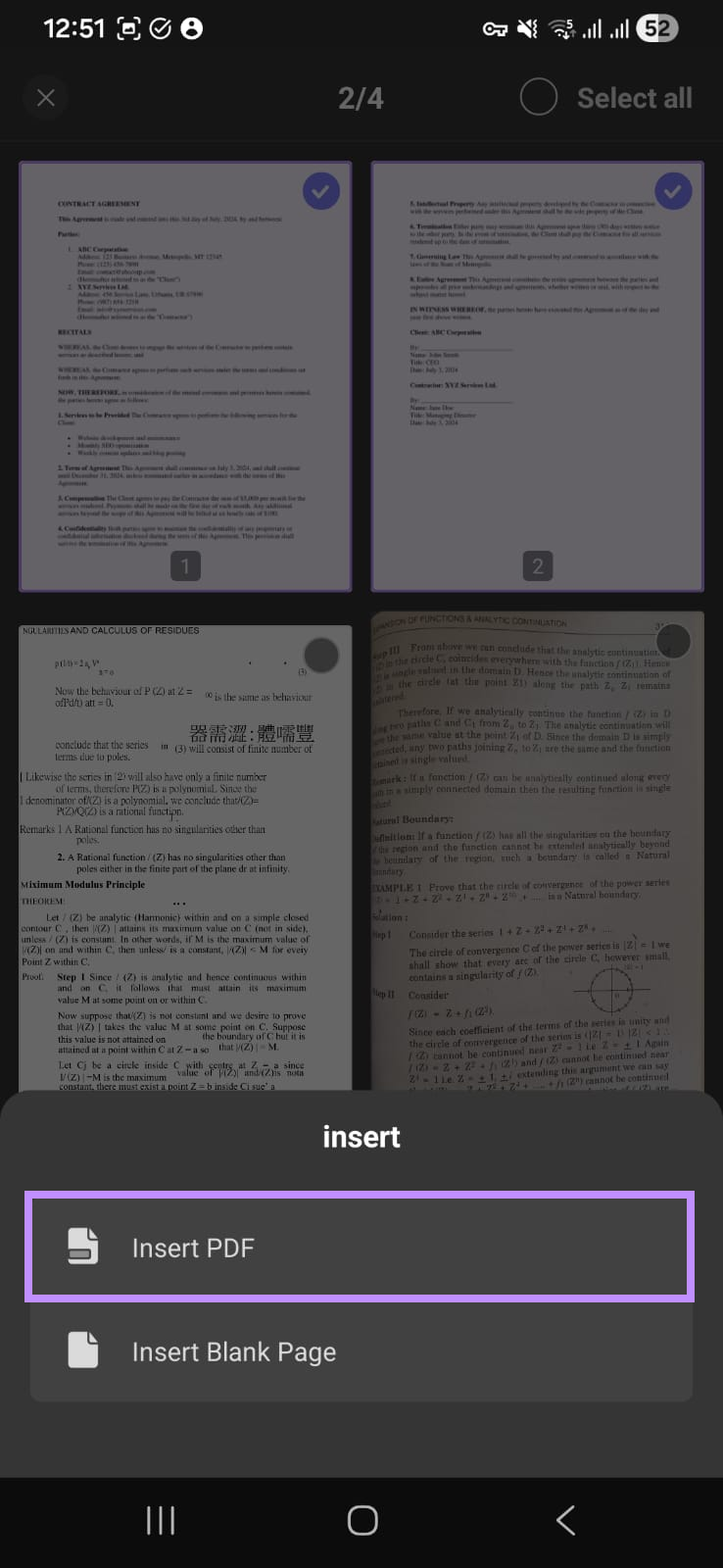
| Convert scanned PDFs | Office export requires premium and internet | Convert to Word, Excel, PowerPoint, and images; enable OCR for image-only scans |
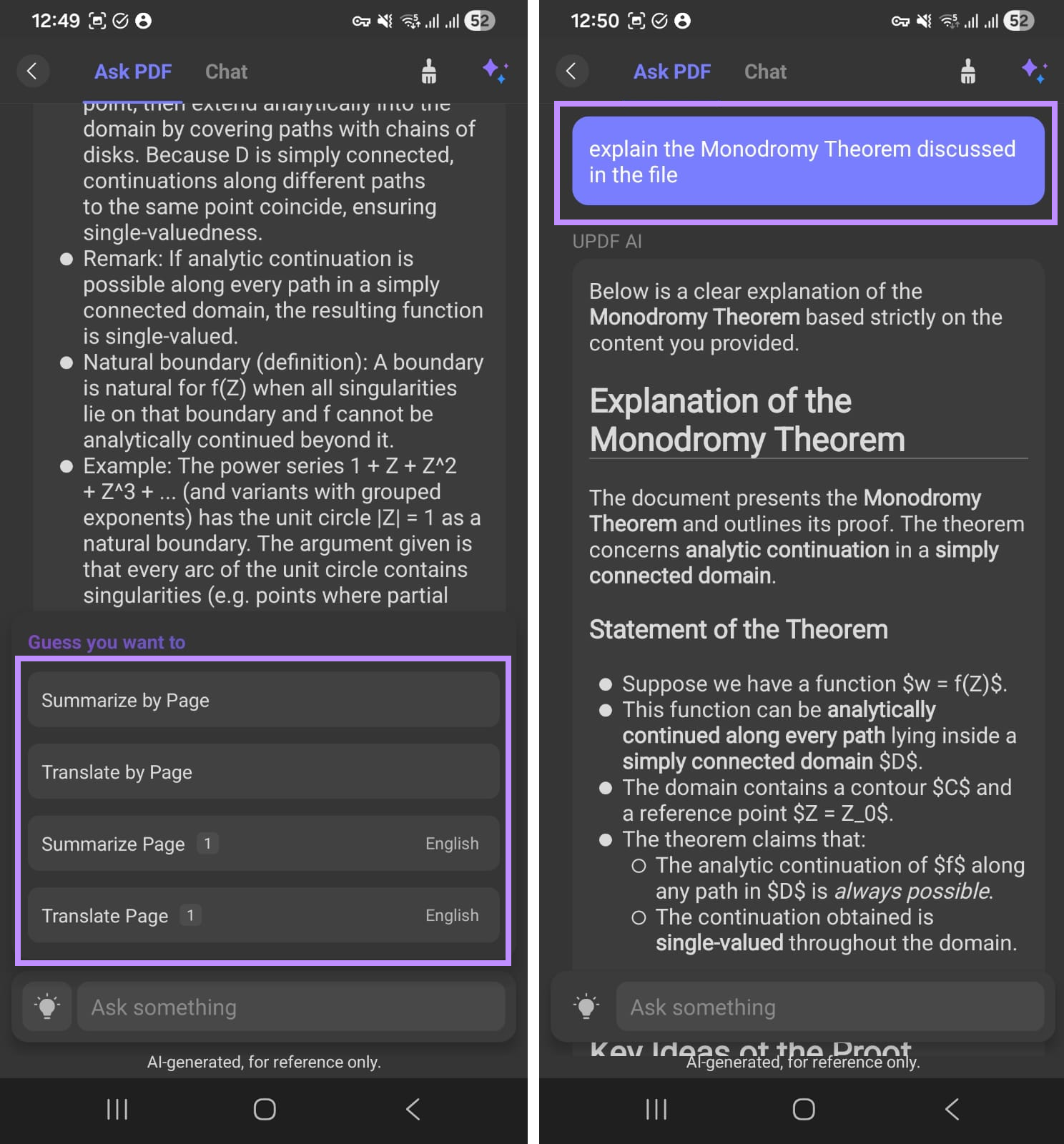
| AI for scans | AI Assistant and Generative Summary through eligible Adobe services | Chat, summarize, explain, and translate; AI Vision can extract or translate image text and process receipts or business cards |
| Page organization | Basic page management; combine is premium | Insert, replace, extract, split, delete, rotate, reorder, and merge pages |
| Storage workflow | Centered on Adobe cloud services | Save locally or use UPDF Cloud |
| Android requirement | Android 10 or later | Android 6 or later |
| Cross-platform use | Adobe ecosystem, depending on plan | One account across Windows, macOS, iOS, and Android; connect up to four devices |
| Desktop continuation | Requires the relevant Acrobat plan | Continue with batch tools, large-document OCR, redaction, comparison, protection, and other desktop workflows |
Bottom line: Choose Adobe Scan if automatic capture and an Adobe-centered workflow are your priorities. Choose UPDF if you want comparable mobile scanning plus broader editing, OCR output control, conversion, organization, AI Vision, and a four-platform PDF workflow.
Try UPDF on Android before deciding whether you need a paid scanner workflow.
Windows • macOS • iOS • Android 100% secure
How to Fix Adobe Scan Not Working on Android
If Adobe Scan will not open, capture, upload, or finish OCR, work through these fixes in order:
- Check Android compatibility. The current app requires Android 10 or later. Update the operating system if your phone supports it.
- Allow camera and storage permissions. Open Android Settings > Apps > Adobe Scan > Permissions, then allow the permissions needed to capture and save documents.
- Test the connection. Switch between Wi-Fi and mobile data if uploads, OCR, or cloud synchronization stalls. Disable a restrictive VPN or battery/data saver temporarily when appropriate.
- Free storage and clear the cache. In Settings > Apps > Adobe Scan > Storage, clear the cache—not app data—first. Make sure the device has enough free space for multi-page scans.
- Update Adobe Scan and related services. Install the latest version from Google Play, then restart the phone.
- Retry problem pages. Use even light, place the page on a contrasting surface, hold the phone parallel, and manually adjust the border before saving.
- Sign out and back in. This can refresh an account or cloud-sync session. Confirm that the scan has uploaded before removing local app data.
- Reinstall only after protecting your files. Verify that important scans are available in Adobe cloud storage or exported elsewhere, then reinstall the app if other fixes fail.
If the problem continues or you need to keep working immediately, use a different Android scanner. The following workflow shows how to scan documents to PDF on Android with UPDF.
How to Scan Documents with UPDF for Android
UPDF is not only a post-processing tool. Its Android app includes a complete scan-to-PDF workflow:
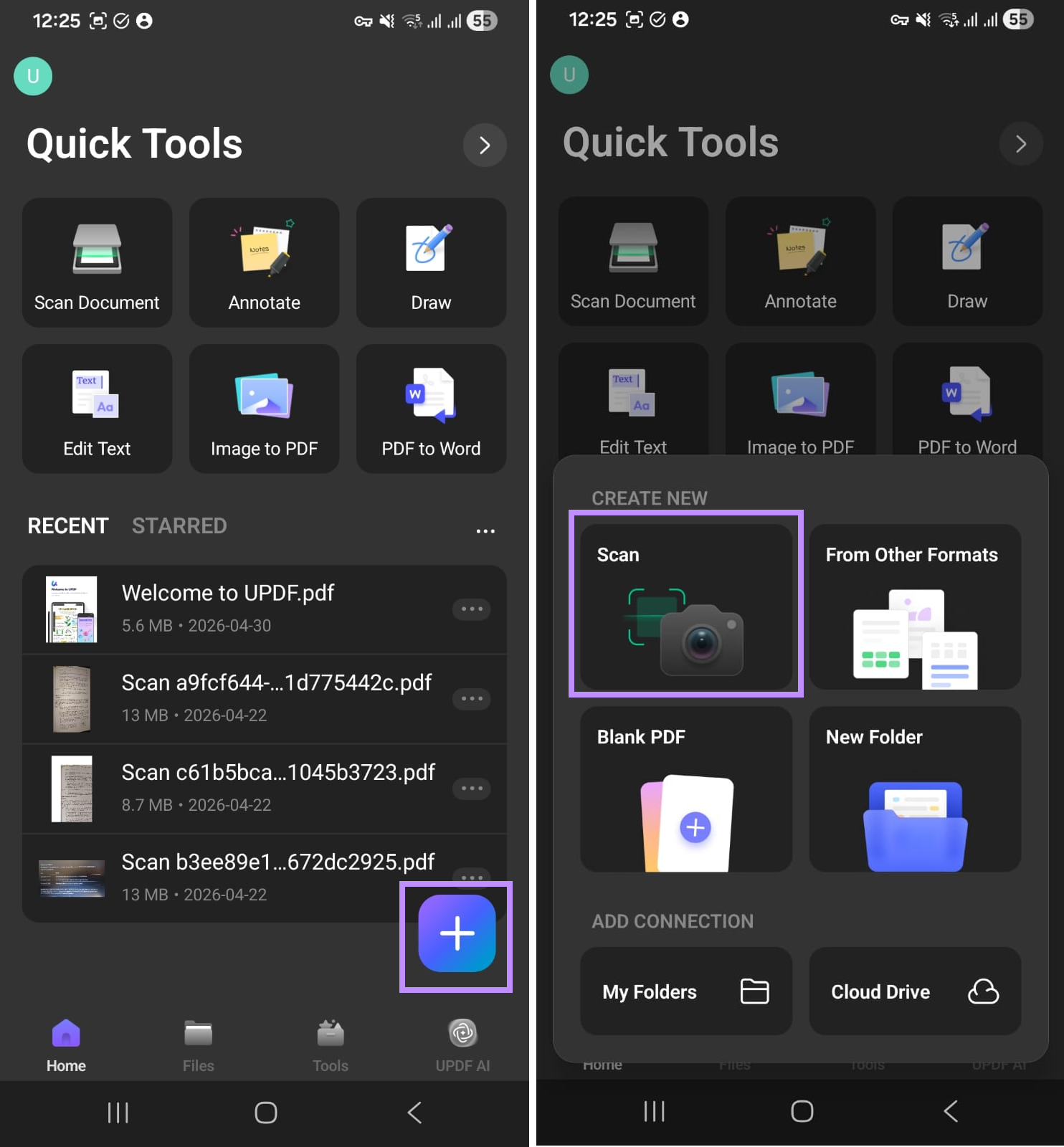
Step 1. Open UPDF for Android. Tap the + button and choose Scan. You can also access Scan Document from Quick Tools or the Tools tab.
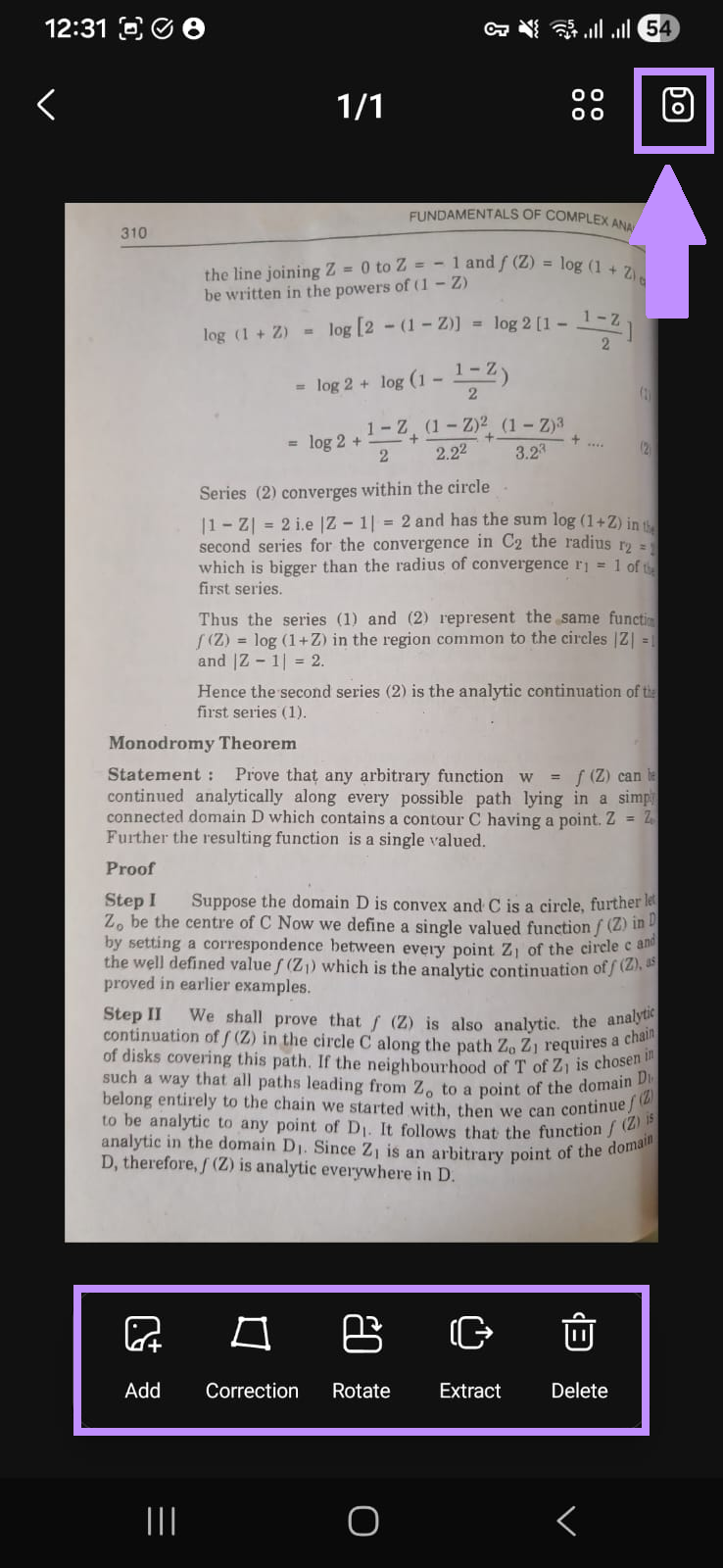
Step 2. Point the camera at the page and capture it. UPDF automatically detects the page edges; adjust the crop manually if the document has a low-contrast background.
Step 3. Review the page. Use Correction and Rotate as needed, then tap Add to scan more pages. You can delete an unwanted page or extract a page into a separate PDF.
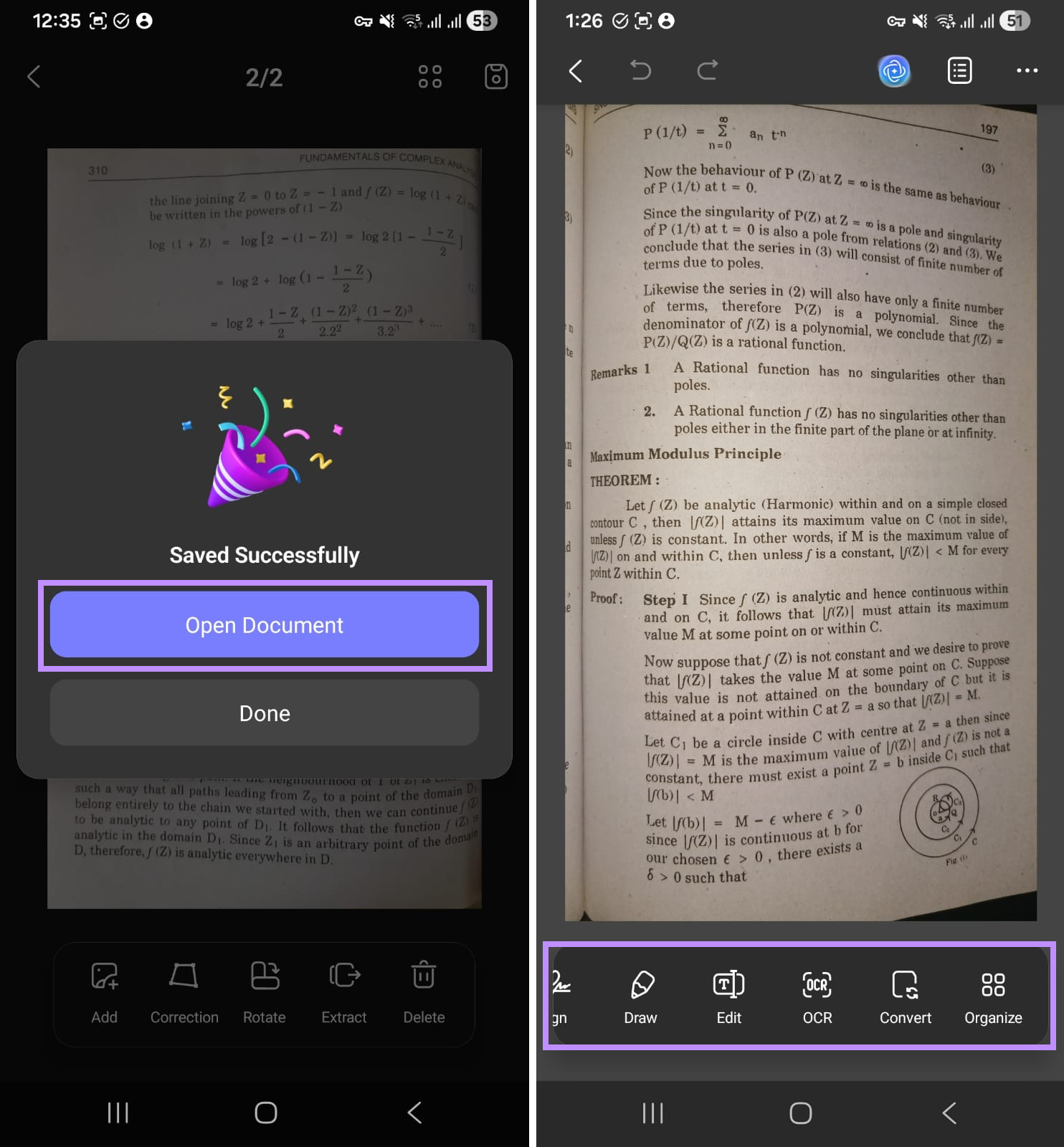
Step 4. Tap Save, choose the destination, and open the new PDF. The file is now ready for OCR, editing, conversion, annotations, or page organization.
What You Can Do After Scanning in UPDF
Choose the right OCR output
UPDF's Android OCR supports 38 languages and three useful outputs: Editable PDF for correcting recognized text, Text and Pictures Only for a cleaner reconstruction, and Searchable PDF Only when you want to preserve the page image while adding searchable text underneath.
Edit, convert, and organize the scan
Edit recognized text and images on Android, or convert the scanned PDF to Word, Excel, PowerPoint, or an image format. For image-only files, enable OCR during conversion so the exported Office document is editable. You can also insert, replace, extract, split, delete, rotate, and reorder pages. See the complete Android PDF editing guide for the broader workflow.
Use UPDF 3.0 AI Vision for image-based information
UPDF 3.0 adds AI Vision workflows that are useful when the source is an image rather than a conventional PDF page. On supported mobile workflows, you can extract or translate text from an image, scan a business card into structured contact information, analyze receipts, or count repeated objects. AI Vision uses AI Credits; standard Scan to PDF and standard PDF OCR remain separate tools.
After recognition, use UPDF AI to summarize, explain, translate, or ask questions about the document. This is useful for receipts, forms, class notes, research pages, or multilingual business documents.
Continue on any of four platforms
A single UPDF account can be used across Windows, macOS, iOS, and Android, with up to four connected devices. Scan on your phone, then continue on desktop when you need batch tools, large-document OCR, redaction, file comparison, or advanced protection. This cross-platform workflow is a key difference from buying a phone-only scanning utility.
Download UPDF for Android and test the scan-to-finish workflow with your own documents.
See how UPDF 3.0 extends the mobile scanning workflow across editing, AI assistance, and signing, and check its limited-time Black Friday offer.
Windows • macOS • iOS • Android 100% secure
🛍️ Limited-time UPDF 3.0 offer: Save up to 48% on eligible plans and receive a lifetime PDF Password Remover for Windows. View the limited-time plans.
FAQs About Adobe Scan for Android
Is Adobe Scan free on Android?
Yes. The app's core scanning features are free, but high-speed scanning, extended OCR, Office export, text editing, compression, combining, and password protection require an eligible paid plan.
Can Adobe Scan work without the internet?
You can capture pages on the device, but cloud upload, synchronization, Office export, and some processing features require an internet connection.
Why does Adobe Scan crop a page incorrectly?
Low contrast, shadows, curved pages, glare, or patterned backgrounds can confuse automatic edge detection. Use even light, place the page on a contrasting surface, hold the camera parallel, and adjust the border manually before saving.
Is UPDF a good Adobe Scan alternative for Android?
Yes, especially when you need more than capture. UPDF scans multi-page documents and then provides Android OCR, PDF text and image editing, Office conversion, page organization, AI-assisted processing, and a four-platform workflow.
Final Verdict
Adobe Scan remains a strong Android choice for automatic capture, cleanup, OCR, and searchable PDFs. Its limitations become more noticeable when page detection is inconsistent, cloud processing fails, or you need premium editing and export features after scanning.
UPDF for Android covers the same essential scanning workflow and extends it into OCR output control, PDF editing, conversion, organization, and UPDF 3.0 AI Vision. Because one account works across four platforms, it is the better fit for users who want to move from the first scan to a finished, shareable document without switching between separate apps.
Windows • macOS • iOS • Android 100% secure






 Enola Miller
 Enid Brown

 Enrica Taylor

