 UPDF
UPDF
 UPDF for Windows
 UPDF for Mac
 UPDF for iPhone/iPad
 UPDF for Android
 Nomostar
 UPDF AI Online
 UPDF Sign
 IvyCraft
 Edit PDF
 Annotate PDF
 Create PDF
 PDF Form
 Edit links
 Convert PDF
 OCR
OCR PDF to Word
 PDF to Image
 PDF to Excel
 Organize PDF
 Merge PDF
 Split PDF
 Crop PDF
 Rotate PDF
 Protect PDF
 Sign PDF
 Redact PDF
 Sanitize PDF
 Remove Security
 Read PDF
 UPDF Cloud
 Compress PDF
 Print PDF
 Batch Process
 About UPDF AI
 UPDF AI Solutions
 AI User Guide
 FAQ about UPDF AI
 Summarize PDF
 Translate PDF
 Chat with PDF
 Chat with AI
 Chat with image
 PDF to Mind Map
 Explain PDF
 PDF AI Tools
 Image AI Tools
 AI Chat Tools
 AI Writing Tools
 AI Study Tools
 AI Working Tools
 Other AI Tools
 AI Bookmark Generation
 AI Bookmark Summary
 AI Watermark Generation
 AI Background Generation
 AI Sticker Generation
 AI Stamp Generation
 AI Editing Suite
 UPDF Copilot
 AI Page Management
 AI Semantic Search
 PDF to Word
 PDF to Excel
 PDF to PowerPoint
 Enterprise Solution
 Enterprise Sign
 Enterprise AI
 Enterprise Plan
 Enterprise User Guide
 Enterprise Webinar
 Banking
 Healthcare
 Insurance
 Legal
Legal Manufacturing
 Government
 Researchers & PhDs
 Solopreneurs & Freelancers
 Lawyers & Legal Professionals
 Real Estate Agents & Brokers
 Education Solution
 Customer Stories
 User Guide
 UPDF Tricks
 FAQs
FAQs UPDF Reviews
 Download Center
 Blog
Blog Newsroom
 Tech Spec
 Updates
 UPDF vs. Adobe Acrobat
 UPDF vs. Foxit
 UPDF vs. PDF Expert

Moving is one of those life events that can feel exciting and exhausting at the same time. Packing boxes, updating addresses, hiring movers—it’s a lot to juggle, but I’ve learned that having a moving checklist PDF makes the process so much easier. That’s why I now rely on a structured printable moving checklist to keep everything under control. A structured checklist keeps me on track, reduces stress, and ensures I don’t forget important tasks.
In this article, I’ll share my personal moving routine, how I prepare my moving-to-do-list PDF, and how UPDF helps me edit, customize, and print it. Stick with me until the end—you’ll see how UPDF can make your next move smoother than ever.
Windows • macOS • iOS • Android 100% secure
Part 1. Why I Use a Printable Moving Checklist
To be honest, my first big move was a disaster. I still remember one chaotic move years ago when I didn’t have a moving-to-do list PDF. Boxes weren’t labelled, utilities weren’t scheduled, and I forgot to update my address with my bank. It was stressful and exhausting. Since then, I’ve never moved without a printable moving checklist.
Now, I always download or create a free printable moving checklist, sync it across my devices, and print a hard copy. That way, I can check items off with a pen while packing and keep a digital version handy on my phone or laptop. This combination of digital and paper makes me feel in control during the entire moving process.
Part 2. How I Prepare My Moving Checklist PDF
Here’s the step-by-step process I follow for creating a customized moving to-do list PDF that actually works for me:
Step 1: Download a Free Printable Moving Checklist
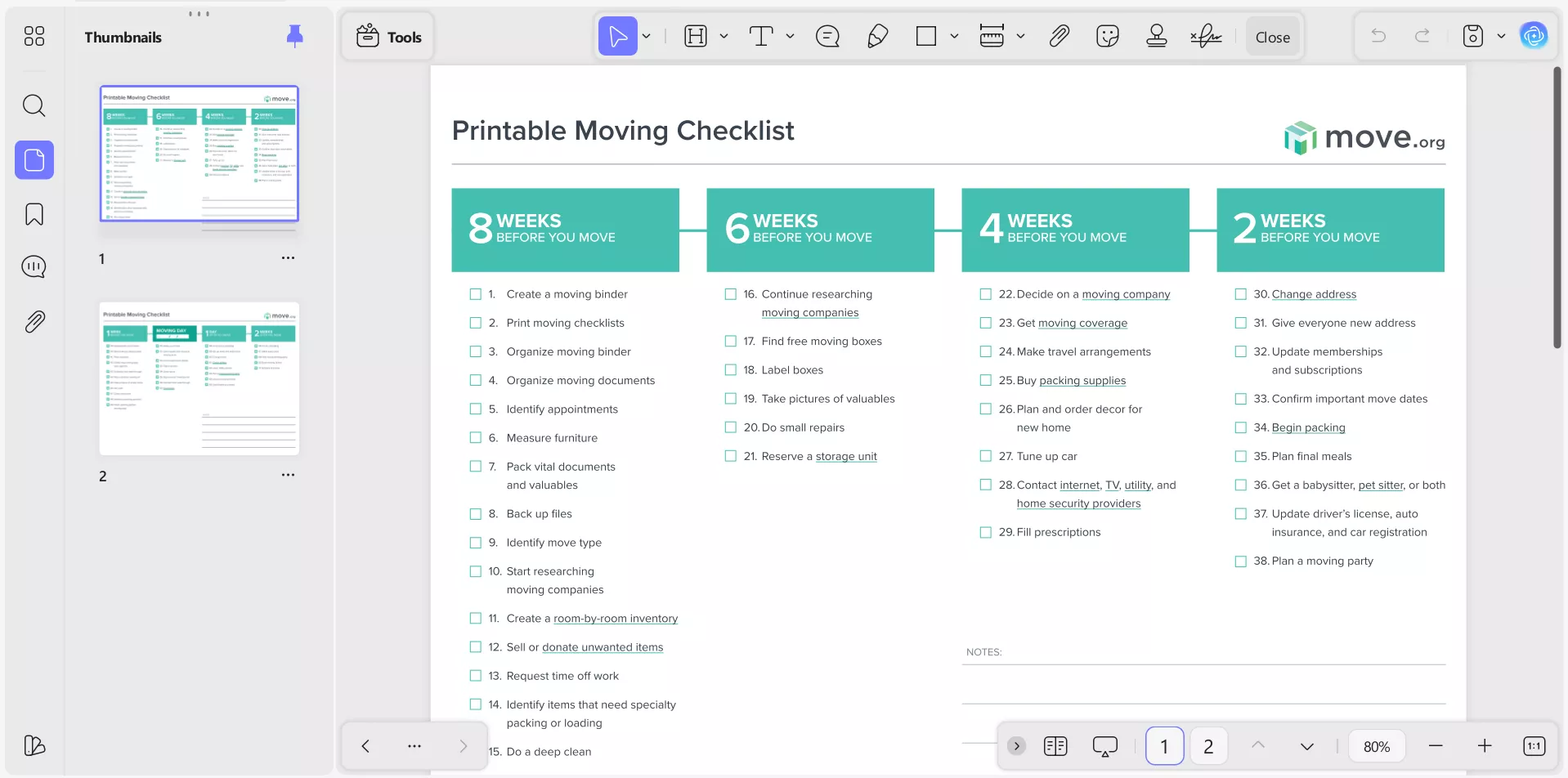
First of all, I downloaded a free printable moving checklist available online from trusted sources like:
These templates give me a solid foundation with timelines and essential tasks.
Step 2: Import the Checklist into UPDF
I always use UPDF, which is an all-in-one PDF editor. UPDF contains an extensive list of customization features for editing PDF documents, such as highlighting, adding comments, form recognition, changing backgrounds, inserting pictures, etc. With UPDF, I can open the checklist, edit it, and customize it to my needs. It works on Windows, Mac, iOS, and Android so that I can access and work on my checklist anywhere.
Windows • macOS • iOS • Android 100% secure
Step 3: Merge or Delete Pages
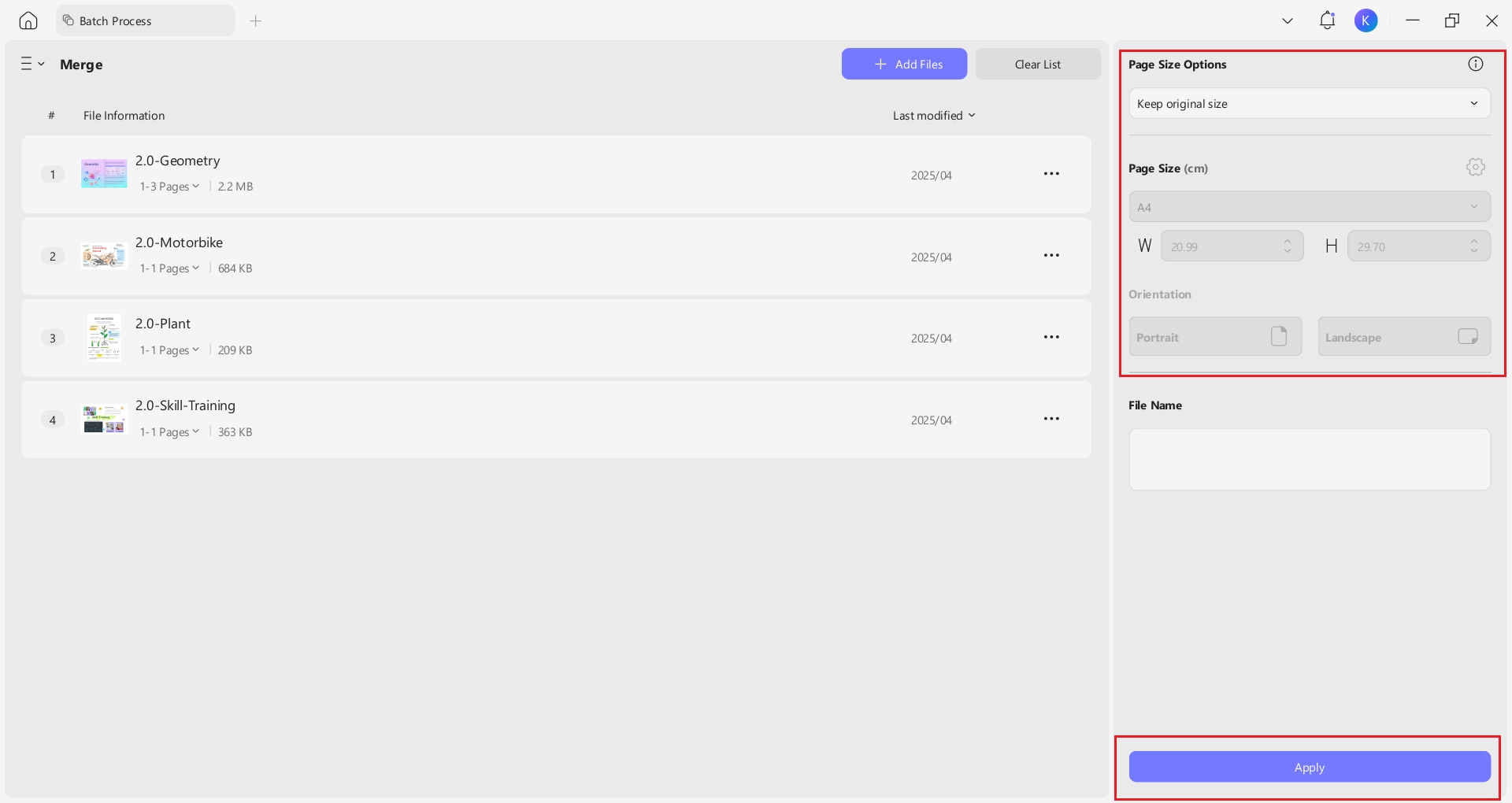
Sometimes I find multiple checklists online. UPDF lets me merge them into one document or delete unnecessary pages. I can also adjust page size and orientation when needed. This way, I end up with a single, streamlined moving checklist PDF.
Step 4: Add or Edit Form Fields
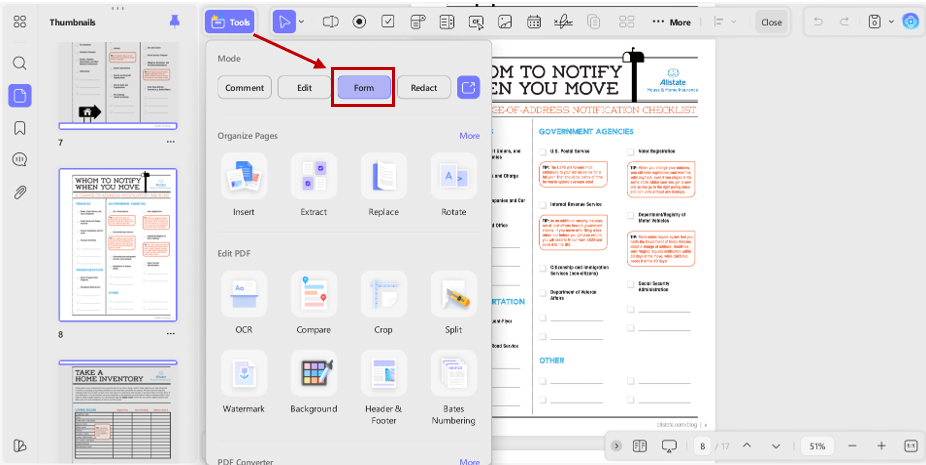
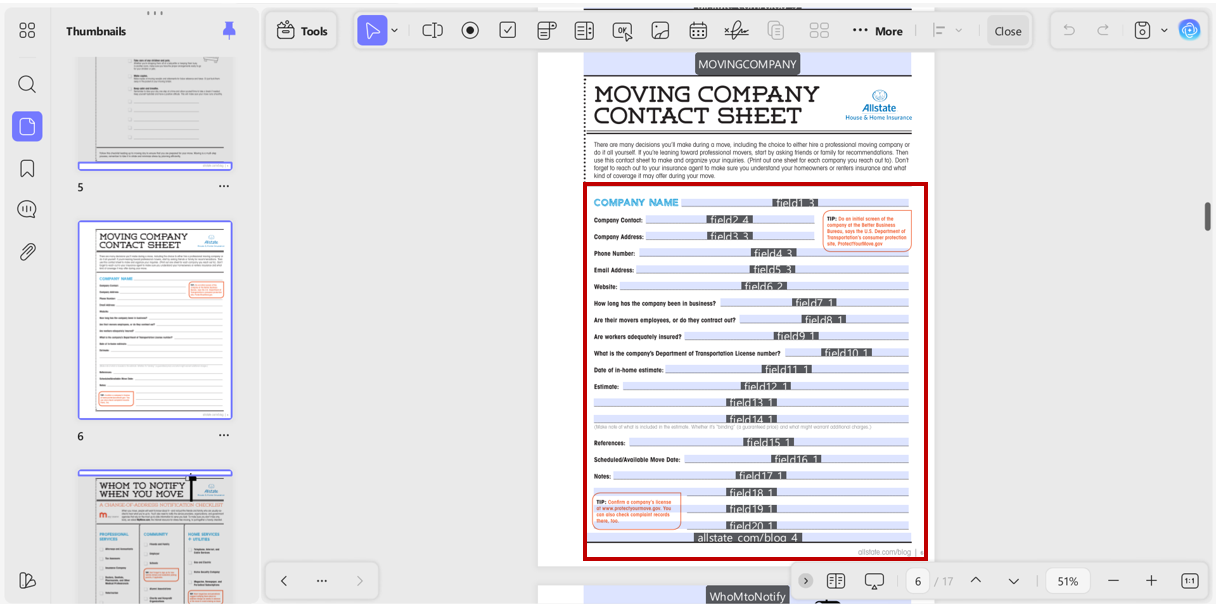
UPDF automatically recognizes form fields such as blanks, checkboxes, etc. From the “Tools” button, opt for “Form” mode.
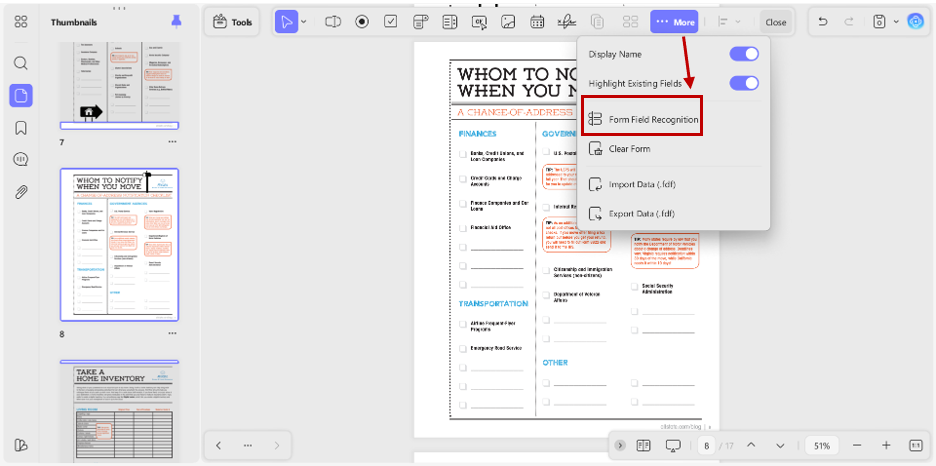
Click on “More” and select “Form Field Recognition” from the menu, and all the form fields will be highlighted.
I add dropdowns for “priority level,” date fields for deadlines, and checkboxes for tasks.
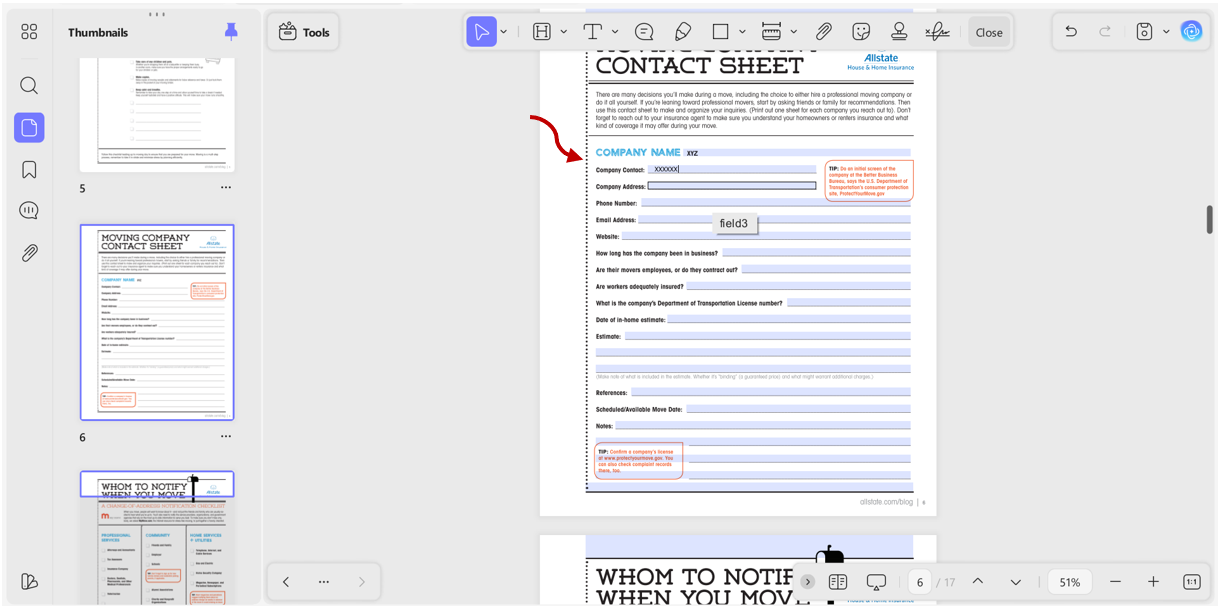
Then I fill these fields in Comment mode, which makes the checklist interactive.
Step 5: Edit Text, Images, or Links
UPDF allows me to edit text (like changing “4 weeks before moving” to “6 weeks”), replace images, or add links to moving company websites. This customization makes the checklist truly my own.
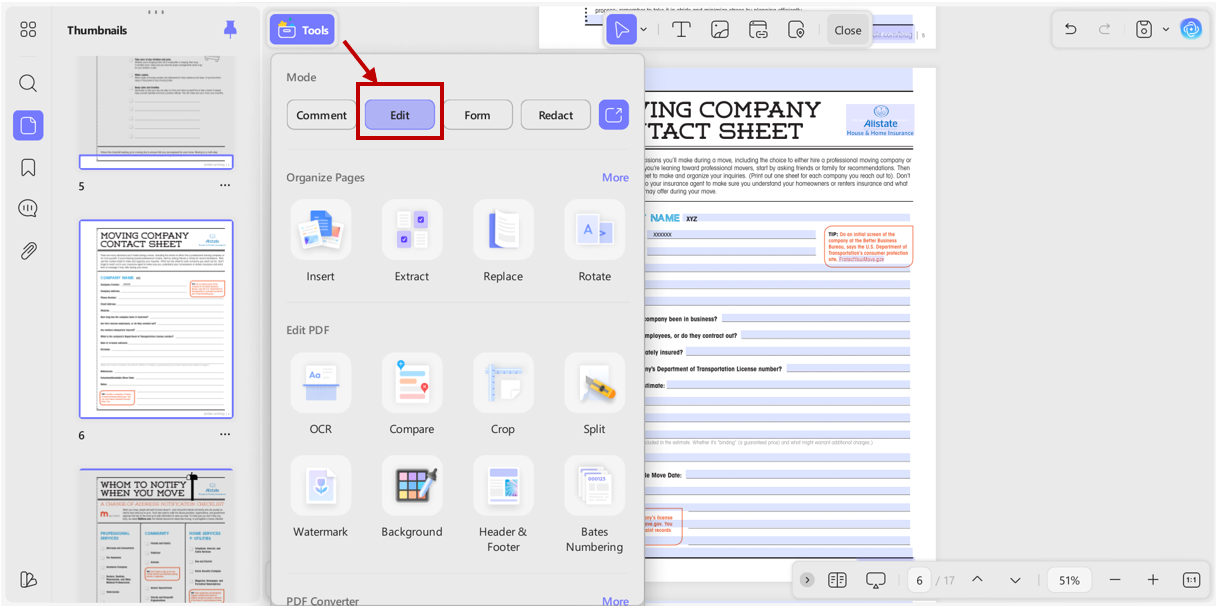
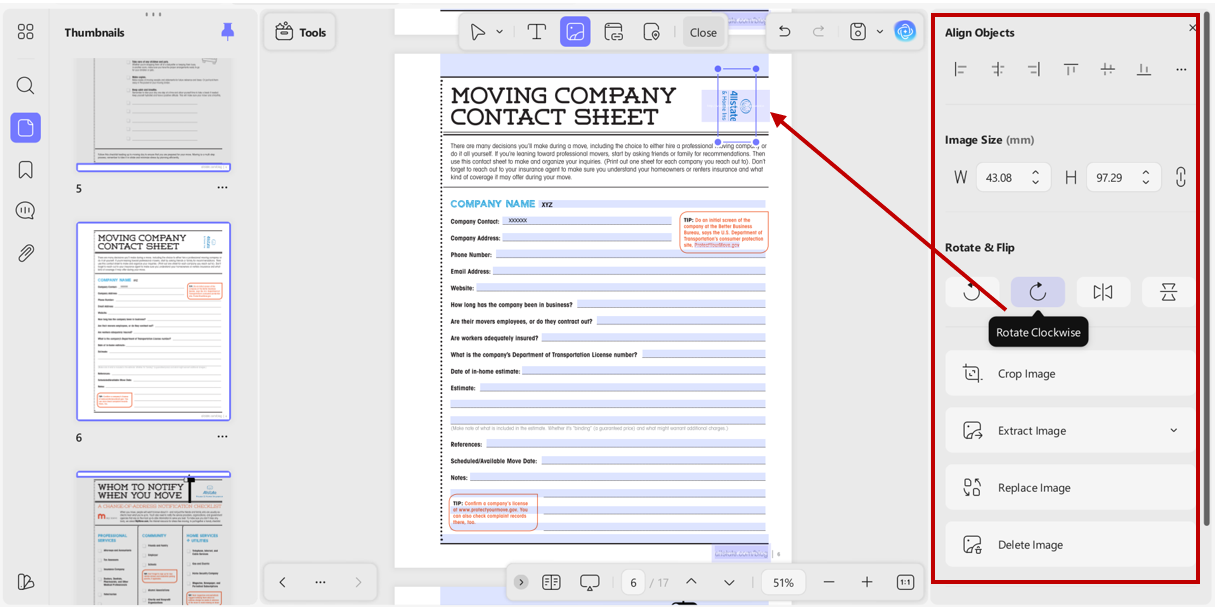
From the Edit mode, you can insert new images or edit existing images or logos in the document.
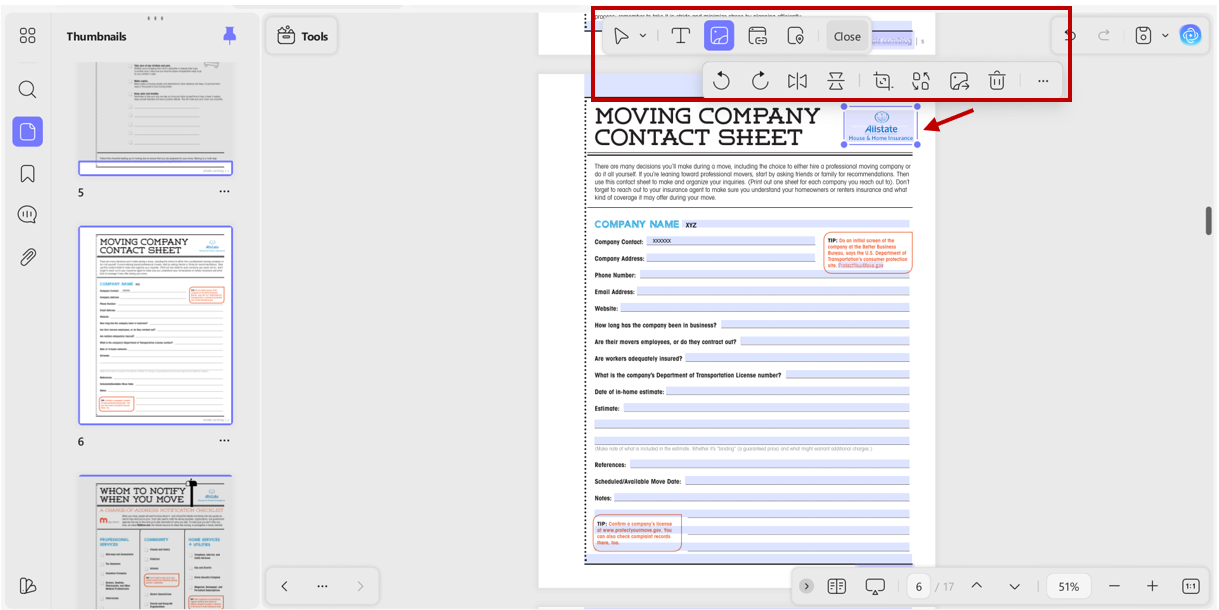
With UPDF editing mode, you can also customize the image or logos on your own way. UPDF give you full control over the picture like aligning objects, changing image size, rotating or cropping images.
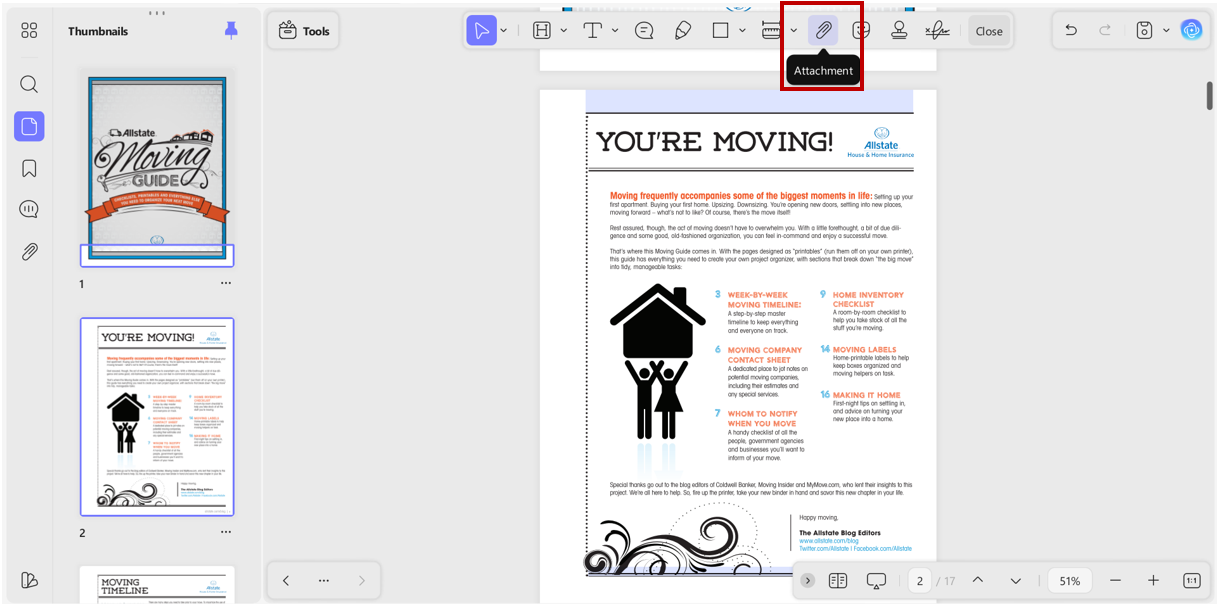
Step 6: Annotate and Attach Notes
I often highlight urgent tasks, add sticky notes, or attach documents like contracts. UPDF’s annotation tools help you keep everything organized in one place.
Step 7: Add Headers, Footers, and Backgrounds
If my checklist grows too long, I add headers and footers for page numbers. Sometimes I even add a light background colour to make sections stand out visually.
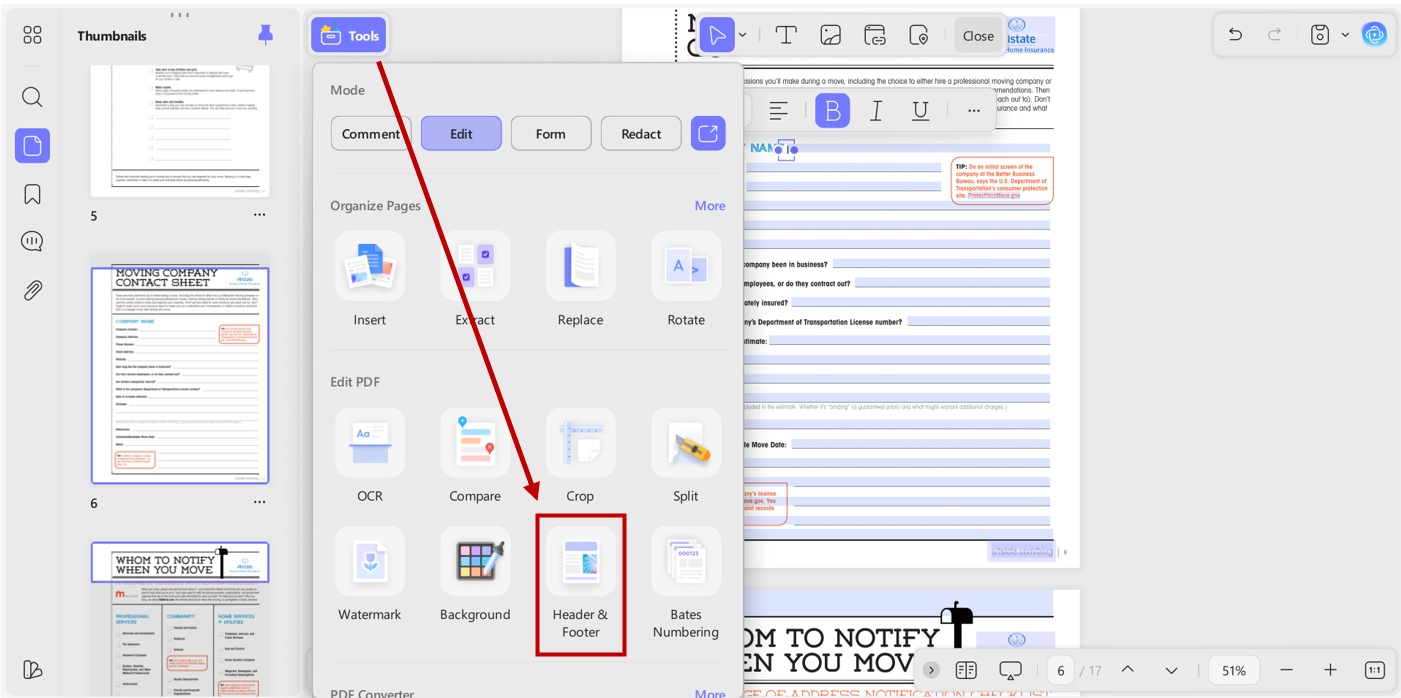
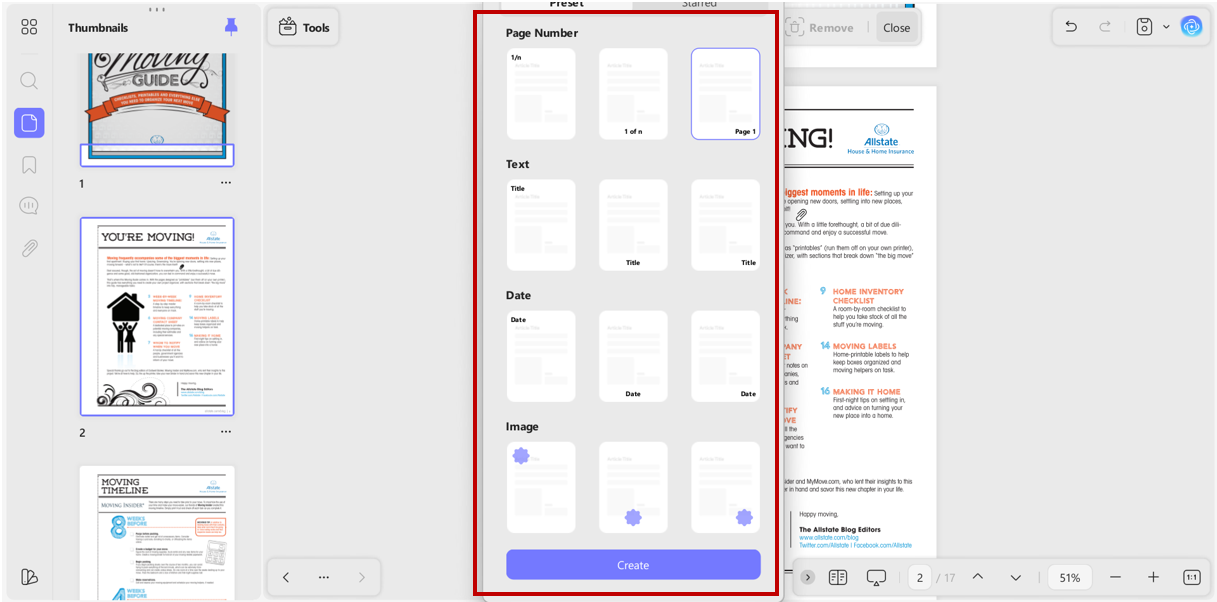
Simply select the header and footer from the “Tools”. You can add page numbers, text , dates or images in a desired location as header and footer.
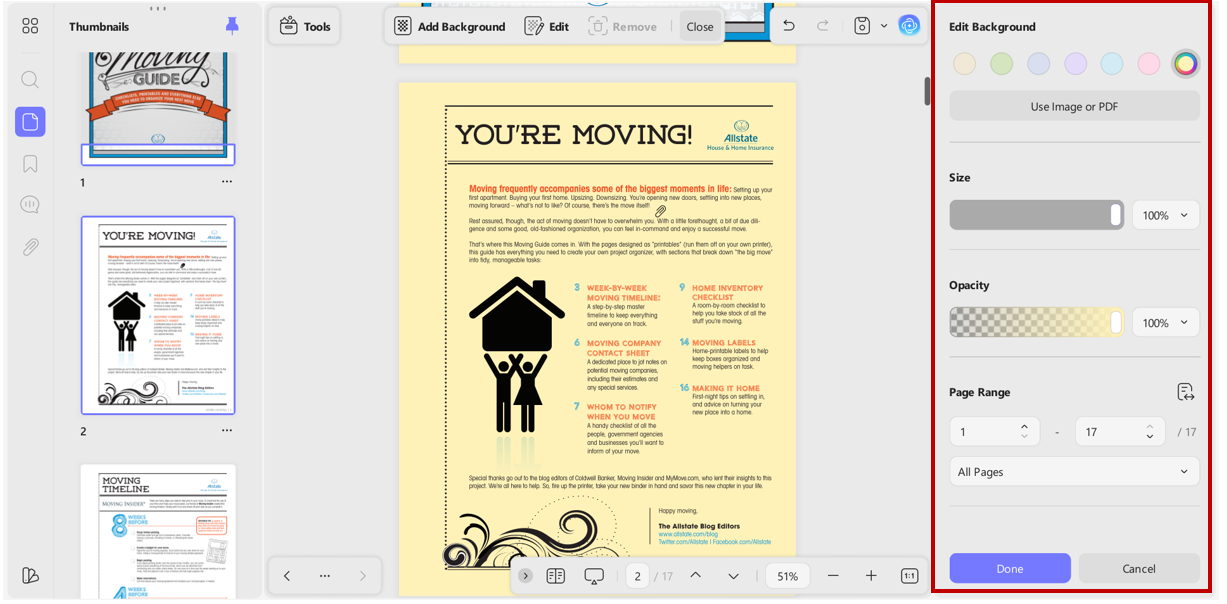
You can also change background colour or add image or PDF as a background for the PDF document. Select background from the “Tools”> Add Background.
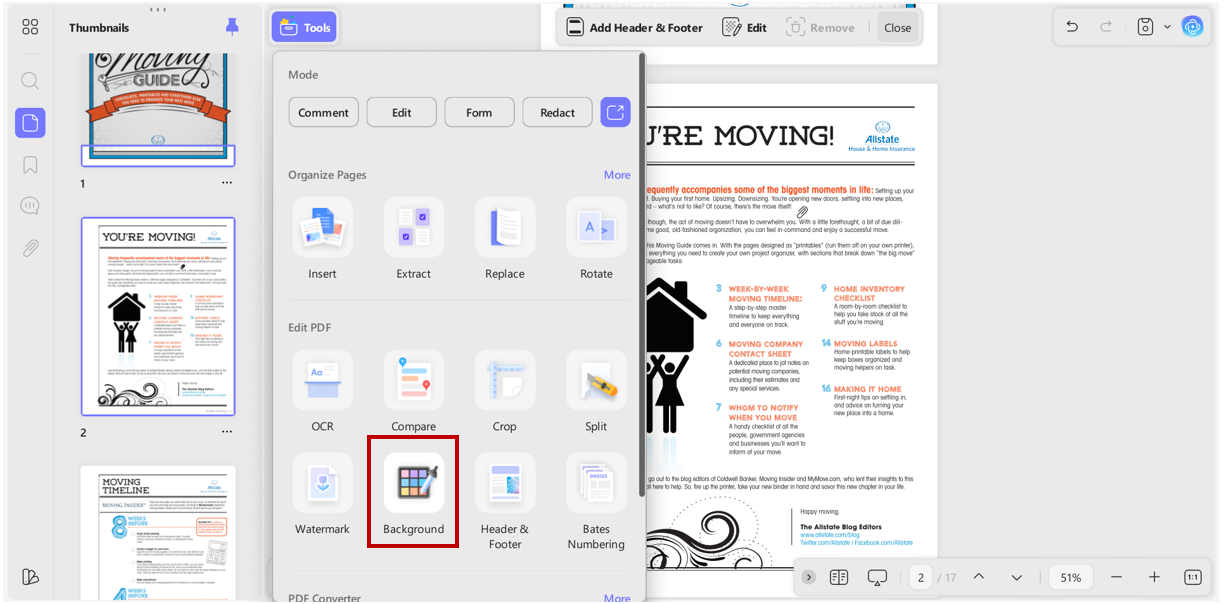
You can also change Opacity level, specify page range or add image or PDF as a background for PDF Document.
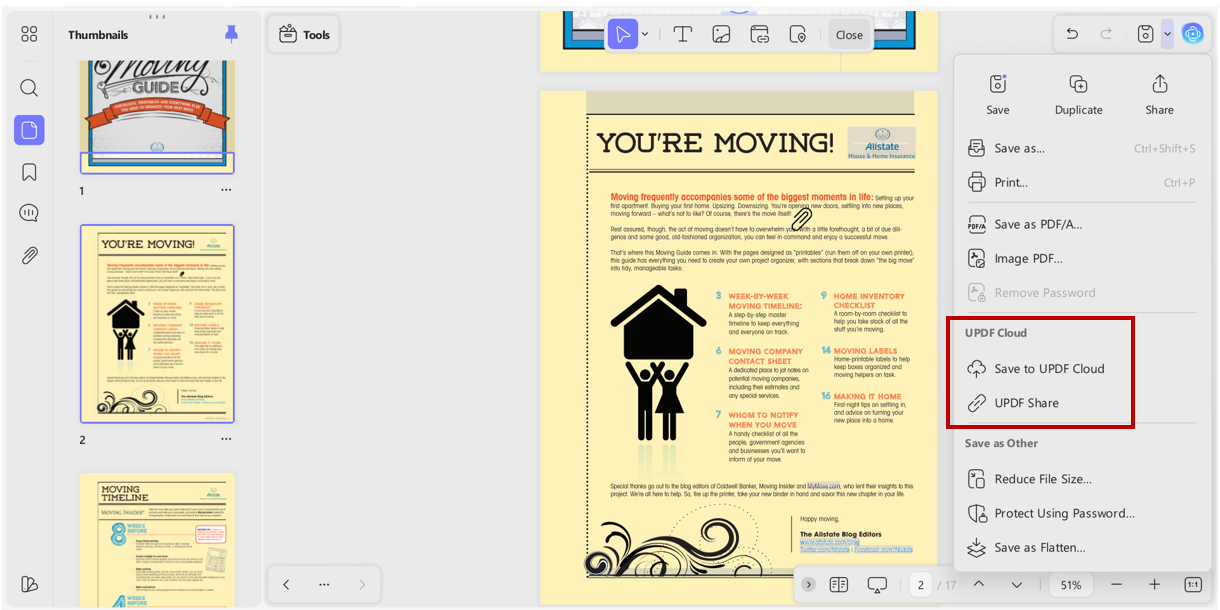
Step 8: Sync with UPDF Cloud
Once I’m done editing, I sync the file to UPDF Cloud. This means I can access my checklist on my Mac, Windows PC, Android phone, or iPad—perfect for when I’m on the go.
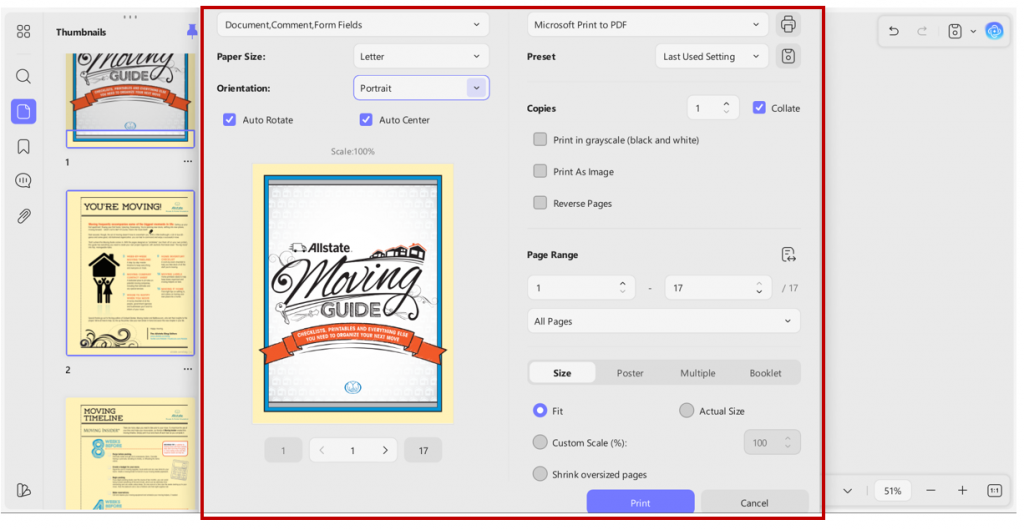
Step 9: Print a Hard Copy
Finally, I print a hard copy in which I can physically check off boxes and other fields I created with a pen as I pack. It makes the process feel real and keeps me motivated.
Windows • macOS • iOS • Android 100% secure
Part 3: What I Include in My Printable Moving Checklist PDF
Every time I’ve moved homes, the real challenge is remembering everything. And trust me, the moment you forget something important on moving day, everything starts falling apart.
I’ve refined the checklist using real experience, Google search suggestions, and even tips from a few popular packing and organizing YouTubers who shared brilliant tricks I wish I knew years ago.
This checklist is designed so that whether you're moving next month or next week, you can jump in immediately and start checking things off.
A. Four Weeks Before the Move
- Create a moving folder. First digitally than I will also recommend a physical copy.
- Book a trusted moving company.
- Start decluttering. I mean sell, donate, or discard unwanted items.
- Measure your new home’s rooms to see what actually fits.
- Order packing supplies early, like tape, markers, bubble wrap, and boxes.
B. Two Weeks Before the Move
- Pack items you rarely use, such as seasonal clothing, decor, and books.
- Transfer or set up utilities at your new address.
- Change addresses for banks, subscriptions, and online shopping. This is important because after moving, it is a headache to change it when you want to buy something quickly, and the package is accidentally delivered to the old address saved before.
- Confirm your moving date with the movers one more time.
- Take photos of expensive items for inventory and insurance.
- Arrange for childcare or pet care if needed on moving day.
C. One Week Before the Move
- Pack room-by-room and label boxes clearly.
- Create a "First Night Box" with clothes, chargers, toiletries, and snacks.
- Start defrosting the freezer 24–48 hours before the move.
- Back up critical digital documents, such as IDs, lease agreements, and photos.
- Finish pantry food to avoid wastage.
- Keep all essential papers in a dedicated folder you'll carry with you.
D. Moving Day Checklist
This is the most nerve-wracking part, but with the checklist, it flows smoothly:
- Wake up early: trust me, last-minute delays happened with me.
- Do a quick walkthrough of every room before movers arrive.
- Keep valuables like jewelry, cash, and passports with you.
- Check off all boxes as they’re loaded into the truck.
- Turn off lights, lock windows, and take final photos of the home.
- Hand over keys if required.
E. After Arriving at Your New Home
- Walk through the new house and check utilities.
- Clean high-touch areas before unpacking.
- Set up the bedroom first: you’ll need a good night’s rest. Especially if you have children, you will need a good sleep to get them ready for school the very next day.
- Unpack essentials like toiletries and kitchen basics.
- Update the address in government records if required.
- Start unpacking based on priority, not pressure.
I’ve learned the hard way that without a moving to-do list, things quickly spiral into chaos. I encourage you to download a free printable moving checklist and personalize it with UPDF, which gives you an extensive customization function. Print a hard copy the way I do, and make your next move so much smoother.
Windows • macOS • iOS • Android 100% secure
Conclusion
All in all, you may have found this article as you are confused and stressed about moving, but you don’t have to feel chaotic. With a simple moving checklist PDF and a few organized steps, you can make the entire process smoother, faster, and far less stressful. This guide, especially Part 3, is the exact system I’ve used to turn overwhelming moves into manageable ones.
Download your checklist, follow it step by step, and keep UPDF as your digital companion throughout the journey. Trust me, you’ll thank yourself when moving day arrives.
Windows • macOS • iOS • Android 100% secure




 Enola Miller
 Enid Brown
 Delia Meyer
 Enrica Taylor