 UPDF
UPDF
 UPDF for Windows
 UPDF for Mac
 UPDF for iPhone/iPad
 UPDF for Android
 UPDF AI Online
 UPDF Sign
 Edit PDF
 Annotate PDF
 Create PDF
 PDF Form
 Edit links
 Convert PDF
 OCR
OCR PDF to Word
 PDF to Image
 PDF to Excel
 Organize PDF
 Merge PDF
 Split PDF
 Crop PDF
 Rotate PDF
 Protect PDF
 Sign PDF
 Redact PDF
 Sanitize PDF
 Remove Security
 Read PDF
 UPDF Cloud
 Compress PDF
 Print PDF
 Batch Process
 About UPDF AI
 UPDF AI Solutions
 AI User Guide
 FAQ about UPDF AI
 Summarize PDF
 Translate PDF
 Chat with PDF
 Chat with AI
 Chat with image
 PDF to Mind Map
 Explain PDF
 PDF AI Tools
 Image AI Tools
 AI Chat Tools
 AI Writing Tools
 AI Study Tools
 AI Working Tools
 Other AI Tools
 PDF to Word
 PDF to Excel
 PDF to PowerPoint
 Enterprise Solution
 Enterprise Sign
 Enterprise AI
 Enterprise Plan
 Enterprise User Guide
 Enterprise Webinar
 Banking
 Healthcare
 Insurance
 Legal
Legal Manufacturing
 Government
 Education Solution
 Customer Stories
 User Guide
 UPDF Tricks
 FAQs
FAQs UPDF Reviews
 Download Center
 Blog
Blog Newsroom
 Tech Spec
 Updates
 UPDF vs. Adobe Acrobat
 UPDF vs. Foxit
 UPDF vs. PDF Expert

Did you know that you can use AI to compare two documents? Multiple tools allow users to compare their documents while harnessing the power of artificial intelligence. With AI, the document comparison process becomes more efficient as you do not have to deal with things manually.
However, most users face the problem of finding the right AI tool that supports document comparison. We are here to solve this problem.
We will guide you through the comprehensive steps to use each of these so you can choose the best tool for yourself.
And if AI tool cannot get the result you need, we have one great tool which allows you to compare PDF with perfect result. It is UPDF. You can click the below button to download and try.
Windows • macOS • iOS • Android 100% secure
Part 1. Use ChatGPT AI to Compare Two Documents
The first tool that allows you to use AI to compare two documents is ChatGPT. It is one of the best chatbots available in the market. It supports uploading files and analyzes files. So, by uploading your files, you can ask it in your prompt to compare the two documents. ChatGPT is the best choice for those users who want a customized comparison experience.
This is because when you write your prompts, you can customize them the way you want It will help in getting comparison results according to your demands.
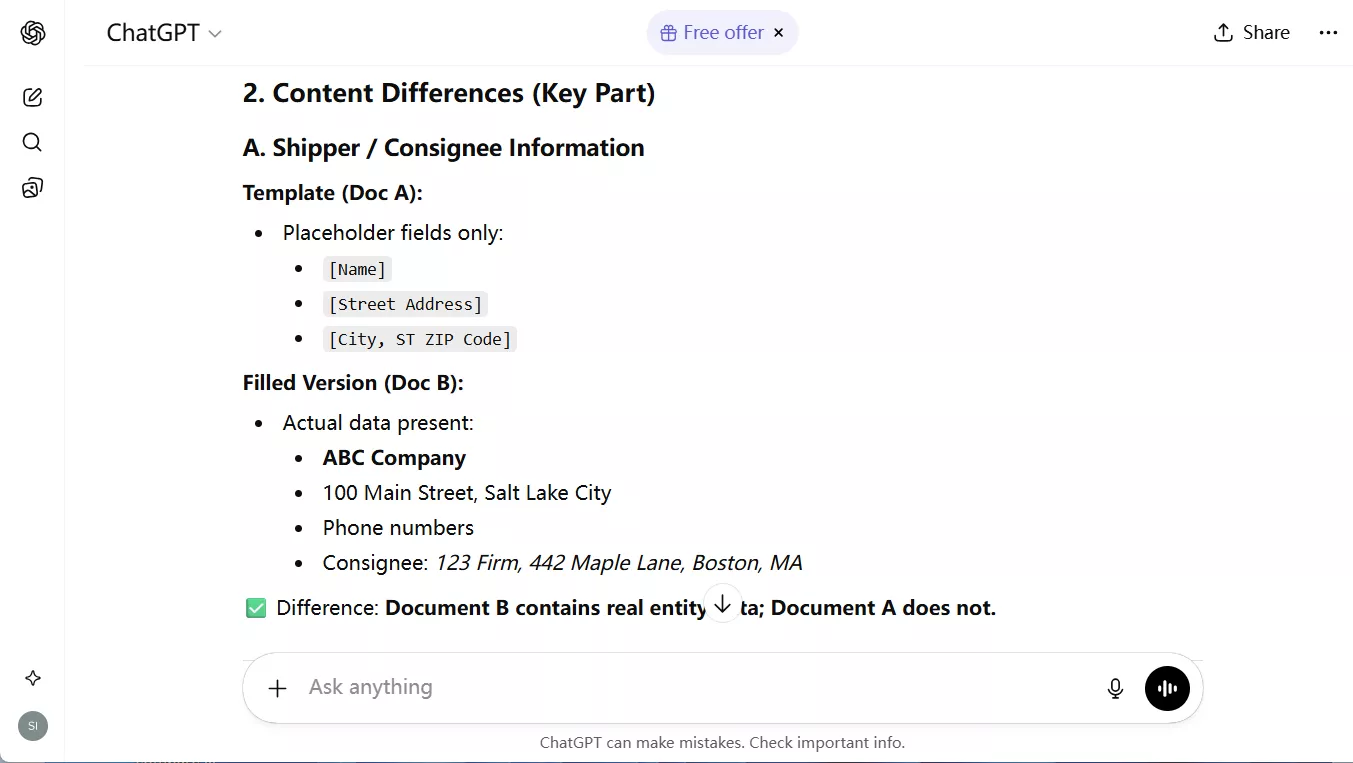
When it comes to providing results, ChatGPT does not provide any visual benefits and only provides textual results.
Step 1:
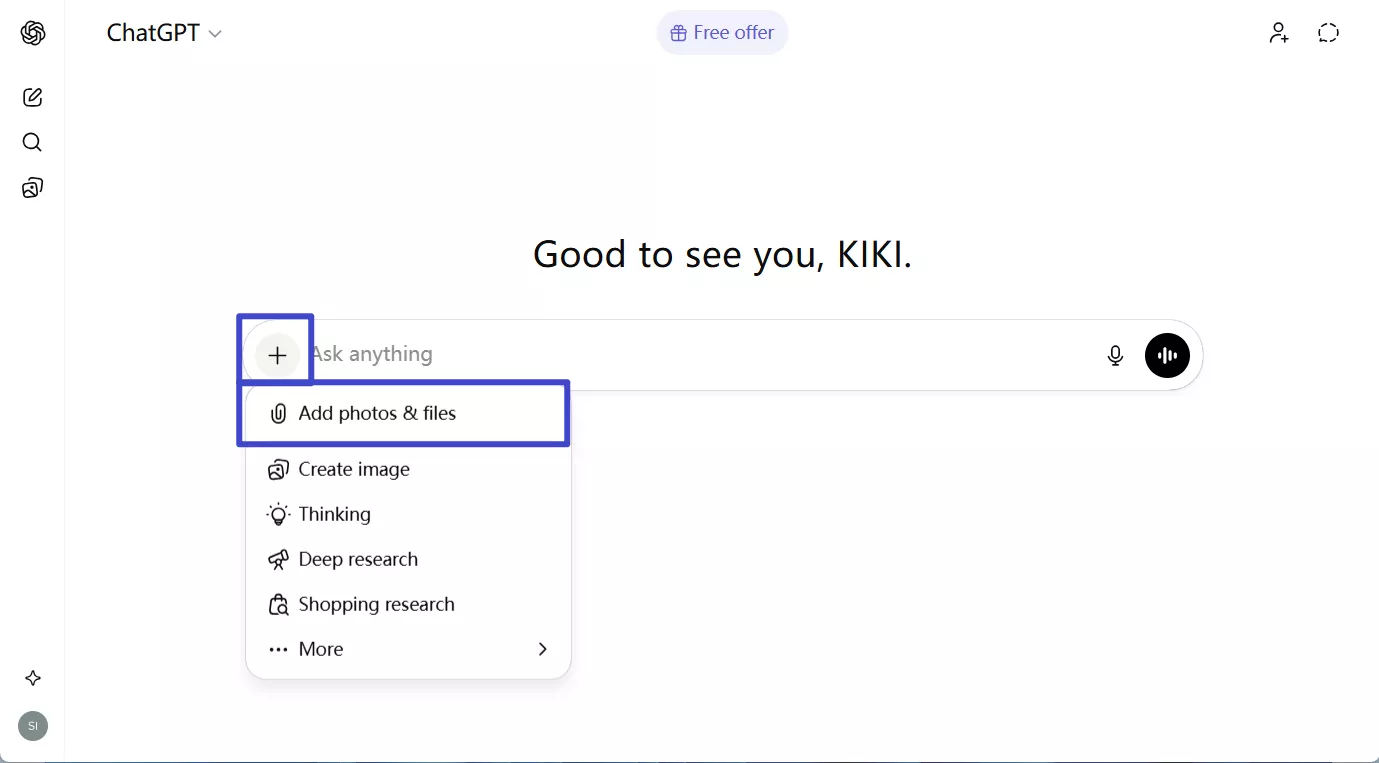
Open the ChatGPT web app on your computer. In the search box, click the "+" button > "Add photos & files" to attach your documents. Now, select both documents in the file explorer window by clicking them and clicking "Open".
Step 2:
In the search box, type your prompt for comparison. For this example, we used "Compare these 2 documents” and hit the “Enter” key on your keyboard. ChatGPT will now analyze your documents and provide detailed analytics about their similarities and differences.
Note
Part 2. Use Idox.ai AI to Compare Two Documents
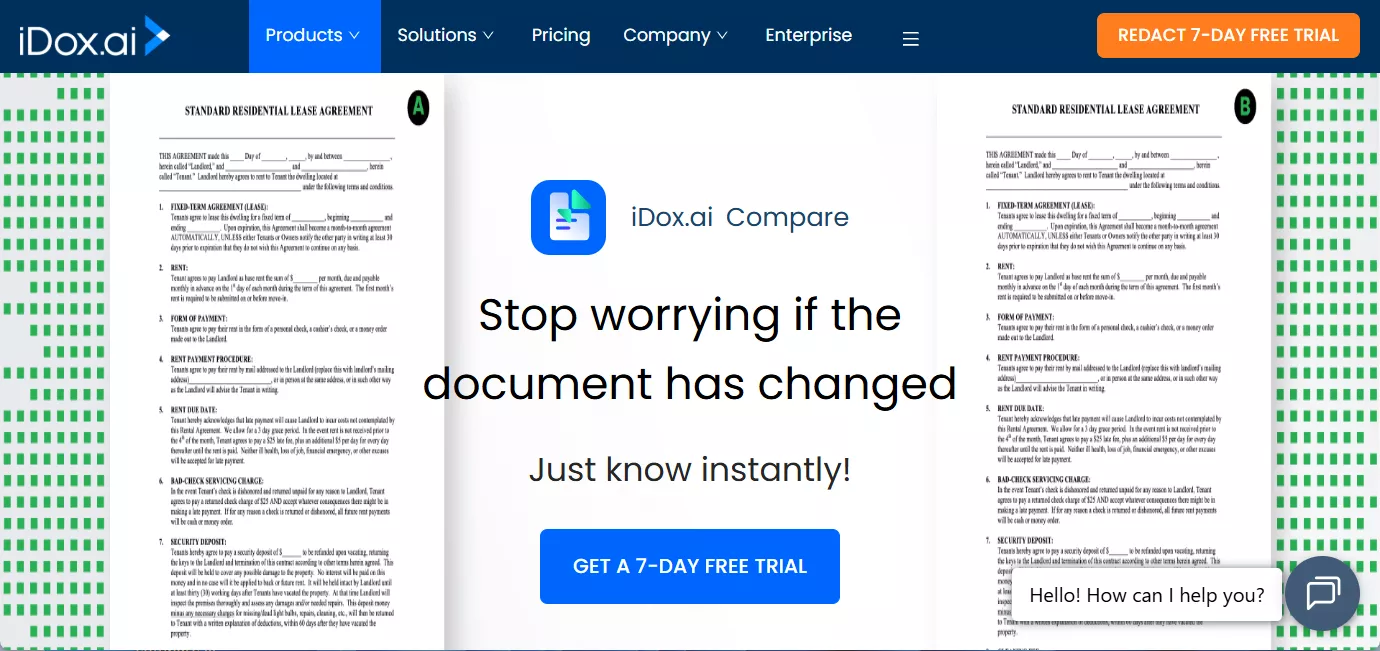
Next up on the list is Idox.ai, which combines a good graphical user interface with powerful AI processing capabilities. This platform is designed for verifying, protecting, and comparing official documents. When comparing documents, it will give a side-by-side view with synced scrolling for a comprehensive experience.
It highlights changes when you click them from the list of all changes located on the right side of the interface. Moreover, these changes are color-coded so that you can easily tell which change indicates deletion, insertion, or text replacement.
Step 1:
Go to the website on your browser and click “Compare." Move your cursor to the "File” button and choose the source location. For example, we selected “My Local Drive" to upload a file from offline storage. Select a file from the file explorer window and click "Open" to upload it. Repeat the step for the second file. After both files are uploaded, click "Compare."
Step 2:
Idox.ai will display the two files side-by-side with their differences "Highlighted”. You can click any listed change from the "Right Menu" to highlight the documents. It displays all changes in the right menu with their types mentioned. Hence, comparing documents and jumping between changes becomes more accessible.
Part 3. Use Copyleaks AI to Compare Two Documents
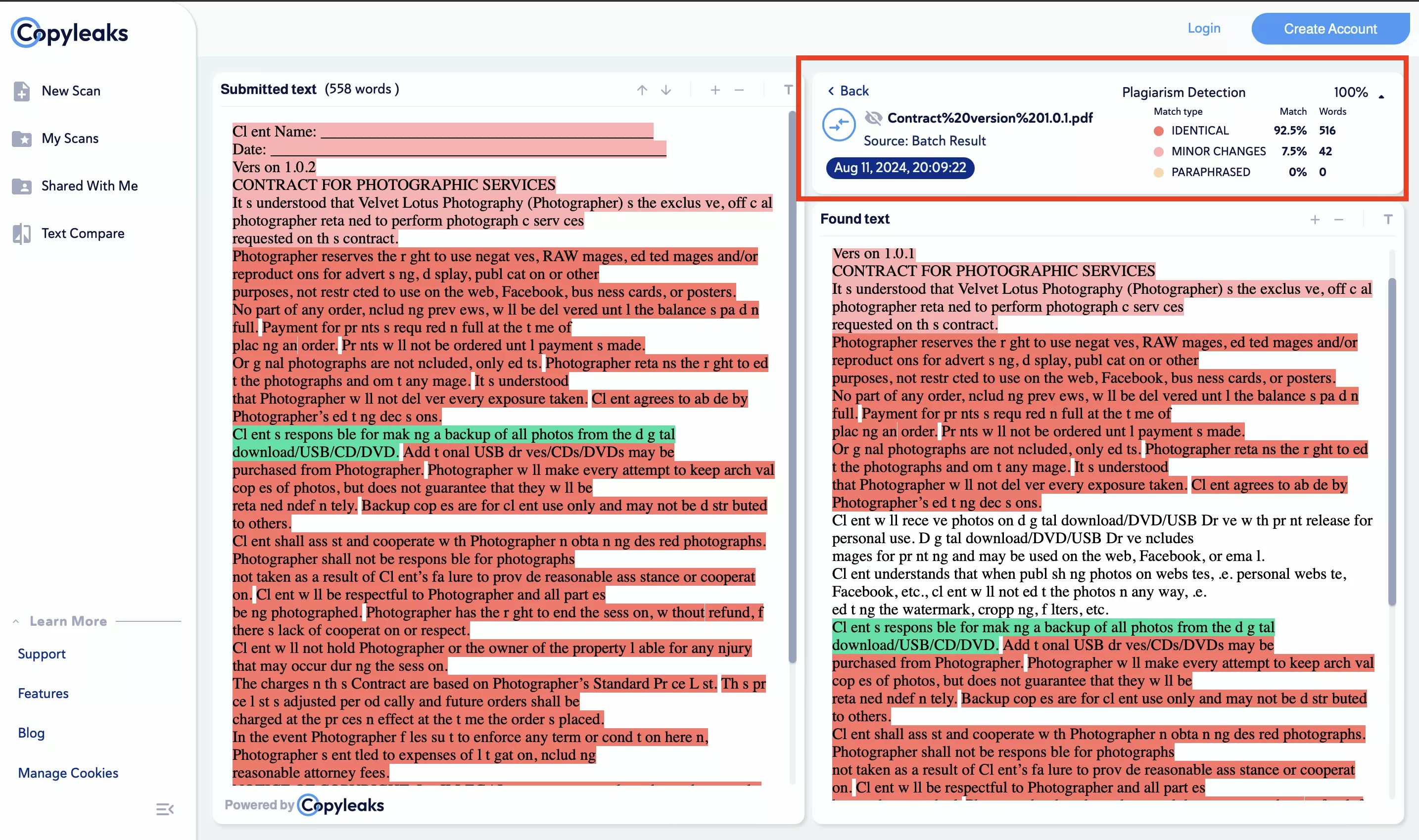
The last AI tool on our list is Copyleaks. It is an online tool for checking documents for AI-written content and other features, including document comparison. When using Copyleaks to compare two documents, you can paste text, paste ink, or upload the file itself. When comparing your files, you get a side-by-side view of the text.
However, the text appears to have multiple errors in the Copyleaks interface. Moreover, its user interface could be better designed. Instead of highlighting differences, it highlights the same content, which reduces comparison efficiency.
Step 1:
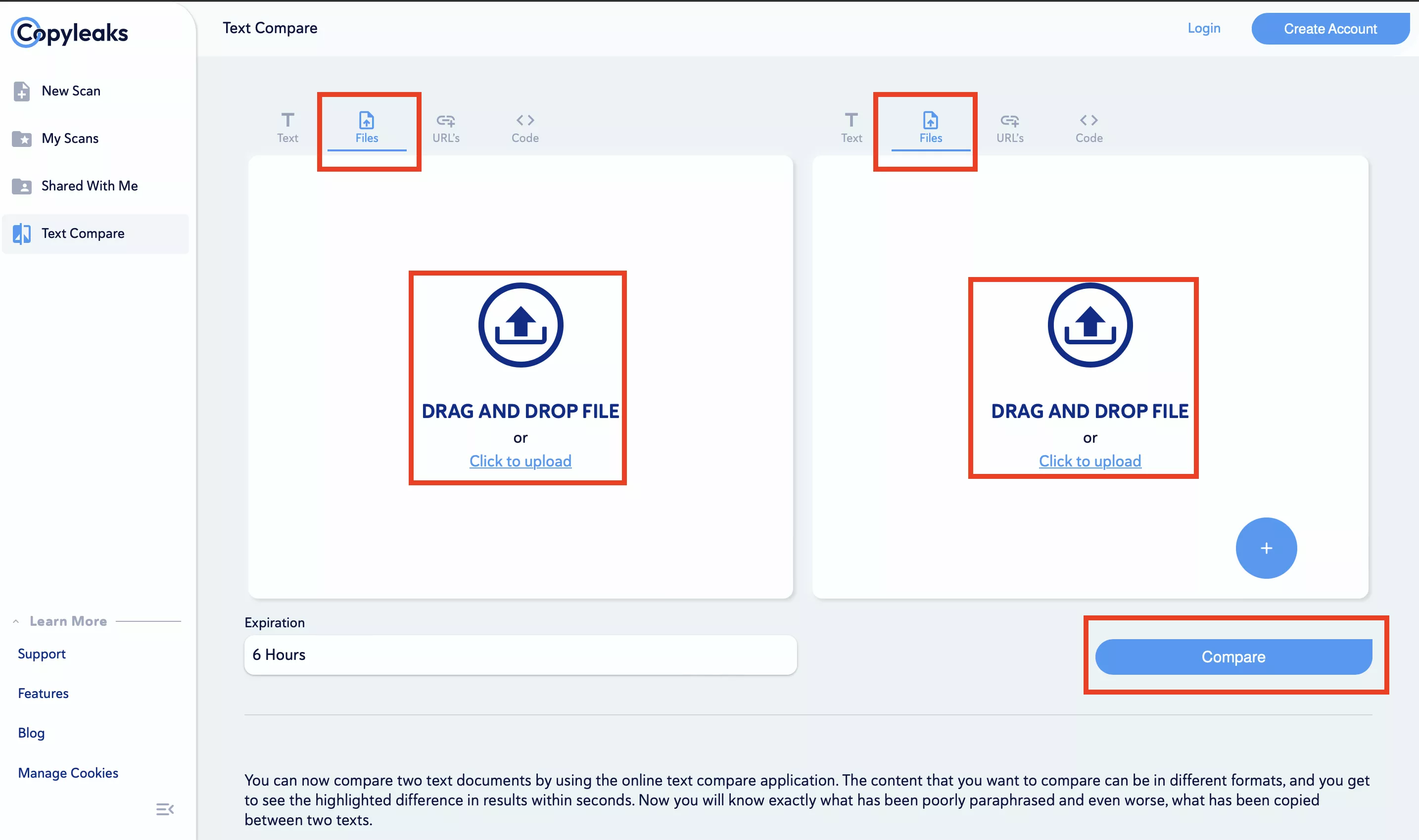
Open the Copyleaks AI Document Comparison website on your computer's browser. From the top, select "Files” to upload files from offline storage since “Text" is selected by default, where you need to paste text, which is not very convenient. Click the "Click to Upload" button for both files, select files from the file explorer, and click "Upload." This way, you can upload both files and finally click "Compare” to see the comparison.
Step 2:
Copyleaks will display both documents in a side-by-side view. It will highlight their changes with a window on the top right showing statistics. Click the "Expand" button in this window to see detailed stats of original, copied, and paraphrased words. Click any same text, and it will be highlighted in both documents in "Green color." The text that is not copied will be displayed without any highlights.
Part 4. Problems to Compare Two Documents with AI.
With the three best AI tools discussed in the article above, you may encounter multiple problems when comparing your documents.
Comparison display
The first problem is the user interface. When comparing two documents, you either need a side-by-side comparison or a content overlay comparison. Tools like ChatGPT only list changes, making locating the differences difficult.
Highlighting Changes
It is important to highlight the changes in the right colors for effective comparison. Copyleaks AI does the opposite and highlights similar sections, possibly making finding the differences difficult.
Filters for Comparison
AI tools like Idox do not provide a filter option when comparing documents. Having the option to choose between text, graphics, and other document elements makes the comparison more effective.
Security Concerns
Uploading your confidential documents to online tools raises security concerns. However, using an offline tool for the comparison is not a problem.
Internet Dependency
Using AI tools requires a consistent and stable internet connection. Without an internet connection, you cannot efficiently compare your documents.
Part 5. The Best Tool to Compare Two Documents
If you are looking for the most reliable and complete tool for comparing your documents, the search is over. UPDF is the most complete PDF editor with a wide variety of features. One of its features is comparing different PDF documents. When you compare two documents with UPDF, it provides a side-by-side view of the two.
Windows • macOS • iOS • Android 100% secure
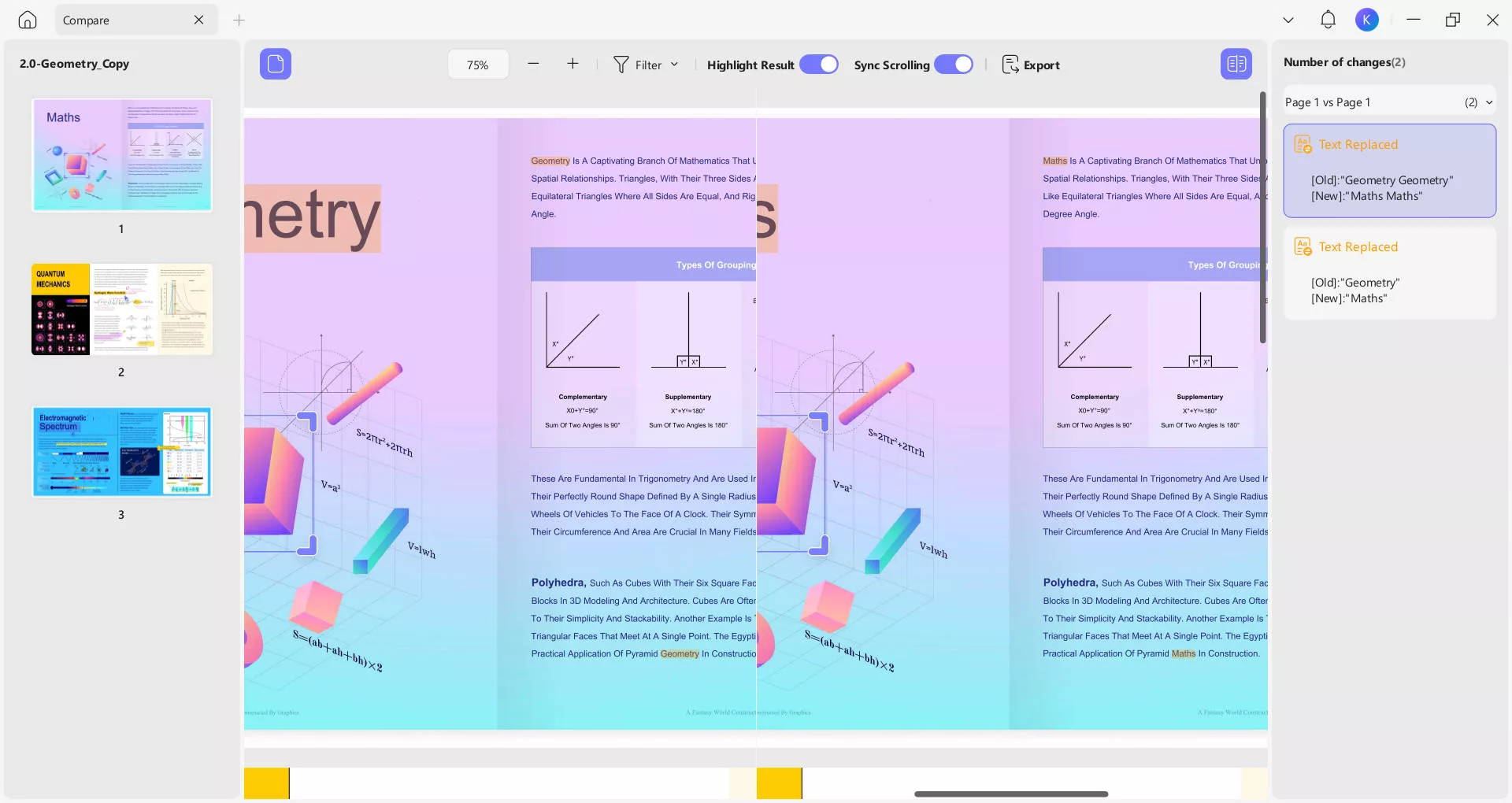
Moreover, users can choose to sync the scrolling of their documents to ensure all changes can be seen identically. UPDF also has some filters that give users control over what kind of changes are seen, such as text, graphics, etc. Additionally, the right menu pane in the compare feature provides a list of all the changes found in the documents, color-coded according to the type of change.
Moreover, you can ignore the text attributes and space when comparing. It is much helpful. And it allows you to compare two Word, Excel, PPT and more, as it supports converting these formats to PDF.
Apart from comparison, UPDF also offers PDF editing, UPDF AI, UPDF Cloud, OCR PDF, and other features. To compare your documents with UPDF, you may click the below button to download UPDF and follow the steps below:
Step 1:
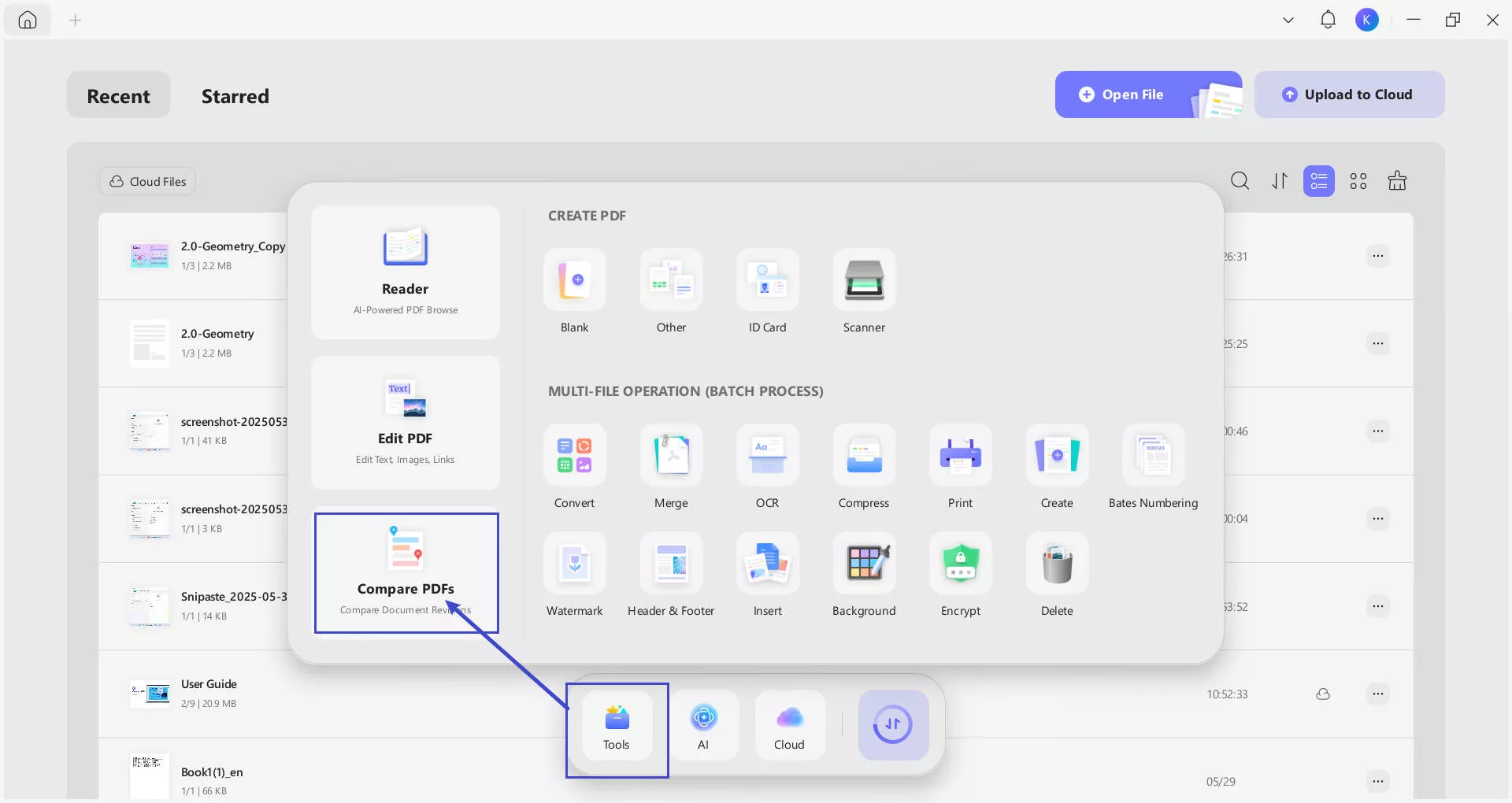
Run the UPDF application on your computer using its desktop icon and click "Tools” from the bottom menu. Now, scroll down and click “Compare PDFs”.
Windows • macOS • iOS • Android 100% secure
Step 2:
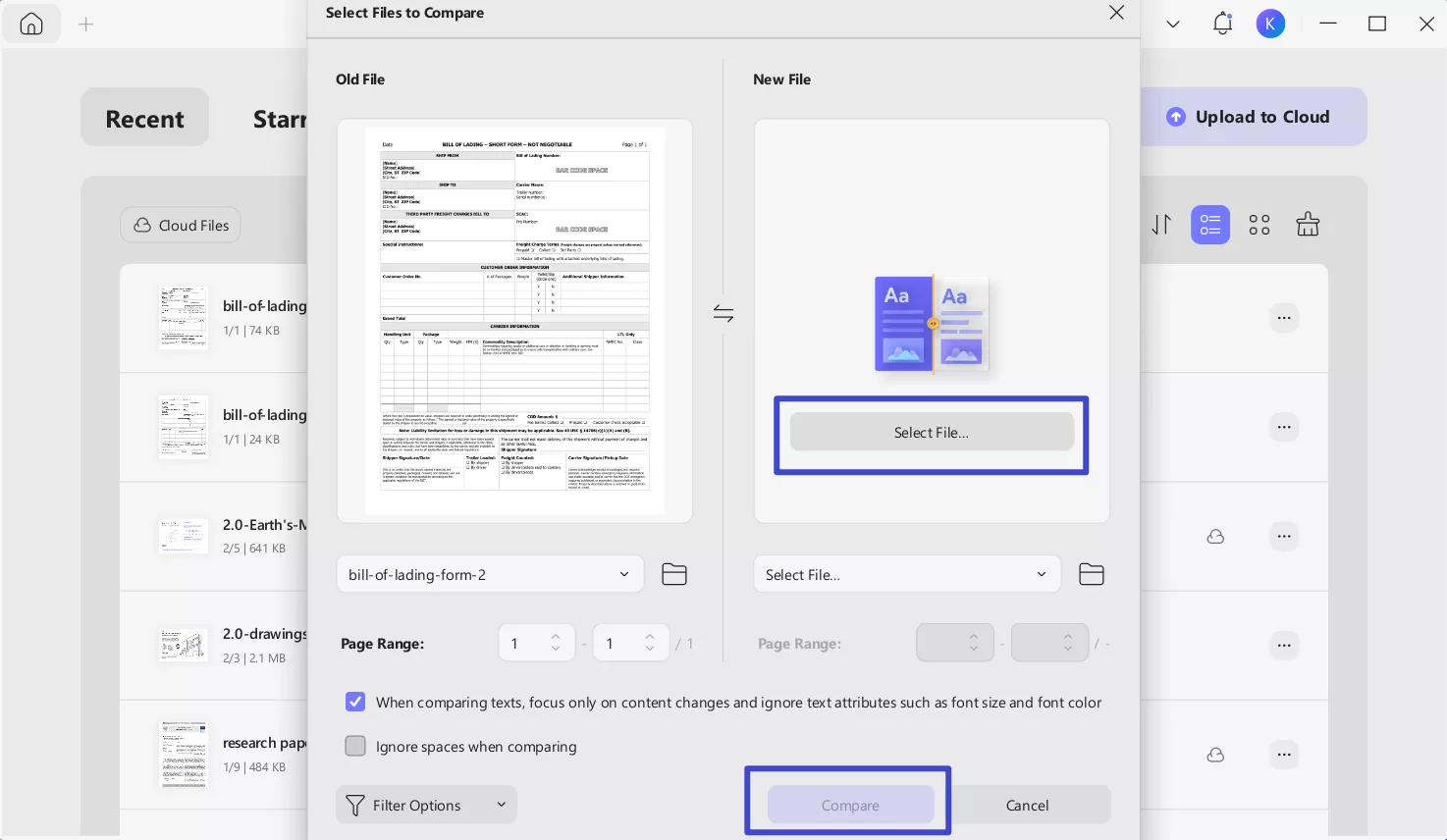
A popup window will appear, where you can click the "Select File” button for both files to add them for comparison and click “Compare."
Step 3:
UPDF will now display the documents in a side-by-side view. You can use the "Highlight Results” and “Sync Scrolling” features from the top. On the right side of the screen, it will show all the changes in the two documents along with the “Number of changes”. Every change shows its type, and you can jump to the change in the document by clicking on it from the list in the right menu”.
Bonus Tips
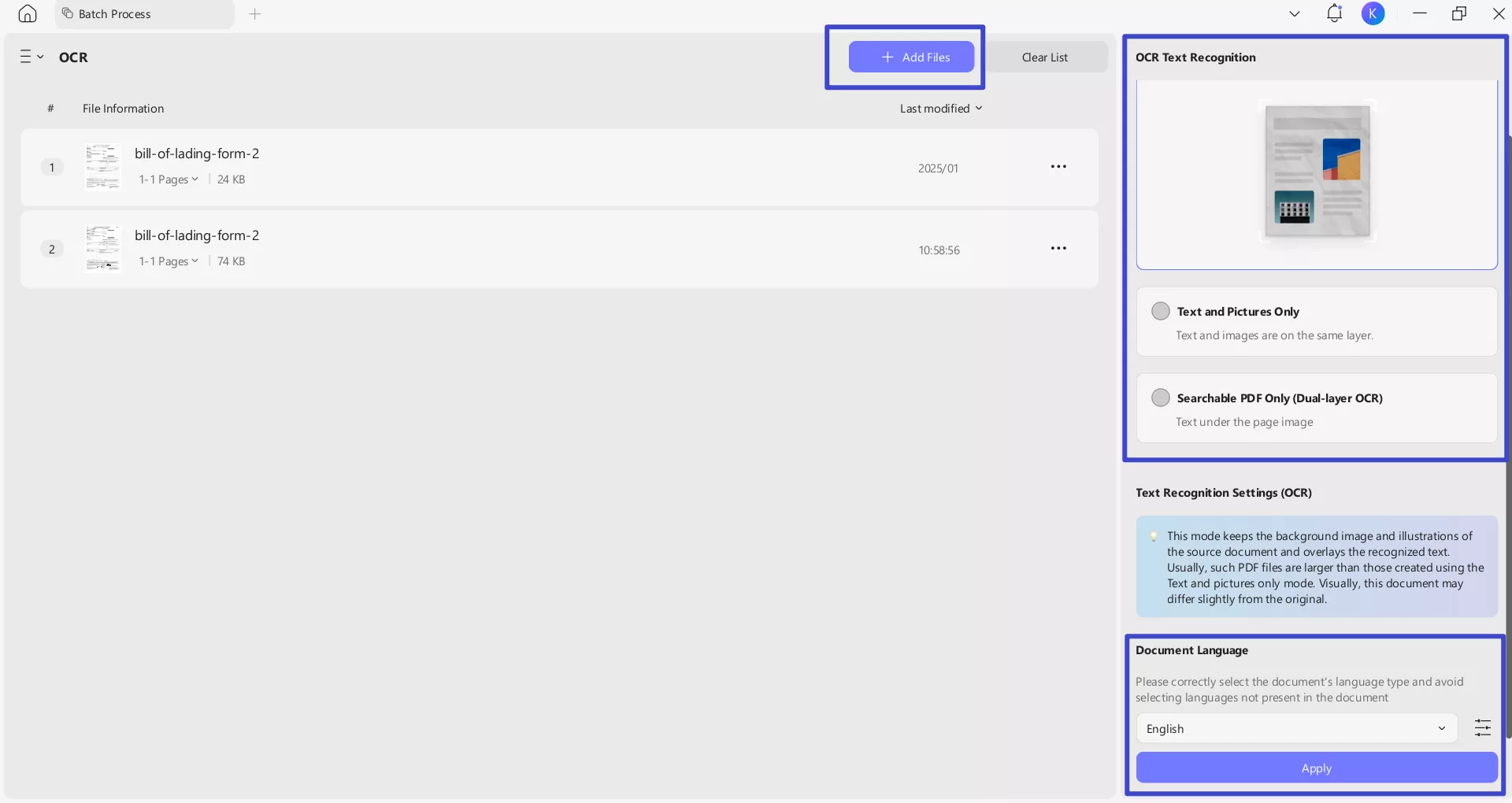
If the two documents you want to compare are scanned files, you can use UPDF’s Batch OCR feature to convert them into searchable and selectable documents. The steps are very simple: after you launch UPDF, click Tools on the home page, then select OCR under the MULTI-FILE OPERATION (BATCH PROCESS) section.
In the new window, add the files you want to perform OCR on. In the right panel, choose the appropriate OCR Text Recognition mode and the correct document language. If the document contains multiple languages, make sure to select all of them so the OCR can accurately recognize all the content. UPDF OCR supports recognize more than 38 languages. Then click Apply to start the OCR process.
UPDF will prompt you to save the OCR-processed files. After that, you can follow the steps above to compare your scanned documents. Please note that UPDF’s Batch OCR feature has limits on the number of uses and the number of documents that free users can upload. You can upgrade to UPDF Pro to unlock unlimited usage.
Windows • macOS • iOS • Android 100% secure
Comparing PDF documents with UPDF becomes very practical and convenient. Similarly, it offers a variety of other features, such as OCR, Cloud, AI, etc. You can learn more about its features by reading this PDF Association review article or downloading UPDF on your devices. Purchase UPDF Pro to unlock its premium features and enjoy a better experience.
Final Remarks
Manually comparing two documents can be very draining, especially when the documents are long and complex. While many tools allow you to compare your documents, they still involve a lot of manual features. Using AI to compare two documents can change the whole experience.
Whether you pick ChatGPT, Idox, or Copyleaks AI for comparison, the involvement of artificial intelligence significantly assists you in detecting changes. Regardless of that, UPDF provides the best way to compare two documents. Its user-friendly interface and powerful detection features make the difference. Download UPDF on your devices today and start comparing your documents.
Windows • macOS • iOS • Android 100% secure




 Lizzy Lozano
 Enola Miller


 Enrica Taylor