 UPDF
UPDF
 UPDF for Windows
 UPDF for Mac
 UPDF for iPhone/iPad
 UPDF for Android
 UPDF AI Online
 UPDF Sign
 Edit PDF
 Annotate PDF
 Create PDF
 PDF Form
 Edit links
 Convert PDF
 OCR
OCR PDF to Word
 PDF to Image
 PDF to Excel
 Organize PDF
 Merge PDF
 Split PDF
 Crop PDF
 Rotate PDF
 Protect PDF
 Sign PDF
 Redact PDF
 Sanitize PDF
 Remove Security
 Read PDF
 UPDF Cloud
 Compress PDF
 Print PDF
 Batch Process
 About UPDF AI
 UPDF AI Solutions
 AI User Guide
 FAQ about UPDF AI
 Summarize PDF
 Translate PDF
 Chat with PDF
 Chat with AI
 Chat with image
 PDF to Mind Map
 Explain PDF
 PDF AI Tools
 Image AI Tools
 AI Chat Tools
 AI Writing Tools
 AI Study Tools
 AI Working Tools
 Other AI Tools
 PDF to Word
 PDF to Excel
 PDF to PowerPoint
 Enterprise Solution
 Enterprise Sign
 Enterprise AI
 Enterprise Plan
 Enterprise User Guide
 Enterprise Webinar
 Banking
 Healthcare
 Insurance
 Legal
Legal Manufacturing
 Government
 Education Solution
 Customer Stories
 User Guide
 UPDF Tricks
 FAQs
FAQs UPDF Reviews
 Download Center
 Blog
Blog Newsroom
 Tech Spec
 Updates
 UPDF vs. Adobe Acrobat
 UPDF vs. Foxit
 UPDF vs. PDF Expert

If you've ever sent a PDF form only to have the recipient accidentally change your data, you need to flatten your PDF. Flattening ensures that your document remains professional, secure, and visually consistent across all devices.
In this guide, we’ll explore the three best methods to flatten PDF files, from using the versatile UPDF editor to quick "Print to PDF" hacks.
Part 1. What Does "Flattening a PDF" Actually Mean?
Flattening a PDF is the process of merging interactive elements—such as form fields, checkboxes, annotations, and digital signatures—into the solid background layer of the document.
- Before Flattening: Elements are "floating" on top. They can be edited, deleted, or moved.
- After Flattening: Elements become part of the static "ink" of the page. They are visible but unchangeable.
This is essential for legal contracts, official invoices, and design proofs where document integrity is a priority.
Part 2. The Best Way to Flatten a PDF (Windows & Mac) - UPDF
While many tools offer a "one-size-fits-all" approach, UPDF gives you granular control. Whether you want to lock just your signature or the entire page layout, UPDF makes it a two-click process.
Why Choose UPDF?
- Selective Flattening: Choose to flatten only forms or only watermarks.
- Cross-Platform: Works seamlessly on Windows, macOS, iOS, and Android.
- Speed: Handles large, multi-page documents in seconds.
Steps to Flatten Your PDF with UPDF:
To flatten your PDF, start by downloading and installing the UPDF app on your device. Here's how to flatten a PDF:
Windows • macOS • iOS • Android 100% secure
Step 1. Open the UPDF app and click on "Open File" to upload the PDF you want to flatten.
Step 2. Once the document is open, click on "Arrow Down" in the top menu bar.
Step 3. Select "Save as Flatten."
Step 4. A pop-up window will appear, giving you several options: "Flatten Annotation and Forms," "Flatten Watermarks," and "Flatten Cropped Pages."
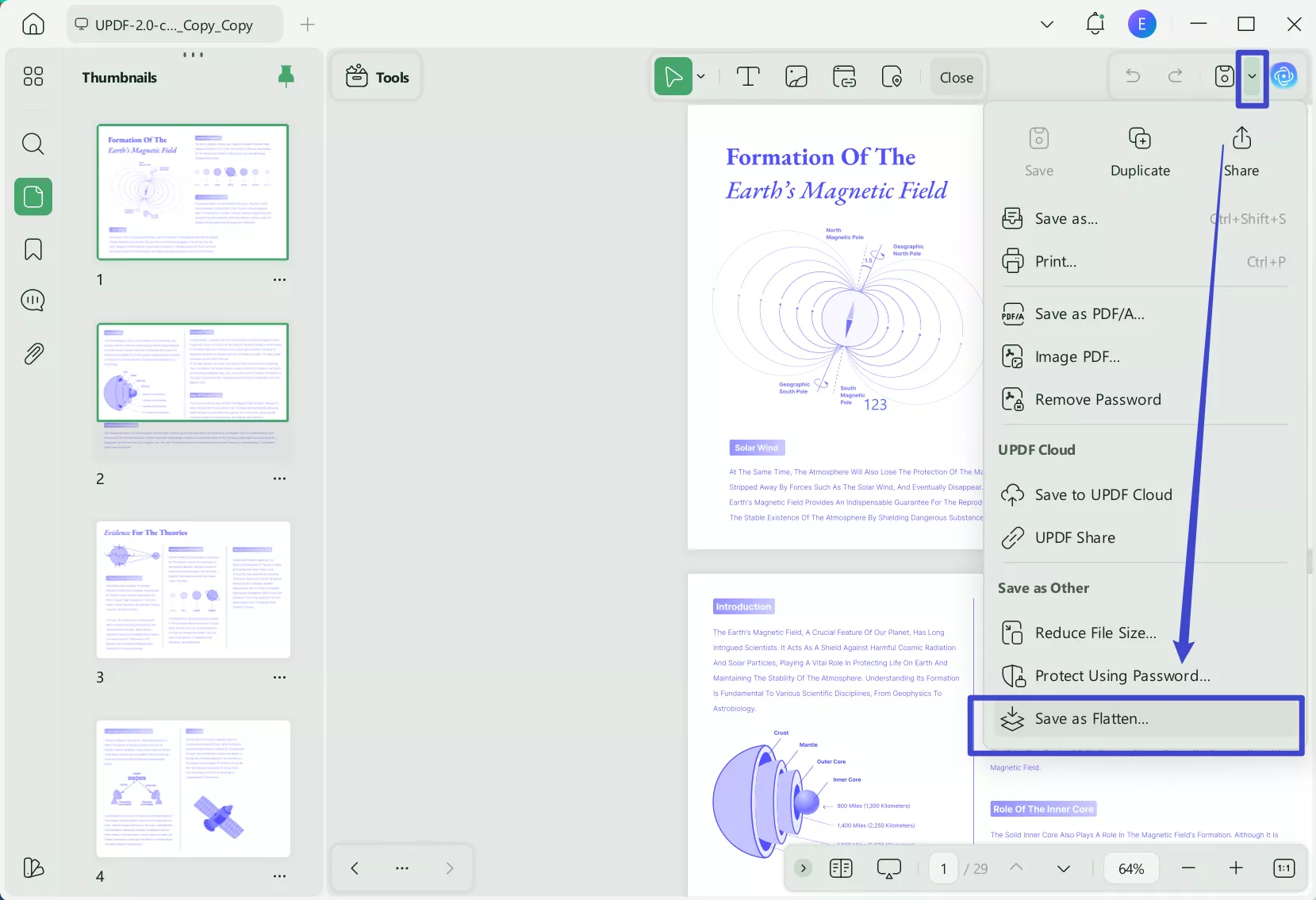
Step 5. Choose the flattening option that best suits your needs and click "Save As."
Step 6. A new PDF will be created with the selected elements flattened.
By flattening the PDF with UPDF, you ensure that your file remains secure, consistent, and ready for sharing without the risk of edits. Download UPDF today to get started!
Part 3. How to Flatten a PDF via the "Print" Method
If you don't need advanced settings and just want a quick, free solution, the "Print to PDF" method works on almost any device.
To flatten a PDF using the print method, follow these steps:
Step 1. Open the PDF file on your device in any PDF viewer, like UPDF.
Step 2. Click on the "File" button from the top menu bar then click "Print" to open the print dialogue box.
Step 3. In the print window, select "Microsoft Print to PDF" (Windows) or "Save as PDF" (Mac) as your printer.
Step 4. Adjust any necessary print settings, but make sure not to select any interactive options (like printing comments or annotations).
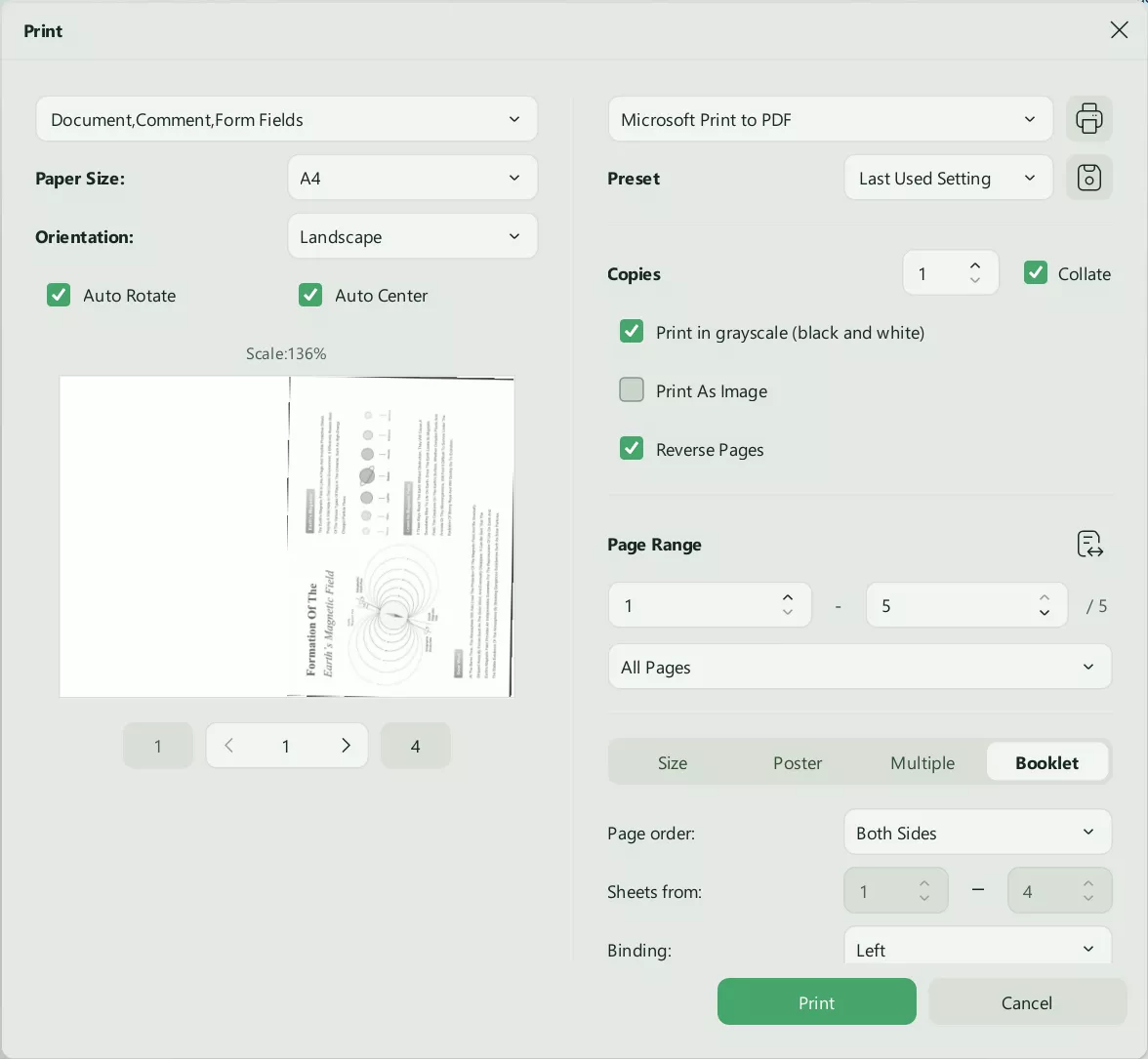
Step 5. Click "Print" and then choose a location to save your newly flattened PDF file.
Part 4. The "Ultra-Secure" Method: Convert to Image-Only PDF
Sometimes, you don't just want to flatten forms—you want to prevent people from even highlighting or copying your text. Converting to an image-only PDF is the ultimate way to "lock" a file.
Using UPDF's OCR (Optical Character Recognition) engine, you can turn a searchable PDF into a flat, non-searchable image file:
Step 1. Download and open the UPDF app and click "Open File" to upload the PDF you want to flatten.
Windows • macOS • iOS • Android 100% secure
Step 2. Once the file is open, locate the OCR option on the "Tools" and click on it.
Step 3. Select "Text and Pictures Only."
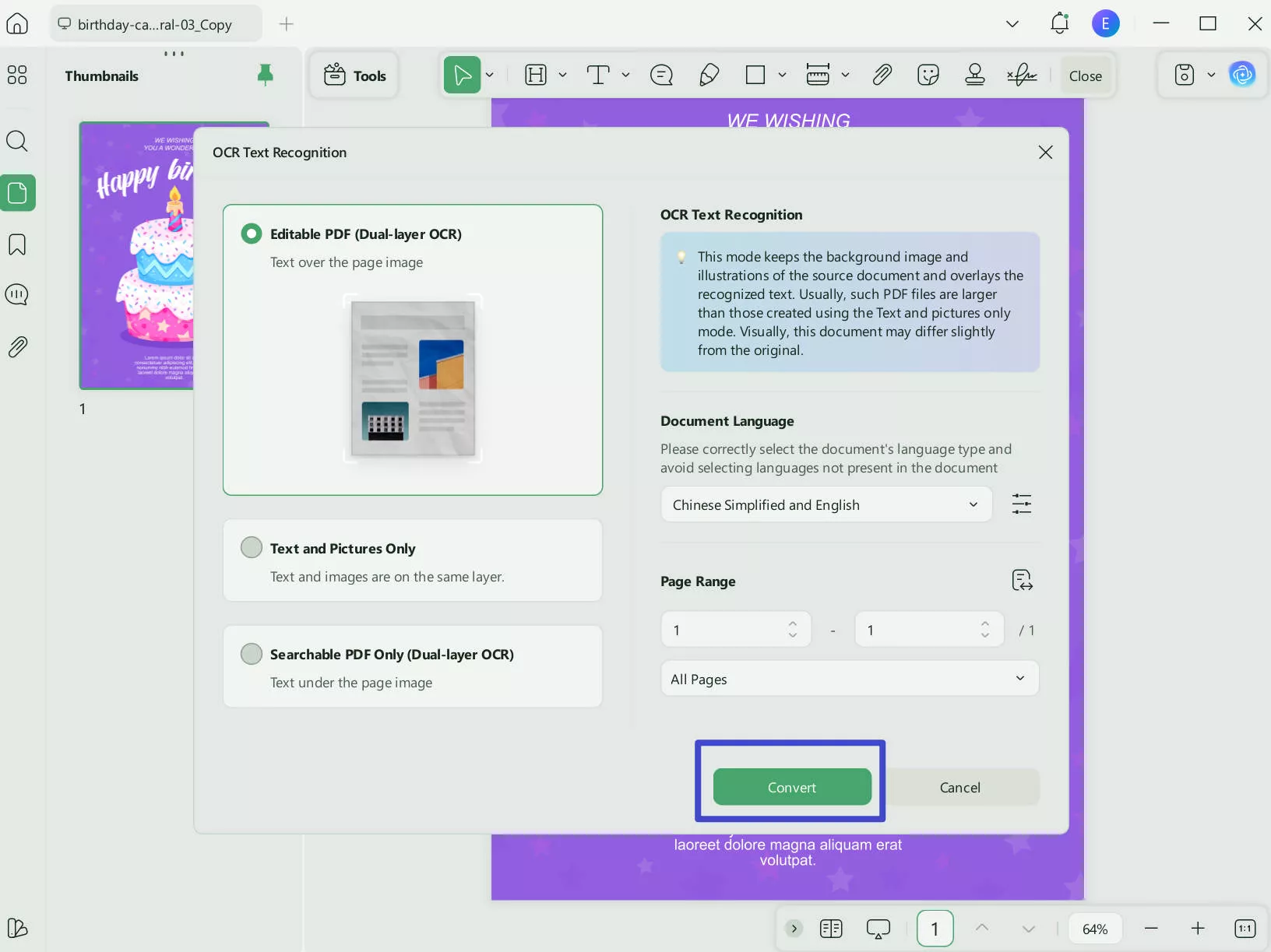
Step 4. Adjust any other settings, such as resolution, based on your preferences or requirements.
Step 5. After making the necessary adjustments, click "Convert."
Step 6. The new image-only PDF file will automatically open.
UPDF offers far more than just the ability to flatten PDFs. With its wide range of features, UPDF allows you to edit, annotate, convert, and manage your PDF files with ease. Whether you're looking to fill forms, add digital signatures, or organize your pages, UPDF has the tools to handle your document tasks efficiently. Its built-in OCR technology, along with translation capabilities, makes it a versatile option for both personal and professional use.
To learn more about how UPDF can streamline your PDF workflow and explore its full range of features, we invite you to watch the video below. The following video provides an in-depth look at the powerful capabilities of UPDF, helping you make the most out of this intuitive PDF tool. By leveraging UPDF's comprehensive features, you can transform the way you work with PDF documents, making tasks faster and more efficient.
Part 5. Frequently Asked Questions (FAQ)
Should I flatten a PDF or not?
You should flatten a PDF if you are sending a finished document (like a contract, resume, or invoice) and want to ensure the recipient cannot change your input. However, do not flatten the document if you still need to edit the form fields later, as this process is usually permanent.
Is a flattened PDF still editable?
No, once a PDF is flattened, the interactive elements (text boxes, radio buttons, etc.) are converted into graphical data. While you can still use a PDF editor like UPDF to add new text or images on top, you cannot revert the flattened elements back into editable form fields.
Does flattening a PDF reduce file size?
Often, yes. By removing the metadata and complex layers associated with interactive forms and annotations, the file size usually decreases, making it easier to email.
Conclusion
Flattening a PDF is a small step that makes a huge difference in document security. For a quick fix, the "Print" method works fine. But if you need professional control, security, and the ability to selectively flatten layers, UPDF is the most efficient tool on the market.
Windows • macOS • iOS • Android 100% secure




 Lizzy Lozano
 Enola Davis
 Grace Curry
 Enid Brown
 Enola Miller