 UPDF
UPDF
 UPDF for Windows
 UPDF for Mac
 UPDF for iPhone/iPad
 UPDF for Android
 UPDF AI Online
 UPDF Sign
 Edit PDF
 Annotate PDF
 Create PDF
 PDF Form
 Edit links
 Convert PDF
 OCR
OCR PDF to Word
 PDF to Image
 PDF to Excel
 Organize PDF
 Merge PDF
 Split PDF
 Crop PDF
 Rotate PDF
 Protect PDF
 Sign PDF
 Redact PDF
 Sanitize PDF
 Remove Security
 Read PDF
 UPDF Cloud
 Compress PDF
 Print PDF
 Batch Process
 About UPDF AI
 UPDF AI Solutions
 AI User Guide
 FAQ about UPDF AI
 Summarize PDF
 Translate PDF
 Chat with PDF
 Chat with AI
 Chat with image
 PDF to Mind Map
 Explain PDF
 PDF AI Tools
 Image AI Tools
 AI Chat Tools
 AI Writing Tools
 AI Study Tools
 AI Working Tools
 Other AI Tools
 PDF to Word
 PDF to Excel
 PDF to PowerPoint
 Enterprise Solution
 Enterprise Sign
 Enterprise AI
 Enterprise Plan
 Enterprise User Guide
 Enterprise Webinar
 Banking
 Healthcare
 Insurance
 Legal
Legal Manufacturing
 Government
 Education Solution
 Customer Stories
 User Guide
 UPDF Tricks
 FAQs
FAQs UPDF Reviews
 Download Center
 Blog
Blog Newsroom
 Tech Spec
 Updates
 UPDF vs. Adobe Acrobat
 UPDF vs. Foxit
 UPDF vs. PDF Expert

Imagine that you're working on a school project with two other people. You're in charge of putting together the final report to turn in. One person sends you their work as a PDF, and the other person sends you their work as a Word document.
So now what do you do? How can you merge PDF and Word into the same file to turn in for class?
The solution is easier than you may think! In this guide, we'll show you four easy methods to combine a PDF and a Word document into one file, so you will never run into this problem again!
Quick Answer
While there are many tools available, UPDF has emerged in 2026 as the gold standard, offering a seamless, AI-enhanced workflow that turns static files into dynamic, intelligent documents. You can click the button below to have a free download.
Windows • macOS • iOS • Android 100% secure
Part 1. How to Merge Word and PDF on Windows and Mac Via UPDF? (2 Ways)
While many legacy tools require you to convert Word files to PDF before merging them, UPDF simplifies the entire process. Its "Batch Create" and "Batch Combine" features allow you to drag and drop multiple formats simultaneously, handling the conversion and merging in one smooth motion. We highly recommend using UPDF to merge Word documents and PDFs into one file. UPDF is easy to use and can work on both Windows and Mac. Under the UPDF free version, all features are available with trial watermarks added.
Windows • macOS • iOS • Android 100% secure

In addition to merging different documents, UPDF also has other features that can help you with work or study. UPDF has a powerful AI feature that allows you to easily chat with your PDFs, write content, summarize long writing, explain difficult concepts, rewrite paragraphs, and more. The UPDF AI free version allows you to ask up to 100 questions.
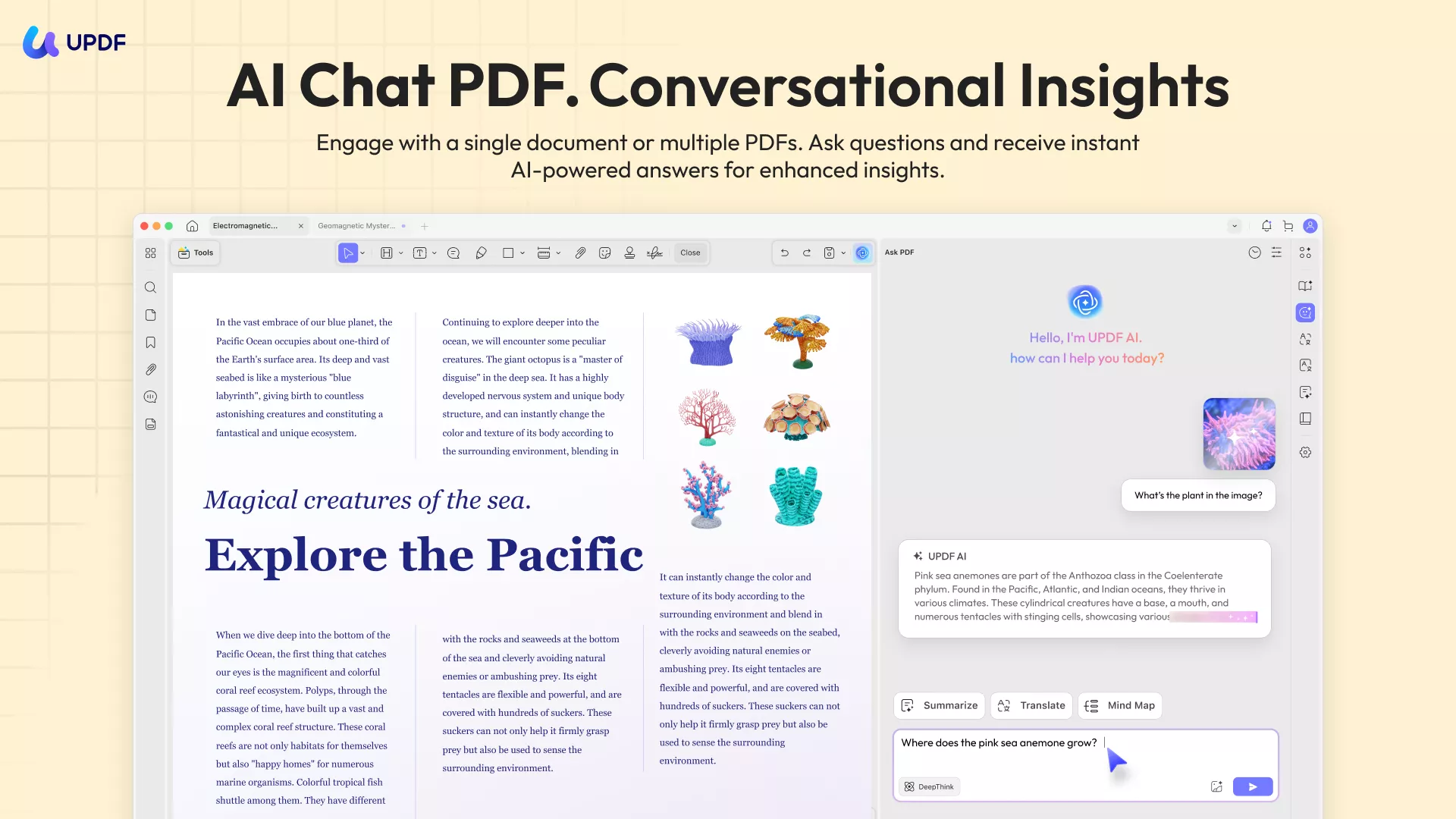
Curious to try out UPDF's merge and AI features? Make sure to download UPDF today and start your free trial so you can follow along with the tutorial below.
Way 1. Merge a Word Document and a PDF to One PDF
You can use this method to merge a Word document and a PDF into one PDF single PDF using the "Create" feature in UPDF.
Step 1 - Choose The Creation Tool
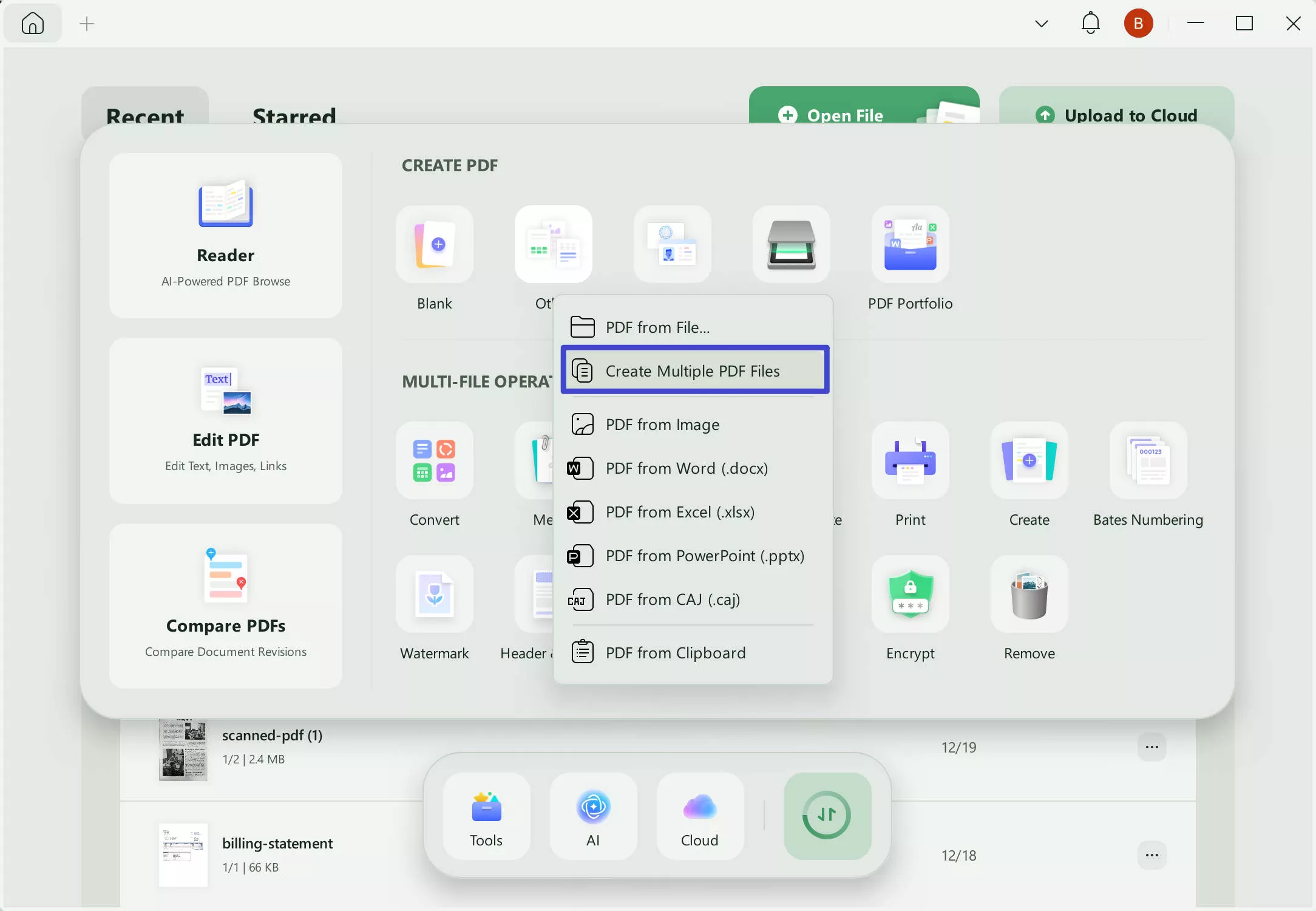
Open UPDF for Windows or Mac, click on "Tools", then click on "Other" under the "CREATE PDF" tab, and choose "Create Multiple PDF Files".
Windows • macOS • iOS • Android 100% secure
Step 2 - Select Documents to Merge
On the next screen, select the PDF and Word files you want to merge.
You can adjust their order freely by dragging them—this will determine the page sequence.
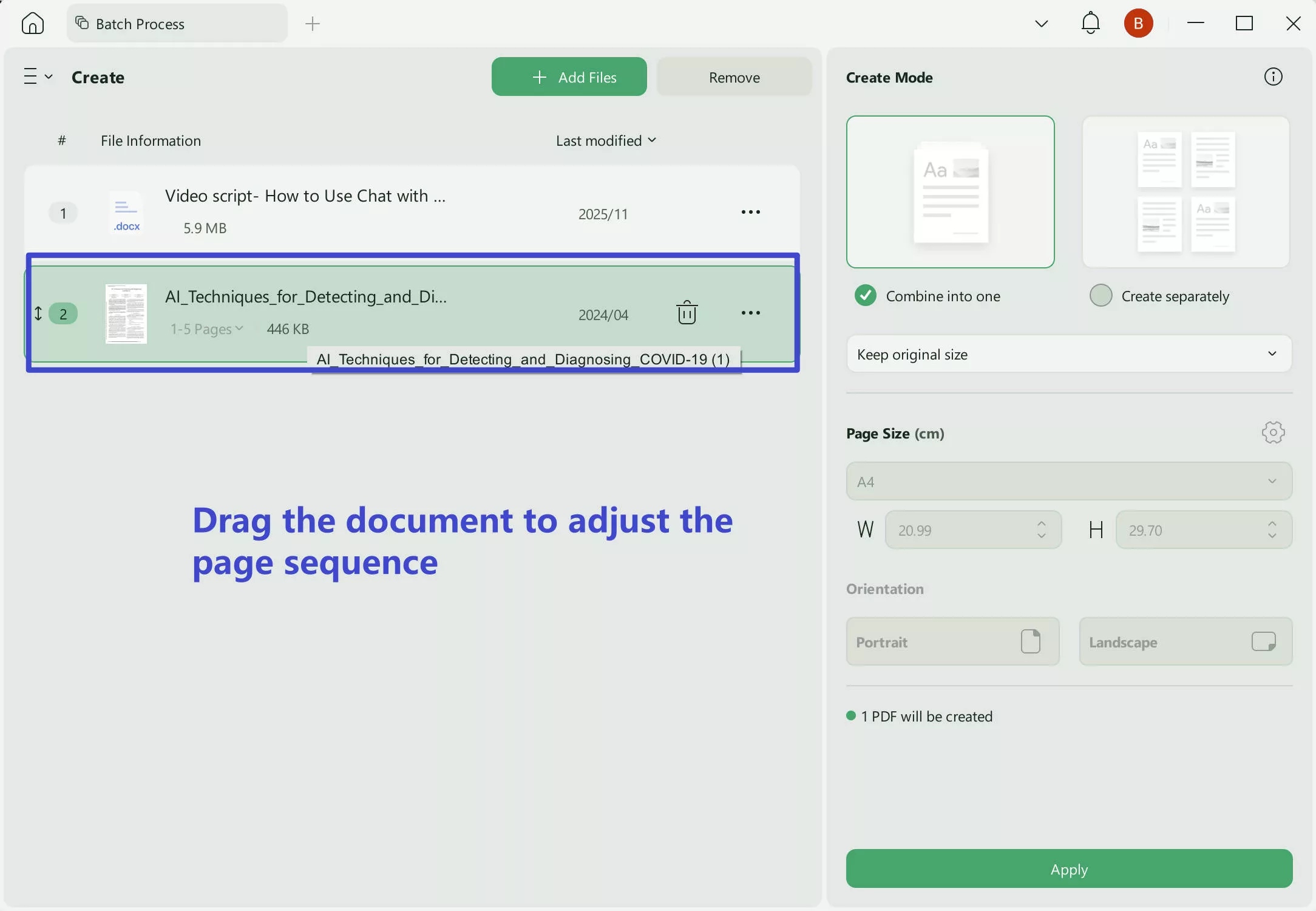
If you have multiple Word or PDF files in the same folder, you can select the entire folder directly to save time.

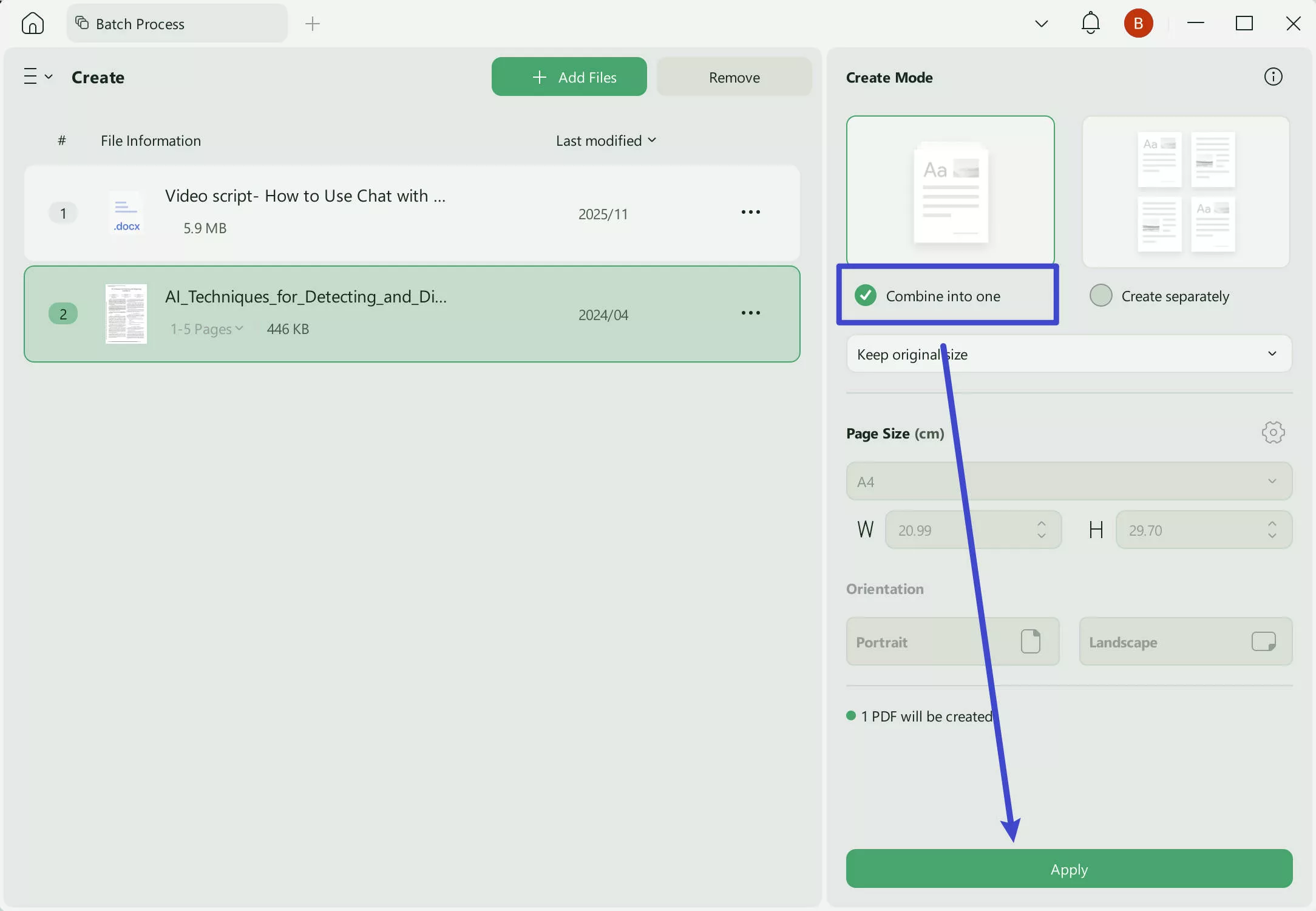
After selecting the documents, click "Combine into One" in the right panel to merge the selected files into a single PDF. Then, click the "Apply" button to complete the process.
Way 2. Merge a PDF and Word Document Together to One Word
If you want to combine your PDF and Word documents into one Word document, you can follow this method using the "Create" tool in UPDF.
Step 1 - Follow the Steps Above
The first thing you need to do is follow the steps above to drag both the PDF and Word documents to UPDF and then merge them together into a single PDF.
Windows • macOS • iOS • Android 100% secure
Step 2 - Convert PDF to Word
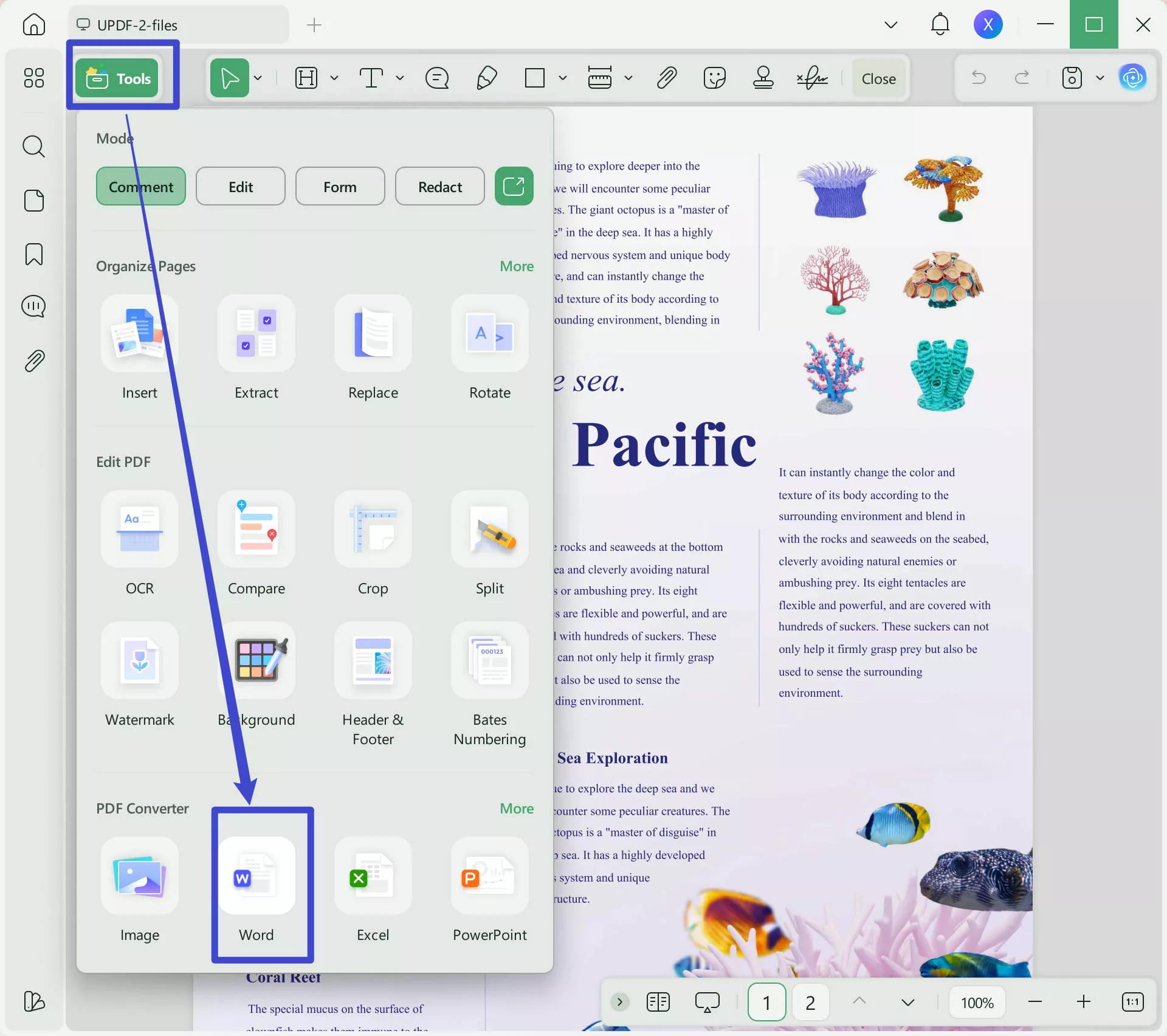
Now, you can convert your merged PDF into a Word document. Open your merged document in UPDF by clicking on the "Open File" box. Then, on the right side, click "Tools" > "Word".
Adjust the settings, and then click "Apply". Select a location to save your Word document, click "Save", and you're done!
Using UPDF’s AI to Enhance Your Merged Document
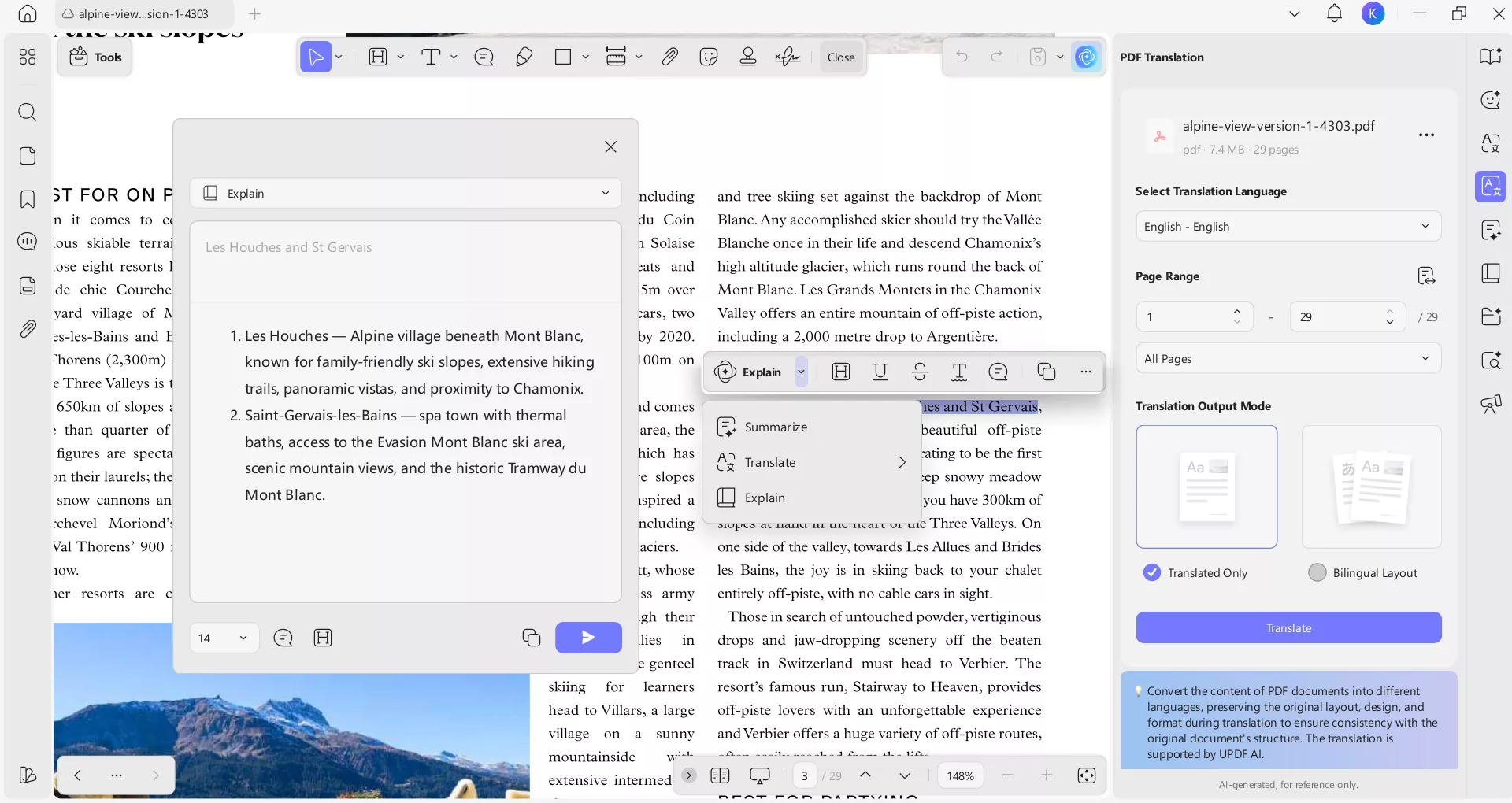
The real magic happens after the merge. Simply having a combined file isn't enough; you often need to summarize the contents or extract key data.
With UPDF AI, you can interact with your newly merged document in ways never before possible:
- Instant Summarization: Ask the AI to provide a 200-word executive summary of the entire combined document.
- Global Translation: Need to share your report with international partners? UPDF AI can translate the merged PDF while preserving the layout.
- Smart Q&A: If your merged PDF is 100 pages long, simply ask the AI, "What are the key financial projections mentioned in the Word section?" and get an immediate answer.
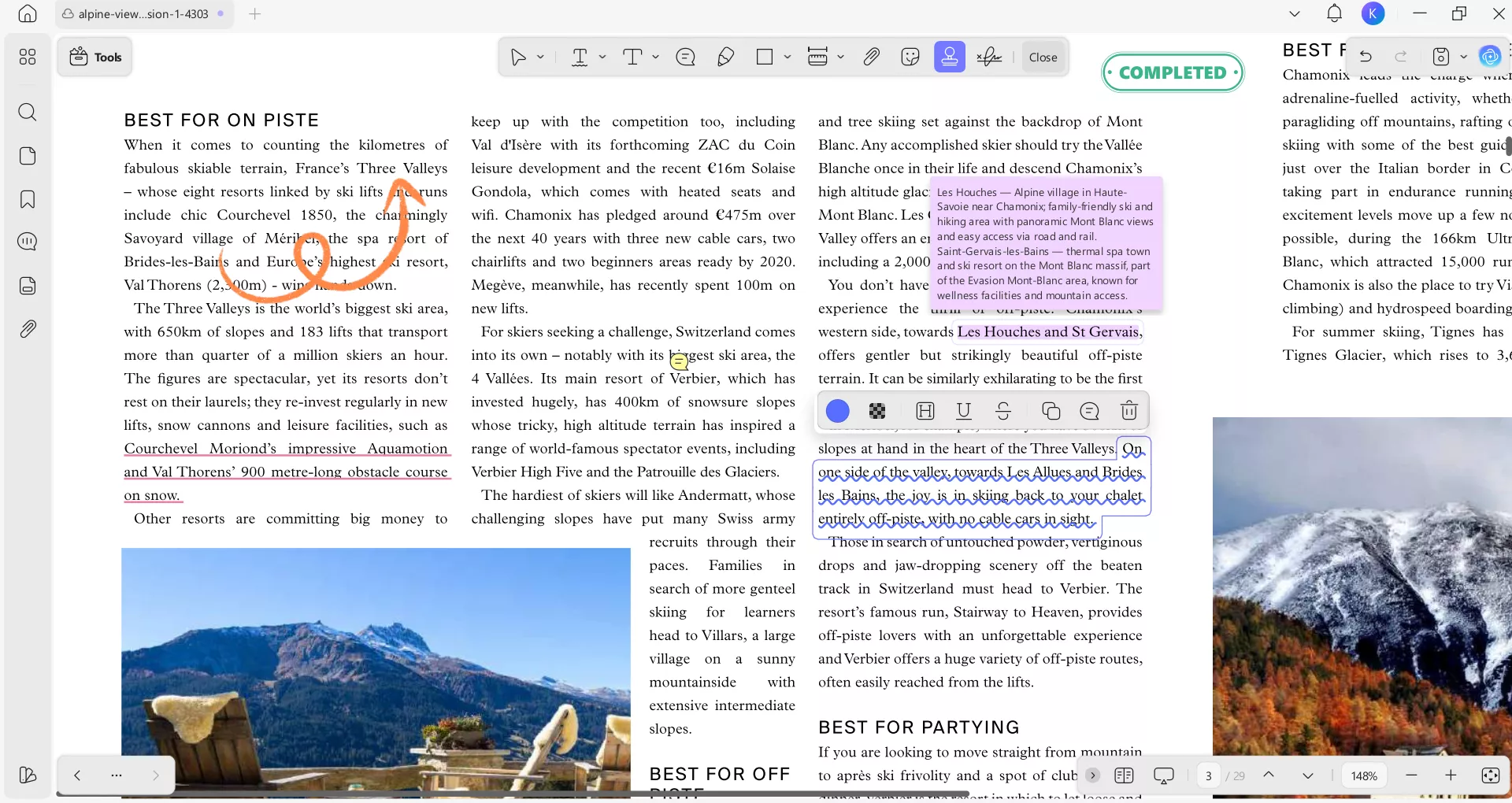
UPDF also has many other features that make reading, managing, and editing your PDFs easily. With UPDF, you can use OCR to convert a text image into an editable PDF. You can also customize your PDFs by adding images, URLs, and text, or annotating your PDFs with highlighters, sticky notes, underlined text, stickers, and more. UPDF also has PDF protecting features, such as adding digital signatures, stamps, or passwords.
You can learn more about UPDF by reading this UPDF review and watching the below video. When you're ready to try out all of UPDF's amazing features, click the button below to download UPDF and start your free trial.
Windows • macOS • iOS • Android 100% secure
Part 2. How to Merge PDF and Word to One PDF Online Via PDF24?
While UPDF offers the most robust offline experience, you may occasionally find yourself on a public computer needing a quick fix. You can use PDF24 to merge a PDF and a Word document into one file online. This is a quick and easy method, although there are some limitations. PDF24 can only be used online, and you can only merge your PDF and Word document into a single PDF, but not any other formats.
Follow these steps to merge a PDF and Word document using PDF24:
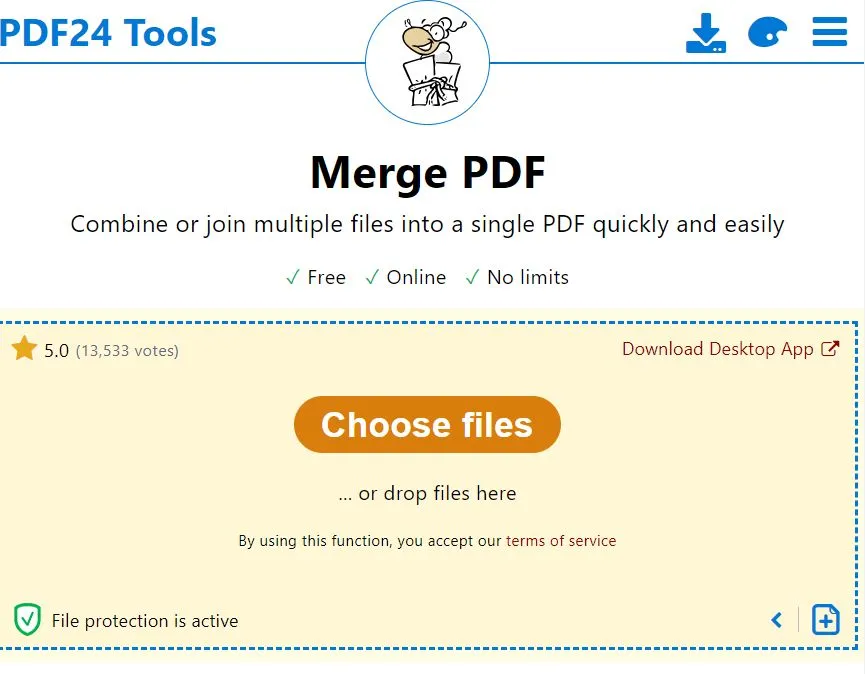
Step 1 - Choose Files
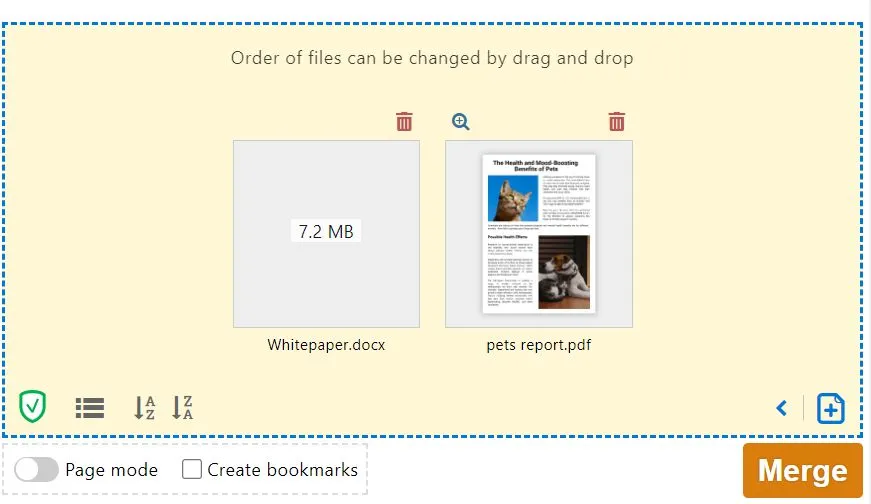
Navigate to PDF24's Merge PDF tool, and select the PDF and Word documents that you want to upload. You can click the "Choose file" button, or drag and drop your files into the yellow box.
Step 2 - Merge Documents
Once your files have loaded, click on the orange "Merge" button in the bottom right of the website.
Step 3 - Download Merged File
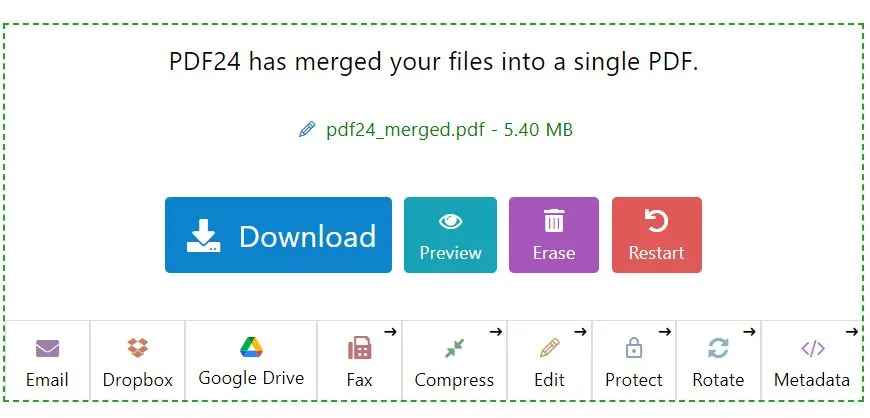
When your files are done merging, you can download them by clicking the blue "Download" button. You can also email your file to yourself or someone else, upload it to Dropbox or Google Drive, or use one of PDF24's other tools to fax, compress, edit, protect, rotate, or edit metadata.
Part 3. How to Merge PDF and Word to One Word/PDF Online Via ASPOSE
In addition to the other methods above, you can also use ASPOSE to merge a PDF and a Word document into a single file. However, this tool has similar limitations to the method above. ASPOSE is online only, so you must have access to the internet to use it, and it doesn't have any customization tools. You can also only merge small files, and if the file size is too big you will need to pay for a membership to ASPOSE.
Follow the steps below to merge a PDF and Word document using ASPOSE.
Step 1 - Upload Documents
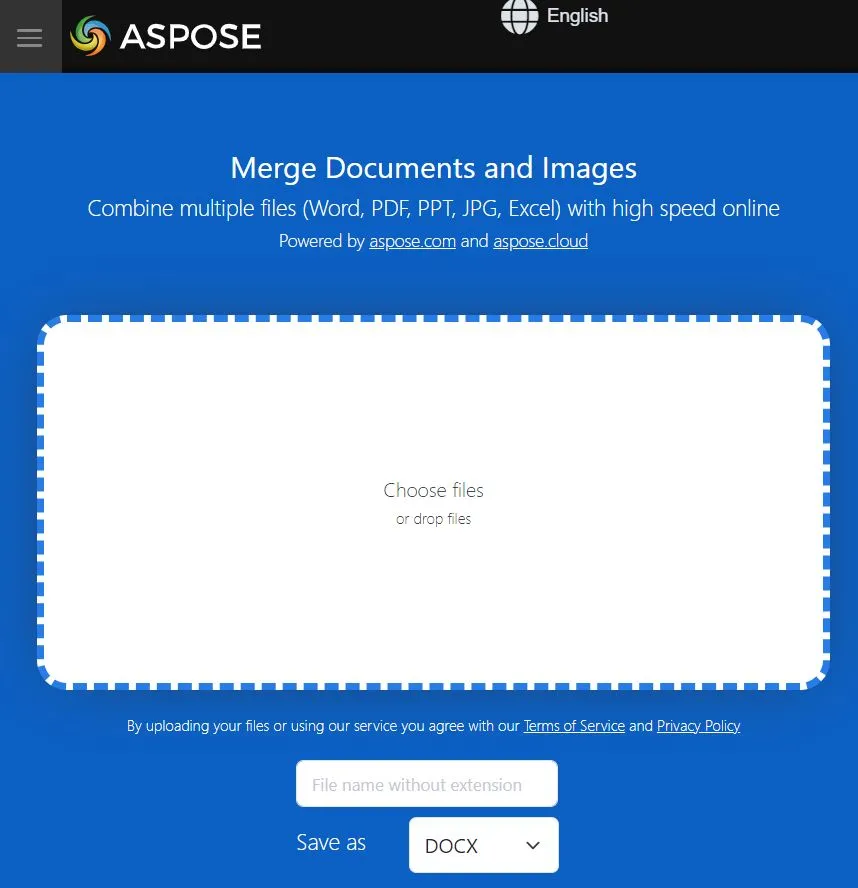
Click on the white box to choose your PDF and Word document files to upload, or drag and drop them into the white area.
Step 2 - Merge Documents
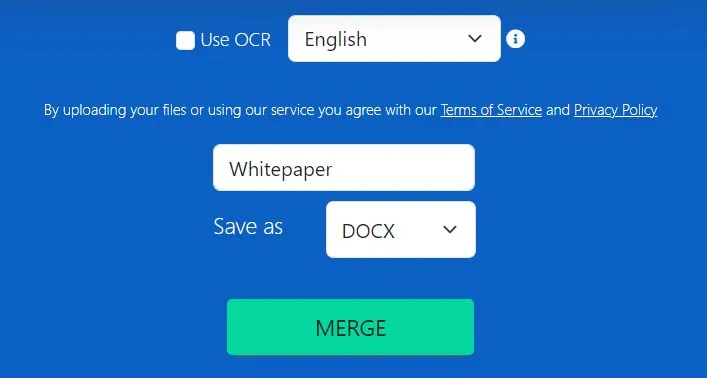
You can decide if you want to use OCR, and what language to use. You can also change the name of the file, and then select the format you want to save your documents as and click the green "Merge" button.
Step 3 - Download Merged Document
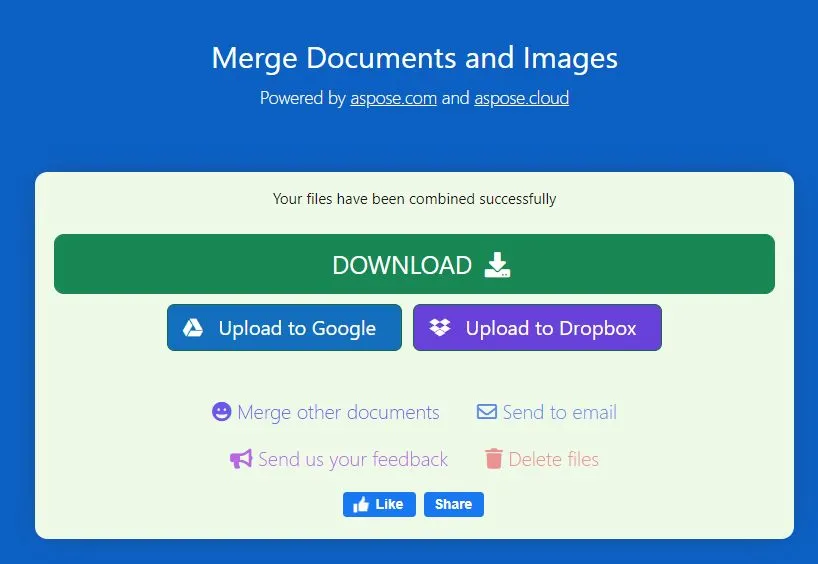
After a couple of seconds of processing, your merged document will be ready for downloading. You can click the "Download" button to download the merged file directly to your computer. Or you can upload the file to Google or Dropbox, send it via email, delete the files, or merge other documents.
Part 4. Frequently Asked Questions
Will merging a Word file with a PDF change my fonts?
Not with UPDF. Its advanced rendering engine preserves the original typography of your Word documents during the conversion and merge process.
Can I merge images (like JPG or PNG) along with my Word and PDF files?
Absolutely. UPDF supports a wide array of formats. You can combine Word, Excel, PowerPoint, and images into a single PDF in one go.
Is there a limit to how many files I can merge?
Under UPDF's free version, you can merge up to 2 files in a batch. However, if you upgrade to the premium version, you can merge an unlimited number of files. UPDF is designed for high-performance batch processing, so whether you're merging 2 files or 200, the speed remains lightning-fast.
Conclusion
Merging PDF and Word files should be the easiest part of your day, not a technical headache. Now you know at least four ways to merge PDF and Word documents. The transition to intelligent, all-in-one tools like UPDF has made document management faster, more secure, and more productive. You can then use UPDF to edit and annotate your merged file. You can also use PDF24 or ASPOSE to merge a PDF and a Word document into one file, but both of those websites have limitations.
Don't settle for "good enough" conversion. Download UPDF for Free today and see how easy it is to bring your documents together. To save the merged file without watermark, you can click the below picture to upgrade to pro version with a big discount.
Windows • macOS • iOS • Android 100% secure



 Enola Miller


 Delia Meyer