UPDF
UPDF
 UPDF for Windows
 UPDF for Mac
 UPDF for iPhone/iPad
 UPDF for Android
 UPDF AI Online
 UPDF Sign
 Edit PDF
 Annotate PDF
 Create PDF
 PDF Form
 Edit links
 Convert PDF
 OCR
OCR PDF to Word
 PDF to Image
 PDF to Excel
 Organize PDF
 Merge PDF
 Split PDF
 Crop PDF
 Rotate PDF
 Protect PDF
 Sign PDF
 Redact PDF
 Sanitize PDF
 Remove Security
 Read PDF
 UPDF Cloud
 Compress PDF
 Print PDF
 Batch Process
 About UPDF AI
 UPDF AI Solutions
 AI User Guide
 FAQ about UPDF AI
 Summarize PDF
 Translate PDF
 Chat with PDF
 Chat with AI
 Chat with image
 PDF to Mind Map
 Explain PDF
 Scholar Research
 Paper Search
 AI Proofreader
 AI Writer
 AI Homework Helper
 AI Quiz Generator
 AI Math Solver
 PDF to Word
 PDF to Excel
 PDF to PowerPoint
 Enterprise Solution
 Enterprise Sign
 Enterprise AI
 Enterprise Plan
 Enterprise User Guide
 Enterprise Webinar
 Banking
 Healthcare
 Insurance
 Legal
Legal Manufacturing
 Government
 Education Solution
 Customer Stories
 User Guide
 UPDF Tricks
 FAQs
FAQs UPDF Reviews
 Download Center
 Blog
Blog Newsroom
 Tech Spec
 Updates
 UPDF vs. Adobe Acrobat
 UPDF vs. Foxit
 UPDF vs. PDF Expert


Different users use Google Docs on different devices. While some may use it on their smartphones, some prefer using the desktop. However, one use case that is common among all users is to use text to speech on Google Docs. Since it is not a highly polished feature inside Google Docs, users find difficulty finding and using it. So, this guide will explain how to use the text-to-speech feature for your Google Docs for every device th at you use it on.
Tip: If you frequently work with PDF files, you might also need a tool for text-to-speech on PDFs. This article will introduce such a tool. You can read Part 5 and download it by clicking the button below to try it for free.
Windows • macOS • iOS • Android 100% secure
Part 1. How to Use Text-to-Speech on Google Docs on Desktop?
Since most people use Google Docs on their desktop computers, which are either Mac or Windows, we will start discussing how you can use this feature on the desktop version. For illustration purposes, we will use the Google Docs online web app, and here are the detailed steps you must follow for this method to work:
1. Enable screen reader for Google Docs
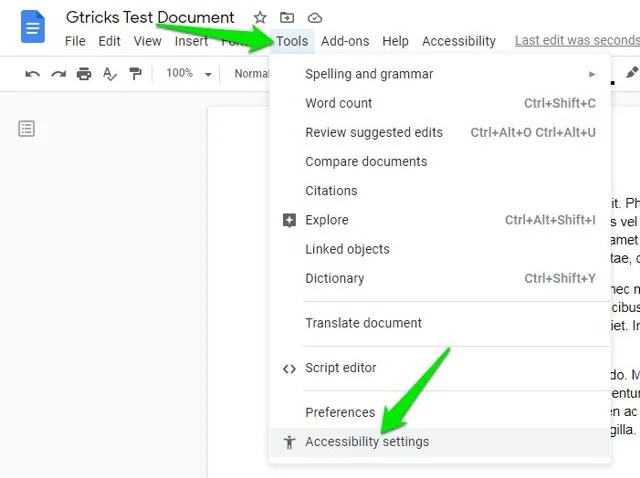
To enable your screen reader software to speak for Google Docs, you need to enable it first to do that, you will go to "Tools," and there you need to click "Accessibility Settings." Now you will see a pop-up window of Accessibility Settings where you need to checkmark the "Turn on screen reader support" option and finish by clicking "OK."
2. Use the accessibility option for doing text-to-speech
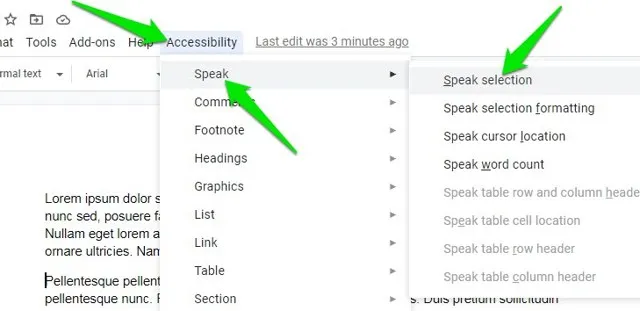
Now everything is set up, and you can click the "Accessibility" option from the top of your screen in Google Docs. Now click "Speak" and then choose "Speak Selection." These steps will start text-to-speech of the selected content in your Google Docs, so ensure that you select the text with your cursor before using this step. For an easier experience, you can use the "Ctrl + Alt + X" keyboard shortcut after selecting the text.
Part 2. How to Use Google Docs Text to Speech on Android?
The accessibility features on Android devices allow us to use the TTS feature on the Google Docs app, while there isn't any built-in option. You have to set up the accessibility option in the settings of your device, and then you can read aloud any Google Docs documents by selecting the text and navigating through different parts of the document. Here are the steps to use Google Docs TTS on Android:
1. Go to Accessibility Settings on your device.
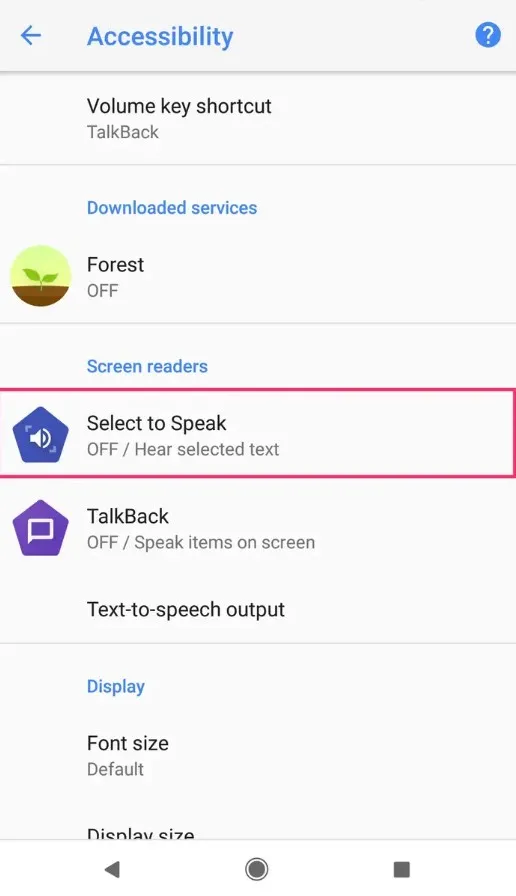
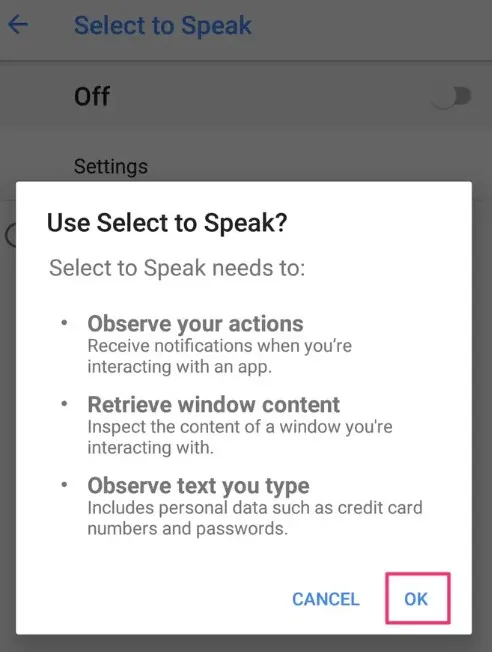
To enable this feature, you need to open the settings of your device and head to the accessibility section. There, you will find the "Select to Speak" feature.
2. Turn on Select to Speak
Tap on "Select to Speak" and tap "OK." Doing so will enable the feature for you. Now, you can head to the Google Docs document and select the text that you want to read out loud. After you select the text, there will appear a text-to-speech icon on the lower-right of the screen or the selection will show a circle pop-up. You can use the available one, and your Android device will automatically start speaking the selected text.
Part 3. How to Use Google Docs Text to Speech on iPhone?
iPhone offers great accessibility features, and since the Google Docs app does not come with a built-in TTS feature, we can use the accessibility options in an iPhone to read the content of Google Docs aloud with a much easier experience. By default, this feature is turned off, so ensure that you follow all the steps below correctly:
1. Enable Spoken Content settings on iPhone
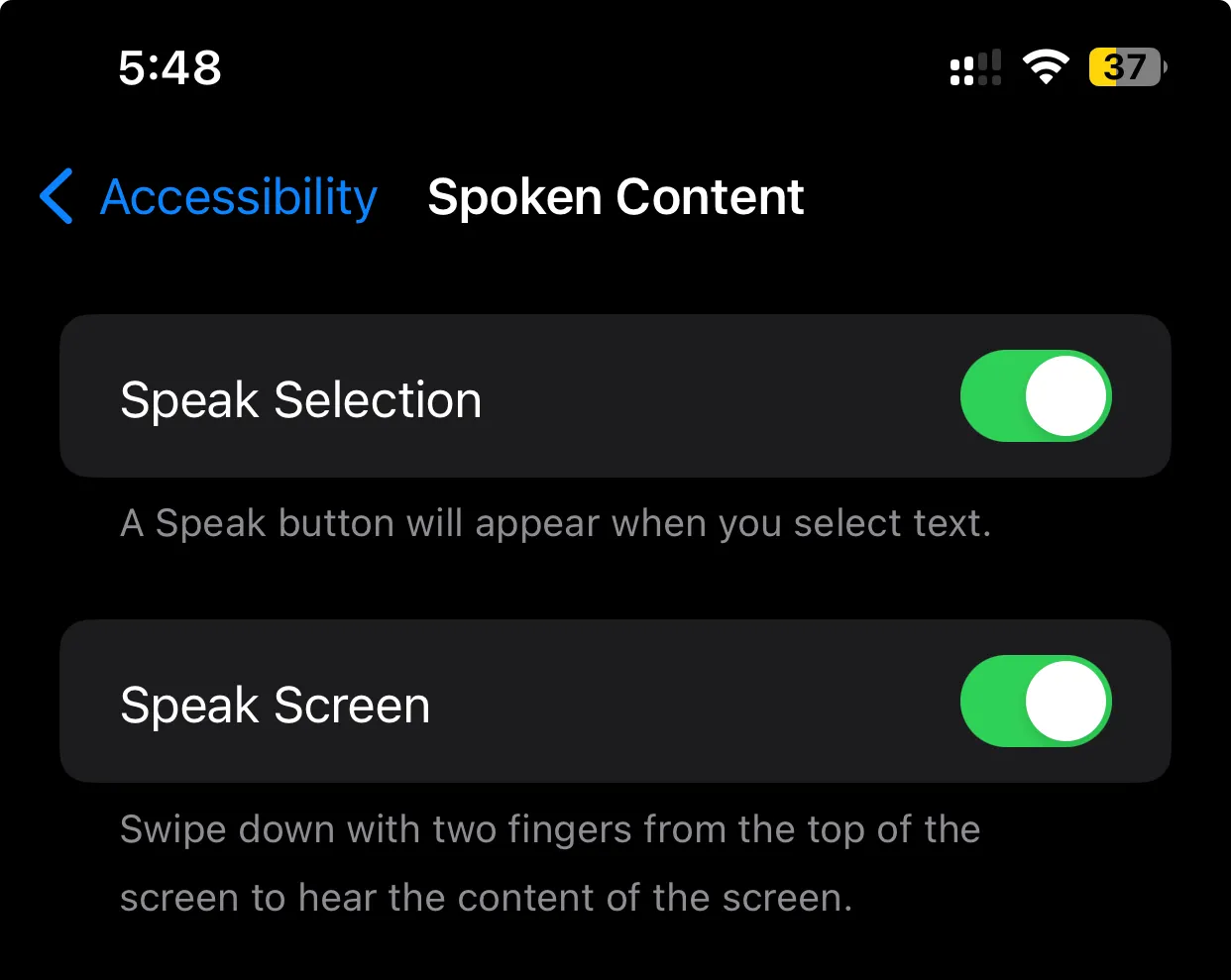
To do Google Docs text-to-speech on your iPhone, you first need to enable the Spoken Content accessibility settings. So, open settings and search for "Speak Selection." Tap the first option from the search results and toggle the "Speak Selection" feature.
2. Select text in Google Docs and tap Speak.
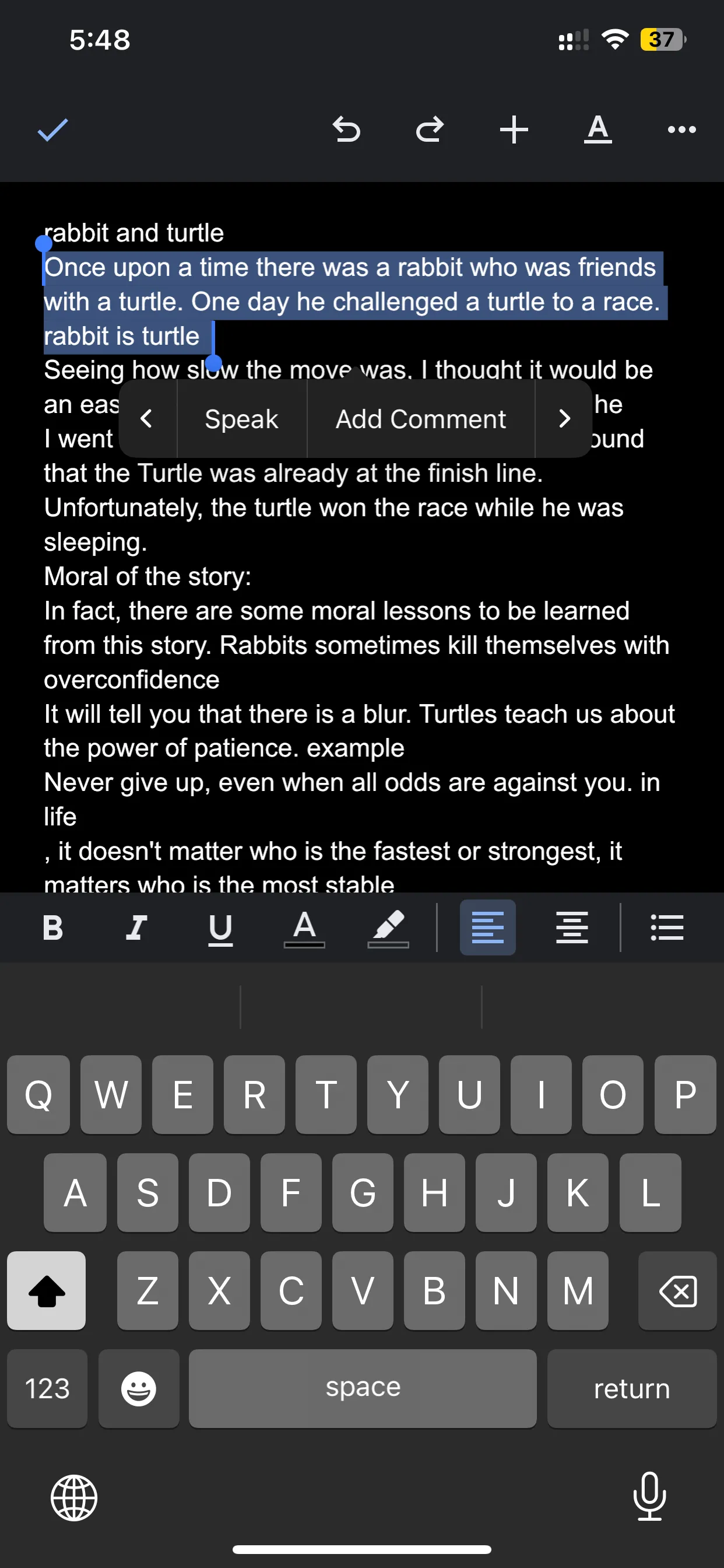
Now, go to the Google Docs application on your iPhone and open the document of your choice. Tap and hold the text to select it, then set the starting and ending points according to your requirements. As you select some text, you will see a pop-up menu that has multiple options. Use the "Right Arrow" to navigate through different options and tap "Speak" once you see it. The selected text in the Google Docs application will be read aloud now.
Part 4. Google Docs Text to Speech Not Working? Fixed!
If the text-to-speech feature is not working for Google Docs, then some possible issues with it can be easily fixed if you know the issue. Here, we have shared some common issues and their fixes that you might be facing.
1. Browser issues
If you are using Google Docs on a browser on your desktop computer, then there are chances that there is a browser issue. The browser you are using could be outdated or incompatible with Google Docs text-to-speech, or there is some extension that is causing the conflict. The best solution to this issue is to try it with a different browser to ensure where the issue lies.
2. Device audio settings
Have you done all the settings perfectly but are still unable to hear the text-to-speech voice? Chances are that you have a device audio settings issue. Sometimes, we unknowingly turn the audio off or mute it completely. The quick fix is to turn on the audio volume all the way up and play some other audio to ensure that the speakers are working fine.
3. Network problems
Google Docs works online, and a stable internet connection is vital for all of its features. So, if TTS is not working, it could be because of bad network connectivity. Reconnecting to the network or trying a different internet connection will solve the issue.
4. Accessibility settings issue
The TTS feature from Google Docs relies on Accessibility settings, and if you don't have set that up for your device, the feature will not work. So, ensure that your accessibility settings are set up to allow text-to-speech and aloud reading of the content.
Part 5. Bonus Tip: How to Do Text to Speech for PDF?
While TTS works on Google Docs for basic text documents, it is not possible to use it on PDF documents with Google Drive. Even if you do the conversion, you will lose formatting, so you need a smarter and better tool. The best choice in this case is UPDF, which provides you with the text-to-speech feature on your PC and iOS devices. So, you can download it on your desktop or iOS devices for free and follow the steps below to use this feature.
Windows • macOS • iOS • Android 100% secure
TTS on Desktop (Mac/Win)
Step 1: Launch UPDF on PC and Access File
First, click the "Free Download" button to install UPDF on your computer, launch it on your Mac or Win and hit the "Open File" option to import the required PDF file you want to read aloud.

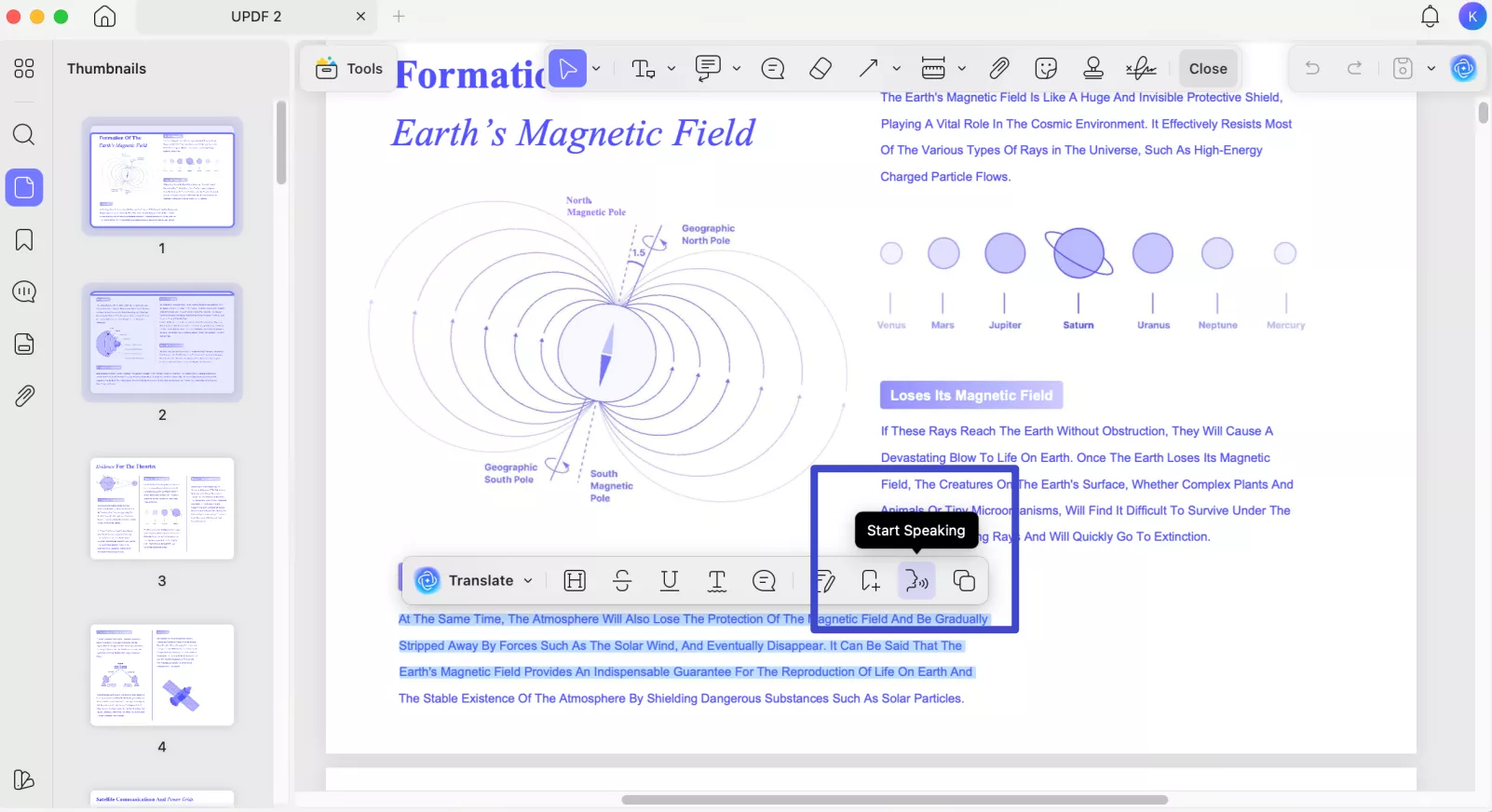
Step 2: Select the Text in Read Mode to Read Aloud
Next, select the specific content you wish to have read aloud. Perform a right-click on the chosen text, and from the ensuing dropdown menu, opt for "Start Speaking."
TTS on iOS
Step 1: Launch UPDF on iOS and Access File
First, go to App store to install UPDF on your iPhone or iPad, launch it and hit the "+" option to import the required PDF file you want to read aloud.
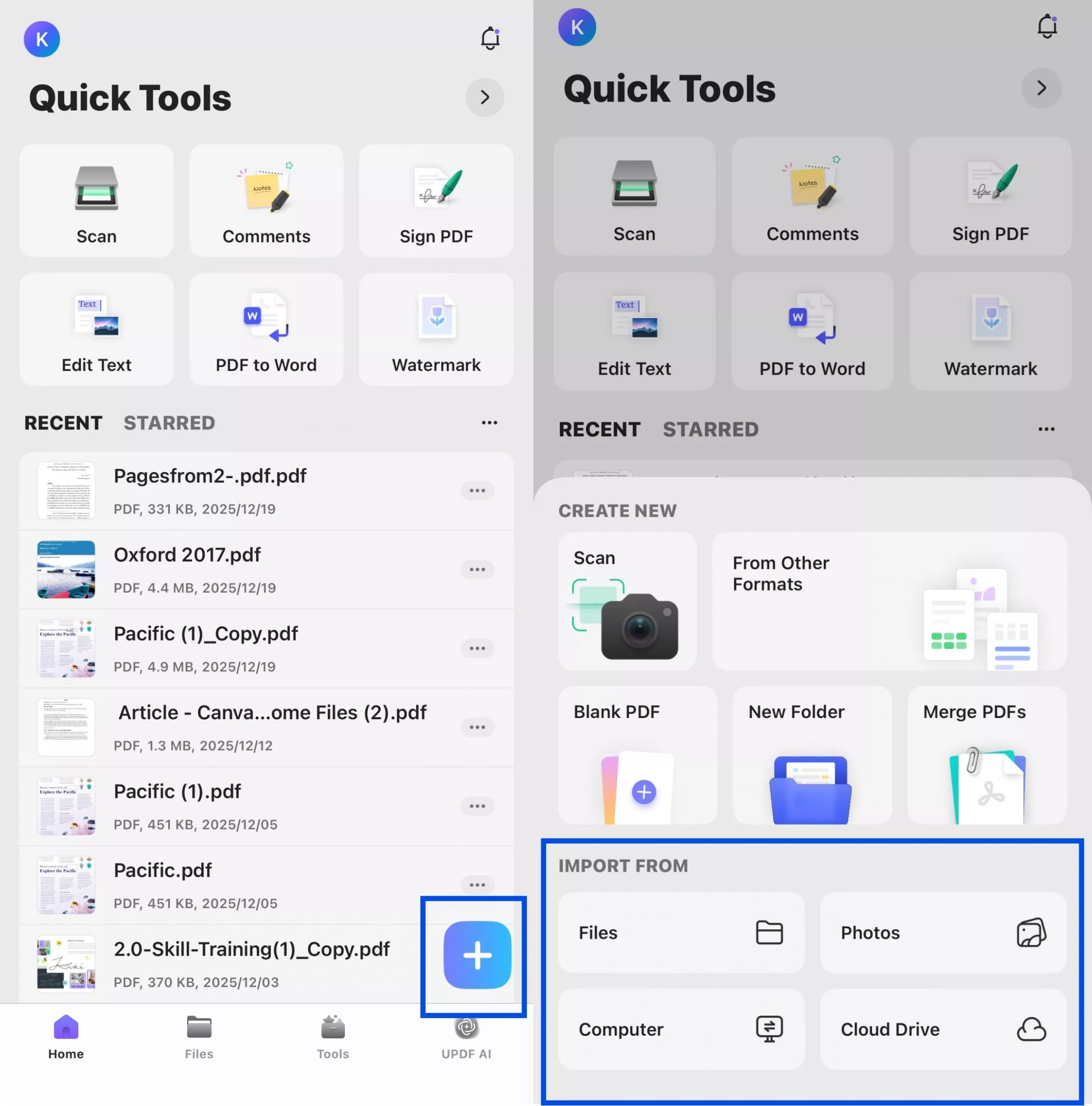
Step 2: Select the Text to Read Aloud
Next, select the specific content you wish to have read aloud. Select Listen Here from the floating toolbar, and UPDF will start reading aloud.
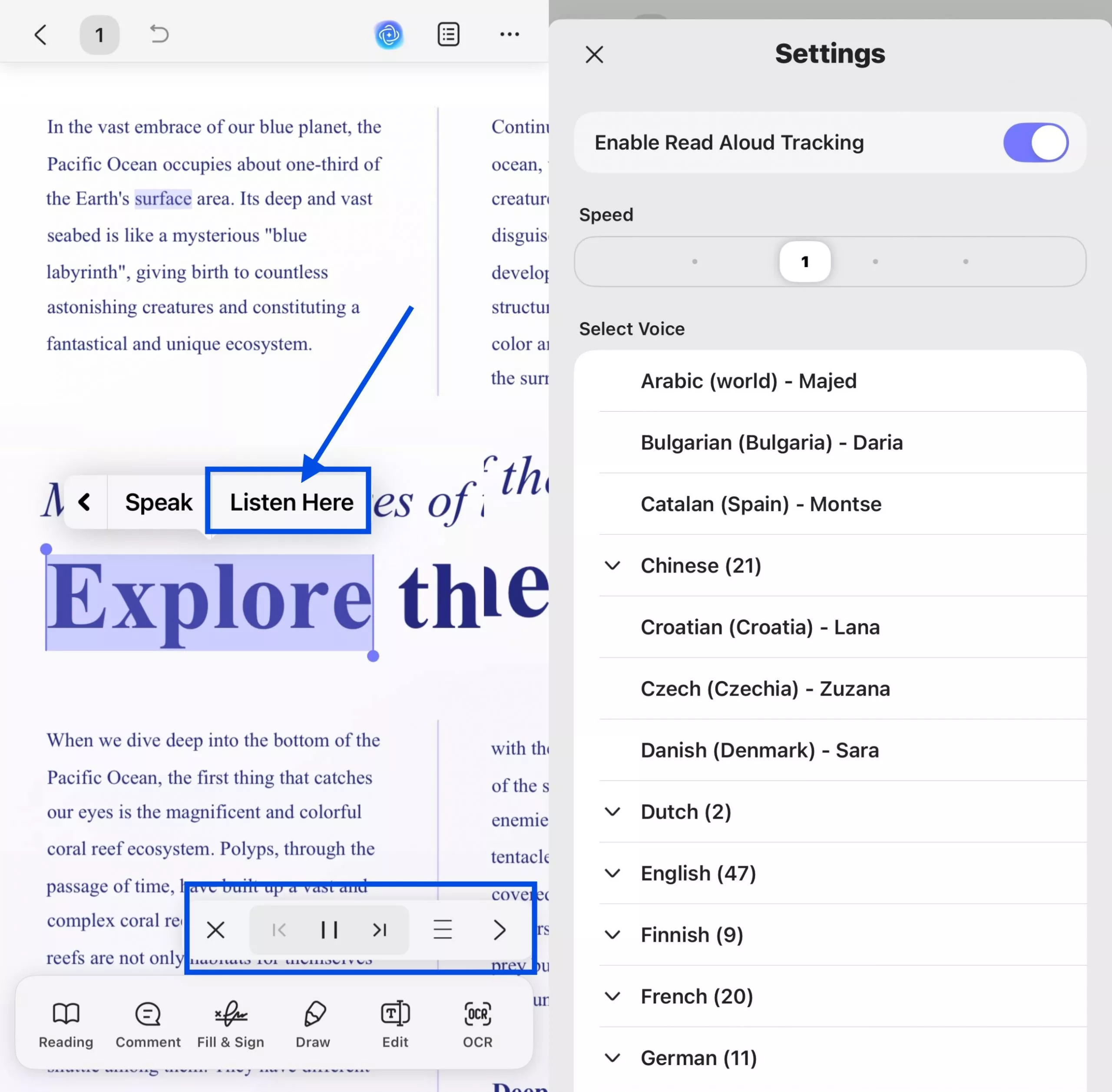
In the pop-up toolbar, you can click X to stop reading, click |< to start reading from the beginning of the previous page, click || to pause the reading and ▶ to resume, and click >| to start reading from the beginning of the next page. By clicking the ≡ icon, users can enable the Read Aloud Tracking feature, adjust the reading speed, and choose a preferred voice from a wide range of languages, including various regional accents (such as Arabic, Bulgarian, Chinese, English, French, German, and more).
During reading, the corresponding text will be highlighted, making it easier for you to locate the current content being read aloud.
TTS for Scanned PDFs on Desktop and iOS
UPDF's OCR feature can help you convert scanned documents into searchable and selectable text. UPDF OCR supports recognition of over 38 languages in scanned documents, covering most of your document needs. However, to activate this feature, you will need to upgrade to UPDF‘s Pro plan. You can consider purchasing UPDF’s exclusive plan and get an official 10% discount with the coupon code “ENARTICLE” upon purchasing.
Step 1: Launch UPDF on PC or iOS and Access File
Based on the steps mentioned above, launch UPDF on your computer or iOS device and open your scanned document.
Windows • macOS • iOS • Android 100% secure
Step 2: Perform OCR on PC or iOS
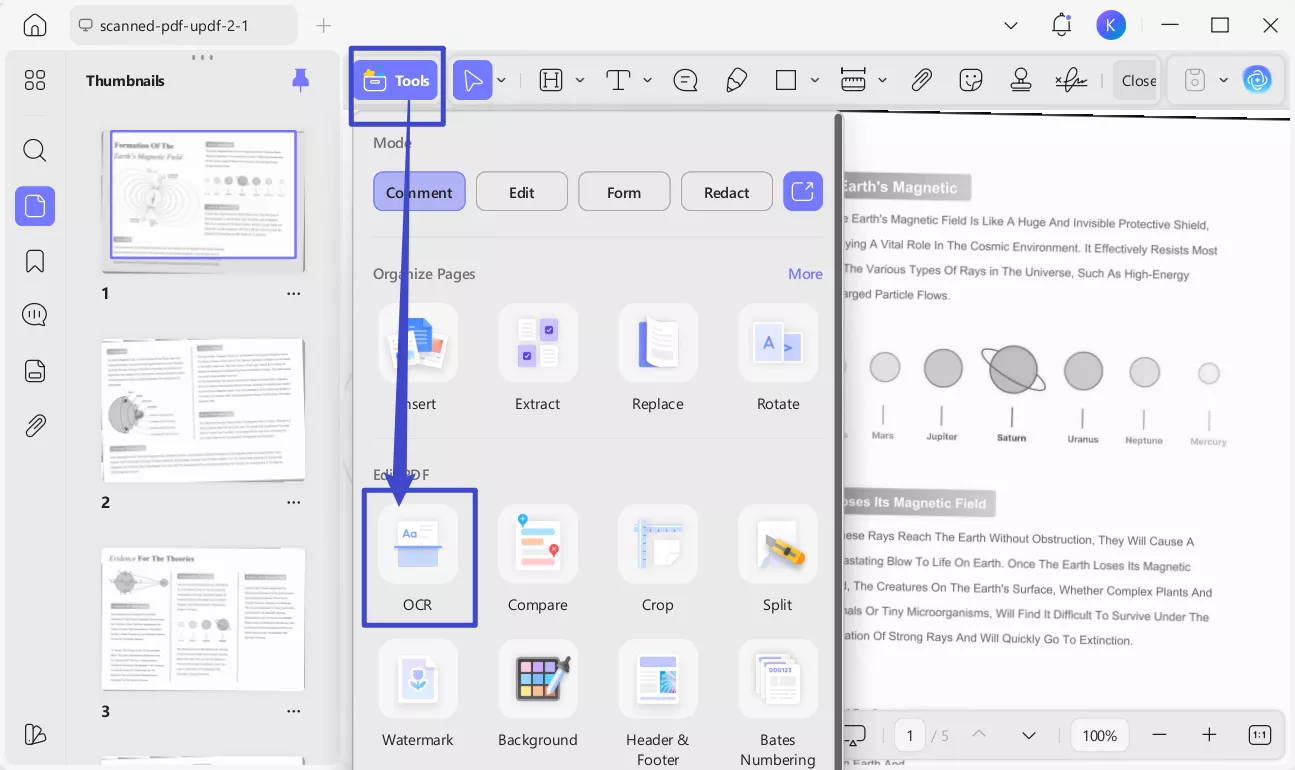
For computer users, click OCR in Tools.
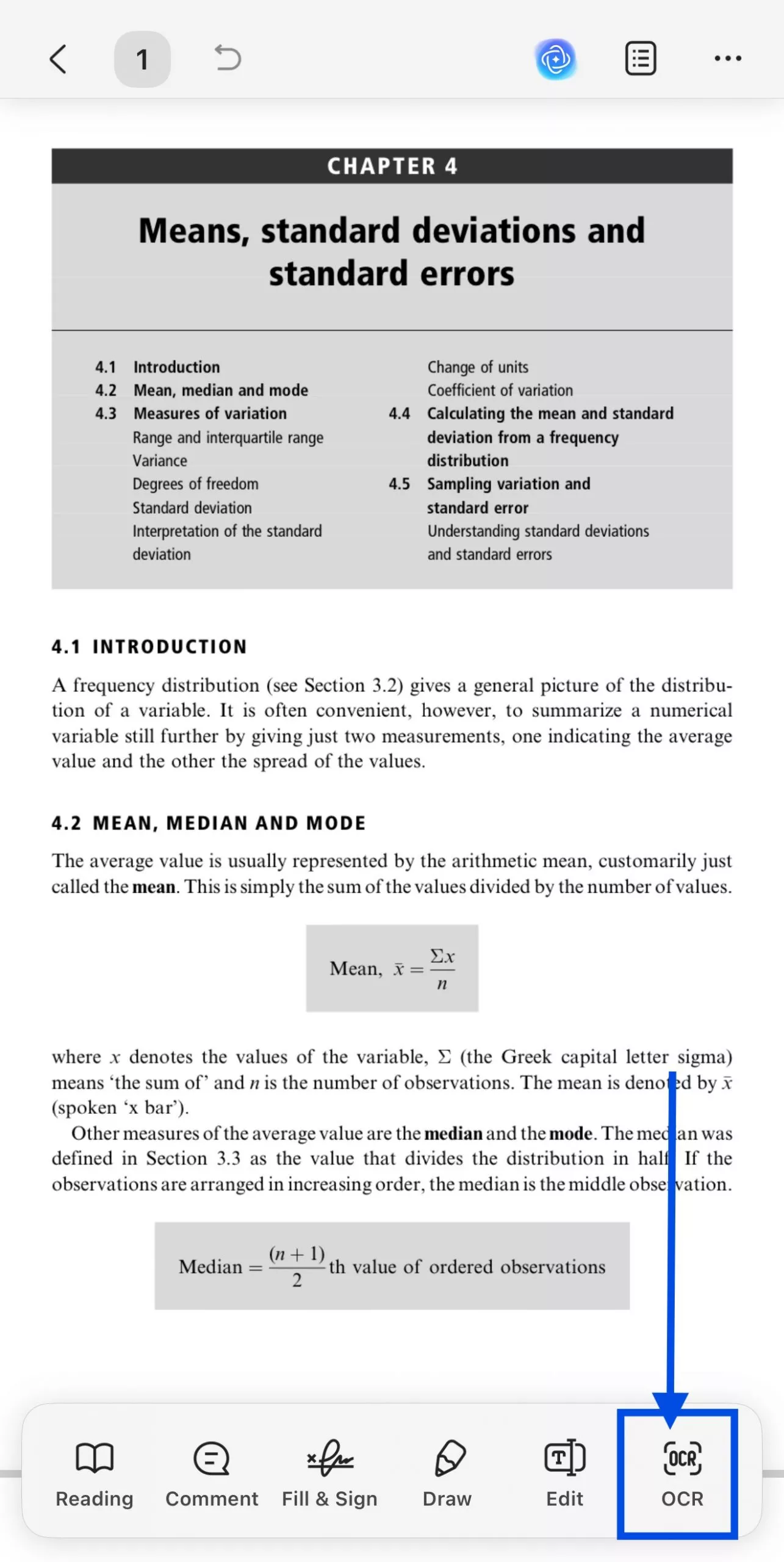
For iOS users, select OCR from the bottom toolbar.
Step 3. Customize OCR settings (Mode, Language, Page Range)
As it opens up, it will provide you with 3 different options of Document Type, which include Editable PDF, Text and Picture Only, and Searchable PDF Only.
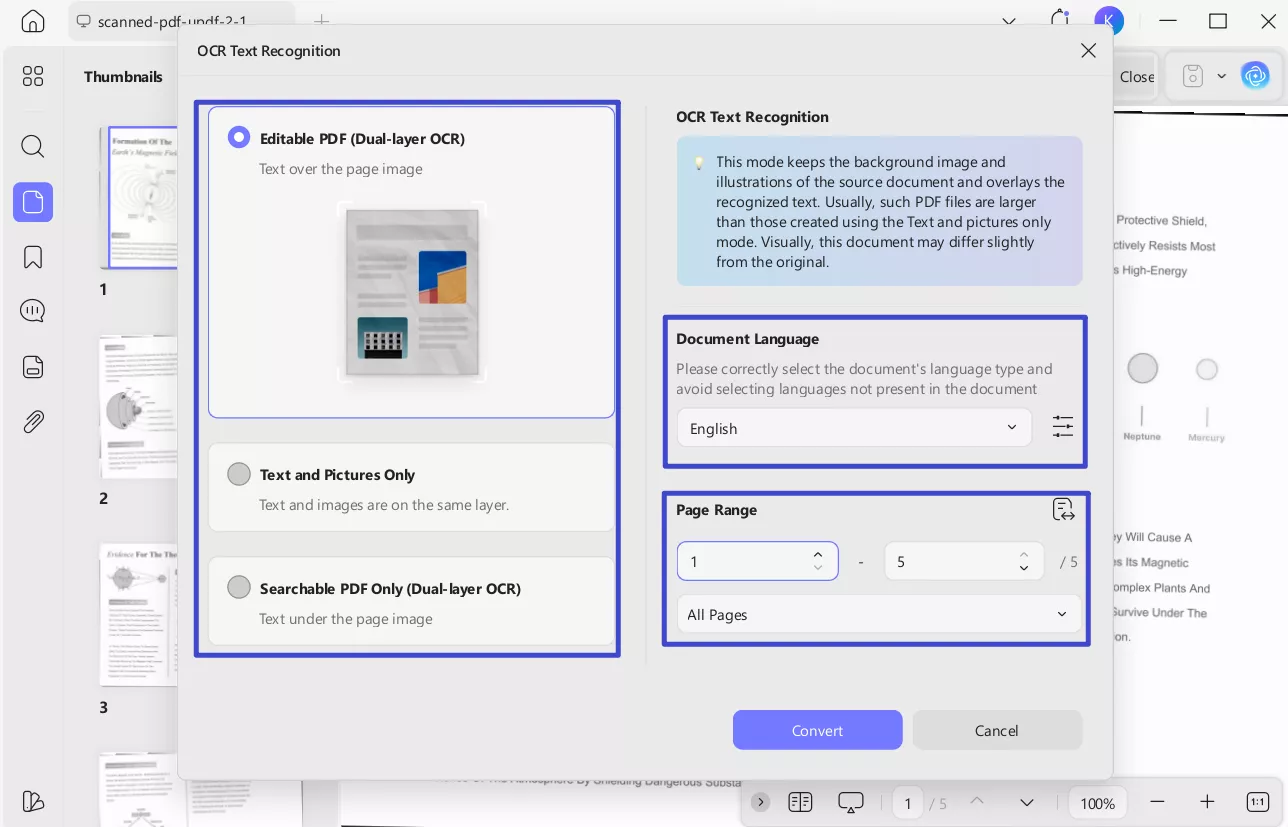
Define a proper Document Language with the option of 38 different languages across the extended menu and choose the page range. Once done, press the Convert/Continue button to execute OCR across.
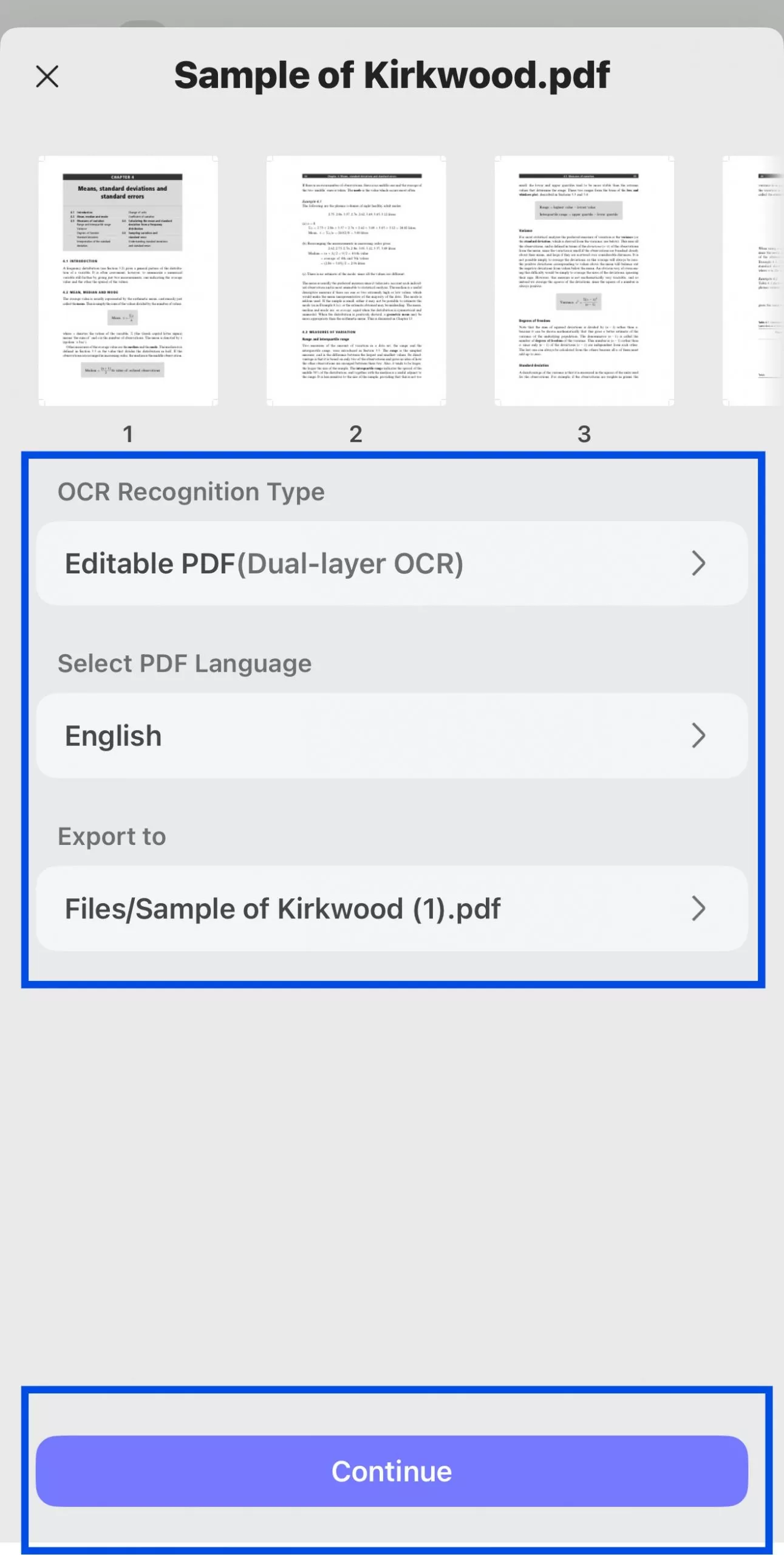
Step 4. Open the OCRed File and Select Text to Read Aloud
Once the OCR is completed, open the newly-generated OCRed PDF and use the methods mentioned above to read PDF aloud.
Other Advanced Features
UPDF not only helps you with text-to-speech but brings a lot of other features as well. Those features from UPDF include:
- Built-in UPDF AI chatbot helps in translating, explaining, and summarizing content in PDF
- UPDF OCR feature quickly converts scanned documents into editable text PDF documents
- UPDF Cloud stores manages, and syncs your PDF files across all your devices
- UPDF for iOS supports full-text read aloud and allows tracking of spoken content.
- You can adjust reading speed and select from a variety of voices and languages, including regional accents.
- With UPDF, you get complete editing control of your documents.
With these features and many others, all your requirements regarding working on PDF documents are easily met.
Final Words
Google Docs is one of the best platforms for working on text documents within a collaborative environment. However, it may not be very productive for everyone, considering the reading time and energy it takes. That's where text to speech on Google Docs can be a very helpful feature, but the problem is that most users don't know how to utilize it.
With the detailed guide for different devices shared above, we hope that now you can do text-to-speech on any Google Docs file regardless of the device you are using. The only type of file that is not supported here is PDF since you may lose PDF formatting if used in Google Docs for reading aloud. So, you may use UPDF by downloading it for free for performing text-to-speech on any PDF file.
Windows • macOS • iOS • Android 100% secure







 Enrica Taylor


 Enola Miller