UPDF
UPDF
 UPDF for Windows
 UPDF for Mac
 UPDF for iPhone/iPad
 UPDF for Android
 Nomostar
 UPDF AI Online
 UPDF Sign
 IvyCraft
 Edit PDF
 Annotate PDF
 Create PDF
 PDF Form
 Edit links
 Convert PDF
 OCR
OCR PDF to Word
 PDF to Image
 PDF to Excel
 Organize PDF
 Merge PDF
 Split PDF
 Crop PDF
 Rotate PDF
 Protect PDF
 Sign PDF
 Redact PDF
 Sanitize PDF
 Remove Security
 Read PDF
 UPDF Cloud
 Compress PDF
 Print PDF
 Batch Process
 About UPDF AI
 UPDF AI Solutions
 AI User Guide
 FAQ about UPDF AI
 Summarize PDF
 Translate PDF
 Chat with PDF
 Chat with AI
 Chat with image
 PDF to Mind Map
 Explain PDF
 PDF AI Tools
 Image AI Tools
 AI Chat Tools
 AI Writing Tools
 AI Study Tools
 AI Working Tools
 Other AI Tools
 AI Bookmark Generation
 AI Bookmark Summary
 AI Watermark Generation
 AI Background Generation
 AI Sticker Generation
 AI Stamp Generation
 AI Editing Suite
 UPDF Copilot
 AI Page Management
 AI Semantic Search
 PDF to Word
 PDF to Excel
 PDF to PowerPoint
 Enterprise Solution
 Enterprise Sign
 Enterprise AI
 Enterprise Plan
 Enterprise User Guide
 Enterprise Webinar
 Banking
 Healthcare
 Insurance
 Legal
Legal Manufacturing
 Government
 Researchers & PhDs
 Solopreneurs & Freelancers
 Education Solution
 Customer Stories
 User Guide
 UPDF Tricks
 FAQs
FAQs UPDF Reviews
 Download Center
 Blog
Blog Newsroom
 Tech Spec
 Updates
 UPDF vs. Adobe Acrobat
 UPDF vs. Foxit
 UPDF vs. PDF Expert

When you research on academic topics and constantly switch between tools looking for references, it can overwhelm you. It is messy and mentally exhausting, on top of that, it takes a lot of time, especially when you are deep into writing a research proposal. Therefore, you need something simpler that keeps you focused on the content without the clutter.
Many people prefer Google Scholar PDF Reader, which is a smart solution designed to simply change the way you consume academic content. Whether you are a student or a researcher, this guide will explore how to use this Chrome extension. Not only that, if this does not meet your needs, we'll introduce you to a better alternative by the end of this article.
Part 1. Google Scholar PDF Reader: What Is It?
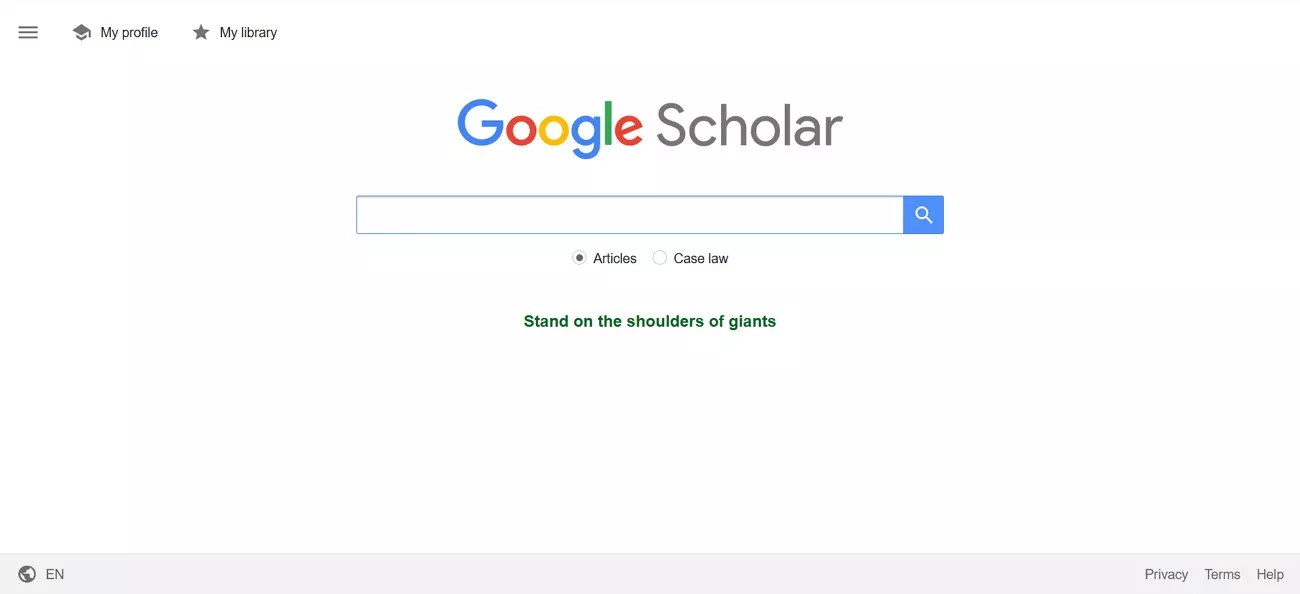
Google Scholar PDF Reader is a convenient tool designed to enhance the way you read academic papers directly from Google Scholar. Instead of switching between apps, the reader allows you to open, read, and interact with scholarly documents right from your browser. This can save you time and effort and reduce the distraction of all the hassle. Here are some other features this tool provides to help you understand better:
- In-Text Citation Previews: It allows you to open the in-text citation that previews the cited articles, which includes their title, author, and summary. This allows you to assess the references without leaving your current reading position.
- Clickable Figures: In PDFs, the mentions of figures, tables, and equations are converted into clickable links. It facilitates seamless navigation and understanding of the structure of the documents.
- Customizable Reading Modes: With its light, dark, and night modes to adjust the reading interface, you can choose the preferred code according to your comfort and lighting conditions.
- AI-Generated Outlines: A standout aspect in any Google Scholar PDF Reader review is its AI-generated outline feature. It provides a structured summary of research papers, which makes it easier to navigate and understand complex studies.
- Scholar Library Integration: This reader saves directly to your Google Scholar Library for easy access. It helps you to find papers for future needs and keep your research organized.
Cons and Limitations of Google Scholar PDF Reader:
- Users have expressed the desire for functionalities like highlighting the PDF and adding notes, which this reader does not provide.
- The extension of the Google Scholar PDF Reader can be sluggish when you open larger PDF files, which can lead to slower load times.
- According to many users, this tool does not work on several PDF viewer applications, such as Orion.
- Many people have encountered difficulties with the copy and paste feature, which can impact your workflow.
- It lacks an AI assistant feature that can help users by automatically summarizing long research papers in minutes.
Now that you have learned the drawbacks of this tool, you might be looking for a better alternative. For that, you can use UPDF, a reliable PDF reader that not only allows you to annotate and add notes but also provides you with an AI assistant. This feature makes your hours of work in minutes by summarizing the long text. Download it and try it out for free now!
Windows • macOS • iOS • Android 100% secure
Part 2. How to Use Google Scholar PDF Reader?
After understanding the features and limitations of this Chrome browser extension, if you still want to add this extension, we have got you covered. The following section will provide you with a detailed step-by-step guide on how to use the Google Scholar PDF reader:
Step 1. To add this tool, search for it on your browser and press the "Add to Chrome" button in the top right corner of the screen.
Step 2. Once the extension is added, open your desired PDF, and a pop-up window will appear. From there, click the "Open settings" button to activate it on your PDFs.
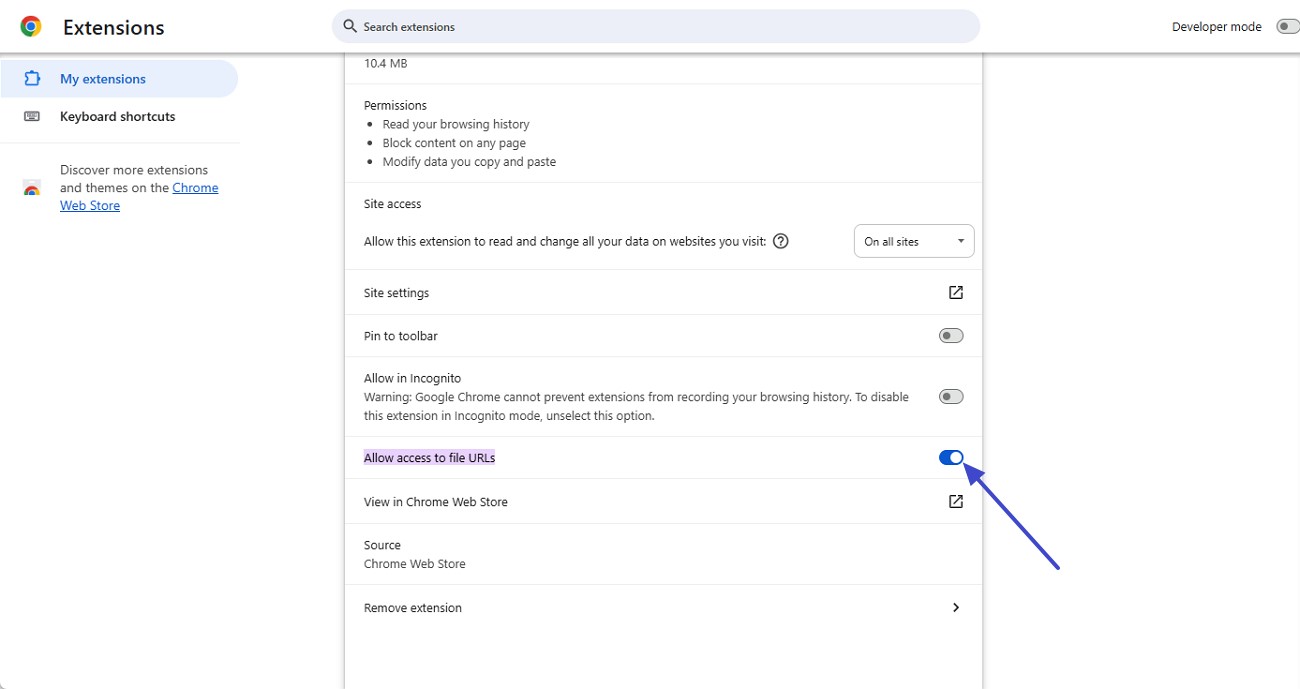
Step 3. Afterward, from the next screen, toggle the "Allow access to file URLs" option, and the extension will enable itself.
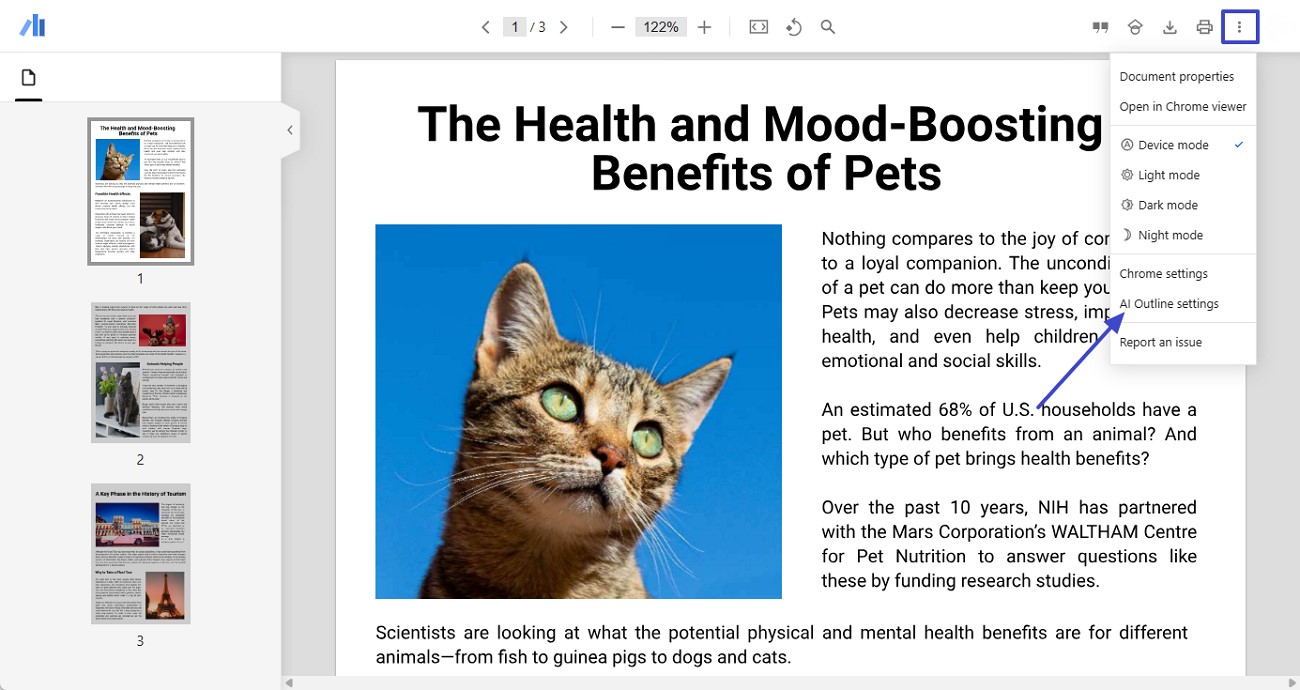
Step 4. Reload your PDF, and the Google Scholar PDF Reader will automatically start working on your target PDF. To use its AI outline feature, press the "three dots" in the top right corner and select the "AI Outline Settings" option from the drop-down menu.
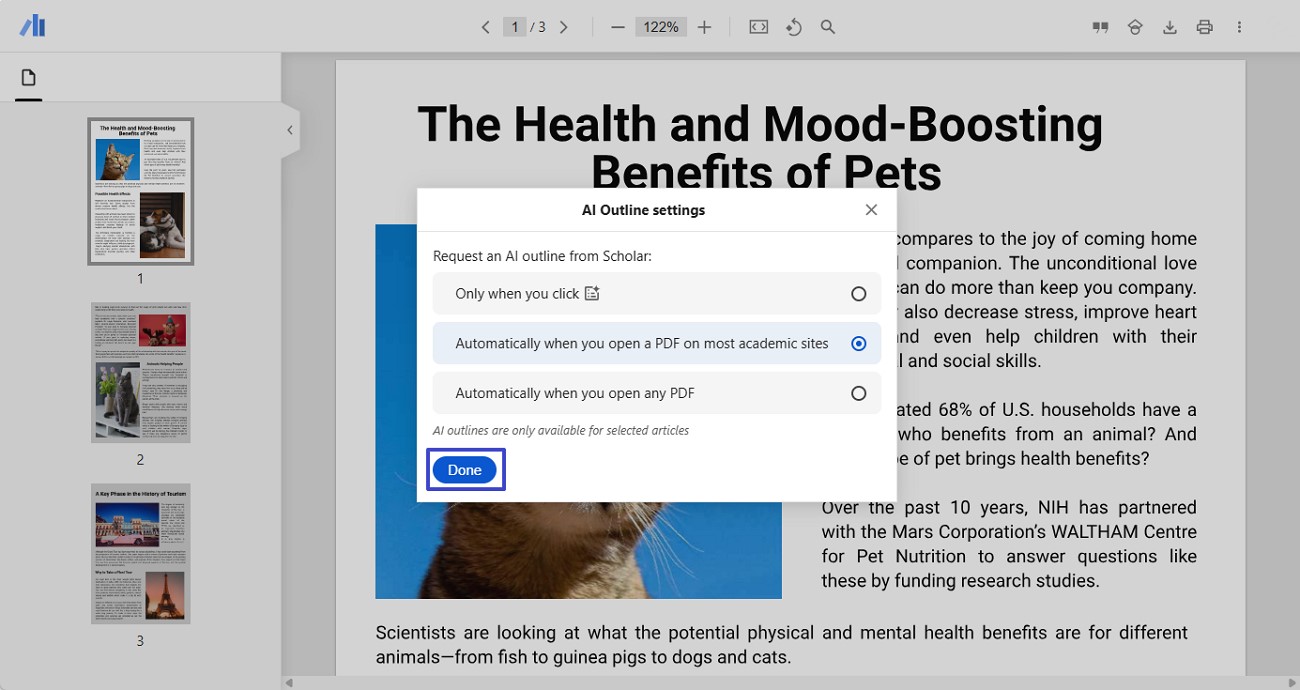
Step 5. From the next pop-up menu, select your desired option and hit the "Done" button.
Note
Part 3. Go Beyond Reading: Find and Research Papers with UPDF AI Online
Reading PDFs from Google Scholar is only part of academic research. In many cases, users also need to discover relevant papers, understand key findings, and explore related studies more efficiently.
This is where UPDF AI Online comes in. As a web-based research assistant, it complements PDF reading by helping users search for and analyze academic papers directly.
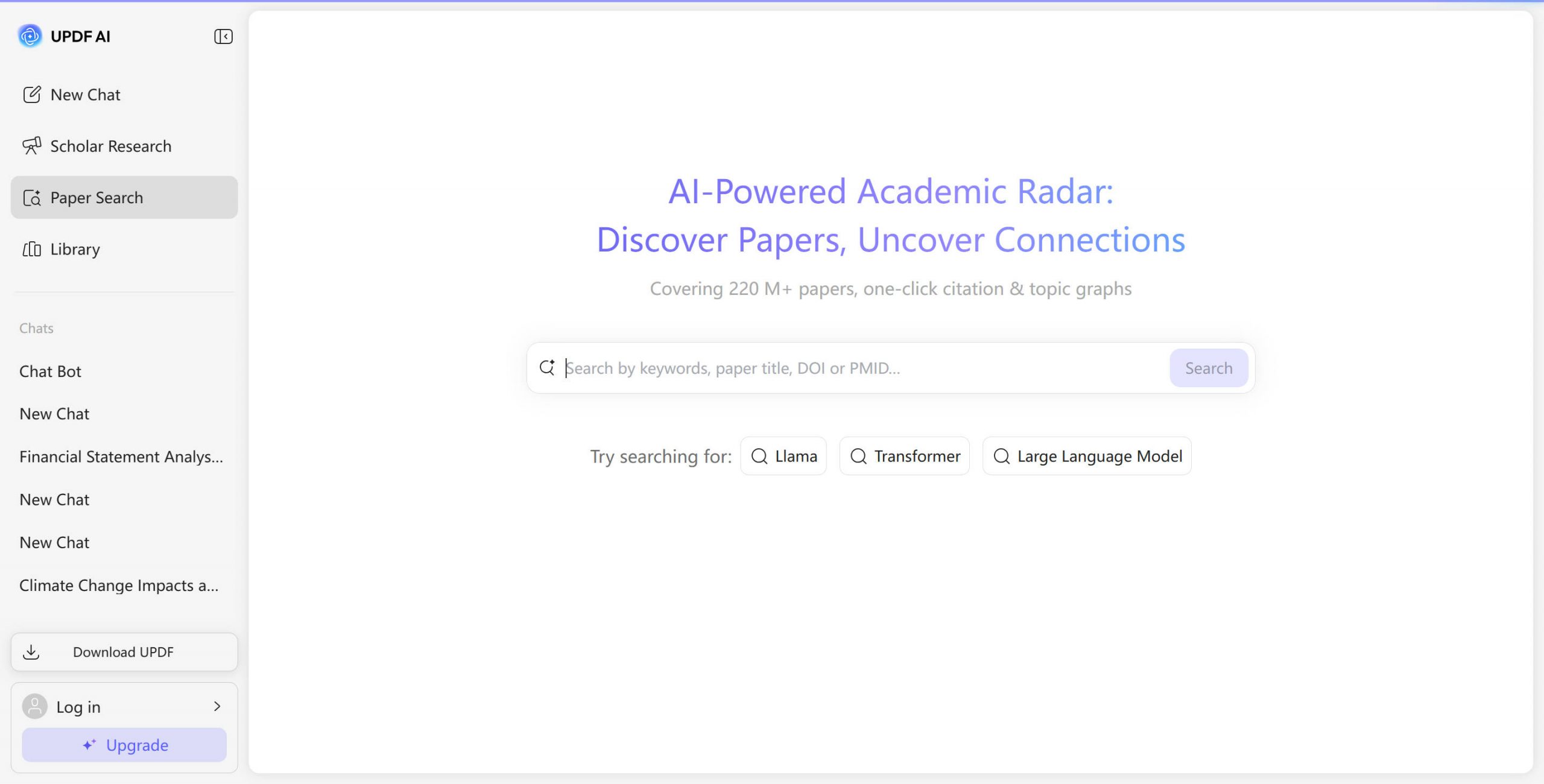
Paper Search: Find Relevant Research Faster
UPDF AI Online offers a Paper Search feature that allows you to search for academic papers using keywords or research questions. Instead of manually browsing multiple sources, you can quickly find relevant studies and add them to your library for further reading.
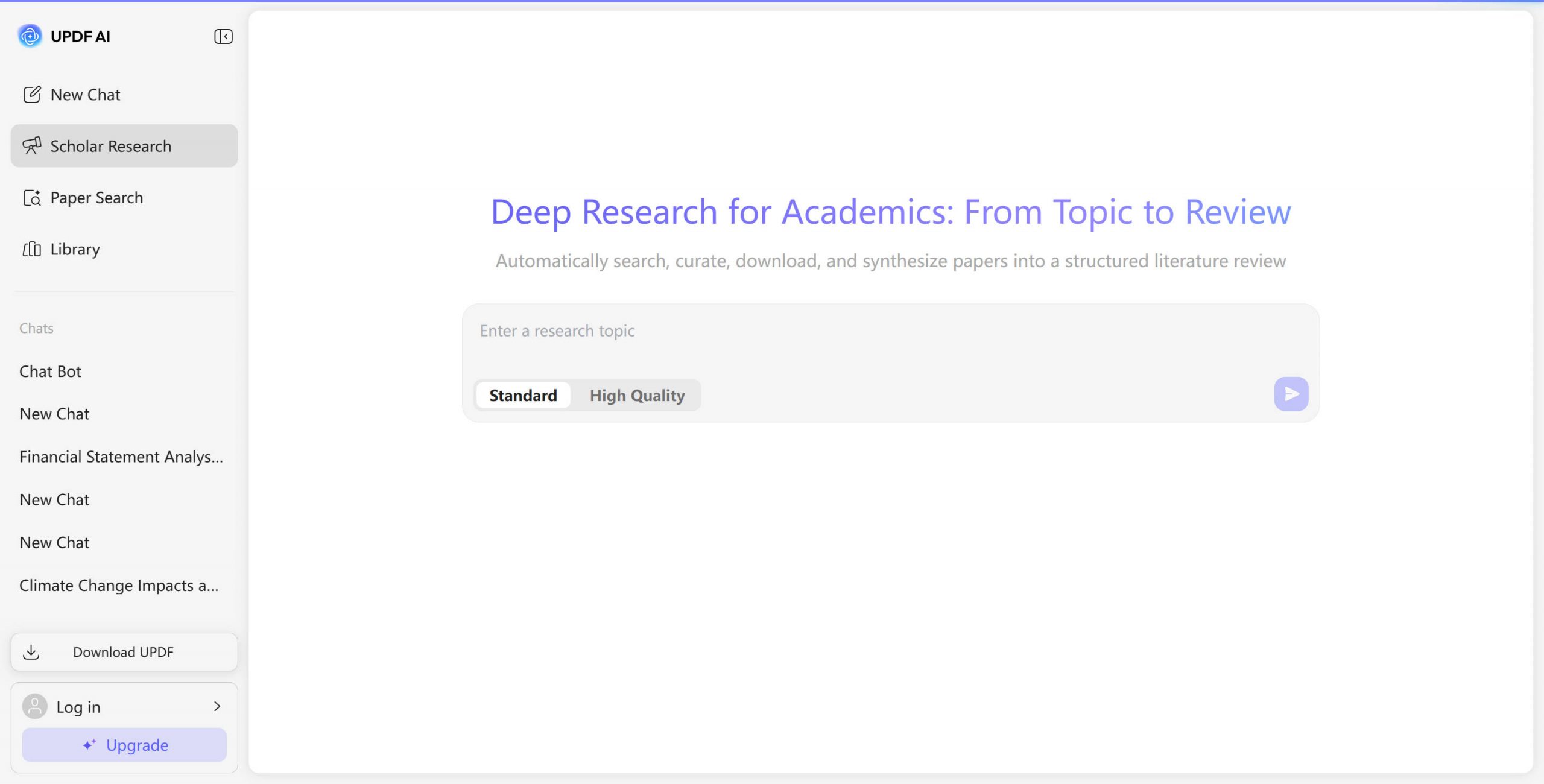
Scholar Research: Ask Questions and Get Research-Based Answers
With Scholar Research, you can ask research-related questions and receive answers generated from academic sources. This is especially useful when you want a quick overview of a topic or need supporting references without reading dozens of full papers.
Why Use UPDF AI Online with Google Scholar PDFs?
- Discover relevant academic papers more efficiently
- Get AI-assisted insights based on scholarly sources
- Build a research workflow that goes beyond basic PDF reading
👉 Try UPDF AI Online to search, explore, and understand academic papers more effectively.
Part 4. UPDF and UPDF AI Online: How They Work Together
While UPDF AI Online focuses on paper discovery and research assistance, UPDF is the desktop & mobile PDF editor designed for working directly with PDF documents.
After finding papers with UPDF AI Online, you can download the PDFs and open them in UPDF for more advanced tasks such as editing, annotating, organizing pages, or converting formats.
Windows • macOS • iOS • Android 100% secure
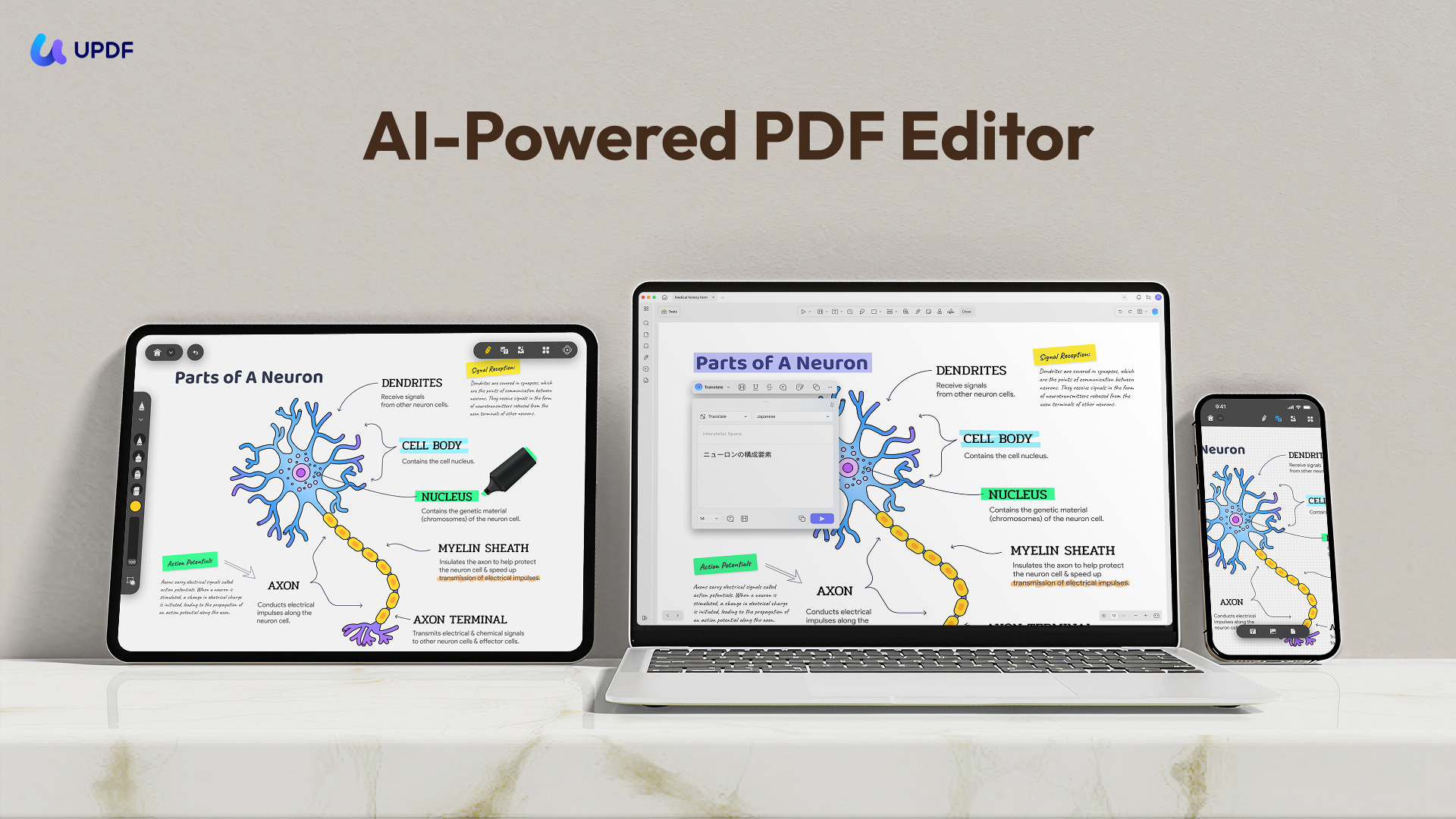
How UPDF Complements UPDF AI Online
UPDF AI Online:
- Search for academic papers
- Ask research questions
- Get AI-assisted summaries and insights
UPDF:
- Read and annotate PDFs
- Edit and organize documents
- Convert and manage PDF files offline
Together, UPDF AI Online and UPDF form a complete workflow—from finding research papers to reading, editing, and managing PDFs in one ecosystem.
Conclusion
Reading PDFs from Google Scholar is an essential step in academic research, but it is rarely the final one. Beyond simply opening files, researchers often need to find related papers, understand key insights, and organize documents efficiently.
UPDF AI Online helps extend this workflow by enabling paper search and scholar research, allowing users to discover relevant studies and explore academic topics more effectively. Once the PDFs are downloaded, UPDF provides a stable desktop environment for reading, annotating, editing, and managing those documents.
Together, UPDF AI Online and UPDF support a more complete research process—from discovering scholarly papers to working with PDFs in depth.






 Enrica Taylor
 Enid Brown
 Lizzy Lozano