 UPDF
UPDF
 UPDF for Windows
 UPDF for Mac
 UPDF for iPhone/iPad
 UPDF for Android
 UPDF AI Online
 UPDF Sign
 Edit PDF
 Annotate PDF
 Create PDF
 PDF Form
 Edit links
 Convert PDF
 OCR
OCR PDF to Word
 PDF to Image
 PDF to Excel
 Organize PDF
 Merge PDF
 Split PDF
 Crop PDF
 Rotate PDF
 Protect PDF
 Sign PDF
 Redact PDF
 Sanitize PDF
 Remove Security
 Read PDF
 UPDF Cloud
 Compress PDF
 Print PDF
 Batch Process
 About UPDF AI
 UPDF AI Solutions
 AI User Guide
 FAQ about UPDF AI
 Summarize PDF
 Translate PDF
 Chat with PDF
 Chat with AI
 Chat with image
 PDF to Mind Map
 Explain PDF
 PDF AI Tools
 Image AI Tools
 AI Chat Tools
 AI Writing Tools
 AI Study Tools
 AI Working Tools
 Other AI Tools
 AI Bookmark Generation
 AI Bookmark Summary
 AI Watermark Generation
 AI Background Generation
 AI Sticker Generation
 AI Stamp Generation
 AI Editing Suite
 UPDF Copilot
 AI Page Management
 AI Semantic Search
 PDF to Word
 PDF to Excel
 PDF to PowerPoint
 Enterprise Solution
 Enterprise Sign
 Enterprise AI
 Enterprise Plan
 Enterprise User Guide
 Enterprise Webinar
 Banking
 Healthcare
 Insurance
 Legal
Legal Manufacturing
 Government
 Education Solution
 Customer Stories
 User Guide
 UPDF Tricks
 FAQs
FAQs UPDF Reviews
 Download Center
 Blog
Blog Newsroom
 Tech Spec
 Updates
 UPDF vs. Adobe Acrobat
 UPDF vs. Foxit
 UPDF vs. PDF Expert

PAC accessibility checker is a widely used tool for auditing PDF accessibility against formal standards. PAC (PDF Accessibility Checker) was established in 2010 and checks PDF/UA (ISO 14289) and WCAG 2.2 AA compliance. The 2026 release adds AI ‑assisted checks to reduce manual testing.
After reading this article, you’ll know PAC’s features and how it compares to tools like Acrobat or veraPDF. Read till the end to learn how to fix the issues it finds. While working with PAC, you will also see the “image-only PDF” failures (scanned pages with no text).
Such issues must be fixed with OCR tools like UPDF that offer a one-stop solution with OCR and editing to convert image-only PDFs into accessible files.
Windows • macOS • iOS • Android 100% secure
PAC PDF Accessibility Checker Overview
As mentioned, PDF Accessibility Checker is a free desktop application (Windows only) that automates technical PDF accessibility testing. It focuses on standards compliance (PDF/UA, WCAG) and basic document accessibility. Its major historical events include:
Milestone
| Date | Milestone | Description |
| 11-2025 | PAC 2026 Published | Introduced AI-assisted checks that help users perform human inspection points more efficiently. |
| 11-2023 | PAC 2024 Released | Introduced a new interface, updated logo, and quality checks to reduce effort during manual accessibility testing. |
| 08-2021 | PAC 2021 Release | The PDF/UA Foundation became the new home of PAC, and the tool added WCAG check sets. |
| 12-2017 | PAC 3 Released | Added German UI and introduced a printable summary report feature. |
| 07-2014 | PAC 2 Released | Became the first global tool capable of testing PDF documents for PDF/UA compliance. |
| 08-2012 | PAC 1.3 Released | Introduced detailed reports that help users locate accessibility issues within documents. |
| 03-2010 | PAC 1 Beta Released | The first free PDF accessibility checker launched with syntax checks and a screen reader preview feature. |
Features
Throughout its history, PAC PDF Accessibility Checker acquired the following features:
- Compliance Checks: This checker helps verify whether a document meets major accessibility standards like PDF/UA and WCAG.
- AI-Assisted Checks: The latest PAC 2026 version introduces AI checks that highlight potential accessibility issues and guide users through areas needing manual inspection.
- Instant Accessibility Analysis: You can simply drag and drop a PDF file into PAC, and the tool quickly analyzes the document to identify technical accessibility errors.
- Screen Reader Preview: PAC provides a screen reader preview that visually shows how assistive technologies interpret your document.
- Detailed and Summary Reports: After scanning a document, PAC generates both summary and detailed reports to let you locate specific accessibility issues.
- Structure and Tagging Inspection: PAC accessibility checker enables users to review document structure, tags, and logical reading order.
- Visual Assistance for Manual Checks: It supports manual testing by providing visual previews and structured insights.
Limitations
PAC has some limitations to be aware of:
- PAC PDF accessibility checker runs only on Windows (no macOS version yet).
- It identifies problems but cannot fix them, so you must use another tool to edit the PDF.
- This tool does not verify alt-text correctness (it has no large language model), so manual review of content is needed.
- PDF Accessibility checker has no command-line interface or batch mode, and automated checking uses the separate axesSense tool.
Tools Comparison with PAC PDF Accessibility Checker
There are several tools for PDF accessibility available on the market. Below is a comparison of PAC 2026 with other popular solutions to help you make an informed choice:
| Tool | Inventor | Core Features | Check Standard | Fix Function | System Support | Price |
| PAC 2026 | axes4 GmbH | Drag-drop scanAI-assisted checksDetailed reports | PDF/UA (ISO 14289), WCAG 2.2 AA | Check-only (no auto-fixes) | Windows only | Free |
| Adobe Acrobat Pro | Adobe Inc. | Built-in CheckerReading Order toolAuto-tagging wizard | PDF/UA, WCAG (Full Check tool) | Yes (accessibility fix action) | Windows, macOS | $19.99 per month |
| veraPDF | veraPDF Consortium | CLI batch validatorISO 14289 complianceDetailed HTML reports | PDF/A and PDF/UA | No (validation only) | Cross-platform (Java-based) | Free |
| CommonLook Validator | NetCentric Technologies (Now, under Allyant) | Deep metadata analysisTable/list/form checkingCertification reports | WCAG 2.0/2.1, Section 508, PDF/UA | Yes (step-by-step fix wizards) | Windows only | Free |
PAC PDF accessibility checker is one of the best tools to check files for compliance. However, it lacks the ability to fix the issues, so you need to use tools like Adobe Acrobat and UPDF (for image-only PDF) to get the job done.
How to Use PAC PDF Accessibility Checker?
To use the PAC Accessibility Checker, you need to follow these simple steps:
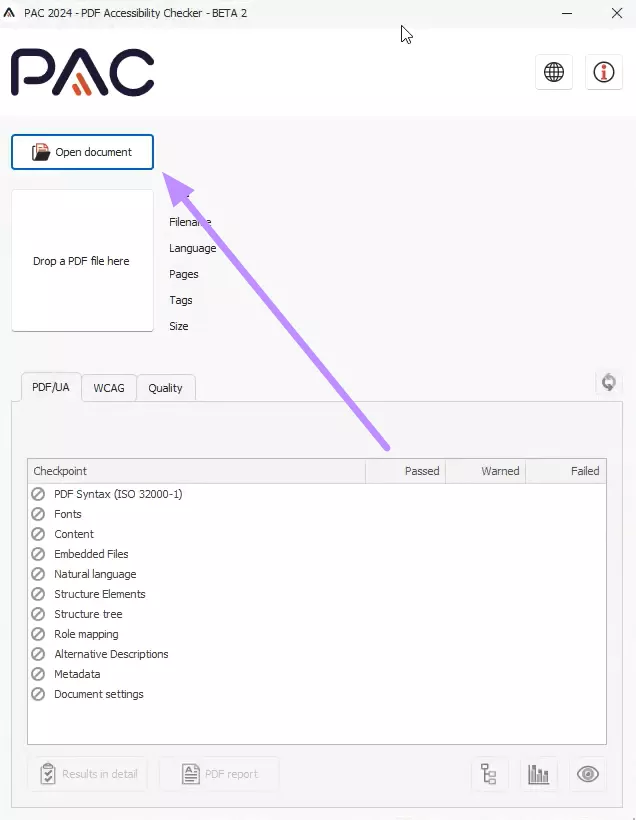
1. Start the process by downloading and launching the PAC PDF accessibility checker on your device. Now, tap the Open Document button or simply drag the file to its interface to import the PDF you want to check.
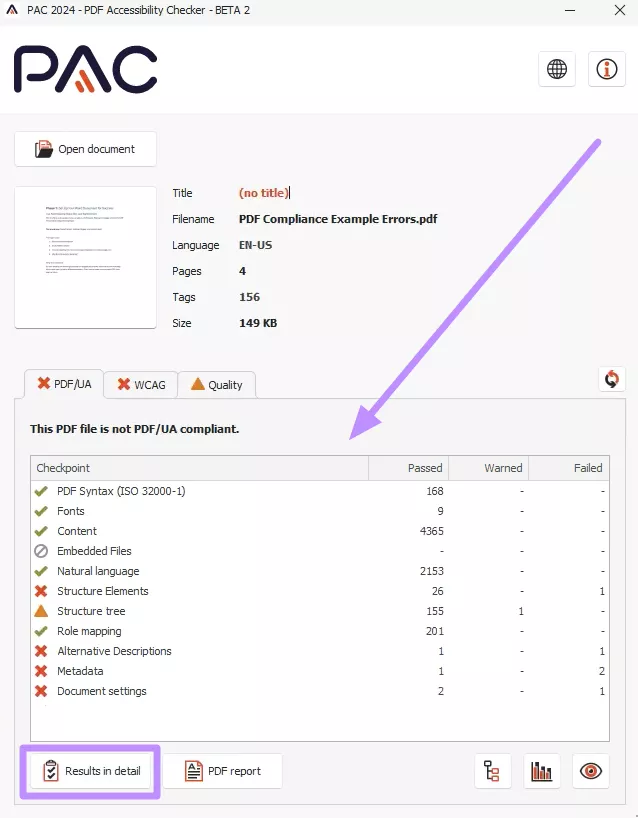
2. Once the file is uploaded, the check will begin automatically. When it finishes, the Summary Report shows each checkpoint’s status (Passed/Warned/Failed). You can switch between the tabs to see the errors in PDF/UA and WCAG compatibility. Then, tap the Results in Detail button to get a better understanding of errors.
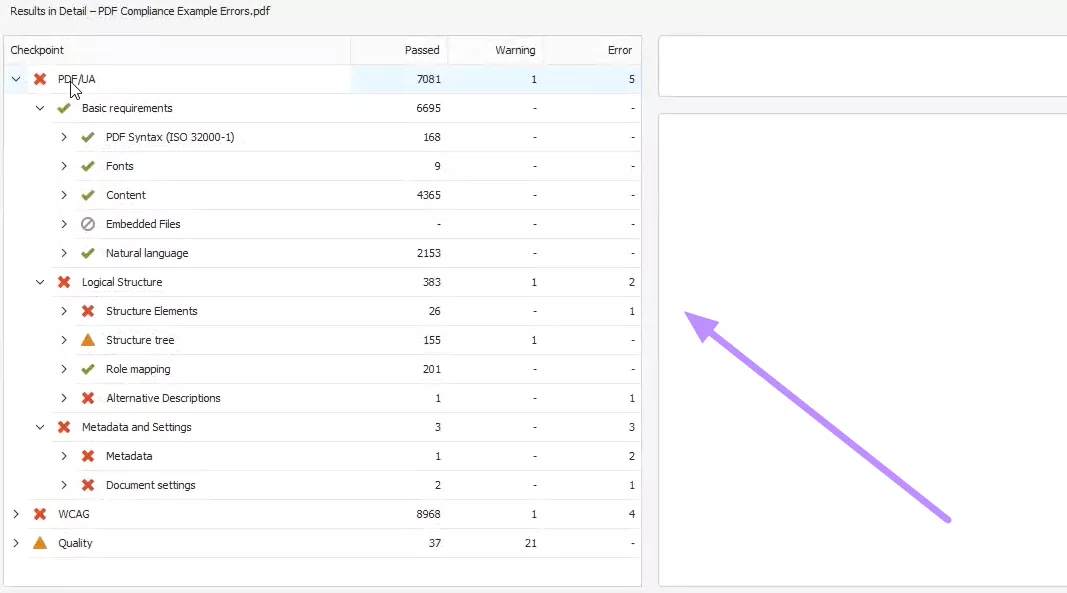
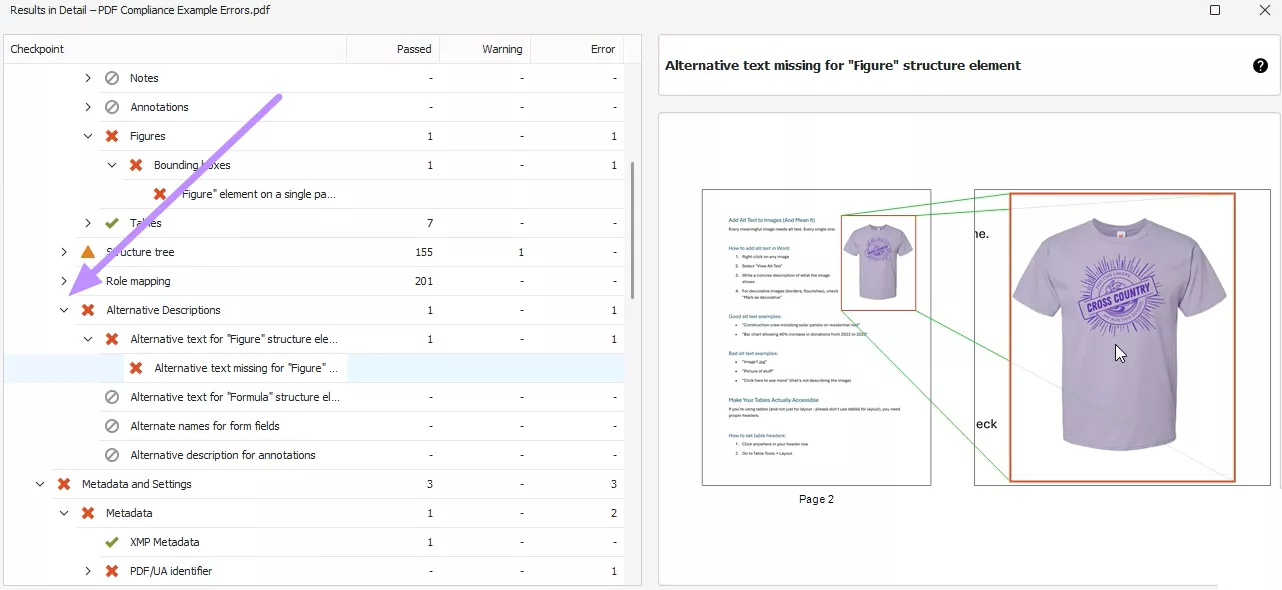
3. After switching to the Result in Detail screen, expand any failed checkpoints and see where in the document they occur. You can select a failed item to highlight its location on the page.
4. While expanding different checkpoints, use the Screen Reader Preview tab to review the logical reading order. Finally, click the PDF report to export a report of all results.
How to Fix Issues after Checking with PAC Accessibility Checker?
After PAC runs, you will have a list of issues to address. Here’s what typically happens and what to do next:
- Check the Report: PAC flags each error checkpoint as Failed. Review them one by one to understand the problem (missing alt text, untagged image, incorrect heading level).
- No Automatic Fixes: PAC only identifies problems, so it does not fix them. Use a PDF editor (such as Adobe Acrobat Pro or UPDF) to correct the issues by adding tags or alt text.
- Re-Validate: After you make corrections, run PAC again on the updated PDF to ensure all checks now pass.
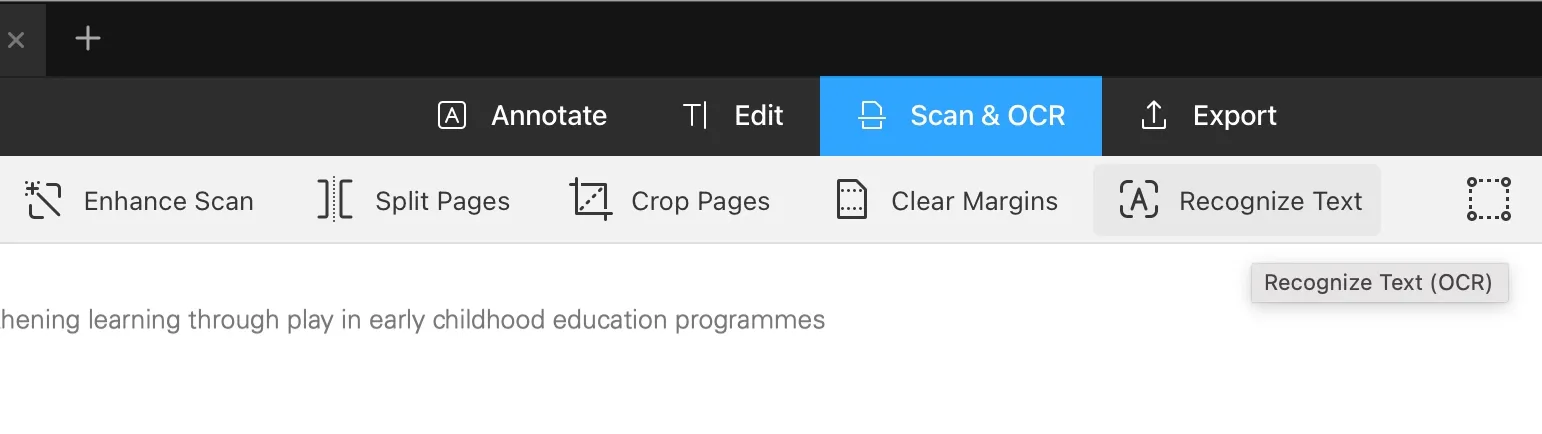
When PAC reports an image-only PDF (no selectable text), it indicates that the document needs OCR. PAC cannot perform OCR itself. Instead, use UPDF’s OCR tool to convert each scanned page into searchable text. This produces a new PDF document that PAC can analyze successfully.
With UPDF, you can perform AI checks on pages to identify the image-only content. Follow the steps given below to perform such a check on your file.
Windows • macOS • iOS • Android 100% secure
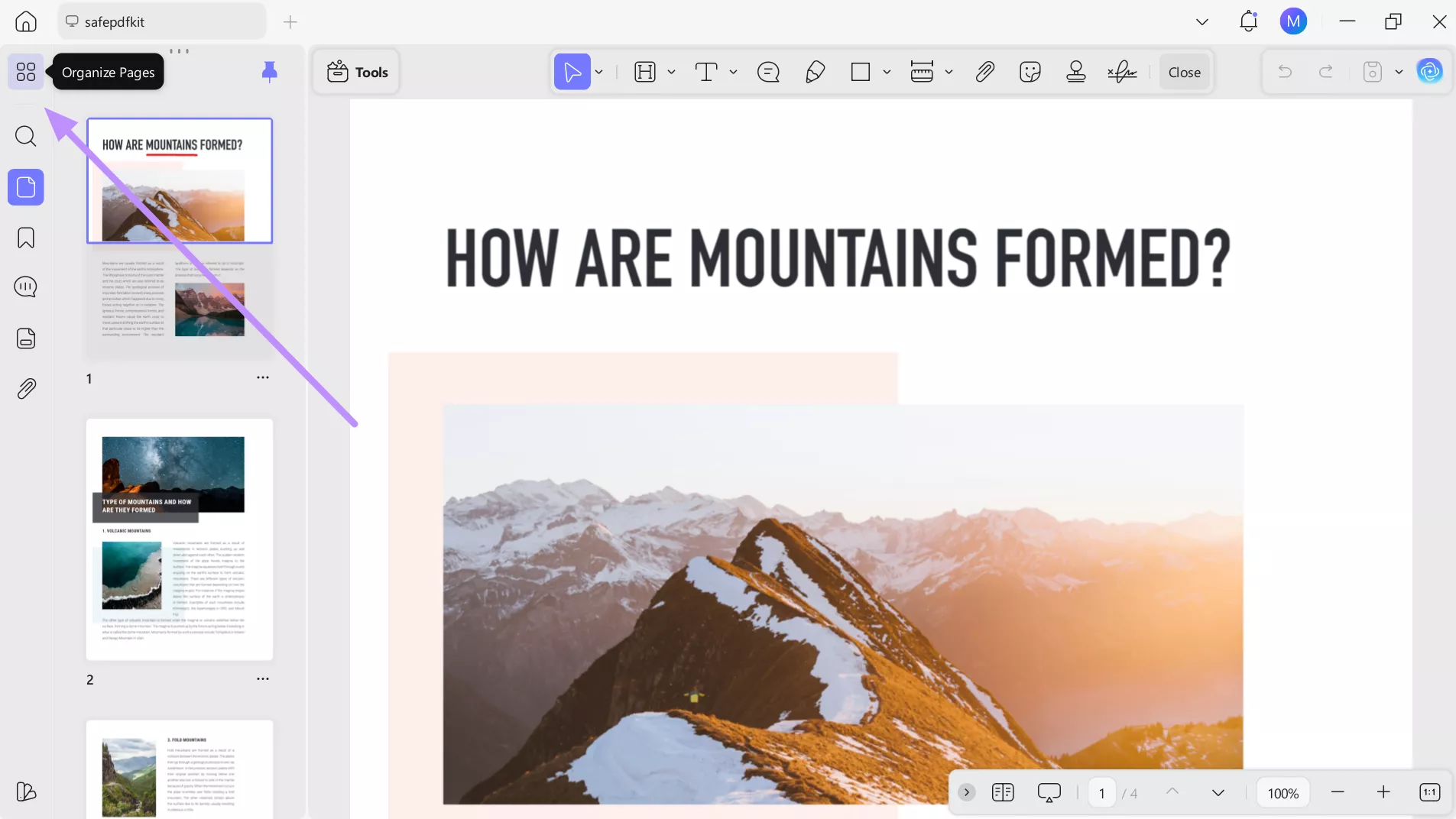
1. Begin by opening UPDF and clicking the Open File button to import the PDF that contains accessibility issues. After the file loads, select the Organize Pages icon to move forward with the process.
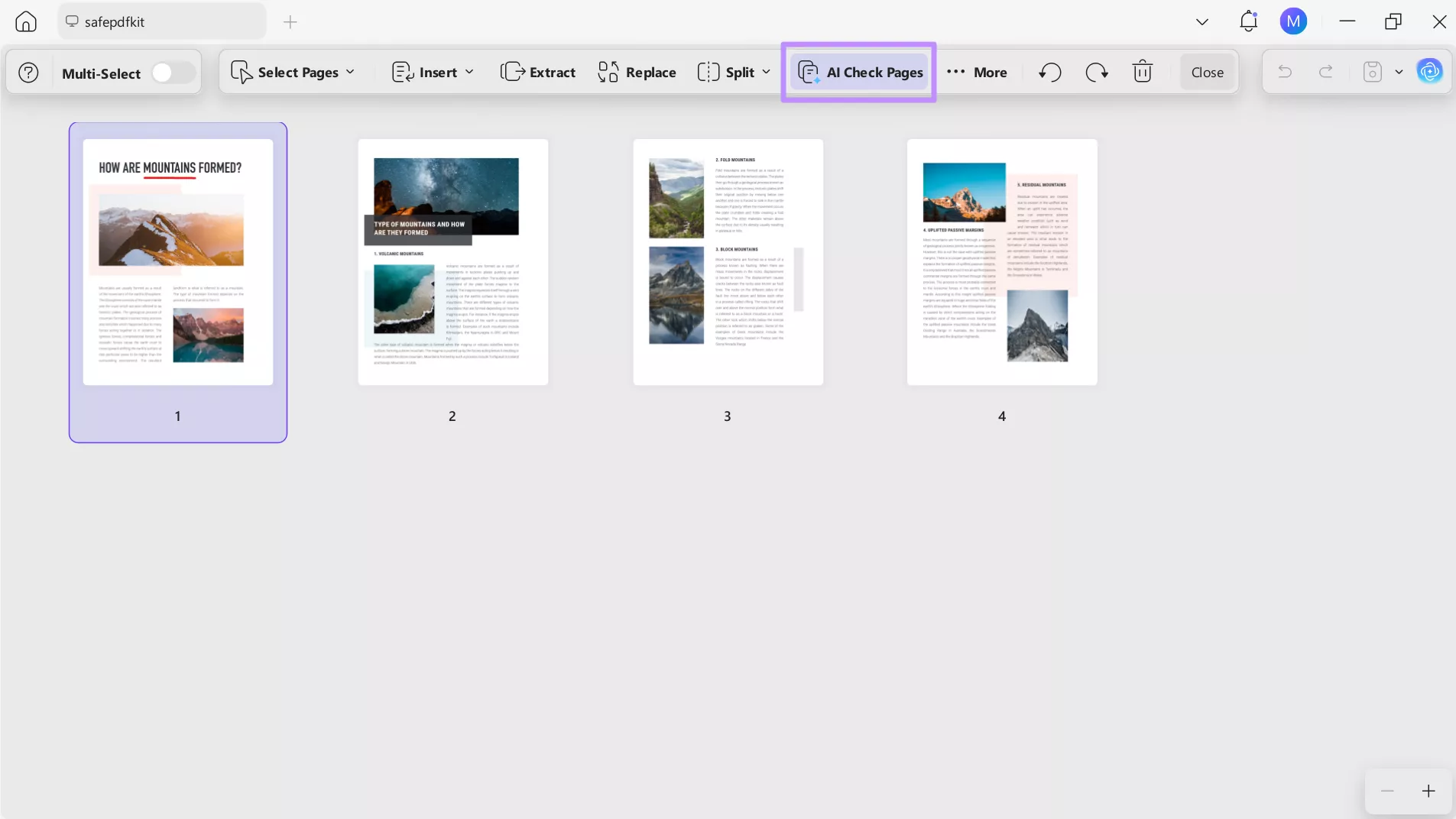
2. Upon reaching the next screen, choose the AI Check Pages option so UPDF can automatically detect potential accessibility problems.
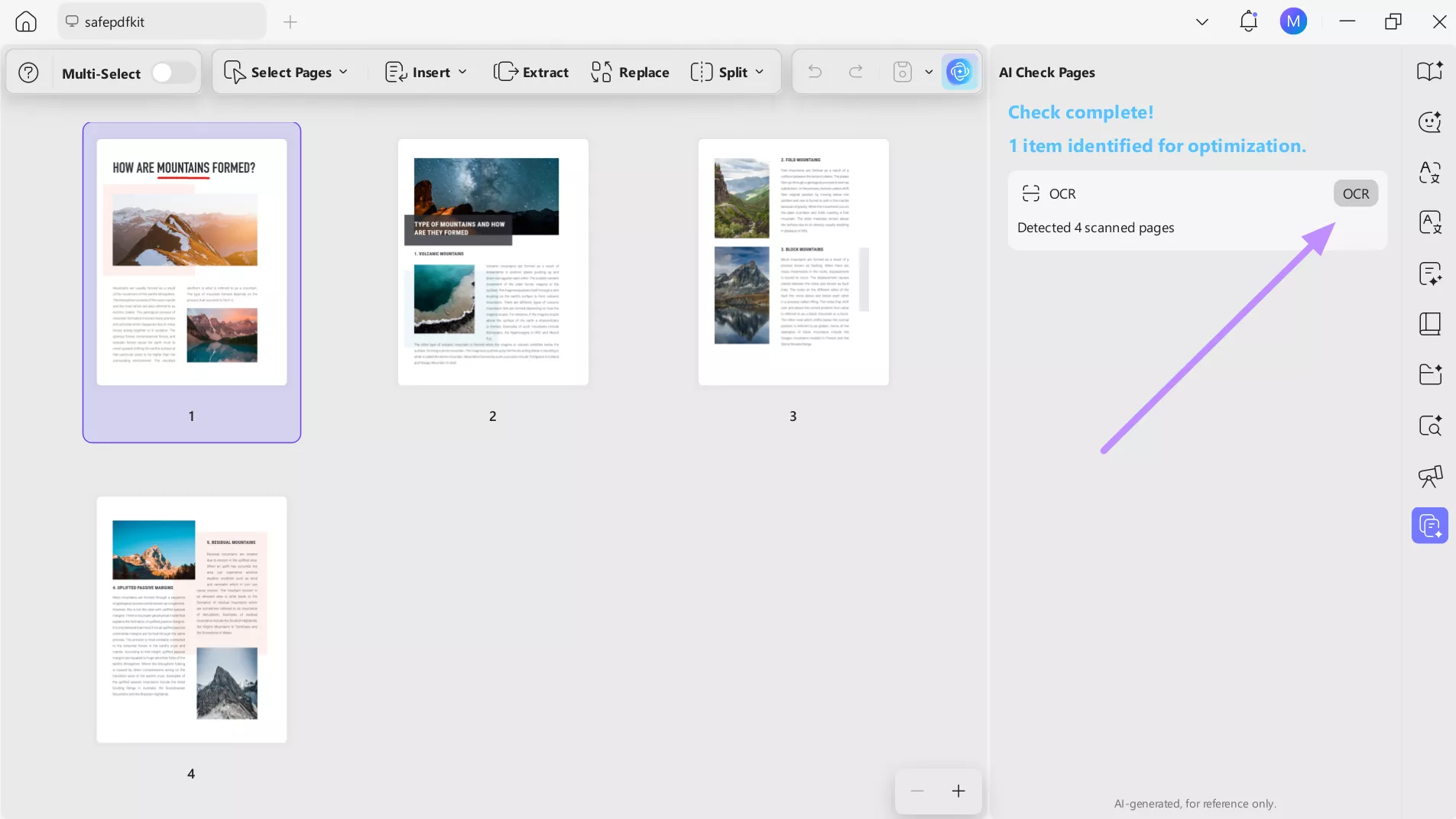
3. Once the analysis is complete, all detected issues will appear in the AI Check Pages panel. From here, tap the OCR feature to address the detected problem.
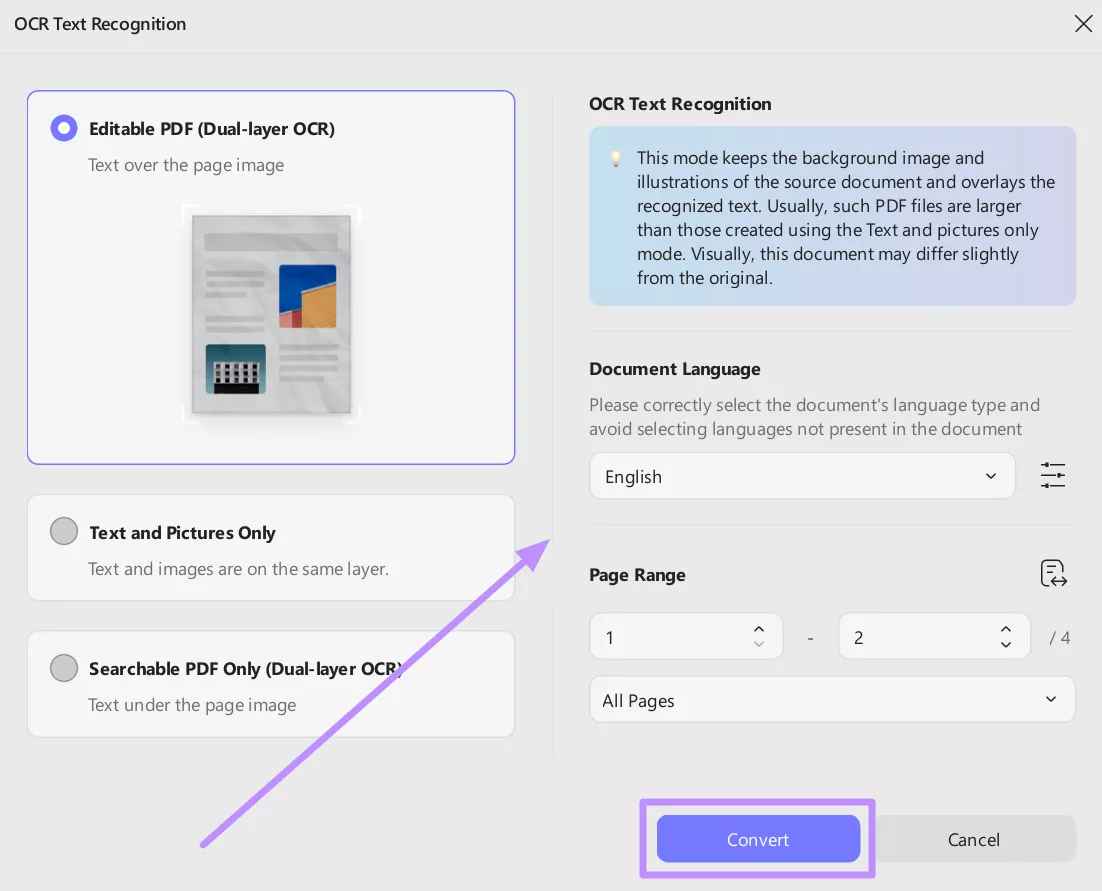
4. When you reach the OCR Text Recognition window, set the preferred document language and choose the page range. Finally, click Convert to resolve the image-only PDF issue.
Frequently Asked Questions
Q1. Will PAC leak my documents?
No, PAC is a standalone desktop application that never sends your files over the internet. All checks (including the AI-assisted checks) run locally on your machine. Your documents remain on your computer, and PAC does not use them externally or for training any model.
Q2. What is PAC’s AI Inspection?
PAC 2026 includes AI-assisted checks that analyze content structure. Its local AI model automatically recognizes elements like headings, lists, and tables, and flags inconsistencies. These AI results supplement the standard PDF/UA and WCAG tests by guiding the user to likely problems.
Conclusion
In summary, PAC (PDF Accessibility Checker) is a free tool for auditing PDF/UA and WCAG compliance. It quickly identifies accessibility issues, but does not correct them. For fixing problems like scanned images or missing tags, use a PDF editor with OCR.
In particular, UPDF offers OCR and editing tools to resolve PAC-flagged issues. Download UPDF now to make your scanned files ready for accessibility checks.
Windows • macOS • iOS • Android 100% secure






 Enola Davis
 Engelbert White
 Enrica Taylor
 Enya Moore