UPDF
UPDF
 UPDF for Windows
 UPDF for Mac
 UPDF for iPhone/iPad
 UPDF for Android
 Nomostar
 UPDF AI Online
 UPDF Sign
 IvyCraft
 Edit PDF
 Annotate PDF
 Create PDF
 PDF Form
 Edit links
 Convert PDF
 OCR
OCR PDF to Word
 PDF to Image
 PDF to Excel
 Organize PDF
 Merge PDF
 Split PDF
 Crop PDF
 Rotate PDF
 Protect PDF
 Sign PDF
 Redact PDF
 Sanitize PDF
 Remove Security
 Read PDF
 UPDF Cloud
 Compress PDF
 Print PDF
 Batch Process
 About UPDF AI
 UPDF AI Solutions
 AI User Guide
 FAQ about UPDF AI
 Summarize PDF
 Translate PDF
 Chat with PDF
 Chat with AI
 Chat with image
 PDF to Mind Map
 Explain PDF
 PDF AI Tools
 Image AI Tools
 AI Chat Tools
 AI Writing Tools
 AI Study Tools
 AI Working Tools
 Other AI Tools
 AI Bookmark Generation
 AI Bookmark Summary
 AI Watermark Generation
 AI Background Generation
 AI Sticker Generation
 AI Stamp Generation
 AI Editing Suite
 UPDF Copilot
 AI Page Management
 AI Semantic Search
 PDF to Word
 PDF to Excel
 PDF to PowerPoint
 Enterprise Solution
 Enterprise Sign
 Enterprise AI
 Enterprise Plan
 Enterprise User Guide
 Enterprise Webinar
 Banking
 Healthcare
 Insurance
 Legal
Legal Manufacturing
 Government
 Education Solution
 Customer Stories
 User Guide
 UPDF Tricks
 FAQs
FAQs UPDF Reviews
 Download Center
 Blog
Blog Newsroom
 Tech Spec
 Updates
 UPDF vs. Adobe Acrobat
 UPDF vs. Foxit
 UPDF vs. PDF Expert

This guide will resolve all your doubts in one go. We have evaluated 10 leading PDF form-filling tools, covering free and paid options, web-based and desktop solutions, as well as tools for personal use and professional digital signing. We present a clear comparison of each tool in terms of free quotas, file restrictions, signing functionalities, batch processing capabilities, data privacy & security, and pricing models. Upon reading this article, you will be able to pick the optimal solution tailored to your needs.
For Quick Verdict: Based on actual testing and evaluation, this article identifies the top 10 PDF fillers. UPDF stands out as the best performer, offering the best value for money; it combines the professional capabilities of Adobe—at just one-fifth of the annual cost—with the ease of use, simplicity, and clear interface typical of online tools.
This article is part of the Complete Guide to PDF Forms and focuses specifically on the "filling" process. If you are interested in learning how to create fillable forms or edit form fields, please consult the full guide.
Part 1: 10 Best PDF Form Fillers
To help you quickly find the right tool for form filling, e‑signatures, and batch workflows, we’ve curated 10 leading PDF fillers spanning free, freemium, and premium options—covering online, desktop, and cross‑platform solutions for both individual and business needs.
| Tool | Free Tier Limit | Fill Experience | Saves Filled Data | Signature Support | Batch Fill (Data Import) | Platforms | Pricing |
|---|---|---|---|---|---|---|---|
| UPDF | Free trial (watermark on output) | ⭐⭐⭐⭐⭐ | ✅ | ✅ (draw/type/image) | ✅ (CSV import) | Win/Mac/iOS/Android | Perpetual $79.99 or Subscription $49.99/year |
| Adobe Acrobat PDF Filler | 7‑day free trial | ⭐⭐⭐⭐⭐ | ✅ | ✅ (digital & e‑sign) | ✅ | Win/Mac/iOS/Android | Subscription $19.99/month |
| Foxit PDF Editor | Free trial | ⭐⭐⭐⭐⭐ | ✅ | ✅ | ✅ | Win/Mac/iOS/Android | Subscription $10.99/month or Perpetual $159 |
| Nitro Pro | 14‑day free trial | ⭐⭐⭐⭐ | ✅ | ✅ | ✅ | Win/Mac | Subscription $14.99/month or Perpetual $179 |
| Kofax Power PDF | 15‑day free trial | ⭐⭐⭐⭐⭐ | ✅ | ✅ | ✅ | Win/Mac | Perpetual $129 (Standard) |
| PDFfiller | 30‑day free trial | ⭐⭐⭐⭐ | ✅ | ✅ | ✅ | Web | Subscription $20/month |
| Google Chrome | Completely free (browser built‑in) | ⭐⭐ | ❌ (cannot save filled data) | ✅ (basic) | ❌ | Web | Free |
| PDFescape | Free online (ads), ≤10MB, ≤100 pages | ⭐⭐⭐ | ✅ | ✅ | ❌ | Web | Freemium (paid removes ads) |
| Docfly | Free trial (some restrictions) | ⭐⭐⭐ | ✅ | ✅ | ⚠️ (limited) | Web | Subscription (~$9.99/month) |
| Soda PDF | Free trial (watermark on output) | ⭐⭐⭐⭐ | ✅ | ✅ | ❌ | Win/Mac/iOS/Android | Subscription $7.99/month or Perpetual $99 |
ℹ️Batch filling: Import data from CSV/Excel to generate multiple pre-filled PDF copies in one go.
ℹ️Save filled content: Retain entered data after saving and reopening PDFs (not supported by Google Chrome).
ℹ️Prices are for reference only; refer to the official website for the latest rates.
Let's check these 10 PDF fillers in detail one by one.
1. UPDF - Powerful PDF Filler on Windows, Mac, Android and iOS (AI Integrated)
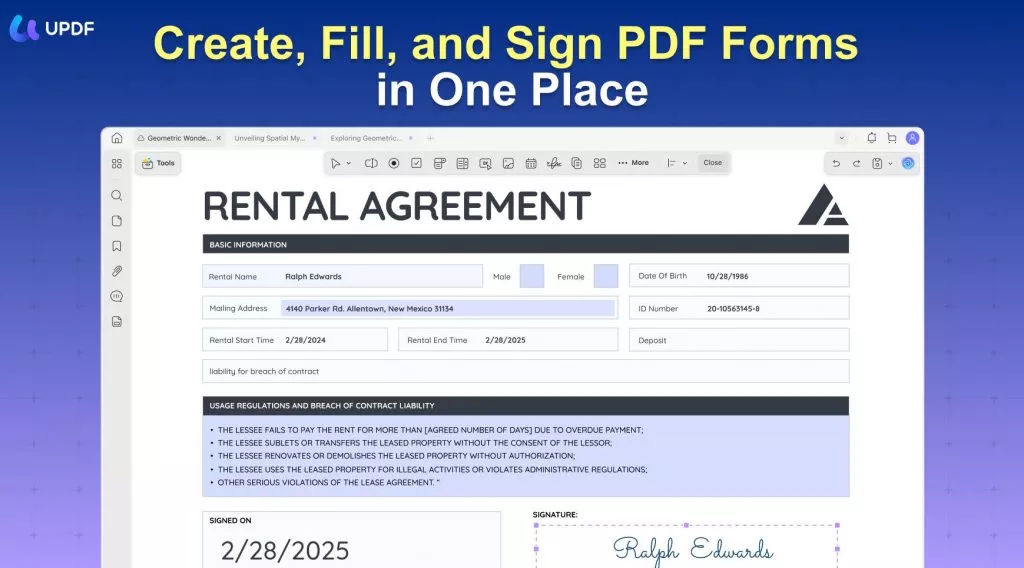
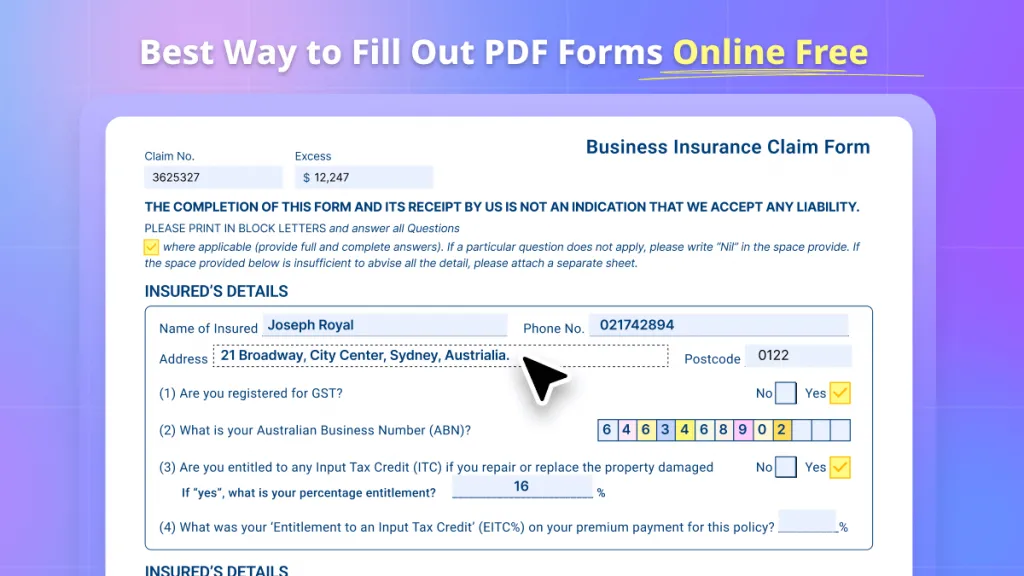
UPDF is a powerful PDF filler. With it, you can fill out any type of PDF form, including fillable and nonfillable ones. If you have fillable PDF forms, you can fill them out easily. If you have nonfillable PDF forms, you can convert them into fillable ones automatically with "Form Field Recognition," and if they cannot be converted into fillable ones, you can still use its annotation, editing, and preparing form features to fill them out one by one.
What needs to be mentioned is that UPDF can work on Windows, Mac, Android, and iOS, so you can use it to fill out PDF forms anytime and anywhere. What's more, if you need to share the PDF forms after filling them, you can share them via email, link, or QR code. UPDF is not only a PDF form filler, but it also has many other features. You can check them by downloading UPDF with the button below, reading this review article from Laptopmedia, or checking the major ones below.
Windows • macOS • iOS • Android 100% secure
Here are the main features:
- Create PDF Form - design and create your own PDF forms for specific needs like customer feedback forms or student report card forms.
- Fill out PDF Forms - UPDF helps users recognize and fill out PDF forms easily.
- Edit form fields - edit Text Fields, Check Boxes, Radio Buttons, Dropdowns, List Boxes, Buttons, etc.
- Extract/manage data from PDF forms - export PDF form data to Excel or clear PDF form.
- Sign PDF - Add electronic signatures to PDF easily.
It's worth noting that you can create user-friendly, fillable PDF forms accessible to everyone with UPDF when XFA form cannot be edited. So many functions waiting for you to use. What are you waiting for? Download UPDF now to have a trial.
Windows • macOS • iOS • Android 100% secure
Video Tutorial on How to Create and Fill Forms
2. Adobe Acrobat - The Great PDF Form Filler
Adobe Acrobat is another popular PDF form filler for Mac on the market. It's packed with features that create, edit, and sign PDFs. With Adobe Acrobat, you can fill out PDF forms. Just open the form in Acrobat and start typing. Acrobat will automatically format your text in the form fields.
Because of its popularity, it has an expensive subscription plan monthly. Though they have some quality tools, some users only use a fraction of them and find them way too costly for their needs. Switching to a cheaper Adobe Acrobat alternative is better for you.

3. Foxit PDF Editor - The Desktop PDF Filler
Foxit PDF Editor is a PDF editing software that enables you to edit PDF files. With Foxit PDF Editor, you can modify text and images, add comments and annotations, fill out forms, and more. Foxit PDF Editor also supports batch processing so that you can edit multiple PDF files at once.
However, in some cases, forms made in Foxit display differently in other PDF editors, like Bluebeam. Moreover, the large number of features sometimes confuses new users with navigation.

4. Nitro Pro - PDF Form Filler for Mac/Windows/iOS/Android
Nitro Pro is an app for filling out PDF forms that allows you to fill out PDF forms and save them for later. It also allows you to add signature fields, text, and images to your PDFs.
Nitro PDF provides fast and easy conversion of documents but falls short on regular updates. This could become a problem when a user finds a bug or error in a PDF form. It could take a long time before an update fixes it, losing precious business hours and money.

5. Kofax Power PDF - One-Time Payment PDF Form Filler
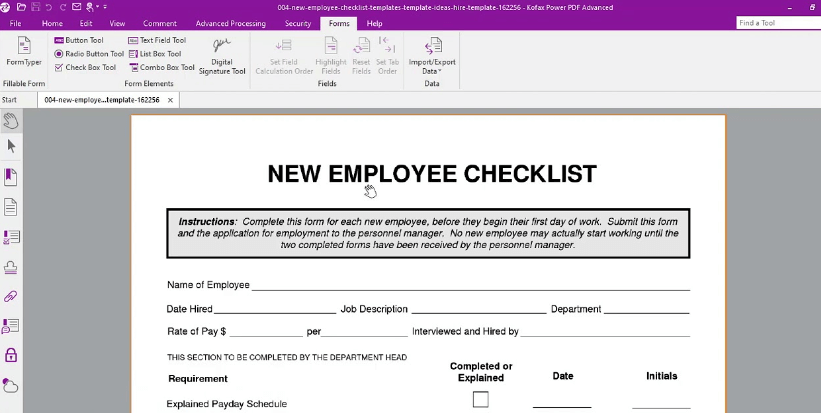
Kofax Power PDF is another PDF form filler. It is user-friendly and it integrates with a lot of other software, making it a sound choice for anyone who needs to fill out PDF forms on a regular basis. Aside from this, Kofax Power PDF only charges a one–time purchase with no subscription fees.
Because it is a one-time purchase, it can be difficult to ask for support from their team when a problem arises. And even if there is support, it will not be as efficient and immediately helpful.
6. PDFfiller - Online PDF Form Filler
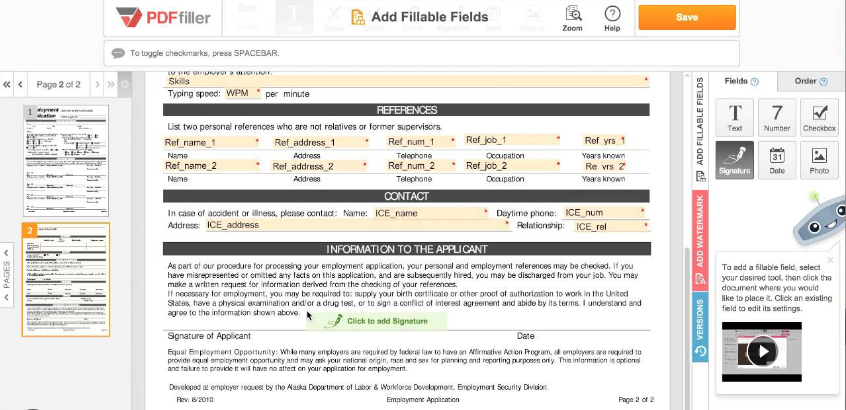
PDFfiller is an online form and document management solution. The cloud-based system includes native Android and iOS mobile applications, an editor for PDFs, a form builder, authentication features, and eSignature functionality. Within a single web application, PDFfiller performs the functions of a document generation tool, an online PDF editor, an eSignature collector, a form builder, and a data collection tool.
Given the name of the app, its primary focus is for users to fill out their forms in a PDF. For a $20-monthly payment, this is a little higher compared to its competitors, where PDF form filling is not their advertised feature but could do the same job.
7. Google Chrome - Free PDF Form Filler
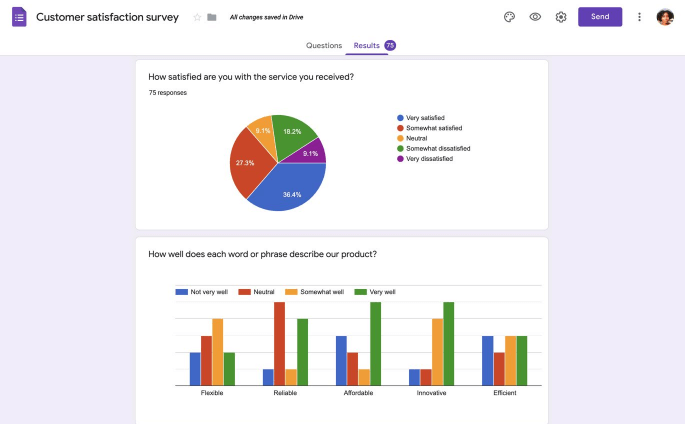
Google Chrome is the most different in this list. Google Chrome is not an app specifically made for PDFs, but it supports PDF forms. It allows users to type in their data directly without added procedures. It is simple, straightforward, and a free PDF form filler online.
Since Google Chrome is not specifically made for this, its support system is not regular, or at least not prioritized. Also, other tools are limited and the organization of the documents depends entirely on the storage system of your device.
8. PDFescape
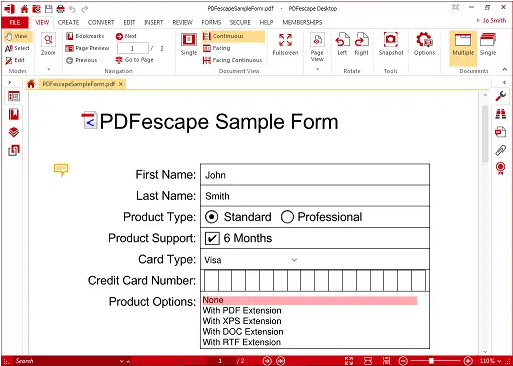
PDFescape is another popular option for those looking for a free PDF form filler. It offers a basic set of features that allow you to fill out forms and add annotations. It's also available as a browser extension, which makes it even more convenient to use. Some say it's the cheap alternative to Adobe Acrobat Pro.
PDFescape is only available on Windows and Web-based applications. It does not support collaboration, so all editing and filling are done locally.
9. Docfly - Online PDF Filler
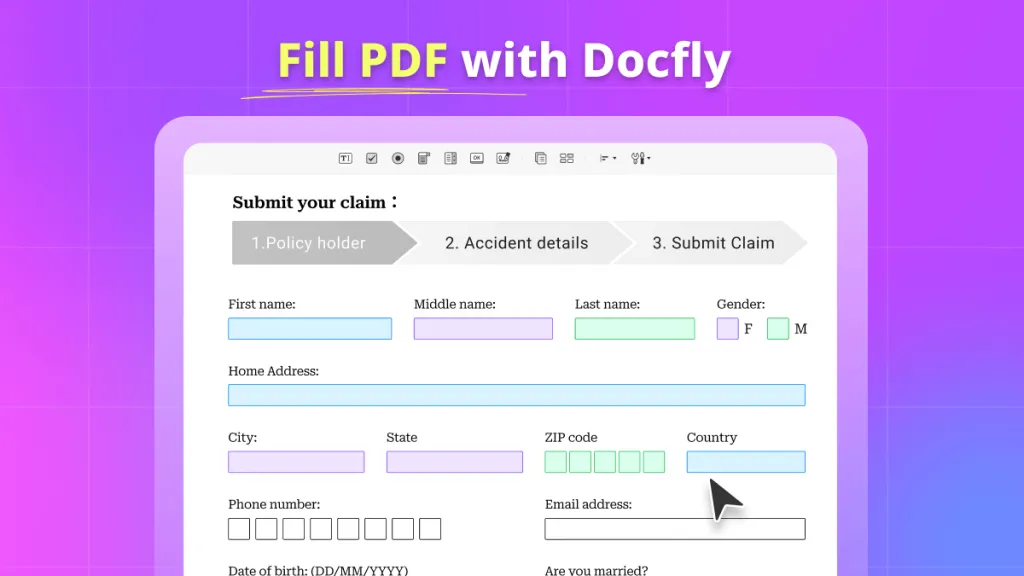
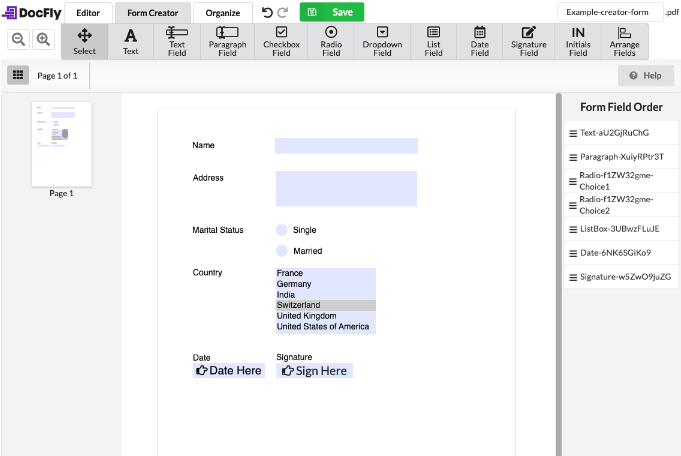
Docfly is an online PDF form filler that makes it easy to fill out any PDF form. Just upload your PDF form to Docfly and start filling it out. Plus, Docfly saves your progress as you go, so you can pick up where you left off the next time you need to fill out the form. And if you need to fill out the same form multiple times, you can save time by creating a template from your completed form.
Docfly is inexpensive and satisfies most of its users' needs. However, there were reviews that reported glitches and a long response time. These, fortunately, are only 14% of the reviews.
10. Sodapdf - Online and Offline PDF Filler
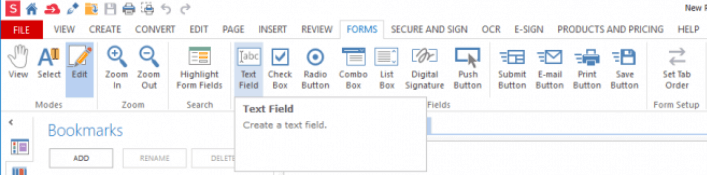
Users of Sodapdf Online can fill out PDF forms. They can also produce PDF files from any common file type and convert those files to Word, Excel, PPT, images, HTML, and more. Additionally, you can break a document into several smaller files or combine multiple PDFs into one manageable document. With this online service, you also have the practical choice of emailing others with your documents and saving both your original and converted files in the cloud. These online tools, like other Sodapdf products, have been designed to be as straightforward as possible while still delivering efficient and precise results.
SodaPDF has only 53% positive reviews according to getapp.com. This low rating is often connected to poor customer service experiences and bug reports that were never fixed.
Online tools work well for one-off, casual tasks with non-sensitive files. For daily use, batch processing, and confidential documents, desktop software is the ideal choice — UPDF stands out as a reliable, full-featured desktop solution for such scenarios. And let's continue to choose the best PDF form fillers according to your true needs and requirements.
Windows • macOS • iOS • Android 100% secure
Part 2: How to Choose PDF Form Filler Based on Your Needs?
Let's see which scenario applies to you and which tool is the best fit.
Scenario 1: I want a completely free tool. Is it enough?
| Need | Recommended Tool | Notes |
|---|---|---|
| Occasional form filling, file <10MB | Google Chrome (preview) or PDFescape (online) | Chrome can fill but cannot save filled data. PDFescape saves data but has ads and file size limit. |
| Need to save filled data | PDFescape (free online) or Docfly (free trial) | PDFescape free version saves data (≤10MB, ≤100 pages). Docfly trial expires. |
| Completely free + save data + no watermark | None (no perfect free desktop solution) | For basic saving, PDFescape is the closest free option. |
If you only need to fill out forms occasionally and don't mind not being able to save them, Google Chrome is sufficient. If you need to save your work, PDFescape is the closest free alternative.
Scenario 2: I handle sensitive files (contracts, tax forms, ID copies)
| Need | Recommended Tool | Notes |
|---|---|---|
| Local processing (no cloud upload) | UPDF, Adobe Acrobat, Foxit, Nitro, Kofax | All desktop software – files stay on your device. |
| Batch fill (CSV/Excel import) | UPDF, Adobe Acrobat, Foxit, Nitro, Kofax | All support batch generation from data sources. |
| Legally binding signatures | UPDF, Adobe Acrobat, PDFfiller | Support digital signatures (ESIGN/eIDAS compliant). |
Using online tools (such as PDFfiller, PDFescape, and Docfly, which are all cloud-based) is not recommended for sensitive documents; desktop software that processes files locally is the only secure choice. UPDF stands out for its exceptional value (offering a one-time purchase model, comprehensive features, and no usage limits).
Windows • macOS • iOS • Android 100% secure
Scenario 3: I need to batch fill dozens/hundreds of identical forms
| Need | Recommended Tool | Notes |
|---|---|---|
| Batch fill from CSV/Excel | UPDF, Adobe Acrobat, Foxit, Nitro, Kofax, PDFfiller | All major desktop tools + PDFfiller (cloud) support batch import. |
| Free batch fill | None | Batch fill is an advanced feature – requires paid version. |
Scenario 4: I need to send documents to others for remote signature
| Need | Recommended Tool | Notes |
|---|---|---|
| Send contract for signature (tracking, signing order) | Adobe Acrobat Sign, PDFfiller, UPDF Sign (if enabled) | Professional e‑sign platforms with audit trails. |
| Personal signature (handwrite/type/upload) | All tools | All support basic signature placement. |
If you need to send documents to others for signature, you should choose a professional e-signature platform. Adobe and PDFfiller offer robust capabilities in this regard. UPDF Sign is a solution integrated with UPDF.
Scenario 5: I need cross‑platform sync (computer, phone, tablet)
| Need | Recommended Tool | Notes |
|---|---|---|
| Full platform sync | UPDF (UPDF Cloud), Adobe Acrobat (Adobe Cloud), Soda PDF | Fill progress and signatures sync across devices. |
| Windows + Mac only | Foxit, Nitro, Kofax | Dual‑platform support, but sync requires account. |
| Free sync | None | Manual file sync via cloud drives doesn't preserve fill state. |
Scenario 6: Personal user, tight budget, but want good desktop software
| Budget Range | Recommended Tool | Notes |
|---|---|---|
| $0 – $50 | UPDF free trial | Full-featured trial; long‑term use requires purchase. |
| $50 – $100 | UPDF perpetual ($79.99) | One‑time payment, lifetime use – best value. |
| $100+ (perpetual) | Foxit ($159), **Nitro** ($179), Soda PDF ($99) | Feature‑rich, but more expensive than UPDF. |
Based on the six specific scenarios above, see which one applies to you; regardless of the situation, UPDF is a perfect fit and provides the ideal solution.
FAQs about 10 PDF Form Filler
1. Which One is the Best PDF Form Filler?
This 10 PDF form filler is all great. But we recommend you choose UPDF. Because UPDF is more friendly to the user. The speed of fill out the form is also super fast.
2. Is There a Free PDF Form Filler?
It has no free PDF form filler in the market now. If there is a free PDF form filler, it has a watermark when you save the PDF or it will have the ad in the application or website.
3. How Do I Add a Form to the PDF?
If you want to add a form to the PDF, you can select the tool which is talked about in this article. It can add a form to PDF with these 10 PDF form fillers.
Conclusion
Now, you can choose one PDF form filler from the top 10 list. If you still do not know which one is better, we recommend you choose UPDF. It is the best choice as it offers so many features at a really low price as a form filler.
The speed of filling out the form is also quick. With this tool, you don't need to worry about switching tools to do separate tasks, as it offers a complete solution, including reading, annotating, editing, converting, OCR, protecting, organizing, printing, and sharing PDFs to satisfy all users' needs. Download it and try it out.
Windows • macOS • iOS • Android 100% secure





 Lizzy Lozano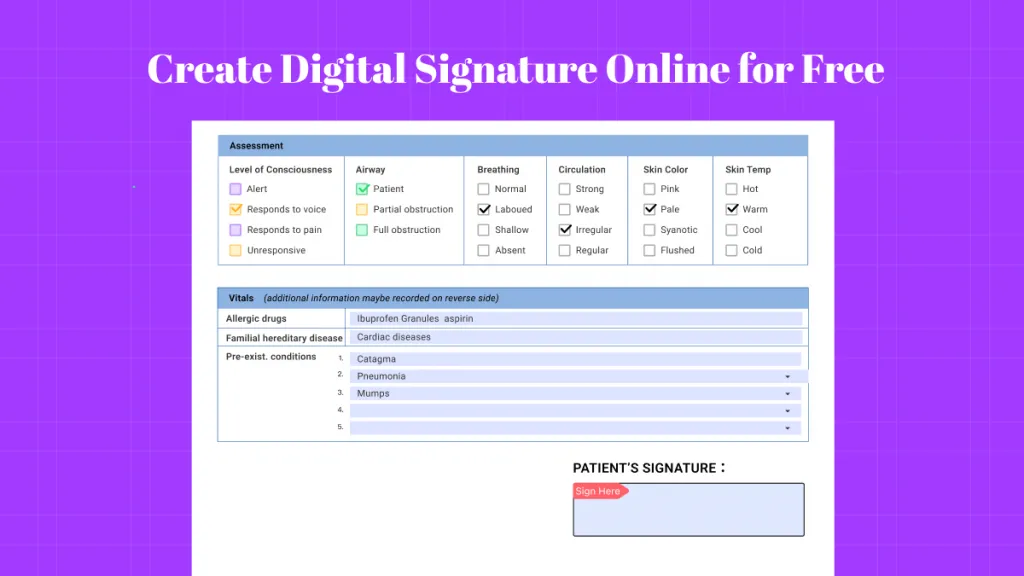
 Enola Miller

 Engelbert White