 UPDF
UPDF
 UPDF for Windows
 UPDF for Mac
 UPDF for iPhone/iPad
 UPDF for Android
 UPDF AI Online
 UPDF Sign
 Edit PDF
 Annotate PDF
 Create PDF
 PDF Form
 Edit links
 Convert PDF
 OCR
OCR PDF to Word
 PDF to Image
 PDF to Excel
 Organize PDF
 Merge PDF
 Split PDF
 Crop PDF
 Rotate PDF
 Protect PDF
 Sign PDF
 Redact PDF
 Sanitize PDF
 Remove Security
 Read PDF
 UPDF Cloud
 Compress PDF
 Print PDF
 Batch Process
 About UPDF AI
 UPDF AI Solutions
 AI User Guide
 FAQ about UPDF AI
 Summarize PDF
 Translate PDF
 Chat with PDF
 Chat with AI
 Chat with image
 PDF to Mind Map
 Explain PDF
 Scholar Research
 Paper Search
 AI Proofreader
 AI Writer
 AI Homework Helper
 AI Quiz Generator
 AI Math Solver
 PDF to Word
 PDF to Excel
 PDF to PowerPoint
 Enterprise Solution
 Enterprise Sign
 Enterprise AI
 Enterprise Plan
 Enterprise User Guide
 Enterprise Webinar
 Banking
 Healthcare
 Insurance
 Legal
Legal Manufacturing
 Government
 Education Solution
 Customer Stories
 User Guide
 UPDF Tricks
 FAQs
FAQs UPDF Reviews
 Download Center
 Blog
Blog Newsroom
 Tech Spec
 Updates
 UPDF vs. Adobe Acrobat
 UPDF vs. Foxit
 UPDF vs. PDF Expert


Converting a scanned or image-based PDF into an editable Excel file can be challenging, especially when the data is locked in tables or complex layouts. This is where online OCR tools become essential. With the right OCR solution, you can accurately extract text and tables from PDFs and turn them into structured Excel spreadsheets—without manual retyping.
In this guide, you'll learn how to use online OCR to convert PDF to Excel step by step, with a primary focus on UPDF AI Online. It offers fast, browser-based OCR, strong table recognition, and AI-assisted processing, making it ideal for users who want quick results without installing software.
We'll also introduce UPDF desktop solutions for users who need more control, offline processing, or advanced editing after conversion. Whether you're handling financial reports, scanned forms, or data-heavy documents, this article will help you choose the right OCR method and use it efficiently.
Part 1: How to OCR PDF to Excel Online
UPDF AI Online is a next-generation online OCR platform designed to make scanned PDF to Excel conversion fast, accurate, and effortless. At its core, UPDF AI Online uses advanced AI (GPT-5) to detect and extract text, tables, and structured data from image-based PDFs and transform them into editable Excel spreadsheets directly in your browser. Compared with basic online OCR services, which often lose formatting, have strict file size limits, and display intrusive ads, UPDF AI Online focuses on precision, usability, and data integrity.
Unlike many free online converters that only support plain text extraction for OCR, UPDF AI Online delivers enhanced table recognition, multi-language support, and better preservation of original layouts, minimizing the need for manual cleanup after export. It also integrates AI-assisted processing to handle harder cases—such as blurry scans or complex tables—with higher reliability than typical competitors, which may struggle with scanned documents or limit features without premium plans.
This combination of AI precision, format preservation, and web-based convenience makes UPDF AI Online a standout choice for converting scanned PDFs to Excel efficiently and accurately.
Convert Scanned PDF to Editable Excel Now >>
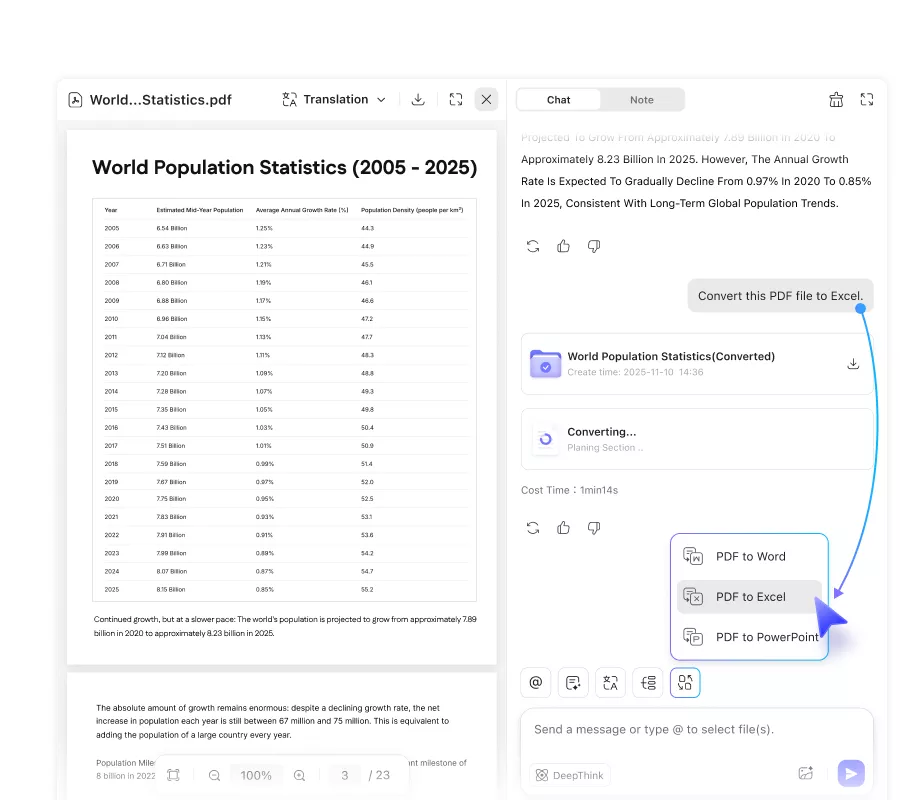
For users who want to OCR PDF to Excel online with one click, follow the steps below:
Step 1. Click the button below to go to UPDF AI Online, then sign up or log in to it by clicking the Web App button on the top-right corner.
Step 2. Upload your PDF and press Enter to go to the next screen. UPDF AI Online will automatically provide a summary for your uploaded PDF.
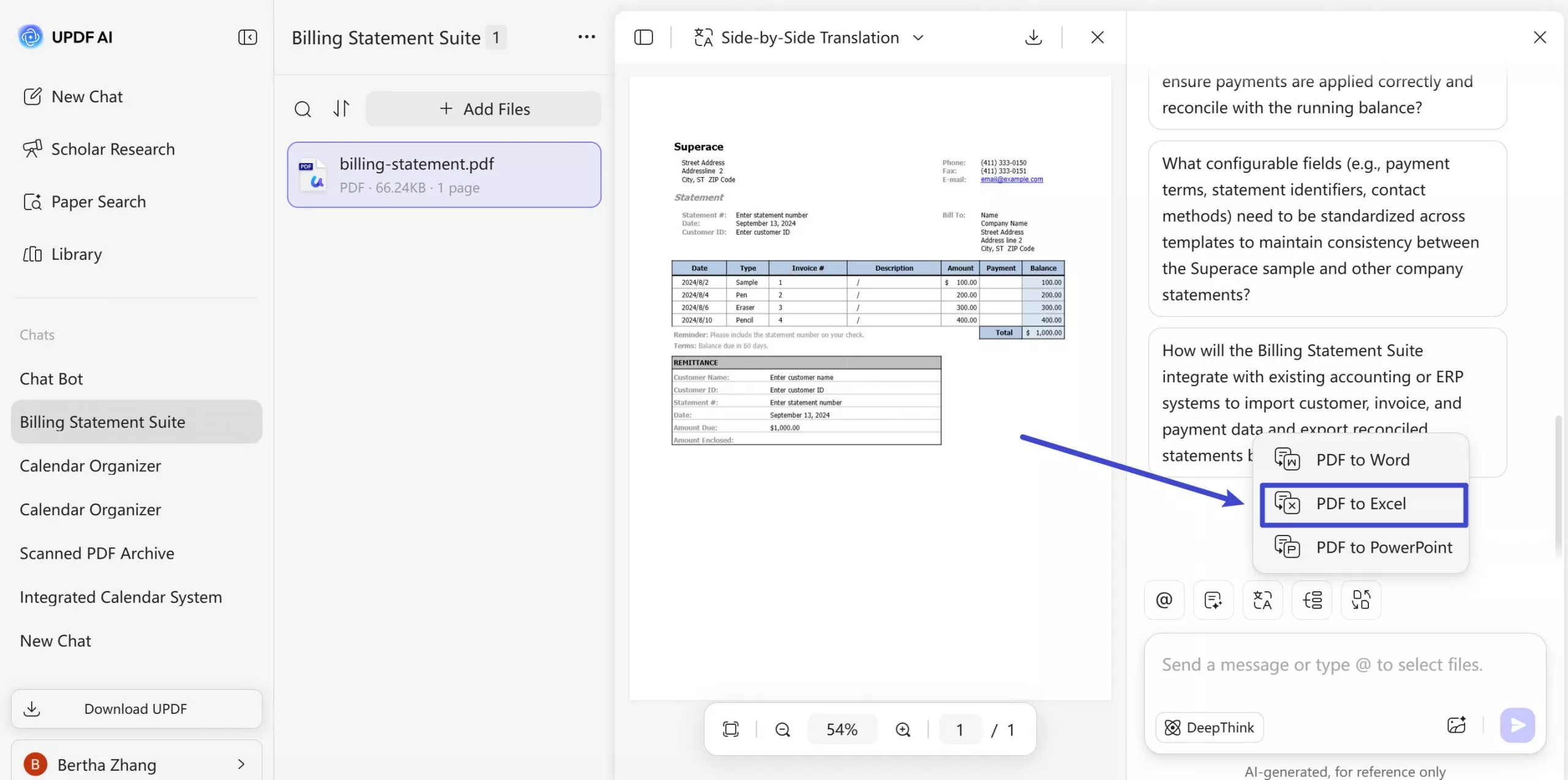
Step 3. Click on the Convert PDF button above the message box and choose PDF to Excel. Choose the file you want to convert and confirm.
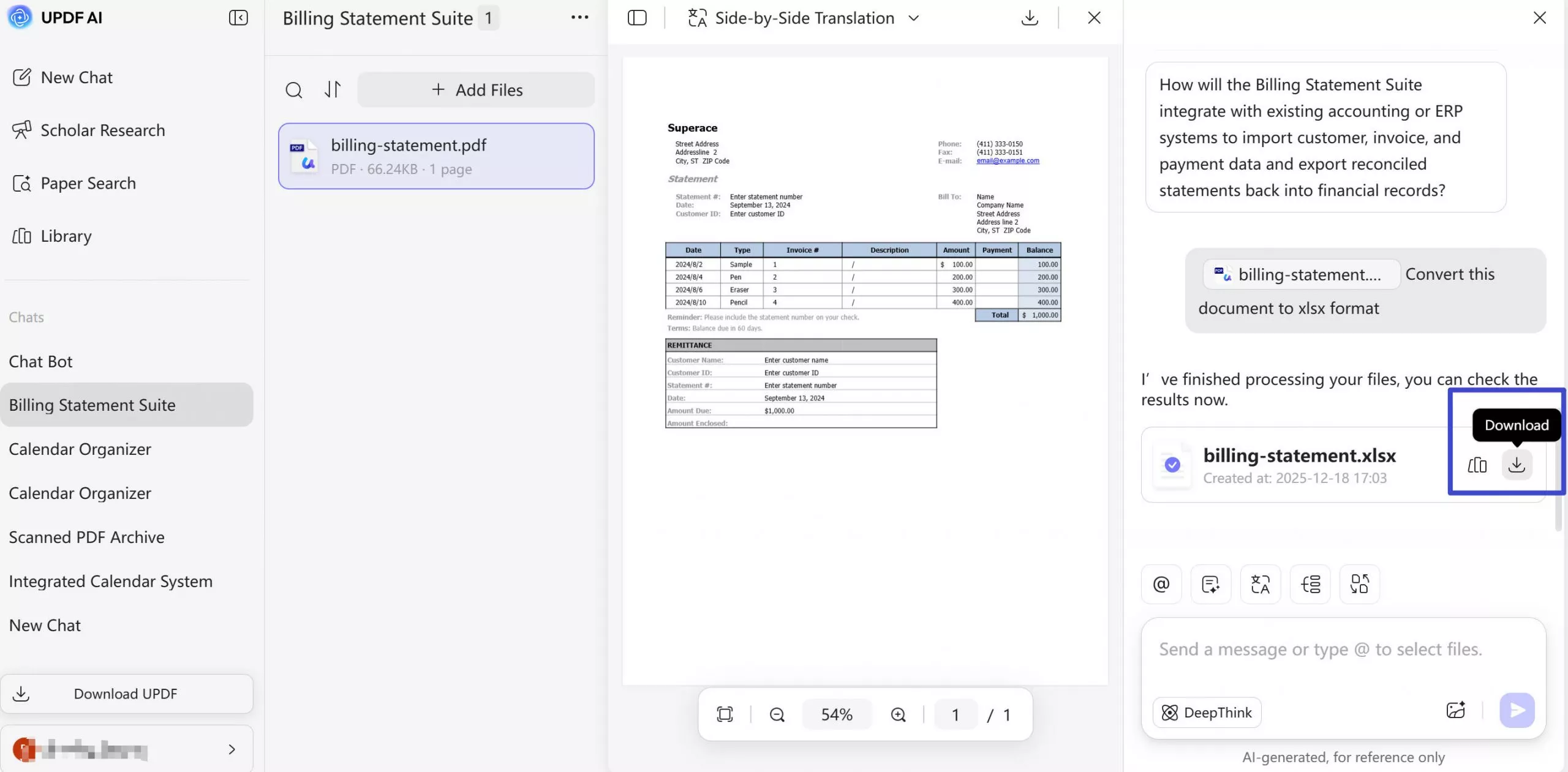
Step 4. UPDF will start the conversion process. Once it finishes, you can download the converted Excel file.
Part 2: Use UPDF for Advanced or Offline PDF to Excel OCR
While UPDF AI Online is ideal for quick, browser-based OCR, some users may need more control over the conversion process. In these cases, UPDF software provides a more advanced solution for converting scanned PDFs to Excel.
UPDF supports offline OCR, allowing you to process sensitive or confidential documents without uploading them to the cloud. It also offers batch OCR and batch PDF-to-Excel conversion, which is especially useful when working with large volumes of scanned files. Compared to online tools, UPDF gives users greater flexibility in OCR language selection, page range control, and table recognition accuracy, resulting in cleaner Excel outputs.
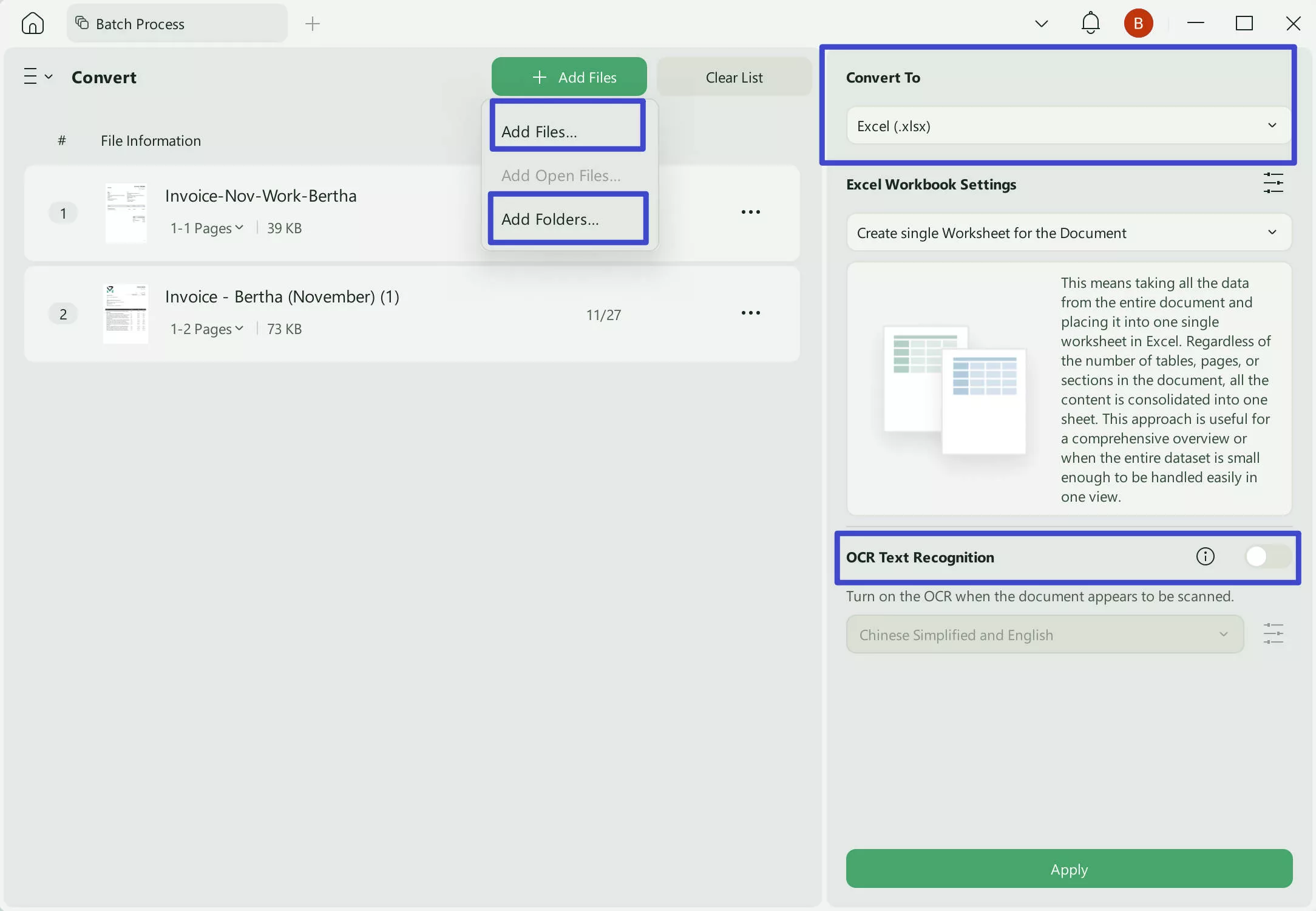
Another key advantage is post-conversion editing. After performing OCR, you can directly review and adjust tables, text alignment, or formatting inside the PDF before exporting it to Excel—something online OCR tools typically do not support. For users who require higher accuracy, offline access, or advanced editing workflows, UPDF serves as a powerful complement to UPDF AI Online.
So, download it now and enhance your document management and OCR PDF to Excel conversion experience.
Windows • macOS • iOS • Android 100% secure
Use OCR and Convert on desktop
To use UPDF's OCR and convert to Scanned PDF to Excel, follow these simple steps.
Step 1. Launch UPDF and Import the Scanned File
Launch UPDF after installing it and hit the "Open File" button to choose and import the PDF file on which you want to perform OCR conversion.
Step 2. Perform OCR and Customize Its Settings
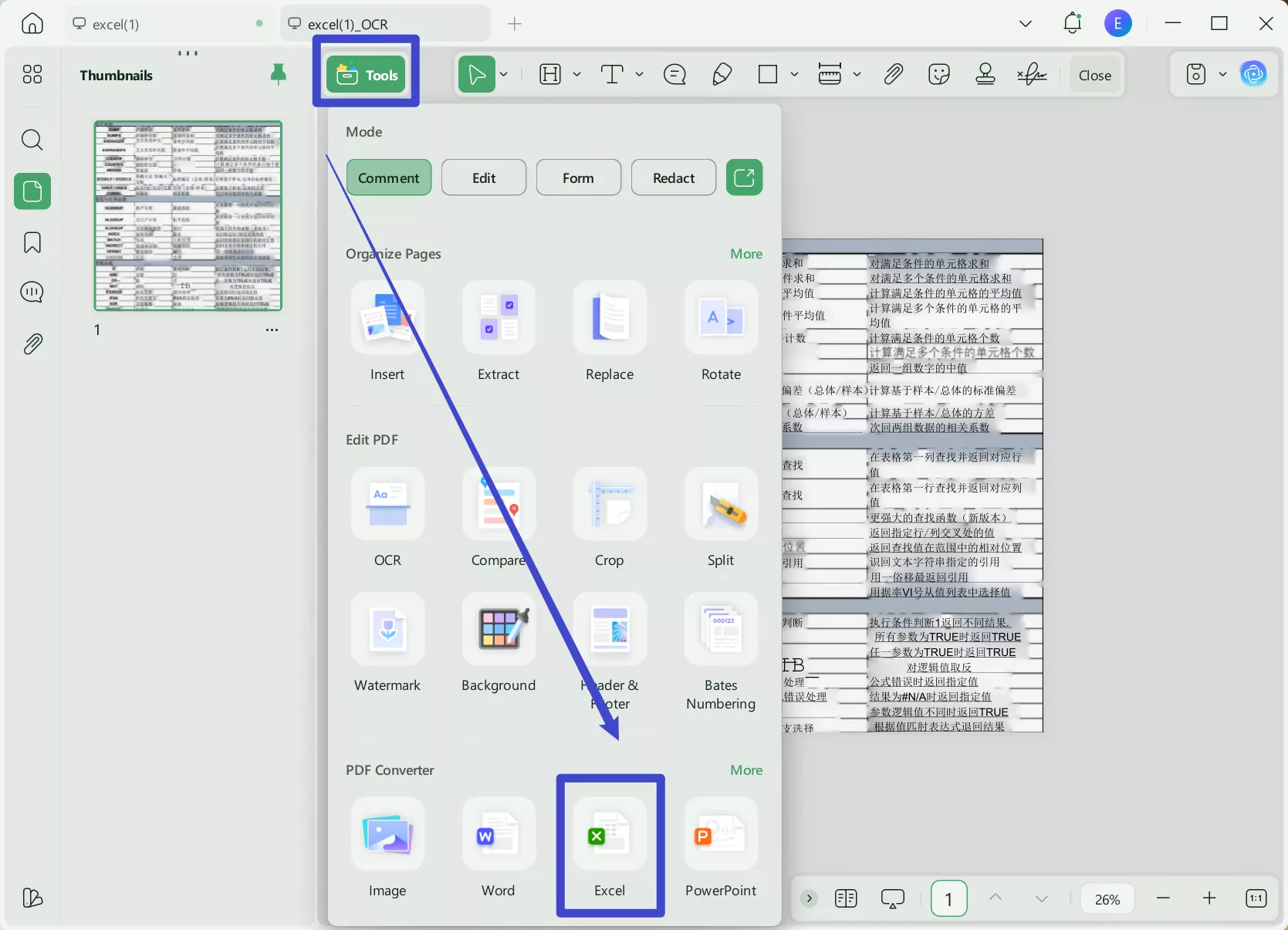
After importing the file, hit the "Tool" on the top, then click the "Excel" option.
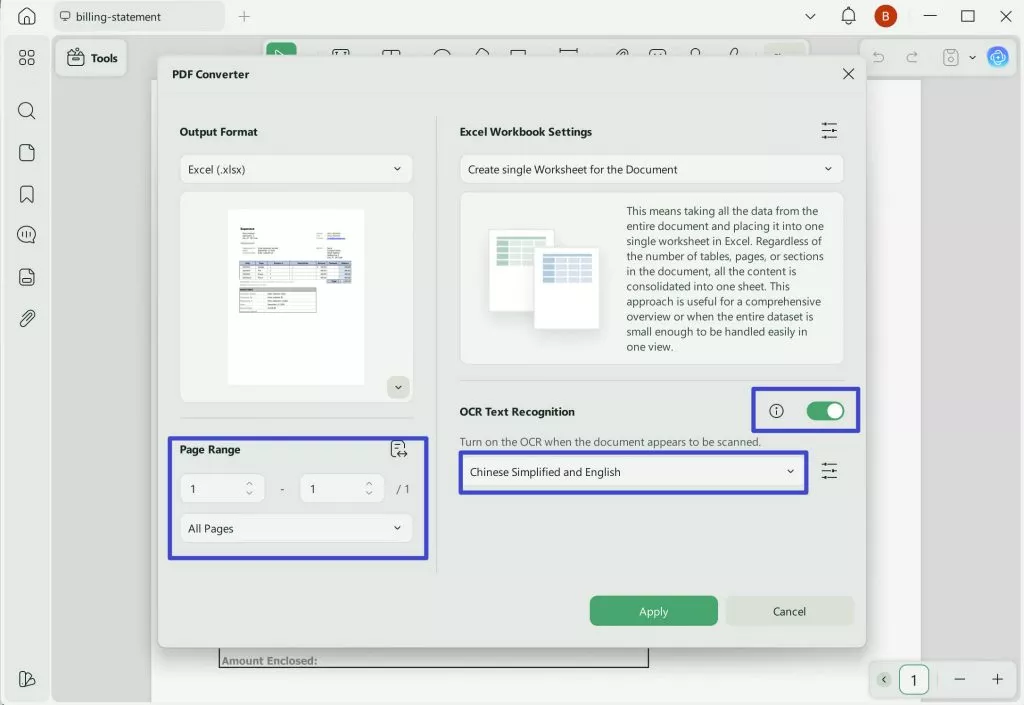
Now, a pop-up window will appear. Enable the OCR option, select the document language. Here, I select "English" to get accurate results. Choose and confirm the page range that you want to convert. Afterward, begin the OCR conversion process by clicking the "Apply" button.
Now, you can get the exported excel with format keeping. Therefore, we highly encourage you to hit the "Free Download" button to get a user-friendly and efficient tool for converting scanned documents to Excel.
Windows • macOS • iOS • Android 100% secure
Use OCR and Convert on mobile
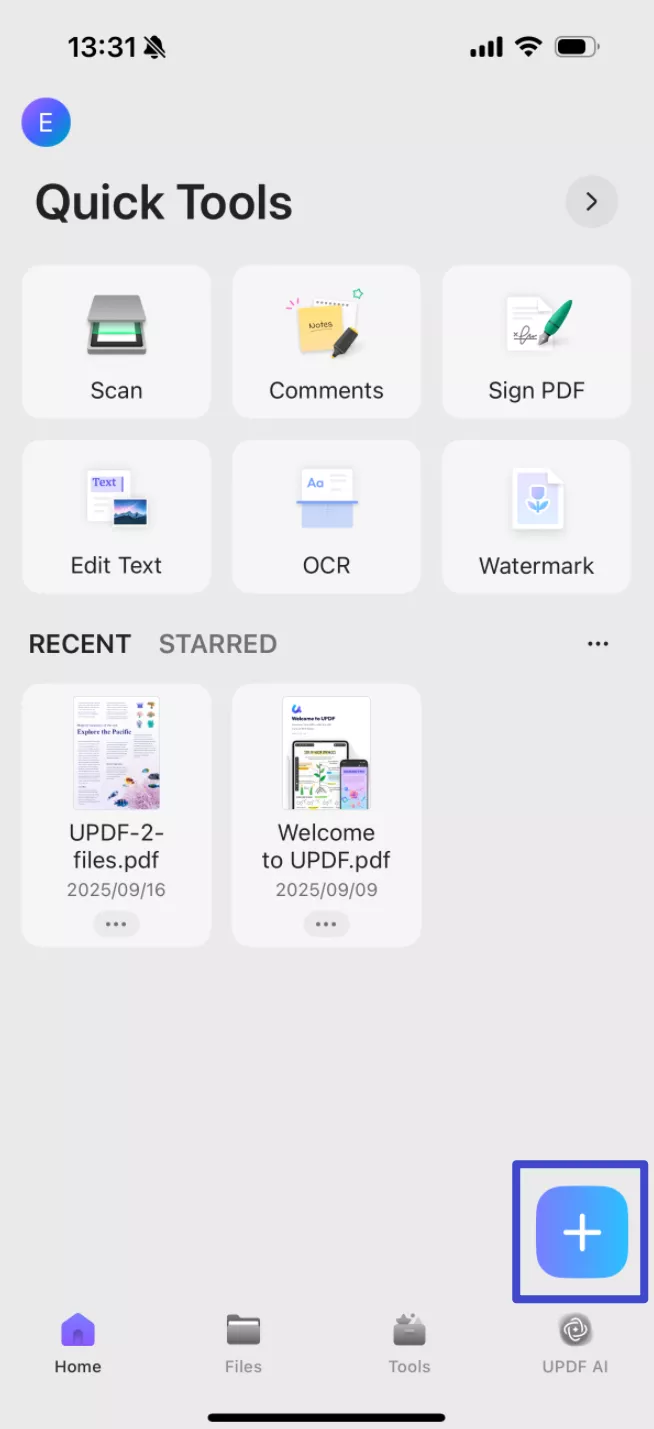
Step 1. Download UPDF for iOS from App Store or UPDF for Android from Play Store. Then open UPDF on your phone, click the "+" button in the bottom right corner to upload your file.
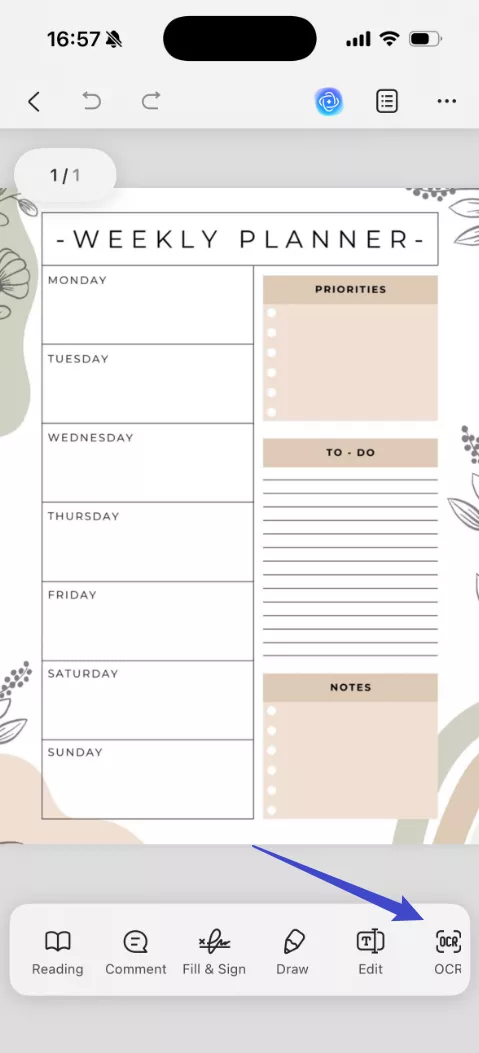
Step 2. Click "OCR", adjust the settings as needed, then tap "Continue". In a moment, OCR will finish and the result will be automatically saved in your UPDF files.
Step 3. Click "Tools", choose "PDF to Excel", find the file you want to convert, tap "Continue" after adjusting the settings.
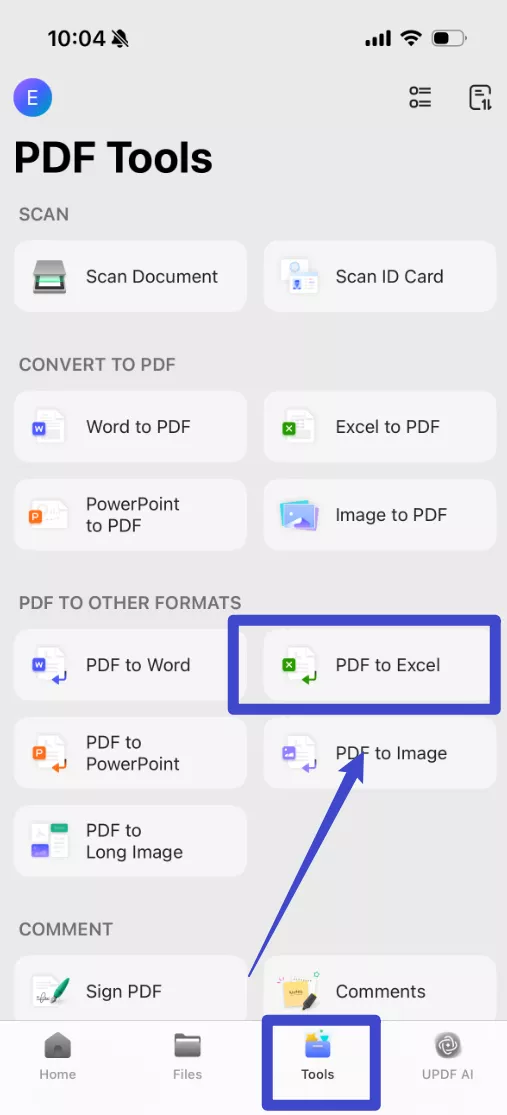
If you still do not know how to use OCR of UPDF, you can watch the video below.
Why not download UPDF to try on your own?
Windows • macOS • iOS • Android 100% secure
Part 3: Things to Know Before Converting Scanned PDF to Excel
Before converting a scanned PDF to Excel, it’s important to understand how OCR works and what factors affect the final output. Unlike text-based PDFs, scanned PDFs are essentially images, which means OCR accuracy depends heavily on scan quality. Low resolution, blurry text, skewed pages, or shadows can reduce recognition accuracy and lead to misplaced rows or columns in Excel.
Another key factor is table complexity. Tables with merged cells, missing borders, or uneven spacing are more difficult for OCR engines to interpret correctly. In such cases, even the best OCR tools may require minor manual adjustments after conversion. Language selection also matters—choosing the correct document language can significantly improve number and text recognition.
Understanding these limitations helps set realistic expectations and explains why using an OCR tool with strong table recognition, such as UPDF AI Online or UPDF, can make a noticeable difference in conversion quality.
Part 4: UPDF AI Online vs UPDF: Which One Should You Choose?
Both UPDF AI Online and UPDF software support OCR-based PDF to Excel conversion, but they are designed for different use cases.
UPDF AI Online is best for users who want a fast, browser-based solution. It requires no installation and is ideal for one-time conversions, small files, or situations where you need quick access from any device.
UPDF software, on the other hand, is more suitable for advanced or professional workflows. It supports offline OCR, making it a better choice for sensitive documents. UPDF also offers batch OCR and greater control over OCR settings, such as page ranges and language selection. After OCR, users can further edit and refine tables before exporting them to Excel, which helps improve accuracy for complex documents.
In short, choose UPDF AI Online for speed and convenience, and choose UPDF when accuracy, privacy, or batch processing matters more.
Part 5: Common PDF to Excel OCR Problems and Solutions
Even with modern OCR technology, PDF to Excel conversion may come with some common issues. One frequent problem is misaligned rows or columns, usually caused by low-quality scans or complex table layouts. Improving scan clarity or using a tool with better table recognition can reduce this issue.
Another common issue is incorrect numbers or missing characters, especially in financial documents. This often happens when the OCR language is not correctly set or when the scan resolution is too low. Selecting the correct language and using AI-enhanced OCR can improve recognition accuracy.
Users may also notice that merged cells or table borders are not preserved perfectly after conversion. In these cases, using UPDF allows you to manually adjust tables after OCR before exporting them to Excel, reducing cleanup time.
By understanding these common problems and choosing the right OCR method, you can achieve more accurate and usable Excel files from scanned PDFs.
Conclusion
Converting scanned PDFs to Excel is easy with the right OCR tool. UPDF AI Online is ideal for fast, browser-based conversions with accurate table recognition and no installation required. For advanced needs such as offline OCR, batch processing, or post-conversion editing, UPDF desktop software offers greater control and flexibility.
Choose UPDF AI Online for speed and convenience, or use UPDF for more complex PDF to Excel OCR workflows.
Windows • macOS • iOS • Android 100% secure




 Lizzy Lozano
 Enrica Taylor

 Delia Meyer