UPDF
UPDF
 UPDF for Windows
 UPDF for Mac
 UPDF for iPhone/iPad
 UPDF for Android
 Nomostar
 UPDF AI Online
 UPDF Sign
 IvyCraft
 Edit PDF
 Annotate PDF
 Create PDF
 PDF Form
 Edit links
 Convert PDF
 OCR
OCR PDF to Word
 PDF to Image
 PDF to Excel
 Organize PDF
 Merge PDF
 Split PDF
 Crop PDF
 Rotate PDF
 Protect PDF
 Sign PDF
 Redact PDF
 Sanitize PDF
 Remove Security
 Read PDF
 UPDF Cloud
 Compress PDF
 Print PDF
 Batch Process
 About UPDF AI
 UPDF AI Solutions
 AI User Guide
 FAQ about UPDF AI
 Summarize PDF
 Translate PDF
 Chat with PDF
 Chat with AI
 Chat with image
 PDF to Mind Map
 Explain PDF
 PDF AI Tools
 Image AI Tools
 AI Chat Tools
 AI Writing Tools
 AI Study Tools
 AI Working Tools
 Other AI Tools
 AI Bookmark Generation
 AI Bookmark Summary
 AI Watermark Generation
 AI Background Generation
 AI Sticker Generation
 AI Stamp Generation
 AI Editing Suite
 UPDF Copilot
 AI Page Management
 AI Semantic Search
 PDF to Word
 PDF to Excel
 PDF to PowerPoint
 Enterprise Solution
 Enterprise Sign
 Enterprise AI
 Enterprise Plan
 Enterprise User Guide
 Enterprise Webinar
 IT
IT Education
 Construction
 Financial Service
 Healthcare
 Insurance
 Legal
Legal Manufacturing
 Government
 Researchers & PhDs
 Solopreneurs & Freelancers
 Lawyers & Legal Professionals
 Real Estate Agents & Brokers
 Education Solution
 Customer Stories
 User Guide
 UPDF Tricks
 FAQs
FAQs UPDF Reviews
 Download Center
 Blog
Blog Newsroom
 Tech Spec
 Updates
 UPDF vs. Adobe Acrobat
 UPDF vs. Foxit
 UPDF vs. PDF Expert

Filling out one PDF form is tedious. Filling out fifty is a nightmare.
This guide is for auto population: getting data into form fields automatically—whether that means reusing last year’s tax data, merging a client list from Excel, or running a Python script to batch-generate hundreds of completed applications.
The methods below range from built-in browser features to AI-powered tools, ordered from simplest to most powerful. For methods that require a PDF editor, we use UPDF as the reference tool—its FDF import/export, batch processing, and AI assistant cover every scenario without subscription lock-in.
Windows • macOS • iOS • Android 100% secure
Can Your PDF be Auto-Filled? (30-Second Diagnostic)
Before you try anything, confirm your PDF can actually be auto-filled.
| PDF Type | Can It Be Auto-Filled? | What You Need |
|---|---|---|
| Interactive form (fillable fields) | ✅ Yes | Any method below |
| Flattened PDF (already filled & locked) | ❌ No | Unlock or recreate fields |
| Scanned image PDF | ❌ Not directly | OCR + field recognition first |
| XFA form (LiveCycle) | ⚠️ Partial | Adobe Acrobat or specialized tools |
Open the PDF and click into a field. If you can type, it is an interactive form and can be auto-filled. If the cursor just draws a selection box around the whole page, it is a scanned image and needs OCR first.
Method 1: Browser & Reader Auto-Complete (Personal Repeat-Filling)
Best for:
Your PDF reader remembers what you typed before and suggests it when you click into a similar field.
Adobe Acrobat Reader (Free):
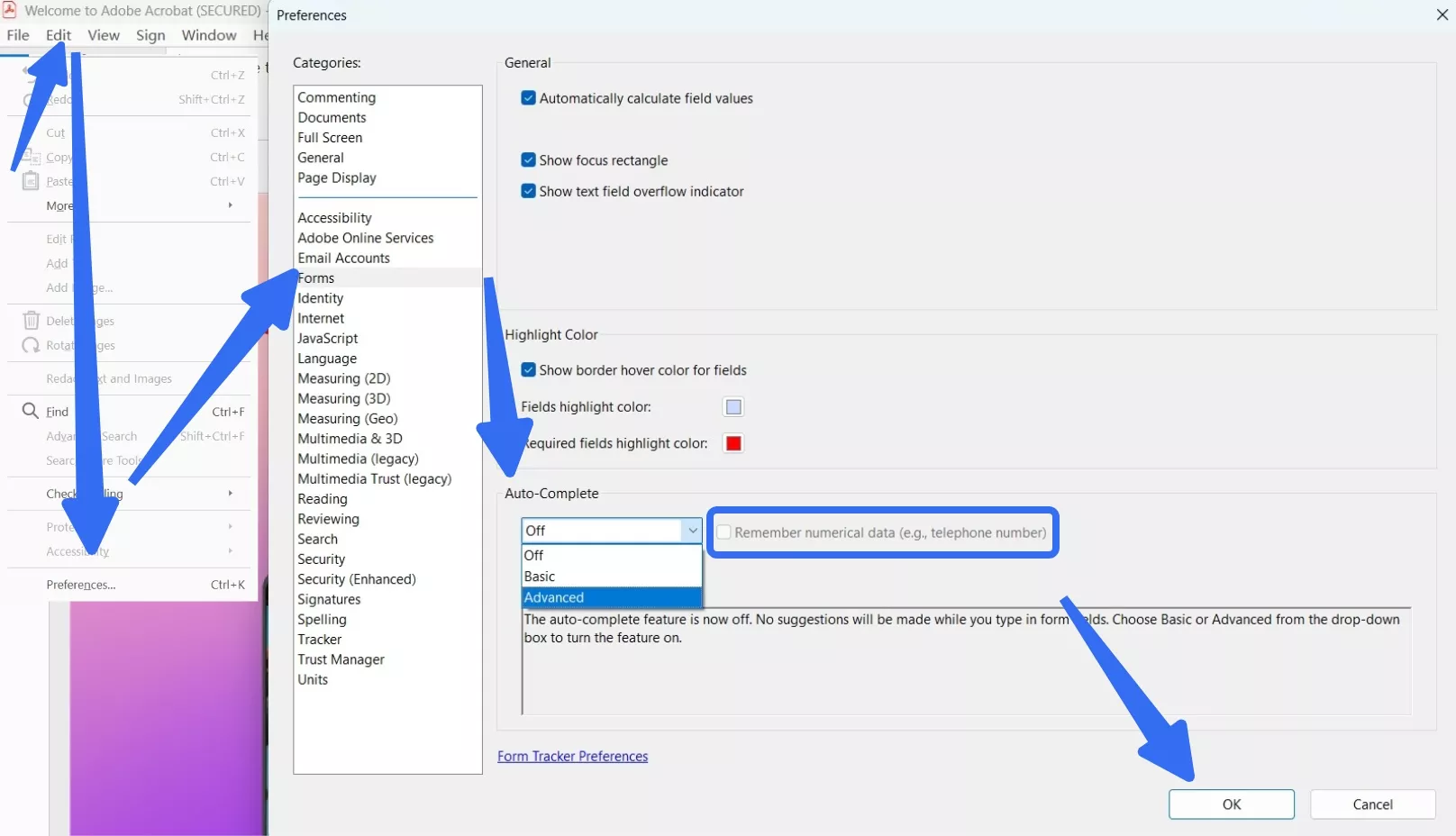
- Go to Edit > Preferences > Forms.
- Under Auto-Complete, choose Basic or Advanced.
- Check Remember Numerical Data if needed.
- From now on, Acrobat suggests previous entries when you click into matching field names.
Limitations:
- Only remembers what you personally typed. It cannot pull from a spreadsheet.
- Suggestions are field-name-dependent. If the new form names its fields differently, nothing appears.
- Does not work in browser PDF viewers (Chrome, Edge, Safari).
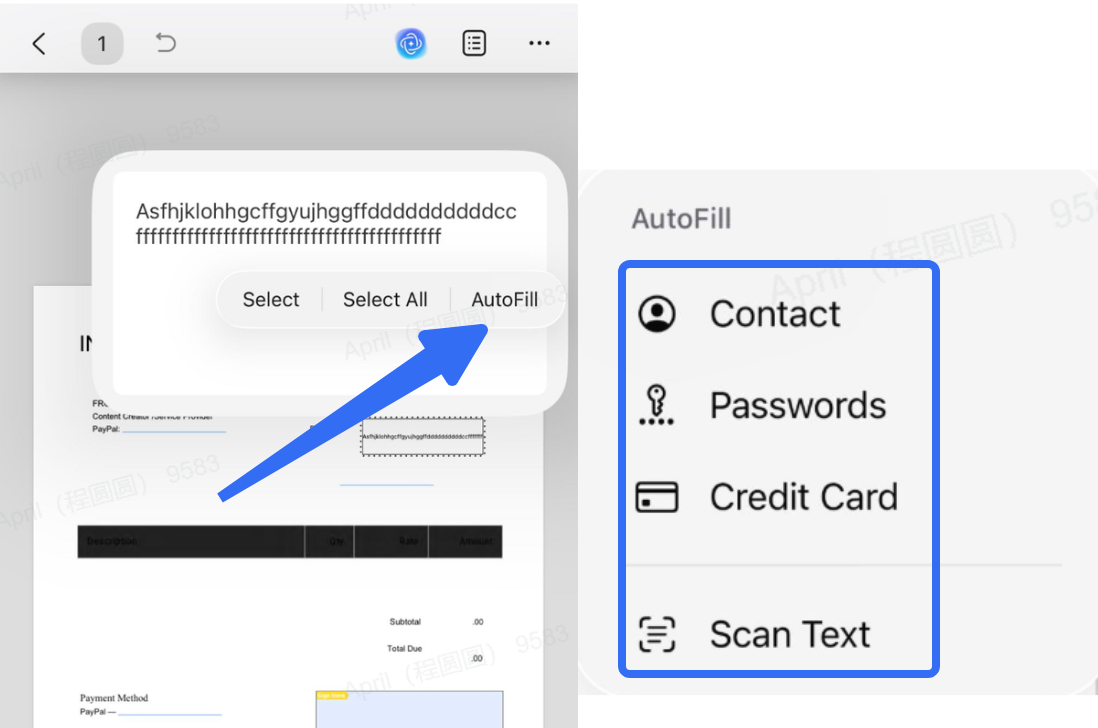
UPDF Alternative: UPDF iOS has a built-in auto-complete memory like Acrobat, but its FDF export/import (Method 2) is more reliable for repeat filling because you control the data file explicitly.
Method 2: FDF Export/Import (Reuse Similar Forms)
Best for:
Basically, UPDF requires you to first fill out one form manually. Afterward, you can export the form data to .a fdf file and save it in your system. The next time you fill out a similar PDF, you simply have to import the data and get the similar form fields filled accurately. This way, UPDF's smooth export and import process makes it intuitive to auto populate PDF form fields effortlessly.
It helps to see the form workflow before entering all of your information. Watch the video below for a closer look at working with PDF forms in UPDF.
Windows • macOS • iOS • Android 100% secure
The key advantages of using the UPDF's auto fill feature include:
- Recognize and highlight all form fields
- Effortlessly import and export form data
- One-click auto fill forms
- Accurate form filling with no errors
Follow the below steps to learn how to use
Step 1: Fill the form manually once in UPDF.
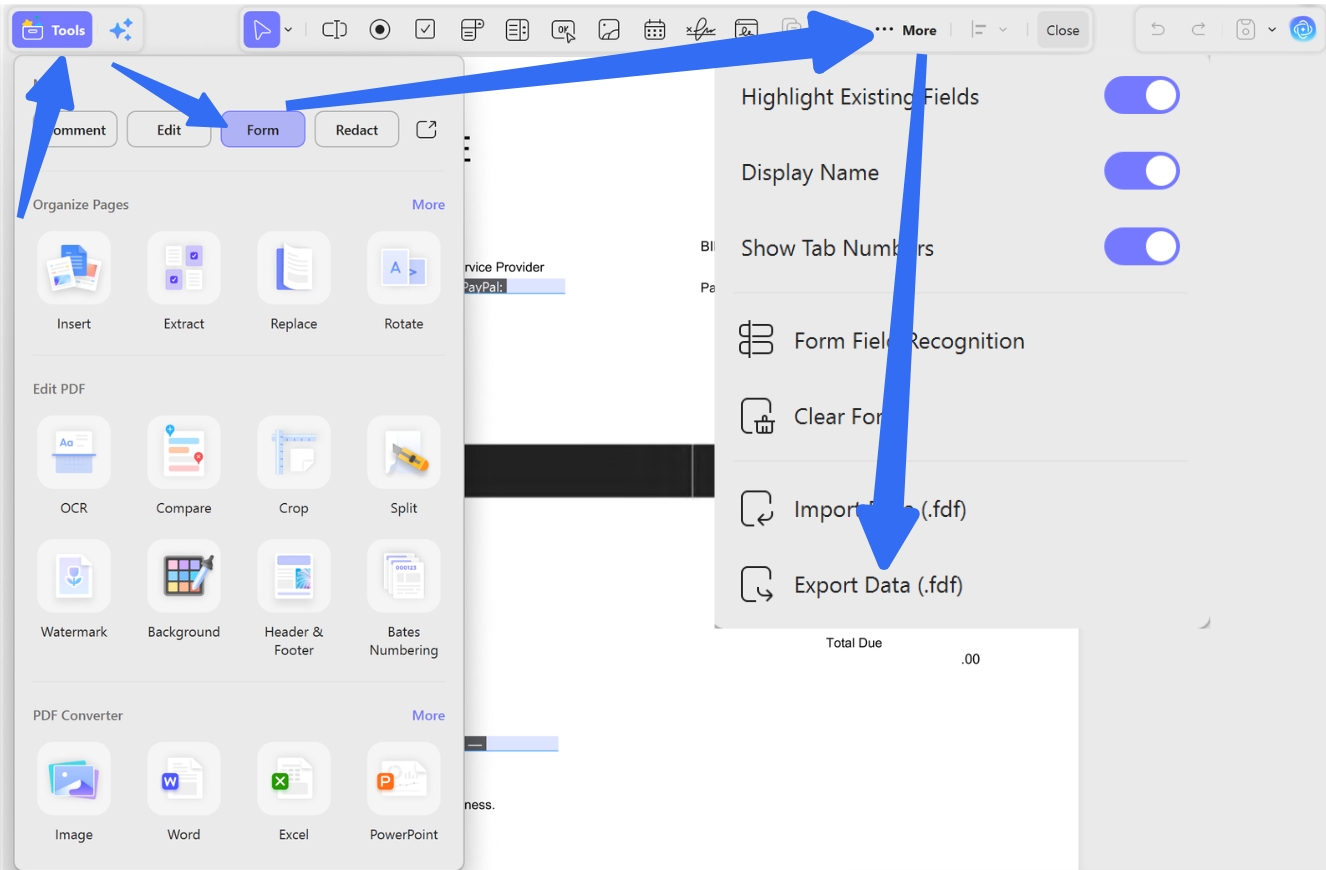
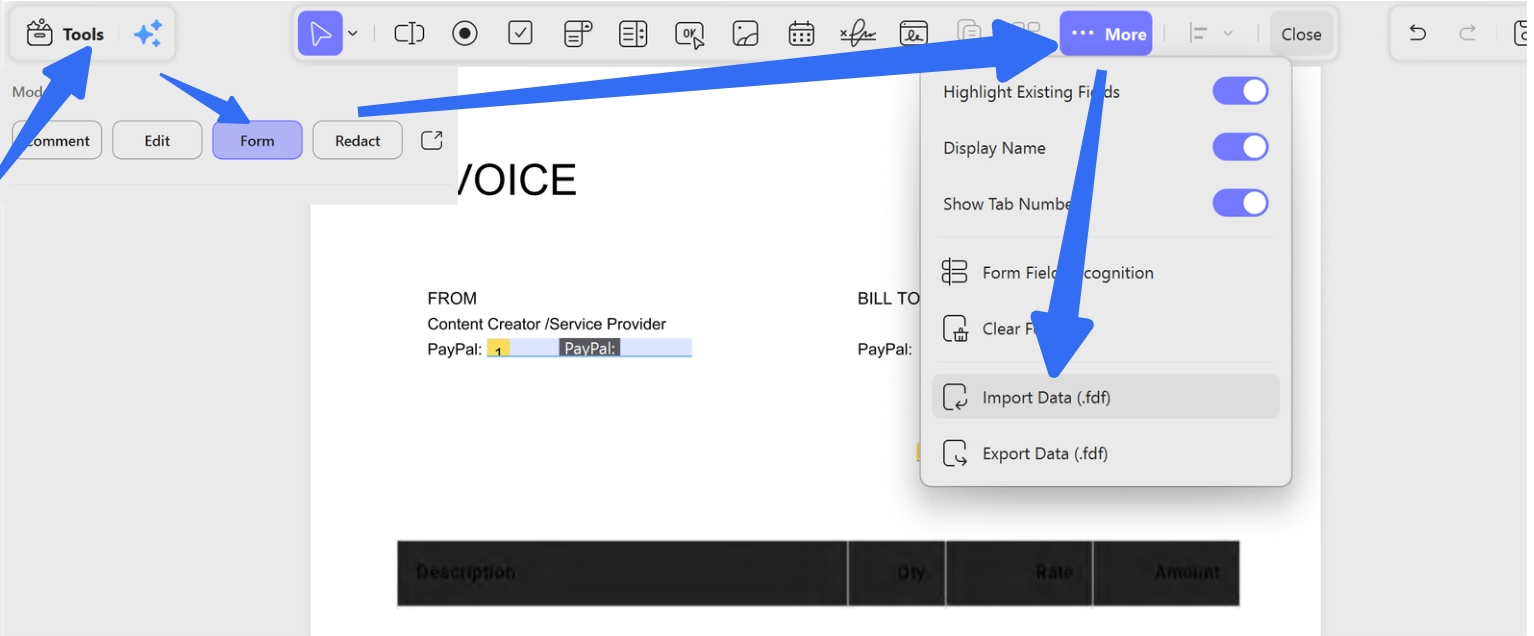
Step 2: Go to Tools > Form > More > Export Data. Save as .fdf.
Step 3: Open a new, blank version of the same form.
Step 4: Go to Tools > Form > More > Import Data. Select your .fdf file.
Critical Warning — Field Name Mismatch:
Pro Tip:
Also Read: How to Convert FDF to PDF: Import Form Data Back Into a Form
Method 3: Excel/CSV Batch Fill (Business Workflows)
Best for:
You have a spreadsheet with 100 rows of client data and one PDF template. You need 100 filled PDFs.
Option A: UPDF + Manual FDF Loop (Small Batches)
For batches under 20, export each row as a separate .fdf (using a spreadsheet-to-FDF converter script) and import one by one in UPDF.
Windows • macOS • iOS • Android 100% secure
Option B: Python Automation (Developer-Friendly)
Best for:
Use pdfrw or PyPDF2 to map spreadsheet columns to PDF fields programmatically.
pdfrw is a Python library that writes and reads PDF files. It can intelligently detect form fields from a PDF form and fill out the details with the data you provided. It offers some unique advantages:
- Batch process multiple PDFs automatically
- Integrate with databases for large-scale form filing
Use the below code to use pdfrw to auto populate form fields:
from pdfrw import PdfReader, PdfWriter, PdfDict

template = PdfReader('template.pdf')
for page in template.pages:
if page.Annots:
for annot in page.Annots:
if annot.Subtype == '/Widget' and annot.T:
field_name = annot.T[1:-1] # Strip parentheses
if field_name == 'Name':
annot.update(PdfDict(V='John Doe'))
elif field_name == 'Date':
annot.update(PdfDict(V='2026-08-25'))

PdfWriter().write('filled.pdf', template)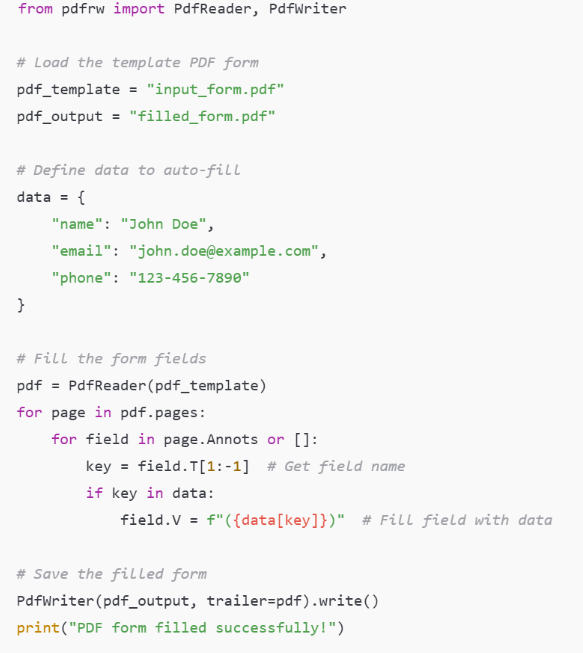
When This Breaks:
Checkboxes/Radio buttons: These require /Yes or /Off values, not plain text. See the expanded FAQ.
XFA forms (LiveCycle): pdfrw cannot handle XML-based forms. Use pdfplumber + PyPDF2 as a fallback.
Encrypted PDFs: Decrypt first or the library will throw a permissions error.
Option C: No-Code Tools (Non-Technical Users)
Tools like MailMergic or pdfFiller connect Google Sheets directly to PDF templates via drag-and-drop. These are paid services but require zero coding.
UPDF Advantage: For medium batches (20–100), UPDF's batch processing interface lets you queue multiple FDF imports and export all filled PDFs in one run—no scripting required.
Windows • macOS • iOS • Android 100% secure
Method 4: AI Auto-Fill (Unstructured Data)
Best for:
AI reads your source document, extracts key-value pairs (name, date, amount), and maps them to PDF form fields.
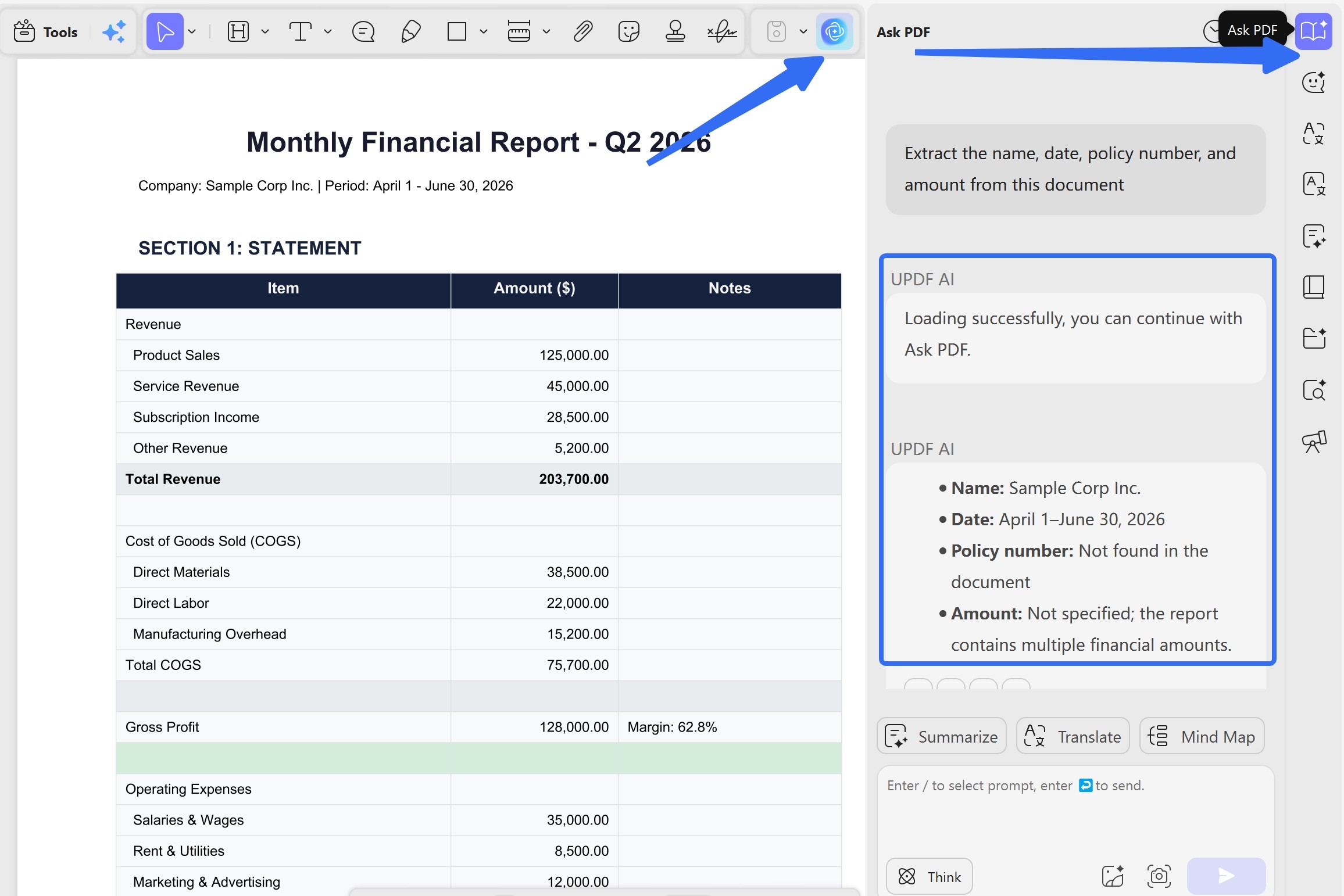
UPDF AI Workflow:
- Open the source document (email, contract, etc.) in UPDF.
- Ask UPDF AI: "Extract the name, date, policy number, and amount from this document."
- AI returns structured data.
- Open the target PDF form. Use Form > More > Import Data in .fdf format or manually copy AI-extracted values into fields.
Limitations:
- AI accuracy depends on field name clarity. A field named f1_02 gives the AI no semantic hint.
- Always verify dates and numbers—AI can misread "03/04/2025" as March 4 or April 3 depending on locale.
- For government forms with cryptic field names, AI mapping may require manual correction.
Why All Your Fields Sync Together?
You type your name into the first field. Suddenly, every field on the page shows your name.
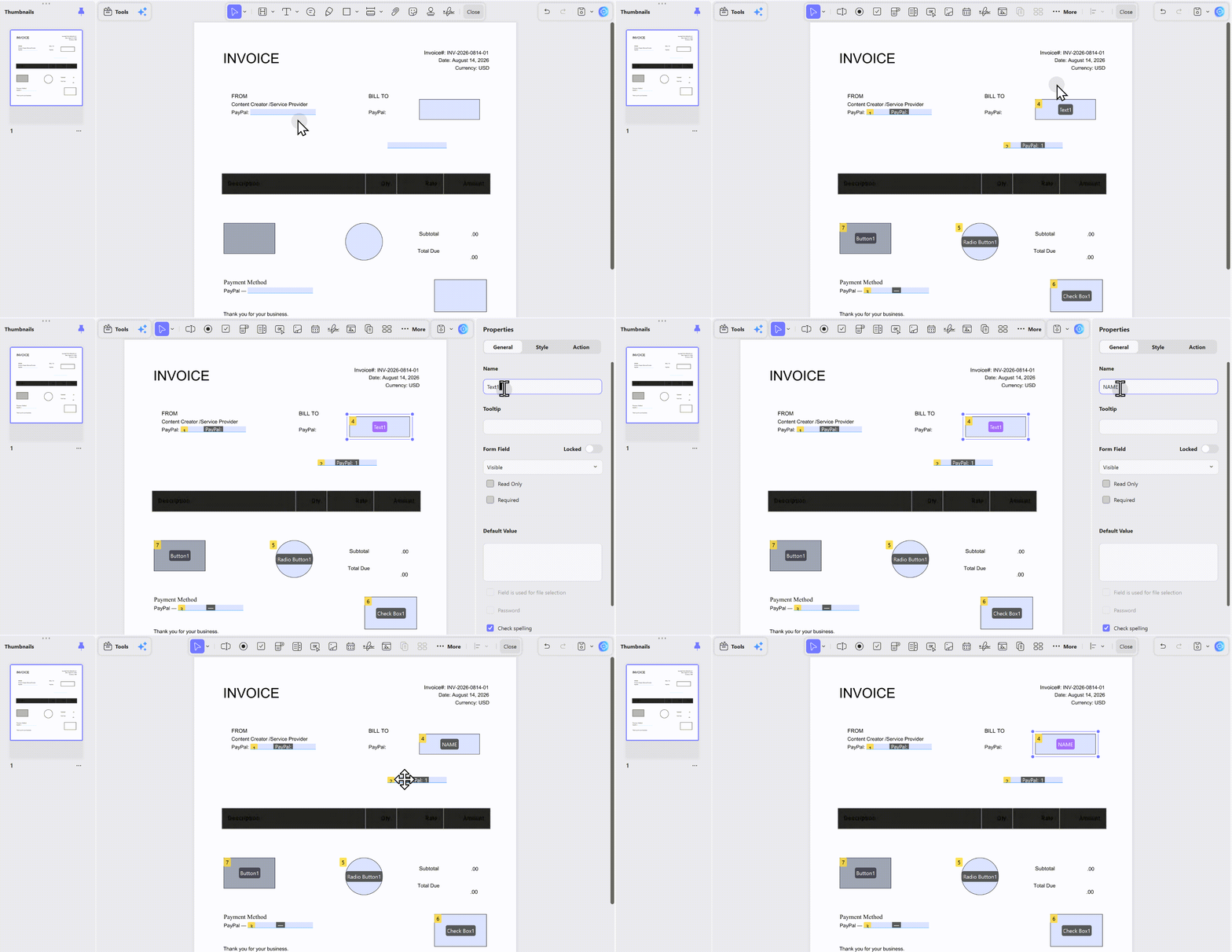
The form designer gave every field the same name. In PDF forms, fields with identical names share the same value. This is a designer error, not a user error.
- Open the form in edit mode.
- Go to Form > Field List.
- You will see multiple fields all named
Text1orField1. - Right-click each field and rename it uniquely:
Name,Address,Date, etc. - Save the corrected form.
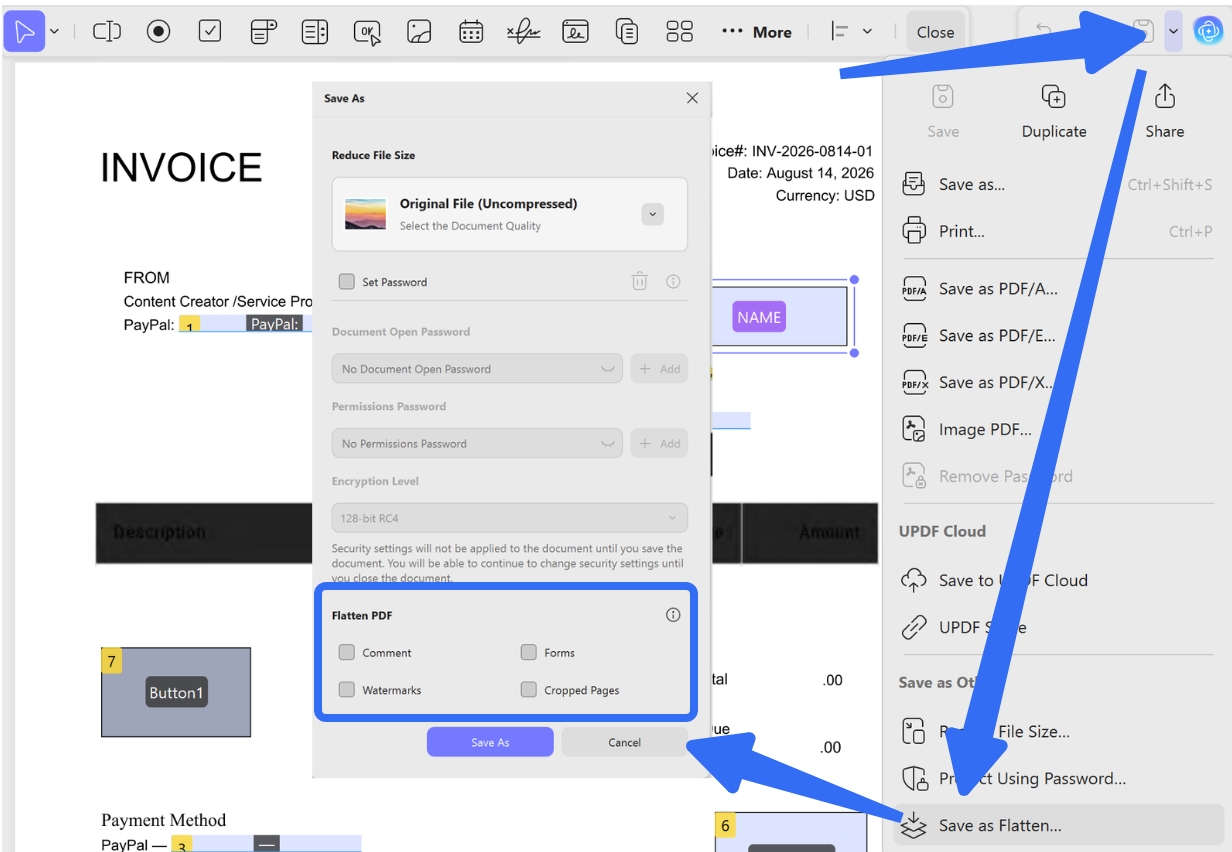
The Workaround (If You Only Have a Free Reader): You cannot fix the form. Your only option is to fill it, then flatten it immediately (so each field locks its current value) before the sync overwrites everything.
In UPDF: File > Save as Flatten > Comment and Forms.
Prevention:
FAQ
Why does typing in one field fill all the other fields?
The form designer gave every field the same name. Fields with identical names in PDFs share the same value. You need to rename each field uniquely using a PDF editor like UPDF.
Does Chrome or Edge auto-fill PDF forms?
No. Browser built-in PDF viewers do not support auto-complete or saved form data for PDFs. Always download the PDF and open it in a desktop reader like UPDF or Adobe Acrobat.
Can AI fill PDF forms from a photo or screenshot?
Yes. UPDF AI can read text from images or scanned documents, extract key data, and help you populate form fields. For scanned PDFs, run OCR first to create interactive fields.
What is the difference between auto-fill and batch fill?
Auto-fill suggests or reuses your personal data for one form at a time. Batch fill generates hundreds of filled PDFs from a spreadsheet automatically. Auto-fill is personal; batch fill is operational.
Conclusion
Auto-filling PDF forms is not about finding a magic button—it is about matching your data source to the right pipeline. Browser auto-complete works for personal repeat-filling. FDF import/export handles annual form updates. Excel batch fill solves business workflows. UPDF AI extraction handles unstructured sources.
The one bug that ruins every method is the field-name sync issue. If all your fields share the same name, no tool can save you until the form itself is fixed.
Try UPDF — the all-in-one PDF form filler that saves you time and money compared to Adobe Acrobat. Download UPDF free and auto-fill your first form in under 5 minutes.
Windows • macOS • iOS • Android 100% secure








 Enid Brown
 Enola Miller