 UPDF
UPDF
 UPDF for Windows
 UPDF for Mac
 UPDF for iPhone/iPad
 UPDF for Android
 Nomostar
 UPDF AI Online
 UPDF Sign
 IvyCraft
 Edit PDF
 Annotate PDF
 Create PDF
 PDF Form
 Edit links
 Convert PDF
 OCR
OCR PDF to Word
 PDF to Image
 PDF to Excel
 Organize PDF
 Merge PDF
 Split PDF
 Crop PDF
 Rotate PDF
 Protect PDF
 Sign PDF
 Redact PDF
 Sanitize PDF
 Remove Security
 Read PDF
 UPDF Cloud
 Compress PDF
 Print PDF
 Batch Process
 About UPDF AI
 UPDF AI Solutions
 AI User Guide
 FAQ about UPDF AI
 Summarize PDF
 Translate PDF
 Chat with PDF
 Chat with AI
 Chat with image
 PDF to Mind Map
 Explain PDF
 PDF AI Tools
 Image AI Tools
 AI Chat Tools
 AI Writing Tools
 AI Study Tools
 AI Working Tools
 Other AI Tools
 AI Bookmark Generation
 AI Bookmark Summary
 AI Watermark Generation
 AI Background Generation
 AI Sticker Generation
 AI Stamp Generation
 AI Editing Suite
 UPDF Copilot
 AI Page Management
 AI Semantic Search
 PDF to Word
 PDF to Excel
 PDF to PowerPoint
 Enterprise Solution
 Enterprise Sign
 Enterprise AI
 Enterprise Plan
 Enterprise User Guide
 Enterprise Webinar
 Banking
 Healthcare
 Insurance
 Legal
Legal Manufacturing
 Government
 Researchers & PhDs
 Solopreneurs & Freelancers
 Education Solution
 Customer Stories
 User Guide
 UPDF Tricks
 FAQs
FAQs UPDF Reviews
 Download Center
 Blog
Blog Newsroom
 Tech Spec
 Updates
 UPDF vs. Adobe Acrobat
 UPDF vs. Foxit
 UPDF vs. PDF Expert

The "PDF Maker Files Missing" error is a classic frustration for Adobe Acrobat users. It typically occurs when you attempt to use the "Create Adobe PDF" feature within Microsoft Word, Excel, or PowerPoint, only to be met with a prompt asking you to "run the installer in repair mode." This error usually points to a breakdown in the communication between the Adobe add-in and the Microsoft Office suite—often due to a faulty update, a security conflict, or a corrupted registry.
In this blog, we’ll explain what causes the PDF Maker files missing error, cover multiple ways to fix the problem, and introduce how to switch to UPDF—a modern PDF engine that avoids these "missing file" errors entirely by using integrated, high-speed conversion technology, helping you avoid unnecessary stress in the workplace. You can click the button below to have a free download.
Windows • macOS • iOS • Android 100% secure
Quick Answer
Fix 2. Re-enable Adobe PDF Maker Add-in
Fix 3. Repair Adobe Acrobat Installation
Fix 4. Run Win 8 Compatibility Mode
Fix 5. Reinstall Adobe Acrobat
Part 1. Why Do I Have “PDF Maker Files Missing” Error?
Before we examine the fixes for the PDF Maker files missing error, it’s important to understand why this error occurs. PDFMaker is a macro package that Adobe installs into Office apps to bridge the two programs. In the current 2026 tech environment, several factors can cause the "PDF Maker Files Missing” error:
- Corrupted Files or Updates: Important files necessary for PDF conversion can become corrupted over time or might not have been installed correctly. If the Adobe background service (which runs the PDF conversion) crashes, the system mistakenly reports that the files are "missing."
- Missing Plugins: The PDFMaker plugin may not be installed or has been disabled in software like Microsoft Office, which can cause the error. Microsoft Office often disables add-ins that it perceives as slow or unstable during startup.
- Compatibility Issues: Conflicts with other software or Windows updates can cause compatibility issues in Acrobat. A recent Windows or Office 365 update may have shifted a shared directory, leaving Adobe unable to find its own dependencies.
- Security & Permissions: IT policies often block third-party macros for security reasons, which can "ghost" the PDFMaker files even if they are physically on your drive.
Also Read: How to Fix the "Adobe Expected a Dict Object" Error? 6 Effective Ways
Part 2. How to Fix “PDF Maker Files Missing”?
Now that you’ve been informed of the possible causes, we’ll examine some of the best solutions to resolve the issue. Below are several step-by-step guides to fix the PDF Maker files missing error.
Fix 1. Use Acrobat Alternative - UPDF to Create PDF
If you’re hit with the PDF Maker files missing error and need a quick fix for urgent tasks, UPDF is the perfect solution.
Windows • macOS • iOS • Android 100% secure

About UPDF:
Why UPDF is the superior choice:
- No "Missing File" Errors: UPDF doesn't rely on Office macros. It handles the conversion internally, ensuring a 100% success rate.
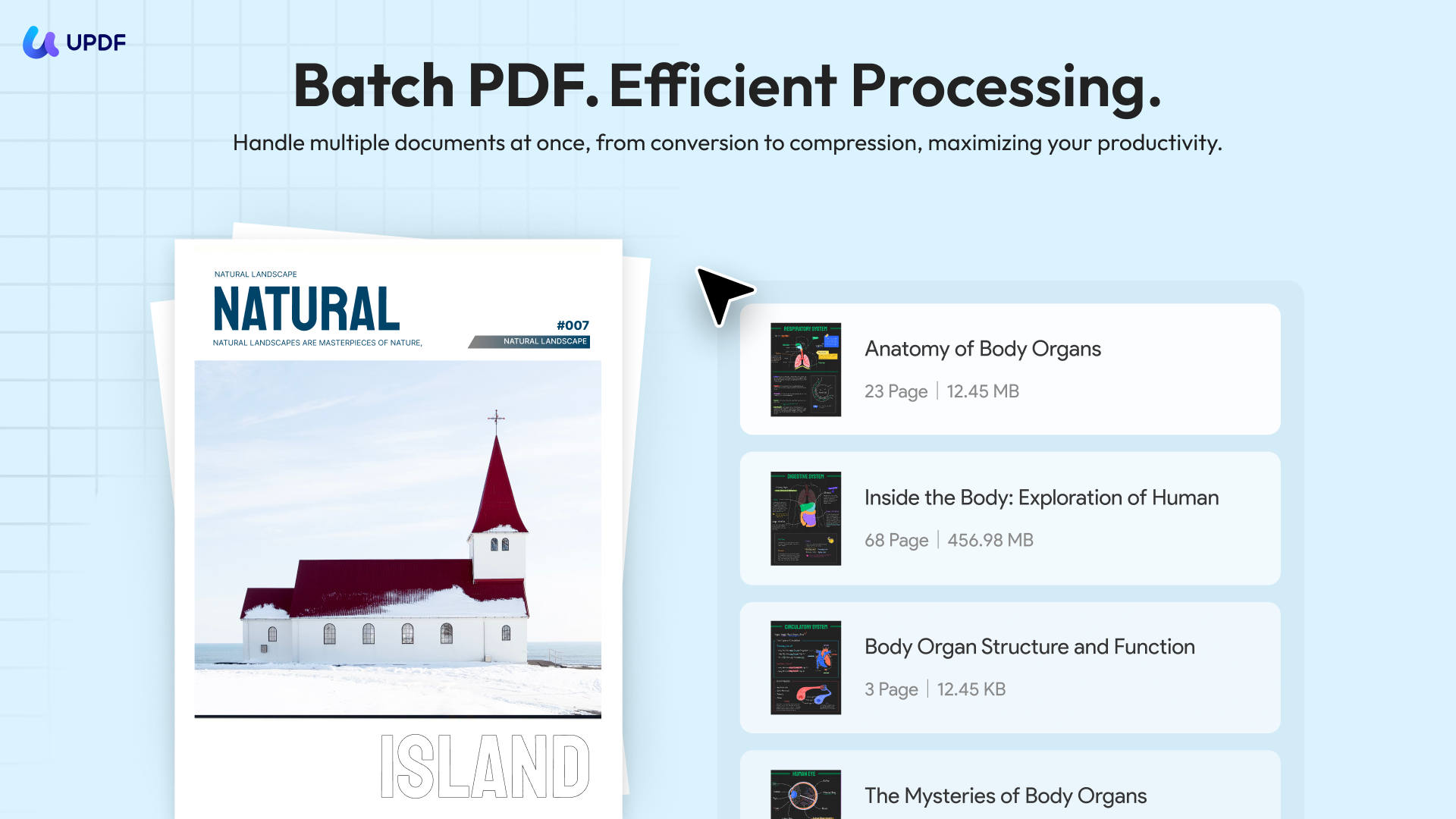
- Batch Conversion: Want to turn 50 Word documents into PDFs at once? UPDF’s "Batch Create" feature does this in seconds. UPDF allows you to create PDFs from other file formats individually or in bulk with its batch PDF tool. You can keep created PDFs as separate files or merge them into one document.
- Preserved Formatting: UPDF's engine is tuned for the 2026 versions of Office, ensuring your fonts, charts, and layouts stay pixel-perfect.
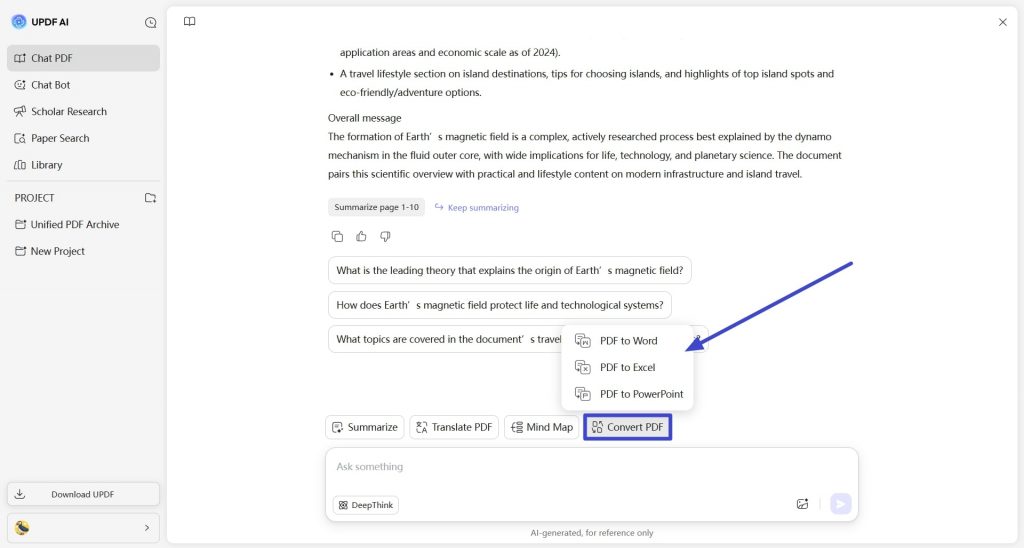
- Online Convert: If you are on the go or don't want to install software, you can use UPDF AI Online. It allows you to convert PDF to Word, Excel, and PPT directly through your browser. It’s fast, accurate, and requires zero installation.
- AI-Powered Integration: Once your PDF is created, UPDF AI can instantly summarize, translate, or explain the content—a massive productivity leap over legacy converters. What's more, you can design and generate customized stickers, stamps or watermarks, search for information based on meaning other than keywords, summarize files in seconds with AI and more! All of these features are ready in UPDF 2.5!
UPDF supports many popular file formats, including:
- Microsoft Word (.doc, .docx)
- Excel (.xls, .xlsx)
- Images (.jpg, .png, .bmp)
These are just a few of the many file formats UPDF supports. Use the link below to download UPDF and see for yourself, and check out our easy-to-follow guide below on creating PDFs with UPDF.
Windows • macOS • iOS • Android 100% secure
Creating a Single PDF
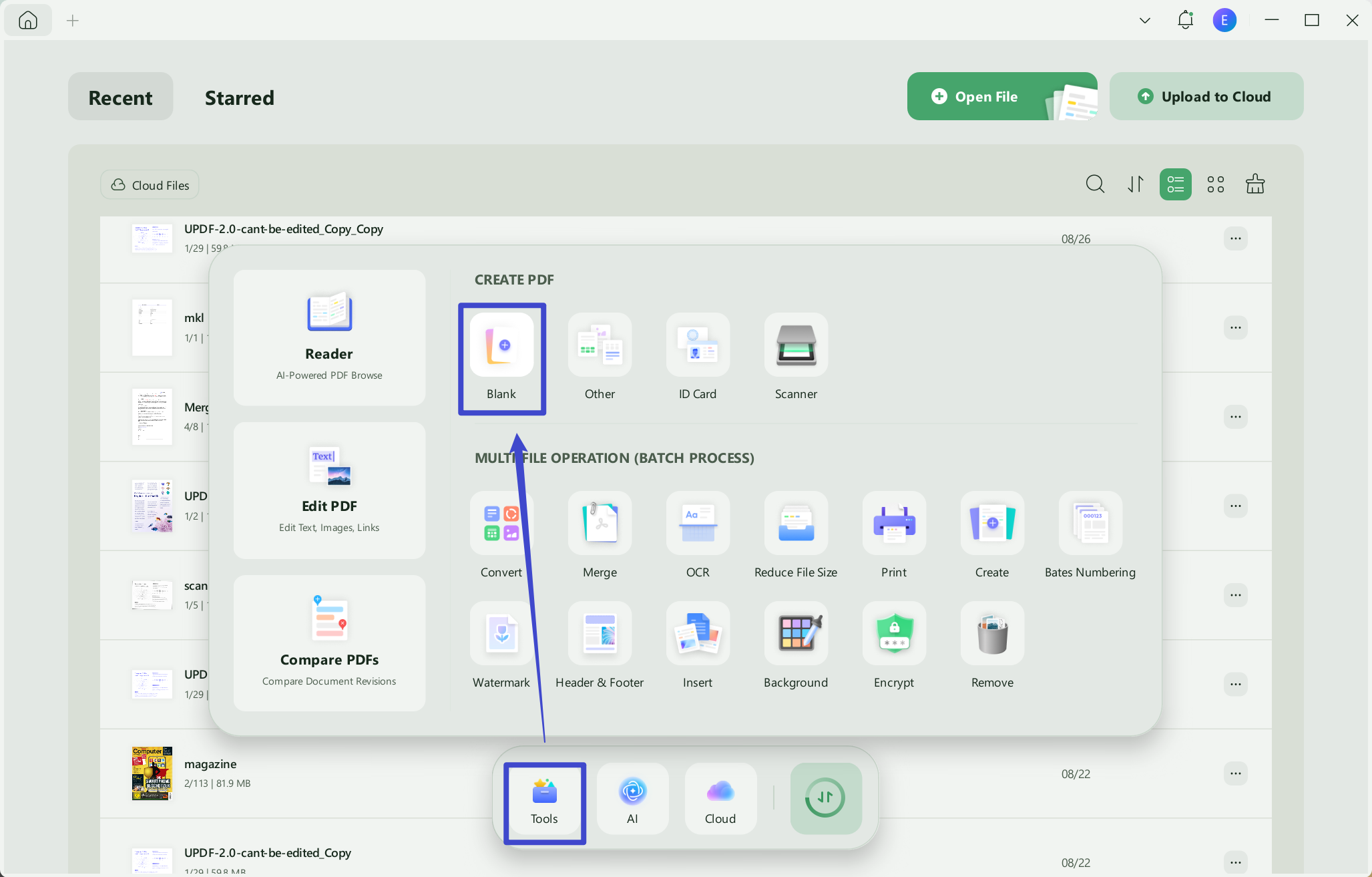
Begin by launching the UPDF application. Then click ‘Tools’ in the bottom left, navigate to ‘CREATE PDF’, and select ‘Other’. If you’d like to create a new document, click ‘Blank’.
Windows • macOS • iOS • Android 100% secure
Creating Multiple PDFs
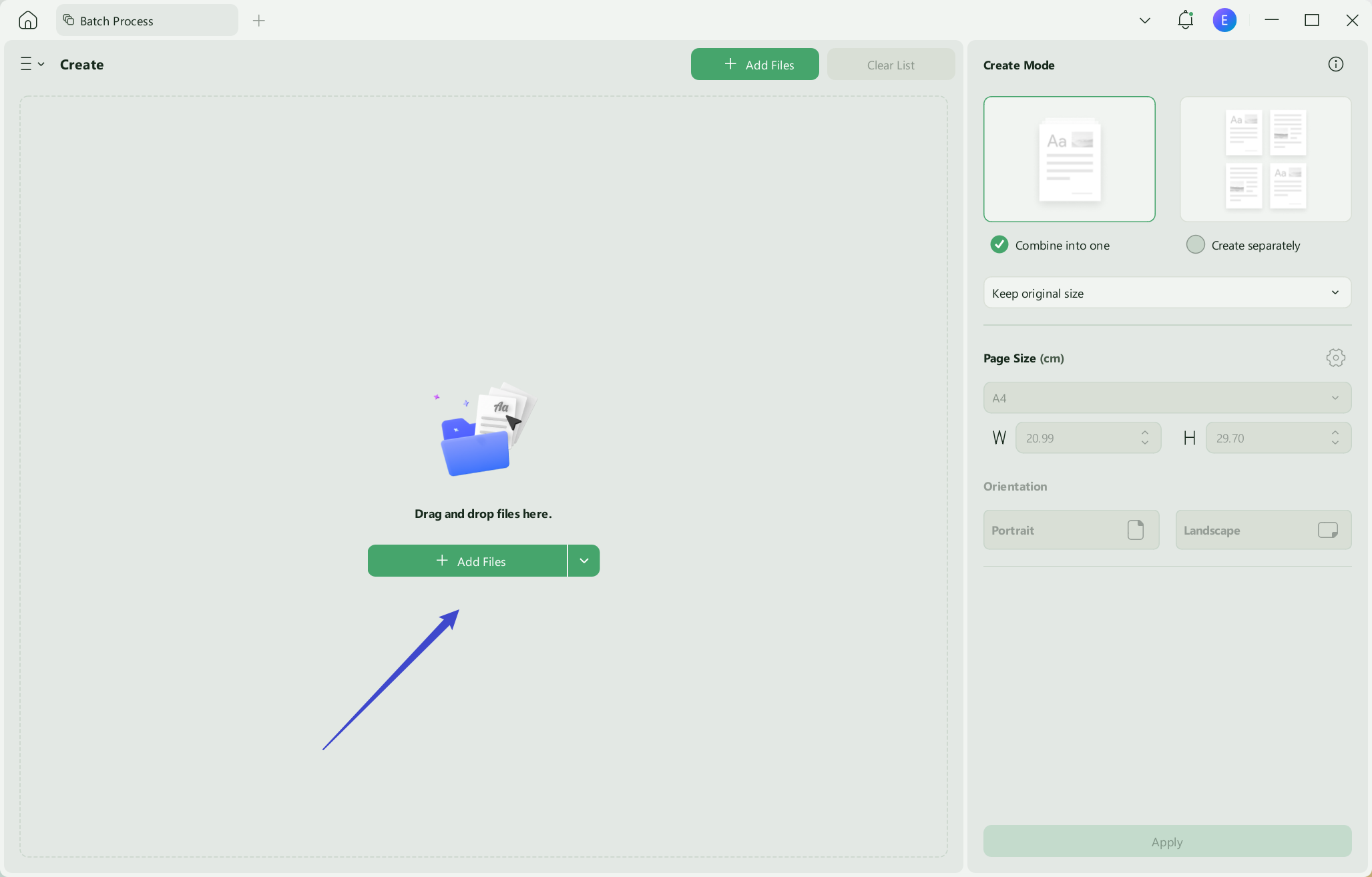
Click ‘Tools’ in the bottom left and choose ‘Create’.
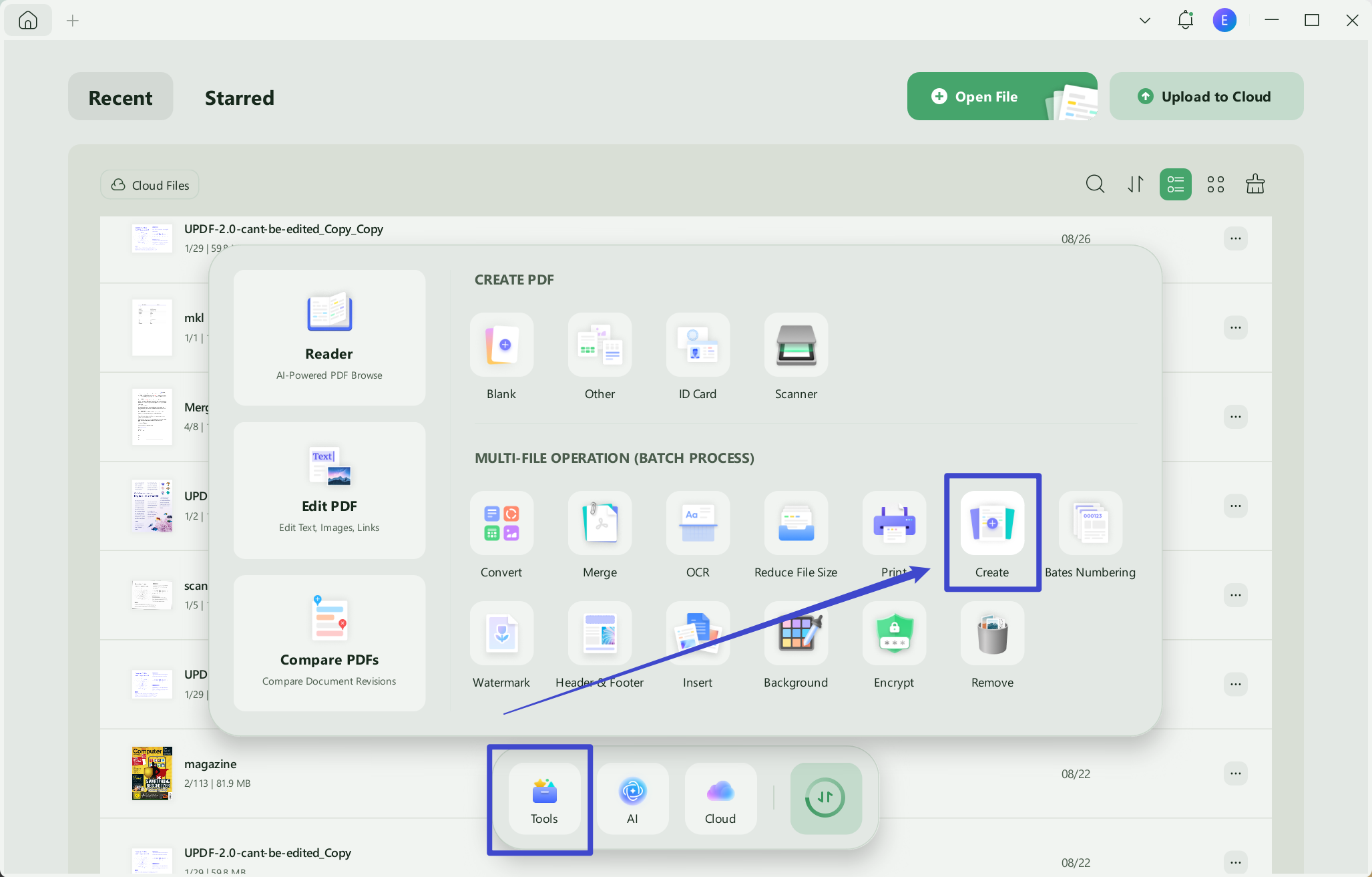
Select ‘Add Files’ to import your documents in the new page that opens. On the screen's right side, you can combine the files into a single PDF or create multiple documents from the imported files.
By 2026, document workflows have become much more demanding. Users no longer just want to "make a PDF"—they want to edit, protect, and analyze it. This is why UPDF has become the primary choice for individuals and enterprises alike.
- Edit Anything: After creating your PDF, you can edit text, links and images with the same ease as a Word document.
- OCR for Scans: If you are working with scanned documents, UPDF’s AI-driven OCR turns them into searchable, editable text with 99% accuracy.
- One License, All Devices: One UPDF account covers your Windows, Mac, iOS, and Android devices—saving you from the expensive multi-tier subscriptions that Adobe often demands.
Windows • macOS • iOS • Android 100% secure
Read this in-depth review to learn more about UPDF and its amazing features! Or if you’d prefer, check out the video below to learn why UPDF is the best PDF editor on the market.
Try UPDF 2.5 Today
Fix 2. Re-enable Adobe PDF Maker Add-in
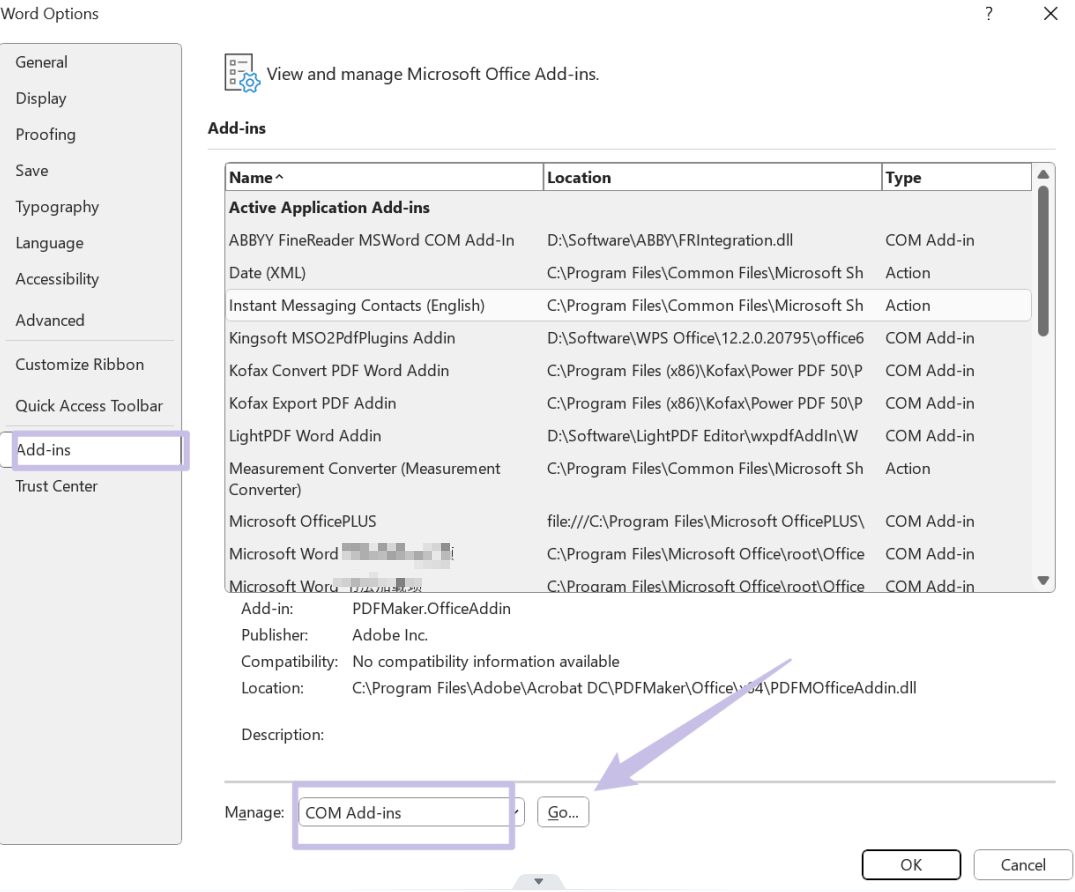
A quick fix for the PDF Maker files missing error is to disable and reenablethe Adobe PDF Maker Add-in in Microsoft Word or Excel.
Re-enabling the Adobe PDF Maker Add-in
Open Microsoft Word or Excel, click ‘File’ followed by ‘Options’. Next, select ‘Add-ins’ and ‘COM Add-ins’, click on the “Go”, uncheck the box next to Adobe PDF Maker named “PDFMaker.OfficeAddin”, and click on the “OK” to save the changes. Now, close the Microsoft Word or Excel, and open it again. Repeat the same steps to check the option and enable it. Once done, try creating your PDF again.
Fix 3. Repair Adobe Acrobat Installation
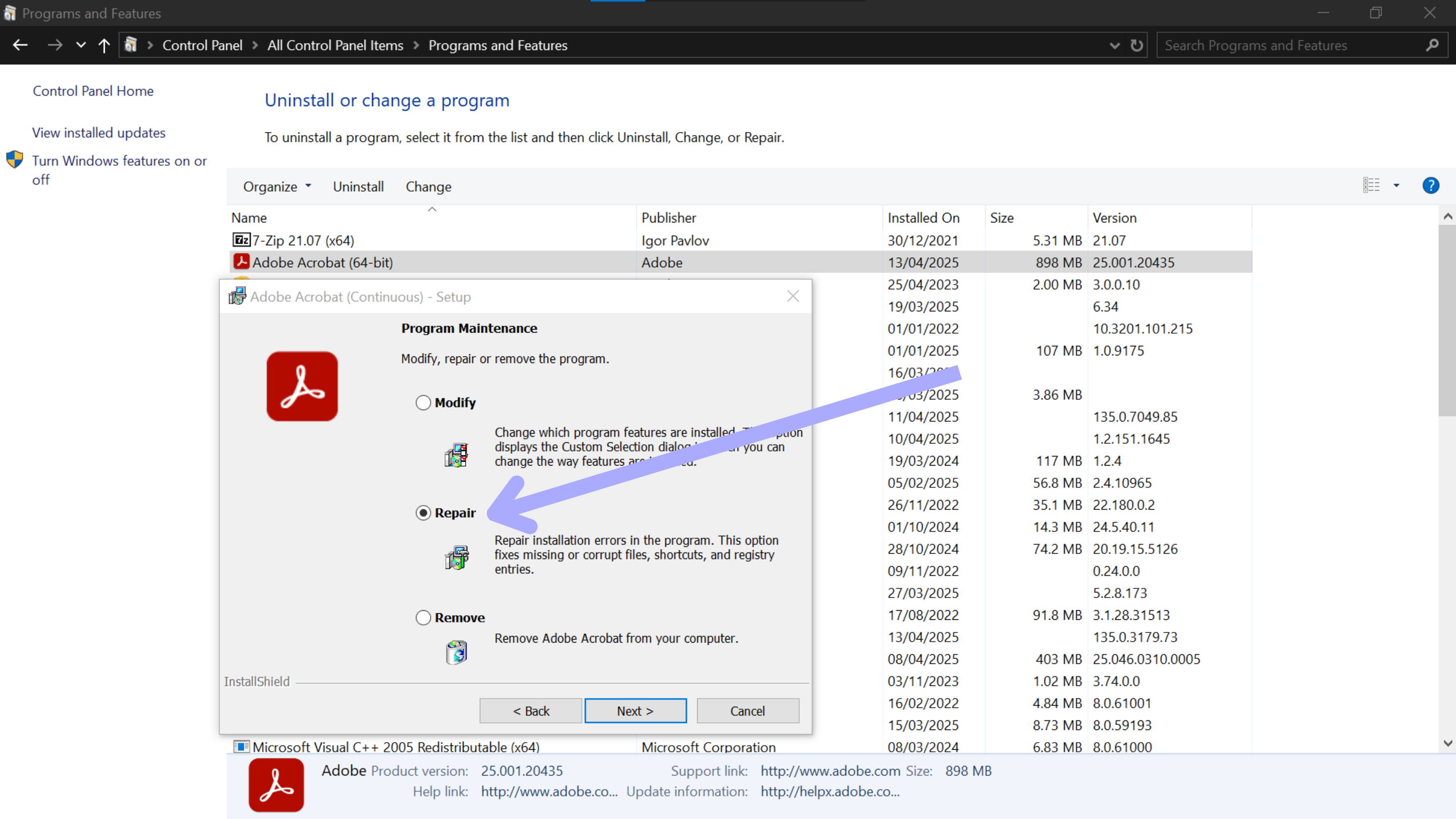
Another solution when dealing with a persistent error is to repair the Adobe Acrobat installation. It’s often a good idea to attempt this method before moving on to more complex fixes.
Repairing Adobe Acrobat
Open your computer’s ‘Control Panel’, followed by ‘Programs and Features’. In this window, find Adobe Acrobat, right-click, and select ‘Change’. Lastly, follow the prompts until three options are present, select ‘Repair’, and follow the prompts.
Fix 4. Run Win 8 Compatibility Mode
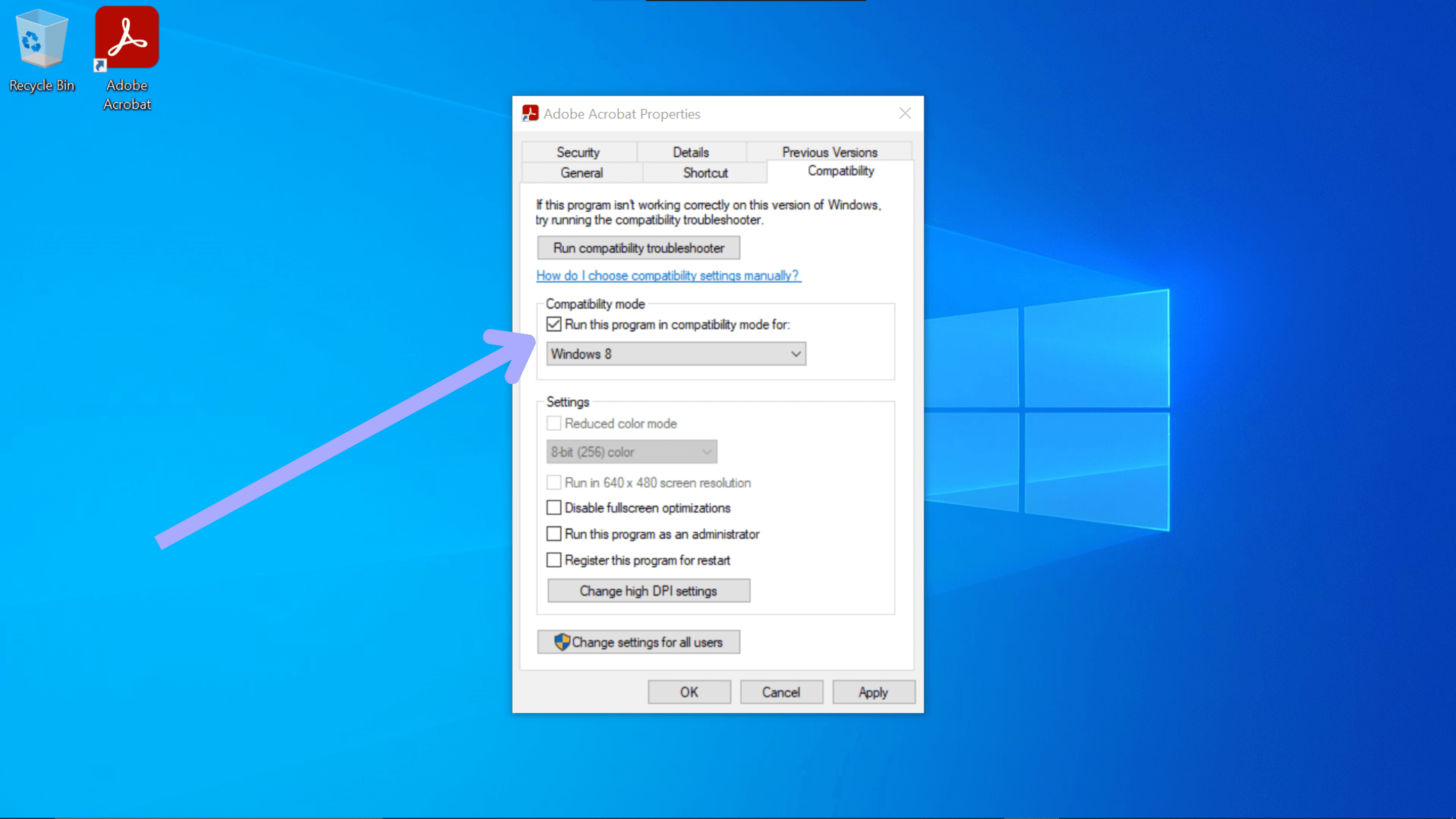
Running Adobe Acrobat in Windows 8 Compatibility Mode can sometimes resolve the PDF Maker files missing issue when usingWindows 10, as this mode can fix compatibility issues with Acrobat.
Running Windows 8 Compatibility Mode
Find your Adobe Acrobat shortcut on your desktop or in the start menu, right-click the icon, and select ‘Properties’. Next, click the ‘Compatibility’ tab, check the box ‘Run this program in compatibility mode for’, and select ‘Windows 8’ from the dropdown list. Click ‘Ok’ to save the changes and launch Acrobat.
Fix 5. Reinstall Adobe Acrobat
If the above fixes don’t work and the error persists, it’s time to try reinstalling Adobe Acrobat. A fresh installation will completely replace missing or corrupted files, eliminating possible conflicts or incomplete updates.
Reinstalling Adobe Acrobat
Navigate to ‘Control Panel’ on your computer and find ‘Programs and Features’. Right-click Adobe Acrobat, then ‘Uninstall’, and follow the on-screen prompts to remove the application. Next, head to the Adobe website, download, and install Acrobat again.
Also Read: How to Fix "The Document Could Not Be Saved. Bad Parameter"? 4 Effective Ways
Final Thoughts on the ‘PDF Maker Files Missing’ Error
The "PDF Maker Files Missing" error is a relic of an older era of software integration. While you can often patch it by re-enabling add-ins or running repairs, these are often temporary fixes that will break again with the next system update.
For a permanent, stress-free experience, we recommend UPDF. It eliminates the technical hurdles of PDF creation and provides a suite of AI-powered tools that make your documents work for you.
Stop fixing software and start getting work done. Download UPDF for Free today and experience the most reliable PDF creation on the market.
Windows • macOS • iOS • Android 100% secure





 Enrica Taylor
 Enid Brown
 Lizzy Lozano
 Delia Meyer
Adobe Community